
Yamaha BRX-610 – page 3
Manual for Yamaha BRX-610
Table of contents
- CAUTION: READ THIS BEFORE OPERATING YOUR UNIT.
- WHAT YOU CAN DO WITH THIS UNIT SUPPLIED PARTS
- ABOUT DISCS AND FILES Types of discs/files that can be used with this unit
- Loading a disc Notice for watching 3D video images Disc precautions
- Front panel
- Remote control 4 PROGRAM : Sets the order of playback
- I ZOOM : Zooms in/out. The
- S TOP MENU : Displays the top menu screen
- Rear panel
- Installing the batteries in the remote control Using the remote control
- 5.1-channel speaker layout Connecting speakers
- Connecting the FM antenna Connecting iPod
- Connecting to a TV
- Connecting audio devices (such as a CD or MD player) Connecting a satellite/cable TV tuner Connecting a portable digital music player other than iPod
- NETWORK AND USB CONNECTION Connecting to the NETWORK terminal Connecting to the USB port
- OTHER CONNECTION Connecting the power cable
- INITIAL WIZARD/EASY SETUP Setting with the Initial Wizard/Easy Setup
- BASIC OPERATION
- BASIC OPERATION
- BASIC OPERATION Playing back photo/music/video
- BASIC OPERATION ■ Operations for viewing photos
- BASIC OPERATION Using network content Using network services
- Operation for iPod Operation for CDs
- ADVANCED PLAYBACK OPERATION On Screen menu
- Status menu
- Using Bookmark Using search Program play
- Enjoying BONUSVIEW™ and BD- Live™
- LISTENING TO FM RADIO STATIONS Tuning to radio stations Selecting preset radio stations Presetting radio stations
- Deleting preset stations Displaying Radio Data System information (Russia model only)
- USING USEFUL FUNCTIONS Setting the sleep timer Operating this unit by TV remote control (the HDMI control function)
- USING USEFUL FUNCTIONS ■ Registering HDMI components to TV ■ Changing the connection method and connected components
- SETUP MENU Menu/Submenu Item Function Page
- Menu/Submenu Item Function Page
- Operation for SETUP menu
- SETUP MENU General Setting
- SETUP MENU ■ Playback ■ Network ■ Security
- Display Setting ■ TV
- SETUP MENU ■ Video Process
- Audio Setting ■ Audio Output ■ Post Process ■ System Information ■ Speaker Setting
- About the video output formats When [TV System] is set to [PAL] When [TV System] is set to [Multi]
- SOFTWARE UPGRADE Upgrading the software
- TROUBLESHOOTING General Problem Cause Remedy Page
- Problem Cause Remedy Page
- Radio reception Problem Cause Remedy Page iPod Status message Cause Remedy Page Problem Cause Remedy Page
- Problem Cause Remedy Page USB Status message Cause Remedy Page Problem Cause Remedy Page
- Disc playback ■ General Problem Cause Remedy Page
- ■ Picture Problem Cause Remedy Page Remote control Problem Cause Remedy Page Network Problem Cause Remedy Page
- TROUBLESHOOTING Problem Cause Remedy Page
- Messages on the screen Error message Cause Remedy Page Others Problem Cause Remedy Page
- GLOSSARY
- SPECIFICATIONS
- SPECIFICATIONS

SETUP MENU
3 Press RETURN to go back to speaker selection.
Audio Setting
[2ch Downmix]
The default settings are marked with “
*
You can select down mix method to 2-ch from [Stereo] or
”.
[Lt/Rt].
■ Audio Output
Stereo*, Lt/Rt
[HDMI]
[Test Tone]
You can select the output mode of the HDMI terminal.
You can check if the speaker setting is correct by
Bitstream, PCM, Off
*
outputting the test tone.
[Subwoofer Size]
Notes
You can select the size for your subwoofer speaker to be
[Small] or [Large]. When your subwoofer driver diameter
• To output sound from the speakers, select [Off].
• Sound from your iPod or the audio signal input to the DIGITAL
is more than 20 cm, or when you feel low-frequency and
IN (COAXIAL and OPTICAL) jacks of this unit, cannot be
bass sound is weak, select [Large].
output to a TV from this unit through the HDMI cable.
Small*, Large
• To output HD audio (such as Dolby TrueHD or DTS-HD) from
the HDMI terminal, set [Video Out Select] to [HDMI Auto] or
■ Post Process
more than [HDMI 720p] (p. 37).
[UpMix]
[DRC]
You can multi-channelize the 2-channel audio signal
You can set the DRC (Dynamic Range Compression)
(effective on speaker output). To multi-channelize, select
(p. 50) to [On]/[Off]/[Auto]. When set to [Auto], DRC is
[Dolby PLII] or [DTS NEO:6]. You can select [Cinema]
automatically turned on for a source with DRC
or [Music] when [DTS NEO:6] is selected. Also you can
information in Dolby TrueHD format. DRC makes the
select [Movie] or [Music] when [Dolby PLII] is selected.
strong sound such as plosive sound lower, and
Off*, Dolby PLII, DTS NEO:6
conversations more audible. It is useful when you watch
movies in the night.
■ System Information
Off
*
, On, Auto
Software version and MAC address (p. 50) are displayed.
■ Speaker Setting
SETTINGS
[Configuration]
You can set the output of 5.1 ch surround depending on
the connected speakers.
1 Press 5 /a to select a speaker you want to configure,
then press ENTER.
2 Adjust the figures below. Note that some of items are
not displayed depend on the selected speaker.
Size When the woofer section of a speaker is 16 cm
(6-1/2 in) or larger, select [Large]. When
smaller than 16 cm (6-1/2 in), select [Small].
Large, Small*
Trim Adjusts the selected speaker’s level (volume
level).
-6 to +6 dB (in 0.5 dB step)
The default setting is 0 dB.
Delay Separately adjusts the timing at which each
speaker produces audio so that sounds from the
speakers reach the listening position at the same
time.
0.5 to 10 m (in 0.5 m step)
The default setting is 3 m.
Disable When selected speaker is not in use, select
[Yes].
English
Yes, No*
39 En
SETUP MENU
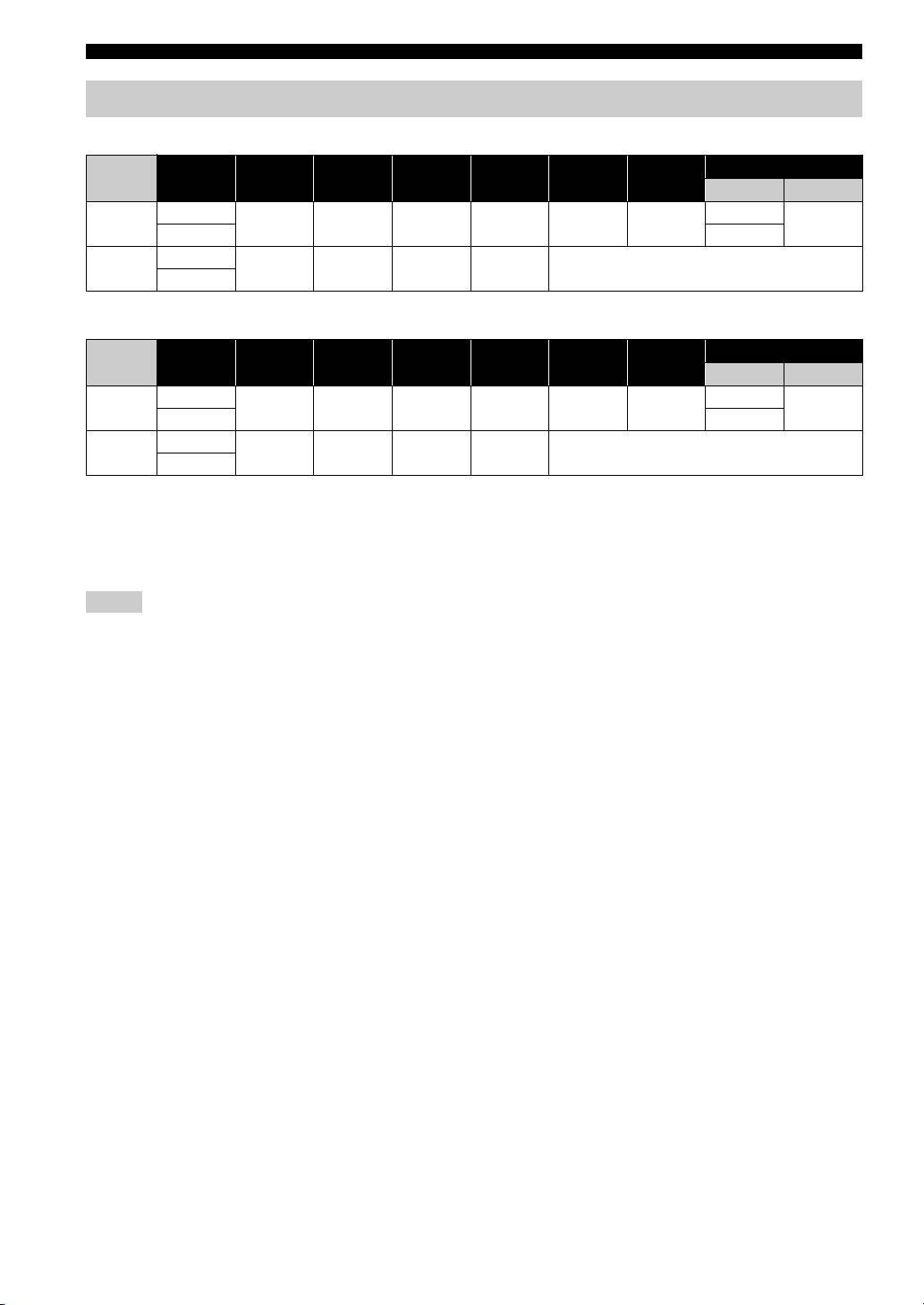
About the video output formats
When [TV System] is set to [NTSC]
HDMI
HDMI
HDMI
HDMI
HDMI
HDMI 1080p
Resolution Composite
Auto
480i/576i
480p/576p
720p
1080i
24Hz Others
Playback BD
1080p 24 Hz
HDMI
480p Max 480i 480p 720p 60 Hz 1080i 60 Hz
1080p 60 Hz
others 1080p 60 Hz
Playback BD
VIDEO
480i OFF 480i 480i OFF
others
When [TV System] is set to [PAL]
HDMI
HDMI
HDMI
HDMI
HDMI
HDMI 1080p
Resolution Composite
Auto
480i/576i
480p/576p
720p
1080i
24Hz Others
Playback BD
1080p 24 Hz
HDMI
576p Max 576i 576p 720p 50 Hz 1080i 50 Hz
1080p 50 Hz
others 1080p 50 Hz
Playback BD
VIDEO
576i OFF 576i 576i OFF
others
When [TV System] is set to [Multi]
When [TV System] is set to [Multi], video signal is output at the same frequency as the source. Refer to the tables above
for details on the frequency setting of the TV and resolution of the output video signal.
While a menu screen such as SETUP menu is displayed, video signal is output at the same frequency as the source.
Notes
• “Max” in the table means that resolution is set to the maximum resolution supported by the connected TV.
• [HDMI 1080p 24Hz] setting is disabled when output resolution is other than [HDMI 1080p].
• No signals are output from the VIDEO jack when output resolution is set to [HDMI Auto], [HDMI 720p], [HDMI 1080i], or [HDMI
1080p].
• When [TV System] is set to [NTSC] and video source is not 60 Hz, the video output signal is converted to 60 Hz.
• When [TV System] is set to [PAL] and video source is not 50 Hz, the video output signal is converted to 50 Hz.
40 En
SOFTWARE UPGRADE
Some of the newly released BD discs cannot be played
back unless you upgrade this unit software to the latest
version. We recommend upgrading the software of this
unit with software upgrade so that the unit is operated
based on the latest software.
To check for the availability of a software upgrade, visit
http://download.yamaha.com/
Note
Do not remove the USB memory device, set this unit to standby
mode or unplug the power cable/LAN cable while the software
upgrade is being performed.
Upgrading the software
1 Prepare for the software upgrade.
When you upgrade the software from [Network]:
Confirm that this unit is connected to the network.
When you upgrade the software from [USB Storage]:
1 Save the upgrade file package to the appropriate
folder on the USB memory device. For more
details, refer to the procedure document attached
with the upgrade file package.
SETTINGS
2 Connect the USB memory device.
If the software upgrade is started automatically
when the USB memory is connected, skip step 2
below.
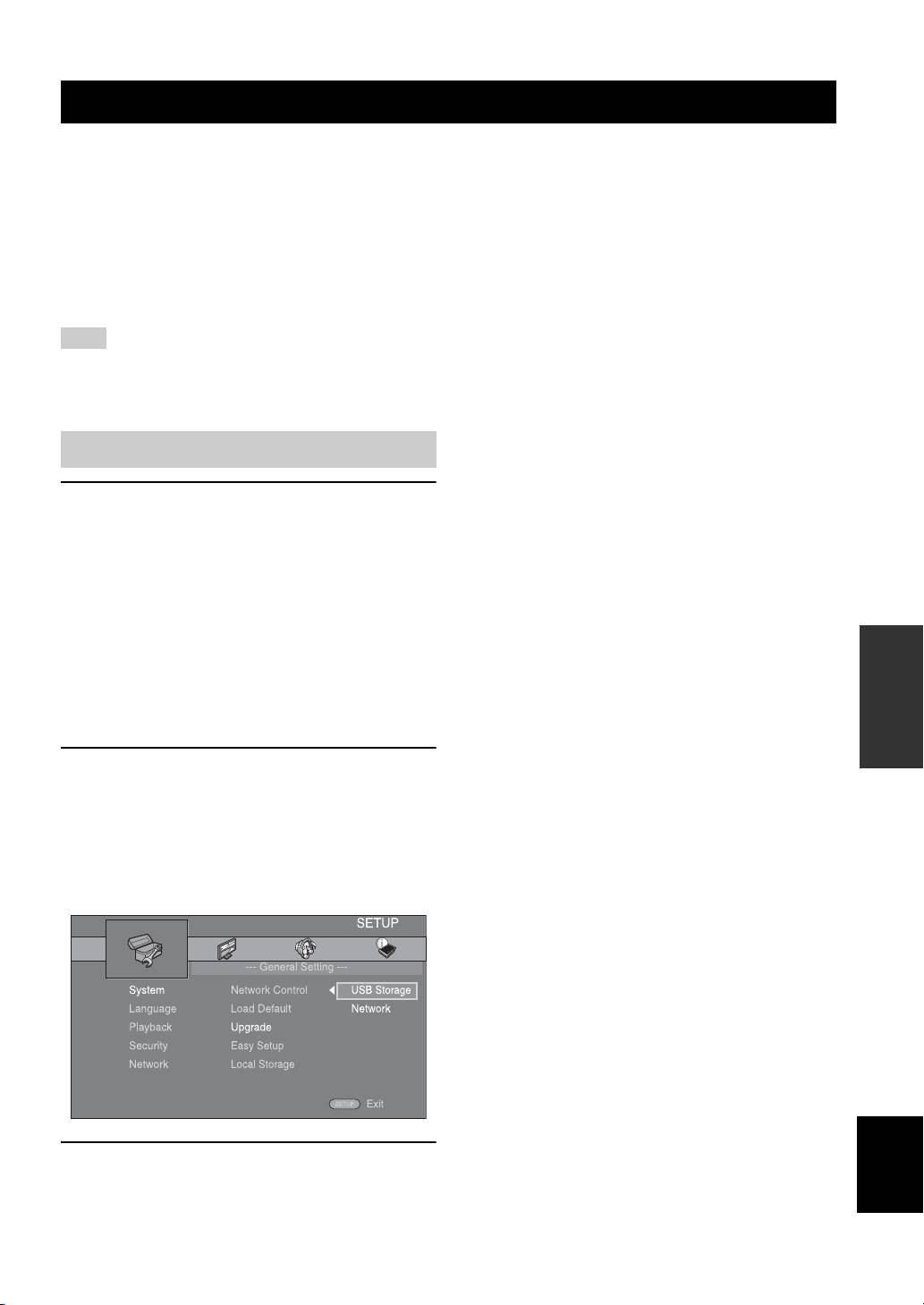
2 Select the upgrade method and start upgrade from
SETUP menu.
1 Press SETUP to display SETUP menu screen.
2 Select [General Setting] = [System] =
[Upgrade].
3 Select the item which contains the upgrade file
package from [USB Storage]/[Network].
English
3 Start upgrade by following the on-screen messages.
41 En
ADDITIONAL INFORMATION
TROUBLESHOOTING
Refer to the table below when this unit does not function properly. If the problem you are experiencing is not listed below
or if the instruction below does not help, turn off this unit, disconnect the power cable, and contact the nearest authorized
Yamaha dealer or service center.
General
Problem Cause Remedy Page
No power. Press on the front panel to turn on the power.
5
This unit fails to turn
The power cable is not connected or the
Connect the power cable firmly.
16
on or enters standby
plug is not completely inserted.
mode soon after the
This unit has been exposed to a strong
Set this unit to standby mode, disconnect the power
—
power is turned on.
external electric shock (such as lightning
cable, plug it back in after 30 seconds and then use it
or strong static electricity).
normally.
This unit does not
operate properly.
This unit needs to be restarted. Press and hold on the front panel for around 5
5
seconds to restart this unit. To completely restart,
unplug the power cable from the AC outlet for 5 to
10 seconds, plug the power cable to the AC outlet
again, and then turn on this unit.
The disc cannot be
The Initial Wizard is not set. Set the Initial Wizard when you turn this unit on for
17
played back.
the first time after purchase or upgrade.
No sound. No appropriate input source has been
Select an appropriate input source with INPUT on
5
selected.
the front panel (or the Input select buttons on the
remote control).
Speaker connections are not secure. Secure the connections.
11
The mute function is on. Cancel the mute function.
7
The volume is turned down. Turn up the volume.
7
Signals this unit cannot reproduce are
Play a source whose signals can be reproduced by
3
being input from a source component,
this unit.
such as a CD-ROM.
[HDMI Control] is set to [Off]. When connecting ARC (Audio Return Channel)
35
supported TV and this unit using an HDMI cable
only, set [HDMI Control] to [On].
Audio devices are connected to the
There is no dedicated digital audio output terminal
—
DIGITAL IN jacks of the unit.
on the unit. The audio signals input to the DIGITAL
IN jacks cannot be output from this unit to the TV.
No sound from the
[HDMI] for audio output in SETUP menu
Set [HDMI] to [Off].
39
speakers.
is not set to [Off].
No sound or too
The output level of the channel is low. Increase the output level of the channel.
39
small sound from a
Speaker setting is inappropriate. Adjust speakers by setting [Configuration] under
39
specific channel.
[Speaker Setting] in SETUP menu.
42 En
TROUBLESHOOTING
Problem Cause Remedy Page
No picture. Incorrect cable connections. Make sure that the cables are connected correctly.
13
Make sure that the connected TV is set to the correct
13
input.
Connect this unit to the TV with VIDEO jack using
13
the supplied video pin cable.
– If picture is still not displayed with this unit
connected to the VIDEO jack, press and hold
and on the front panel simultaneously
for around 5 seconds when no disc is inserted and
playback is stopped to switch NTSC/PAL.
TV system is set incorrectly. Press and hold and on the front panel
—
simultaneously for around 5 seconds when no disc is
inserted and playback is stopped to switch NTSC/
PAL. Set resolution properly again when connecting
through HDMI (p. 37).
The power is
The sleep timer is set. This is not malfunction. Turn on this unit and play
30
suddenly turned off.
the source again.
[Auto Power Off] is set to [On]. Set [Auto Power Off] to [Off].
35
Sound is heard from
Incorrect cable connections. Connect the cables properly. If the problem persists,
11
the speaker on one
the cables may be defective.
side only.
There is noise
This unit is too close to the digital or
Move this unit farther away from such equipment.
—
interference from
high-frequency equipment.
digital or radio
frequency
equipment.
This unit makes a
These sounds are not malfunctions of this unit but
—
snapping sound
are normal operating conditions.
when starting
playback or loading a
disc.
No sound from the
The subwoofer is not connected properly. Check that the subwoofer is connected properly.
11
subwoofer.
The level of subwoofer is low. Increase the subwoofer level with the SW
7
(subwoofer) + button.
Sound from the
The subwoofer output level from the unit
Decrease the subwoofer output level with the SW
7
subwoofer
is too high.
(subwoofer) - button, then increase the subwoofer
connected to the
level with the control on the subwoofer itself.
INFORMATION
ADDITIONAL
SUBWOOFER pre-
out jack is distorted.
The system settings
When [HDMI Control] is set to [On],
Set [HDMI Control] to [Off] or set the system again
35
change
operations of the TV (for example,
by using its remote control.
automatically.
changing channels, etc.) changes the
system settings.
The HDMI control
[HDMI Control] is set to [Off]. Set [HDMI Control] to [On].
35
function does not
The HDMI control function is disabled
Refer to the manual supplied with your TV and
—
work properly.
on your TV.
check the setting.
The automatic
The TV does not support the automatic
Set [Lip Sync] to [Manual] and then manually adjust
38
lipsync is not
lipsync.
the audio output delay.
effective even [Lip
Sync] is set to [Auto].
English
43 En

TROUBLESHOOTING
Radio reception
Problem Cause Remedy Page
FM stereo reception is
The antenna is connected improperly. Check the antenna connections.
11
noisy.
The characteristics of FM stereo
Try using a high-quality directional FM antenna.
—
broadcasts cause this problem when the
Switch to monaural mode.
28
transmitter is too far away or the
antenna input is poor.
The desired station
The signal is too weak. Use a high-quality directional FM antenna.
—
cannot be tuned into
Use the manual tuning method.
28
with the automatic
tuning method.
The preset selecting
The preset (memory) has been erased. Preset radio stations again.
28
function does not
work.
There is distortion,
Multipath reflection or other radio
Change the height, direction, or placement of the
—
and clear reception
interference has occurred.
antenna.
cannot be obtained
even with a good FM
antenna or an outdoor
antenna.
iPod
Note
In case of a transmission error without a status message appearing on the front panel display of this unit, check the connection to your
iPod (refer to page 12).
Status message Cause Remedy Page
READING This unit is in the middle of recognizing
If the message continues to appear in the front panel
—
the connection with the iPod.
display and playback does not start, connect the iPod
again.
UNKNOWN There is a problem with the signal path
Connect the iPod again.
12
from the iPod to this unit.
The iPod being used is not supported by
Only iPod classic, iPod nano (2nd, 3rd, 4th, 5th and
12
this unit.
6th generation), iPod touch (1st, 2nd, 3rd, and 4th
generation), iPhone, iPhone 3G/3GS and iPhone 4
are supported.
The iPod software is out of date. Update the iPod software version to the latest.
—
STOP The play back of the iPod is finished.
For example, all the songs in the
selected album have finished being
played back.
NO iPod The iPod was disconnected from this
Connect the iPod and this unit by a USB cable
12
unit.
correctly.
Problem Cause Remedy Page
No sound. The power of this unit is off. Connect the power cable correctly.
12
The iPod software version has not been
Download the latest iTunes software to update the
—
updated.
iPod software version to the latest.
The iPod is in the process of connecting
Please wait for a while.
—
with this unit.
44 En
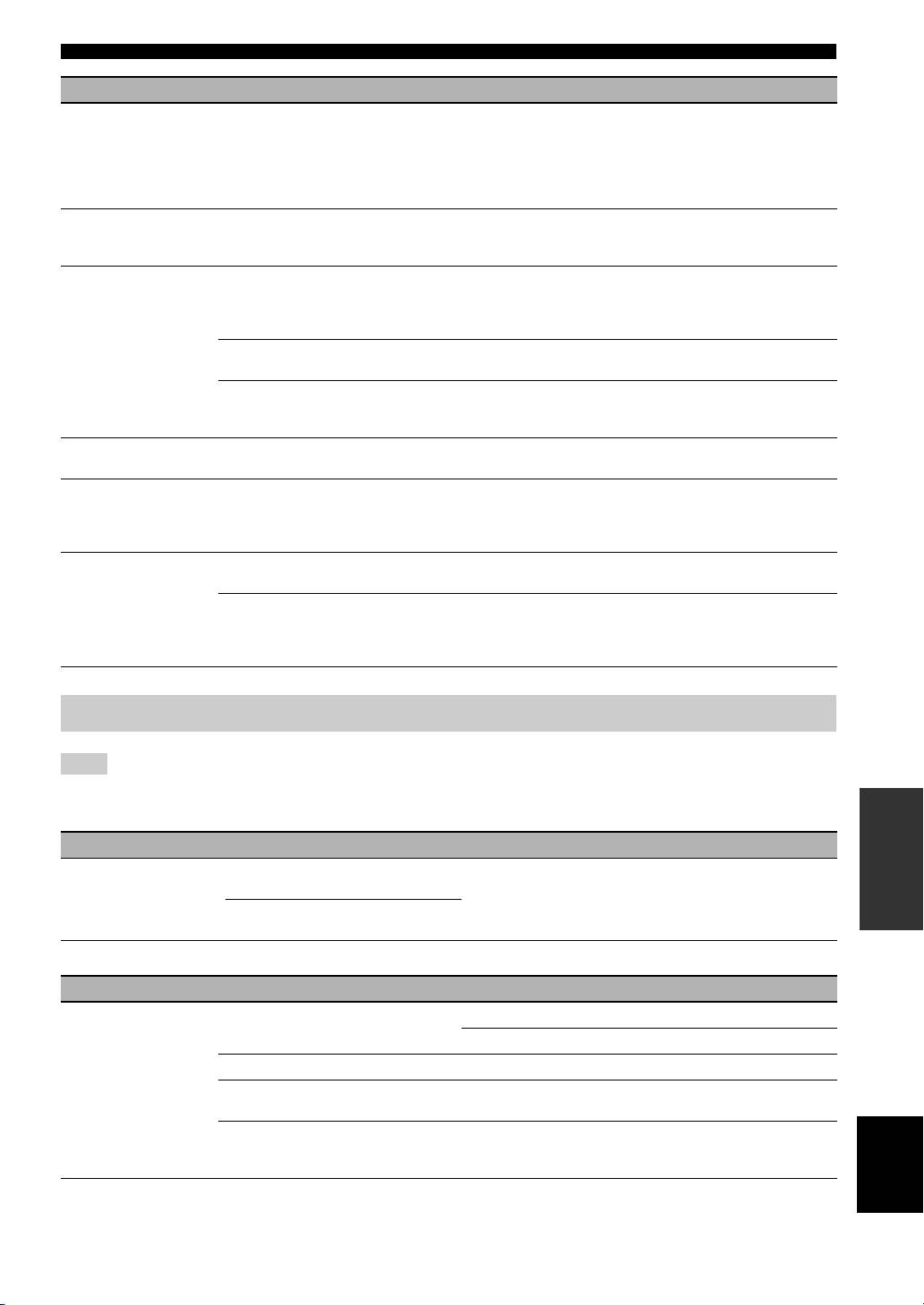
TROUBLESHOOTING
Problem Cause Remedy Page
No sound.
The iPod is not connected correctly. Connect the iPod and this unit by a USB cable
12
correctly.
The iPod sounds, but
you cannot operate it
with this unit or the
remote control.
No sound of your
No sound of your iPod can be output
Use the speakers of this unit.
—
iPod from the TV.
from this unit to the TV through the
HDMI cable.
This unit cannot be
The iPod is not supported by this unit. Only iPod classic, iPod nano (2nd, 3rd, 4th, 5th and
12
operated by the
6th generation), iPod touch (1st, 2nd, 3rd, and 4th
remote control.
generation), iPhone, iPhone 3G/3GS and iPhone 4
are supported.
The iPod is not connected correctly. Connect the iPod and this unit by a USB cable
12
correctly.
The iPod software version is out of date. Update the iPod software version to the latest. If the
—
problem cannot be solved, even with the latest
software, reset the iPod.
You cannot operate
The iPod is not connected correctly. Connect the iPod and this unit by a USB cable
12
from the iPod.
correctly.
The playback
The iPod you set is not compatible with
Only iPod classic, iPod nano (2nd, 3rd, 4th, 5th and
12
information is not
the playback information display.
6th generation), iPod touch (1st, 2nd, 3rd, and 4th
displayed on the
generation), iPhone, iPhone 3G/3GS and iPhone 4
front panel display.
are supported.
The iPod does not
The iPod is not connected correctly. Connect the iPod and this unit by a USB cable
12
charge up.
correctly.
The iPod is not supported by this unit. Only iPod classic, iPod nano (2nd, 3rd, 4th, 5th and
12
6th generation), iPod touch (1st, 2nd, 3rd, and 4th
generation), iPhone, iPhone 3G/3GS and iPhone 4
are supported.
USB
Note
In case of a transmission error without a status message appearing on the front panel of this unit, check the connection to the USB
INFORMATION
ADDITIONAL
device (refer to page 15).
Status message Cause Remedy Page
USB ERROR The connected USB device is not
Disconnect the USB device. Change input source
15
playable on this unit.
other than USB and select USB as input source
again. Then connect playable USB device again.
The USB device is connected at an
angle.
Problem Cause Remedy Page
The file in the USB
The USB device is not recognized. Connect the USB device again.
15
device does not play.
Connect an AC adapter if supplied with the device.
—
Incorrect USB device connections. Connect the USB device again.
15
The file format is not compatible with
Replace the file with a correctly recorded file
3
this unit.
playable with this unit.
If the solutions above do not resolve the
Try another USB device.
—
English
problem, the USB device is not playable
on this unit.
45 En
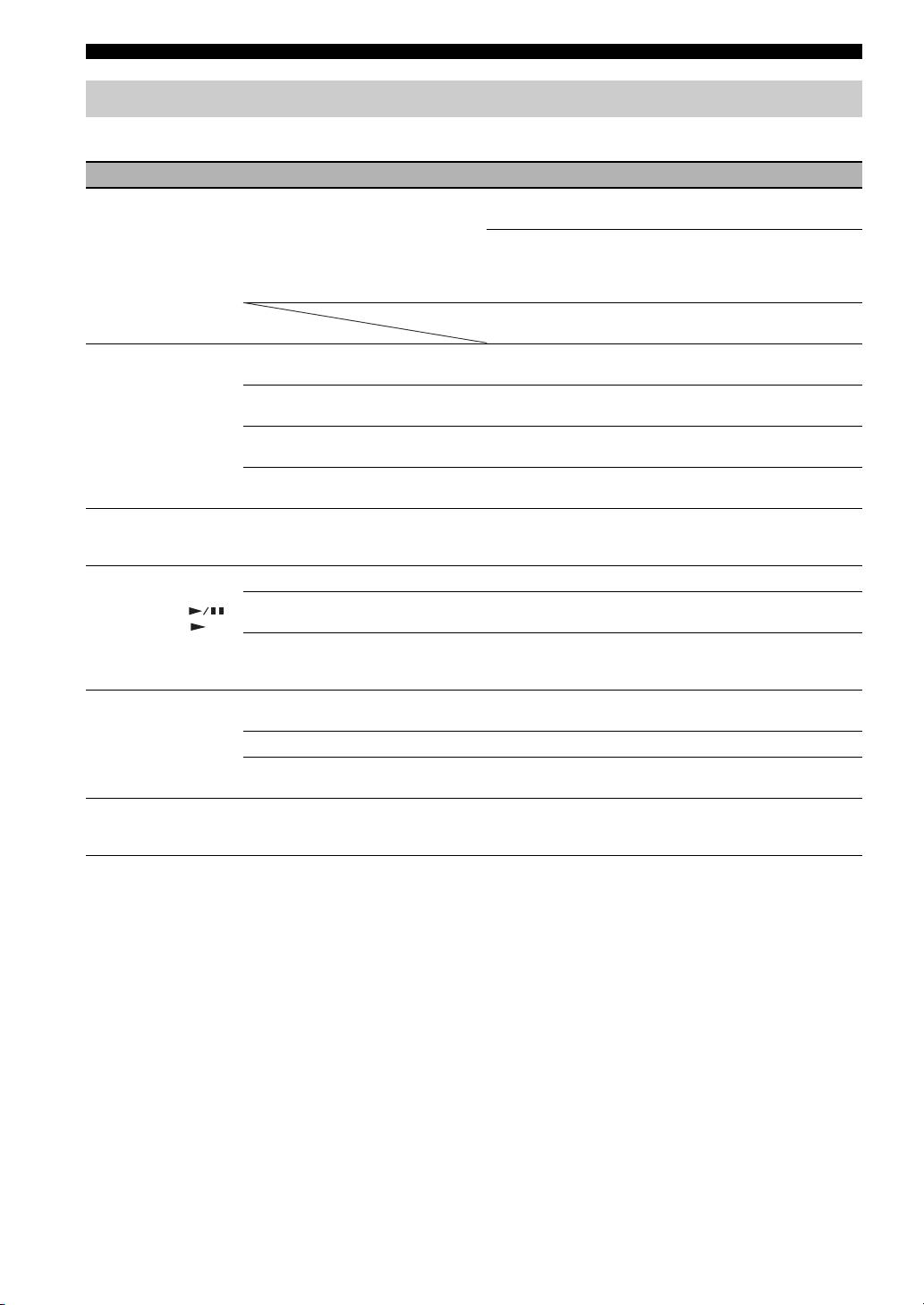
TROUBLESHOOTING
Disc playback
■ General
Problem Cause Remedy Page
No sound or
The sampling rate of an audio or video
Check that the sampling rate and bit rate of an audio
3
distorted sound.
file is not compatible with this unit.
or video file are compatible with this unit.
Audio may not be output depending on the audio
3
recording status, such as when audio other than an
audio signal or non-standard audio is recorded for
the audio content.
There is no sound during still mode, slow motion
—
playback, fast forward and fast reverse.
Disc playback does
The disc is not finalized. The CD-R/RW, DVD+R/RW/R DL, and DVD-R/
3
not start.
RW/R DL must be finalized.
Disc is loaded upside-down. Remove the disc and then load the disc with the
—
labeled side facing up.
The disc is defective. Try playing back another disc. If this solves the
—
problem, the disc you want to play back is defective.
The format of the file is not compatible
Check that the format of the file is compatible with
3
with this unit.
this unit.
Some button
The disc loaded into this unit is not
Use a disc supported by this unit.
3
operations do not
compatible.
work.
Playback does not
The disc is dirty. Remove the disc and then wipe the disc clean.
4
start immediately
The disc loaded into this unit is not
Use a disc supported by this unit.
3
after pressing
compatible.
on this unit or on
the remote control.
If this unit was moved from a cold to
Wait for an hour or two until this unit adjusts to the
—
warm place, condensation has formed on
room temperature, and try again.
the disc reading lens.
[No Disc] appears in
The disc loaded into this unit is not
Use a disc supported by this unit.
3
the display even
compatible.
though a disc is in
The disc is dirty. Remove the disc and then wipe the disc clean.
4
the disc tray.
Disc is loaded upside-down. Remove the disc and then load the disc with the
—
labeled side facing up.
Audio is not output,
The disc is a copyright-protected disc. The audio may not be output or the images may not
—
or images are not
be played back properly for some discs in which
played back properly.
copyright-protected contents are recorded.
46 En
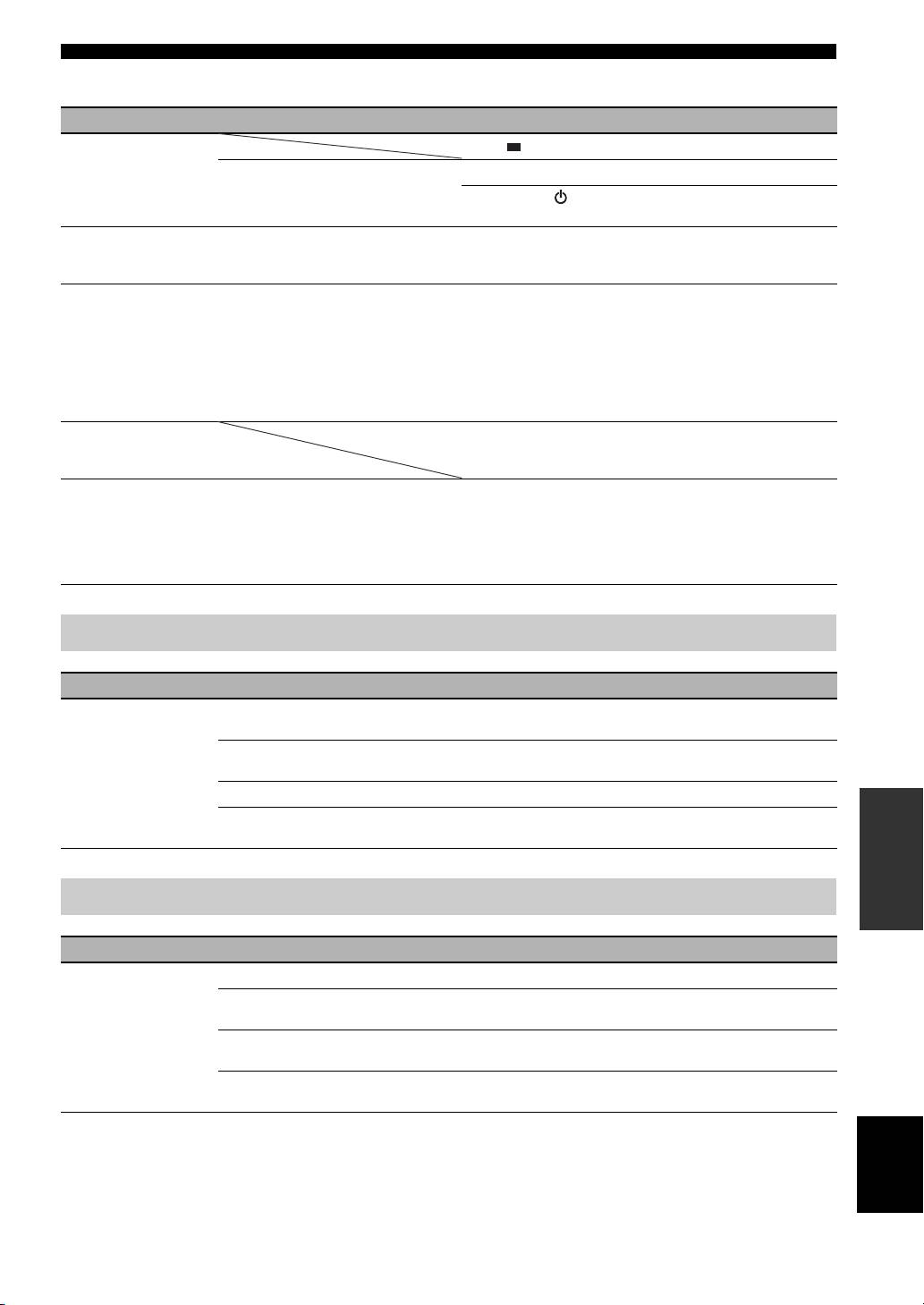
TROUBLESHOOTING
■ Picture
Problem Cause Remedy Page
Screen freezes and
Press , then restart playback.
—
operation buttons do
This unit needs to be restarted. Turn off the power and turn on the power again.
—
not work.
Press and hold on the front panel for around 5
—
seconds to restart this unit.
Video is not output
Resolution is set incorrectly. Set to the desired resolution.
37
with the desired
resolution.
Wide-screen video
Aspect ratio of your TV is set incorrectly. Change the aspect ratio of your TV.
37
appears vertically
stretched, or black
bands appear at the
top and bottom of the
screen. Or 4:3 video
appears horizontally
stretched.
Square noise
Blocks in images may be visible in scenes with rapid
—
(mosaic) appears on
movement due to the characteristics of digital image
the screen.
compression technology.
The playback screen
The disc is a copyright-protected disc. This unit complies with analog copy protection.
—
will be disturbed if
Some discs contain a copy prohibiting signal. If you
DVD video is
try to play back such discs through a VCR, or record
recorded to a VCR, or
to a VCR and play back the signal, the copy
played back through
protection will prevent normal playback.
a VCR.
Remote control
Problem Cause Remedy Page
The remote control
The remote control is operated outside its
For information on the remote control operation
10
does not work nor
operation range.
range, refer to “Using the remote control”.
function properly.
The remote control sensor on this unit is
Change the lighting or orientation of this unit.
—
exposed to direct sunlight or lighting.
The battery is worn out. Replace the battery with new one.
10
INFORMATION
ADDITIONAL
There are obstacles between the sensor of
Remove the obstacles.
—
this unit and the remote control.
Network
Problem Cause Remedy Page
Cannot connect to
Incorrect cable connections. Connect the Network cable properly.
15
the Internet.
The connected equipment is turned off. Turn on the connected equipment, such as the
—
broadband router or modem.
Connections of the broadband router and/
Connect the broadband router and/or modem
—
or modem are incorrect.
correctly.
The network setting is incorrect. Set the proper value(s) in the network setting. Refer
36
to “Network”.
English
47 En

TROUBLESHOOTING
Problem Cause Remedy Page
Cannot download
Incorrect cable connections. Connect the Network cable properly.
15
BD-Live contents.
Incorrect USB device connections. Connect the USB memory device properly. Check
15
that the USB memory device is connected to the
USB port of this unit.
The BD disc does not support BD-Live. Check if the BD disc supports BD-Live.
—
The network setting is incorrect. Check the setting for [Internet Connection].
36
The USB memory device is not
Connect the USB memory device formatted in
15
compatible.
FAT16 or FAT32.
There is insufficient free space on the
It is recommended to connect the USB memory
35
USB memory device.
device with at least 2 GB of free space. If there is not
enough free space, format the USB memory device.
Refer to the supplied user’s manual of the disc or
—
consult the disc manufacturer.
Cannot detect the
Incorrect cable connections. Connect the network cable properly.
15
DLNA server.
The connected equipment is turned off. Turn on the connected equipment, such as the
—
broadband router or the server.
The access point of this unit and the
Confirm this unit and the server are connected to the
—
server are not the same.
same access point.
The network setting is incorrect. Set the proper value(s) in the network setting. Refer
36
to “Network”.
The DLNA server does not permit this
Depending on the DLNA server, this unit may need
—
unit.
to be permitted from the server.
Cannot play the file
The file is not supported by this unit. Make sure the file is playable.
3
on the home network
The DLNA setting is incorrect. Check your DLNA server’s setting.
36
server.
The playback and operating quality may be affected
—
by your home network condition.
48 En
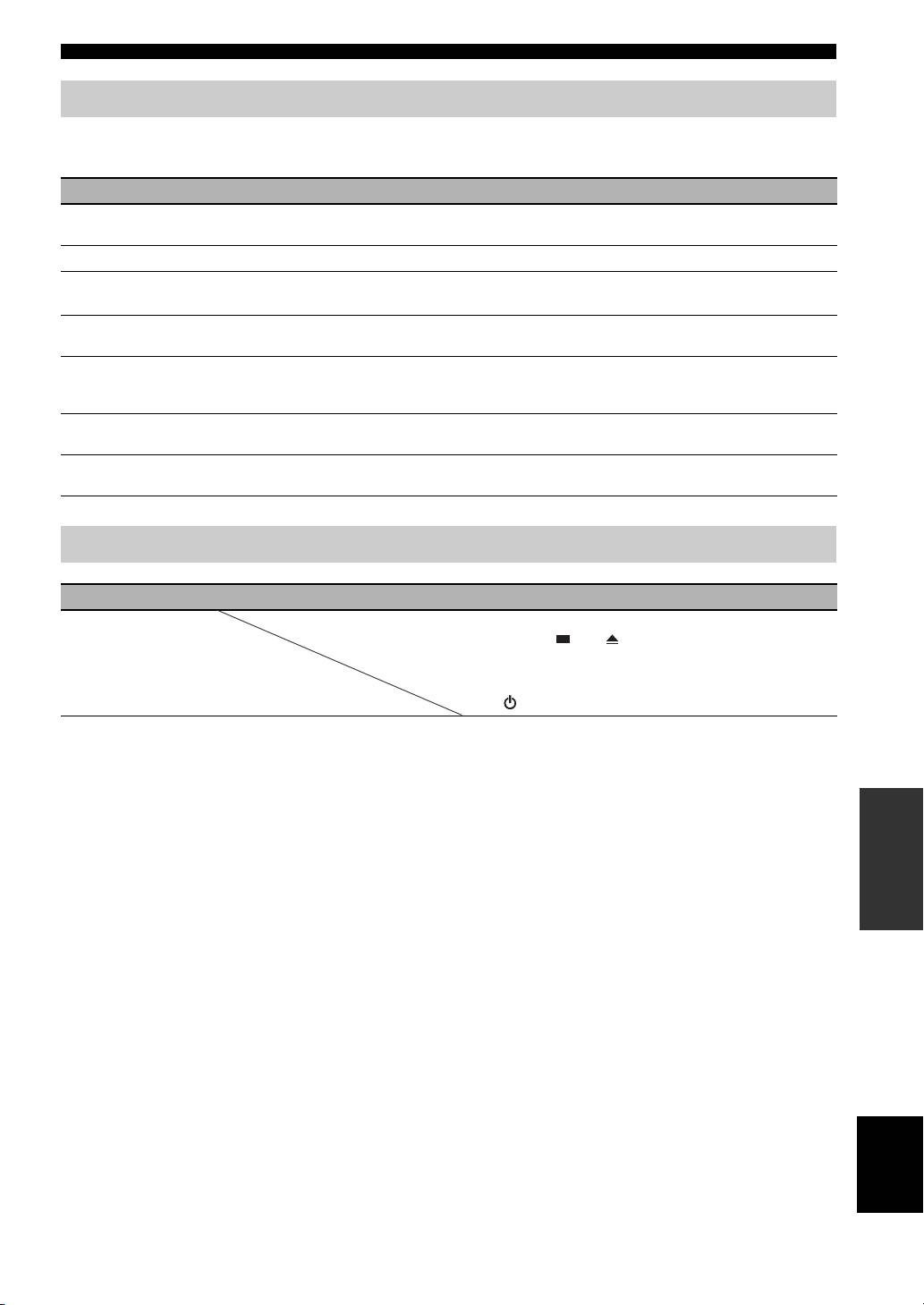
TROUBLESHOOTING
Messages on the screen
The following messages appear on the TV screen in case the disc you tried to play back is not appropriate or the
operation is not correct.
Error message Cause Remedy Page
Unsupported File The file is not supported by this unit. Refer to “Types of discs/files that can be used with
3
this unit”.
Wrong region code! The disc is an incompatible region code. Refer to “Region management information”.
3
Network has FAILED. This unit cannot be connected to the
Check connection and Network setting.
15
network.
36
Network is OK, proxy
This unit cannot be connected to the
Refer to “[Proxy Setting]”.
36
has FAILED.
proxy server.
BD-Live connection
BD-Live connection is prohibited. Refer to “[BD-Live Connection]”.
36
is prohibited in
SETUP menu.
No valid upgrade file
The upgrade file cannot be found. Check if the upgrade file is in the appropriate folder.
—
is found!
Upgrade has failed
Upgrade is failed. Check if the upgrade file is corrupted or unreadable.
—
for some reason!
Others
Problem Cause Remedy Page
Password is
When no disc is inserted and playback is stopped,
—
forgotten.
press and hold and on the front panel
simultaneously for around 5 seconds to set all the
Security settings (p. 36) of this unit to their default
settings. After the power is turned off automatically,
press to turn on the power again.
INFORMATION
ADDITIONAL
English
49 En

GLOSSARY
AVCHD
Dolby TrueHD
AVCHD is a new format (standard) for high definition
Dolby TrueHD is a lossless coding technology that
video cameras that can be used to record and play high-
supports up to 8 channels of multi-channel surround
resolution HD images.
sound for the next generation optical discs. The
BD-Live™
reproduced sound is true to the original source bit-for-
BD-Live is a BD standard that utilizes a network
bit.
connection, enabling this unit to go online to download
DRC (Dynamic Range Control)
promotional videos and other data.
DRC lets you adjust the range between the loudest and
BDMV
softest sounds (dynamic range) for playback at average
BDMV (Blu-ray Disc Movie, BD-MV) refers to one of
volume. Use this when it is hard to hear dialog, or
the application formats used for BD-ROM which is one
during times when playback may disturb neighbors.
of the Blu-ray Disc specifications. BDMV is a recording
DTS
format equivalent to DVD-Video of the DVD
This is a digital sound system developed by DTS, Inc.
specification.
for use in cinemas.
Blu-ray 3D™
DTS-HD High Resolution Audio
Blu-ray 3D enables you to view full high definition 3D
DTS-HD High Resolution Audio is a new technology
images.
developed for the next generation high definition optical
BONUSVIEW™
disc format.
BONUSVIEW compatible discs let you simultaneously
HDMI
enjoy video sub-channel for two screens, audio sub-
HDMI (High-Definition Multimedia Interface) is an
channel and sub-titles. A small screen appears within
interface that supports both video and audio on a single
the main screen during playback (Picture in Picture).
digital connection. The HDMI connection carries
Closed caption
standard to high definition video signals and multi-
Closed captions are kind of subtitle, and the difference
channel audio signals to AV components such as HDMI
between subtitles and captions is that subtitles are
equipped TVs, in digital form without degradation.
intended for hearing persons and captions are for the
Letterbox (LB 4:3)
hearing impaired. Subtitles rarely show all of the audio.
A screen size with black bars on the top and bottom of
For example, captions show sound effects (e.g., “phone
the image to allow viewing of wide-screen (16:9)
ringing” and “footsteps”), while subtitles do not. Before
material on a connected 4:3 TV.
you select this setting, please ensure that the disc
Linear PCM Sound
Linear PCM is a signal recording format used for Audio
contains closed caption information.
CDs and on some DVD and Blu-ray discs. The sound on
Color Space
Color Space is a color range that can be represented.
Audio CDs is recorded at 44.1 kHz with 16 bits. (Sound
RGB is a color space based on the RGB color model
is recorded between 48 kHz with 16 bits and 96 kHz
(red, green and blue) and is typically used for PC
with 24 bits on DVD discs and between 48 kHz with 16
monitors. YCbCr is a color space based on a luminance
bits and 192 kHz with 24 bits on BD discs.)
signal (Y) and two color difference signals (Cb and Cr).
Lip Sync
Deep Color
Lip Sync, an abbreviation for lip synchronization, is a
Deep Color refers to the use of various color depths in
technical term that involves both a problem and a
displays, up from the 24-bit depths in previous versions
capability of maintaining audio and video signals
of the HDMI specification. This extra bit depth allows
synchronized during post-production and transmission.
HDTVs and other displays go from millions of colors to
Whereas the audio and video latency requires complex
billions of colors and eliminate on-screen color banding
end-user adjustments, HDMI incorporates an automatic
for smooth tonal transitions and subtle gradations
audio and video syncing capability that allows devices
between colors. The increased contrast ratio can
to perform this synchronization automatically and
represent many times more shades of gray between
accurately without user interaction.
black and white. Also Deep Color increases the number
Mac address
of available colors within the boundaries defined by the
The Mac address is a unique value assigned to a network
RGB or YCbCr color space.
device for identification purposes.
Dolby Digital
A sound system developed by Dolby Laboratories Inc.
Pan Scan (PS 4:3)
A screen size that cuts off the sides of the image to allow
that gives movie theater ambience to audio output when
viewing of wide-screen (16:9) material on a connected
the product is connected to a Dolby Digital processor or
4:3 TV.
amplifier.
Subtitles
Dolby Digital Plus
These are the lines of text appearing at the bottom of the
A sound system developed as an extension to Dolby
screen which translate or transcribe the dialog. They are
Digital. This audio coding technology supports 7.1
recorded on many DVD and BD discs.
multi-channel surround sound.
50 En

GLOSSARY
Top menu
x.v.Color
In a BD-Video/DVD-Video, this is the menu for
x.v.Color reproduces a greater range of color than
selecting things like the chapter to be played back and
before, showing almost all of the colors that the human
the subtitle language. In some DVD-Videos, the top
eye can detect.
menu may be called the “Title Menu”.
SPECIFICATIONS
PLAYER SECTION
INPUT/OUTPUT
• HDMI output................................................ Type A connector × 1
iPod/iPhone
480i/576i, 480p/576p, 720p, 1080i,
• Supported iPod/iPhone ................................................iPod classic,
1080p/24Hz, Deep Color, x.v.Color,
iPod nano (2nd, 3rd, 4th, 5th and 6th generation),
3D, ARC (Audio Return Channel) support
iPod touch (1st, 2nd, 3rd, and 4th generation),
• Video output............................................................. 1 Vp-p (75 Ω)
iPhone, iPhone 3G/3GS, iPhone 4
• Digital input ............................................. Optical × 1, Coaxial × 1
disc and file formats
Supported format: LPCM 2 ch (up to 48 KHz), Dolby Digital,
• For supported disc and file formats, refer to page 3.
DTS
• USB.............................................................. Type A connector × 2
AUX
• Ethrnet..................................................................... 100 BASE-TX
• Input connector
• Other output equipment..................................Remote IN/OUT × 1
AUX..................................................................................... RCA
(U.S.A. and Canada models only)
PORTABLE............................... Stereo L/R: 3.5 mm stereo mini
GENERAL
AMPLIFIER SECTION
• Power Supply
• Maximum output power
[U.S.A. and Canada models]............................ AC 120 V, 60 Hz
Front L/R ................. 80 W per channel (1 kHz, 10% THD, 6 Ω)
[Europe model] ....................................AC 220-240 V, 50/60 Hz
Center...........................................80 W (1 kHz, 10% THD, 6 Ω)
[Asia model].........................................AC 220-240 V, 50/60 Hz
Surround L/R ........... 80 W per channel (1 kHz, 10% THD, 6 Ω)
[China model] .................................................. AC 220 V, 50 Hz
Subwoofer................................100 W (100 Hz, 10% THD, 4 Ω)
[Russia model] ..........................................AC 220-240 V, 50 Hz
• Input sensitivity/Input impedance
• Power consumption................................................................ 72 W
AUX..................................................................... 200 mV/47 kΩ
• Standby Power consumption...................................... 0.5 W or less
PORTABLE......................................................... 100 mV/47 kΩ
• Dimensions (W × H × D, including protrusions)
• Total harmonic distortion
......................................................................... 435 × 80 × 362 mm
AUX 1 kHz/10 W ............................................................. 0.05 %
(17 1/8 × 3 1/8 × 14 1/4 in)
TUNER SECTION
• Weight....................................................................4.5 kg (9.9 lbs.)
• Tuning range
[Canada model].............................................. 87.5 to 107.9 MHz
Specifications are subject to change without notice.
[Other models]........................................... 87.50 to 108.00 MHz
INFORMATION
ADDITIONAL
English
51 En
SPECIFICATIONS
■ Copyright
• iPhone, iPod, iPod classic, iPod nano, and iPod touch are
• Manufactured under license under U.S. Patent Nos: 5,956,674;
trademarks of Apple Inc., registered in the U.S. and other
5,974,380; 6,226,616; 6,487,535; 7,392,195; 7,272,567;
countries.
7,333,929; 7,212,872 & other U.S. and worldwide patents
issued & pending. DTS-HD, the Symbol, & DTS-HD and the
“Made for iPod,” and “Made for iPhone” mean that an
Symbol together are registered trademarks & DTS-HD Master
electronic accessory has been designed to connect specifically
Audio | Essential is a trademark of DTS, Inc. Product includes
to iPod, or iPhone, respectively, and has been certified by the
software. © DTS, Inc. All Rights Reserved.
developer to meet Apple performance standards.
Apple is not responsible for the operation of this device or its
compliance with safety and regulatory standards. Please note
that the use of this accessory with iPod and iPhone may affect
• Blu-ray Disc
TM
, Blu-ray
TM
, Blu-ray 3D
TM
, BD-Live
TM
,
wireless performance.
BONUSVIEW
TM
, and the logos are trademarks of the Blu-ray
Disc Association.
• Audio-visual material may consist of copyrighted works which
must not be recorded without the authority of the owner of the
copyright. Refer to relevant laws in your country.
•
This product incorporates copyright protection technology that is
protected by U.S. patents and other intellectual property rights.
Use of this copyright protection technology must be authorized
by Rovi Corporation, and is intended for home and other limited
viewing uses only unless otherwise authorized by Rovi
•
HDMI, the HDMI logo and High-Definition Multimedia
Corporation. Reverse engineering or disassembly is prohibited
.
Interface are trademarks or registered trademarks of
HDMI
Licensing LLC
.
• This product is licensed under the AVC patent portfolio license
and VC-1 patent portfolio license for the personal and non-
commercial use of a consumer to (i) encode video in
compliance with the AVC Standard and VC-1 Standard
• “x.v.Color” and “x.v.Color” logo are trademarks.
(“AVC/VC-1 Video”) and/or (ii) decode AVC/VC-1 Video
that was encoded by a consumer engaged in a personal and
non-commercial activity and/or was obtained from a video
provider licensed to provide AVC/VC-1 Video. No license is
granted or shall be implied for any other use. Additional
• “AVCHD” and the “AVCHD” logo are trademarks of
information may be obtained from MPEG LA, LLC.
Panasonic Corporation and Sony Corporation.
See http://www.mpegla.com.
•
Windows Media Player is a registered trademark or trademark of
Microsoft corporation in the United States and/or other countries
.
• Java and all Java-based trademarks and logos are trademarks
or registered trademarks of Sun Microsystems, Inc. in the
United States and/or other countries.
•
YouTube and the YouTube logo are trademarks of Google. Inc
.
• is a trademark of DVD Format/Logo Licensing
Corporation.
• DLNA and DLNA CERTIFIED are trademarks and/or service
•
Manufactured under license from Dolby Laboratories. Dolby,
marks of Digital Living Network Alliance.
Pro Logic and the double-D symbol are trademarks of Dolby
Laboratories
.
52 En

PRECAUCIÓN: LEA LAS INDICACIONES SIGUIENTES ANTES
DE UTILIZAR ESTE APARATO
1 Para asegurar el mejor rendimiento de este aparato, lea
14 No intente modificar ni arreglar este aparato. Póngase en
atentamente este manual. Y luego guárdelo en un lugar
contacto con el personal de servicio Yamaha cualificado
seguro para poder consultarlo en el futuro en caso de ser
cuando necesite realizar alguna reparación. La caja no
necesario.
deberá abrirse nunca por ninguna razón.
2 Instale esta unidad en un lugar bien ventilado, fresco,
15 Cuando no piense utilizar este aparato durante mucho
seco y limpio, alejado de la luz directa del sol, fuentes
tiempo (cuando se ausente de casa por vacaciones, por
de calor, vibración, polvo, humedad y/o frío. Para una
ejemplo) desconecte el cable de alimentación de la toma
adecuada ventilación, permita que el equipo tenga el
de corriente.
siguiente espacio libre mínimo:
16 Asegúrese de leer la sección “SOLUCIÓN DE
Arriba: 10 cm
PROBLEMAS” antes de dar por concluido que su
Atrás: 10 cm
aparato está averiado.
A los lados: 10 cm
17 Antes de trasladar este aparato, pulse para ponerlo
3 Coloque este aparato lejos de otros aparatos eléctricos,
en el modo de espera, y luego desconecte el cable de
motores o transformadores, para evitar así los ruidos de
alimentación de CA de la toma de corriente.
zumbido.
18 La condensación se formará cuando cambie de repente la
4 No exponga este aparato a cambios bruscos de
temperatura ambiental. Desconecte en este caso el cable
temperaturas, del frío al calor, ni lo coloque en lugares
de alimentación de la toma de corriente y no utilice el
muy húmedos (una habitación con deshumidificador, por
aparato.
ejemplo), para impedir así que se forme condensación en
19 El aparato se calentará cuando la utilice durante mucho
su interior, lo que podría causar una descarga eléctrica,
tiempo. Desconecte en este caso la alimentación y luego
un incendio, daños en el aparato y/o lesiones a las
no utilice el aparato para permitir que se enfríe.
personas.
20 Instale este aparato cerca de la toma de CA y donde se
5 Evite instalar este aparato en un lugar donde puedan
pueda alcanzar fácilmente la clavija de alimentación.
caerle encima objetos extraños y/o donde quede expuesto
21 Las baterías no deberán exponerse a un calor excesivo
al goteo o a la salpicadura de líquidos. Encima de este
como, por ejemplo, el que producen los rayos del sol,
aparato no ponga:
el fuego y similares.
– Otros componentes, porque pueden causar daños y/o
decoloración en la superficie de este aparato.
Este aparato no se desconecta de la fuente de alimentación de CA si
– Objetos con fuego (velas, por ejemplo), porque
está conectada a una toma de corriente, aunque la propia aparato
pueden causar un incendio, daños en el aparato y/o
esté apagada con . A este estado se le llama modo de espera.
lesiones a las personas.
En este estado, este aparato ha sido diseñada para que consuma
– Recipientes con líquidos, porque pueden caerse
un cantidad de corriente muy pequeña.
y derramar el líquido, causando descargas eléctricas
al usuario y/o dañando el aparato.
ADVERTENCIA
6 No tape este aparato con un periódico, mantel, cortina,
PARA REDUCIR EL RIESGO DE INCENDIO O DESCARGA
etc. para no impedir el escape del calor. Si aumenta la
ELÉCTRICA, NO EXPONGA ESTE APARATO A LA LLUVIA
temperatura en el interior del aparato, esto puede causar
NI A LA HUMEDAD.
un incendio, daños en el aparato y/o lesiones a las
personas.
SEGURIDAD CONTRA LA RADIACIÓN LÁSER
7 No enchufe este aparato a una toma de corriente hasta
Este aparato utiliza rayos láser. Debido a la posibilidad de que se
después de haber terminado todas las conexiones.
produzcan daños en los ojos, la extracción de la cubierta del aparato
8 No ponga el aparato al revés. Podría recalentarse
o las reparaciones solamente deberán ser realizadas por un técnico
y posiblemente causar daños.
cualificado.
9 No utilice una fuerza excesiva con los conmutadores,
los controles y/o los cables.
PELIGRO
10 Cuando desconecte el cable de alimentación de la toma
Este aparato emite radiación láser visible cuando se abre. Evite la
de corriente, sujete la clavija y tire de ella; no tire del
exposición directa a los rayos láser. Cuando se conecte este aparato
propio cable.
a una toma de corriente no acerque sus ojos a la abertura de la bandeja
11 No limpie este aparato con disolventes químicos porque
del disco ni a otras aberturas para mirar al interior.
podría estropear el acabado. Utilice un paño limpio
y seco para limpiar el aparato.
ADVERTENCIA
12 Utilice solamente la tensión especificada en este aparato.
NO TOQUE ESTA UNIDAD SI SE UTILIZA DE FORMA
Utilizar el aparato con una tensión superior a la
CONTINUA A UN VOLUMEN ELEVADO, YA QUE SU
especificada resulta peligroso y puede producir un
PARTE INFERIOR PODRÍA ACUMULAR MUCHO CALOR
incendio, daños en el aparato y/o lesiones a las personas.
Y PODRÍA SUFRIR LESIONES O QUEMADURAS.
Yamaha no se hará responsable de ningún daño debido
al uso de este aparato con una tensión diferente de la
especificada.
13 Para impedir daños debidos a relámpagos, desconecte el
cable de alimentación y antenas externas de la toma de
corriente durante una tormenta eléctrica.
i Es
CONTENIDO
INTRODUCCIÓN PREPARACIÓN
Eliminación de emisoras presintonizadas................ 29
INTRODUCCIÓN
Visualización de información del sistema de datos
de radio (solo modelo de Rusia).......................... 29
FUNCIONES DE ESTA UNIDAD........................ 2
UTILIZACIÓN DE FUNCIONES ÚTILES.......30
PIEZAS INCLUIDAS ............................................ 2
Ajuste del temporizador de apagado........................ 30
INFORMACIÓN SOBRE DISCOS
Control de esta unidad con el mando a distancia
Y ARCHIVOS..................................................... 3
del televisor (función de control HDMI)............. 30
Tipos de discos/archivos que se pueden utilizar
con esta unidad ...................................................... 3
Para cargar un disco................................................... 4
AJUSTES
Precauciones con los discos....................................... 4
Aviso para ver imágenes de vídeo en 3D .................. 4
MENÚ SETUP.......................................................32
NOMBRES Y FUNCIONES
Utilización del menú SETUP .................................. 34
DE LAS OPCIONES.......................................... 5
Configuración General............................................. 35
Panel delantero........................................................... 5
Configuración de pantalla........................................ 37
Mando a distancia ...................................................... 6
Configuración de audio ........................................... 39
Panel posterior ........................................................... 9
Acerca de los formatos de salida de vídeo............... 40
Colocación de las pilas en el mando a distancia...... 10
ACTUALIZACIÓN DE SOFTWARE................41
Utilización del mando a distancia............................ 10
Actualización del software ...................................... 41
FUNCIONAMIENTO AJUSTES
PREPARACIÓN
INFORMACIÓN ADICIONAL
CONEXIÓN .......................................................... 11
SOLUCIÓN DE PROBLEMAS...........................42
Disposición de altavoces de 5.1 canales.................. 11
Problemas generales ................................................ 42
Conexión de los altavoces ....................................... 11
Recepción de la radio............................................... 44
Conexión de la antena FM....................................... 12
iPod.......................................................................... 44
Conexión del iPod.................................................... 12
USB ......................................................................... 45
Conexión de un televisor ......................................... 13
Reproducción de disco............................................. 46
Conexión de un sintonizador de televisión
Mando a distancia.................................................... 47
por satélite o cable............................................... 14
Red........................................................................... 47
Conexión de dispositivos de audio
Mensajes en pantalla................................................ 49
(como un CD o un reproductor MD)................... 14
Otros ........................................................................ 49
Conexión de un reproductor de música digital
GLOSARIO ...........................................................50
portátil que no sea un iPod .................................. 14
ESPECIFICACIONES .........................................51
CONEXIÓN DE RED Y USB ............................. 15
Conexión con el terminal NETWORK.................... 15
■ Acerca de este manual
Conexión al puerto USB.......................................... 15
• Este manual describe cómo utilizar esta unidad con un
OTRA CONEXIÓN.............................................. 16
Conexión del cable de alimentación ........................ 16
mando a distancia, excepto cuando éste no se encuentre
disponible. También se puede acceder a algunas de estas
INFORMACIÓN
operaciones mediante los botones del panel delantero.
ADICIONAL
FUNCIONAMIENTO
• Las notas contienen información importante acerca de
las instrucciones de seguridad y funcionamiento.
ASISTENTE INICIAL/CONFIGURACIÓN
SENCILLA........................................................ 17
y indica una sugerencia de funcionamiento.
Configuración con el Asistente inicial/
• “iPod” puede hacer referencia también a “iPhone”
Configuración Sencilla ........................................ 17
en este manual.
FUNCIONAMIENTO BÁSICO.......................... 18
• Este manual se ha impreso antes de la fabricación.
Reproducción de Foto/Música/Vídeo ...................... 20
El diseño y las especificaciones están sujetos a cambios
Uso del contenido de red ......................................... 22
en parte como resultado de mejoras, etc. En caso de
Uso de los servicios de red ...................................... 22
diferencias entre el manual y el producto, este último
Funcionamiento para iPod ....................................... 23
Operaciones con un CD........................................... 23
tiene prioridad.
FUNCIONAMIENTO DE REPRODUCCIÓN
AVANZADO ..................................................... 24
Iconos utilizados en este manual
Menú en pantalla...................................................... 24
Menú de estado ........................................................ 25
Los iconos se utilizan para indicar botones/funciones
Uso de Marcador...................................................... 26
disponibles para un formato en concreto.
Reproducción de programa...................................... 26
Uso de la búsqueda .................................................. 26
BD
: Vídeo BD
Disfrutar de BONUSVIEW™ y BD-Live™ ........... 27
Español
DVD
: Vídeo DVD, DVD-VR, DVD+VR
ESCUCHAR EMISORAS DE RADIO FM ....... 28
Sintonización de emisoras de radio ......................... 28
CD
: CD de audio
Preajuste de emisoras de radio................................. 28
VIDEO
: AVCHD, WMV
Selección de emisoras de radio presintonizadas
MUSIC
: MP3, WMA, WAV
(Sintonización de presintonías) ........................... 28
PHOTO
: JPEG
1 Es
INTRODUCCIÓN
FUNCIONES DE ESTA UNIDAD
Reproducción de discos Blu-ray 3D (Blu-ray Disc™)/DVD/CD
*1
\ pág. 24
Reproducir un disco Blu-ray 3D (disco BD) comercializado en el mercado, además
de DVD y CD.
Reproducción de BONUSVIEW™ y BD-Live™
*1
\ pág. 27
Descargar contenidos adicionales disponibles a través de discos BD compatibles con BD-Live™
y disfrutar de audio/vídeo secundario en discos BD compatibles con BONUSVIEW™.
Conexión digital USB para iPod y iPhone
*1
\ pág. 19
La conexión directa por cable USB a un iPod o iPhone permite obtener un sonido digital de alta
calidad sin las degradaciones provocadas por la conversión de digital a analógico.
Servidor doméstico de red (compatible con DLNA)
*1, 2
\ pág. 22
Disfrute de numerosos contenidos de su ordenador en el televisor conectándolo a un servidor
de red.
Reproducción de contenidos de YouTube™ (solo modelos de
\ pág. 22
Rusia y Asia)
*2
Disfrute de los contenidos de YouTube™ en su televisor.
Recepción de radio FM y de información de sistema de datos de radio
\ pág. 28
(solo modelo de Rusia)
Escuche radios FM. Las emisiones con el sistema de datos de radio (Radio Data System)
facilitan información sobre el programa en el visor del panel delantero (solo modelo de Rusia).
Asistente inicial y Configuración Sencilla \ pág. 17
Configure fácilmente el idioma, la resolución y la relación de aspecto de la pantalla con la
pantalla Asistente inicial/Configuración Sencilla.
Funcionamiento con el mando a distancia del televisor
\ pág. 30
(compatible con HDMI CEC)
La función de control HDMI (mediante la conexión por cable HDMI) permite utilizar varios
dispositivos con un único mando a distancia.
*
1
Para obtener información sobre los discos y archivos que se pueden reproducir, consulte la página 3.
*
2
Para utilizar esta función es necesaria la configuración de red.
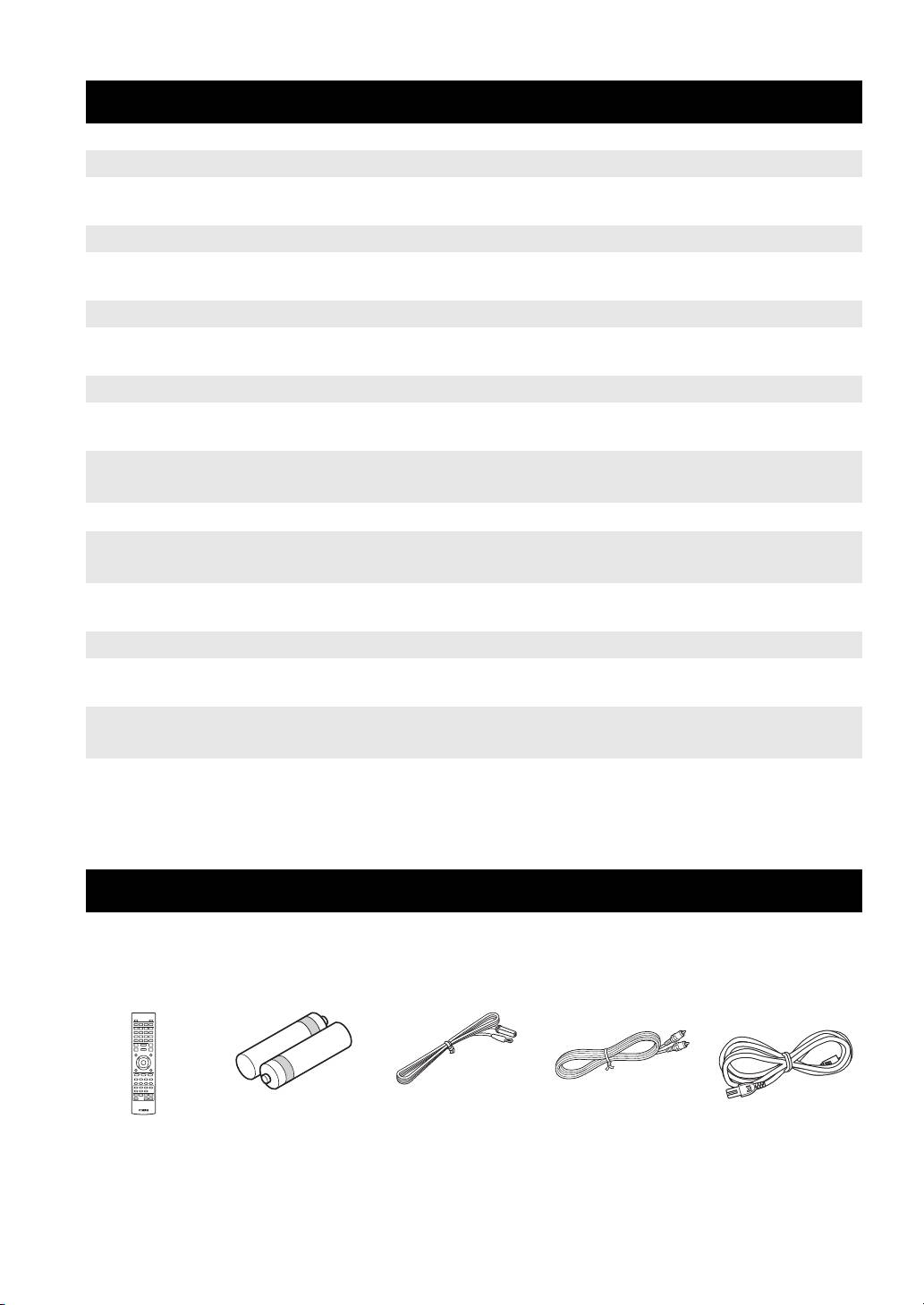
PIEZAS INCLUIDAS
Asegúrese de que dispone de todos los elementos siguientes.
Mando
Pilas (×2)
Antena de FM
Cable de vídeo
Cable de
adistancia
(AAA, R03, UM-4)
para interior
*3
compuesto (1,5 m)
alimentación
*4
*
3
La antena de FM para interior suministrada es diferente en función del modelo.
*
4
El cable de alimentación varía en función del modelo.
2 Es
INFORMACIÓN SOBRE DISCOS Y ARCHIVOS
INTRODUCCIÓN
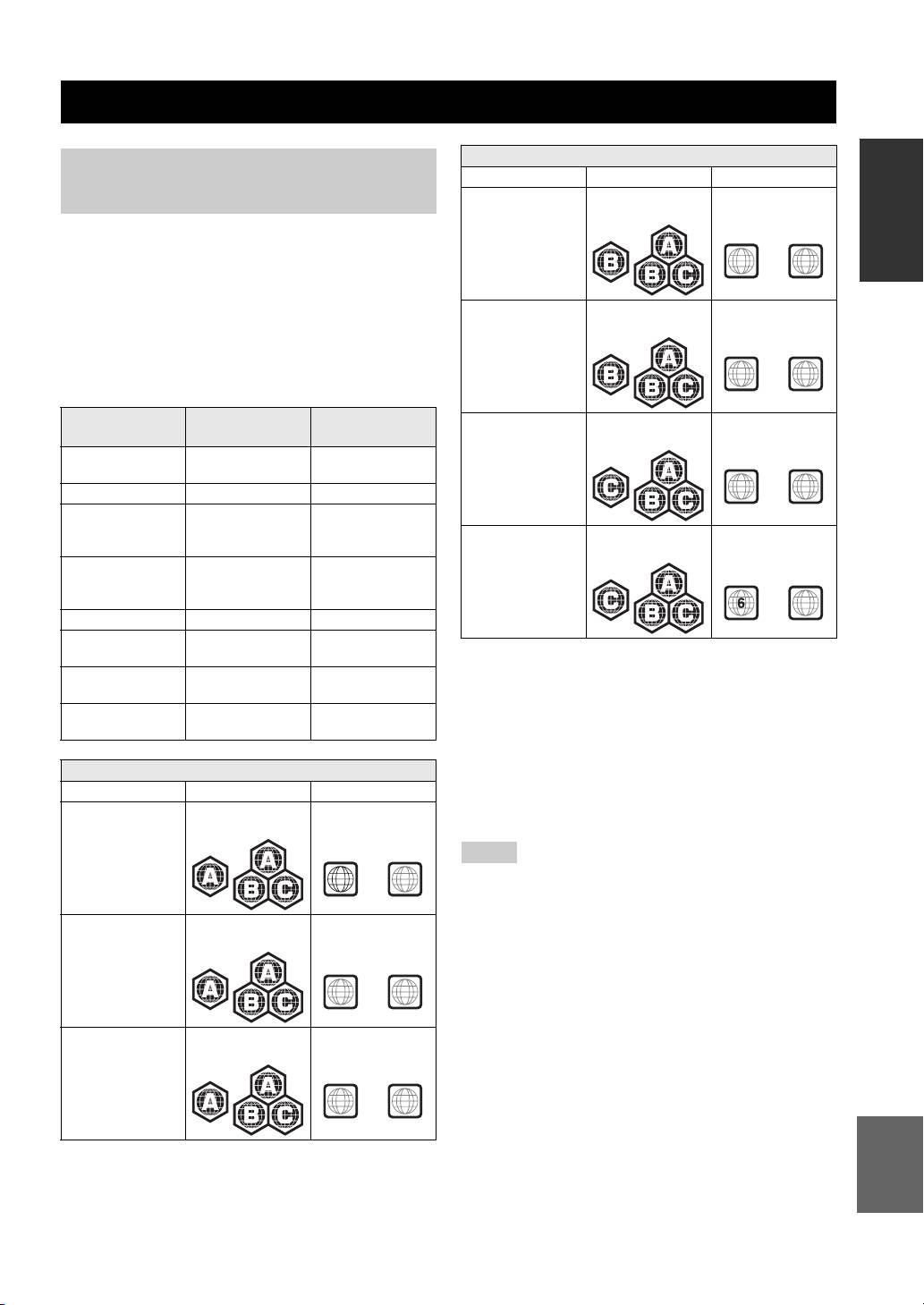
Información de gestión de la región
Tipos de discos/archivos que se
Destino Vídeo BD Vídeo DVD
pueden utilizar con esta unidad
Europa Código de región
Número de región
“B” o “ALL”
“2” o “ALL”
• En esta unidad se pueden reproducir discos de 12 cm
y 8 cm. No utilice un adaptador de 8 cm a 12 cm.
2
ALL
• Utilice discos que sean compatibles con los estándares
que se indican con la presencia de logotipos oficiales
marcados en la etiqueta del disco. La reproducción de
Australia Código de región
Número de región
“B” o “ALL”
“4” o “ALL”
discos que no cumplan con estos estándares no está
garantizada. Además, la calidad de imagen o sonido
no está garantizada incluso si tales discos se pueden
4
ALL
reproducir.
Formato de
Formato
Tipo de disco
Rusia Código de región
Número de región
grabación
de datos
“C” o “ALL”
“5” o “ALL”
BD-ROM/BD-R/
Vídeo BD --
BD-RE
5
ALL
DVD-ROM Vídeo DVD --
DVD-R/DVD-R DL/
Vídeo DVD/
WMV/MP3/WAV/
DVD-RW
DVD-VR/AVCHD/
WMA/JPEG
China Código de región
Número de región
disco de datos
“C” o “ALL”
“6” o “ALL”
DVD+R/DVD+R
Vídeo DVD/
WMV/MP3/WAV/
DL/DVD+RW
DVD+VR/AVCHD/
WMA/JPEG
disco de datos
ALL
CD-ROM CDDA/HDCD --
CD-R/CD-RW CDDA/disco
WMV/MP3/WAV/
de datos
WMA/JPEG
• Los discos y los reproductores de vídeo BD/DVD
USB -- WMV/MP3/WAV/
tienen códigos de región, que dictan las regiones en las
WMA/JPEG
que se puede reproducir un disco.
Red -- WMV/MP3/WMA/
• Las operaciones y funciones de vídeo BD/DVD pueden
WAV/JPEG
ser diferentes de las explicaciones que aparecen en este
manual y algunas operaciones pueden estar prohibidas
debido a las configuraciones del fabricante del disco.
Información de gestión de la región
• Si se visualiza una pantalla de menú o instrucciones de
Destino Vídeo BD Vídeo DVD
funcionamiento durante la reproducción de un disco,
EE.UU. y Canadá Código de región
Número de región
siga el procedimiento de funcionamiento visualizado.
“A” o “ALL”
“1” o “ALL”
Notas
1
ALL
• Según el disco, puede que no sea posible la reproducción de
algunos de los discos de las tablas de la columna izquierda.
• Finalice todos los soportes de grabación que se reproduzcan
Asia Código de región
Número de región
en esta unidad.
“A” o “ALL”
“3” o “ALL”
• “Finalizar” hace referencia a un procesamiento del grabador
sobre un disco grabado para que se pueda reproducir en otros
reproductores/grabadores, así como en esta unidad. Solo se
3
ALL
podrán reproducir en la unidad los discos que se hayan finalizado.
(Esta unidad no dispone de una función para finalizar discos.)
• No se garantiza la reproducción de todos los archivos del disco,
América Central
Código de región
Número de región
dispositivo de memoria USB y red.
ydel Sur
“A” o “ALL”
“4” o “ALL”
• Un archivo con propiedad intelectual protegida no se puede
reproducir a través de un dispositivo de memoria USB o red.
ALL
Requisitos de archivos de audio MP3/WMA
4
• Frecuencia de muestreo: entre 32 – 48 kHz (MP3/WMA)
Español
44,1 kHz/16 bits/estéreo LPCM (WAV)
• Bitrate: entre 8 – 320 kbps (MP3), 32 – 192 kbps (WMA)
Requisitos de archivos WMV
• WMV9, la resolución máxima es 1.920 × 1.080.
3 Es
INFORMACIÓN SOBRE DISCOS Y ARCHIVOS
Para cargar un disco
Aviso para ver imágenes de vídeo
en 3D
• Inserte el disco con la etiqueta hacia arriba.
• En el caso de un disco grabado por ambas caras,
• Algunas personas pueden sufrir molestias (como vista
ponga boca abajo el lado que desea reproducir.
cansada, fatiga o náuseas) al ver imágenes de vídeo en
3D. Se recomienda a todos los espectadores realizar
Notas
pausas periódicas durante la visualización de imágenes
• La reproducción puede iniciarse automáticamente, dependiendo
de vídeo en 3D.
del disco y la configuración de la unidad.
• Si sufre alguna molestia, deje de ver las imágenes de
• Es posible que el menú aparezca primero según el disco.
vídeo en 3D hasta que ésta desaparezca. Consulte
• El tiempo necesario para cargar el disco puede variar
con un médico si sufre molestias agudas.
dependiendo del disco.
• Lea atentamente los manuales de instrucciones
(televisor y disco BD) y los mensajes de precaución
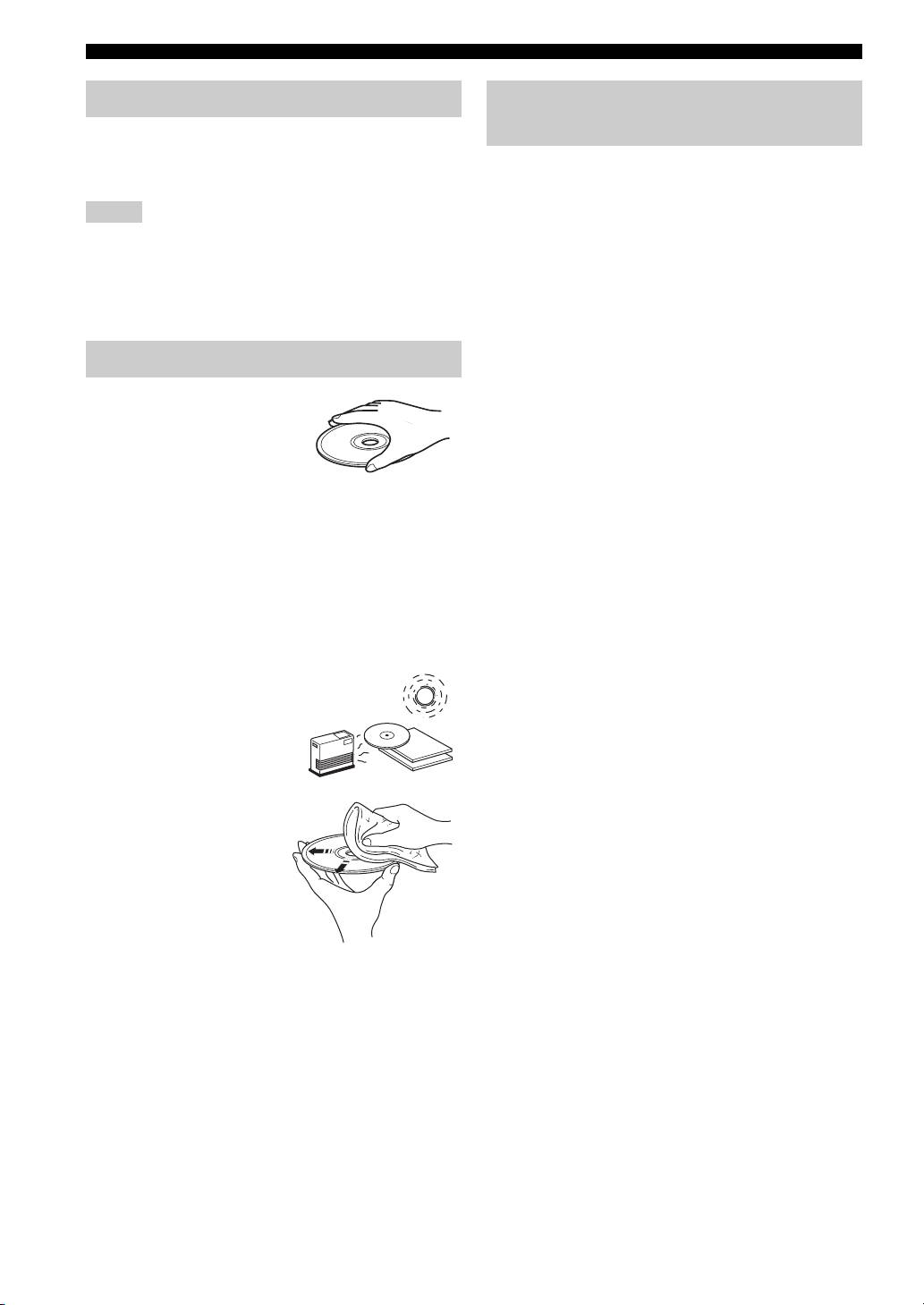
Precauciones con los discos
que aparecen en el televisor.
• La vista de los niños pequeños (especialmente de
• No toque la superficie del disco.
los menores de seis años) todavía está en proceso de
Sujételo por el borde (y por el
desarrollo. Consulte con su médico (como un pediatra
orificio del centro).
o un oftalmólogo) antes de permitir a niños pequeños
• No utilice lápices ni rotuladores
ver imágenes de vídeo en 3D.
de punta fina para escribir en
• Los niños pequeños deben estar bajo la supervisión
el disco.
de un adulto para garantizar que siguen las
• No ponga cinta, productos sellantes, pegamento ni otros
recomendaciones descritas anteriormente.
materiales similares en un disco.
• No utilice una funda protectora para evitar los arañazos.
• No cargue más de un disco en la unidad al mismo
tiempo. Si lo hace, esta unidad y los discos pueden
sufrir daños.
• No introduzca cuerpos extraños en la ranura del disco.
• No cargue discos rotos, deformados ni con pegamento.
• No exponga los discos
a la luz solar directa, altas
Precaución
temperaturas, niveles altos
de humedad ni entornos
con mucho polvo.
• Si un disco se ensucia,
límpielo con un paño
limpio y seco empezando
por el centro y terminando
en el borde. No utilice
productos de limpieza
para discos de vinilo
ni diluyentes.
• Para evitar problemas de
funcionamiento, recomendamos no utilizar productos
de limpieza de lentes comercializados en tiendas.
4 Es
NOMBRES Y FUNCIONES DE LAS OPCIONES
INTRODUCCIÓN
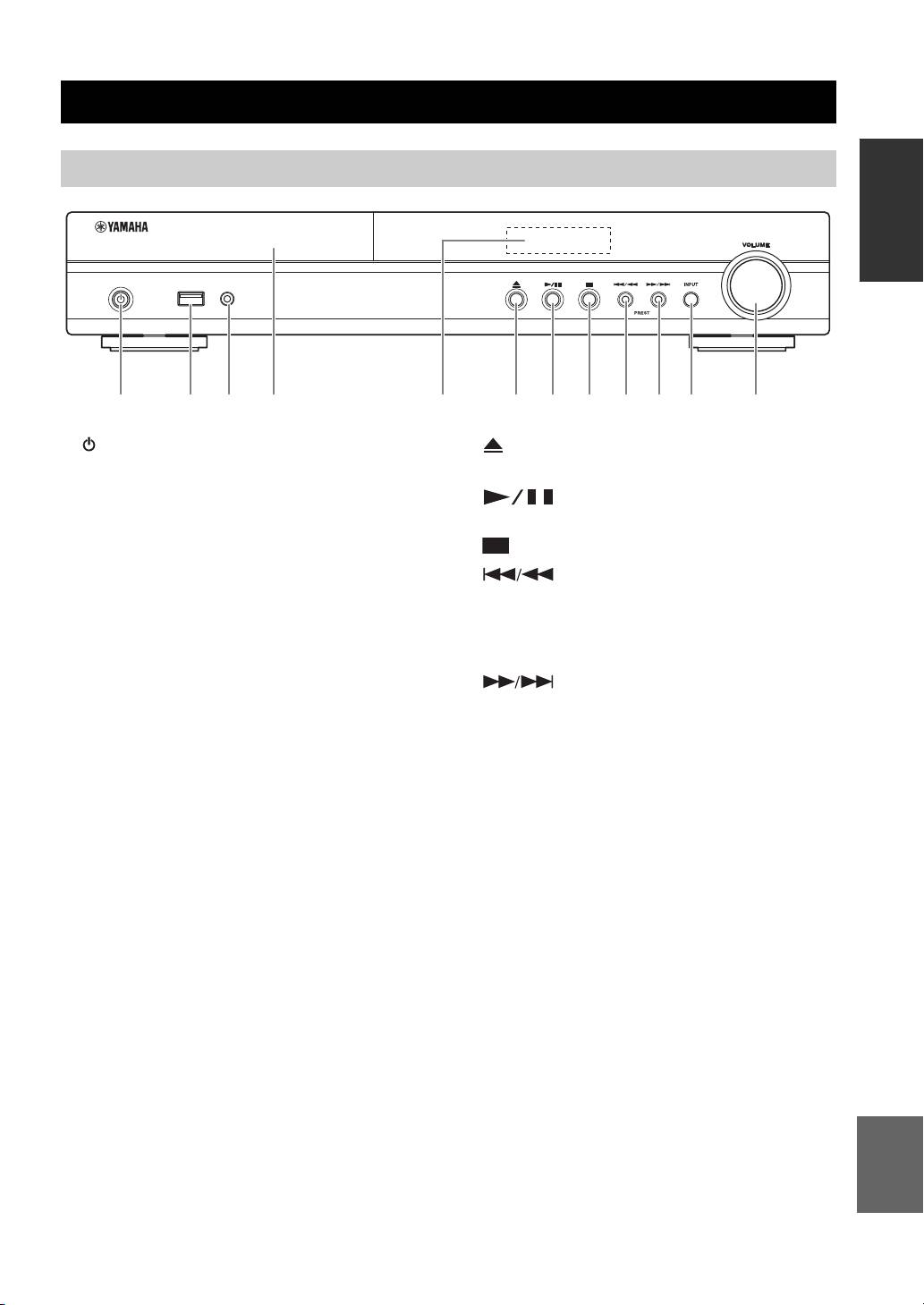
Panel delantero
USB PORTABLE
iPod/iPhone
2 3 4 6 7 8159 0 A B
1 (Encendido/espera):
6 (Expulsar):
Enciende la unidad/activa el modo de reposo.
Abre/cierra la bandeja portadiscos.
y
7 (Reproducir/Pausa):
Esta unidad cuenta con una función de espera automática.
Inicia/pone en pausa la reproducción.
• Al utilizar Disco/USB/Red como fuente, se activa
automáticamente el modo de espera si la unidad está
8 (Detener)
encendida durante 1 hora sin reproducir contenidos
9 (Buscar hacia atrás/saltar hacia
ni realizar ninguna otra operación.
atrás): Pulse este botón para saltar hacia atrás
• Si NO utiliza Disco/USB/Red como fuente, se activa
automáticamente el modo de espera si la unidad está
o manténgalo pulsado para buscar hacia atrás.
encendida durante entre 1 y 8 horas sin reproducir
PRESET <:
contenidos ni realizar ninguna otra operación, en función
Permite seleccionar una emisora presintonizada.
del ajuste configurado en el menú SETUP (pág. 35).
0 (Buscar hacia adelante/saltar hacia
2 Puerto iPod/iPhone/USB (pág. 12, 15):
adelante):
Permite conectar un iPod o dispositivo de
Pulse este botón para saltar hacia adelante
memoria USB.
o manténgalo pulsado para buscar hacia adelante.
3 PORTABLE (pág. 14):
PRESET >:
Permite conectar un reproductor de música digital
Permite seleccionar una emisora presintonizada.
portátil que no sea un iPod.
A INPUT:
4 Tapa de la bandeja de disco
Selecciona una fuente de entrada.
5 Visor del panel delantero
B VOLUME:
Sube o baja el volumen.
Español
5 Es
