
Yamaha DV-C6860: Setup Menu UNLOCK General setup menu
Setup Menu UNLOCK General setup menu: Yamaha DV-C6860
Table of contents
- Important notes for users in the U.K.
- DANGER CAUTION LASER SAFETY
- CAUTION: READ THIS BEFORE OPERATING THIS UNIT.
- Introduction Region codes Cleaning discs Supplied accessories Patent information Notes on discs
- Functional Overview Front panel
- Rear panel
- Remote control
- Connections General notes on connections Audio connections
- Video connections
- Getting Started Step 1: Inserting batteries into the remote control
- Getting Started Step 2: Turning on the power Step 3: Setting a TV type and display
- Getting Started
- Step 4: Setting a language preference
- Disc Operations Basic playback General operation
- Selecting the various repeat/ shuffle functions
- Disc Operations Operations for video playback (DVD/VCD/SVCD)
- Disc Operations Zooming in On-screen display (OSD) DVD Resuming playback from the last stopped point VCD/SVCD
- Disc Operations Special DVD features
- Audio CDs Special VCD & SVCD features Playing MP3/JPEG/Kodak picture CDs
- Disc Operations Special picture disc features
- Scan effect Playing MP3 music and JPEG pictures simultaneously
- Setup Menu UNLOCK General setup menu
- Setup Menu
- Setup Menu Audio setup menu
- Setup Menu
- Setup Menu Video setup menu
- Setup Menu
- Setup Menu
- Setup Menu Preference setup menu
- Setup Menu
- Setup Menu
- Language Code
- Language Code
- Troubleshooting
- Troubleshooting
- Glossary
- Specifications
Setup Menu
Setup is carried out on the TV screen,
UNLOCK
enabling you to customize this unit to suit
Select this to unlock the disc and allow
your own particular requirements.
future playback.
2 Press 3
/ 4 to select a setting, and then
press ENTER/OK to confirm your
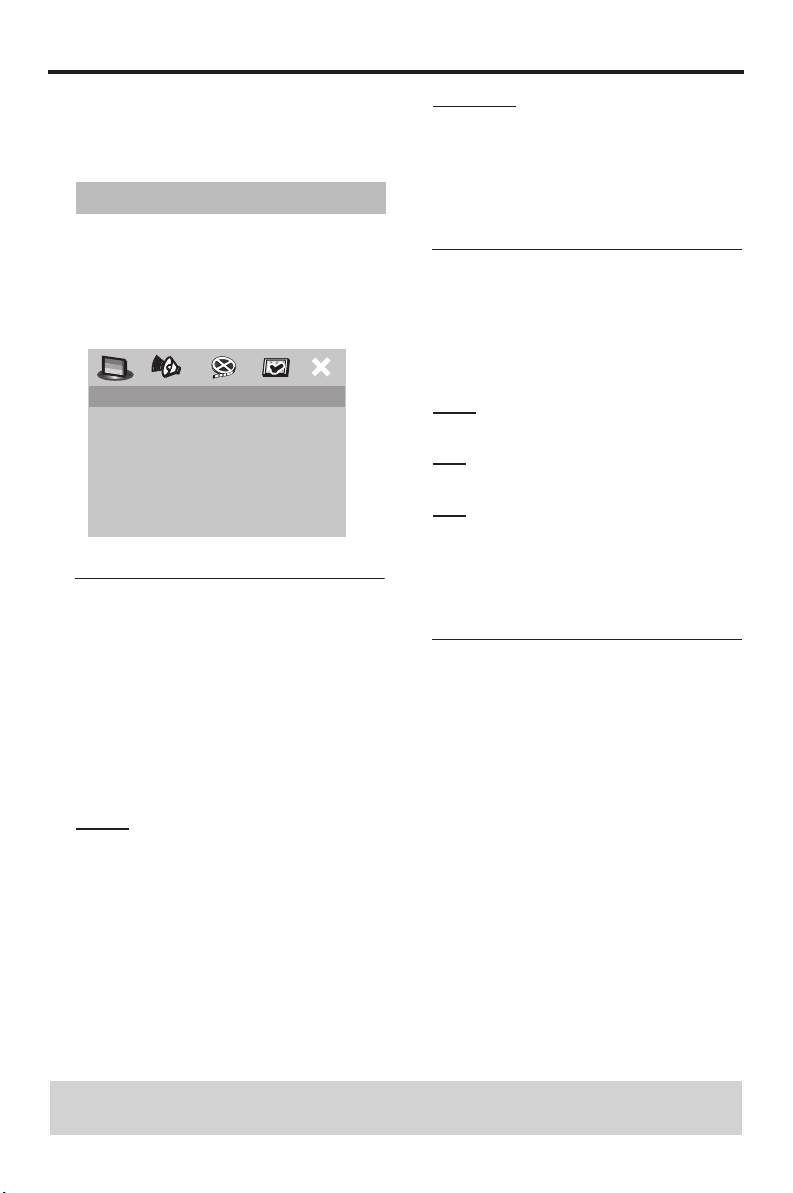
General setup menu
selection.
1 Press SETUP.
2 Press 1
/ 2 to select the “General Setup”
Dimming the front panel display
icon.
You can select different levels of
3 Press ENTER/OK to confirm your
brightness for the front panel display.
selection.
1 In “GENERAL SETUP PAGE”, press 3
/ 4
to highlight [DISPLAY DIM], and then
press 2.
GENERAL SETUP PAGE
100%
DISC LOCK
Select this for full brightness.
DISPLAY DIM
PROGRAM
70%
OSD LANGUAGE
SCREEN SAVER
Select this for medium brightness.
SLEEP
40%
Select this for dimming display.
2 Press 3
/ 4 to select a setting, and then
press ENTER/OK to confirm your
Locking/Unlocking the disc for
selection.
viewing
Not all discs are rated or coded by the
Programming disc tracks and
manufacturer of the disc. You can prevent
discs
playback of a specific disc by locking the
disc. You can lock up to 40 discs on this
Program: Track (except picture
unit.
CD/MP3/WMA)
1 In “GENERAL SETUP PAGE”, press 3
/ 4
You can play back the contents of a disc in
to highlight [DISC LOCK], and then
the desired order by programming the
press 2.
tracks to be played. You can store up to 20
LOCK
tracks per disc with a maximum of 10
Select this to lock playback of the current
discs.
disc. Subsequent access to a locked disc
1 In “GENERAL SETUP PAGE”, press 3
/ 4
requires a six-digit password.
to highlight [PROGRAM], and then press 2
The default password is “000 000” (see
to select [FTS].
“Changing the password” on page 29).
TIPS: To return to the previous menu, press 1.
To exit from the menu, press SETUP.
20 En


