
Yamaha DV-C6860: Setup Menu
Setup Menu: Yamaha DV-C6860
Table of contents
- Important notes for users in the U.K.
- DANGER CAUTION LASER SAFETY
- CAUTION: READ THIS BEFORE OPERATING THIS UNIT.
- Introduction Region codes Cleaning discs Supplied accessories Patent information Notes on discs
- Functional Overview Front panel
- Rear panel
- Remote control
- Connections General notes on connections Audio connections
- Video connections
- Getting Started Step 1: Inserting batteries into the remote control
- Getting Started Step 2: Turning on the power Step 3: Setting a TV type and display
- Getting Started
- Step 4: Setting a language preference
- Disc Operations Basic playback General operation
- Selecting the various repeat/ shuffle functions
- Disc Operations Operations for video playback (DVD/VCD/SVCD)
- Disc Operations Zooming in On-screen display (OSD) DVD Resuming playback from the last stopped point VCD/SVCD
- Disc Operations Special DVD features
- Audio CDs Special VCD & SVCD features Playing MP3/JPEG/Kodak picture CDs
- Disc Operations Special picture disc features
- Scan effect Playing MP3 music and JPEG pictures simultaneously
- Setup Menu UNLOCK General setup menu
- Setup Menu
- Setup Menu Audio setup menu
- Setup Menu
- Setup Menu Video setup menu
- Setup Menu
- Setup Menu
- Setup Menu Preference setup menu
- Setup Menu
- Setup Menu
- Language Code
- Language Code
- Troubleshooting
- Troubleshooting
- Glossary
- Specifications
Setup Menu
3 Use the numeric buttons (0-9) to enter
Audio, subtitle and disc menu
the six-digit password (see “Changing the
These menus contain various language
password” on page 29).
options for the audio, subtitles and disc
➜ DVDs that are rated above the level you
menus recorded on the DVD. For details,
selected do not play unless you enter
see “Setting the audio, subtitle and disc
the six-digit password.
menu languages” on page 11.
Notes:
– VCD, SVCD, and CD have no level
Restricting playback with
indication, so the parental control function
parental control
has no effect with these types of discs. This
Some DVDs may have a parental level
also applies to most illegal DVD discs.
assigned to the complete disc or to certain
– Some DVDs are not encoded with a rating
scenes on the disc. This feature lets you set
though the movie rating may be printed on
a playback limitation level.
the disc cover. The rating level feature does
The rating levels are from 1 to 8 and are
not work for such discs.
country dependent. You can prohibit
playback of certain discs that are not
PBC (Playback control)
suitable for your children or play certain
You can turn on or off PBC. This feature is
discs in alternative scenes.
available only on Video CD 2.0 with the
1 In “PREFERENCE PAGE”, press 3
/ 4 to
playback control (PBC) feature. For
highlight [PARENTAL], and then press 2.
details, see “Playback control (PBC)” on
page 17.
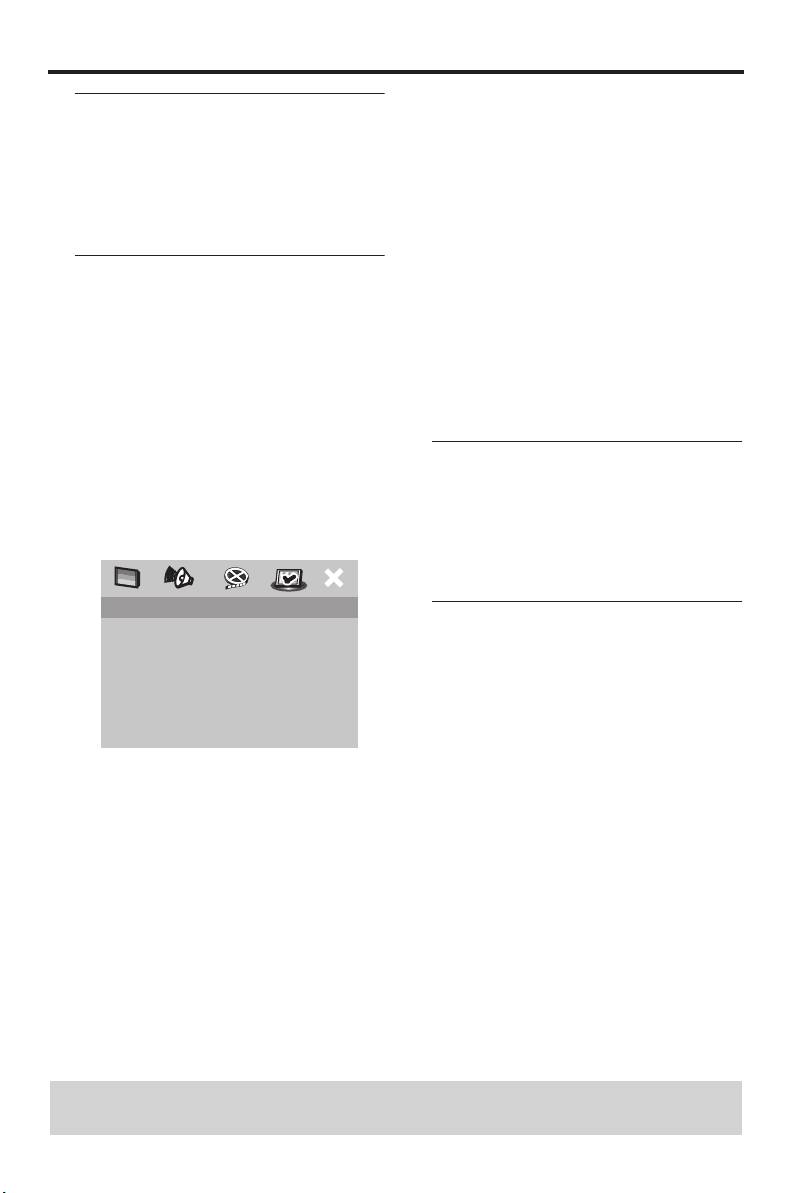
PREFERENCE PAGE
MP3/JPEG menu
AUDIO 1 KID SAFE
SUBTITLE 2 G
MP3/JPEG Navigator can be set only if the
DISC MENU 3 PG
disc was recorded with a menu. It allows
PARENTAL 4 PG 13
you to select different display menus for
PBC 5 PGR
MP3/JPEG NAV 6 R
easy navigation.
PASSWORD 7 NC 17
1 In “PREFERENCE PAGE”, press 3
/ 4
DEFAULT 8 ADULT
to highlight [MP3/JPEG NAV], and then
2 Press 3
/ 4 to highlight a rating level for the
press 2.
inserted disc, and then press ENTER/OK
to confirm your selection.
• To disable parental controls and have all
discs play, select [8 ADULT].
TIPS: To return to the previous menu, press 1.
To exit from the menu, press SETUP.
28 En


