
Yamaha DV-C6860: Setup Menu
Setup Menu: Yamaha DV-C6860
Table of contents
- Important notes for users in the U.K.
- DANGER CAUTION LASER SAFETY
- CAUTION: READ THIS BEFORE OPERATING THIS UNIT.
- Introduction Region codes Cleaning discs Supplied accessories Patent information Notes on discs
- Functional Overview Front panel
- Rear panel
- Remote control
- Connections General notes on connections Audio connections
- Video connections
- Getting Started Step 1: Inserting batteries into the remote control
- Getting Started Step 2: Turning on the power Step 3: Setting a TV type and display
- Getting Started
- Step 4: Setting a language preference
- Disc Operations Basic playback General operation
- Selecting the various repeat/ shuffle functions
- Disc Operations Operations for video playback (DVD/VCD/SVCD)
- Disc Operations Zooming in On-screen display (OSD) DVD Resuming playback from the last stopped point VCD/SVCD
- Disc Operations Special DVD features
- Audio CDs Special VCD & SVCD features Playing MP3/JPEG/Kodak picture CDs
- Disc Operations Special picture disc features
- Scan effect Playing MP3 music and JPEG pictures simultaneously
- Setup Menu UNLOCK General setup menu
- Setup Menu
- Setup Menu Audio setup menu
- Setup Menu
- Setup Menu Video setup menu
- Setup Menu
- Setup Menu
- Setup Menu Preference setup menu
- Setup Menu
- Setup Menu
- Language Code
- Language Code
- Troubleshooting
- Troubleshooting
- Glossary
- Specifications
Setup Menu
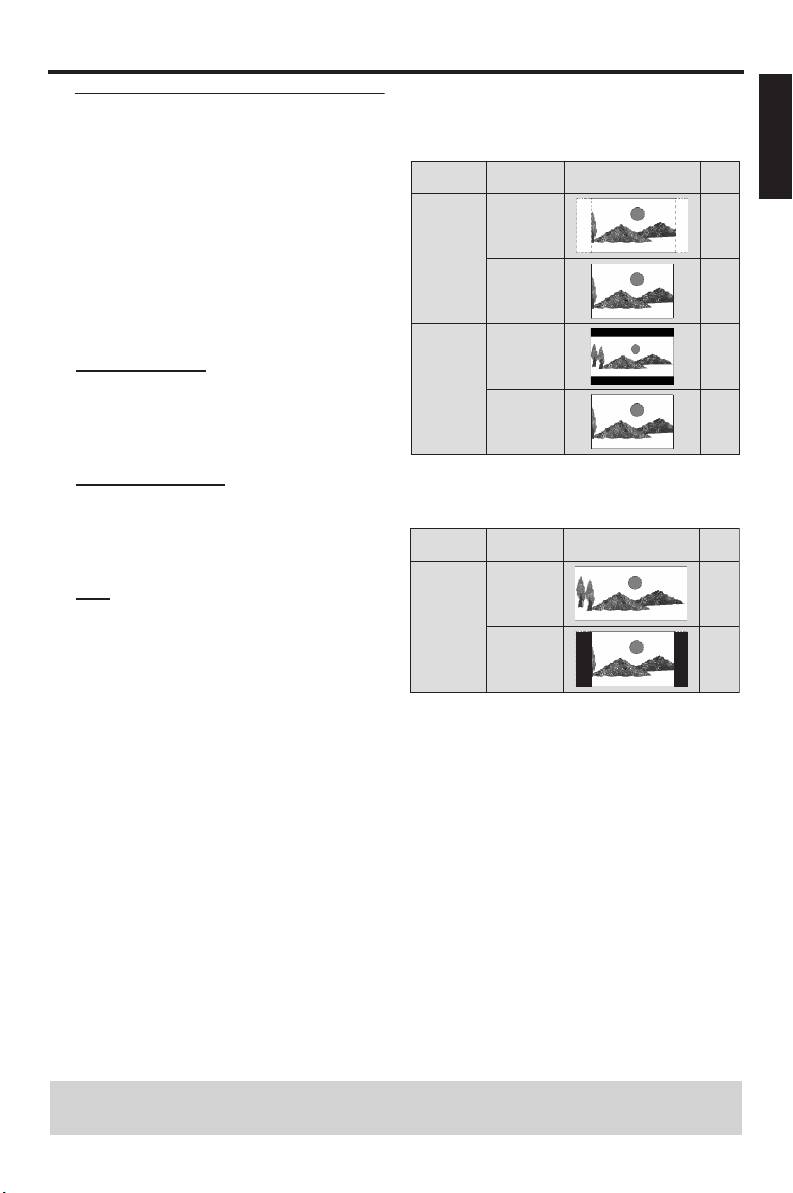
The relationship between the setting of
English
Setting the TV display
this unit and the TV display
Set the aspect ratio of this unit to match
When the aspect ratio of your TV is 4:3:
your TV. The format you select must be
Playback
available on the disc. Otherwise, the TV
Setting
TV display
disc
display setting will not affect the picture
during playback.
16:9
1
*
1 In “VIDEO SETUP PAGE”, press 3
/ 4
4:3 PAN
to highlight [TV DISPLAY], and then
SCAN
press 2.
4:3
2 Press 3
/ 4 to highlight one of the following
options.
16:9
4:3 PAN SCAN
4:3 LETTER
Select this if the aspect ratio of your TV is
BOX
4:3 and you want both sides of the picture
4:3
to be trimmed or formatted to fit your TV
screen.
4:3 LETTER BOX
When the aspect ratio of your TV is 16:9
Select this if the aspect ratio of your TV is
(widescreen):
4:3. In this case, a wide picture with black
Playback
bands on the upper and lower portions of
Setting
TV display
disc
the TV screen are displayed.
16:9
16:9
Select this if you have a widescreen TV.
16:9
3 Select an item, and then press
4:3
2
*
ENTER/OK to confirm your selection.
*1: If the disc is not assigned to playback
with panscan, it is played with
letterbox.
*2: The side of the picture may be
stretched depending on the TV. In this
case, check the screen size and aspect
ratio of your TV.
TIPS: To return to the previous menu, press 1.
To exit from the menu, press SETUP.
25 En


