
ASRock Z77E-ITX: 2. Installation
2. Installation: ASRock Z77E-ITX

15
ASRock Z77E-ITX Motherboard
English
2. Installation
This is a Mini-ITX form factor (6.7” x 6.7”, 17.0 x 17.0 cm) motherboard. Before you
install the motherboard, study the con
fi
guration of your chassis to ensure that the
motherboard
fi
ts into it.
Make sure to unplug the power cord before installing or removing the
motherboard. Failure to do so may cause physical injuries to you and
damages to motherboard components.
2.1 Screw Holes
Place screws into the holes indicated by circles to secure the motherboard to the
chassis.
Do not over-tighten the screws! Doing so may damage the motherboard.
2.2 Pre-installation Precautions
Take note of the following precautions before you install motherboard components
or change any motherboard settings.
1. Unplug the power cord from the wall socket before touching any
components.
2. To avoid damaging the motherboard’s components due to static
electricity, NEVER place your motherboard directly on the carpet
or the like. Also remember to use a grounded wrist strap or touch a
safety grounded object before you handle the components.
3. Hold components by the edges and do not touch the ICs.
4. Whenever you uninstall any component, place it on a grounded anti-
static pad or in the bag that comes with the component.
5.
When placing screws into the screw holes to secure the mother-
board to the chassis, please do not over-tighten the screws! Doing
so may damage the motherboard.
Before you install or remove any component, ensure that the power is
switched off or the power cord is detached from the power supply. Failure to do
so may cause severe damage to the motherboard, peripherals, and/or
components.

16
ASRock Z77E-ITX Motherboard
English
1155-Pin Socket Overview
2.3 CPU Installation
In order to provide the LGA 1155 CPU sock-
ets more protection and make the instal-
lation process easier, ASRock has added
a new protection cover on top of the load
plate to replace the former PnP caps that
were under the load plate. For the installa-
tion of Intel
®
1155-Pin CPUs with the new
protection cover, please follow the steps
below.
Before you insert the 1155-Pin CPU into the socket, please check if the
CPU surface is unclean or if there are any bent pins in the socket. Do
not force to insert the CPU into the socket if above situation is found.
Otherwise, the CPU will be seriously damaged.
Step 1. Open the socket:
Step 1-1. Disengage the lever by pressing it
down and sliding it out of the hook.
You do not have to remove the pro-
tection cover.
Step 1-2. Keep the lever positioned at about
135 degrees in order to flip up the
load plate.
Step 2. Insert the 1155-Pin CPU:
Step 2-1. Hold the CPU by the edge which is
marked with a black line.
Step 2-2. Orient the CPU with the IHS (Inte-
grated Heat Sink) up. Locate Pin1
and the two orientation key notches.
Load
Plate
Cover
Contact
Array
Load
Lever
Socket
Body
black line
17
ASRock Z77E-ITX Motherboard
English
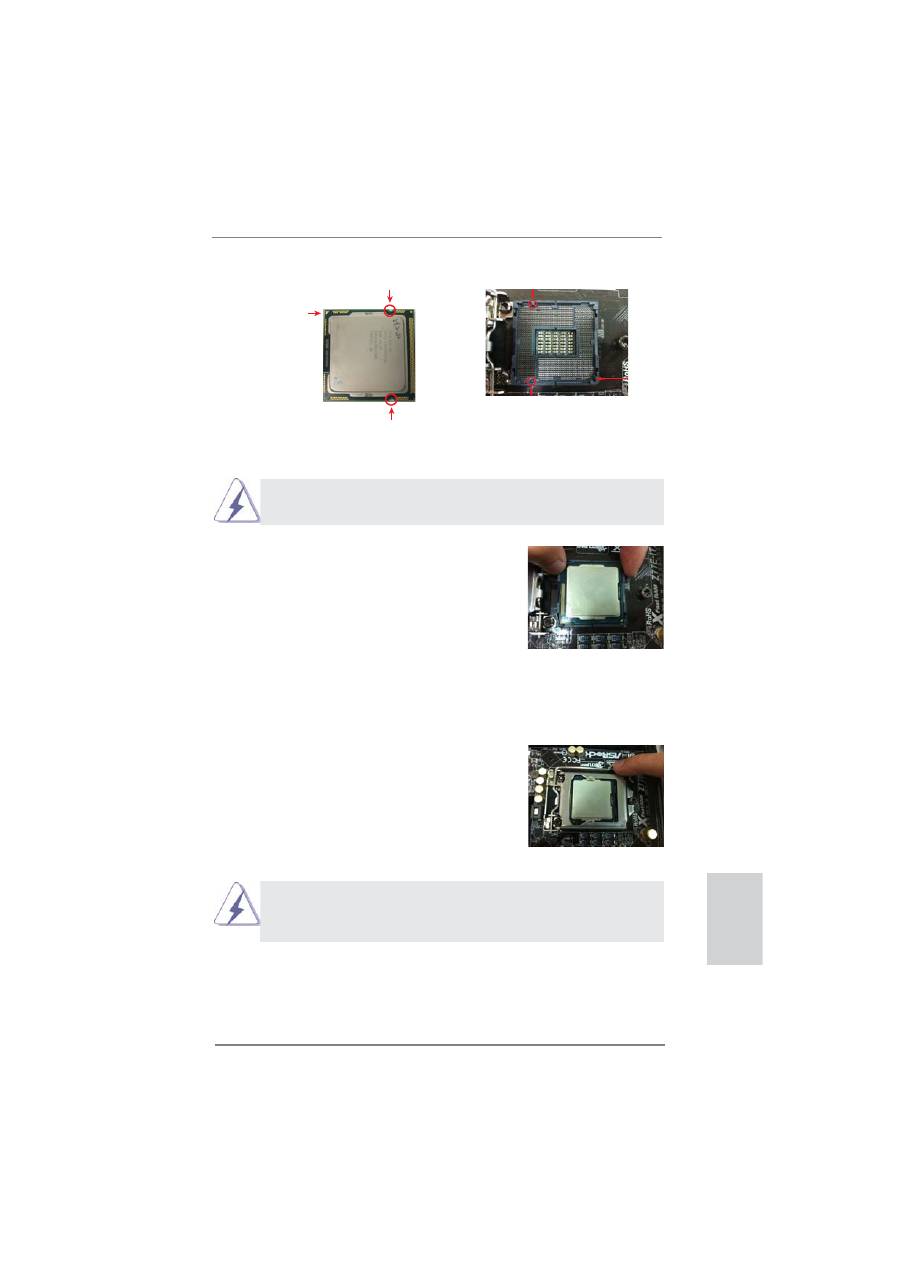
Pin1
alignment key
alignment key
Pin1
1155-Pin CPU
For proper installation, please ensure to match the two orientation
key notches of the CPU with the two alignment keys of the socket.
Step 2-3. Carefully place the CPU into the
socket.
Step 2-4. Verify that the CPU is within the sock-
et and properly mated to the orient
keys.
Step 3. Close the socket:
Step 3-1. Flip the load plate onto the IHS.
Step 3-2. Press down the load lever, and se-
cure it with the load plate tab under
the retention tab. The protection
cover will automatically come off by
itself.
Please save and replace the cover if the processor is removed. The
cover must be placed if you wish to return the motherboard for after
service.
orientation key notch
orientation key notch
1155-Pin Socket
18
ASRock Z77E-ITX Motherboard
English
2.4 Installation of CPU Fan and Heatsink
This motherboard is equipped with 1155-Pin socket that supports Intel 1155-Pin
CPUs. Please adopt the type of heatsink and cooling fan compliant with Intel 1155-
Pin CPU to dissipate heat. Before you install the heatsink, you need to spray ther-
mal interface material between the CPU and the heatsink to improve heat dissipa-
tion. Ensure that the CPU and the heatsink are securely fastened and in good con-
tact with each other. Then connect the CPU fan to the CPU_FAN connector (CPU_
FAN1, see page 2, No. 10).
For proper installation, please kindly refer to the instruction manuals of your
CPU fan and heatsink.
Below is an example to illustrate the installation of the heatsink for 1155-Pin CPUs.
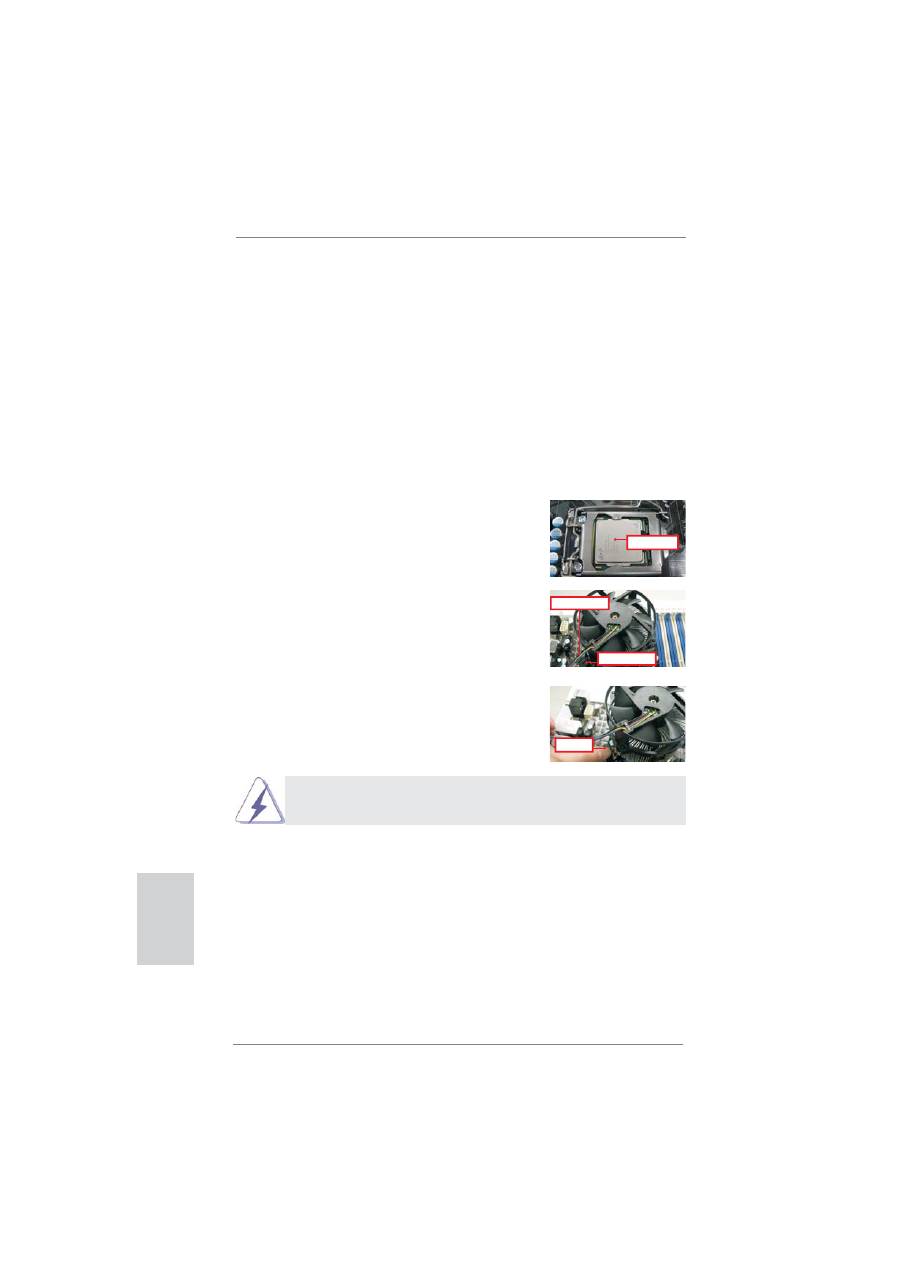
Step 1. Apply thermal interface material onto the cen-
ter of the IHS on the socket’s surface.
Step 2. Place the heatsink onto the socket. Ensure
that the fan cables are oriented on side closest
to the CPU fan connector on the motherboard
(CPU_FAN1, see page 2, No. 10).
Step 3. Align fasteners with the motherboard through-
holes.
Step 4. Rotate the fastener clockwise, then press
down on fastener caps with thumb to install
and lock. Repeat with remaining fasteners.
If you press down the fasteners without rotating them clockwise, the
heatsink cannot be secured on the motherboard.
Step 5. Connect fan header with the CPU fan connector on the motherboard.
Step 6. Secure redundant cable with tie-wrap to ensure the cable does not
interfere with fan operation or contact other components.
Apply Thermal
Interface Material
Fan cables on side
closest to MB header
Fastener slots
pointing straight out
Press Down
(4 Places)

19
ASRock Z77E-ITX Motherboard
English
2.5 Installation of Memory Modules (DIMM)
This motherboard provides two 240-pin DDR3 (Double Data Rate 3) DIMM slots,
and supports Dual Channel Memory Technology. For dual channel configuration,
you always need to install two identical (the same brand, speed, size and chip-
type) memory modules in the DDR3 DIMM slots to activate Dual Channel Memory
Technology. Otherwise, it will operate at single channel mode.
1.
It is not allowed to install a DDR or DDR2 memory module into
DDR3 slot;otherwise, this motherboard and DIMM may be
damaged.
2.
If you install only one memory module or two non-identical
memory modules, it is unable to activate the Dual Channel
Memory
Technology.
3.
Some DDR3 1GB double-sided DIMMs with 16 chips may not
work on this motherboard. It is not recommended to install them
on this motherboard.
Installing a DIMM
Please make sure to disconnect power supply before adding or
removing DIMMs or the system components.
Step 1. Unlock a DIMM slot by pressing the retaining clips outward.
Step 2. Align a DIMM on the slot such that the notch on the DIMM matches the
break on the slot.
The DIMM only
fi
ts in one correct orientation. It will cause permanent
damage to the motherboard and the DIMM if you force the DIMM into
the slot at incorrect orientation.
Step 3. Firmly insert the DIMM into the slot until the retaining clips at both ends
fully snap back in place and the DIMM is properly seated.

20
ASRock Z77E-ITX Motherboard
English
2.6 Expansion Slots (PCI Express Slots)
There is 1 PCI Express slot and 1 mini-PCI Express slot on this motherboard.
PCIE slots:
PCIE1 (PCIE 3.0 x16 slot) is used for PCI Express x16 lane width
graphics cards.
MINI_PCIE1 (mini-PCIE slot) is used for WiFi module.
Only PCIE1 slot supports Gen 3 speed. To run the PCI Express in Gen
3 speed, please install an Ivy Bridge CPU. If you install a Sandy Bridge
CPU, the PCI Express will run only at PCI Express Gen 2 speed.
Installing an expansion card
Step 1.
Before installing an expansion card, please make sure that the power
supply is switched off or the power cord is unplugged. Please read the
documentation of the expansion card and make necessary hardware
settings for the card before you start the installation.
Step 2.
Remove the system unit cover (if your motherboard is already installed
in a chassis).
Step 3.
Remove the bracket facing the slot that you intend to use. Keep the
screws for later use.
Step 4.
Align the card connector with the slot and press
fi
rmly until the card is
completely seated on the slot.
Step 5.
Fasten the card to the chassis with screws.
Step 6.
Replace the system cover.

21
ASRock Z77E-ITX Motherboard
English
2. If you have already installed the onboard VGA driver from our support CD to your
system, you can freely enjoy the bene
fi
ts of dual monitor function after your
system boots. If you haven’t installed the onboard VGA driver yet, please install
the onboard VGA driver from our support CD to your system and restart your
computer.
2.7 Dual Monitor and Surround Display Features
Dual Monitor Feature
This motherboard supports dual monitor feature. With the internal VGA output sup-
port (DVI, HDMI and DisplayPort), you can easily enjoy the bene
fi
ts of dual monitor
feature without installing any add-on VGA cards to this motherboard. This mother-
board also provides independent display controllers for DVI, HDMI and DisplayPort
to support dual VGA output so that DVI, HDMI and DisplayPort can drive same or
different display contents.
To enable dual monitor feature, please follow the steps below:
1. Connect a DVI monitor cable to the DVI port on the I/O panel, connect a
HDMI monitor cable to the HDMI port on the I/O panel and connect a DisplayPort
monitor cable to the DisplayPort on the I/O panel.
DVI, HDMI and DisplyPort monitors cannot be enabled at the same time.
You can only choose the combination: DVI + HDMI, DVI + DisplayPort, or
HDMI + DisplayPort.
HDMI port
DVI-I port
DisplayPort

22
ASRock Z77E-ITX Motherboard
English
Surround Display Feature
This motherboard supports surround display upgrade. With the internal VGA output
support (DVI, HDMI and DisplayPort) and external add-on PCI Express VGA cards,
you can easily enjoy the bene
fi
ts of surround display feature.
Please refer to the following steps to set up a surround display environment:
1. Install the PCI Express VGA cards on PCIE1 slot. Please refer to page 20 for
proper expansion card installation procedures.
2. Connect a DVI monitor cable to the DVI port on the I/O panel, connect a
HDMI monitor cable to the HDMI port on the I/O panel and connect a DisplayPort
monitor cable to the DisplayPort port on the I/O panel. Then connect other
monitor cables to the corresponding connectors of the add-on PCI Express VGA
cards on PCIE1 slot.
3. Boot your system. Press <F2> or <Del> to enter UEFI setup. Enter “Share
Memory” option to adjust the memory capability to [32MB], [64MB], [128MB],
[256MB] or [512MB] to enable the function of D-sub. Please make sure that the
value you select is less than the total capability of the system memory. If you do
not adjust the UEFI setup, the default value of “Share Memory”, [Auto], will
disable D-Sub function when an add-on VGA card is inserted to this motherboard.
4. Install the onboard VGA driver and the add-on PCI Express VGA card driver to
your system. If you have installed the drivers already, there is no need to install
them again.
5. Set up a multi-monitor display.
For Windows
®
XP / XP 64-bit OS:
Right click on desktop, choose “Properties”, and select the “Settings” tab
so that you can adjust the parameters of the multi-monitors according to
the steps below.
A. Click the “Identify” button to display a large number on each monitor.
B. Right-click the display icon in the Display Properties dialog that you
wish to be your primary monitor, and then select “Primary”. When
you use multiple monitors with your card, one monitor will always be
Primary, and all additional monitors will be designated as Secondary.
C. Select the display icon identi
fi
ed by the number 2.
D. Click “Extend my Windows desktop onto this monitor”.
E. Right-click the display icon and select “Attached”, if necessary.
F. Set the appropriate “Screen Resolution” and “Color Quality” for the
second monitor. Click “Apply” or “OK” to apply these new values.
G. Repeat steps C through E for the display icon identi
fi
ed by the
numbers three to four.

23
ASRock Z77E-ITX Motherboard
English
For Windows
®
7 / 7 64-bit OS:
Right click the desktop, choose “Personalize”, and select the “Display
Settings” tab so that you can adjust the parameters of the multi-monitors
according to the steps below.
A. Click the number ”2” icon.
B. Click the items “This is my main monitor” and “Extend the desktop onto
this monitor”.
C. Click “OK” to save your change.
D. Repeat steps A through C for the display icons identi
fi
ed by the number
three to four.
6. Use Surround Display. Click and drag the display icons to positions representing
the physical setup of your monitors that you would like to use. The placement of
display icons determines how you move items from one monitor to another.
HDCP Function
HDCP function is supported on this motherboard. To use HDCP
function with this motherboard, you need to adopt a monitor
that supports HDCP function as well. Therefore, you can enjoy
the superior display quality with high-de
fi
nition HDCP
encryption contents. Please refer to the instructions below for
more details about HDCP function.
What
is
HDCP?
HDCP stands for High-Bandwidth Digital Content Protection, a
speci
fi
cation developed by Intel
®
for protecting digital
entertainment content that uses the DVI interface. HDCP is a
copy protection scheme to eliminate the possibility of
intercepting digital data midstream between the video source,
or transmitter - such as a computer, DVD player or set-top box -
and the digital display, or receiver - such as a monitor, television
or projector. In other words, HDCP speci
fi
cation is designed to
protect the integrity of content as it is being transmitted.
Products compatible with the HDCP scheme such as DVD
players, satellite and cable HDTV set-top-boxes, as well as few
entertainment PCs requires a secure connection to a compliant
display. Due to the increase in manufacturers employing HDCP
in their equipment, it is highly recommended that the HDTV or
LCD monitor you purchase is compatible.
24
ASRock Z77E-ITX Motherboard
English
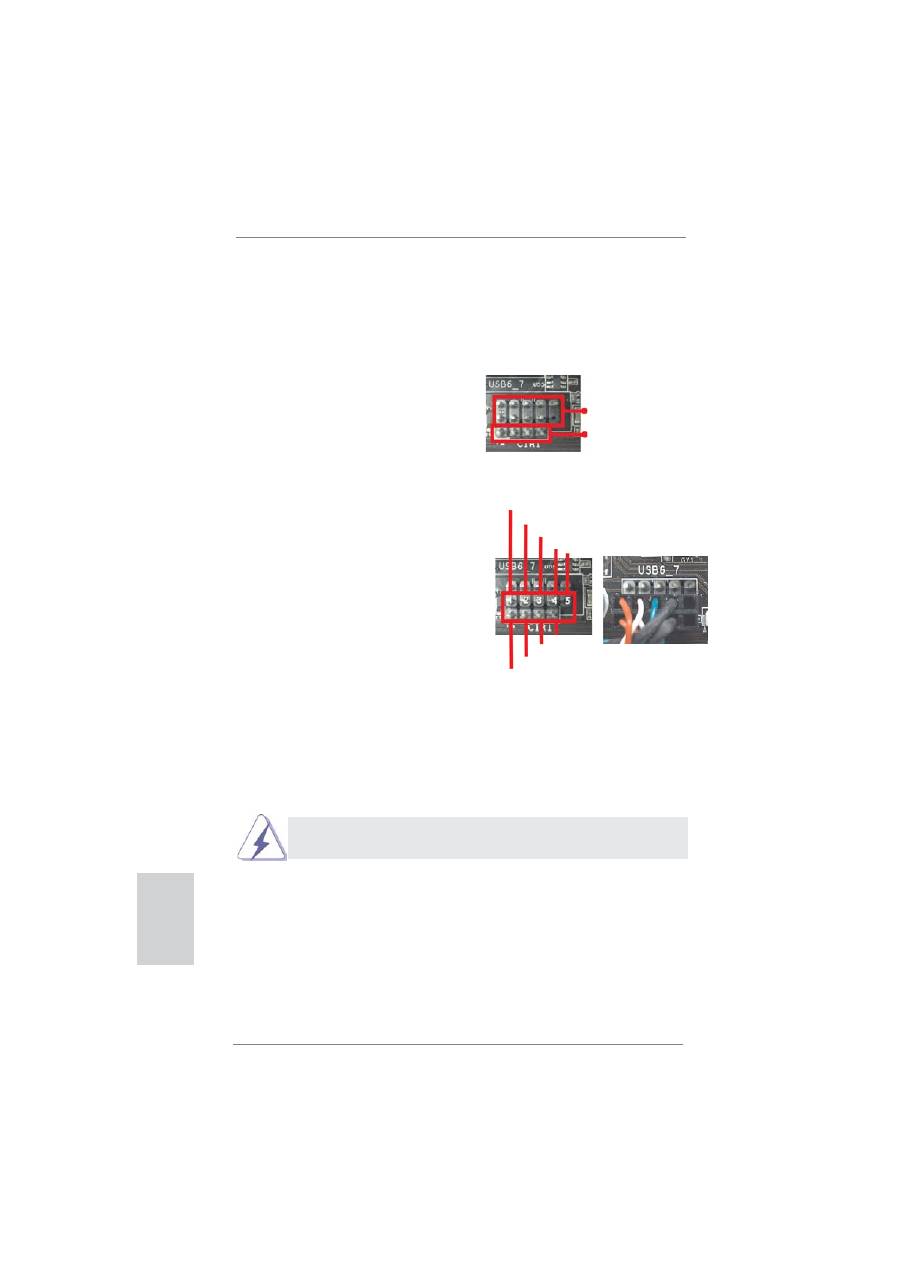
USB 2.0 header (9-pin, black)
CIR header (4-pin, gray)
2.8 ASRock Smart Remote Installation Guide
ASRock Smart Remote is only used for ASRock motherboard with CIR header.
Please refer to below procedures for the quick installation and usage of ASRock
Smart Remote.
Step1.
Find the CIR header located next
to the USB 2.0 header on ASRock
motherboard.
Step2.
Connect the front USB cable to the
USB 2.0 header (as below, pin 1-5)
and the CIR header. Please make
sure the wire assignments and the
pin assignments are matched
correctly.
USB_PWR
P-
P+
GND
ATX+5VSB
IRRX
IRTX
GND
DUMMY
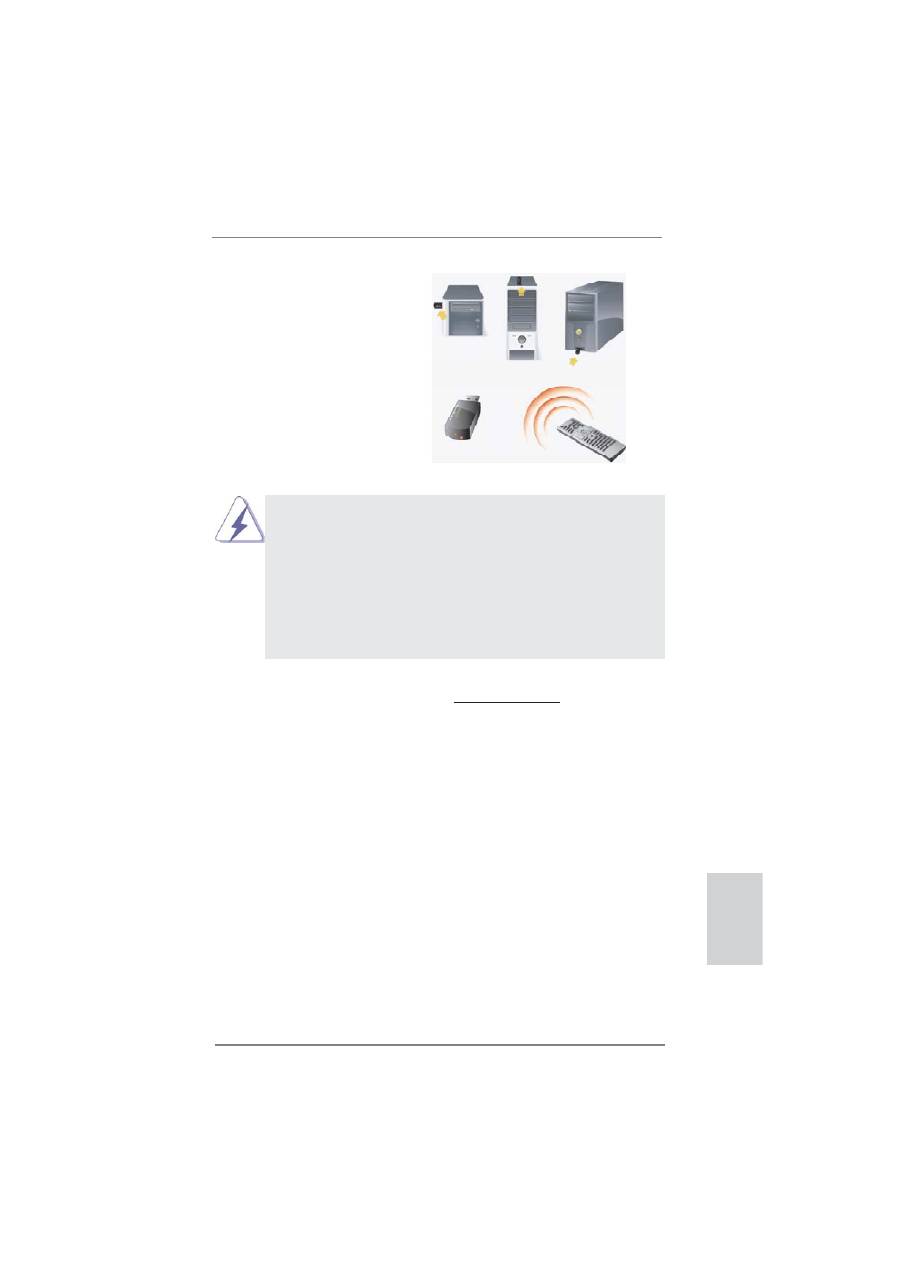
Step3. Install
Multi-Angle CIR Receiver to the front USB port.
Step4. Boot up your system. Press <F2> or <Del> to enter BIOS Setup Utility.
Make sure the option "CIR Controller" is setting at [Enabled].
(Advanced -> Super IO Con
fi
guration -> CIR Controller -> [Enabled])
If you cannot
fi
nd this option, please shut down your system and install
Multi-Angle CIR Receiver to the other front USB port then try again.
Step5.
Enter Windows. Execute ASRock support CD and install CIR Driver. (It is
listed at the bottom of driver list.)
25
ASRock Z77E-ITX Motherboard
English
* ASRock Smart Remote is only supported by some of ASRock motherboards. Please refer to
ASRock website for the motherboard support list: http://www.asrock.com
1.
Only one of the front USB port can support CIR function. When
the CIR function is enabled, the other port will remain USB
function.
2.
Multi-Angle CIR Receiver is used for front USB only. Please do
not use the rear USB bracket to connect it on the rear panel.
Multi-Angle CIR Receiver can receive the multi-direction infrared
signals (top, down and front), which is compatible with most of
the chassis on the market.
3.
The Multi-Angle CIR Receiver does not support Hot-Plug
function. Please install it before you boot the system.
3 CIR sensors in different angles

26
ASRock Z77E-ITX Motherboard
English
2.9 Jumpers Setup
The illustration shows how jumpers are
setup. When the jumper cap is placed on
pins, the jumper is “Short”. If no jumper cap
is placed on pins, the jumper is “Open”. The
illustration shows a 3-pin jumper whose
pin1 and pin2 are “Short” when jumper cap
is placed on these 2 pins.
Jumper Setting
Description
Clear CMOS Jumper
(CLRCMOS1)
(see p.2, No. 11)
Note: CLRCMOS1 allows you to clear the data in CMOS. To clear and reset the
system parameters to default setup, please turn off the computer and unplug
the power cord from the power supply. After waiting for 15 seconds, use a
jumper cap to short pin2 and pin3 on CLRCMOS1 for 5 seconds. However,
please do not clear the CMOS right after you update the BIOS. If you need
to clear the CMOS when you just
fi
nish updating the BIOS, you must boot
up the system
fi
rst, and then shut it down before you do the clear-CMOS ac-
tion. Please be noted that the password, date, time, user default pro
fi
le, 1394
GUID and MAC address will be cleared only if the CMOS battery is removed.
Clear CMOS
Default

27
ASRock Z77E-ITX Motherboard
English
2.10 Onboard Headers and Connectors
Onboard headers and connectors are NOT jumpers. Do NOT place
jumper caps over these headers and connectors. Placing jumper caps
over the headers and connectors will cause permanent damage of the
motherboard!
Serial ATA2 Connectors
These two Serial ATA2 (SATA2)
(SATA_2: see p.2, No. 4)
connectors support SATA data
(SATA_3: see p.2, No. 1)
cables for internal storage
devices. The current SATA2
interface allows up to 3.0 Gb/s
data transfer rate.
Serial ATA3 Connectors
These two Serial ATA3 (SATA3)
(SATA3_0: see p.2, No. 3)
connectors support SATA data
(SATA3_1: see p.2, No. 2)
cables for internal storage
devices. The current SATA3
interface allows up to 6.0 Gb/s
data transfer rate.
Serial ATA (SATA)
Either end of the SATA data
Data Cable
cable can be connected to the
(Optional)
SATA / SATA2 / SATA3 hard
disk or the SATA2 / SATA3
connector on this motherboard.
USB 2.0 Headers
Besides two default USB 2.0
(9-pin USB2_3)
ports on the I/O panel, there are
(see p.2, No. 5)
two USB 2.0 headers on this
motherboard. Each USB 2.0
header can support two USB 2.0
ports.
SATA_3
SATA_2
mSATA Connector
This mSATA connector can be
(see p.3, No. 23)
used to connect a Solid-State
Drive (SSD) for an internal
storage device. The current
mSATA interface allows up to
3.0 Gb/s data transfer rate.
1
USB_PWR
P-2
GND
DUMMY
USB_PWR
P+2
GND
P-3
P+3
SATA3_1
SATA3_0

28
ASRock Z77E-ITX Motherboard
English
USB 3.0 Header
Besides four default USB 3.0
(19-pin USB3_3_4)
ports on the I/O panel, there is
(see p.2, No. 8)
one USB 3.0 header on this
motherboard. This USB 3.0
header can support two USB 3.0
ports.
Front Panel Audio Header
This is an interface for front
(9-pin HD_AUDIO1)
panel audio cable that allows
(see p.2, No. 19)
convenient connection and
control of audio devices.
J_SENSE
OUT2_L
1
MIC_RET
PRESENCE#
GND
OUT2_R
MIC2_R
MIC2_L
OUT_RET
1. High De
fi
nition Audio supports Jack Sensing, but the panel wire on the
chassis must support HDA to function correctly. Please follow the
instruction in our manual and chassis manual to install your system.
2. If you use AC’97 audio panel, please install it to the front panel audio
header as below:
A. Connect Mic_IN (MIC) to MIC2_L.
B. Connect Audio_R (RIN) to OUT2_R and Audio_L (LIN) to OUT2_L.
C. Connect Ground (GND) to Ground (GND).
D. MIC_RET and OUT_RET are for HD audio panel only. You don’t need
to connect them for AC’97 audio panel.
E. To activate the front mic.
For Windows
®
XP / XP 64-bit OS:
Select “Mixer”. Select “Recorder”. Then click “FrontMic”.
1
DUMMY
IntA_P1_D+
IntA_P1_D-
GND
IntA_P1_SSTX+
IntA_P1_SSTX-
GND
IntA_P1_SSRX+
IntA_P1_SSRX-
Vbus
IntA_P0_D+
IntA_P0_D-
GND
IntA_P0_SSTX+
IntA_P0_SSTX-
GND
IntA_P0_SSRX+
IntA_P0_SSRX-
Vbus
Consumer Infrared Module Header
This header can be used to
(4-pin CIR1)
connect the remote
(see p.2 No. 7)
controller
receiver.
(9-pin USB4_5)
(see p.2, No. 6)
29
ASRock Z77E-ITX Motherboard
English
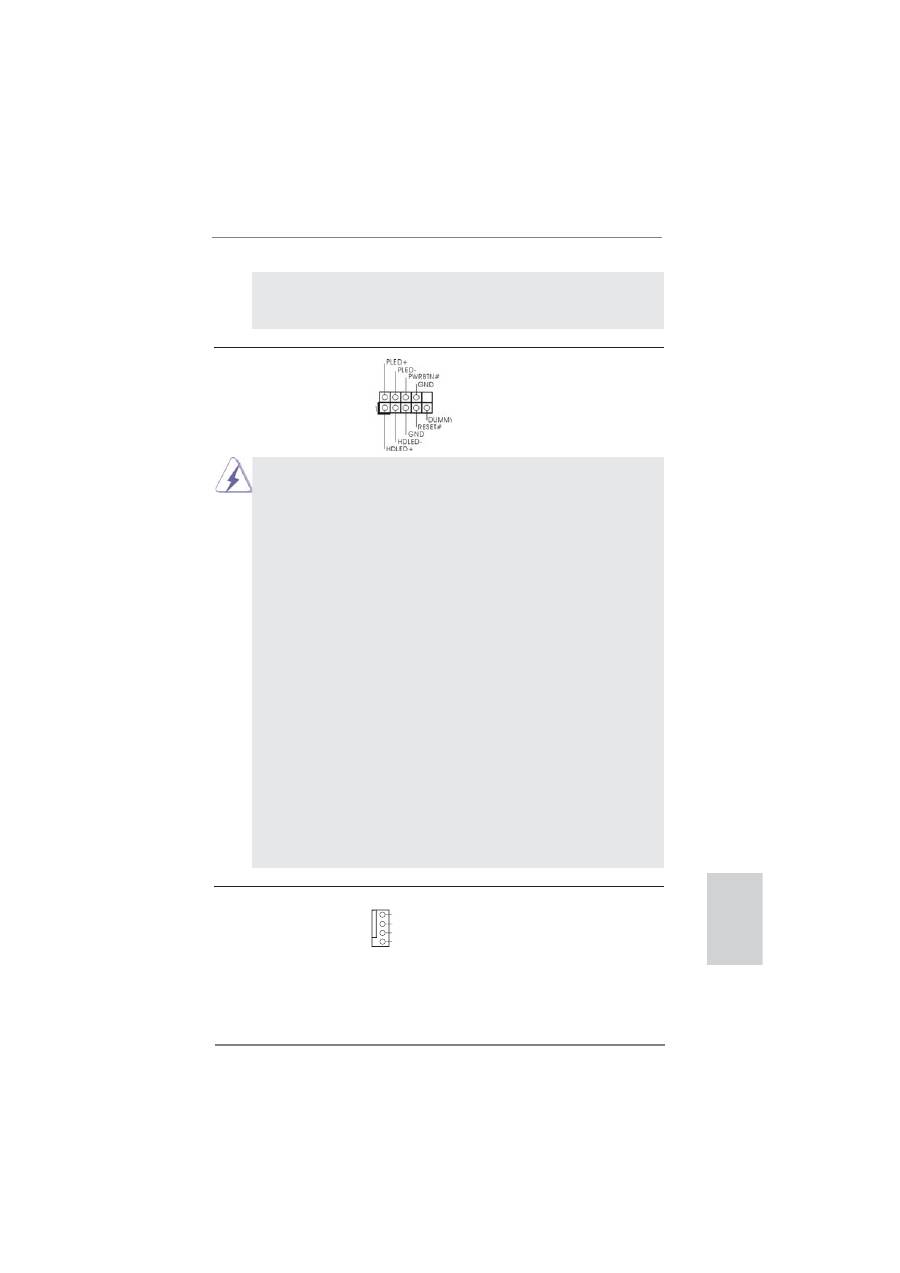
System Panel Header
This header accommodates
(9-pin PANEL1)
several system front panel
(see p.2, No. 17)
functions.
Connect the power switch, reset switch and system status indicator on the
chassis to this header according to the pin assignments below. Note the
positive and negative pins before connecting the cables.
PWRBTN (Power Switch):
Connect to the power switch on the chassis front panel. You may con
fi
gure
the way to turn off your system using the power switch.
RESET (Reset Switch):
Connect to the reset switch on the chassis front panel. Press the reset
switch to restart the computer if the computer freezes and fails to perform a
normal restart.
PLED (System Power LED):
Connect to the power status indicator on the chassis front panel. The LED
is on when the system is operating. The LED keeps blinking when the sys-
tem is in S1/S3 sleep state. The LED is off when the system is in S4 sleep
state or powered off (S5).
HDLED (Hard Drive Activity LED):
Connect to the hard drive activity LED on the chassis front panel. The LED
is on when the hard drive is reading or writing data.
The front panel design may differ by chassis. A front panel module mainly
consists of power switch, reset switch, power LED, hard drive activity LED,
speaker and etc. When connecting your chassis front panel module to this
header, make sure the wire assignments and the pin assign-ments are
matched correctly.
Chassis Fan Connector
Please connect the chassis fan
(4-pin CHA_FAN1)
cable to the connector and
(see p.2, No. 13)
match the black wire to the
ground
pin.
For Windows
®
7 / 7 64-bit / Vista
TM
/ Vista
TM
64-bit OS:
Go to the “FrontMic” Tab in the Realtek Control panel. Adjust
“Recording Volume”.
GND
+12V
CHA_FAN_SPEED
FAN_SPEED_CONTROL

30
ASRock Z77E-ITX Motherboard
English
Though this motherboard provides 4-Pin CPU fan (Quiet Fan) support, the 3-Pin
CPU fan still can work successfully even without the fan speed control function.
If you plan to connect the 3-Pin CPU fan to the CPU fan connector on this
motherboard, please connect it to Pin 1-3.
3-Pin Fan Installation
Pin 1-3 Connected
ATX Power Connector
Please connect an ATX power
(24-pin ATXPWR1)
supply to this connector.
(see p.2, No. 16)
12
1
24
13
20-Pin ATX Power Supply Installation
Though this motherboard provides 24-pin ATX power connector,
it can still work if you adopt a traditional 20-pin ATX power supply.
To use the 20-pin ATX power supply, please plug your
power supply along with Pin 1 and Pin 13.
12
1
24
13
ATX 12V Power Connector
Please connect an ATX 12V
(8-pin ATX12V1)
power supply to this connector.
(see p.2, No. 22)
4-Pin ATX 12V Power Supply Installation
Though this motherboard provides 8-pin ATX 12V power connector, it can still work
if you adopt a traditional 4-pin ATX 12V power supply. To use the 4-pin ATX power
supply, please plug your power supply along with Pin 1 and Pin 5.
5 1
8 4
5 1
8 4
CPU Fan Connectors
Please connect the CPU fan
(4-pin CPU_FAN1)
cable to the connector and
(see p.2, No. 10)
match the black wire to the
ground
pin.
GND
+12V
CPU_FAN_SPEED
FAN_SPEED_CONTROL
1 2 3 4

31
ASRock Z77E-ITX Motherboard
English
2.12 Installing Windows
®
7 / 7 64-bit With RAID Functions
If you want to install Windows
®
7 / 7 64-bit on your SATA / SATA2 / SATA3 HDDs
with RAID functions, please refer to the document at the following path in the
Support CD for detailed procedures:
..\ RAID Installation Guide
2.11 Driver Installation Guide
To install the drivers to your system, please insert the support CD to your optical
drive
fi
rst. Then, the drivers compatible to your system can be auto-detected and
listed on the support CD driver page. Please follow the order from up to bottom side
to install those required drivers. Therefore, the drivers you install can work properly.
2.13 Installing Windows
®
7 / 7 64-bit / Vista
TM
/ Vista
TM
64-bit / XP /
XP 64-bit Without RAID Functions
If you want to install Windows
®
7 / 7 64-bit / Vista
TM
/ Vista
TM
64-bit / XP / XP 64-
bit OS on your SATA / SATA2 / SATA3 HDDs without RAID functions, please follow
below procedures according to the OS you install.
2.13.1 Installing Windows
®
XP / XP 64-bit Without RAID Functions
If you want to install Windows
®
XP / XP 64-bit OS on your SATA / SATA2 / SATA3
HDDs without RAID functions, please follow below steps.
STEP 1: Set Up UEFI.
A. Enter UEFI SETUP UTILITY Advanced screen Storage Con
fi
guration.
B. Set the option “SATA Mode Selection” to [IDE].
STEP 2: Install Windows
®
XP / XP 64-bit OS on your system.
Using SATA / SATA2 / SATA3 HDDs without NCQ function
AHCI mode is not supported under Windows
®
XP / XP 64-bit.

32
ASRock Z77E-ITX Motherboard
English
2.13.2 Installing Windows
®
7 / 7 64-bit / Vista
TM
/ Vista
TM
64-bit
Without RAID Functions
If you want to install Windows
®
7 / 7 64-bit / Vista
TM
/ Vista
TM
64-bit OS on your SATA
/ SATA2 / SATA3 HDDs without RAID functions, please follow below steps.
Using SATA / SATA2 / SATA3 HDDs with NCQ function
STEP 1: Set Up UEFI.
A. Enter UEFI SETUP UTILITY Advanced screen Storage Con
fi
guration.
B. Set the option “SATA Mode Selection” to [AHCI].
STEP 2: Install Windows
®
7 / 7 64-bit / Vista
TM
/ Vista
TM
64-bit OS on your
system.
Using SATA / SATA2 / SATA3 HDDs without NCQ function
STEP 1: Set Up UEFI.
A. Enter UEFI SETUP UTILITY Advanced screen Storage Con
fi
guration.
B. Set the option “SATA Mode Selection” to [IDE].
STEP 2: Install Windows
®
7 / 7 64-bit / Vista
TM
/ Vista
TM
64-bit OS on your
system.
Оглавление
- Motherboard Layout
- I/O Panel
- WiFi-802.11n Module and ASRock WiFi 2.4GHz Antenna
- 1. Introduction
- 2. Installation
- 3. BIOS Information
- 1. Einführung
- 2. BIOS-Information
- 1. Introduction
- 2. Informations sur le BIOS
- 1. Introduzione
- 2. Informazioni sul BIOS
- 1. Introducción
- 2. BIOS Información
- 1. Введение
- 2.
- 1. Introdução
- 2. Informações da BIOS
- 1. Giri ş
- 2. BIOS Bilgileri
- 1. 제품소개
- 2. 시스템 바이오스 정보
- 1. 主板簡介
- 2. BIOS 信息
- 1. 主機板簡介
- 2. BIOS 訊息
- 1. Penjelasan
