
Toshiba JournE Air800-801: System Settings Brightness
System Settings Brightness: Toshiba JournE Air800-801
Table of contents
- Introduction Check the components What’s in the Box
- Important Information Safety Precautions and Maintenance Care of the Digital Frame
- Recycling Copyright Statement Disclaimer Trademarks
- Journe Air Overview Front View Bottom View
- Rear View Left View System Requirements
- Getting Started Placing the Unit Connecting to the A/C Power Turning on the Digital Frame
- Built-in battery (available on Journe Air 801 only)
- Connections Memory Card: USB Connection
- Understanding the Wi-Fi Icons
- Basic Operations Photo Mode
- 4. Select a sequence: Sequential or Random, then press OK.
- Transition Effect
- Frequency
- Background Color
- Effect
- Rotate
- Browsing Photos Flickr / Picasa Activate an Account
- Add an Account
- Delete an Account
- Time and Date Mode Set Time and Date
- Time Setting Date Setting
- Set Alarm Clock and Alarm Tone Set Alarm Clock Set On/Off
- Set Alarm Tone
- Put Photos in the Photo Calendar
- Photo + Audio Mode
- Video Mode
- Video Playback Mode Icons Definition
- Audio Mode
- One click playing
- Copy and Delete Files
- To copy files to another storage device: To copy all files in a storage device to another storage device:
- To delete files: To delete all files in a storage device:
- 3D Album Installing 3D Album 1. Insert the Software CD and select 3D Album Software. 2. Click Yes, I agree to accept the license agreement and continue the
- 3. Choose a location in the install path field to install 3D Album. (Note that 4. After the installation is complete, a QuickTime install window will pop up.
- 3D Album Functions Converting Photos
- Create a 3D-Album
- System Settings Brightness
- Language
- Network WPS
- Wi-Fi Wizard
- Advance Configuration To configure settings manually:
- To turn the antenna on and off:
- Profile List
- Web Album Store to
- Timer Function (Auto On/Off)
- 10.When the time is set, press OK to confirm.
- Auto Tilt
- Auto Light
- Restore to Default Settings USB Mode Mass Storage Sub View
- 6. Launch the Sub View software installed on your PC.
- To set the digital frame to Extended mode: To set the digital frame to Clone mode:
- To display a playing video file on the digital frame, you have to set the digital frame as the primary monitor.
- PictBridge Print Status Information
- Wi-Fi Status Information Firmware Upgrade
- Supported Video Format Frequently Asked Questions TOSHIBA Support
- Regulatory statements
- Working Environment
- Following information is only for EU-member states:
2. If you would like to add some music to your video, select a music file in
the Select music field.
3. Select the album style you prefer in the Select Style field.
4. Select the output 3D album format in the Save field. You can make your
3D album into a video file or an executable file. A video file can be
played by media player software (e.g.: Windows Media Player). An
executable file can be directly played without a media player. To make
an executable file, select Save to file folder. To make a video file,
select one of the three different video resolution (720 x 480, 720 x 540
or 720 x 432) options.
System Settings
In this section you are able to set up the brightness levels, display
language, auto turn on and off, restore default settings, and check the
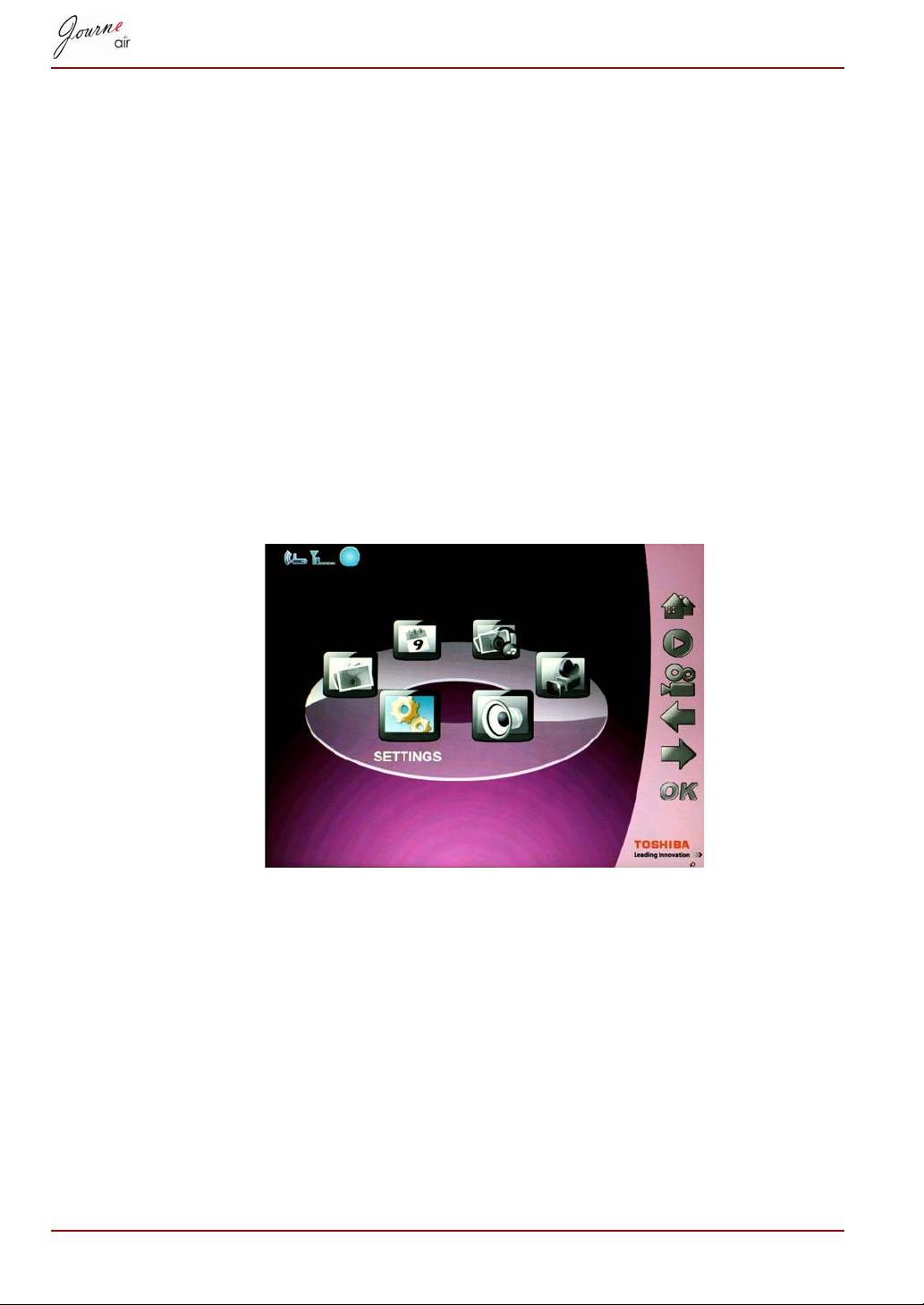
status of the digital frame. To enter system settings mode, select Settings
from the main menu and press OK.
Brightness
Change the brightness settings of digital frame to achieve the best visual
effect depending on lighting conditions.
1. Select Brightness and press OK.
2. Press Up and Down to select the brightness of the screen from Level 1
to Level5.
EN-40 User’s Manual
