
Canon LEGRIA HF R48: Remote Browse: Viewing Recordings Using a Web Browser on Your iOS Device or Android Smartphone Operating modes: 1 Camcorder: From any movie index screen, set the camcorder to connect with the smartphone.
Remote Browse: Viewing Recordings Using a Web Browser on Your iOS Device or Android Smartphone Operating modes: 1 Camcorder: From any movie index screen, set the camcorder to connect with the smartphone.: Canon LEGRIA HF R48
Table of contents
- Table of Contents Trademark Acknowledgements
- Getting Started Introduction to Wi-Fi
- Wi-Fi connection Wi-Fi connection
- Wi-Fi connection Wi-Fi connection IMPORTANT
- Before Using Wi-Fi Functions About the Wi-Fi antenna About the camcorder’s Wi-Fi standard Recording Movies Using a Smartphone as a Remote Control
- POINTS TO CHECK
- Remote Browse: Viewing Recordings Using a Web Browser on Your iOS Device or Android Smartphone Operating modes: 1 Camcorder: From any movie index screen, set the camcorder to connect with the smartphone.
- 2 Smartphone: Activate Wi-Fi in the settings screen (A 11). Uploading Videos Using an iOS Device
- POINTS TO CHECK
- NOTES Connecting Directly to a Smartphone or Similar Device Sharing Recordings with CANON iMAGE GATEWAY
- CANON iMAGE GATEWAY General requirements Playback on a Computer
- Troubleshooting List of Messages
NOTES
• For details about the CameraAccess app, visit PIXELA’s Web site.
http://pixela.jp/ceca (English only)
• This function is not available in the following cases.
- When the video quality is 60P (6/4) or 50P (:/9/
8).
- When the frame rate is 24P for an MP4 movie (6/4 ).
- When dual recording is activated.
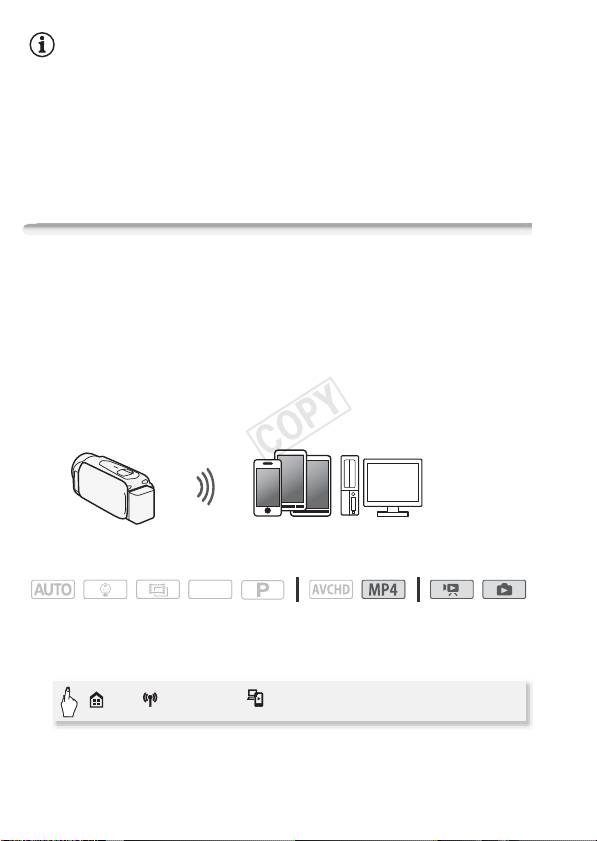
Remote Browse: Viewing Recordings Using a Web Browser on
Your iOS Device or Android Smartphone
With the Remote Browse function, you can use the Web browser on
your iOS device, Android smartphone, computer or similar device to
show a list of recordings in the camcorder, play them back and even
download them.* This conveniently allows you to view your recordings
while you are out.
* Depending on the device, OS browser, movie format and video quality, you may
not be able to play back or download recordings. For details, visit your local Canon
Web site.
Smartphone or similar device
Operating modes:
SCN
1 Camcorder: From any movie index screen, set the camcorder to
connect with the smartphone.
> [ Wi-Fi] > [ Playback via Browser] > [OK]
• The camcorder’s SSID (network name) and password will appear.
• The camcorder will be ready to connect with the smartphone.
8
