
Canon LEGRIA HF R48 – page 2
Manual for Canon LEGRIA HF R48
Table of contents
- Table of Contents Trademark Acknowledgements
- Getting Started Introduction to Wi-Fi
- Wi-Fi connection Wi-Fi connection
- Wi-Fi connection Wi-Fi connection IMPORTANT
- Before Using Wi-Fi Functions About the Wi-Fi antenna About the camcorder’s Wi-Fi standard Recording Movies Using a Smartphone as a Remote Control
- POINTS TO CHECK
- Remote Browse: Viewing Recordings Using a Web Browser on Your iOS Device or Android Smartphone Operating modes: 1 Camcorder: From any movie index screen, set the camcorder to connect with the smartphone.
- 2 Smartphone: Activate Wi-Fi in the settings screen (A 11). Uploading Videos Using an iOS Device
- POINTS TO CHECK
- NOTES Connecting Directly to a Smartphone or Similar Device Sharing Recordings with CANON iMAGE GATEWAY
- CANON iMAGE GATEWAY General requirements Playback on a Computer
- Troubleshooting List of Messages

Getting Started
This manual will get you started on using your camcorder’s Wi-Fi func-
tions. To learn more about Wi-Fi functions after you establish a Wi-Fi
connection and to see more detailed procedures, refer to the full-ver-
sion Instruction Manual (PDF file on the supplied CD-ROM). When this
manual refers you to a section in the camcorder’s Instruction Manual,
use the table of contents or the PDF’s search feature to help find the
section. To install the full-version Instruction Manual, see Installing the
Camcorder’s Instruction Manual (PDF file) in the supplied Quick Guide.
The following are basic terms used frequently in this text.
Access point
A wireless access point (WAP) is a device that allows wireless devices,
like your camcorder, to connect to a wired network (including to the
Internet) using the Wi-Fi standard. In most cases, this will be your wire-
less router.
SSID
Service Set Identifier. This is simply the public name of a Wi-Fi net-
work.
Wi-Fi network
A group of computers and/or other devices in your home, office, or
other location connected wirelessly using Wi-Fi.
6/4
VIXIA HF R42 / VIXIA HF R40 (NTSC)
:/9/8
LEGRIA HF R48 / LEGRIA HF R47 / LEGRIA HF R46 (PAL)
Introduction to Wi-Fi
When you use the camcorder’s Wi-Fi function to connect to a
1
smartphone
, you can wirelessly save, play back and upload your
3
COPY
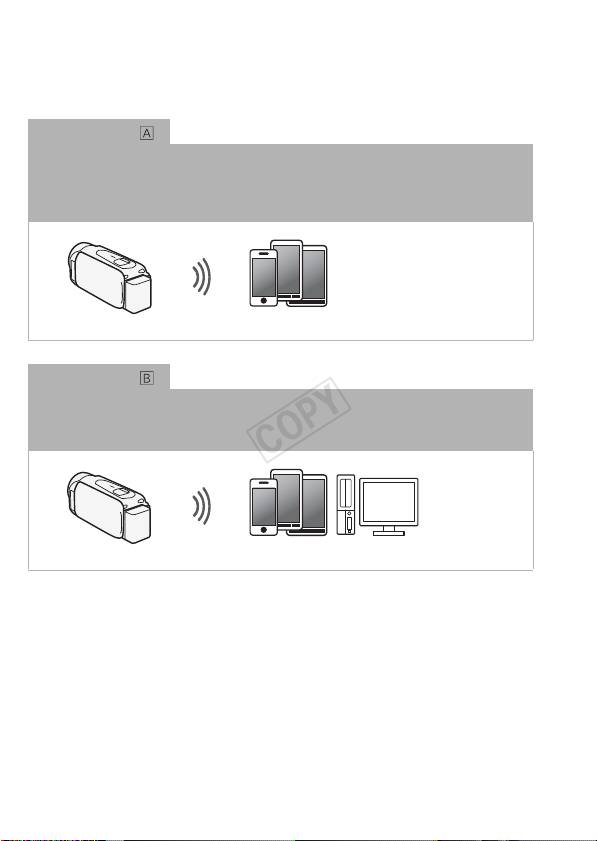
recordings. You can even use a smartphone as a remote control and
record using the device’s screen.
1
For brevity’s sake, “smartphone” is used in this text to refer to Wi-Fi-enabled
smartphones and tablets while “iOS device” refers to Wi-Fi-enabled iPhones and
iPads.
Wi-Fi connection
2
After you download the CameraAccess app
, use your iOS device or Android smartphone
to remotely control the camcorder and make recordings (A 6)
2
The CameraAccess app, provided by PIXELA, is available for free from the App
Store (for iOS devices) and Google Play™ (for Android smartphones).
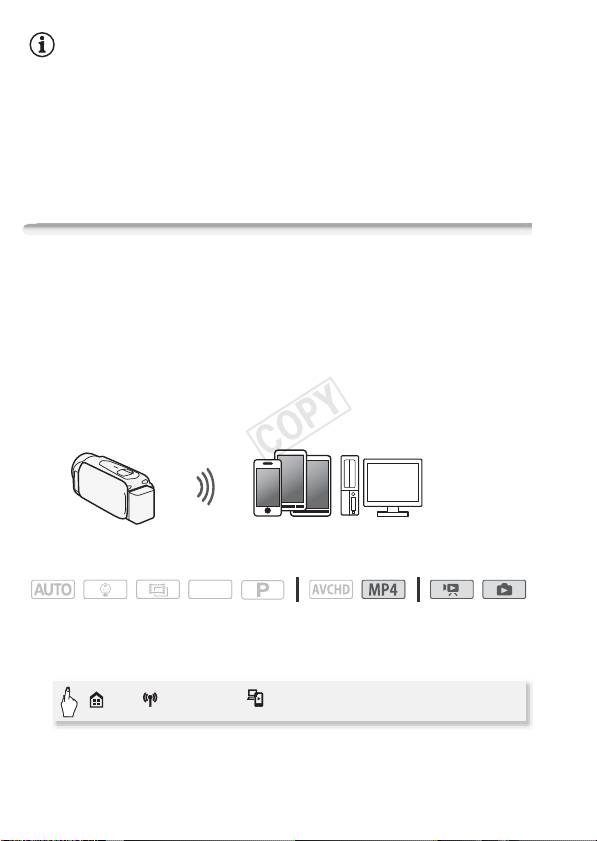
Smartphone
Wi-Fi connection
3
Wirelessly connect the camcorder to your iOS or Android smartphone or computer
and
use the device’s Web browser to view recordings in the camcorder (A 8).
3
You can also use a computer connected via an access point.
Smartphone or similar device
4
COPY
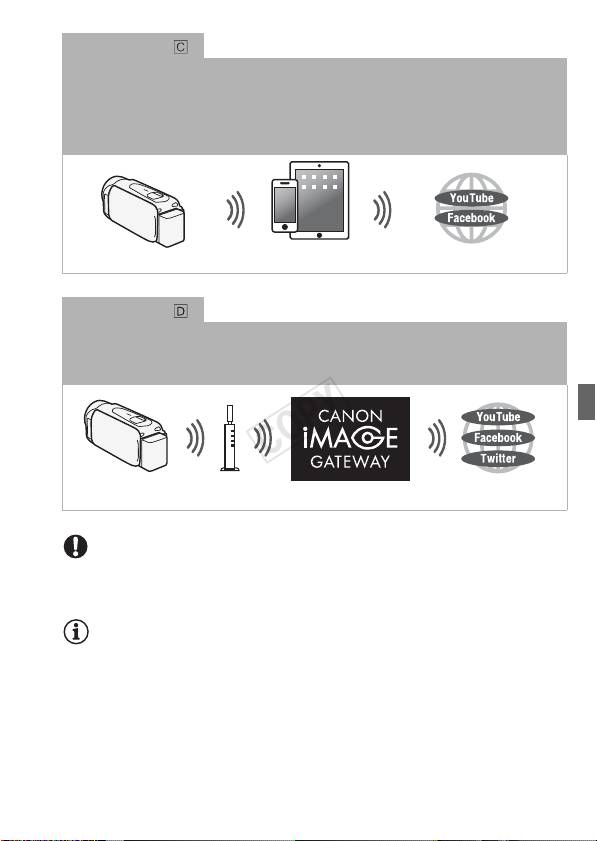
Wi-Fi connection
4
After you download the Movie Uploader app
, wirelessly connect the camcorder to an iOS
device (A 9) to save, play back and upload your recordings. You can even use this
connection type if you plan to share videos on YouTube and Facebook on the go.
4
The Movie Uploader app, provided by PIXELA, is available for free from the App
Store.
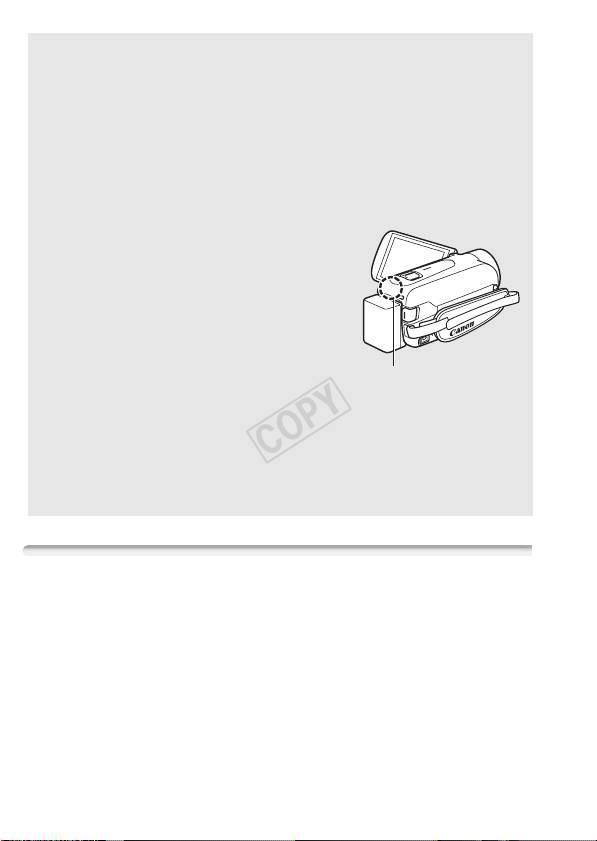
iOS device
Wi-Fi connection
Wirelessly connect the camcorder to a wireless router (access point) on your home
network. Use this connection if you plan to connect to CANON iMAGE GATEWAY (A 11).
After doing so, you can even share videos on YouTube and Facebook.
Wireless router
(Access point)
IMPORTANT
• Using an unprotected Wi-Fi network can expose your files and data to
monitoring by unauthorized third parties. Be aware of the risks involved.
NOTES
• Do not open the memory card slot cover during the wireless connec-
tion.
• While using Wi-Fi functions, the camcorder’s automatic power off func-
tion will be disabled.
5
COPY
Before Using Wi-Fi Functions
Based on the function, the camcorder will wirelessly connect to a
Wi-Fi-enabled device, such as a smartphone, directly or to a Wi-Fi net-
work via an access point (wireless router)*. After selecting the function
you want to use, follow the onscreen directions to connect the cam-
corder.
* Depending on the manufacturer, the access point may be referred to using a
different name, such as wireless LAN router or wireless network router.
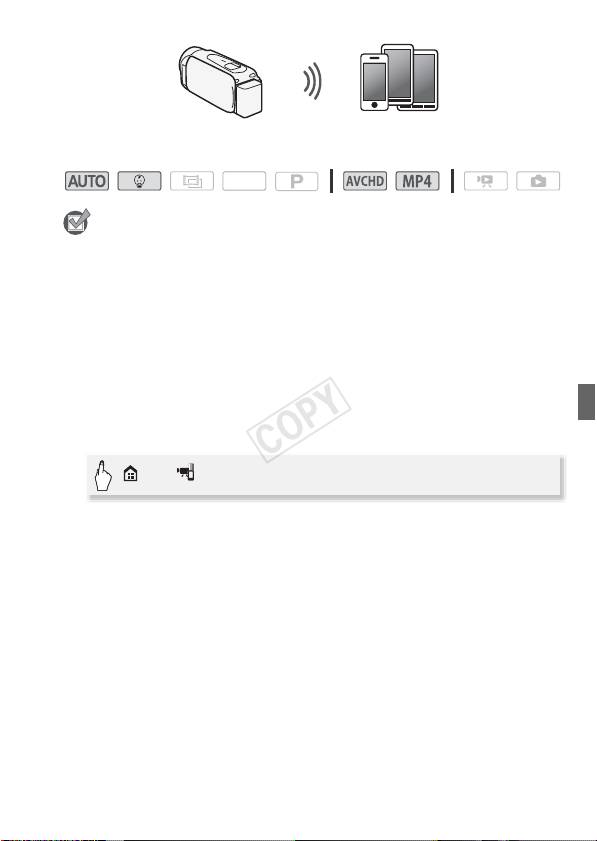
About the Wi-Fi antenna
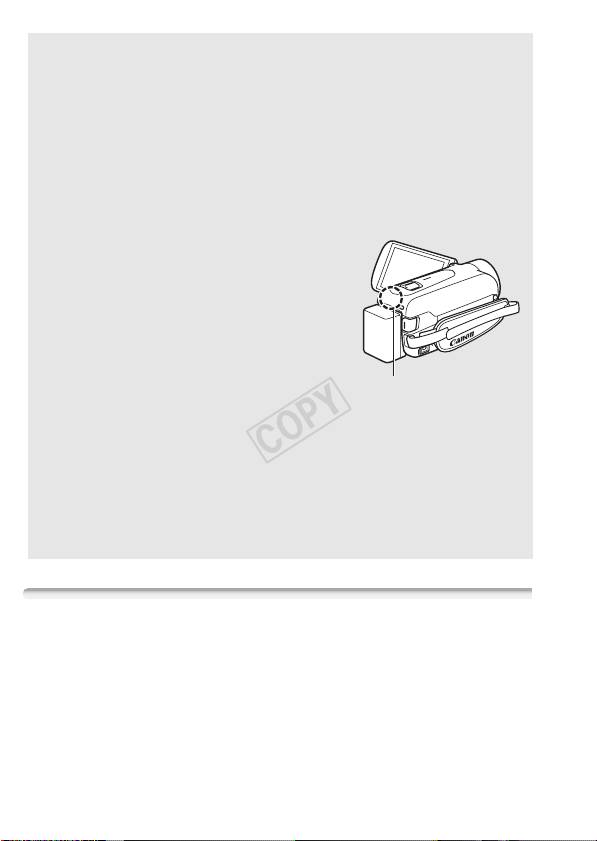
When using the camcorder’s Wi-Fi func-
tions, do not cover the back portion of the
camcorder with your hand or other object.
The Wi-Fi antenna is located in the back
portion and covering it may interfere with
wireless signals.
Wi-Fi antenna
About the camcorder’s Wi-Fi standard
The camcorder’s Wi-Fi standard complies with the IEEE 802.11
b/g/n protocol and operates in the 2.4 GHz band. As such, the max-
imum data transfer rate is 11 Mbps for IEEE 802.11b, 54 Mbps for
IEEE 802.11g, and 150 Mbps for IEEE 802.11n. Note that these are
theoretical values and actual data transfer rates may differ.
Recording Movies Using a Smartphone as a Remote Control
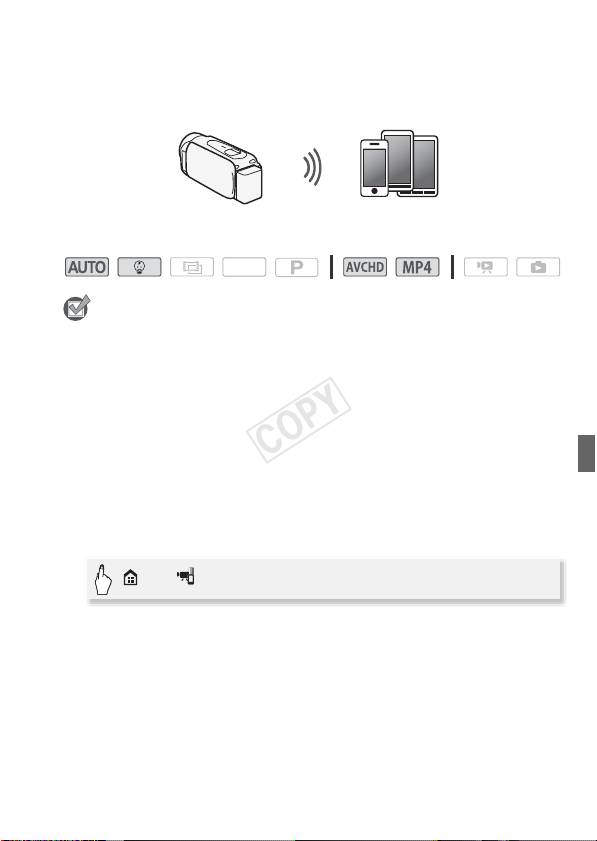
Using the CameraAccess app* for iOS devices and Android™ smart-
phones, you can control the camcorder from a distance while you view
the camcorder’s image on the smartphone’s screen. Not only can you
control the camcorder to start and stop recording, you can also record
the camcorder’s image directly onto your smartphone.
* The CameraAccess app, provided by PIXELA, is available for free from the App
Store (for iOS devices) and Google Play™ (for Android smartphones).
6
COPY
Smartphone
Operating modes:
SCN
POINTS TO CHECK
• Before you perform this procedure for the first time, download and
install the CameraAccess app on your smartphone. The app can be
downloaded for free from the following sites (English only).
App Store:
http://itunes.com/apps/cameraaccess
Google Play™:
http://play.google.com/store/apps/details?id=jp.co.pixela.cameraaccess
1 Camcorder: Set the camcorder to receive remote control
commands.
> [ Remote Control+Streaming]
• The camcorder’s SSID (network name) and password will appear.
• The camcorder will be ready to connect with the smartphone.
2 Smartphone: Activate Wi-Fi in the settings screen (A 11).
The network names of detected access points will appear.
3 Smartphone: Touch the access point with the same SSID as that
of the one from step 1.
4 Smartphone: Enter the password.
5 Smartphone: Start the CameraAccess app.
For details about this function, refer to
Recording Movies Using a
Smartphone as a Remote Control
in the camcorder’s Instruction
Manual (PDF file).
7
COPY
NOTES
• For details about the CameraAccess app, visit PIXELA’s Web site.
http://pixela.jp/ceca (English only)
• This function is not available in the following cases.
- When the video quality is 60P (6/4) or 50P (:/9/
8).
- When the frame rate is 24P for an MP4 movie (6/4 ).
- When dual recording is activated.
Remote Browse: Viewing Recordings Using a Web Browser on
Your iOS Device or Android Smartphone
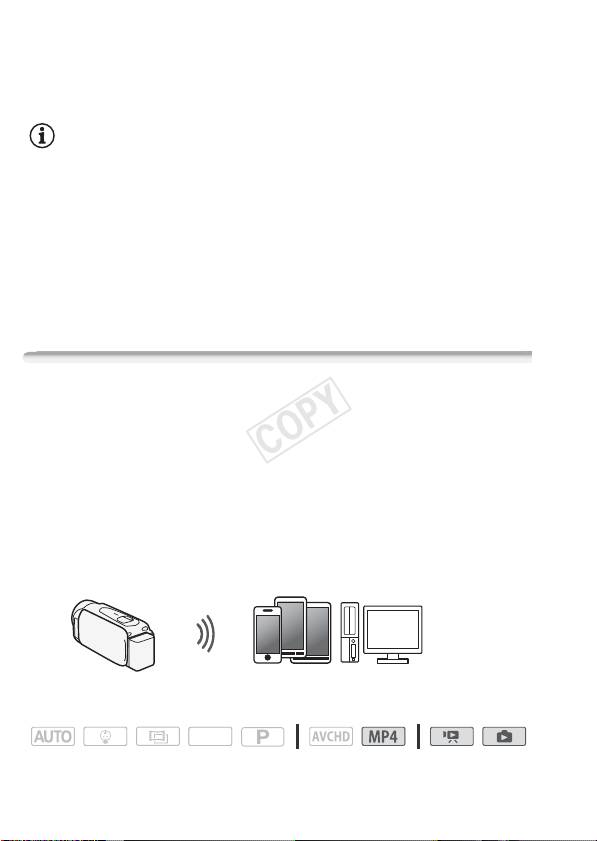
With the Remote Browse function, you can use the Web browser on
your iOS device, Android smartphone, computer or similar device to
show a list of recordings in the camcorder, play them back and even
download them.* This conveniently allows you to view your recordings
while you are out.
* Depending on the device, OS browser, movie format and video quality, you may
not be able to play back or download recordings. For details, visit your local Canon
Web site.
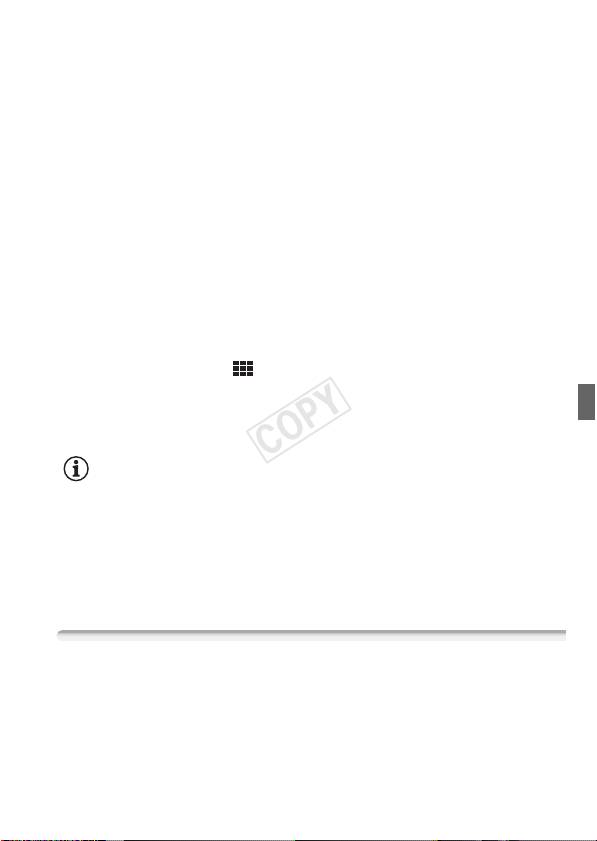
Smartphone or similar device
Operating modes:
SCN
1 Camcorder: From any movie index screen, set the camcorder to
connect with the smartphone.
> [ Wi-Fi] > [ Playback via Browser] > [OK]
• The camcorder’s SSID (network name) and password will appear.
• The camcorder will be ready to connect with the smartphone.
8
COPY
2 Smartphone: Activate Wi-Fi in the settings screen (A 11).
The network names of detected access points will appear.
3 Smartphone: Touch the access point with the same SSID as that
of the one from step 1.
4 Smartphone: Enter the password (first time only).
5 Smartphone: Start the Web browser.
6 Smartphone: Enter the URL that appears on the camcorder’s
screen into the Web browser’s address bar.
• For details about using the Web browser, refer to the instruction
manual of the device.
• The URL is always the same so you may find it convenient to
bookmark the URL.
7 Smartphone: Touch [&·] on the upper left of the screen and
open the desired index screen. Next, touch the desired recording
from the list.
8 Smartphone: Touch when finished.
For details about this function, refer to
Remote Browse: Viewing
Recordings Using a Web Browser on Your iOS Device or Android
Smartphone
in the camcorder’s Instruction Manual (PDF file).
NOTES
• The following types of MP4 scenes will be recognized as multiple files
on other devices.
- Scenes exceeding 4 GB
- Scenes recorded at 35 Mbps exceeding 30 minutes
- Scenes recorded at a video quality other than 35 Mbps exceeding
1hour
Uploading Videos Using an iOS Device
Using the Movie Uploader app* for iOS devices, you can connect the
camcorder to the device to upload your movies to YouTube and Face-
9
COPY
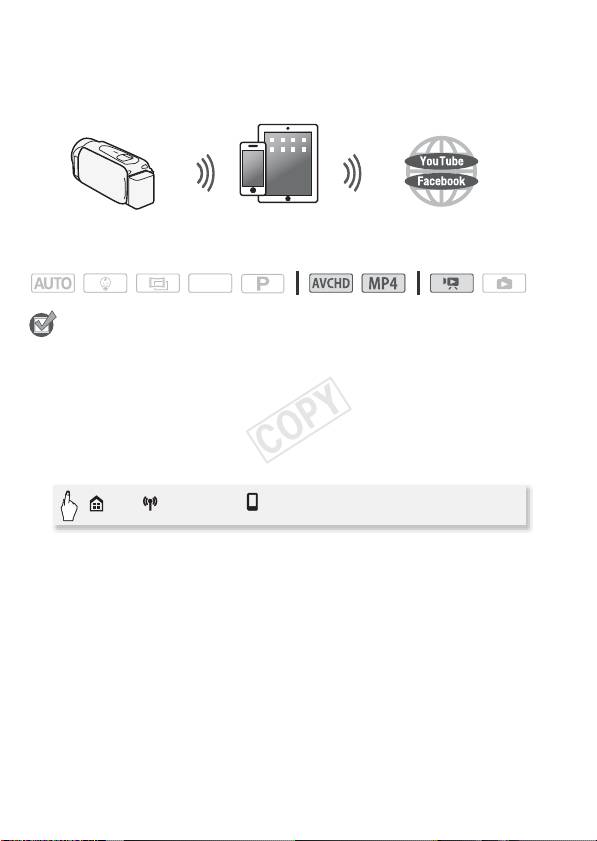
book even when you are away from your home network. You can
save** and play back MP4 movies and photos on an iOS device.
* The Movie Uploader app, provided by PIXELA, is available for free from the App
Store.
**Not available for MP4 movies recorded at a video quality of 35 Mbps.
iOS device
Operating modes:
SCN
POINTS TO CHECK
• Before you perform this procedure for the first time, install the Movie
Uploader app on your iOS device. The app can be downloaded for free
from the following site.
http://itunes.com/apps/movieuploader
1 Camcorder: From any movie index screen, set the camcorder to
connect with the iOS device.
> [ Wi-Fi] > [ Movie Uploader] > [OK]
• The camcorder’s SSID (network name) and password will appear.
• The camcorder will be ready to connect with the iOS device.
2 iOS device: Touch Settings > Wi-Fi and then turn Wi-Fi on (A 11).
The network names of detected access points will appear.
3 iOS device: Touch the access point with the same SSID as that of
the one from step 1.
4 iOS device: Enter the password.
5 iOS device: Use the Movie Uploader app to transfer the
camcorder’s movies.
• For details about the Movie Uploader app, visit
http://www.pixela.co.jp/oem/canon/e/movieuploader/ (English only)
10
COPY
• For details about this function, refer to
Uploading Videos Using an
iOS Device
in the camcorder's Instruction Manual (PDF file).
NOTES
• The following types of MP4 scenes will be recognized as multiple files
on other devices.
- Scenes exceeding 4 GB
- Scenes recorded at 35 Mbps exceeding 30 minutes
- Scenes recorded at a video quality other than 35 Mbps exceeding
1hour
Connecting Directly to a Smartphone or Similar Device
You can connect the camcorder directly to a smartphone or similar
device using a Wi-Fi connection. Use this connection method if the
camcorder’s SSID and password appear on the screen after you select
a Wi-Fi function.
Operating modes:
SCN
1 Smartphone: Activate Wi-Fi in the settings screen.
The network names of detected access points will appear.
2 Smartphone: Touch the access point with the same SSID as that
of the one that appears on the camcorder’s screen.
• The camcorder’s screen will display a message indicating that the
connection has been established.
• This operation is necessary only the first time you establish the
connection.
3 Continue with the function you were previously using.
Sharing Recordings with CANON iMAGE GATEWAY
After you register for CANON iMAGE GATEWAY*, you will be able to
access various Web services**. You will be able to upload movies and
photos to online albums, share the albums on Twitter, upload movies to
Facebook and YouTube, send links to your online albums by e-mail to
11
COPY
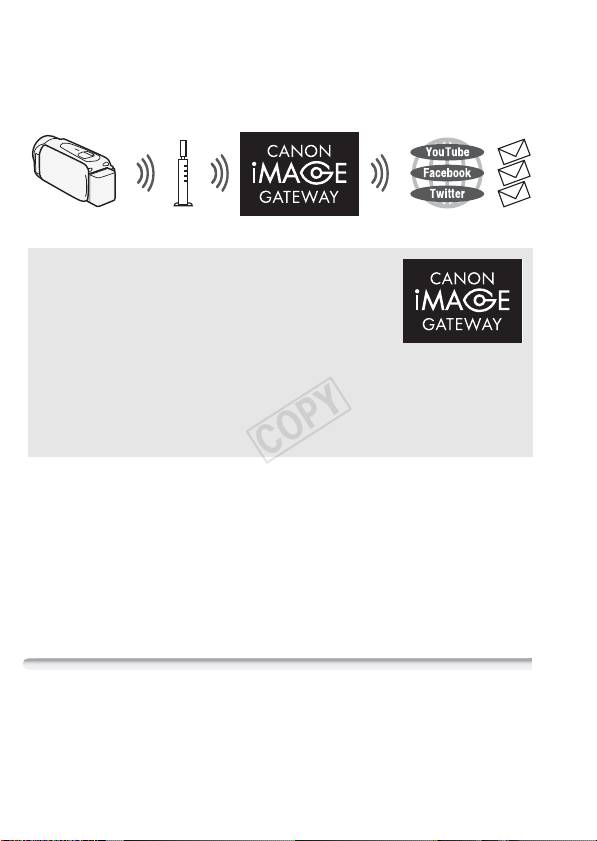
friends and family, and more! To use this function, you will need an
access point connected to the Internet.
* Availability differs from area to area.
** “Web services” is used in this text to refer to various Internet services supported
by CANON iMAGE GATEWAY.
Wireless router
(Access point)
CANON iMAGE GATEWAY
CANON iMAGE GATEWAY is a site that provides
various photo-related services for owners of
qualified Canon products. After you complete the
free registration online, you can use the Web ser-
vices, create online photo albums, and more.
Visit Canon’s Web site for information on registra-
tion and countries/regions where you can use
this service.
http://canon.com/cig
General requirements
• Computer with the supplied software ImageBrowser EX and
CameraWindow correctly installed. For details on installing the soft-
ware, refer to
Saving MP4 Movies and Photos (Windows/Mac OS)
file).
• Completed free registration online for CANON iMAGE GATEWAY.
• Account settings for YouTube, Facebook and Twitter (depending on the
services you plan to use).
Playback on a Computer
Using the Media Server function, you can remotely play back movies
and photos in the camcorder’s memory on your computer or other
compatible device. To use this function, you need an access point con-
nected to your home network and software to play back the Media
12
COPY
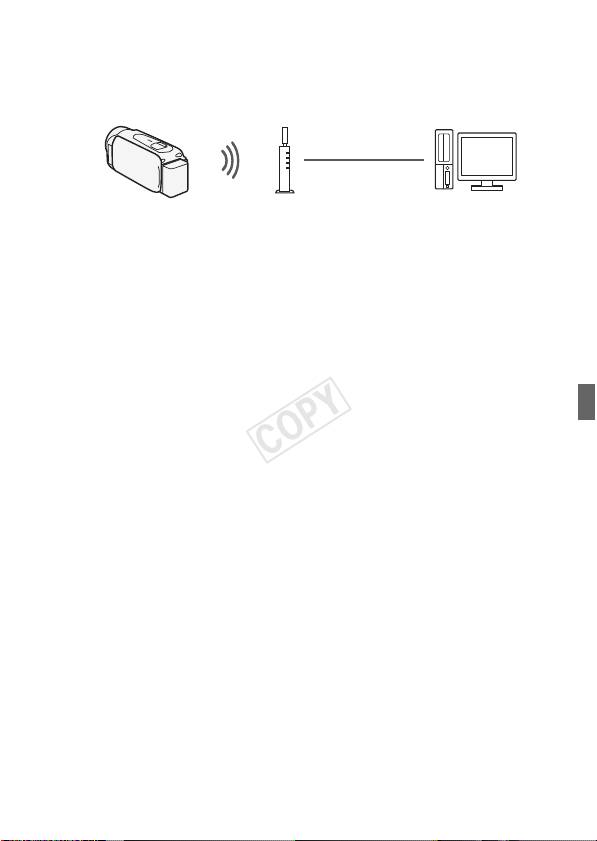
Server’s recordings. We recommend connecting the computer and
access point with a LAN cable.
For details about this function, refer to Playback on a Computer in the
camcorder’s Instruction Manual (PDF file).
LAN cable
Wireless router
Computer
(Access point)
13
COPY

Troubleshooting
If you cannot successfully establish a Wi-Fi connection, check below.
Refer also to the instruction manual of the other Wi-Fi-enabled devices
you are using. Consult your dealer or a Canon Service Center if the
problem persists.
Cannot connect with the Wi-Fi-enabled device.
- The effective communication range between the camcorder and device may vary depending
on the strength of the wireless signal. Try using the camcorder closer to the device.
- Cordless phones, microwave ovens, refrigerators and other appliances in the line of sight
between the wireless router and the camcorder may interfere with the wireless signal. Try
using the camcorder in a location farther away from such appliances.
List of Messages
(in alphabetical order)
Refer to the following if a message appears on the camcorder’s screen.
If a message not listed below appears, refer to List of Messages in the
camcorder's Instruction Manual (PDF file).
Another user is already controlling the camcorder. Try again later.
- This message appears on the screen of the Wi-Fi device. Multiple Wi-Fi devices are trying to
connect with the camcorder. Make sure only one Wi-Fi device is trying to connect and then
touch Retry.
Memory card cover is open
- The memory card cover was opened while the memory card was being accessed. Stop the
Wi-Fi function in use and end the Wi-Fi connection.
Wi-Fi connection terminated
- Cordless phones, microwave ovens, refrigerators and other appliances may interfere with the
wireless signal. Try using the camcorder in a location farther away from such appliances.
- The camcorder may not be able to connect to the wireless router if too many devices are
accessing the wireless access point.
14
COPY

MEMO
. . . . . . . . . . . . . . . . . . . . . . . . . . . . . . . . . . . . . . . . . . . . . . . . . . . . . . . . . .
. . . . . . . . . . . . . . . . . . . . . . . . . . . . . . . . . . . . . . . . . . . . . . . . . . . . . . . . . .
. . . . . . . . . . . . . . . . . . . . . . . . . . . . . . . . . . . . . . . . . . . . . . . . . . . . . . . . . .
. . . . . . . . . . . . . . . . . . . . . . . . . . . . . . . . . . . . . . . . . . . . . . . . . . . . . . . . . .
. . . . . . . . . . . . . . . . . . . . . . . . . . . . . . . . . . . . . . . . . . . . . . . . . . . . . . . . . .
. . . . . . . . . . . . . . . . . . . . . . . . . . . . . . . . . . . . . . . . . . . . . . . . . . . . . . . . . .
. . . . . . . . . . . . . . . . . . . . . . . . . . . . . . . . . . . . . . . . . . . . . . . . . . . . . . . . . .
. . . . . . . . . . . . . . . . . . . . . . . . . . . . . . . . . . . . . . . . . . . . . . . . . . . . . . . . . .
. . . . . . . . . . . . . . . . . . . . . . . . . . . . . . . . . . . . . . . . . . . . . . . . . . . . . . . . . .
. . . . . . . . . . . . . . . . . . . . . . . . . . . . . . . . . . . . . . . . . . . . . . . . . . . . . . . . . .
. . . . . . . . . . . . . . . . . . . . . . . . . . . . . . . . . . . . . . . . . . . . . . . . . . . . . . . . . .
. . . . . . . . . . . . . . . . . . . . . . . . . . . . . . . . . . . . . . . . . . . . . . . . . . . . . . . . . .
. . . . . . . . . . . . . . . . . . . . . . . . . . . . . . . . . . . . . . . . . . . . . . . . . . . . . . . . . .
. . . . . . . . . . . . . . . . . . . . . . . . . . . . . . . . . . . . . . . . . . . . . . . . . . . . . . . . . .
. . . . . . . . . . . . . . . . . . . . . . . . . . . . . . . . . . . . . . . . . . . . . . . . . . . . . . . . . .
. . . . . . . . . . . . . . . . . . . . . . . . . . . . . . . . . . . . . . . . . . . . . . . . . . . . . . . . . .
. . . . . . . . . . . . . . . . . . . . . . . . . . . . . . . . . . . . . . . . . . . . . . . . . . . . . . . . . .
. . . . . . . . . . . . . . . . . . . . . . . . . . . . . . . . . . . . . . . . . . . . . . . . . . . . . . . . . .
. . . . . . . . . . . . . . . . . . . . . . . . . . . . . . . . . . . . . . . . . . . . . . . . . . . . . . . . . .
. . . . . . . . . . . . . . . . . . . . . . . . . . . . . . . . . . . . . . . . . . . . . . . . . . . . . . . . . .
. . . . . . . . . . . . . . . . . . . . . . . . . . . . . . . . . . . . . . . . . . . . . . . . . . . . . . . . . .
COPY

Table des matières
03 Démarrage
04 Présentation du Wi-Fi
06 Enregistrement de séquences vidéo avec un smartphone comme
commande à distance
08 Navigateur distant : visionner les enregistrements avec un navigateur
Web sur votre dispositif iOS ou un smartphone Android
10 Transfert des séquences vidéo en utilisant un dispositif iOS
11 Connexion directe à un smartphone ou un dispositif similaire
12 Partage des enregistrements avec CANON iMAGE GATEWAY
13 Lecture sur un ordinateur
14 Dépannage
Marques de commerce
• Microsoft et Windows sont des marques de commerce ou des marques déposées de Microsoft Corporation aux
États-Unis et/ou dans les autres pays.
• App Store, iPad, iPhone, iTunes et Mac OS sont des marques de commerce d'Apple Inc., enregistrées aux États-
Unis et dans les autres pays.
• Google, Android, Google Play, YouTube sont des marques commerciales de Google Inc.
• Facebook est une marque déposée de Facebook, Inc.
• IOS est une marque commerciale ou déposée de Cisco aux Etats-Unis et dans d’autres pays et est utilisée avec
une licence.
• Le nom et les repères Twitter sont des marques commerciales de Twitter, Inc.
• Wi-Fi est une marque de commerce de Wi-Fi Alliance.
• Wi-Fi Certified, WPA, WPA2, et le logo Wi-Fi Certified sont des marques de commerce de Wi-Fi Alliance.
• Les autres noms et produits non mentionnés ci-dessus peuvent être des marques de commerce ou des
marques déposées de leurs compagnies respectives.
2
COPY

Démarrage
Ce manuel vous aide à commencer à utiliser les fonctions Wi-Fi de
votre caméscope. Pour en savoir plus sur les fonctions Wi-Fi après
avoir établi une connexion Wi-Fi et découvrir plus de procédures
détaillées, reportez-vous à la version complète du manuel d’instruction
(fichier PDF sur le CD-ROM fourni). Lorsque ce manuel vous renvoie à
une section dans le manuel d’instructions du caméscope, utilisez la
table des matières ou la fonction de recherche du PDF pour trouver la
dite section. Pour installer la version complète du manuel d’instruc-
tions, reportez-vous à Installation du manuel d'instruction du camés-
cope (fichier PDF) dans le guide rapide fourni.
Vouci les termes de base utilisés fréquemment dans ce texte.
Point d’accès
Un point d’accès sans fil (WAP) est un dispositif qui permet aux appa-
reils sans fil, tels que votre caméscope, de se connecter à un réseau
câblé (y compris Internet) en utilisant le standard Wi-Fi. Dans la plupart
des cas, c’est votre routeur sans fil.
Réseau Wi-Fi
Un ensemble d’ordinateurs et/ou d’autres dispositifs à votre domicile,
bureau, ou tout autre endroit connecté sans fil avec la Wi-Fi.
SSID
Service Set Identifier (identifiant du service). C’est simplement le nom
public d’un réseau Wi-Fi.
6/4
VIXIA HF R42 / VIXIA HF R40 (NTSC)
:/9/8
LEGRIA HF R48 / LEGRIA HF R47 / LEGRIA HF R46 (PAL)
3
COPY
Présentation du Wi-Fi
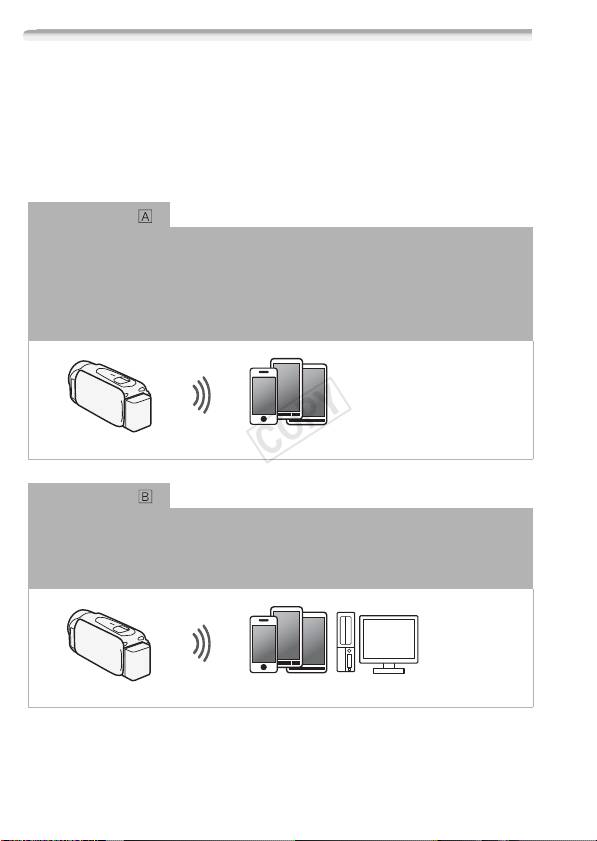
Lorsque vous utilisez la fonction Wi-Fi du caméscope pour la con-
1
nexion à un smartphone
, vous pouvez sauvegarder, lire et transférer
vos enregistrements sans fil. Vous pouvez même utiliser un smart-
phone comme télécommande et enregistrer avec l’écran de l’appareil.
1
Le terme « smartphone » est utilisé dans ce texte pour désigner d’une manière
plus brève les smartphones et les tablettes compatibles Wi-Fi et « Dispositif iOS »
désigne les iPhones et les iPads compatibles Wi-Fi.
Connexion Wi-Fi
2
Après avoir télécharger l’application CameraAccess
, utilisez votre dispositif iOS ou votre
smartphone Android pour commander à distance le caméscope et effectuer des
enregistrements (A 6).
2
L’application CameraAccess, fournie par PIXELA, est disponible gratuitement
dans App Store (pour les dispositifs iOS) et Google Play™ (pour les smartphones
Android).
Smartphone
Connexion Wi-Fi
3
Connectez sans fil le caméscope à votre iOS, votre smartphone Android ou ordinateur
et
utilisez le navigateur Web du dispositif pour visionner les enregistrements dans le
caméscope (A 8).
3
Vous pouvez aussi utiliser un ordinateur connecté via un point d’accès.
Smartphone or dispositif similaire
4
COPY
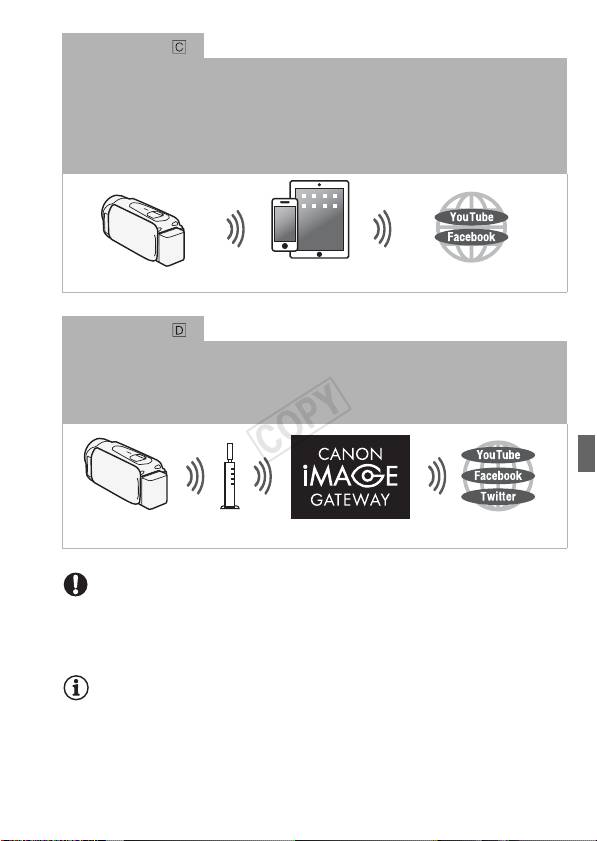
Connexion Wi-Fi
4
Après avoir téléchargé Movie Uploader
, connectez sans fil le caméscope à un dispositif
iOS (A 10) pour enregistrer, lire et transférer vos enregistrements. Vous pouvez même
utiliser ce type de connexion si vous projetez de partager des séquences vidéo sur
YouTube et Facebook où que vous soyez.
4
L’application Movie Uploader, fournie par PIXELA, est disponible gratuitement
dans App Store.
Dispositif iOS
Connexion Wi-Fi
Connectez sans fil le caméscope à un routeur sans fil (point d’accès) sur votre réseau
principal. Utilisez cette connexion si vous projetez de vous connectez à CANON iMAGE
GATEWAY (A 12). Après cela, vous pouvez même partager des séquences vidéo sur
YouTube et Facebook.
Routeur sans fil
(Point d'accès)
IMPORTANT
• L’utilisation d’un réseau Wi-Fi non protégé peut exposer vos fichiers et
vos données à la surveillance de tiers non autorisés. Soyez conscient
des risques que vous encourez.
NOTES
• N’ouvrez pas le couvercle du logement de la fente de carte mémoire
pendant une connexion sans fil.
• Lors de l’utilisation des fonctions Wi-Fi, la fonction de mise hors tension
automatique du caméscope est désactivée.
5
COPY
Avant d’utiliser les fonctions Wi-Fi
• Selon la fonction, le caméscope se connecte sans fil à un appareil
Wi-Fi, tel qu’un smartphone, directement ou à un réseau Wi-Fi via un
point d’accès (routeur sans fil)*. Après avoir sélectionné la fonction
que vous voulez utiliser, suivez les instructions sur l’écran pour la
connexion au caméscope.
* En fonction du fabricant, le point d'accès peut être défini par un autre nom,
tel que routeur LAN sans fil ou routeur réseau sans fil.
A propos de l’antenne Wi-Fi
Lors de l’utilisation des fonctions Wi-Fi du
caméscope, ne recouvrez pas la partie
arrière du caméscope avec votre main ou
un autre objet. L’antenne Wi-Fi est située
sur la partie arrière et la recouvrir peut inter-
férer avec les signaux sans fil.
Antenne Wi-Fi
À propos du standard Wi-Fi du caméscope
Le standard Wi-Fi du caméscope est compatible avec le protocole
IEEE 802.11b/g/n et fonctionne dans la bande 2,4 GHz. En tant que
tel, le taux de transfert de données maximum est de 11 Mbps pour
IEEE 802.11b, 54 Mbps pour IEEE 802.11g et 150 Mbps pour IEEE
802.11n. Notez que ce sont des valeurs théoriques et que le taux de
transfert de données réel peut varier.
Enregistrement de séquences vidéo avec un smartphone comme
commande à distance
Avec l’application CameraAccess* pour dispositifs iOS et smartphones
Android™, vous pouvez commander le caméscope à distance tout en
visualisant l’image du caméscope sur l’écran du smartphone. Vous
pouvez non seulement commander le caméscope pour démarrer et
6
COPY
arrêter l’enregistrement, mais aussi enregistrer l’image du caméscope
directement sur votre smartphone.
* L’application CameraAccess, fournie par PIXELA, est disponible gratuitement dans
App Store (pour les dispositifs iOS) et Google Play™ (pour les smartphones
Android).
Smartphone
Modes de fonctionnement :
SCN
À VÉRIFIER
• Avant d’effectuer cette procédure pour la première fois, téléchargez et
installez l’application CameraAccess sur votre smartphone. L’applica-
tion peut être téléchargée gratuitement à partir du site suivant (en
anglais uniquement).
App Store :
http://itunes.com/apps/cameraaccess
Google Play™:
http://play.google.com/store/apps/details?id=jp.co.pixela.cameraaccess
1 Caméscope : réglez le caméscope pour recevoir les commandes
à distance.
> [ Comm. à dist. + diffusion continue]
• Le SSID du caméscope (nom du réseau) et le mot de passe
apparaissent.
• Le caméscope sera prêt pour la connexion avec le smartphone.
2 Smartphone : activez le Wi-Fi dans l’écran de réglages (A 11).
Les noms de réseau des points d’accès détectés apparaissent.
3 Smartphone : touchez le point d’accès avec le même SSID que
celui de l’étape 1.
4 Smartphone : saisissez le mot de passe.
7
COPY
5 Smartphone : démarrez l’app CameraAccess.
Pour les détails sur cette fonction, reportez-vous à
Enregistrement de
séquences vidéo avec un smartphone comme commande à distance
dans le manuel d’instructions du caméscope (fichier PDF).
NOTES
• Pour les détails sur l’application CameraAccess, visitez le site Web de
PIXELA.
http://pixela.jp/ceca (en anglais uniquement)
• Cette fonction n’est pas disponible dans les cas suivants.
- Lorsque la qualité vidéo est 60P (6/4) ou 50P (:/
9/8) .
- Lorsque la vitesse séquentielle est de 24P pour une séquence vidéo
MP4 (6/4).
- Lorsque le double enregistrement est activé.
Navigateur distant : visionner les enregistrements avec un
navigateur Web sur votre dispositif iOS ou un smartphone Android
Avec la fonction de navigateur distant, vous pouvez utiliser le
navigateur Web de votre dispositif iOS, smartphone Android,
ordinateur ou dispositif similaire pour montrer une liste
d’enregistrements dans le caméscope, les lire et même les
télécharger.* Ceci vous permet de visualiser de manière pratique vos
enregistrements lorsque vous êtes à l’extérieur.
* En fonction du dispositif, du SE, du navigateur, du format de film et de la qualité
vidéo, vous ne pourrez peut-être pas lire ou télécharger des enregistrements. Pour
les détails, veuillez visiter votre site Internet Canon local.
Smartphone or dispositif similaire
Modes de fonctionnement :
SCN
8
