
Canon LEGRIA HF R48: CANON iMAGE GATEWAY General requirements Playback on a Computer
CANON iMAGE GATEWAY General requirements Playback on a Computer: Canon LEGRIA HF R48
Table of contents
- Table of Contents Trademark Acknowledgements
- Getting Started Introduction to Wi-Fi
- Wi-Fi connection Wi-Fi connection
- Wi-Fi connection Wi-Fi connection IMPORTANT
- Before Using Wi-Fi Functions About the Wi-Fi antenna About the camcorder’s Wi-Fi standard Recording Movies Using a Smartphone as a Remote Control
- POINTS TO CHECK
- Remote Browse: Viewing Recordings Using a Web Browser on Your iOS Device or Android Smartphone Operating modes: 1 Camcorder: From any movie index screen, set the camcorder to connect with the smartphone.
- 2 Smartphone: Activate Wi-Fi in the settings screen (A 11). Uploading Videos Using an iOS Device
- POINTS TO CHECK
- NOTES Connecting Directly to a Smartphone or Similar Device Sharing Recordings with CANON iMAGE GATEWAY
- CANON iMAGE GATEWAY General requirements Playback on a Computer
- Troubleshooting List of Messages
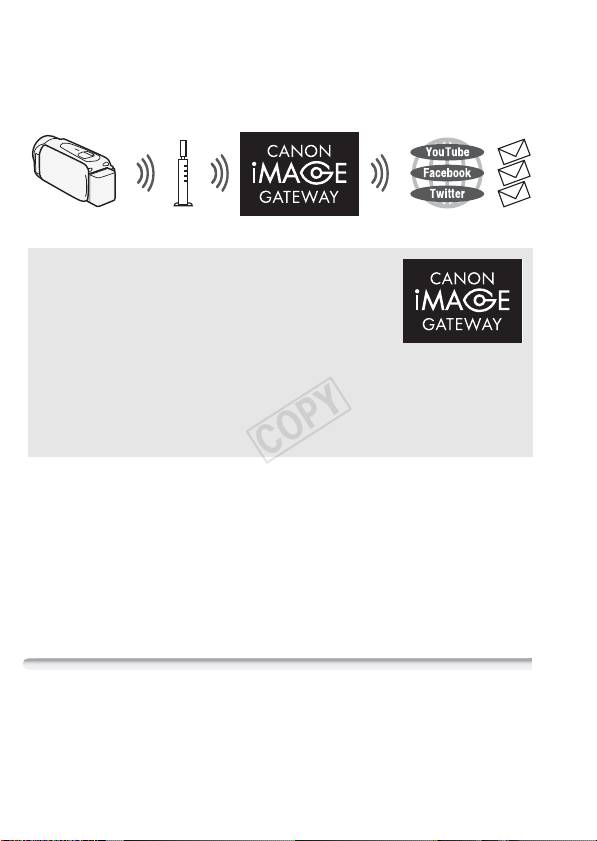
friends and family, and more! To use this function, you will need an
access point connected to the Internet.
* Availability differs from area to area.
** “Web services” is used in this text to refer to various Internet services supported
by CANON iMAGE GATEWAY.
Wireless router
(Access point)
CANON iMAGE GATEWAY
CANON iMAGE GATEWAY is a site that provides
various photo-related services for owners of
qualified Canon products. After you complete the
free registration online, you can use the Web ser-
vices, create online photo albums, and more.
Visit Canon’s Web site for information on registra-
tion and countries/regions where you can use
this service.
http://canon.com/cig
General requirements
• Computer with the supplied software ImageBrowser EX and
CameraWindow correctly installed. For details on installing the soft-
ware, refer to
Saving MP4 Movies and Photos (Windows/Mac OS)
file).
• Completed free registration online for CANON iMAGE GATEWAY.
• Account settings for YouTube, Facebook and Twitter (depending on the
services you plan to use).
Playback on a Computer
Using the Media Server function, you can remotely play back movies
and photos in the camcorder’s memory on your computer or other
compatible device. To use this function, you need an access point con-
nected to your home network and software to play back the Media
12
