
Canon LEGRIA HF R48: Before Using Wi-Fi Functions About the Wi-Fi antenna About the camcorder’s Wi-Fi standard Recording Movies Using a Smartphone as a Remote Control
Before Using Wi-Fi Functions About the Wi-Fi antenna About the camcorder’s Wi-Fi standard Recording Movies Using a Smartphone as a Remote Control: Canon LEGRIA HF R48
Table of contents
- Table of Contents Trademark Acknowledgements
- Getting Started Introduction to Wi-Fi
- Wi-Fi connection Wi-Fi connection
- Wi-Fi connection Wi-Fi connection IMPORTANT
- Before Using Wi-Fi Functions About the Wi-Fi antenna About the camcorder’s Wi-Fi standard Recording Movies Using a Smartphone as a Remote Control
- POINTS TO CHECK
- Remote Browse: Viewing Recordings Using a Web Browser on Your iOS Device or Android Smartphone Operating modes: 1 Camcorder: From any movie index screen, set the camcorder to connect with the smartphone.
- 2 Smartphone: Activate Wi-Fi in the settings screen (A 11). Uploading Videos Using an iOS Device
- POINTS TO CHECK
- NOTES Connecting Directly to a Smartphone or Similar Device Sharing Recordings with CANON iMAGE GATEWAY
- CANON iMAGE GATEWAY General requirements Playback on a Computer
- Troubleshooting List of Messages
Before Using Wi-Fi Functions
Based on the function, the camcorder will wirelessly connect to a
Wi-Fi-enabled device, such as a smartphone, directly or to a Wi-Fi net-
work via an access point (wireless router)*. After selecting the function
you want to use, follow the onscreen directions to connect the cam-
corder.
* Depending on the manufacturer, the access point may be referred to using a
different name, such as wireless LAN router or wireless network router.
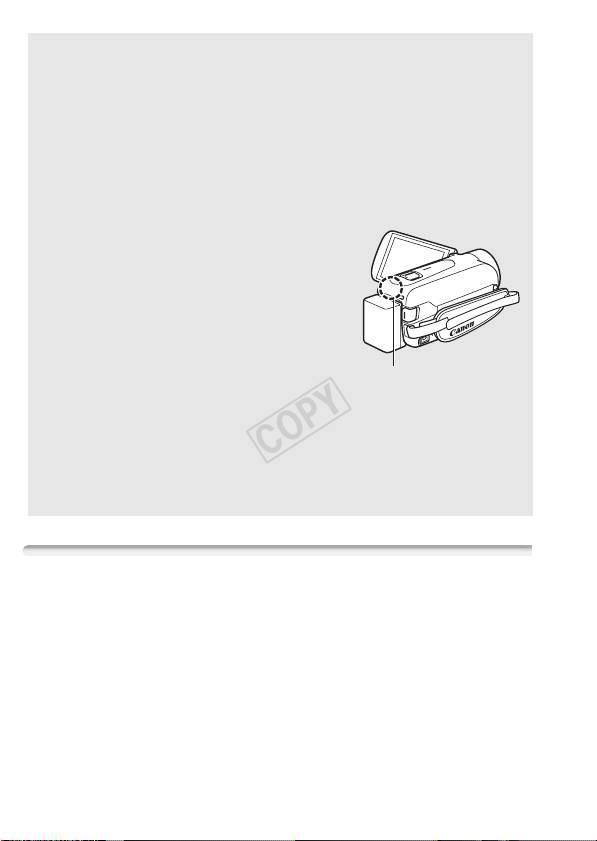
About the Wi-Fi antenna
When using the camcorder’s Wi-Fi func-
tions, do not cover the back portion of the
camcorder with your hand or other object.
The Wi-Fi antenna is located in the back
portion and covering it may interfere with
wireless signals.
Wi-Fi antenna
About the camcorder’s Wi-Fi standard
The camcorder’s Wi-Fi standard complies with the IEEE 802.11
b/g/n protocol and operates in the 2.4 GHz band. As such, the max-
imum data transfer rate is 11 Mbps for IEEE 802.11b, 54 Mbps for
IEEE 802.11g, and 150 Mbps for IEEE 802.11n. Note that these are
theoretical values and actual data transfer rates may differ.
Recording Movies Using a Smartphone as a Remote Control
Using the CameraAccess app* for iOS devices and Android™ smart-
phones, you can control the camcorder from a distance while you view
the camcorder’s image on the smartphone’s screen. Not only can you
control the camcorder to start and stop recording, you can also record
the camcorder’s image directly onto your smartphone.
* The CameraAccess app, provided by PIXELA, is available for free from the App
Store (for iOS devices) and Google Play™ (for Android smartphones).
6
