
Canon LEGRIA HF R48: POINTS TO CHECK
POINTS TO CHECK: Canon LEGRIA HF R48
Table of contents
- Table of Contents Trademark Acknowledgements
- Getting Started Introduction to Wi-Fi
- Wi-Fi connection Wi-Fi connection
- Wi-Fi connection Wi-Fi connection IMPORTANT
- Before Using Wi-Fi Functions About the Wi-Fi antenna About the camcorder’s Wi-Fi standard Recording Movies Using a Smartphone as a Remote Control
- POINTS TO CHECK
- Remote Browse: Viewing Recordings Using a Web Browser on Your iOS Device or Android Smartphone Operating modes: 1 Camcorder: From any movie index screen, set the camcorder to connect with the smartphone.
- 2 Smartphone: Activate Wi-Fi in the settings screen (A 11). Uploading Videos Using an iOS Device
- POINTS TO CHECK
- NOTES Connecting Directly to a Smartphone or Similar Device Sharing Recordings with CANON iMAGE GATEWAY
- CANON iMAGE GATEWAY General requirements Playback on a Computer
- Troubleshooting List of Messages
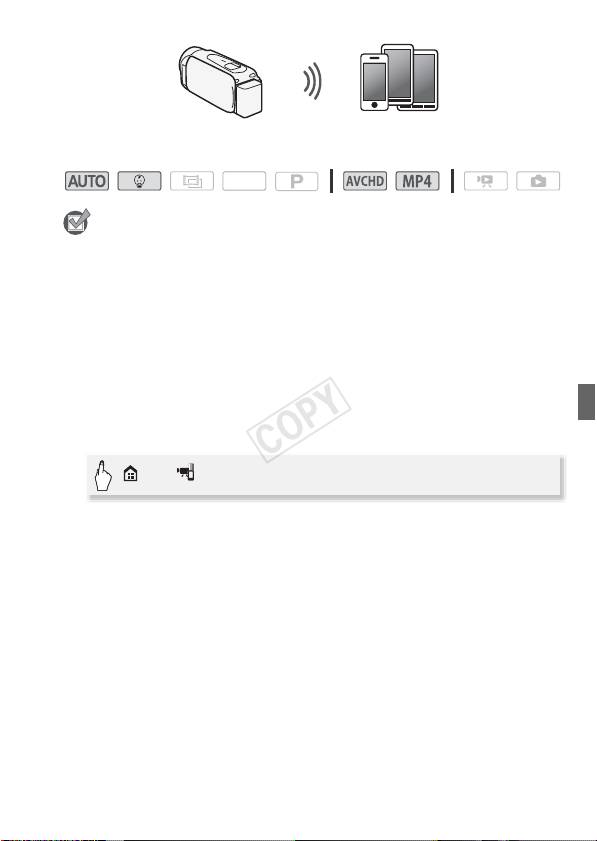
Smartphone
Operating modes:
SCN
POINTS TO CHECK
• Before you perform this procedure for the first time, download and
install the CameraAccess app on your smartphone. The app can be
downloaded for free from the following sites (English only).
App Store:
http://itunes.com/apps/cameraaccess
Google Play™:
http://play.google.com/store/apps/details?id=jp.co.pixela.cameraaccess
1 Camcorder: Set the camcorder to receive remote control
commands.
> [ Remote Control+Streaming]
• The camcorder’s SSID (network name) and password will appear.
• The camcorder will be ready to connect with the smartphone.
2 Smartphone: Activate Wi-Fi in the settings screen (A 11).
The network names of detected access points will appear.
3 Smartphone: Touch the access point with the same SSID as that
of the one from step 1.
4 Smartphone: Enter the password.
5 Smartphone: Start the CameraAccess app.
For details about this function, refer to
Recording Movies Using a
Smartphone as a Remote Control
in the camcorder’s Instruction
Manual (PDF file).
7
