
Acme V-130: 8. System Upgrade
8. System Upgrade: Acme V-130
Table of contents
- Note: Features:
- 1. Basic operations 2. Music Playback 1) Playback 2) Buttons 3) Volume Adjustment
- 4) Previous le/Next le; FF/RW 5) Pause 6) Play list 7) A-B repeat 4. FM tuner: (Optional)
- 5. Recording:
- 6. Explorer 7. Settings 1) Enter Settings menu 2) Buttons 3) EQ Selection: normal, MS PlayFx, rock, pop, Classic, Bass and Jazz. 4) Music playback settings
- 5) Display settings 6) Power o 7) Record setting 8) Language 9) Radio setting 10) System
- 8. System Upgrade
- 9. Troubleshooting
- 10. Specications
EN
B) Firmware upgrade
In this menu, in pop up dialog box, press “+” or “-” to select
“Yes” or “No”, and then press the “M” button, connect the player
with the PC via USB, the system enters the rmware upgrading
status.
C) Default set
Select this item, a dialog box pops up. Press “+” or “-” to select
“Yes” and press the “M” button to conrm. The player is resumed
to the defaulted value then.
8. System Upgrade
There are two ways to upgrade the rmware:
1) Select “Settings>System>Upgrade” in the main menu, and then
start to upgrade as per the prompt. For details please refer to
Section 10 “Firmware upgrade”.
2) Use the “rmware upgrade tools” in the enclosed CD to upgrade
the rmware.
Operation steps:
A) Turn o the player, press and hold the “M” button, do not release
it, and connect the player with the PC via USB cable.
B) After the player is connected to the PC, the PC prompts “New
hardware found”. Install the driver as per the requirement. USB
device drivers are in CD. (If the driver has been installed, you can
jump over this step directly.)
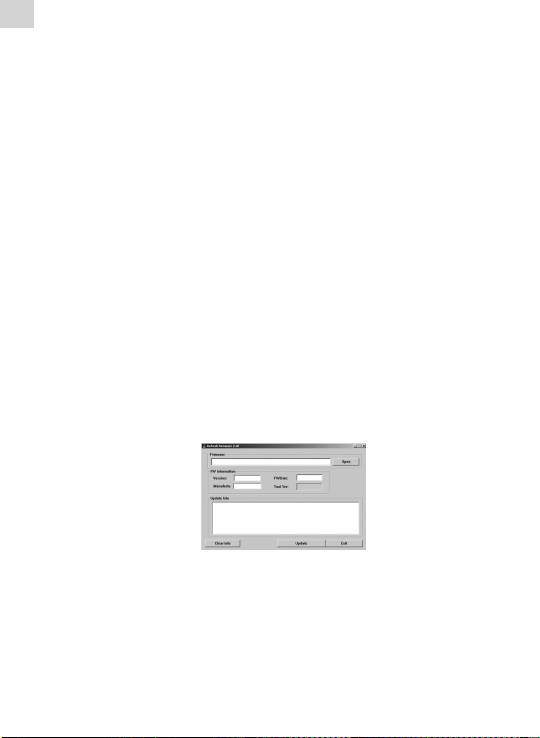
C) After the driver is installed, run the “Firmware Upgrade” tool in
the enclosed CD.
D) Press “Open rmware”, and then select a rmware le.
