
ZyXEL Communications ZyXEL ZyAIR AG-225H v2: 5 The ZyXEL Utility
5 The ZyXEL Utility: ZyXEL Communications ZyXEL ZyAIR AG-225H v2

ENGLISH
5 The ZyXEL Utility
The installation procedures are similar for all supported
Windows versions.
Install the ZyXEL utility before you insert the AG-
225H v2
5.1 Installation Requirements
Before installation, make sure you have a computer with the
following:
• Pentium II 300MHz or above
• A USB port (with USB1.0/1.1 the AG-225H v2 can transmit at
up to only 11Mbps)
• A minimum of 20 MB available hard disk space
• A minimum of 64 MB RAM
• A CD-ROM drive
• Windows 2000 or Windows XP
If you have already installed Funk Odyssey Client
software on the computer, uninstall (remove) it.
5.2 ZyXEL Utility Installation
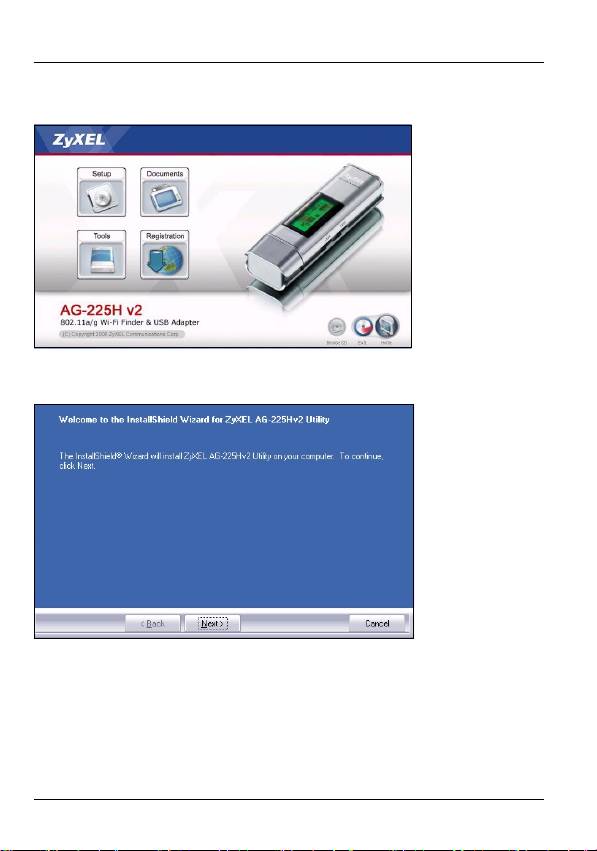
1 Insert the included CD into the CD-ROM drive on your
computer. When the following screen displays, click
7
ENGLISH
Setup. If the screen does not display, locate and double-
click autorun.exe.
2 Select Install Utility
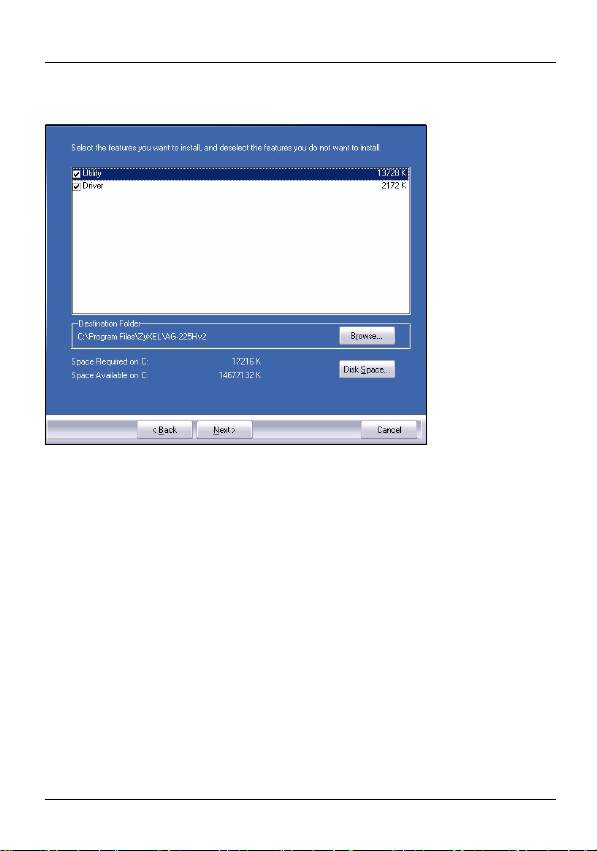
3 The following screen displays. Click Next.
4 Select Driver and Utility to install both ZyXEL utility and
driver on your computer. If you want to install the driver
only and use Wireless Zero Configuration (WZC) with
Windows XP, select Driver only (see Note for Windows XP
8
ENGLISH
Users). Click Next to accept the default file location or
click Browse to select an alternate folder.
9
ENGLISH
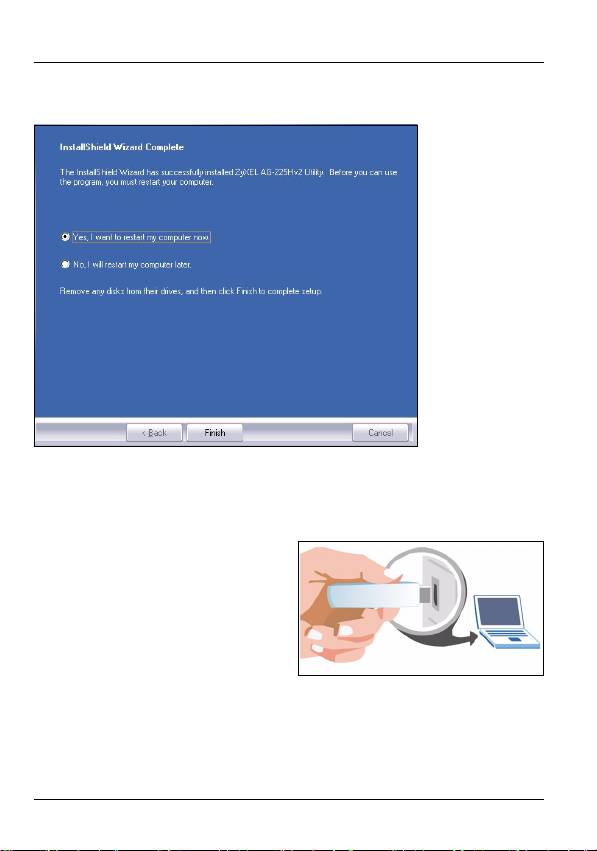
5 You must restart your computer before using the ZyXEL
utility. Click Finish to complete the installation.
5.3 Hardware Connections
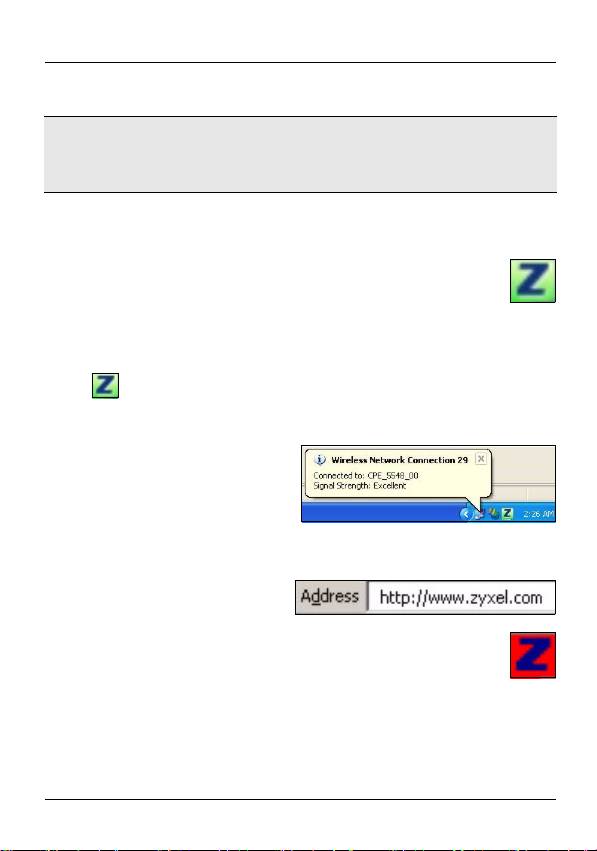
1 Locate an available USB port on the computer.
Remove the protective cap to
expose the USB connector.
Insert the AG-225H v2 into an
available USB port on the
computer.
10
ENGLISH
Never bend, twist or force the AG-225H v2 into the
port. If there is not enough space to attach the AG-
225H v2, use the included USB cable.
5.4 ZyXEL Utility Icons
After you install the ZyXEL utility and insert the AG-
225H v2, an icon appears in the system tray (typically
at the bottom of the desktop). The AG-225H v2
automatically searches for any available network(s) and
connects to a wireless network without security enabled.
If the icon color is green and/or you see the following icon
on your desktop, you are already connected to a wireless
network.
To access the Internet, open your Internet browser and enter
the URL of a web site in the address bar.
If the icon color is red, you are not connected to a
wireless network. See the next section for details on
how to manually connect to a network.
11
ENGLISH
5.5 Manual Network Connection
If your AG-225H v2 does not automatically connect to a
wireless network, use the ZyXEL utility to connect manually.
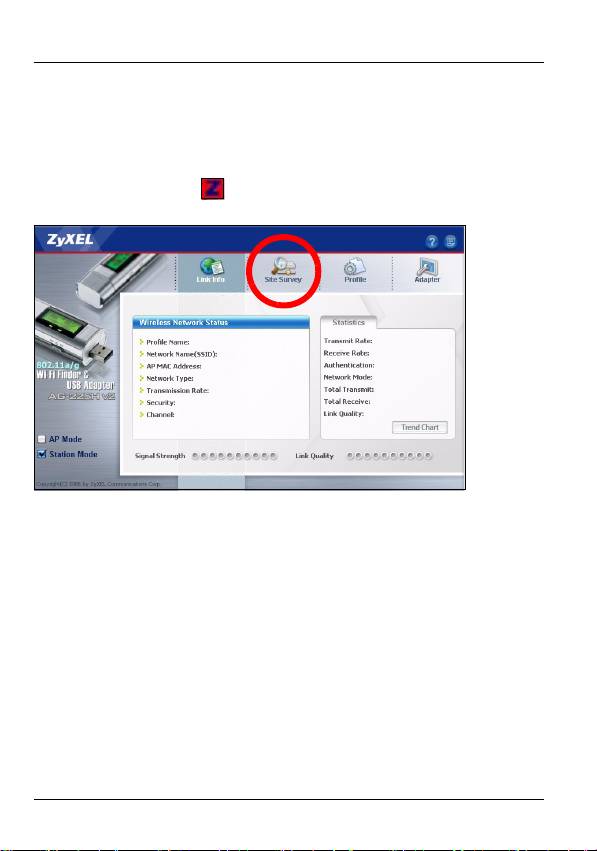
1 Double-click the icon to display the ZyXEL utility Link
Info screen.
2 Click the Site Survey tab.
12
ENGLISH
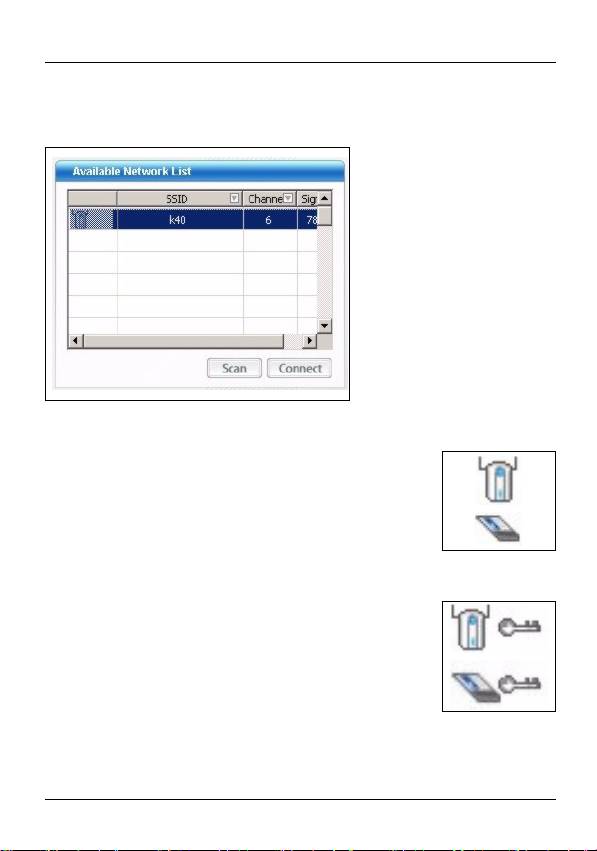
3 The available wireless network(s) displays in the
Available Network List. You can click Scan to have the
AG-225H v2 search again.
If a wireless network without security is available, one of the
following icons appears next to an entry in the list.
If a wireless network with security is available, one of the
following icons appears next to an entry in the list.
4 To connect to an available network, double-click an entry.
If the network has security enabled, you need to know its
13
Оглавление
- 802.11a/g Wi-Fi Finder & Wireless USB Adapter
- 1 About Your AG-225H v2
- 3 The LCD Screen
- 4 Power
- 5 The ZyXEL Utility
- 6 Troubleshooting
- 7 Important Information
- 1 Über Ihr AG-225H v2
- 2 Übersicht
- 3 Das LCD-Display
- 4 Power (Ein/Aus)
- 5 Das ZyXEL-Utility-Programm
- 6 Störungsbeseitigung
- 7 Vorgehensweise zum Aufrufen einer Produktzertifizierung
- 1 Acerca de su AG-225H v2
- 3 La pantalla LCD
- 4 Corriente
- 5 l Utilidad ZyXEL
- 6 Solución de problemas
- 7 Procedimiento para ver las certificaciones de un producto
- 1 A propos de votre AG-225H v2
- 2 Présentation
- 3 L'écran LCD
- 4 Alimentation
- 5 L'utilitaire ZyXEL
- 6 Dèpannage
- 7 Procédure permettant de consulter une(les) Certification(s) du Produit
- 1 La vostra AG-225H v2
- 3 Display LCD
- 4 Alimentazione
- 5 Il programma ZyXEL Utility
- 6 Risoluzione dei problemi
- 7 Procedura per visualizzare le certificazioni di un prodotto
- 1 О Вашем адаптере AG-225H v2
- 2 Обзор
- 3 ЖК дисплей
- 4 Power [Питание]
- 5 Утилита ZyXEL
- 6 Устранение неисправностей
- 7 Процедура просмотра сертификатов изделий
- 1 Om AG-225H v2
- 3 LCD-skärmen
- 4 Ström
- 5 ZyXEL-verktyget
- 6 Felsökning
- 7 Viktig information Federal Communications Commission (FCC) Tillkännagivande om interferens
- 1 關於您的 AG-225H v2 無線網卡
- 3 LCD 螢幕
- 4 電源
- 6 低功率電波輻射性電機管理辦法
