
Nikon PD-10: Wireless Printing
Wireless Printing: Nikon PD-10
Table of contents
- For Your Safety
- Notices
- Notice for customers in Canada CAUTION IMPORTANT NOTE: ATTENTION
- Caring for the Adapter
- Introduction
- Before You Begin
- Parts of the Adapter
- Inserting the Batteries
- Connecting the PD-10 to a Printer
- Setting Profile Information on the Camera
- Number of Devices That Can Be Set Profile names Turning the PD-10 Off
- Wireless Printing
- LED Lamp Display
- Troubleshooting
- Specifications
Wireless Printing
En
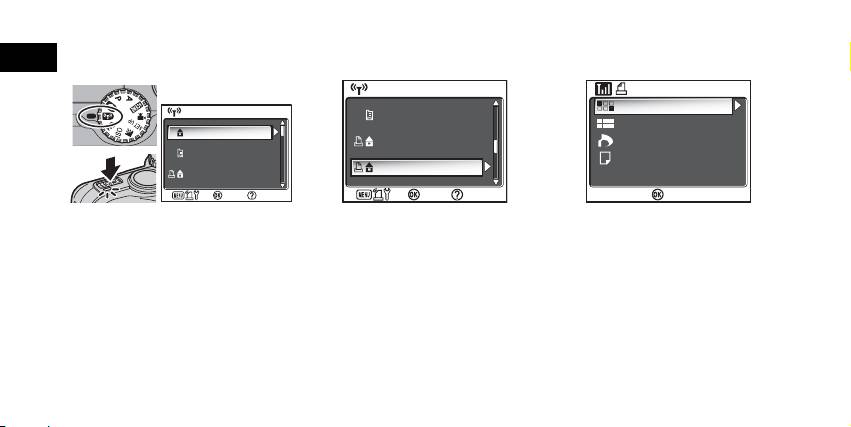
Use the PD-10 and a camera with PD-10 Profile Information to wirelessly print camera images.
1
Rotate the mode dial on the cam-
2
Select the profile name of the
3
The WIRELESS PRINTING screen is
era to Y (Wireless transfer
PD-10 using the multi selector on
displayed on the camera monitor.
mode), and turn the camera on.
the camera and press d button.
• Print using the same procedure as “Direct
• The CHOOSE PROFILE screen is displayed
• Screens showing the connection status of
Print” in the camera manual to directly
on the camera monitor.
the PD-10 are displayed on the camera
print from the camera to a PictBridge-
monitor.
compatible printer.
• After printing is complete, the camera
monitor returns to the CHOOSE PROFILE
screen.
Note
• Use fully-powered batteries when performing wireless printing.
• See the camera manual for direct printing operations.
• If printing is canceled before completing, printing stops and the camera monitor returns to the CHOOSE PROFILE screen.
8
CHOOSE PROFILE 1/3
CHOOSE PROFILE 1/3
Confirm
Confirm
Info
Profile-A
Profile-B
Profile-C
Info
CHOOSE PROFILE 2/3
CHOOSE PROFILE 2/3
Confirm
Confirm
Info
Profile-D
Profile-E
Printer1
Info
WIRELESS PRINTING
WIRELESS PRINTING
Confirm
Confirm
Info
Print selection
Print all images
DPOF printing
Paper size
