
Acme BTDG-30-BLK: (Figure 5) Insert the USB Dongle into PC Run the application IVT BlueSoleil
(Figure 5) Insert the USB Dongle into PC Run the application IVT BlueSoleil: Acme BTDG-30-BLK
Table of contents
- Install application program – IVT BlueSoleil (Figure 1) Setup.exe (Figure 2) Select application language
- (Figure 3) Select Application Install Location (Figure 4) Complete installation
- (Figure 5) Insert the USB Dongle into PC Run the application IVT BlueSoleil
- Create stereo audio connection via a PC
- Chat using your stereo headset as a voice input/output device Troubleshooting Care and maintenance
- Safety information Product specification
- Appendix
- Declaration of conformity
GB
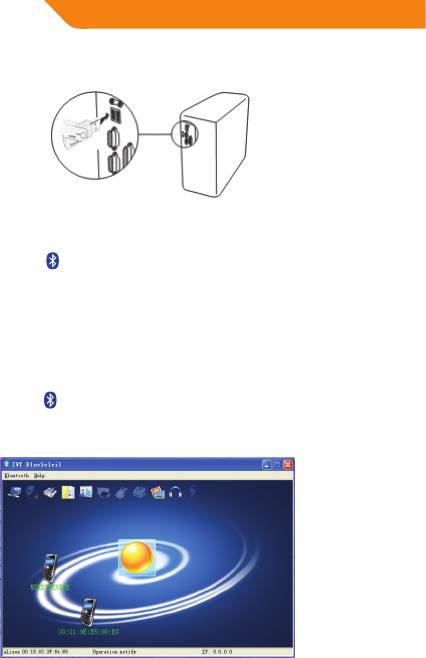
6. Please plug the USB Dongle into USB port (Figure 5), and the driver will
install automatically.
(Figure 5) Insert the USB Dongle into PC
7. After installation, a icon will be shown on the desktop and the launcher
bar at the bottom of your computer screen.
Run the application IVT
BlueSoleil
1. Double click on the icon on Desktop or right-click on launcher bar to select
“Display Classic View”and the IVT BlueSoleil program will start automatically
(See Figure 6)
(Figure 6) IVT BlueSoleil Main Menu
6
Top 10 manuals
100.00
NZXT HALE90 1000W99.99
Samsung SM-R38099.97
AEG BSB 18C99.97
Dell 2700W99.97
Smeg KSEC70X99.96
Beurer HDE 4099.96
Pyramida KH 50 v.299.96
MSI CSM-H81M-P3299.96
AEG HR 562799.95
Melissa 640-048


