
Olympus STYLUS 1030 SW: Connecting the camera
Connecting the camera: Olympus STYLUS 1030 SW
d4354_basic_e_00.book Page 16 Tuesday, December 18, 2007 5:26 PM
Connecting the camera
Playback on a TV
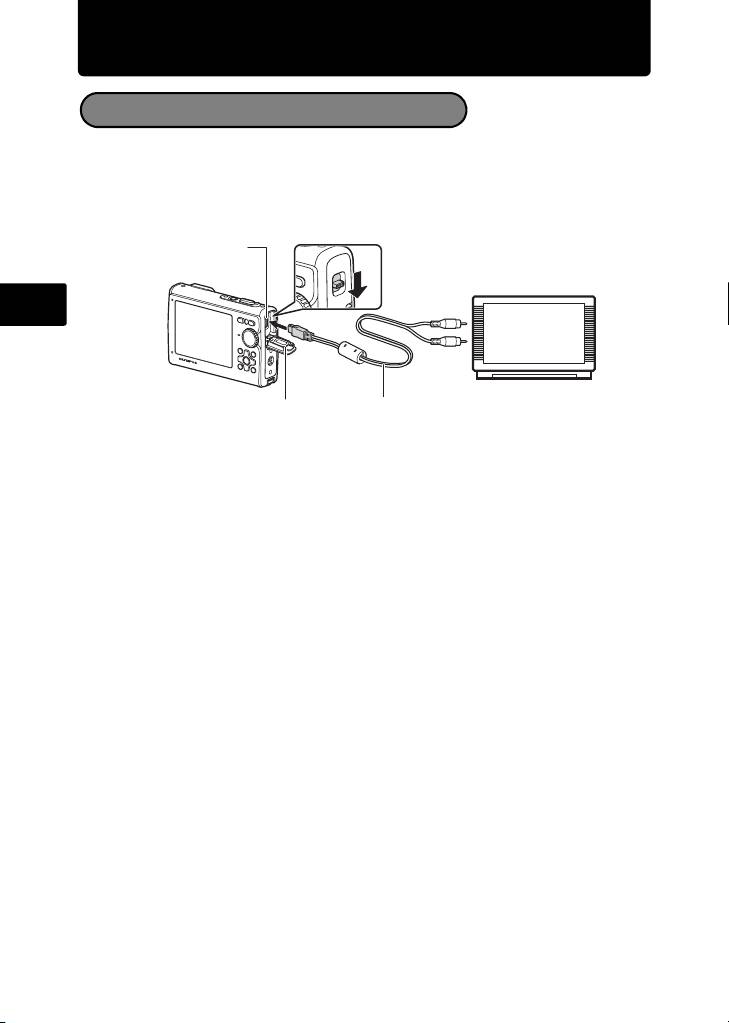
Use the AV cable provided with the camera to playback recorded images on your
TV. Both still pictures and movies can be played back.
1 Make sure that the TV and camera are turned off. Connect the multi-connector
on the camera to the video input terminal on the TV using the AV cable.
Multi-connector
Connect to the TV’s video
input (yellow) and audio
input (white) terminals.
En
Connector cover
AV cable (provided)
2 Turn the TV on and set it to the video input mode.
For details of switching to video input, refer to your TV’s instruction manual.
3 Set the mode dial to q, and press o to turn the camera on.
The last picture taken is displayed on the TV. Use the arrow pad to select the picture
you want to display.
16
d4354_basic_e_00.book Page 17 Tuesday, December 18, 2007 5:26 PM
Direct Printing (PictBridge)
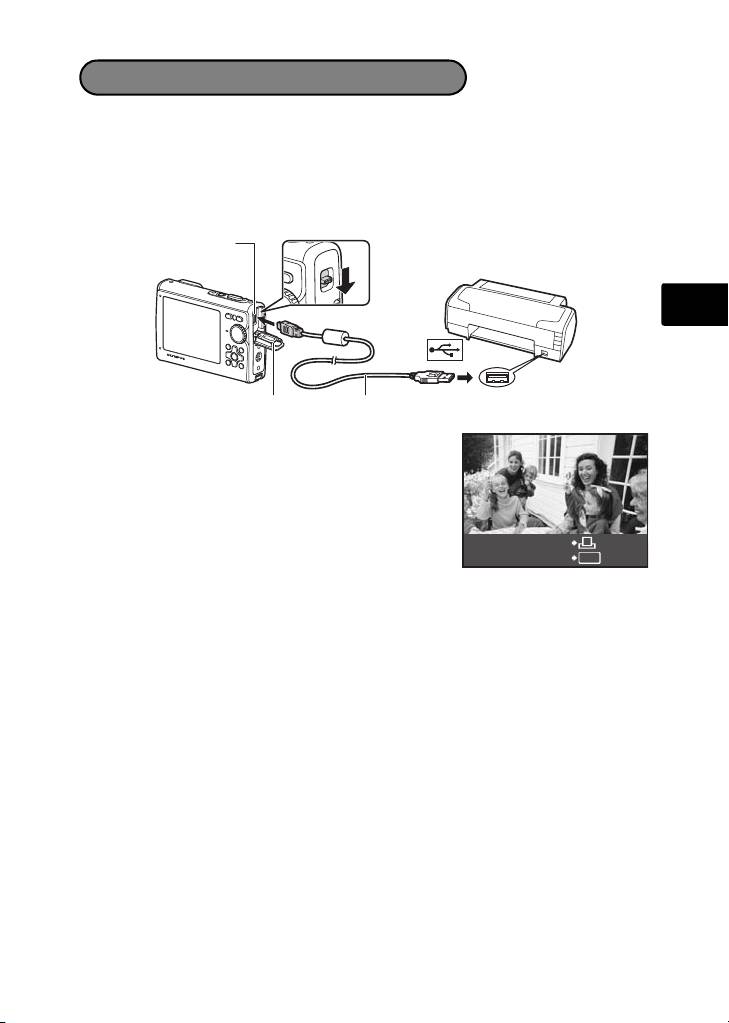
Using the provided USB cable, you may connect your camera directly to a
PictBridge compatible printer to make prints.
1 In playback mode, display the picture you want to print out on the monitor.
2 Connect one end of the provided USB cable into the camera’s multi-connector
and the other end into the printer’s USB connector.
Multi-connector
En
Connector cover
USB cable
3 Press q/<.
Printing starts.
When printing is finished, disconnect the USB cable
from the camera with the picture selection screen
displayed.
EASY PRINT START
PC
/
CUSTOM PRINT
OK
17
Table of contents
- Table of Contents
- Gather these items (box contents)
- Prepare the camera
- Turn the camera on
- Set date and time
- Select a language
- Take a picture
- View pictures
- Basic operation
- Menus and settings
- Connecting the camera
- Transfer images
- OLYMPUS Master Software
- Specifications
- Safety precautions
- Table des matières
- Sélectionnez une langue
- Fonctionnement de base
- Menus et réglages
- Connexion de l’appareil photo
- Transférez des images
- Logiciel OLYMPUS Master
- Caractéristiques
- Précautions de sécurité
- Contenidos
- Seleccionar un idioma
- Ver fotografias
- Funcionamiento básico
- Menús y ajustes
- Conexión de la cámara
- Transferencia de imágenes
- Software OLYMPUS Master
- Especificaciones
- Precauciones de seguridad
- Inhaltsverzeichnis
- Überprüfen Sie, ob die folgenden Komponenten (Verpackungsinhalt) vorhanden sind
- Vorbereiten der Kamera
- Die Kamera einschalten
- Stellen Sie das Datum und die Zeit ein
- Eine Sprache auswählen
- Ein Bild aufnehmen
- Bilder anzeigen
- Grundlegende Bedienung
- Menüs und Einstellungen
- Die Kamera anschließen
- Bilder übertragen
- OLYMPUS Master-Software
- Technische Daten
- Sicherheitshinweise
- Содержание
- Выньте из коробки эти предметы
- Подготовьте фотокамеру
- Включите фотокамеру
- Установите дату и время
- Выберите язык
- Съемка
- Просмотр снимков
- Основные операции
- Меню и настройки
- Подсоединение фотокамеры
- Перенос изображений
- Программное обеспечение OLYMPUS Master
- Технические характеристики
- Меры предосторожности


