
ASRock P75 Pro3 – страница 2
Инструкция к Материнской Плате ASRock P75 Pro3

21
ASRock P75 Pro3 Motherboard
English
Although you have selected the option “Enable CrossFire
TM
”, the CrossFireX
TM
function may not work actually. Your computer will automatically reboot. After
restarting your computer, please con
fi
rm whether the option “Enable
CrossFire
TM
” in “AMD Catalyst Control Center” is selected or not; if not, please
select it again, and then you are able to enjoy the bene
fi
ts of CrossFireX
TM
.
Step 7. You can freely enjoy the bene
fi
ts of CrossFireX
TM
or Quad CrossFireX
TM
.
* CrossFireX
TM
appearing here is a registered trademark of AMD Technologies Inc., and is
used only for identi
fi
cation or explanation and to the owners’ bene
fi
t, without intent to infringe.
* For further information of AMD CrossFireX
TM
technology, please check AMD’s website for
updates and details.
22
ASRock P75 Pro3 Motherboard
English
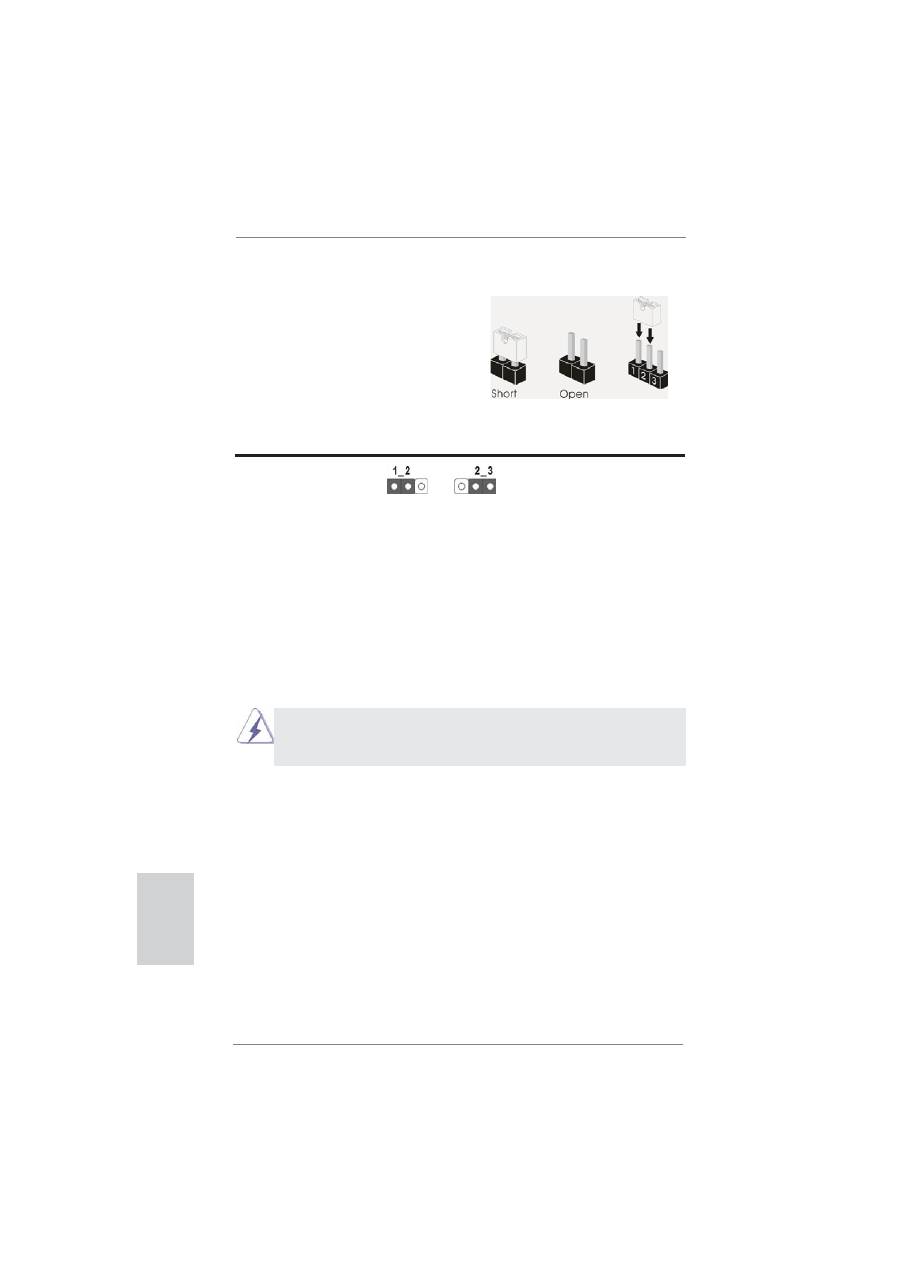
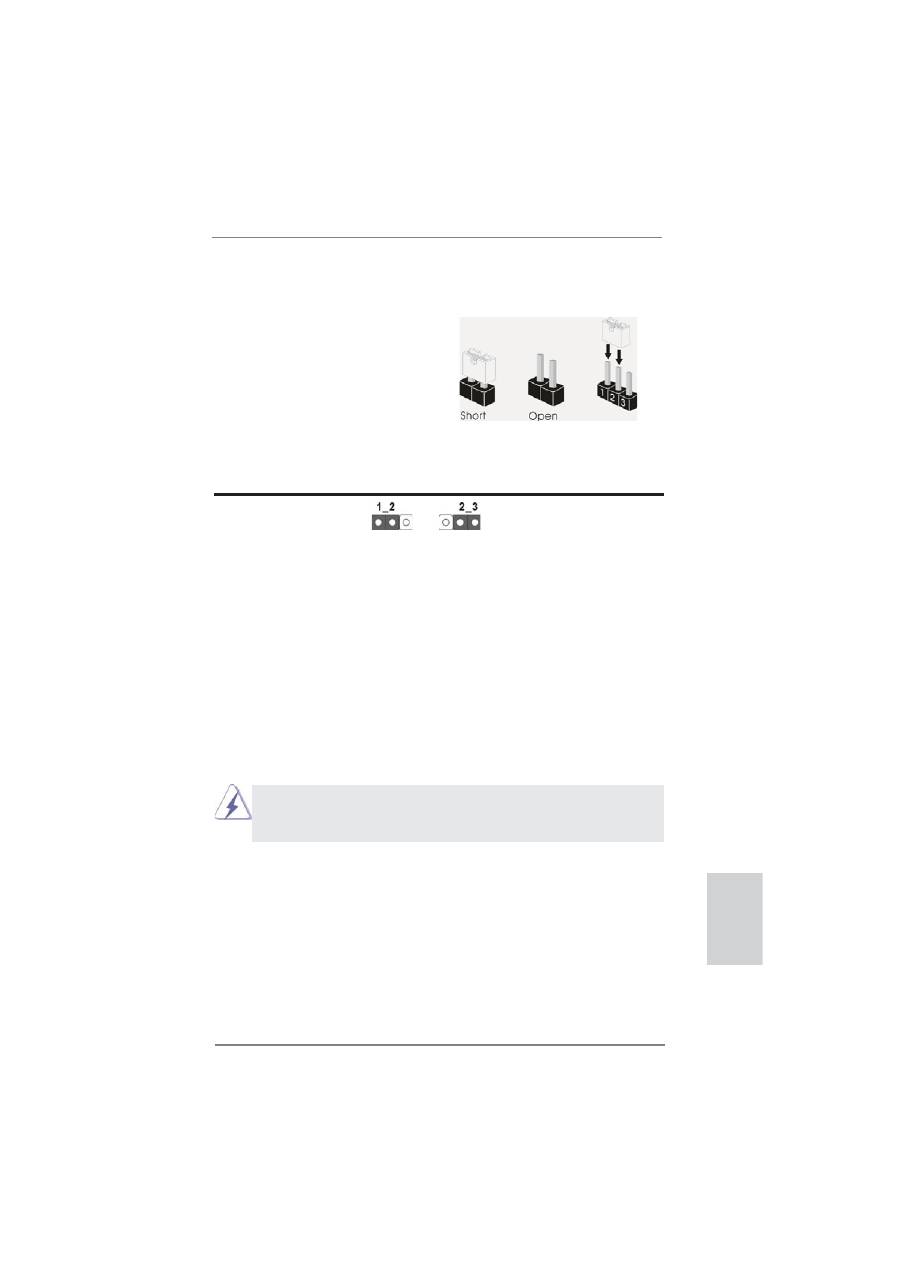
2.8 Jumpers Setup
The illustration shows how jumpers are
setup. When the jumper cap is placed on
pins, the jumper is “Short”. If no jumper cap
is placed on pins, the jumper is “Open”. The
illustration shows a 3-pin jumper whose
pin1 and pin2 are “Short” when jumper cap
is placed on these 2 pins.
Jumper Setting
Description
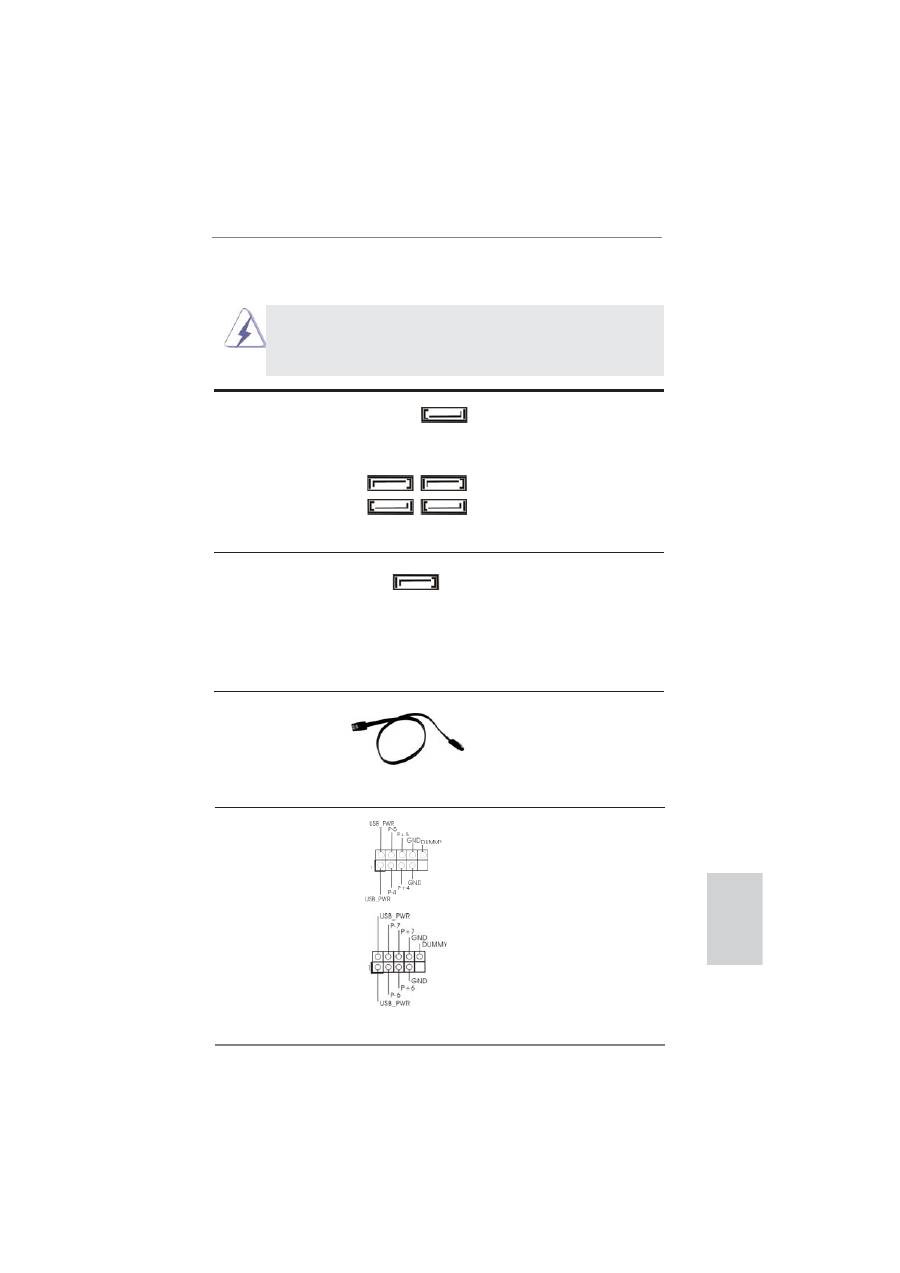
Clear CMOS Jumper
(CLRCMOS1)
(see p.2, No. 22)
Note: CLRCMOS1 allows you to clear the data in CMOS. To clear and reset the
system parameters to default setup, please turn off the computer and unplug
the power cord from the power supply. After waiting for 15 seconds, use a
jumper cap to short pin2 and pin3 on CLRCMOS1 for 5 seconds. However,
please do not clear the CMOS right after you update the BIOS. If you need
to clear the CMOS when you just
fi
nish updating the BIOS, you must boot
up the system
fi
rst, and then shut it down before you do the clear-CMOS ac-
tion. Please be noted that the password, date, time, user default pro
fi
le, 1394
GUID and MAC address will be cleared only if the CMOS battery is removed.
Clear CMOS
Default
If you clear the CMOS, the case open may be detected. Please adjust
the BIOS option “Clear Status” to clear the record of previous chassis
intrusion
status.
23
ASRock P75 Pro3 Motherboard
English
2.9 Onboard Headers and Connectors
Onboard headers and connectors are NOT jumpers. Do NOT place
jumper caps over these headers and connectors. Placing jumper caps
over the headers and connectors will cause permanent damage of the
motherboard!
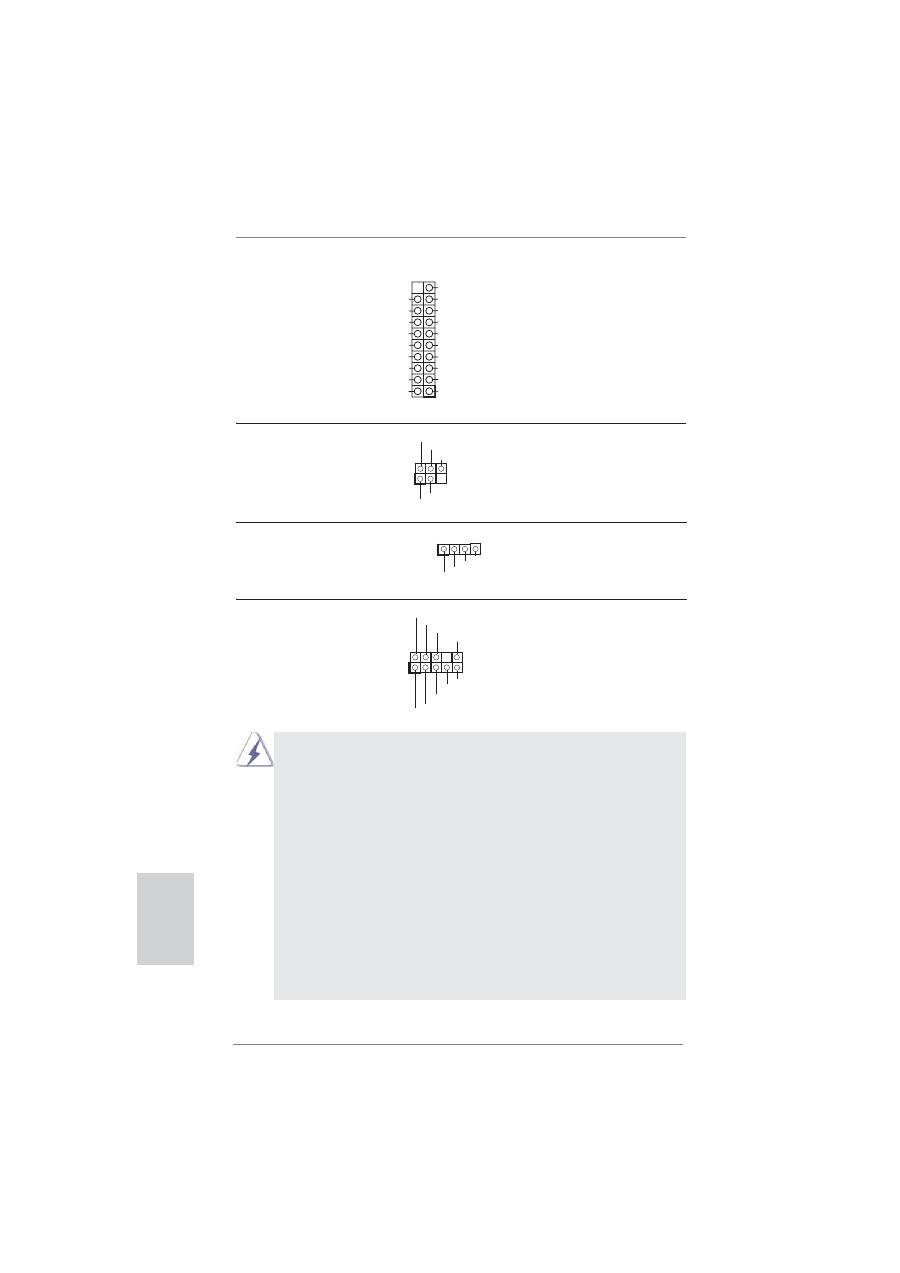
Serial ATA2 Connectors
These
fi
ve Serial ATA2 (SATA2)
(SATA2_1: see p.2, No. 15)
connectors support SATA data
(SATA2_2: see p.2, No. 11)
cables for internal storage
(SATA2_3: see p.2, No. 14)
devices. The current SATA2
(SATA2_4: see p.2, No. 12)
interface allows up to 3.0 Gb/s
(SATA2_5: see p.2, No. 10)
data transfer rate.
Serial ATA3 Connector
This Serial ATA3 (SATA3)
(SATA3_0: see p.2, No. 9)
connector supports SATA data
cables for internal storage
devices. The current SATA3
interface allows up to 6.0 Gb/s
data transfer rate.
SATA2_2 SATA2_4
SATA2_1 SATA2_3
SATA2_5
Serial ATA (SATA)
Either end of the SATA data
Data Cable
cable can be connected to the
(Optional)
SATA / SATA2 / SATA3 hard
disk or the SATA2 / SATA3
connector on this motherboard.
SATA3_0
USB 2.0 Headers
Besides four default USB 2.0
(9-pin USB4_5)
ports on the I/O panel, there are
(see p.2, No. 18)
two USB 2.0 headers on this
motherboard. Each USB 2.0
header can support two USB 2.0
ports.
(9-pin USB6_7)
(see p.2, No. 17)
24
ASRock P75 Pro3 Motherboard
English
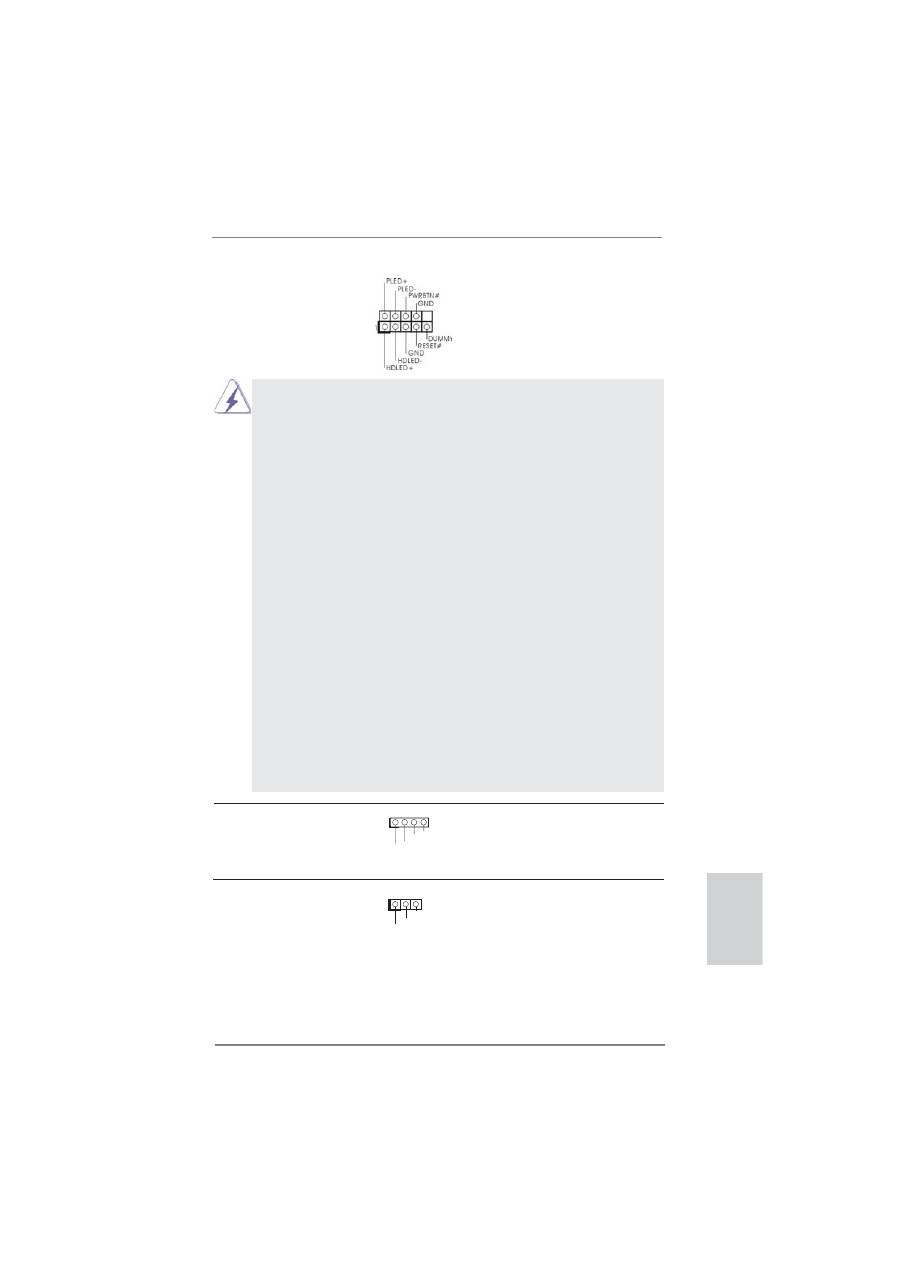
Infrared Module Header
This header supports an
(5-pin IR1)
optional wireless transmitting
(see p.2, No. 20)
and receiving infrared module.
Consumer Infrared Module Header
This header can be used to
(4-pin CIR1)
connect the remote controller
(see p.2, No. 19)
receiver.
Front Panel Audio Header
This is an interface for front
(9-pin HD_AUDIO1)
panel audio cable that allows
(see p.2, No. 29)
convenient connection and
control of audio devices.
USB 3.0 Header
Besides two default USB 3.0
(19-pin USB3_2_3)
ports on the I/O panel, there is
(see p.2, No. 6)
one USB 3.0 header on this
motherboard. This USB 3.0
header can support two USB 3.0
ports.
1
IRTX
+5VSB
DUMMY
IRRX
GND
1
ATX+5VSB
IRTX
GND
IRRX
J_SENSE
OUT2_L
1
MIC_RET
PRESENCE#
GND
OUT2_R
MIC2_R
MIC2_L
OUT_RET
IntA_P5_D+
DUMMY
IntA_P5_D-
GND
IntA_P5_SSTX+
GND
IntA_P5_SSTX-
IntA_P5_SSRX+
IntA_P5_SSRX-
Vbus
Vbus
Vbus
IntA_P4_SSRX-
IntA_P4_SSRX+
GND
IntA_P4_SSTX-
IntA_P4_SSTX+
GND
IntA_P4_D-
IntA_P4_D+
1. High De
fi
nition Audio supports Jack Sensing, but the panel wire on the
chassis must support HDA to function correctly. Please follow the
instruction in our manual and chassis manual to install your system.
2. If you use AC’97 audio panel, please install it to the front panel audio
header as below:
A. Connect Mic_IN (MIC) to MIC2_L.
B. Connect Audio_R (RIN) to OUT2_R and Audio_L (LIN) to OUT2_L.
C. Connect Ground (GND) to Ground (GND).
D. MIC_RET and OUT_RET are for HD audio panel only. You don’t need
to connect them for AC’97 audio panel.
E. To activate the front mic.
For Windows
®
XP / XP 64-bit OS:
Select “Mixer”. Select “Recorder”. Then click “FrontMic”.
For Windows
®
7 / 7 64-bit / Vista
TM
/ Vista
TM
64-bit OS:
Go to the “FrontMic” Tab in the Realtek Control panel. Adjust
“Recording Volume”.
25
ASRock P75 Pro3 Motherboard
English
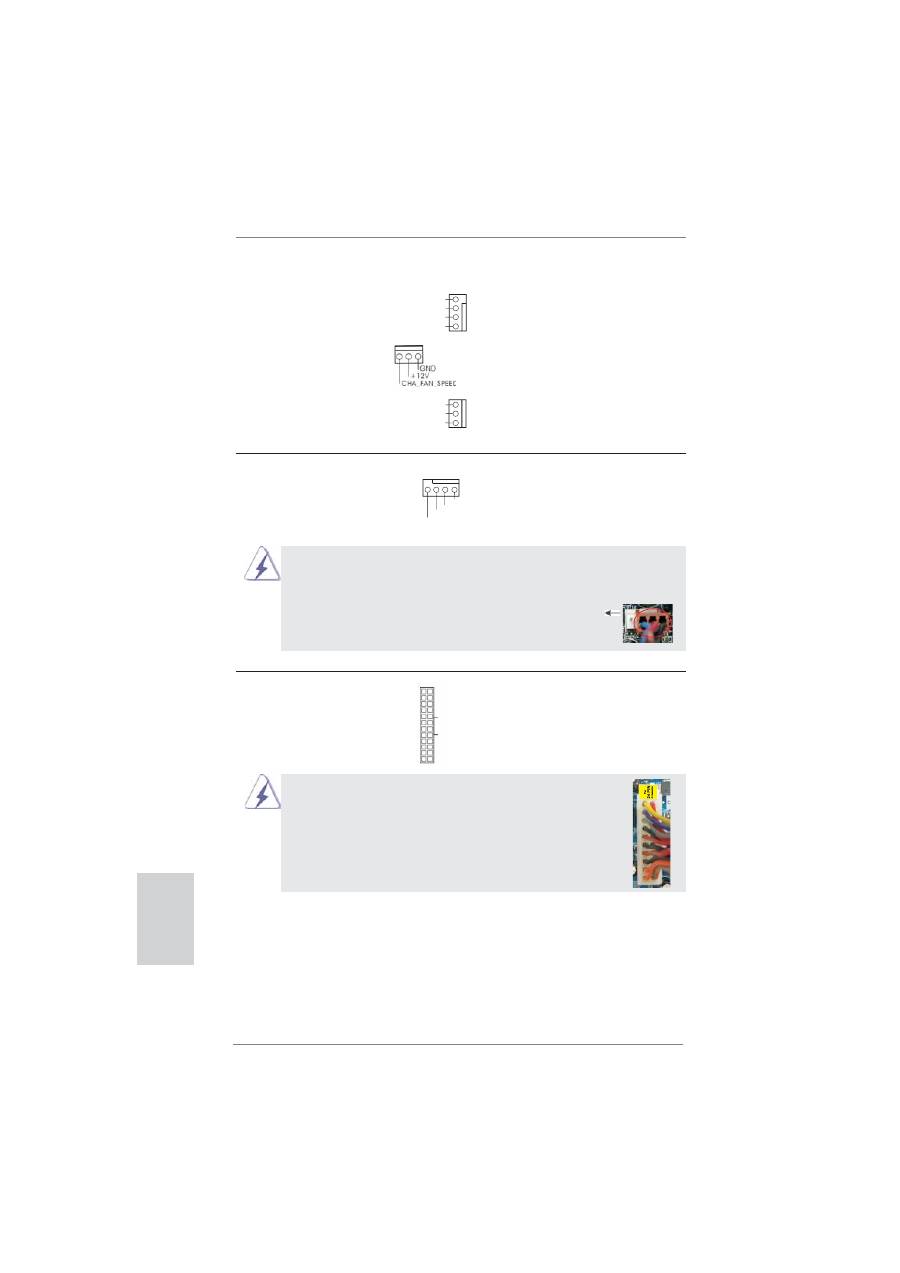
System Panel Header
This header accommodates
(9-pin PANEL1)
several system front panel
(see p.2, No. 16)
functions.
Connect the power switch, reset switch and system status indicator on the
chassis to this header according to the pin assignments below. Note the
positive and negative pins before connecting the cables.
PWRBTN (Power Switch):
Connect to the power switch on the chassis front panel. You may con
fi
gure
the way to turn off your system using the power switch.
RESET (Reset Switch):
Connect to the reset switch on the chassis front panel. Press the reset
switch to restart the computer if the computer freezes and fails to perform a
normal restart.
PLED (System Power LED):
Connect to the power status indicator on the chassis front panel. The LED
is on when the system is operating. The LED keeps blinking when the sys-
tem is in S1/S3 sleep state. The LED is off when the system is in S4 sleep
state or powered off (S5).
HDLED (Hard Drive Activity LED):
Connect to the hard drive activity LED on the chassis front panel. The LED
is on when the hard drive is reading or writing data.
The front panel design may differ by chassis. A front panel module mainly
consists of power switch, reset switch, power LED, hard drive activity LED,
speaker and etc. When connecting your chassis front panel module to this
header, make sure the wire assignments and the pin assign-ments are
matched correctly.
Chassis Speaker Header
Please connect the chassis
(4-pin SPEAKER 1)
speaker to this header.
(see p.2, No. 21)
+5V
D
UMM
Y
D
UMM
Y
S
PE
A
KE
R
1
Power LED Header
Please connect the chassis
(3-pin PLED1)
power LED to this header to
(see p.2, No. 24)
indicate system power status.
The LED is on when the system
is operating. The LED keeps
blinking in S1/S3 state. The
LED is off in S4 state or S5
state (power off).
1
P
L
E
D+
P
L
E
D+
P
L
E
D-
26
ASRock P75 Pro3 Motherboard
English
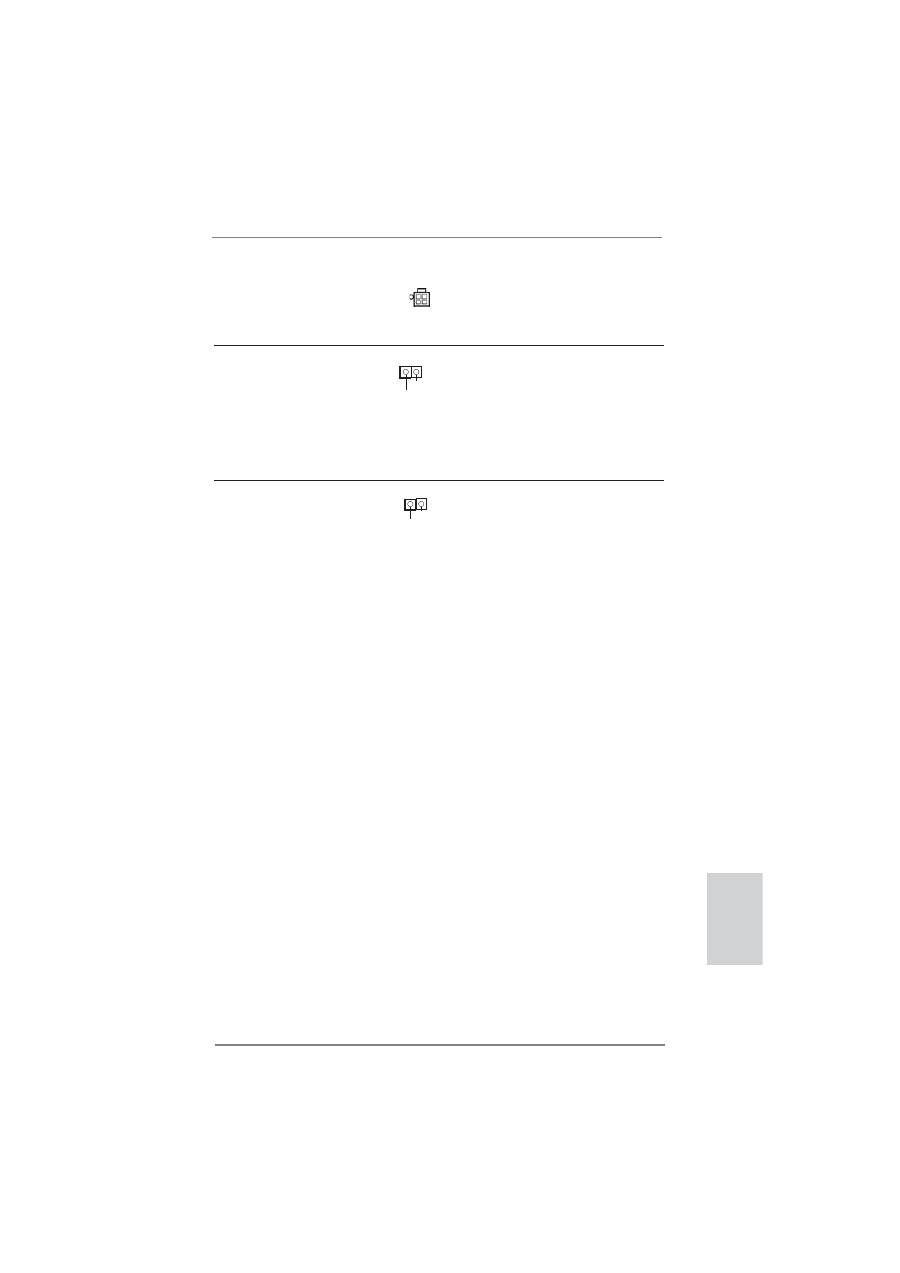
Chassis and Power Fan Connectors
Please connect the fan cables
(4-pin CHA_FAN1)
to the fan connectors and match
(see p.2, No. 33)
the black wire to the ground pin.
(3-pin CHA_FAN2)
(see p.2, No. 13)
(3-pin PWR_FAN1)
(see p.2, No. 32)
ATX Power Connector
Please connect an ATX power
(24-pin ATXPWR1)
supply to this connector.
(see p.2, No. 5)
20-Pin ATX Power Supply Installation
Though this motherboard provides 24-pin ATX power connector,
it can still work if you adopt a traditional 20-pin ATX power supply.
To use the 20-pin ATX power supply, please plug your
power supply along with Pin 1 and Pin 13.
12
1
24
13
12
1
24
13
GND
+12V
P
WR_FAN_S
PEE
D
CPU Fan Connectors
Please connect the CPU fan
(4-pin CPU_FAN1)
cable to the connector and
(see p.2, No. 1)
match the black wire to the
ground
pin.
Though this motherboard provides 4-Pin CPU fan (Quiet Fan) support, the 3-Pin
CPU fan still can work successfully even without the fan speed control function.
If you plan to connect the 3-Pin CPU fan to the CPU fan connector on this
motherboard, please connect it to Pin 1-3.
3-Pin Fan Installation
Pin 1-3 Connected
FAN_S
PEE
D_CONTROL
GND
+12V
CHA_FAN_S
PEE
D
4 3 2 1
GND
+12V
CPU_FAN_SPEED
FAN_SPEED_CONTROL
27
ASRock P75 Pro3 Motherboard
English
ATX 12V Power Connector
Please connect an ATX 12V
(4-pin ATX12V1)
power supply to this connector.
(see p.2, No. 3)
Chassis Intrusion Header
This motherboard supports
(2-pin CI1)
CASE OPEN detection feature
(see p.2, No. 23)
that detects if the chassis cover
has been removed. This feature
requires a chassis with chassis
intrusion detection design.
1
Signal
GND
HDMI_SPDIF Header
HDMI_SPDIF header, providing
(2-pin HDMI_SPDIF1)
SPDIF audio output to HDMI
(see p.2, No. 30)
VGA card, allows the system to
connect HDMI Digital TV/
projector/LCD devices. Please
connect the HDMI_SPDIF
connector of HDMI VGA card to
this
header.
S
P
DIFOUT
GND
1

28
ASRock P75 Pro3 Motherboard
English
2.10 Driver Installation Guide
To install the drivers to your system, please insert the support CD to your optical
drive
fi
rst. Then, the drivers compatible to your system can be auto-detected and
listed on the support CD driver page. Please follow the order from top to bottom to
install those required drivers. Therefore, the drivers you install can work properly.
2.11 Installing Windows
®
7 / 7 64-bit / Vista
TM
/ Vista
TM
64-bit /
XP / XP 64-bit Without RAID Functions
If you want to install Windows
®
7 / 7 64-bit / Vista
TM
/ Vista
TM
64-bit / XP / XP 64-bit
OS on your SATA / SATA2 / SATA3 HDDs without RAID functions, please follow the
procedures below according to the OS you install.
2.11.1 Installing Windows
®
XP / XP 64-bit Without RAID
Functions
If you want to install Windows
®
XP / XP 64-bit OS on your SATA / SATA2 / SATA3
HDDs without RAID functions, please follow the steps below.
STEP 1: Set Up UEFI.
A. Enter UEFI SETUP UTILITY Advanced screen Storage Con
fi
guration.
B. Set the option “SATA Mode Selection” to [IDE].
STEP 2: Install Windows
®
XP / XP 64-bit OS on your system.
Using SATA / SATA2 / SATA3 HDDs without NCQ function
AHCI mode is not supported under Windows
®
XP / XP 64-bit.

29
ASRock P75 Pro3 Motherboard
English
2.11.2 Installing Windows
®
7 / 7 64-bit / Vista
TM
/ Vista
TM
64-bit
Without RAID Functions
If you want to install Windows
®
7 / 7 64-bit / Vista
TM
/ Vista
TM
64-bit OS on your SATA
/ SATA2 / SATA3 HDDs without RAID functions, please follow the steps below.
Using SATA / SATA2 / SATA3 HDDs without NCQ function
STEP 1: Set Up UEFI.
A. Enter UEFI SETUP UTILITY Advanced screen Storage Con
fi
guration.
B. Set the option “SATA Mode Selection” to [IDE].
STEP 2: Install Windows
®
7 / 7 64-bit / Vista
TM
/ Vista
TM
64-bit OS on your
system.
Using SATA / SATA2 / SATA3 HDDs with NCQ function
STEP 1: Set Up UEFI.
A. Enter UEFI SETUP UTILITY Advanced screen Storage Con
fi
guration.
B. Set the option “SATA Mode Selection” to [AHCI].
STEP 2: Install Windows
®
7 / 7 64-bit / Vista
TM
/ Vista
TM
64-bit OS on your
system.

30
ASRock P75 Pro3 Motherboard
English
3. BIOS Information
The Flash Memory on the motherboard stores BIOS Setup Utility. When you start up
the computer, please press <F2> or <Del> during the Power-On-Self-Test (POST)
to enter BIOS Setup utility; otherwise, POST continues with its test routines. If you
wish to enter BIOS Setup after POST, please restart the system by pressing <Ctl>
+ <Alt> + <Delete>, or pressing the reset button on the system chassis. The BIOS
Setup program is designed to be user-friendly. It is a menu-driven program, which
allows you to scroll through its various sub-menus and to select among the prede-
termined choices. For the detailed information about BIOS Setup, please refer to the
User Manual (PDF
fi
le) contained in the Support CD.
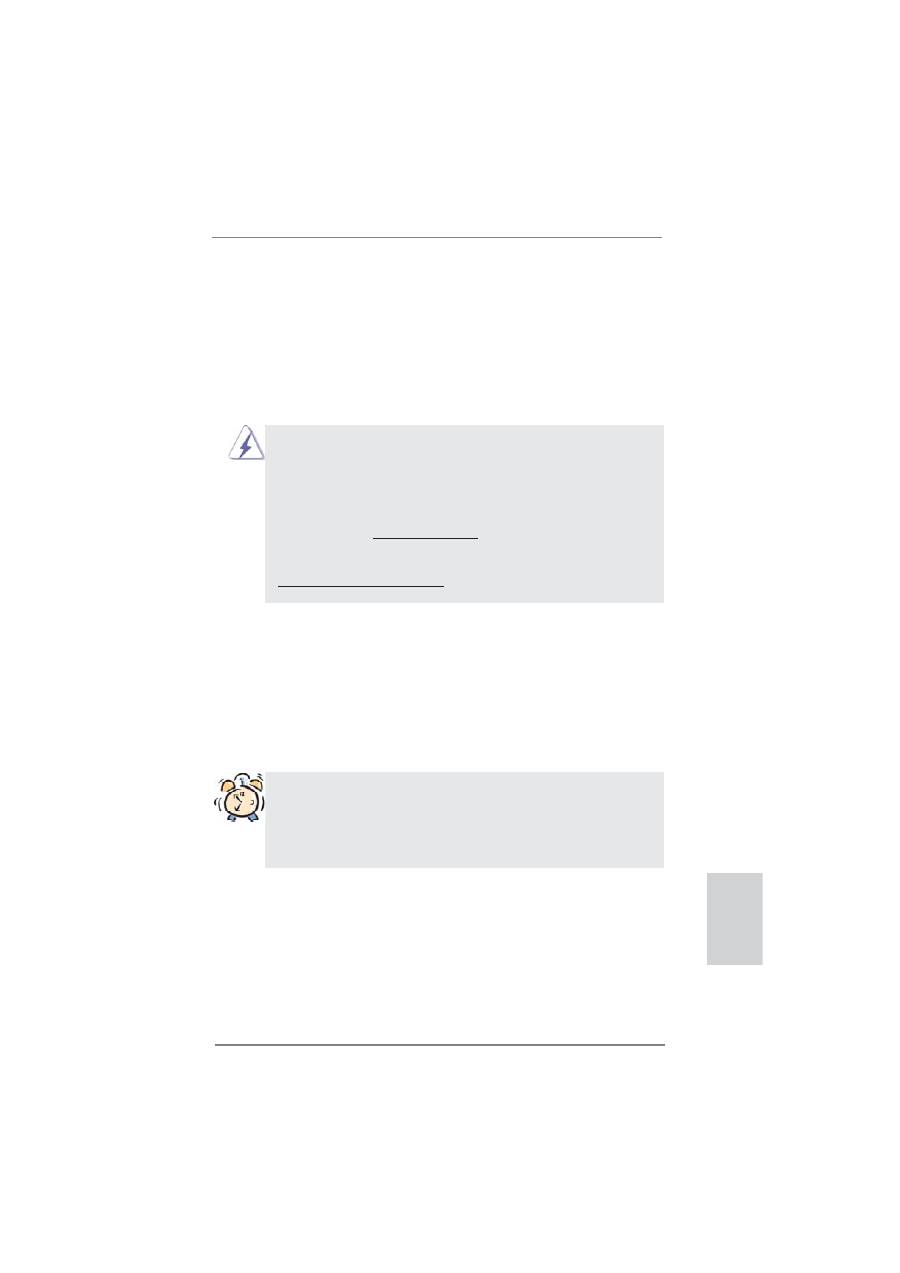
4. Software Support CD information
This motherboard supports various Microsoft
®
Windows
®
operating systems: 7 / 7
64-bit / Vista
TM
/ Vista
TM
64-bit / XP / XP 64-bit. The Support CD that came with the
motherboard contains necessary drivers and useful utilities that will enhance moth-
erboard features. To begin using the Support CD, insert the CD into your CD-ROM
drive. It will display the Main Menu automatically if “AUTORUN” is enabled in your
computer. If the Main Menu does not appear automatically, locate and double-click
on the
fi
le “ASSETUP.EXE” from the BIN folder in the Support CD to display the
menus.
31
ASRock P75 Pro3 Motherboard
Deutsch
ASRock erinnert...
Zur besseren Leistung unter Windows
®
7 / 7, 64 Bit / Vista
TM
/ Vista
TM
64 Bit empfehlen wir, die Speicherkon
fi
guration im BIOS auf den AHCI-
Modus einzustellen. Hinweise zu den BIOS-Einstellungen
fi
nden Sie in
der Bedienungsanleitung auf der mitgelieferten CD.
1. Einführung
Wir danken Ihnen für den Kauf des ASRock
P75 Pro3
Motherboard, ein zuverlässig-
es Produkt, welches unter den ständigen, strengen Qualitätskontrollen von ASRock
gefertigt wurde. Es bietet Ihnen exzellente Leistung und robustes Design, gemäß
der Verpflichtung von ASRock zu Qualität und Halbarkeit. Diese Schnellinstalla-
tionsanleitung führt in das Motherboard und die schrittweise Installation ein. Details
über das Motherboard
fi
nden Sie in der Bedienungsanleitung auf der Support-CD.
Da sich Motherboard-Spezi
fi
kationen und BIOS-Software verändern können,
kann der Inhalt dieses Handbuches ebenfalls jederzeit geändert werden. Für
den Fall, dass sich Änderungen an diesem Handbuch ergeben, wird eine neue
Version auf der ASRock-Website, ohne weitere Ankündigung, verfügbar sein.
Die neuesten Gra
fi
kkarten und unterstützten CPUs sind auch auf der ASRock-
Website
aufgelistet.
ASRock-Website: http://www.asrock.com
Wenn Sie technische Unterstützung zu Ihrem Motherboard oder spezi
fi
sche
Informationen zu Ihrem Modell benötigen, besuchen Sie bitte unsere Webseite:
www.asrock.com/support/index.asp
1.1 Kartoninhalt
ASRock
P75 Pro3
Motherboard
(ATX-Formfaktor: 30.5 cm x 17.8 cm; 12.0 Zoll x 7.0 Zoll)
ASRock
P75 Pro3
Schnellinstallationsanleitung
ASRock
P75 Pro3
Support-CD
Zwei Serial ATA (SATA) -Datenkabel (optional)
Ein I/O Shield

32
ASRock P75 Pro3 Motherboard
Deutsch
1.2 Spezi
fi
kationen
Plattform
- ATX-Formfaktor: 30.5 cm x 17.8 cm; 12.0 Zoll x 7.0 Zoll
- Alle Feste Kondensatordesign
CPU
- Unterstützt Intel
®
Core
TM
i7- / i5- / i3-Prozessoren der 3ten
und 2ten Generation im LGA1155-Package
- Unterstützt Intel
®
Turbo Boost 2.0-Technologie
Chipsatz
- Intel
®
B75
- Unterstützt Intel
®
Small Business Advantage
- Unterstützt Intel
®
Rapid Start Technology und Smart
Connect Technology
Speicher
- Dual-Kanal DDR3 Speichertechnologie
- 2 x Steckplätze für DDR3
- Unterstützt DDR3 2200(OC)*/1600/1333/1066 non-ECC,
ungepufferter Speicher (DDR3 1600 mit Intel
®
Ivy Bridge-
Prozessor, DDR3 1333 mit Intel
®
Sandy Bridge-Prozessor)
* DDR3 2200(OC) wird nur mit Intel
®
Core
TM
i7 3770K-
Prozessor unterstützt
- Max. Kapazität des Systemspeichers: 16GB
- Unterstützt Intel
®
Extreme Memory Pro
fi
le (XMP)1.3/1.2
Erweiterungs-
- 1 x PCI Express 3.0 x16-Steckplätze (PCIE1: x16-Modus)
steckplätze
* PCIE 3.0 wird nur mit Intel
®
Ivy Bridge-Prozessor
unterstützt. Mit Intel
®
Sandy Bridge-Prozessor wird nur
PCIE 2.0 unterstützt.
- 1 x PCI Express 2.0 x16-Steckplätze (PCIE3: x4-Modus)
- 2 x PCI Express 2.0 x1-Steckplätze
- 2 x PCI-Steckplätze
- Unterstützt AMD
TM
Quad CrossFireX
TM
und CrossFireX
TM
Audio
-
7.1
CH HD Audio (Realtek ALC887 Audio Codec)
* Bitte verwenden Sie zur Kon
fi
guration von 7.1-Kanal-Audio
ein HD-Frontpanel-Audiomodul; aktivieren Sie die
Mehrfachkanal-Audiofunktion über den Audiotreiber.
LAN
- PCIE x1 Gigabit LAN 10/100/1000 Mb/s
- Realtek RTL8111E
- Unterstützt Wake-On-LAN
- Unterstützt LAN-Kabelerkennung
- Unterstützt energieef
fi
zientes Ethernet 802.3az
- Unterstützt PXE
E/A-Anschlüsse
I/O Panel
an der Rückseite
- 1 x PS/2-Tastaturanschluss/Mausanschluss
- 1 x Parallel Port (ECP/EPP Support)

33
ASRock P75 Pro3 Motherboard
Deutsch
- 1 x Serieller port: COM 1
- 1 x Koaxial-SPDIF-Ausgang
- 4 x Standard-USB 2.0-Anschlüsse
- 2 x Standard-USB 3.0-Anschlüsse
- 1 x RJ-45 LAN Port mit LED (ACT/LINK LED und SPEED
LED)
- HD Audiobuchse: Audioeingang / Lautsprecher vorne /
Mikrofon
SATA3
- 1 x SATA 3-Anschlüsse (6,0 Gb/s); unterstützt NCQ-, AHCI-
und Hot Plug Funktionen
USB3.0
-
2 x USB 3.0-Ports an der Rückseite, unterstützt USB
1.1/2.0/3.0 mit bis zu 5 Gb/s
- 1 x USB 3.0-Header (unterstützt zwei USB 3.0-Ports) an der
Vorderseite, unterstützt USB 1.1/2.0/3.0 mit bis zu 5 Gb/s
Anschlüsse
- 5 x SATA2 3,0 GB/s-Anschlüsse, unterstützen NCQ-, AHCI-
und Hot Plug Funktionen
- 1 x SATA3 6,0 GB/s-Anschlüsse
- 1 x Infrarot-Modul-Header
- 1 x Consumer Infrared-Modul-Header
- 1 x HDMI_SPDIF-Anschluss
- 1 x Betriebs-LED-Header
- 1 x Verteiler für Gehäuseeindringversuche
- 1 x CPUlüfter-Anschluss (4-pin)
- 2 x Gehäuselüfter-Anschluss (1 x 4-pin, 1 x 3-pin)
- 1 x Stromlüfter-Anschluss (3-pin)
-
24-pin
ATX-Netz-Header
- 4-pin anschluss für 12V-ATX-Netzteil
- Anschluss für Audio auf der Gehäusevorderseite
- 2 x USB 2.0-Anschlüsse (Unterstützung 4 zusätzlicher
USB 2.0-Anschlüsse)
- 1 x USB 3.0-Anschlüsse (Unterstützung 2 zusätzlicher
USB 3.0-Anschlüsse)
BIOS
- 64Mb AMIs Legal BIOS UEFI mit GUI-Unterstützung
- Unterstützung für “Plug and Play”
-
ACPI
1.1-Weckfunktionen
-
JumperFree-Modus
- SMBIOS 2.3.1
- CPU Core, DRAM, 1.8V PLL, VTT, VCCSA Stromspannung
Multianpassung
34
ASRock P75 Pro3 Motherboard
Deutsch
CD d’assistance
- Treiber, Dienstprogramme, Antivirussoftware (Probeversion),
CyberLink MediaEspresso 6.5-Testversion, ASRock
MAGIX-Multimedia-Suite - OEM
Hardware Monitor
- Überwachung der CPU-Temperatur
-
Motherboardtemperaturerkennung
- Drehzahlmessung für CPU/Gehäuse/Strom lüfter
- Geräuscharmer CPU-/Gehäuselüfter (ermöglicht die au
tomatische Anpassung der Gehäuselüftergeschwindigkeit
durch CPU-Temperatur)
-
Mehrstu
fi
ge Geschwindigkeitssteuerung für CPU/Gehäuse
lüfter
- GEHÄUSE OFFEN-Erkennung
- Spannungsüberwachung: +12V, +5V, +3.3V, Vcore
Betriebssysteme
- Unterstützt Microsoft
®
Windows
®
7 / 7 64-Bit / Vista
TM
/
Vista
TM
64-Bit / XP / XP 64-Bit
Zerti
fi
zierungen
- FCC, CE, WHQL
- Gemäß Ökodesign-Richtlinie (ErP/EuP) (Stromversorgung
gemäß Ökodesign-Richtlinie (ErP/EuP) erforderlich)
* Für die ausführliche Produktinformation, besuchen Sie bitte unsere Website:
http://www.asrock.com
35
ASRock P75 Pro3 Motherboard
Deutsch
1.3 Einstellung der Jumper
Die Abbildung verdeutlicht, wie Jumper
gesetzt werden. Werden Pins durch
Jumperkappen verdeckt, ist der Jumper
“Gebrückt”. Werden keine Pins durch
Jumperkappen verdeckt, ist der Jumper
“Offen”. Die Abbildung zeigt einen 3-Pin
Jumper dessen Pin1 und Pin2 “Ge-
brückt” sind, bzw. es be
fi
ndet sich eine
Jumper-Kappe auf diesen beiden Pins.
Jumper Einstellun
Beschreibung
CMOS löschen
(CLRCMOS1, 3-Pin jumper)
(siehe S.2, No. 22)
Hinweis:
CLRCMOS1 ermöglicht Ihnen die Löschung der Daten im CMOS. Zum
Löschen und Zurücksetzen der Systemparameter auf die Standardeinrichtung
schalten Sie den Computer bitte aus und trennen das Netzkabel von der
Stromversorgung. Warten Sie 15 Sekunden, schließen Sie dann Pin2 und
Pin3 am CLRCMOS1 über einen Jumper fünf Sekunden lang kurz. Sie
sollten das CMOS allerdings nicht direkt nach der BIOS-Aktualisierung
löschen. Wenn Sie das CMOS nach Abschluss der BIOS-Aktualisierung
löschen müssen, fahren Sie zuerst das System hoch. Fahren Sie es dann
vor der CMOS-Löschung herunter. Bitte beachten Sie, dass Kennwort,
Datum, Uhrzeit, benutzerde
fi
niertes Pro
fi
l, 1394 GUID und MAC-Adresse
nur gelöscht werden, wenn die CMOS-Batterie entfernt wird.
CMOS
löschen
Default-
Einstellung
Durch Löschen des CMOS kann erkannt werden, wenn das Gehäuseoffen
ist. Bitte stellen Sie zum Löschen der Aufzeichnung des vorherigenGehäu-
seindringungsstatus die BIOS-Option “Status leeren” ein.

36
ASRock P75 Pro3 Motherboard
Deutsch
Seriell-ATA2-Anschlüsse
Diese fünf Serial ATA2-
(SATA2_1: siehe S.2 - No. 15)
(SATA2-)Verbínder
(SATA2_2: siehe S.2 - No. 11)
unterstützten
SATA-Datenkabel
(SATA2_3: siehe S.2 - No. 14)
für
interne
(SATA2_4: siehe S.2 - No. 12)
Massenspeichergeräte.
Die
(SATA2_5: siehe S.2 - No. 10)
aktuelle SATA2- Schnittstelle
ermöglicht
eine
Datenübertragungsrate
bis
3,0
Gb/s.
Seriell-ATA3-Anschlüsse Dies
Serial
ATA3-
(SATA3_0: siehe S.2 - No. 9)
(SATA3-)Verbínder
unterstützten
SATA-Datenkabel
für
interne
Massenspeichergeräte.
Die
aktuelle SATA3- Schnittstelle
ermöglicht
eine
Datenübertragungsrate bis 6,0
Gb/s.
Serial ATA- (SATA-)
SJedes Ende des SATA
Datenkabel
Datenkabels kann an die SATA
(Option)
/ SATA2 / SATA3 Festplatte
oder das SATA2 / SATA3
Verbindungsstück auf dieser
Hauptplatine
angeschlossen
werden.
1.4 Integrierte Header und Anschlüsse
Integrierte Header und Anschlüsse sind KEINE Jumper. Setzen Sie KE-
INE Jumperkappen auf diese Header und Anschlüsse. Wenn Sie Jump-
erkappen auf Header und Anschlüsse setzen, wird das Motherboard
unreparierbar beschädigt!
SATA2_2 SATA2_4
SATA2_1 SATA2_3
SATA2_5
SATA3_0
USB 2.0-Header
Zusätzlich zu den vier üblichen
(9-pol. USB4_5)
USB 2.0-Ports an den
(siehe S.2 - No. 18)
I/O-Anschlüssen
be
fi
nden sich
zwei USB 2.0- Anschlussleisten
am Motherboard. Pro USB 2.0-
Anschlussleiste werden zwei
USB 2.0-Ports unterstützt.

37
ASRock P75 Pro3 Motherboard
Deutsch
USB 3.0-Header
Neben zwei Standard-USB
(19-pol. USB3_2_3)
3.0-Ports am E/A-Panel
(siehe S.2 - No. 6)
be
fi
ndet sich ein USB 3.0-
Header an diesem
Motherboard. Dieser USB 3.0-
Header kann zwei USB 3.0-
Ports
unterstützen.
J_SENSE
OUT2_L
1
MIC_RET
PRESENCE#
GND
OUT2_R
MIC2_R
MIC2_L
OUT_RET
Anschluss für Audio auf
Dieses Interface zu einem
der Gehäusevorderseite
Audio-Panel auf der Vorder
(9-Pin HD_AUDIO1)
seite Ihres Gehäuses,
(siehe S.2 - No. 29)
ermöglicht Ihnen eine bequeme
Anschlussmöglichkeit
und
Kontrolle
über
Audio-Geräte.
(9-pol. USB6_7)
(siehe S.2 - No. 17)
Infrarot-Modul-Header
Dieser Header unterstützt ein
(5-pin IR1)
optionales, drahtloses Sende-
(siehe S.2 - No. 20)
und
Empfangs-Infrarotmodul.
1
IRTX
+5VSB
DUMMY
IRRX
GND
Consumer Infrared-Modul-Header
Dieser Header kann zum
(4-pin CIR1)
Anschließen
Remote-
(siehe S.2 - No. 19)
Empfänger.
1
ATX+5VSB
IRTX
GND
IRRX
IntA_P5_D+
DUMMY
IntA_P5_D-
GND
IntA_P5_SSTX+
GND
IntA_P5_SSTX-
IntA_P5_SSRX+
IntA_P5_SSRX-
Vbus
Vbus
Vbus
IntA_P4_SSRX-
IntA_P4_SSRX+
GND
IntA_P4_SSTX-
IntA_P4_SSTX+
GND
IntA_P4_D-
IntA_P4_D+
1. High De
fi
nition Audio unterstützt Jack Sensing (automatische Erkennung falsch
angeschlossener Geräte), wobei jedoch die Bildschirmverdrahtung am Gehäuse
HDA unterstützen muss, um richtig zu funktionieren. Beachten Sie bei der
Installation im System die Anweisungen in unserem Handbuch und im
Gehäusehandbuch.
2. Wenn Sie die AC’97-Audioleiste verwenden, installieren Sie diese wie
nachstehend beschrieben an der Front-Audioanschlussleiste:
A. Schließen Sie Mic_IN (MIC) an MIC2_L an.
B. Schließen Sie Audio_R (RIN) an OUT2_R und Audio_L (LIN) an OUT2_L an.
C. Schließen Sie Ground (GND) an Ground (GND) an.

38
ASRock P75 Pro3 Motherboard
Deutsch
System Panel-Header
Dieser Header unterstützt
(9-pin PANEL1)
mehrere Funktion der
(siehe S.2 - No. 16)
Systemvorderseite.
Schließen Sie die Ein-/Austaste, die Reset-Taste und die
Systemstatusanzeige am Gehäuse an diesen Header an; befolgen Sie
dabei die nachstehenden Hinweise zur Pinbelegung. Beachten Sie die
positiven und negativen Pins, bevor Sie die Kabel anschließen.
PWRBTN (Ein-/Ausschalter):
Zum Anschließen des Ein-/Ausschalters an der Frontblende des Gehäu
ses. Sie können kon
fi
gurieren, wie das System mit Hilfe des
Ein-/Ausschalters ausgeschaltet werden können soll.
RESET (Reset-Taste):
Zum Anschließen der Reset-Taste an der Frontblende des Gehäuses.
Mit der Reset-Taste können Sie den Computer im Falle eines Absturzes
neu
starten.
PLED (Systembetriebs-LED):
Zum Anschließen der Betriebsstatusanzeige an der Frontblende des
Gehäuses. Die LED leuchtet, wenn das System in Betrieb ist. Die LED
blinkt, wenn sich das System im Ruhezustand S1/S3 be
fi
ndet. Die LED
schaltet sich aus, wenn sich das System in den Modi S4 be
fi
ndet
oder ausgeschaltet ist (S5).
HDLED (Festplattenaktivitäts-LED):
Zum Anschließen der Festplattenaktivitäts-LED an der Frontblende des
Gehäuses. Die LED leuchtet, wenn die Festplatte Daten liest oder
schreibt.
Das Design der Frontblende kann je nach Gehäuse variiere. Ein
Frontblendenmodul besteht hauptsächlich aus einer Ein-/Austaste, einer
Reset-Taste, einer Betriebs-LED, einer Festplattenaktivitäts-LED,
Lautsprechern, etc. Stellen Sie beim Anschließen des
Frontblendenmoduls Ihres Gehäuses an diesem Header sicher, dass die
Kabel- und Pinbelegung korrekt übereinstimmen.
D. MIC_RET und OUT_RET sind nur für den HD-Audioanschluss gedacht. Diese
Anschlüsse müssen nicht an die AC’97-Audioleiste angeschlossen werden.
E. So aktivieren Sie das Mikrofon an der Vorderseite.
Bei den Betriebssystemen Windows
®
XP / XP 64 Bit:
Wählen Sie „Mixer“. Wählen Sie „Recorder“ (Rekorder). Klicken Sie dann auf
„FrontMic“ (Vorderes Mikrofon).
Bei den Betriebssystemen Windows
®
7 / 7 64 Bit / Vista
TM
/ Vista
TM
64 Bit:
Wählen Sie im Realtek-Bedienfeld die „FrontMic“ (Vorderes Mikrofon)-
Registerkarte. Passen Sie die „Recording Volume“ (Aufnahmelautstärke) an.

39
ASRock P75 Pro3 Motherboard
Deutsch
CPU-Lüfteranschluss
Verbinden Sie das CPU -
(4-pin CPU_FAN1)
Lüfterkabel mit diesem
(siehe S.2 - No. 1)
Anschluss und passen Sie den
schwarzen Draht dem
Erdungsstift
an.
Gehäuselautsprecher-Header
Schließen Sie den
(4-pin SPEAKER1)
Gehäuselautsprecher
an
(siehe S.2 - No. 21)
diesen Header an.
Gehäuse und Strom lüfteranschlüsse
Verbinden Sie die Lüfterkabel
(4-pin CHA_FAN1)
mit den Lüfteranschlüssen,
(siehe S.2, No. 33)
wobei der schwarze Draht an
den
Schutzleiterstift
(3-pin CHA_FAN2)
angeschlossenwird.
(siehe S.2, No. 13)
(3-pin PWR_FAN1)
(siehe S.2 - No. 32)
Obwohl dieses Motherboard einen vierpoligen CPU-Lüfteranschluss
(Quiet Fan) bietet, können auch CPU-Lüfter mit dreipoligem Anschluss
angeschlossen werden; auch ohne Geschwindigkeitsregulierung. Wenn
Sie einen dreipoligen CPU-Lüfter an den CPU-Lüferanschluss dieses
Motherboards anschließen möchten, verbinden Sie ihn bitte mit den
Pins 1 – 3.
Pins 1–3 anschließen
Lüfter mit dreipoligem Anschluss installieren
Betriebs-LED-Header
Bitte schließen Sie die
(3-pin PLED1)
Betriebs-LED des Gehäuses
(siehe S.2 - No. 24)
zur
Anzeige
des
Systembetriebsstatus
an
diesem Header an. Die LED
leuchtet, wenn das System in
Betrieb ist. Die LED blinkt im
S1/S3-Zustand. Im S4- oder
S5-Zustand
(ausgeschaltet)
leuchtet die LED nicht.
1
P
L
E
D+
P
L
E
D+
P
L
E
D-
GND
+12V
P
WR_FAN_S
PEE
D
FAN_S
PEE
D_CONTROL
GND
+12V
CHA_FAN_S
PEE
D
4 3 2 1
GND
+12V
CPU_FAN_SPEED
FAN_SPEED_CONTROL

40
ASRock P75 Pro3 Motherboard
Deutsch
ATX 12V Anschluss
Bitte schließen Sie an diesen
(4-pin ATX12V1)
Anschluss die ATX 12V
(siehe S.2 - No. 3)
Stromversorgung
an.
Verteiler für Gehäuseeindringversuche
Dieses Motherboard unterstützt
(2-pin CI1)
die GEHÄUSE OFFEN-
(siehe S.2 - No. 23)
Erkennungsfunktion,die
feststellt, ob dieGehäuseab-
deckung entferntwurde. Für
diese Funktion istein Ge-
häuse erforderlich, dasmit ei-
nem Design zur Erkennung
von
Gehäuseeindringver-
suchenausgestattet
ist.
1
Signal
GND
24
13
Installation eines 20-pol. ATX-Netzteils
Obwohl dieses Motherboard einen 24-pol. ATX-
Stromanschluss bietet, kann es auch mit einem
modi
fi
zierten traditionellen 20-pol. ATX-Netzteil
verwendet werden. Um ein 20-pol. ATX-Netzteil zu
verwenden, stecken Sie den Stecker mit Pin 1 und
Pin
13
ein.
12
1
24
13
ATX-Netz-Header
Verbinden Sie die ATX-
(24-pin ATXPWR1)
Stromversorgung mit diesem
(siehe S.2 - No. 5)
Header.
12
1
24
13
HDMI_SPDIF-Anschluss Der
HDMI_SPDIF-Anschluss
(2-pin HDMI_SPDIF1)
stellt einen SPDIF-
(siehe S.2 - No. 30)
Audioausgang für eine HDMI-
VGA-Karte zur Verfügung und
ermöglicht den Anschluss von
HDMI-Digitalgeräten
wie
Fernsehgeräten,
Projektoren,
LCD-Geräten an das System.
Bitte verbinden Sie den
HDMI_SPDIF-Anschluss
der
HDMI-VGA-Karte mit diesem
Anschluss.
S
P
DIFOUT
GND
1
