
Toshiba Gigaframe L80-81: To set the Gigaframe to Clone mode:
To set the Gigaframe to Clone mode:: Toshiba Gigaframe L80-81
Table of contents
- Table of Contents
- 3D Album.............................................................................................. 32
- Introduction Check the components What else you’ll need:
- Important Information Safety Instructions System Requirements
- Gigaframe Overview Front View Bottom View
- Rear View Left View
- Getting Started Placing the Unit Connecting to the A/C Power Turning on the Gigaframe Charging the battery (included with some models)
- Connections
- Basic Operations Photo Mode Slideshow Sequence
- Transition Effect
- Frequency
- Background Color
- Effect
- Rotate
- Time and Date Mode Set Time and Date
- Time Setting
- Date Setting Set Alarm Clock and Alarm Tone Set Alarm Clock
- Set On/Off Set Alarm Tone
- Adding Photos to the Photo Calendar
- Photo + Audio Mode
- Video Mode
- Video Playback Mode Icons Definition
- Audio Mode
- One click playing
- Copy and Delete Files
- To copy all files in a storage device to another storage device:
- To delete files: To delete all files in a storage device:
- Sub View Function
- To set the Gigaframe to Extended mode:
- To set the Gigaframe to Clone mode:
- To play a video on the Gigaframe, it must be selected as your primary monitor. 3D Album Installing the 3D Album
- 2. Click Yes, I agree to accept the license agreement and continue the installation. 3. Choose a location in the install path field where you would like to
- 4. After the installation is complete, a QuickTime install window will pop 3D Album Functions
- Converting Photos
- Create a 3D-Album
- System Settings Brightness
- Language
- Timer Function (Auto On/Off) 1. Select Auto On/Off and press OK. To turn on the timer:
- To set the Auto Off time: To set the Auto On time:
- Restore to Default Settings Checking the Status of the Gigaframe
- Auto Tilt (included with some models)
- Auto Light (included with some models)
- Firmware Upgrades Supported Video Format Frequently Asked Questions
- TOSHIBA Support Regulatory statements
- Working Environment
- Following information is only for EU-member states: Disposal of batteries and/or accumulators
- Copyright Statement Trademarks
Gigaframe L80 / L81
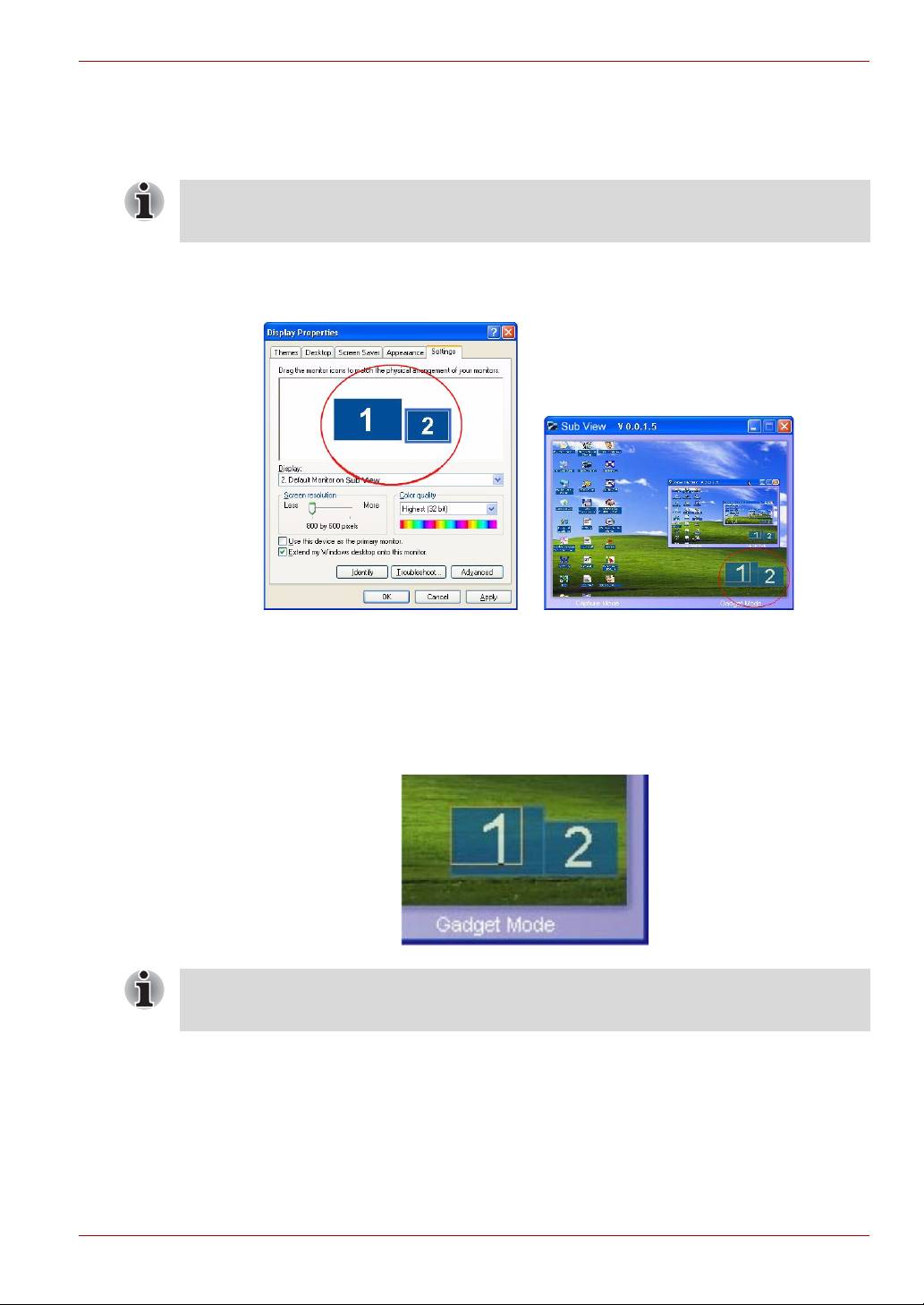
To set the Gigaframe to Clone mode:
n Uncheck the Extend my Windows desktop onto this monitor
option.
In Clone mode the screen of the Gigaframe displays the same screen as
that displayed on your PC monitor.
In the Settings tab, you can drag the monitor icons to match the physical
arrangement of your monitors.
In the bottom right corner of the Sub View window, there are two blue
rectangles; these represent the range of the PC monitor and the
Gigaframe. The white rectangle superimposed on the blue rectangle
represents the visible range of the Gigaframe. You can use this to move
and resize the display.
To let your Sub View function working more properly, please consider to
stop your DirectX acceleration function.
User’s Manual EN-31
