
HP 8270: instruction
Class: Office Equipment
Type: Scanner
Manual for HP 8270
Table of contents
- How to use the scanner Scanner setup Where to get additional information How to use the HP Photosmart Software
- Front panel and accessories overview Front panel buttons
- Chapter 1 Transparent materials adapter (TMA) Automatic document feeder (ADF) Scanning overview Scan from the scanner front panel buttons Scan from HP Solution Center
- Scan from other software programs Select original type–document or picture Scan documents Scan pictures
- Scan multiple pictures with one scan Scan text for editing Save a document to a drive, disk, or CD
- E-mail a scanned document or picture Make copies
- Cancel a scan in progress Change scan settings Use the Power Save button
- How to scan from the automatic document feeder (ADF) Choose acceptable media for the ADF Load originals in the ADF
- Scan two-sided documents from the ADF Make copies from the ADF
- How to scan from the transparent materials adapter (TMA) Tips for scanning transparent items Scan slides
- Chapter 3
- Scan negatives
- Chapter 3
- Care and maintenance Clean the scanner glass Clean the transparent materials adapter (TMA) Clean and maintain the automatic document feeder (ADF)
- Clean the ADF scan glass Maintain the ADF Order maintenance and scanner supplies
- Troubleshooting 5 Scanner installation or setup problems Uninstall and reinstall the software Check the cables
- Cable type Action Scanner initialization or hardware problems Scanner is off Reset the scanner Test the scanner hardware
- Scanner has stopped working properly Paper jams Additional troubleshooting information Scanner operation problems
- Scanner will not turn on Scanner lamp stays on Scanner does not scan right away Buttons appear not to work
- Resolve issues with scanning documents or text (OCR) Scanned image is fuzzy Scanner is scanning items very slowly Scanner glass needs to be cleaned
- Slides, negatives, and TMA issues The image cannot be enlarged Incorrect colors print, or the image is too light or dark Dots or streaks appear in the scanned image The scanned images are dark The TMA does not work at all
- No light or only dim light is visible in the TMA after selecting slides or negatives in the Scan dialog box
- Product support 6 Accessibility Web site HP Scanjet Web site Support process
- Regulatory information and 7 product specifications Scanner specifications
- Name Description Transparent materials adapter (TMA) specifications Automatic document feeder (ADF) specifications
- Environmental specifications for the scanner, ADF, and TMA
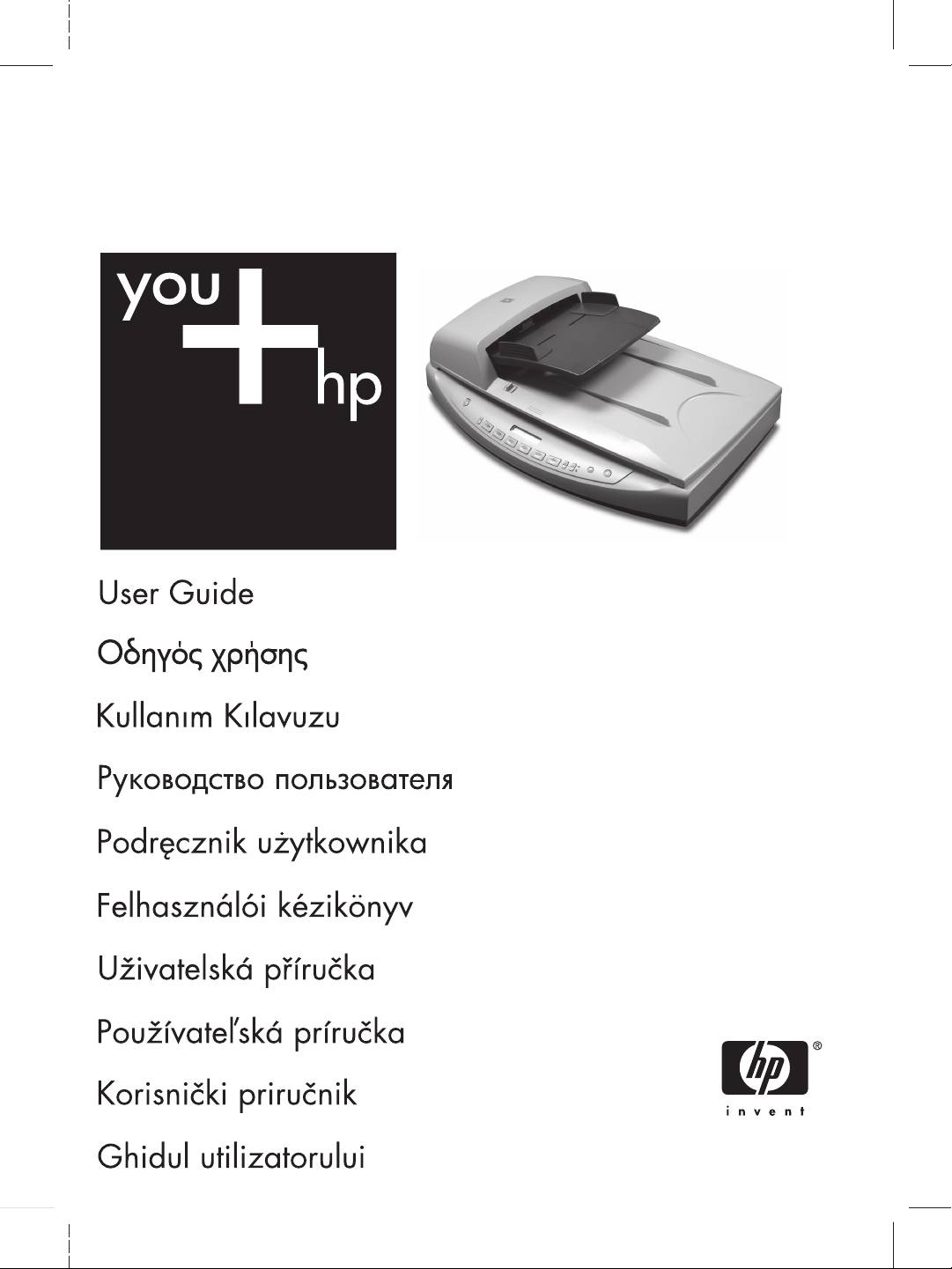
HP Scanjet 8270
Document Flatbed Scanner
6.5" X 9" FRONT COVER
www.hp.com/support

User Guide
English

Copyright and license
© 2005 Copyright Hewlett-Packard
Development Company, L.P.
Reproduction, adaptation or
translation without prior written
permission is prohibited, except as
allowed under the copyright laws.
The information contained herein is
subject to change without notice.
The only warranties for HP products
and services are set forth in the
express warranty statements
accompanying such products and
services. Nothing herein should be
construed as constituting an
additional warranty. HP shall not be
liable for technical or editorial errors
or omissions contained herein.
Trademark credits
ENERGY STAR is a U.S. registered
service mark of the United States
Environmental Protection Agency.
Microsoft and Windows are registered
trademarks of Microsoft Corporation.

Contents
English
1 How to use the scanner ......................................................................................4
Scanner setup .......................................................................................................4
Where to get additional information .......................................................................4
How to use the HP Photosmart Software ..............................................................4
Front panel and accessories overview ................................................................... 5
Scanning overview ................................................................................................6
Select original type–document or picture ...............................................................7
Scan documents ....................................................................................................7
Scan pictures .........................................................................................................7
Scan multiple pictures with one scan .....................................................................8
Scan text for editing ...............................................................................................8
Save a document to a drive, disk, or CD ...............................................................8
E-mail a scanned document or picture ..................................................................9
Make copies ..........................................................................................................9
Cancel a scan in progress ...................................................................................10
Change scan settings ..........................................................................................10
Use the Power Save button .................................................................................10
2 How to scan from the automatic document feeder (ADF) ..............................11
Choose acceptable media for the ADF ................................................................11
Load originals in the ADF ....................................................................................11
Scan two-sided documents from the ADF ...........................................................12
Make copies from the ADF ..................................................................................12
3 How to scan from the transparent materials adapter (TMA) ..........................13
Tips for scanning transparent items .....................................................................13
Scan slides ..........................................................................................................13
Scan negatives ....................................................................................................15
4 Care and maintenance ......................................................................................17
Clean the scanner glass ......................................................................................17
Clean the transparent materials adapter (TMA) ...................................................17
Clean and maintain the automatic document feeder (ADF) .................................17
Order maintenance and scanner supplies ...........................................................18
5 Troubleshooting ................................................................................................19
Scanner installation or setup problems ................................................................19
Scanner initialization or hardware problems ........................................................20
Scanner operation problems ................................................................................21
Slides, negatives, and TMA issues ......................................................................24
6 Product support .................................................................................................26
Accessibility Web site ..........................................................................................26
HP Scanjet Web site ............................................................................................26
Support process ..................................................................................................26
7 Regulatory information and product specifications .......................................28
Scanner specifications .........................................................................................28
Transparent materials adapter (TMA) specifications ...........................................29
Automatic document feeder (ADF) specifications ................................................29
Environmental specifications for the scanner, ADF, and TMA .............................30
User Guide
3
How to use the scanner
1
This manual describes how to use the HP Scanjet 8270 Document Flatbed Scanner
and its accessories, resolve installation problems, and reach customer support.
Scanner setup
To set up your scanner and install the scanning software, see the setup poster
shipped with your scanner.
Where to get additional information
More information about the scanner and software can be found in the onscreen Help.
If you have installed the HP Photosmart Software that came with the scanner, double-
click the HP Solution Center icon on your desktop, and then click Onscreen Guide.
How to use the HP Photosmart Software
When you install the HP Photosmart Software, you will have two icons on your
desktop. These icons open two programs for scanning and editing your scans.
For information on how to use HP Solution Center and HP Photosmart Software,
see the onscreen Help.
HP Solution Center is the program that gets you started
scanning pictures and documents. From the HP Solution Center
you can:
● Perform scanning and copy functions
● Access help and troubleshooting information
● Access the HP Photosmart Software to edit your scans
● Modify settings and preferences
HP Photosmart Software is the program to use for manipulating,
printing, archiving, and sharing your images after they have
been scanned. You can get to the HP Photosmart Software from
the desktop icon or through HP Solution Center.
To start a scan:
Double-click the HP Solution Center icon on the desktop, click the tab for the
scanner, and then click the task you want to perform.
Note If the HP Solution Center icon is not available on the desktop, click
Start, point to Programs or All Programs, point to HP, and then click HP
Solution Center.
4
HP Scanjet 8270 Document Flatbed Scanner
Front panel and accessories overview
This section presents an overview of the scanner front panel, the transparent
English
materials adapter (TMA), and the automatic document feeder (ADF).
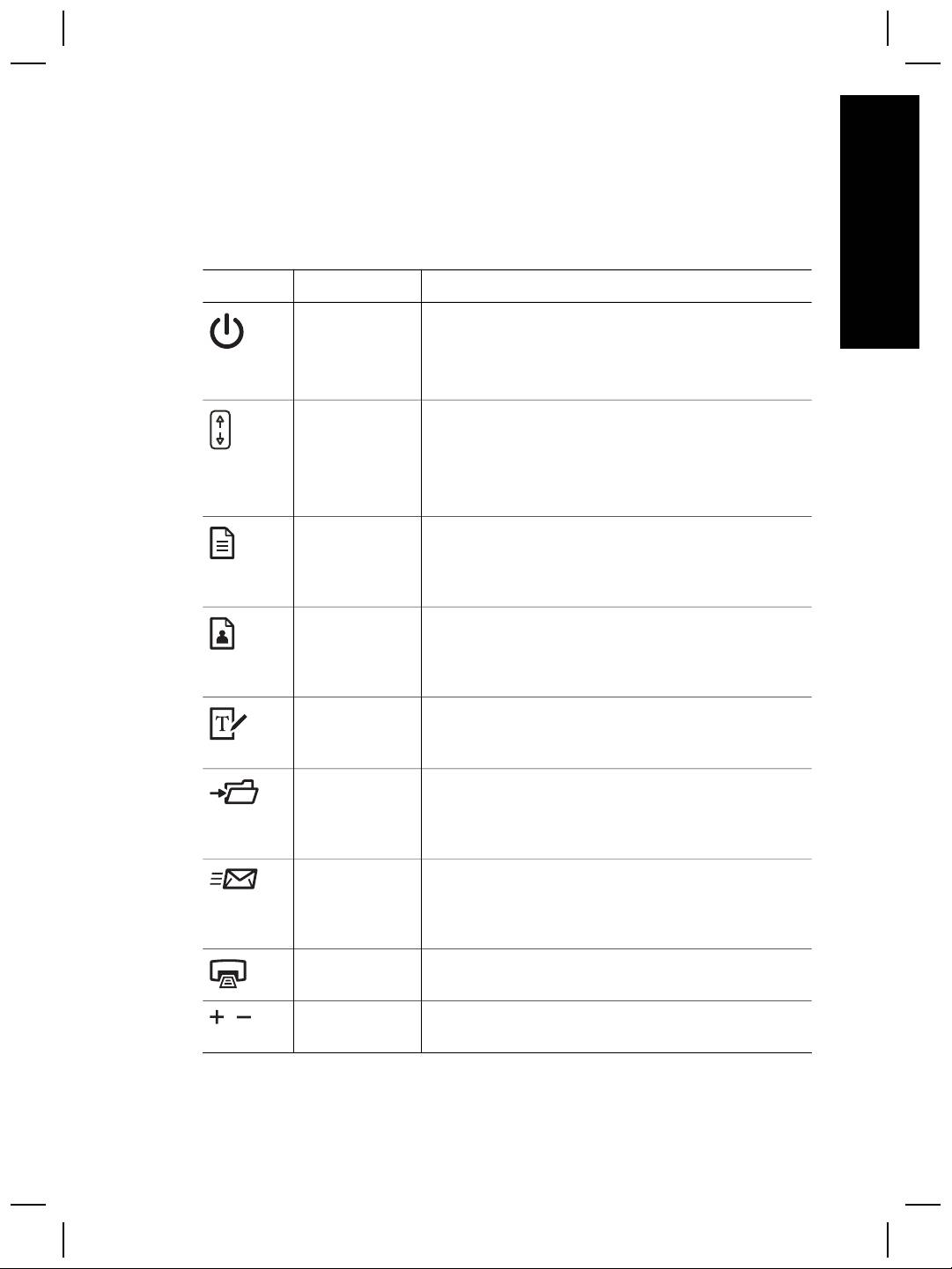
Front panel buttons
Icon Feature name Description
Power Save
Turns Power Save mode on or off.
button
The Power Save button can also be used to turn the
power completely off by holding down for at least 2
seconds.
Destination
Selects the destination (an application, such as a
button
word processor) for a scanned document. The
destination is displayed in the front panel display.
Select the destination before pressing the Scan
Document To button.
Scan
Scans an original document into the selected
Document To
destination (an application, such as a word
button
processor). Use the Destination button to select the
destination.
Scan Picture
Scans pictures, graphics, slides, or negatives to the
button
HP Photosmart Software. Slides and negatives must
be scanned from the transparent materials adapter
(TMA).
Edit Text
Scans the document text and pictures and displays
(OCR) button
editable text in the defined word processor
application.
File
Scans the original document or picture to a file
Documents
destination that you enter. After scanning the
button
original, a dialog box is displayed where you can
enter the file name, file type, and location for the file.
E-mail button
Scans using grayscale image settings to keep the
file size small for e-mail and sends the scan to your
e-mail software (if supported). There is an option to
scan pictures, slides, or negatives in color.
Copy button
Scans the item and sends it to a printer to make
copies.
Number of
Selects the number of copies to be printed with the
Copies button
Copy button.
User Guide
5
Chapter 1
(continued)
Icon Feature name Description
Color/Black &
Determines whether items will be scanned in color or
White copy
in black and white when you press the Copy button.
button
Button
Opens the Button Settings dialog box. From this
Settings button
dialog box, you can change how the scanner buttons
work.
Cancel button
Cancels a scan while the scanner is scanning, or
cancels a series of scans from the automatic
document feeder (ADF).
16-character
Indicates the number of copies that will be printed
LCD
when you press the Copy button. Also shows status
information and error codes that identify scanner
problems.
Transparent materials adapter (TMA)
You can use the transparent materials adapter (TMA) to scan 35 mm slides or
negatives. For more information about the TMA, see How to scan from the
transparent materials adapter (TMA) on page 13.
Automatic document feeder (ADF)
The scanner comes with an automatic document feeder (ADF) that you can use to
scan multiple documents quickly and easily. For more information, see How to scan
from the automatic document feeder (ADF) on page 11.
Scanning overview
Start scanning in one of three ways:
● From the front panel buttons—to get started quickly using basic functions
● From HP Solution Center—to have more control during the scanning process
● From other software programs
Scan from the scanner front panel buttons
Use the front panel buttons on the scanner for basic scanning functions, such as
scanning pictures and documents. Instructions for using the front panel buttons are
located in this manual.
Scan from HP Solution Center
Scan from HP Solution Center when you want more control during the scanning
process, such as when you want to use more advanced features or change scan
settings.
6
HP Scanjet 8270 Document Flatbed Scanner
To start HP Solution Center:
1. Do one of the following:
a. On the Windows desktop, double-click the HP Solution Center icon.
English
b. On the taskbar, click Start, point to Programs or All Programs, point to HP,
and then click HP Solution Center.
2. If you have installed more than one HP device, click the tab for the scanner. HP
Solution Center shows only the functions, settings, and support options that are
appropriate for the selected HP device.
Scan from other software programs
You can scan an image directly into one of your software programs if the program is
TWAIN compliant. Generally, the program is compliant if it has a menu option such as
Acquire, Scan, or Import New Object. If you are unsure whether the program is
compliant or what the option is, see the documentation for that program.
Select original type–document or picture
You have two choices for original type: Document or Picture. The scanner optimizes
settings based on your choice. Use the following guidelines to determine the best
original type for your needs.
If your original consists of
Select this original type
Text, or both text and graphics Document
A printed photograph or graphic Picture
Scan documents
Use the Scan Document To button ( ) to scan documents.
1. Place the originals face down on the scanner glass or face up in the ADF.
2. Select a destination by pressing the Destination button (
) until the desired
destination is displayed in the front panel display.
3. Press the Scan Document To button.
The document is scanned and is displayed in the specified destination.
Note If you want to preview scans before they are sent to their destination,
start the scan from HP Solution Center. See Scan from HP Solution Center
on page 6.
Scan pictures
Use the Scan Picture button ( ) to scan pictures.
For scanning slides or negatives, see How to scan from the transparent materials
adapter (TMA) on page 13.
1. Place the original face down on the scanner glass and close the lid.
2. Press the Scan Picture button.
User Guide
7

Chapter 1
The HP Scanning dialog box is displayed.
Note If you want to preview scans before they are sent to their
destination, select Show Preview in the HP Scanning dialog box. Click
the Accept button in the preview screen to initiate the final scan.
3. Click Scan.
4. When the scan is finished, place an item on the scanner glass and then click
Scan to scan another picture, or click Done.
The scanned image is opened in the HP Photosmart Software.
Scan multiple pictures with one scan
You can scan multiple pictures at the same time from the scanner glass.
Arrange the pictures that you want to scan on the HP scanning device glass. For the
best results, leave at least 6 mm (0.25 inches) of space between the edges of the
pictures. Then follow the steps for scanning a picture. For more information, see Scan
pictures on page 7.
Scan text for editing
Use the Edit Text (OCR) button ( ) to scan documents to software that converts the
image to text and graphics and then places the results in a supported word-
processing application.
1. Place the original face down on the scanner glass or face up in the ADF.
2. Press the Edit Text (OCR) button.
The scanned items display in Microsoft Word, if available, or are saved in a text
(.rtf) file.
Save a document to a drive, disk, or CD
Use the File Documents button ( ) to save scanned documents to a disk, such as
a hard drive, or a recordable CD.
1. Place the original face down on the scanner glass or face up in the ADF.
2. Press the File Documents button.
The Save Options dialog box is displayed.
3. Select a destination folder.
4. Type a file name and choose a file type, and then click OK.
The document is saved in the specified folder.
8
HP Scanjet 8270 Document Flatbed Scanner
E-mail a scanned document or picture
Use the E-mail button ( ) to scan documents or pictures and insert them in an e-
English
mail message as an attachment. You must have an Internet connection and a
supported e-mail application.
1. Place the original face down on the scanner glass or face up in the ADF.
Note You can also use the E-mail button to scan slides or negatives
from the TMA. For more information, see How to scan from the
transparent materials adapter (TMA) on page 13.
2. Press the E-mail button.
The HP Scanning dialog box is displayed.
3. Select Document or Picture.
Note If you want to preview scans before they are sent to their
destination, select Show Preview in the HP Scanning dialog box. Click
the Accept button in the preview screen to initiate the final scan.
4. Click Scan.
The Save Options dialog box is displayed.
5. Type a file name and choose a file type, and then click OK.
The final scan area is scanned and the e-mail application is opened. The
scanned image is added as an attachment to the e-mail message.
6. Complete the e-mail as usual.
Note 1 To view the scanned image before you send it, double-click the
attachment in your e-mail application.
Note 2 To change the e-mail program, open HP Solution Center, click
Settings, and then click E-mail Settings. The E-mail Settings dialog box is
displayed. Select the e-mail program that you want to use, and then click OK.
Make copies
Use the Copy button ( ) to scan an original and send it to a printer.
1. Place the original face down on the scanner glass or face up in the ADF.
2. Select the copy options:
– Select the number of copies by pressing the Number of Copies button
(
). The number of copies is displayed in the front panel display.
– Select how the original is scanned by pressing the Color/Black & White
button (
).
3. Press the Copy button. The copies are printed on the default printer.
User Guide
9

Chapter 1
Cancel a scan in progress
To cancel a scan during processing, or to cancel a series of scans when the ADF is
being used, either:
● Use the Cancel button (
).
● Click the Cancel button on the progress dialog box that is displayed during the
scan.
Change scan settings
You can change settings for the scanner buttons by pressing the Button Settings
button (
).
1. Press the Button Settings button.
The Front Panel Scan Button Settings dialog box is displayed.
2. Click the appropriate tab, and change the settings.
3. When finished with the changes, click OK.
You can change many scan settings from the Settings menu in the HP Solution
Center, including:
● Button settings for the scanner front panel
● Settings for HP Solution Center scan buttons
● Scan preferences, such as automatic exposure
Use the Power Save button
Press the Power Save button ( ) once briefly to turn off the lamp when not using the
scanner. When you are ready to begin scanning again, just press one of the front
panel scan buttons to turn the lamp back on and begin scanning immediately.
To turn the scanner completely off, press and hold the Power Save button (
) for two
(2) seconds.
To begin scanning again once you have turned the scanner completely off, press the
Power Save button once only.
10
HP Scanjet 8270 Document Flatbed Scanner
How to scan from the automatic
2
English
document feeder (ADF)
This section explains how to use the automatic document feeder (ADF) for the HP
Scanjet 8270 Document Flatbed Scanner. Cleaning and maintenance accessories are
available for the ADF. For information, see Clean and maintain the automatic
document feeder (ADF) on page 17.
Choose acceptable media for the ADF
The ADF works best when the originals meet the following specifications:
● Standard media of A4-, U.S. letter-, and legal-sized paper
● Nonstandard media ranging in size from 88.9 by 127 mm (3.5 by 5 inches) to 216
by 356 mm (8.5 by 14 inches)
2
●
Media weights from 60 to 90 g/m
(16 to 24 lbs)
● Media that is square- or rectangular-shaped and in good condition
● Media that is free of perforations or punch holes
● Media that is free of wet glue, correction fluid, or ink
Note Avoid putting multipart forms, transparencies, magazine pages,
gum-backed pages, and lightweight paper in the ADF.
Before placing an original in the ADF, check for and remove:
● Curls or wrinkles
● Staples, paper clips, and any other attached material
If the originals do not meet these criteria, scan from the scanner glass.
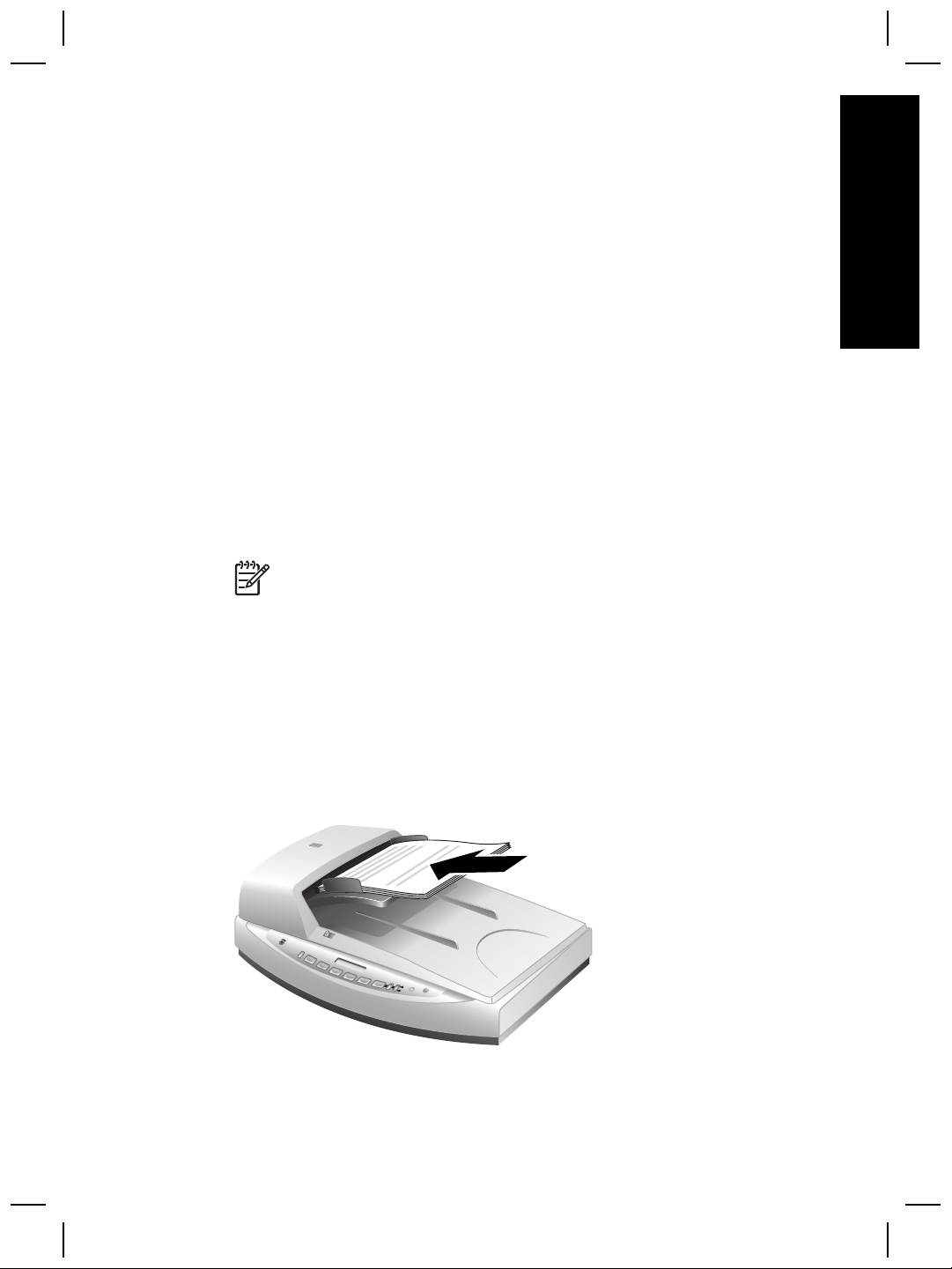
Load originals in the ADF
1. Place a stack of similarly sized pages face up in the document input tray, with the
first page on top.
2. Adjust the paper guides to center the stack.
3. Press a front panel button or use HP Solution Center to begin scanning.
4. Follow the onscreen instructions to finish scanning.
User Guide
11

Chapter 2
Scan two-sided documents from the ADF
1. Load your originals. See Load originals in the ADF on page 11.
2. Use the Duplex switch on the ADF to select two-sided originals.
3. Open HP Solution Center, and then click Scan Document.
The HP Scanning dialog box is displayed.
4. Click Scan.
5. When you are finished scanning, click Done.
The software sends the scanned file to the specified location.
Note If you are acquiring your scan from an imaging software program using
TWAIN, the HP Scanjet 8270 Document Flatbed Scanner Document ISIS/
TWAIN software offers additional capabilities for brightness and contrast, and
improved performance and control for two-sided scanning. For more
information about installing the HP Scanjet 8270 Document Flatbed Scanner
Document ISIS/TWAIN software, see Scanner setup on page 4.
Make copies from the ADF
You can use the Copy button ( ) to scan multiple originals from the ADF and send
them to a printer. For more information, see Make copies on page 9.
12
HP Scanjet 8270 Document Flatbed Scanner
How to scan from the
3
English
transparent materials adapter
(TMA)
Use the transparent materials adapter (TMA) to scan 35 mm slides or negatives.
Tips for scanning transparent items
● To scan items larger than those that the TMA accepts, place the transparency on
the scanner glass, place a white sheet of paper on top of the transparency, and
then scan as usual.
● When scanning a 35 mm slide or negative, the scanner software automatically
enlarges the image to approximately 10 cm x 15 cm (4 x 6 inches). If you want
the final image to be larger or smaller, use the Resize tool in the scanner
software to set the scaling to the final size that you select. The scanner will scan
the item to the size that you select and adjust the scan resolution as appropriate.
● To scan positives, such as 35 mm slides, or negatives using the TMA, press the
Scan Picture button (
) on the front of the scanner, or click the Scan Film
button in HP Solution Center.
Scan slides
To scan 35 mm slides, use the slide holder that is part of the built-in TMA.
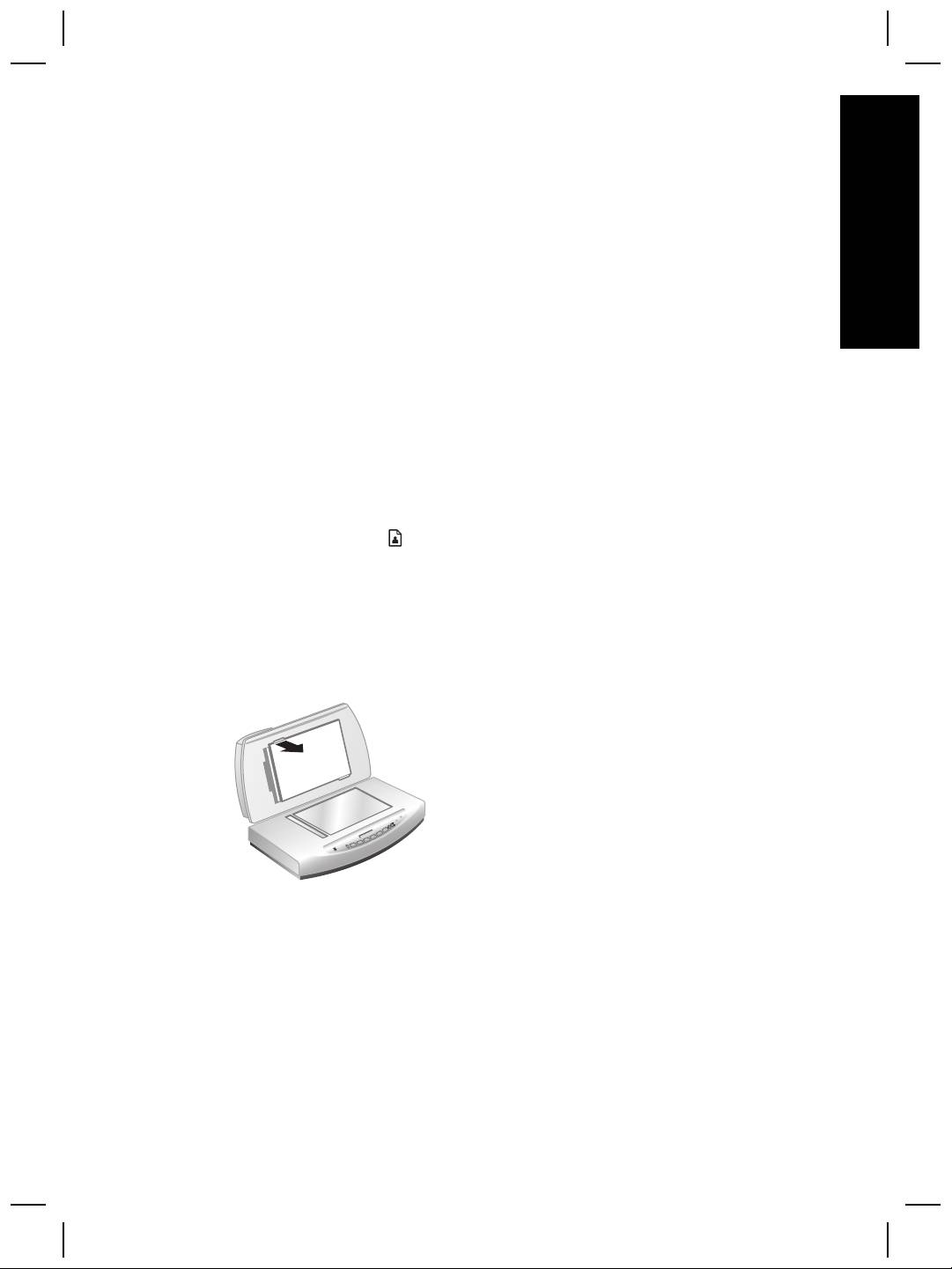
1. Open the scanner lid and remove the TMA cover.
2. Remove the negative holder, if present, from the slide holder.
User Guide
13
Chapter 3
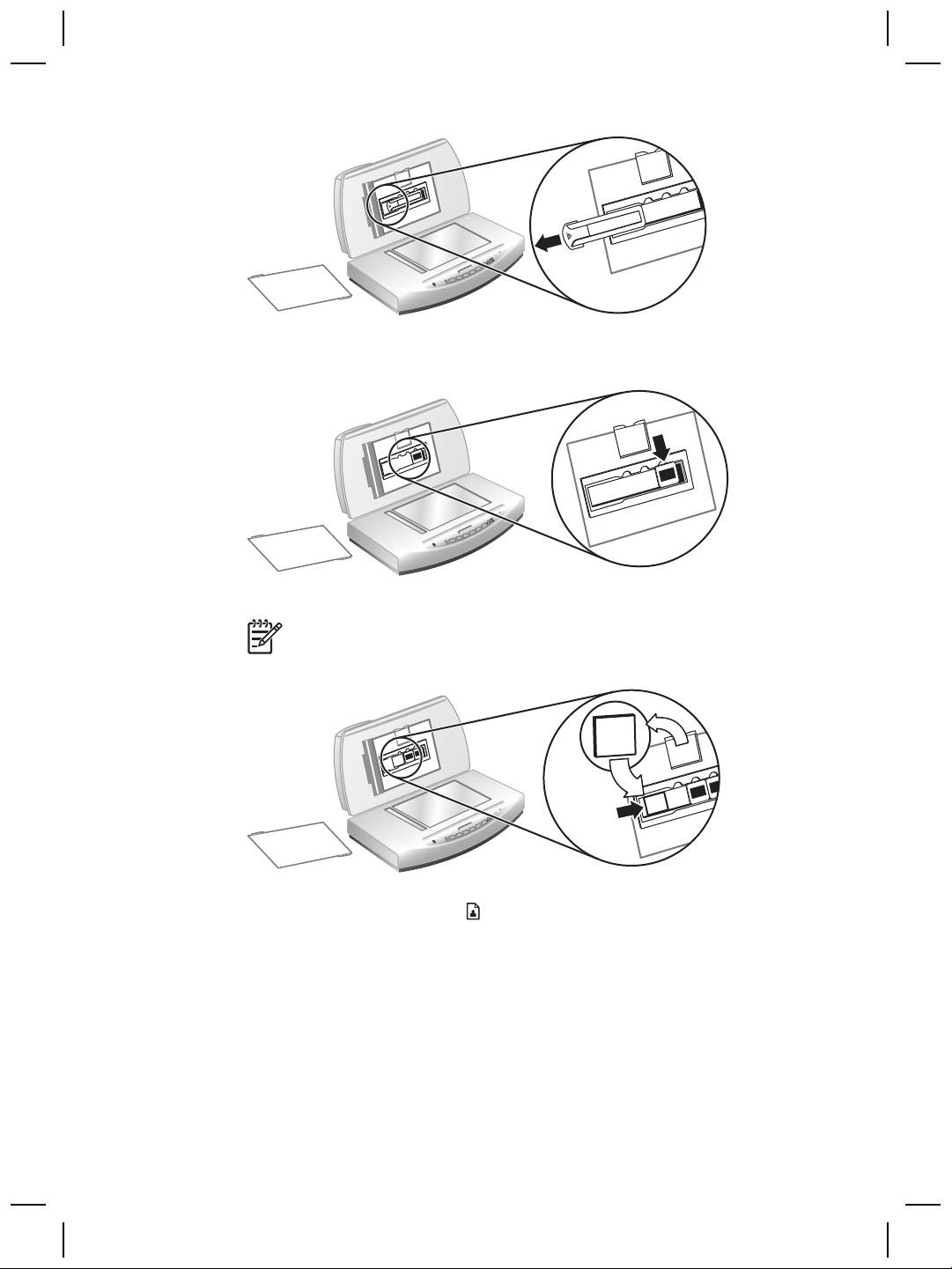
3. Place up to three slides into the slide holder. Insert the slides with the front of the
slides facing you.
4. After loading the last slide, insert the slide light-shield until it touches the slides.
Note Inserting the slide light-shield prevents stray light on the scanned
image.
5. Close the scanner lid.
6.
Click the Scan Picture button (
).
The HP Scanning dialog box is displayed.
7. Select Picture.
8. Select Scan positives, including 35 mm slides, using the TMA.
If you want to preview the scanned image, select the Show Preview check box
on the screen, or begin the scan from HP Solution Center.
9. Click Scan.
10. Follow the instructions on the screen to finish scanning.
14
HP Scanjet 8270 Document Flatbed Scanner
The scan is sent to the destination selected in the HP Scanning dialog box.
11. When finished, remove the slides. Replace the slide light-shield, the negative
holder, and the TMA cover.
English
Scan negatives
To scan 35 mm negatives, use the negative holder that is part of the built-in TMA.
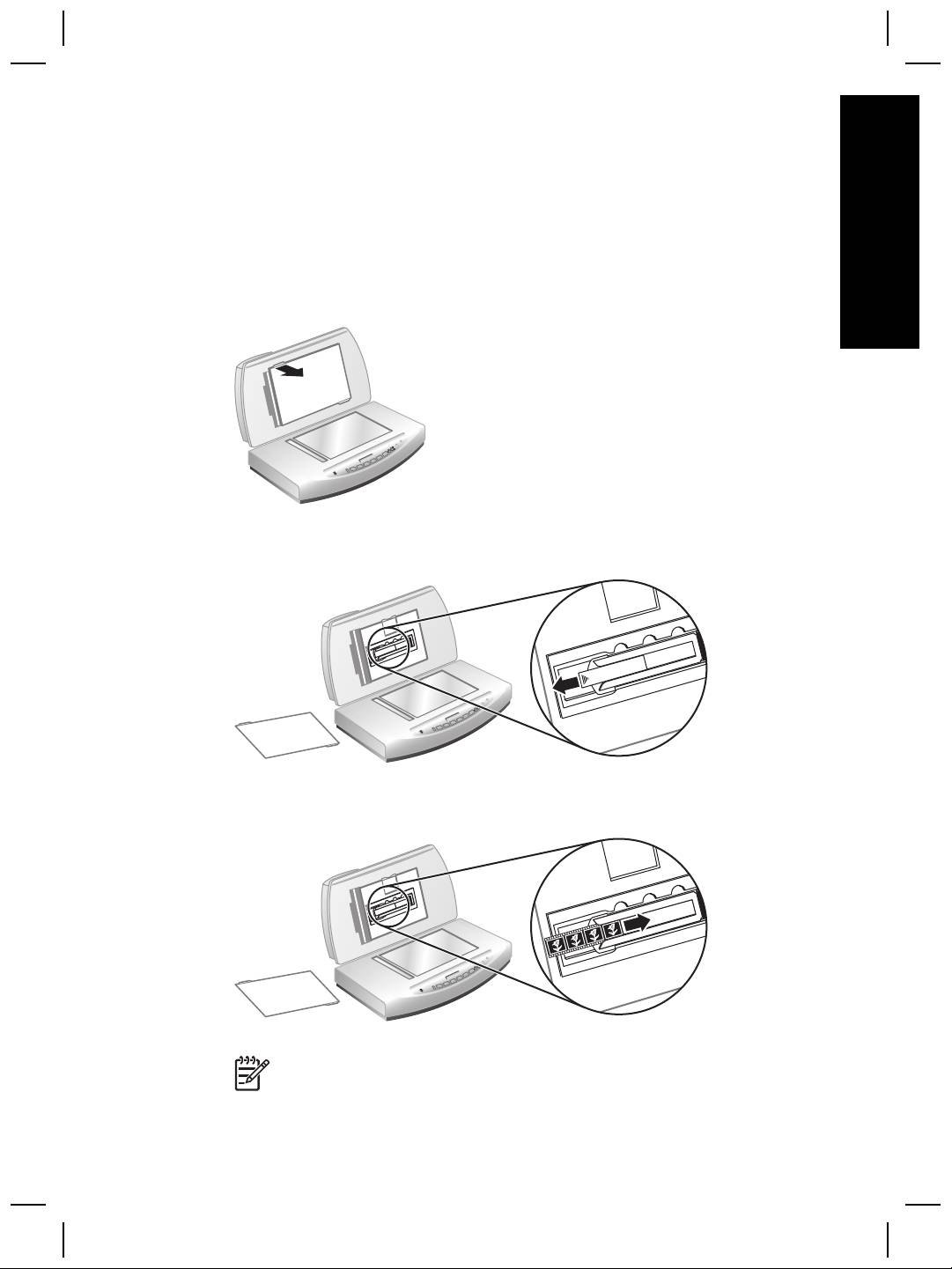
1. Open the scanner lid and remove the TMA cover.
2. Remove the negative light-shield from the negative holder. The negative holder is
stored in the slide holder.
3. Slide a negative strip into the negative holder so that the shiny side faces the
scanner glass when the scanner lid is closed.
Note Negatives are easily damaged. Touch them only on their edges.
User Guide
15
Chapter 3
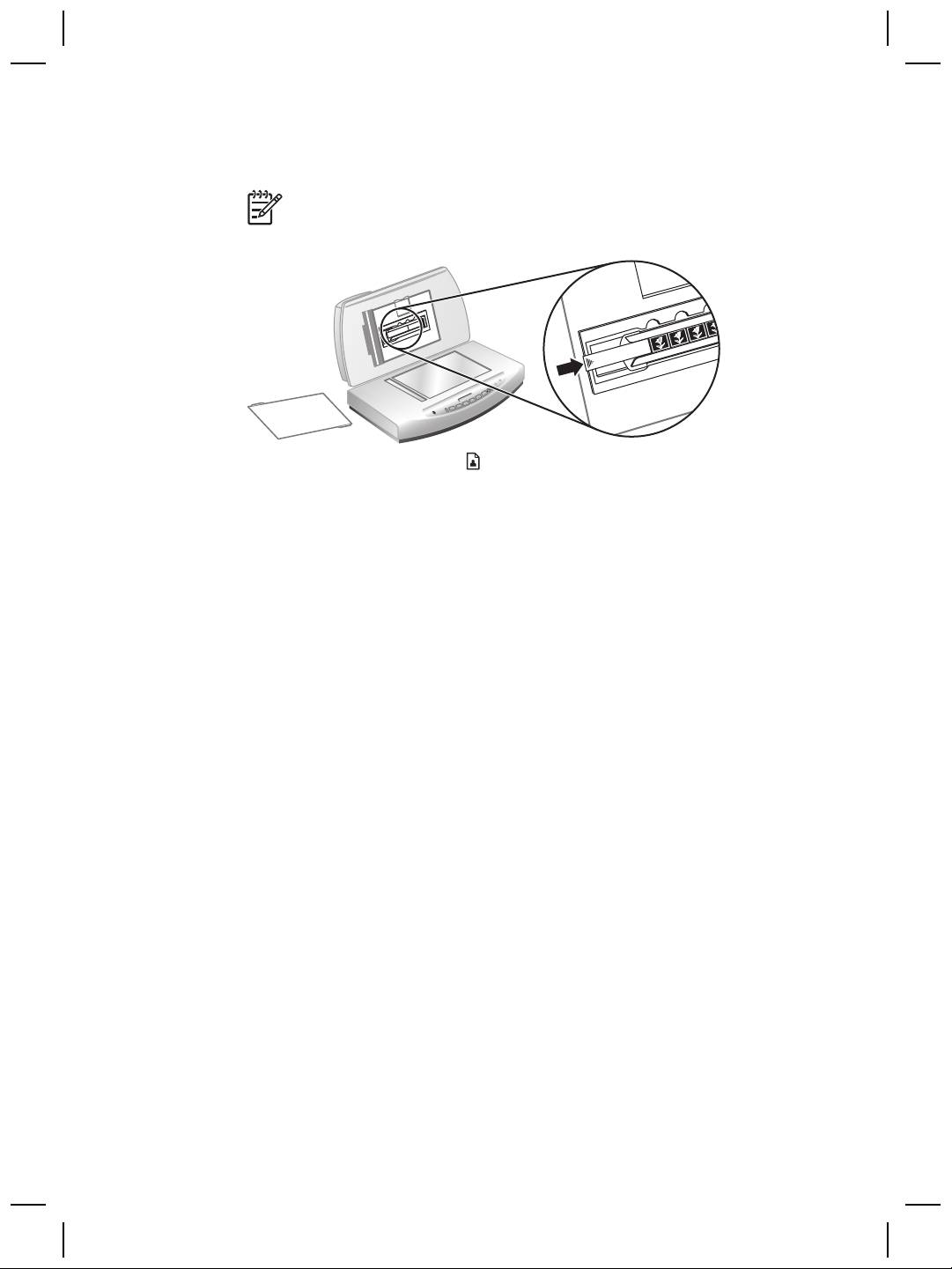
4. If you are scanning a negative strip that has fewer than four frames, insert the
negative light-shield into the negative holder until it touches the negative strip.
Note Inserting the negative light-shield prevents stray light on the
scanned image.
5.
Click the Scan Picture button (
).
The HP Scanning dialog box is displayed.
6. Select Picture.
7. Select Scan negatives using the Transparent Materials Adapter (TMA).
If you want to preview the scanned image, select the Show Preview check box
on the screen, or begin the scan from HP Solution Center.
8. Click Scan.
9. Follow the instructions on the screen to finish scanning.
The scan is sent to the destination selected in the HP Scanning dialog box.
10. When finished, remove the negative strip. Replace the negative holder, the
negative light-shield, and the TMA cover.
16
HP Scanjet 8270 Document Flatbed Scanner
Care and maintenance
4
English
Occasional cleaning of your scanner helps ensure higher-quality scans. The amount
of care necessary depends upon several factors, including the amount of use, and the
environment. You should perform routine cleaning as necessary.
For all care and maintenance procedures required for the scanner, please see the
Care and maintenance section for your scanner in the onscreen Help. In HP Solution
Center, click Help, and then select the Help section for your scanner model.
Routine cleaning and maintenance should include cleaning the scanner glass and the
transparent materials adapter (TMA).
Caution Avoid placing items that have sharp edges in the scanner. Doing so
can damage the scanner. Before placing an item on the scanner glass, make
sure that the item does not contain wet glue, correction fluid, or other
substances that can be transferred to the glass.
Clean the scanner glass
1. Disconnect the universal serial bus (USB) cable and power cable from the
scanner.
2. Clean the glass by using a soft, lint-free cloth that has been sprayed with a mild
glass cleaner, and dry the glass with a dry, soft, lint-free cloth.
Caution Use only glass cleaner. Avoid abrasives, acetone, benzene, and
carbon tetrachloride, all of which can damage the scanner glass. Avoid
isopropyl alcohol because it can leave streaks on the glass.
Do not spray the glass cleaner directly on the glass. If too much glass cleaner is
applied, the cleaner could run to the edges and damage the scanner.
3. When you have finished, reconnect the USB cable and power cable to the
scanner.
Note For instructions about how to clean the underside of the scanner glass,
visit www.hp.com/support.
Clean the transparent materials adapter (TMA)
Clean the TMA with a dry, soft, lint-free cloth. If necessary, lightly spray the cloth with
glass cleaner and wipe the TMA.
Clean and maintain the automatic document feeder (ADF)
The ADF requires periodic cleaning depending on the amount of use and the type of
media that is fed through it. Use an HP ADF cleaning cloth to clean the ADF when
vertical streaks appear in images scanned by the ADF, when media running through
the ADF is dusty or dirty, or when the environment is dusty. If you use the ADF
User Guide
17

Chapter 4
several times per week, monthly cleaning is recommended. Set up a cleaning routine
that is appropriate for your scanner.
See Clean and Maintain the ADF in the Care and maintenance section of the HP
Scanjet 8270 Document Flatbed Scanner onscreen Help for more details.
Clean the ADF scan glass
Follow the same steps you follow to clean the scanner glass. See Clean the scanner
glass on page 17.
Maintain the ADF
If misfeeds are occurring frequently, follow these steps:
1. Clean the feed-roller assembly manually. See Clean and maintain the automatic
document feeder (ADF) on page 17.
2. If the misfeeds continue, order and install the ADF Roller Replacement kit. The
ADF Roller Replacement kit contains a roller mechanism, a separation pad, new
screws for the separation pad, and replacement instructions (see Order
maintenance and scanner supplies on page 18 for more information).
Order maintenance and scanner supplies
You can purchase maintenance parts online at the scanner support Web site at
www.hp.com/buy/parts. Items such as the HP ADF cleaning cloth and the ADF roller
replacement kit are available for worldwide delivery.
18
HP Scanjet 8270 Document Flatbed Scanner
