
Cambridge Audio 80 Series: 85/86/89 DVD player
85/86/89 DVD player: Cambridge Audio 80 Series
85/86/89 DVD player
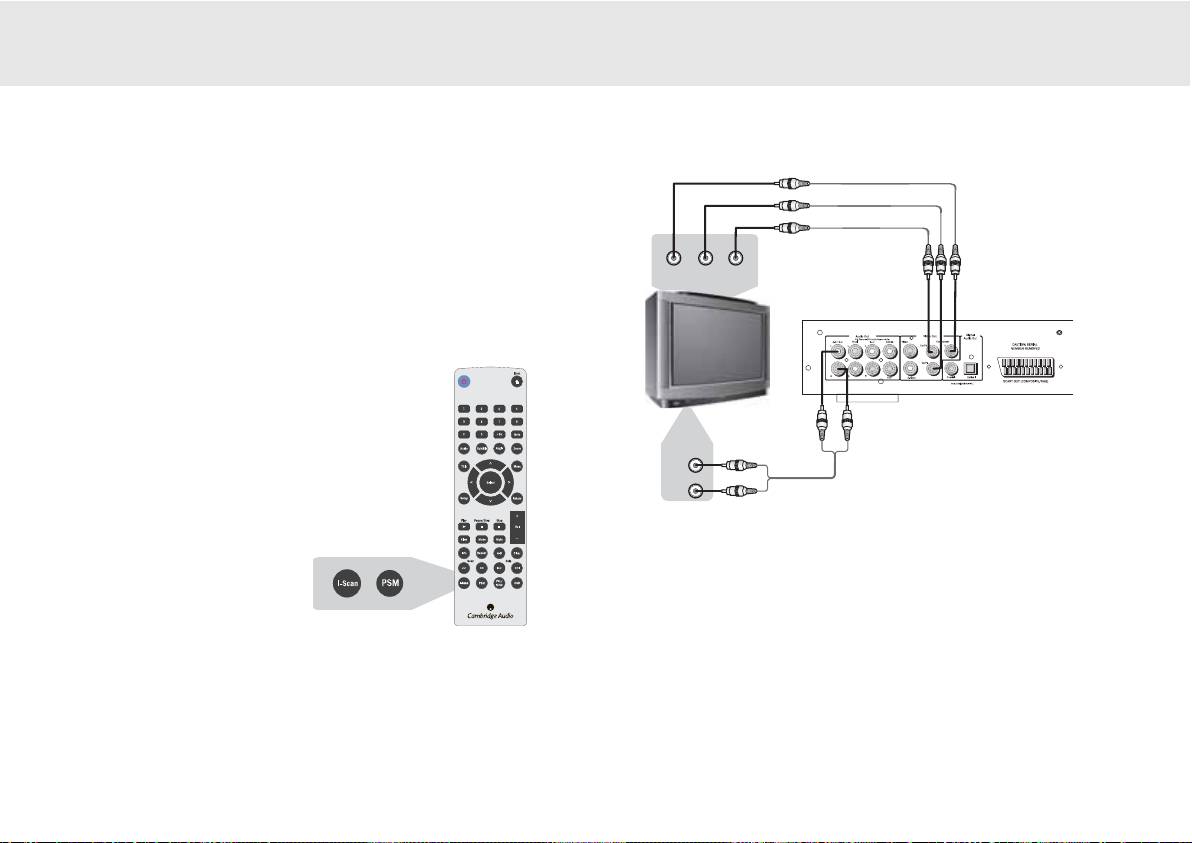
CONNECTION TO A PROGRESSIVE SCAN TV/DISPLAY
Some televisions and monitors are equipped with component video
inputs and are capable of reproducing a progressively scanned video
signal. Connecting to these inputs allows you to view higher quality
pictures with less flicker.
To enable progressive scan via the component output please refer to
YY
PPrr
PPbb
page 13 under general setup to explain how to access this in the menu.
Rear
Panel
If you find that you have no display but are
NNoottee::
TV set with progressive-scan
getting sound from your speakers, you have set
video input
the DVD player to progressive scan mode.
Audio In
Simply press the I-Scan button on your remote
control.
Audio Cord
If your progressive scan TV has Y, Pb Pr video inputs you can use the
players Y, Cb/Pb, Cr/Pr outputs . Press the P-Scan button to switch the
p
l
ayer to the progressive scan video output mode.
If this player’s audio outputs are also connected to the TV, the L/R
channels of 2-CH OUT should be connected to the TV’s AUDIO IN
terminals.
It is imperative that you use high quality component video cables to
ensure the best possible performance.
80 series DVD player 19
DISPLAY SETTINGS
Screen
sizes
and
disc
formats
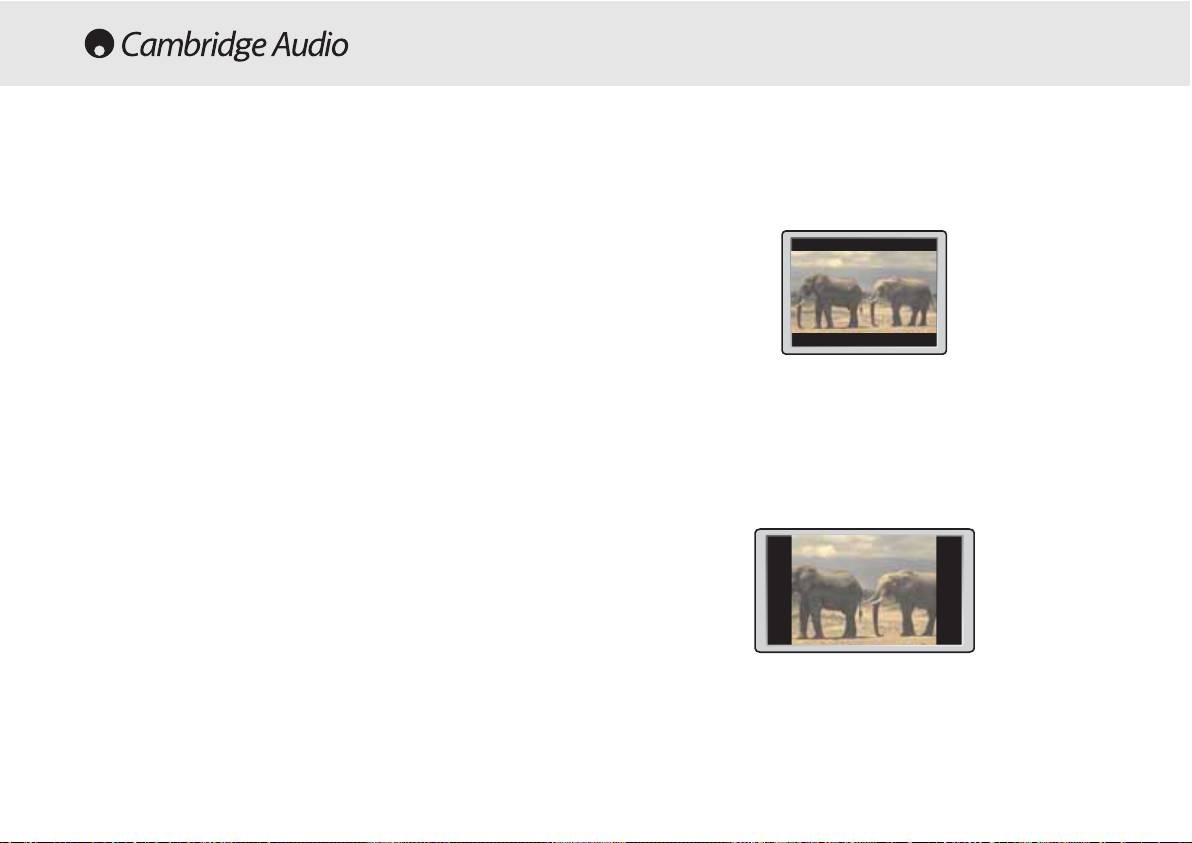
Set to 4:3 (Letter Box) widescreen discs are shown with black bars top
and bottom.
DVD-Video discs come in several different screen aspect ratios, ranging
from TV programs, which are generally 4:3, to CinemaScope widescreen
movies, with an aspect ratio of up to about 7:3. Televisions, too, come in
different aspect ratios; ‘standard’ 4:3 and widescreen 16:9.
Widescreen
TV
users
If you have a widescreen TV, the TV Screen setting of this player should
be set to 16:9 (Wide)
When you watch discs recorded in 4:3 format, you can use the TV
controls to select how the picture is presented. Your TV may offer various
Set to 4:3 (Pan&Scan) widescreen discs are shown with the left and
zoom and stretch options; see the instructions that came with your TV
right sides cropped. Although the picture looks larger, you don’t actually
for details.
see the whole picture.
Please note that some movie aspect ratios are wider than 16:9, so even
though you have a widescreen TV, these discs will still play in a ‘letter
box’ style with black bars at the top and bottom of the screen.
Standard
TV
users
If you have a standard TV, the TV Screen setting of this player should be
set to 4:3 (Letter Box) or 4:3 (Pan&Scan) depending on which you prefer.
Please note that many widescreen discs override the player’s settings so
that the disc is shown in letter box format regardless of the setting.
20 80 Series DVD Player
Table of contents
- 85/86/89 DVD player
- 85/86/89 DVD player
- 85/86/89 DVD player
- 85/86/89 DVD player
- 85/86/89 DVD player
- 85/86/89 DVD player
- 85/86/89 DVD player 70 Series
- 85/86/89 DVD player
- 85/86/89 DVD player
- 85/86/89 DVD player
- 85/86/89 DVD player
- 85/86/89 DVD player
- 85/86/89 DVD-Spieler
- 85/86/89 DVD-Spieler
- 85/86/89 DVD-Spieler
- 85/86/89 DVD-Spieler
- 85/86/89 DVD-Spieler
- 85/86/89 DVD-Spieler
- 85/86/89 DVD-Spieler
- 85/86/89 DVD-Spieler
- 85/86/89 DVD-Spieler
- 85/86/89 DVD-Spieler
- 85/86/89 Lecteur de DVD
- 85/86/89 Lecteur de DVD
- 85/86/89 Lecteur de DVD
- 85/86/89 Lecteur de DVD
- 85/86/89 Lecteur de DVD
- 85/86/89 Lecteur de DVD
- 85/86/89 Lecteur de DVD
- 85/86/89 Lecteur de DVD
- 85/86/89 Lecteur de DVD
- 85/86/89 Lecteur de DVD
- 85/86/89 Reproductor DVD
- 85/86/89 Reproductor DVD
- 85/86/89 Reproductor DVD
- 85/86/89 Reproductor DVD
- 85/86/89 Reproductor DVD
- 85/86/89 Reproductor DVD
- 85/86/89 Reproductor DVD
- 85/86/89 Reproductor DVD
- 85/86/89 Reproductor DVD
- 85/86/89 Reproductor DVD
- 85/86/89 Lettore DVD
- 85/86/89 Lettore DVD
- 85/86/89 Lettore DVD
- 85/86/89 Lettore DVD
- 85/86/89 Lettore DVD
- 85/86/89 Lettore DVD
- 85/86/89 Lettore DVD
- 85/86/89 Lettore DVD
- 85/86/89 Lettore DVD
- 85/86/89 Lettore DVD
- 85/86/89 dvd-speler
- 85/86/89 dvd-speler
- 85/86/89 dvd-speler
- 85/86/89 dvd-speler
- 85/86/89 dvd-speler
- 85/86/89 dvd-speler
- 85/86/89 dvd-speler
- 85/86/89 dvd-speler
- 85/86/89 dvd-speler
- 85/86/89 dvd-speler
- 85/86/89 dvd-afspiller
- 85/86/89 dvd-afspiller
- 85/86/89 dvd-afspiller
- 85/86/89 dvd-afspiller
- 85/86/89 dvd-afspiller
- 85/86/89 dvd-afspiller
- 85/86/89 dvd-afspiller
- 85/86/89 dvd-afspiller
- 85/86/89 dvd-afspiller
- 85/86/89 dvd-afspiller
- DVD-проигрыватель 85/86/89
- DVD-проигрыватель 85/86/89
- 85/86/89 DVD player
