
Sharp Autentificación de Usuario: Security settings in the Web page ■ Procedure for directly printing a file on an FTP server when user authentication is enabled About transfer of copied data to the machine
Security settings in the Web page ■ Procedure for directly printing a file on an FTP server when user authentication is enabled About transfer of copied data to the machine: Sharp Autentificación de Usuario
Table of contents
- Contents Introduction Note:
- ■ Backing up and clearing data stored with the document filing function ■ About passwords for the Web page
- When the data security kit is installed About confidential folders and confidential files of the document filing function Restrictions on tandem copying and tandem printing
- Security settings in the Web page ■ Procedure for directly printing a file on an FTP server when user authentication is enabled About transfer of copied data to the machine
- ADMINISTRATOR SETTINGS ADMINISTRATOR SETTINGS LIST Using the administrator settings SECURITY SETTINGS
- CLEAR ALL MEMORY
- CLEAR DOCUMENT FILING DATA CLEAR ALL DATA IN JOB STATUS JOBS COMPLETED LIST CLEAR ADDRESS BOOK DATA/IMAGE SEND REGISTERED DATA
- NUMBER OF TIMES DATA CLEAR IS REPEATED POWER UP AUTO CLEAR NUMBER OF TIMES POWER UP AUTO CLEAR PROGRAM IS REPEATED
- NUMBER OF TIMES AUTO CLEAR AT JOB END PROGRAM IS REPEATED About the repeat setting DISABLING OF DOCUMENT FILING DISABLING OF LIST PRINT
- DISABLING OF PRINT JOBS OTHER THAN PRINT HOLD JOB JOB STATUS JOBS COMPLETED LIST DISPLAY SETTINGS
- DISABLING RESEND KEY RELEASE THE LOCK ON DOCUMENT FILING OUTPUT OPERATION PRODUCT KEY
ENGLISH
Security settings in the Web page
When the machine is used as a network printer and the Pull Print function is used, the data
security kit enables authentication of the user by means of a "USER NAME" and
"PASSWORD". (The Pull Print function allows a file on a previously stored FTP server to be
printed directly from the operation panel of the machine without using the printer driver; see
"Directly printing a file on an FTP server" on page 5-7 of the "OPERATION MANUAL (for
printer)".)
User authentication is enabled by selecting the "Enable User Authentication" checkbox in
the machine's Web page for Pull Print function settings. (This checkbox appears when the
data security kit is installed, and is initially selected (a checkmark appears)).
System requirements and the procedure for accessing the Web page containing this
checkbox are explained in "REMOTE OPERATION VIA A NETWORK" on page 5-2 of the
"OPERATION MANUAL (for printer)". The checkbox appears in the screen shown in step 2
of "■ Storing an FTP server" on page 5-7 of the "OPERATION MANUAL (for printer)".
■ Procedure for directly printing a file on an FTP server when
user authentication is enabled
Your user name and password must be entered following selection of the FTP server
that contains the file to be printed from the touch panel of the machine.
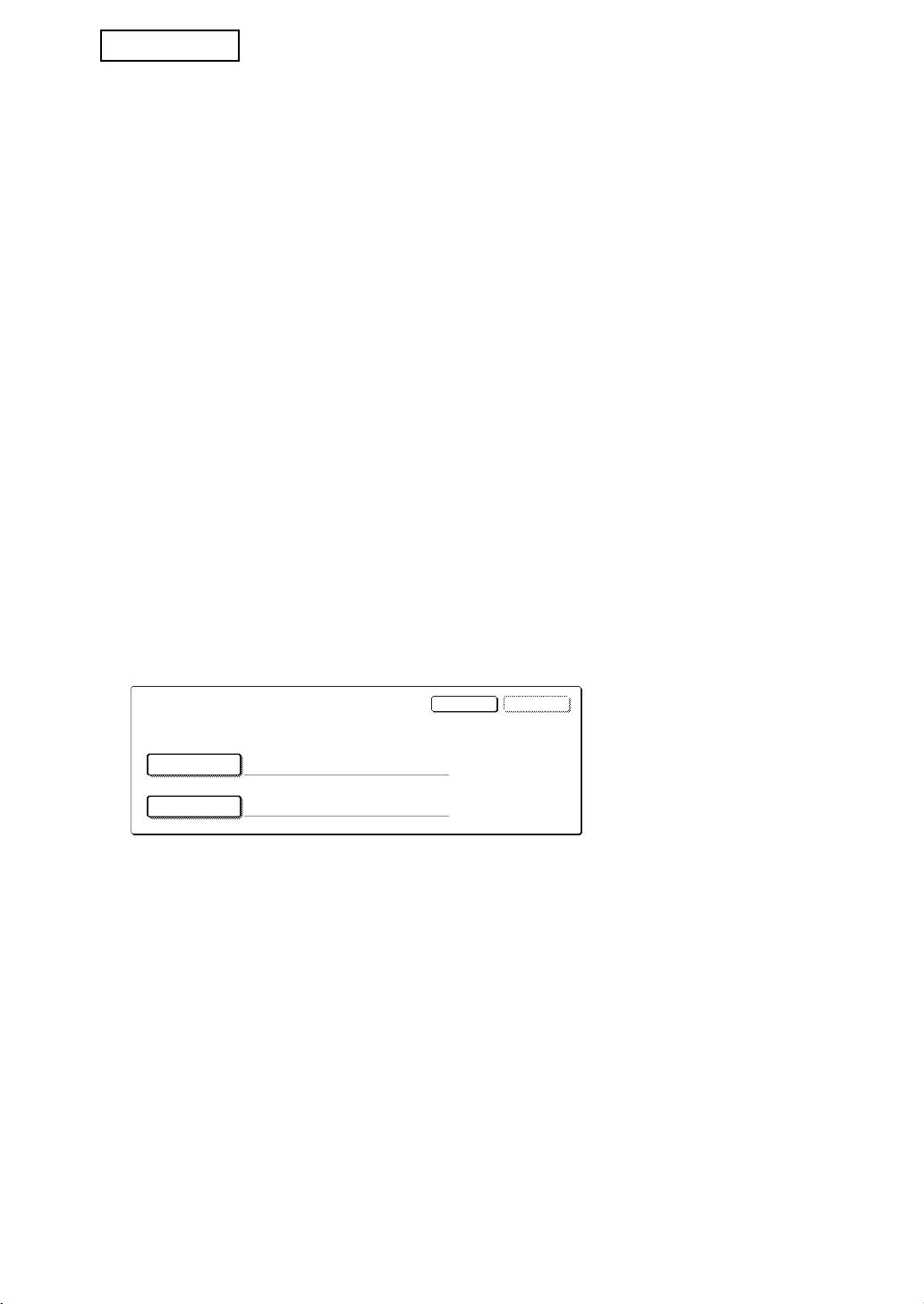
When the FTP server is selected in step 3 of "■ Printing a file on an FTP server from the
operation panel of the machine" on page 5-7 of the "OPERATION MANUAL (for printer)",
a screen will appear prompting you to enter your user name and password for the FTP
server.
Press the [USER NAME] key to enter your user name and the [PASSWORD] key to
enter your password. A letter entry screen will appear in each case. When you have
finished entering your user name/password, touch the [OK] key.
After entering your user name and password, continue from step 4 on page 5-8 of the
"OPERATION MANUAL (for printer)".
About transfer of copied data to the machine
When the data security kit is installed and the Web page is used to copy data stored with
the document filing function to a computer, the copied data can only be transferred back to
the original machine from which it was copied; the data cannot be transferred to another
machine even if the machine conditions are the same.
The [Restore from PC] key will only appear in the Web page and transfer of data back to the
machine will only be possible when a confidential folder is selected.
4
OKCANCEL
ENTER THE USER NAME AND PASSWORD FOR FTP SERVER.
USER NAME
PASSWORD
MX-FRX5U.book 4 ページ 2007年3月20日 火曜日 午後5時8分
