
Sharp PN-60TA3: instruction
Class: Computer equipment, hardware, accessories
Type: Monitor
Manual for Sharp PN-60TA3
Table of contents
PN-70TA3
PN-60TA3
LCD MONITOR
MONITEUR LCD
MONITOR LCD
LCD FARBMONITOR
ЖК МОНИТОР
SETUP MANUAL
MANUEL D’INSTALLATION
MANUAL DE INSTALACIÓN
INSTALLATIONSANLEITUNG
РУКОВОДСТВО ПО УСТАНОВКЕ
ENGLISH ...... E1
FRANÇAIS ..... F1
香港電器安全規格
ESPAÑOL .... S1
(
國際電工委員會規格適合
)
DEUTSCH ..... D1
РУССКИЙ...... Р1
(
.ﺔﻘﻓﺮﳌﺍ CD-ROM ﺔﻧﺍﻮﻄﺳﺃ ﰲ ﺪﺟﻮﻳ ﺔﻴﺑﺮﻌﻟﺍ ﺔﻐﻠﻟﺎﺑ ﻞﻴﻟﺪﻟﺍ
ENGLISH FRANÇAIS ESPAÑOLENGLISH FRANÇAIS ESPAÑOL DEUTSCH РУССКИЙ
)
FOR CUSTOMERS IN U.K.
IMPORTANT
The wires in this mains lead are coloured in accordance with the following code:
GREEN-AND-YELLOW: Earth
BLUE: Neutral
BROWN: Live
As the colours of the wires in the mains lead of this apparatus may not correspond with the coloured markings identifying the
terminals in your plug proceed as follows:
• The wire which is coloured GREEN-AND-YELLOW must be connected to the terminal in the plug which is marked by the
letter E or by the safety earth
or coloured green or green-and-yellow.
• The wire which is coloured BLUE must be connected to the terminal which is marked with the letter N or coloured black.
• The wire which is coloured BROWN must be connected to the terminal which is marked with the letter L or coloured red.
Ensure that your equipment is connected correctly. If you are in any doubt consult a qualied electrician.
“WARNING: THIS APPARATUS MUST BE EARTHED.”
Contents
[ENGLISH]
IMPORTANT INFORMATION ............................................1
Supplied Components .....................................................5
ENGLISH
DEAR SHARP CUSTOMER ..............................................1
Preparing the Remote Control Unit and the Touch Pen
..5
SAFETY PRECAUTIONS ..................................................2
Connections .....................................................................6
SAFETY INSTRUCTION ...................................................3
Turning Power On/Off ......................................................7
MOUNTING PRECAUTIONS ............................................4
Mounting Precautions
Specications ..................................................................4
(For SHARP dealers and service engineers) ...............10
For information on Touch Pen Utility, Touch Panel Settings Tool, Pen Software and Touch Display Link, see the manual for
each.
IMPORTANT INFORMATION
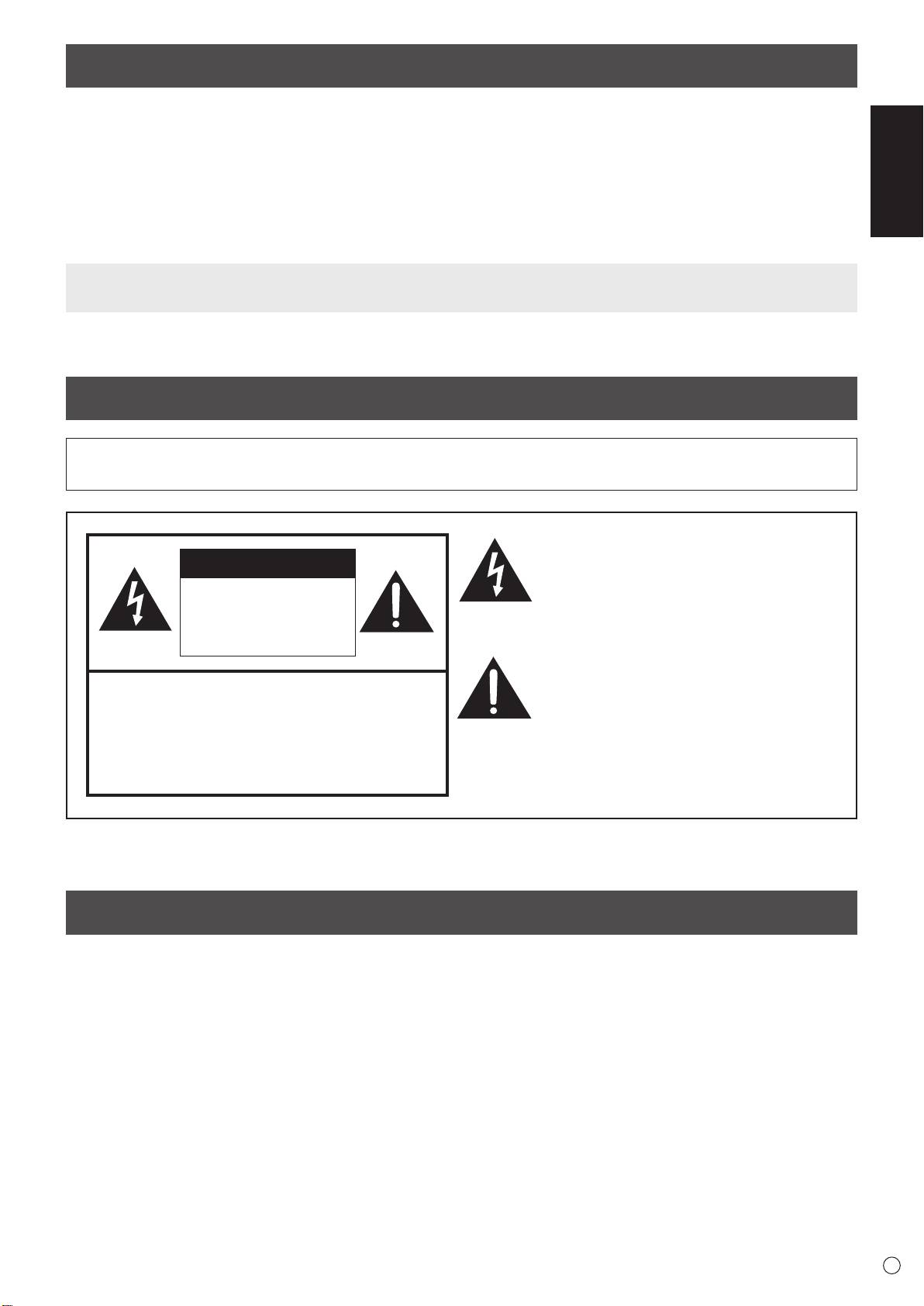
WARNING: TO REDUCE THE RISK OF FIRE OR ELECTRIC SHOCK, DO NOT EXPOSE THIS PRODUCT
TO RAIN OR MOISTURE.
The lightning ash with arrowhead symbol, within
a triangle, is intended to alert the user to the
CAUTION
presence of uninsulated “dangerous voltage”
within the product’s enclosure that may be of
RISK OF ELECTRIC
sufcient magnitude to constitute a risk of electric
SHOCK
shock to persons.
DO NOT OPEN
The exclamation point within a triangle is
intended to alert the user to the presence of
CAUTION: TO REDUCE THE RISK OF ELECTRIC
important operating and maintenance (servicing)
SHOCK, DO NOT REMOVE COVER.
instructions in the literature accompanying the
NO USER-SERVICEABLE PARTS
product.
INSIDE.
REFER SERVICING TO QUALIFIED
SERVICE PERSONNEL.
DEAR SHARP CUSTOMER
Thank you for your purchase of a SHARP LCD product. To ensure safety and many years of trouble-free operation of your
product, please read the Safety Precautions carefully before using this product.
1
E

SAFETY PRECAUTIONS
Electricity is used to perform many useful functions, but it can also cause personal injuries and property damage if improperly
handled. This product has been engineered and manufactured with the highest priority on safety. However, improper use can
result in electric shock and/or re. In order to prevent potential danger, please observe the following instructions when installing,
operating and cleaning the product. To ensure your safety and prolong the service life of your LCD product, please read the
following precautions carefully before using the product.
1. Read instructions — All operating instructions must be read and understood before the product is operated.
2. Keep this manual in a safe place — These safety and operating instructions must be kept in a safe place for future
reference.
3. Observe warnings — All warnings on the product and in the instructions must be observed closely.
4. Follow instructions — All operating instructions must be followed.
5. Cleaning — Unplug the power cord from the AC outlet before cleaning the product. Use a dry cloth to clean the product. Do
not use liquid cleaners or aerosol cleaners.
6. Attachments — Do not use attachments not recommended by the manufacturer. Use of inadequate attachments can result
in accidents.
7. Water and moisture — Do not use the product near water. Do not install the product in a place where water may splash onto
it. Be careful of equipment which drains water such as an air-conditioner.
8. Ventilation — The vents and other openings in the cabinet are designed for ventilation.
Do not cover or block these vents and openings since insufcient ventilation can cause overheating and/or shorten the life
of the product. Do not place the product on a sofa, rug or other similar surface, since they can block ventilation openings.
Do not place the product in an enclosed place such as a bookcase or rack, unless proper ventilation is provided or the
manufacturer’s instructions are followed.
9. Power cord protection — The power cords must be routed properly to prevent people from stepping on them or objects from
resting on them.
10. The screen used in this product is made of glass. Therefore, it can break when the product is dropped or applied with
impact. Be careful not to be injured by broken glass pieces in case the screen breaks.
11. Overloading — Do not overload AC outlets or extension cords. Overloading can cause re or electric shock.
12. Entering of objects and liquids — Never insert an object into the product through vents or openings. High voltage ows in
the product, and inserting an object can cause electric shock and/or short internal parts.
For the same reason, do not spill water or liquid on the product.
13. Servicing — Do not attempt to service the product yourself. Removing covers can expose you to high voltage and other
dangerous conditions. Request a qualied service person to perform servicing.
14. Repair — If any of the following conditions occurs, unplug the power cord from the AC outlet, and request a qualied service
person to perform repairs.
a. When the power cord or plug is damaged.
b. When a liquid was spilled on the product or when objects have fallen into the product.
c. When the product has been exposed to rain or water.
d. When the product does not operate properly as described in the operating instructions.
Do not touch the controls other than those described in the operating instructions. Improper adjustment of controls
not described in the instructions can cause damage, which often requires extensive adjustment work by a qualied
technician.
e. When the product has been dropped or damaged.
f. When the product displays an abnormal condition. Any noticeable abnormality in the product indicates that the product
needs servicing.
15. Replacement parts — In case the product needs replacement parts, make sure that the service person uses replacement
parts specied by the manufacturer, or those with the same characteristics and performance as the original parts. Use of
unauthorized parts can result in re, electric shock and/or other danger.
16. Safety checks — Upon completion of service or repair work, request the service technician to perform safety checks to
ensure that the product is in proper operating condition.
17. Wall mounting — When mounting the product on a wall, be sure to install the product according to the method
recommended by the manufacturer.
18. Heat sources — Keep the product away from heat sources such as radiators, heaters, stoves and other heat-generating
products (including ampliers).
19. Batteries — Incorrect use of batteries may cause the batteries to burst or ignite. A leaky battery may corrode the equipment,
dirty your hands or spoil your clothing. In order to avoid these problems, make sure to observe the precautions below:
• Use the specied batteries only.
• Install the batteries with due attention to the plus (+) and minus (-) sides of the batteries according to the instructions in the
compartment.
• Do not mix old and new batteries.
• Do not mix batteries of different types. Voltage specications of batteries of the same shape may vary.
• Replace an exhausted battery with a new one promptly.
• If you will not use the remote control for a long time, remove the batteries.
• If leaked battery uid gets on your skin or clothing, rinse immediately and thoroughly. If it gets into your eye, bathe your
eye well rather than rubbing and seek medical treatment immediately. Leaked battery uid that gets into your eye or your
clothing may cause a skin irritation or damage your eye.
E
2
SAFETY PRECAUTIONS (Continued)
20. Usage of the monitor must not be accompanied by fatal risks or dangers that, could lead directly to death, personal injury,
ENGLISH
severe physical damage or other loss, including nuclear reaction control in nuclear facility, medical life support system, and
missile launch control in a weapon system.
21. Do not stay in contact with the parts of the product that become hot for long periods of time. Doing so may result in
low-temperature burns.
WARNING:
This is a Class A product. In a domestic environment this product may cause radio interference in which case the user may
be required to take adequate measures.
To maintain compliance with EMC regulations, use shielded cables to connect to the following terminals: HDMI input terminal,
D-SUB input terminal, and DisplayPort input/output terminals.
If a monitor is not positioned in a sufciently stable location, it can be potentially hazardous due to falling. Many injuries,
particularly to children, can be avoided by taking simple precautions such as:
• Using xing devices like wall mount brackets recommended by the manufacturer.
• Only using furniture that can safely support the monitor.
• Ensuring the monitor is not overhanging the edge of the supporting furniture.
• Not placing the monitor on tall furniture (for example, cupboards or bookcases) without anchoring both the furniture and the
monitor to a suitable support.
• Not standing the monitors on cloth or other materials placed between the monitor and supporting furniture.
• Educating children about the dangers of climbing on furniture to reach the monitor or its controls.
Especially for child safety
- Don’t allow children to climb on or play with the monitor.
- Don’t place the monitor on furniture that can easily be used as steps, such as a chest of drawers.
- Remember that children can become excited while watching a program, especially on a “larger than life” monitor. Care
should be taken to place or install the monitor where it cannot be pushed, pulled over, or knocked down.
- Care should be taken to route all cords and cables connected to the monitor so that they cannot be pulled or grabbed by
curious children.
SAFETY INSTRUCTION
- Do not use the monitor where there is a lot of dust, where
The Power Cord
humidity is high, or where the monitor may come into contact
- Use only the power cord supplied with the monitor.
with oil or steam. Do not use in an environment where
there are corrosive gases (sulfur dioxide, hydrogen sulde,
- Do not damage the power cord nor place heavy objects on
nitrogen dioxide, chlorine, ammonia, ozone, etc.). As this
it, stretch it or over bend it. Also, do not add extension cords.
could lead to re.
Damage to the cord may result in re or electric shock.
- Ensure that the monitor does not come into contact with
- Do not use the power cord with a power tap.
water or other uids. Ensure that no objects such as paper
Adding an extension cord may lead to re as a result of
clips or pins enter the monitor as this could lead to re or
overheating.
electric shock.
- Do not remove or insert the power plug with wet hands.
- Do not place the monitor on top of unstable objects or in
Doing so could result in electric shock.
unsafe places. Do not allow the monitor to receive strong
- Unplug the power cord if it is not used for a long time.
shocks or to strongly vibrate. Causing the monitor to fall or
- Do not attempt to repair the power cord if it is broken
topple over may damage it.
or malfunctioning. Refer the servicing to the service
- Do not use the monitor near heating equipment or in places
representative.
where there is likelihood of high temperature, as this may
lead to generation of excessive heat and outbreak of re.
- Do not use the monitor in places where it may be exposed to
direct sunlight.
- The AC outlet shall be installed near the equipment and shall
be easily accessible.
- Do not operate the screen with a hard or pointed object such
as a ngernail or pencil.
3
E
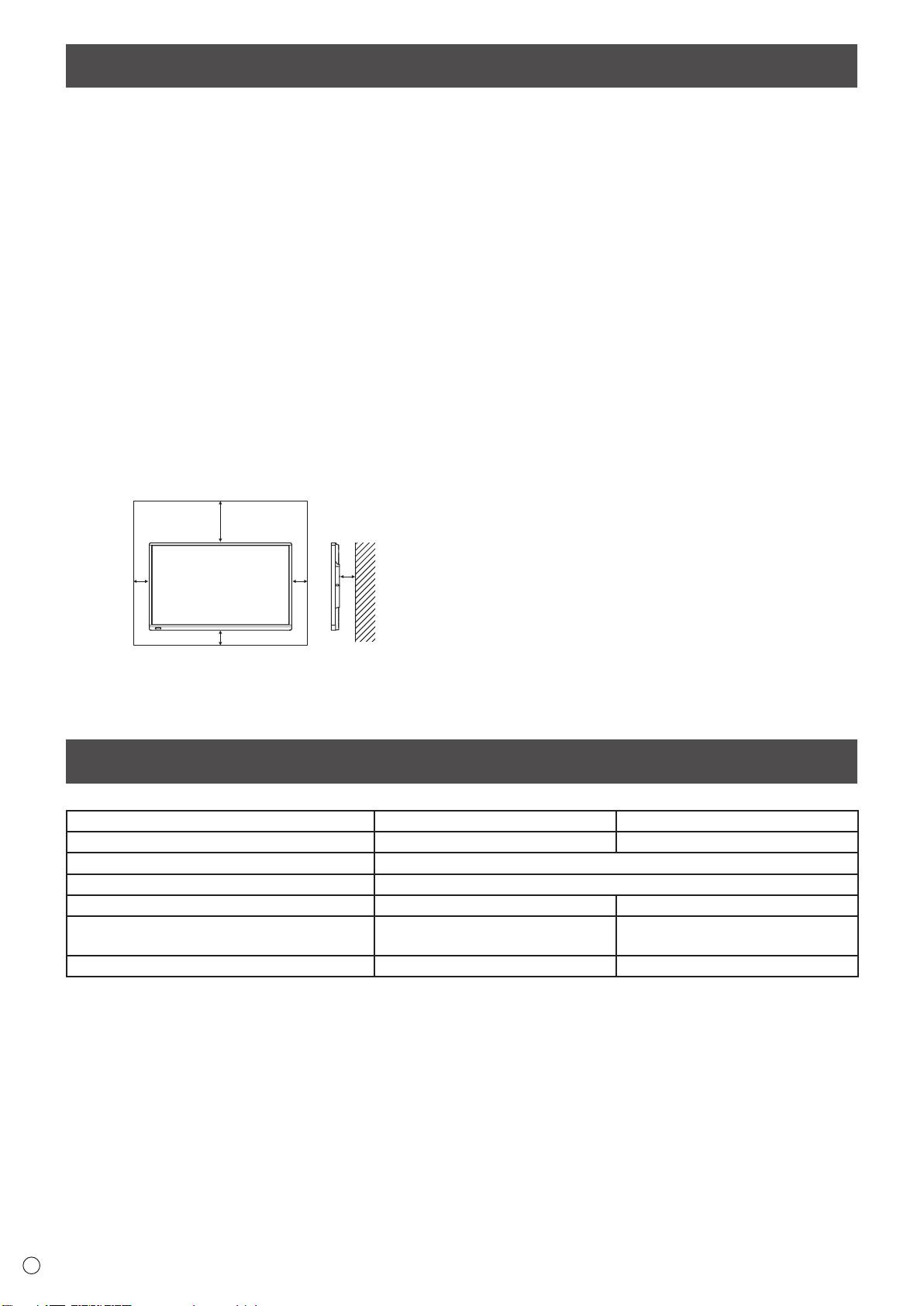
MOUNTING PRECAUTIONS
• This product is for use indoors.
• A mounting bracket compliant with VESA specications is
required.
• Since the monitor is heavy, consult your dealer before
installing, removing or moving the monitor.
• Mounting the monitor on the wall requires special expertise
and the work must be performed by an authorized SHARP
dealer. You should never attempt to perform any of this
work yourself. Our company will bear no responsibility
for accidents or injuries caused by improper mounting or
mishandling.
• Use the monitor with the surface perpendicular to a level
surface. If necessary, the monitor may be tilted up to 20
degrees upward.
• When moving the monitor, be sure to hold it with the
handles and the unit bottom. Do not grasp the screen or
tray. This may cause product damage, failure, or injury.
• This monitor should be used at an ambient temperature
between 41°F (5°C) and 95°F (35°C). Provide enough
space around the monitor to prevent heat from
accumulating inside.
E
4
Unit: inch [cm]
7-7/8 [20]
1-7/16 [3.5]
2
2
[5]
[5]
2 [5]
• If it is difcult to provide sufcient space for any reason
such as the installation of the monitor inside a housing, or
if the ambient temperature may be outside of the range
of 41°F (5°C) to 95°F (35°C), install a fan or take other
measures to keep the ambient temperature within the
required range.
• Temperature condition may change when using the monitor
together with the optional equipments recommended by
SHARP. In such cases, please check the temperature
condition specied by the optional equipments.
• Do not block any ventilation openings. If the temperature
inside the monitor rises, this could lead to a malfunction.
• Do not place the monitor on a device which generates heat.
• Do not use the product in locations where the unit is
exposed to direct sunlight or other strong light. Since this
product operates with infrared rays, such light may cause a
malfunction.
• When using multiple monitors closely, be sure the infrared
transmitter/receiver does not affect the other ones.
Specications
Model PN-70TA3 PN-60TA3
Power requirement AC 100 V - 240 V, 3.0 A, 50/60 Hz AC 100 V - 240 V, 2.5 A, 50/60 Hz
Operating temperature
*
41°F to 95°F (5°C to 35°C)
Operating humidity 20% to 80% (no condensation)
Power consumption (Maximum) 250 W 210 W
Dimensions (excluding protrusions) inch (mm)
Approx. 64-13/16 (W) x 3-11/16 (D) x
Approx. 56-9/16 (W) x 3-11/16 (D) x
39-3/4 (H)
(1647 x 94 x 1010)
35
-1/16
(H) (1437 x 94 x 890)
Weight lbs. (kg)
Approx. 134.5 (61) Approx. 105.9 (48)
* Temperature condition may change when using the monitor together with the optional equipments recommended by SHARP.
In such cases, please check the temperature condition specied by the optional equipments.
As a part of our policy of continuous improvement, SHARP reserves the right to make design and specication changes for product improvement
without prior notice. The performance specication gures indicated are nominal values of production units. There may be some deviations from
these values in individual units.
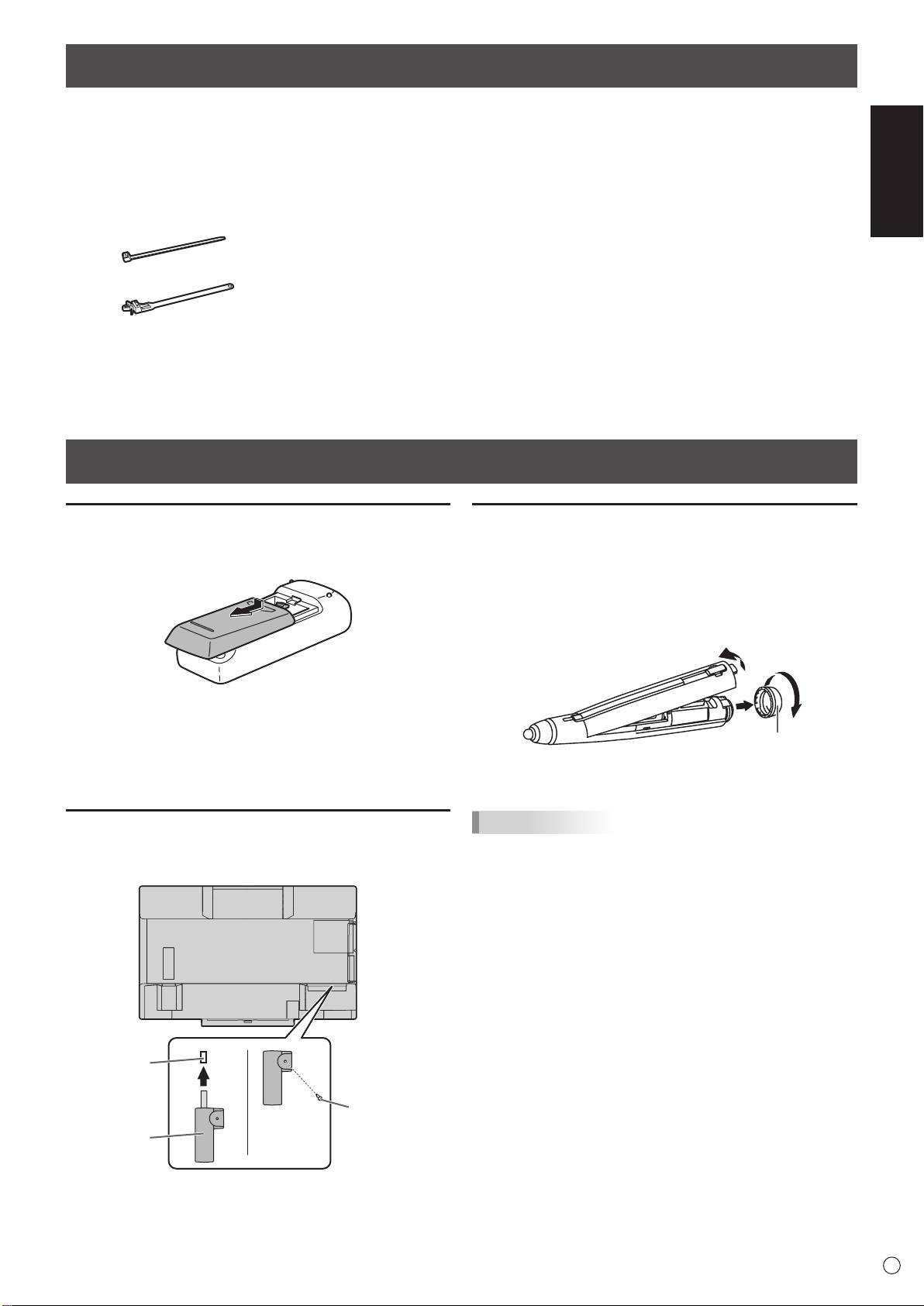
Supplied Components
If any component should be missing, please contact your dealer.
ENGLISH
Liquid Crystal Display Monitor: 1
CD-ROM (Utility Disk): 1
Eraser: 1
Remote control unit: 1
CD-ROM (Touch Display Link): 1
Camera mount: 1
Power cord
Touch Display Link License: 1
Camera screw (inch thread): 1
Remote control unit battery
Setup Manual (this manual): 1
Touch pen adapter screw (Step screw, M3): 1
(R-6 (“AA” size)): 2
Touch pen (PN-ZL02): 1
Tray mounting screws (M3) : 5
Cable clamp: 3
Touch pen adapter (PN-ZL01): 1
Cover SHARP logo: 1
Pen tip (for touch pen): 2
Place this sticker onto the SHARP logo to cover
Touch pen battery
the logo.
Cable clamp (insertion type): 2
(LR-03 (“AAA” size)): 1
Tray: 1
USB cable: 1
* SHARP Corporation holds authorship rights to the Utility Disk program. Do not reproduce it without permission.
* For environmental protection!
Do not dispose of batteries in household waste. Follow the disposal instructions for your area.
Preparing the Remote Control Unit and the Touch Pen
Installing the batteries
1. Press the cover gently and slide it in the direction of the
arrow.
2. See the instructions in the compartment and put in the
supplied batteries (R-6 (“AA” size) x 2) with their plus (+)
and minus (-) sides oriented correctly.
3. Close the cover.
Connecting the touch pen adapter
To use the touch pen, insert the touch pen adapter into the
touch pen adapter port on the monitor.
5
E
Touch pen
adapter port
Touch pen
adapter screw
Touch pen
(antitheft)
adaptor
Inserting the battery
1. Remove the battery cap.
2. Open the cover and insert the supplied battery (LR-03
(“AAA” size)) into the touch pen.
Check the plus (+) and minus (-) markings on the inside
of the touch pen and insert the battery in the correct
orientation.
2
1
Battery cap
3. Replace the cover and battery cap.
TIPS
• Calibration must be performed prior to initial use of the
touch pen.
• To use an optional touch pen with the monitor, the touch
pen must be registered in the touch pen adapter. (pairing)
For details, see the operation manual.
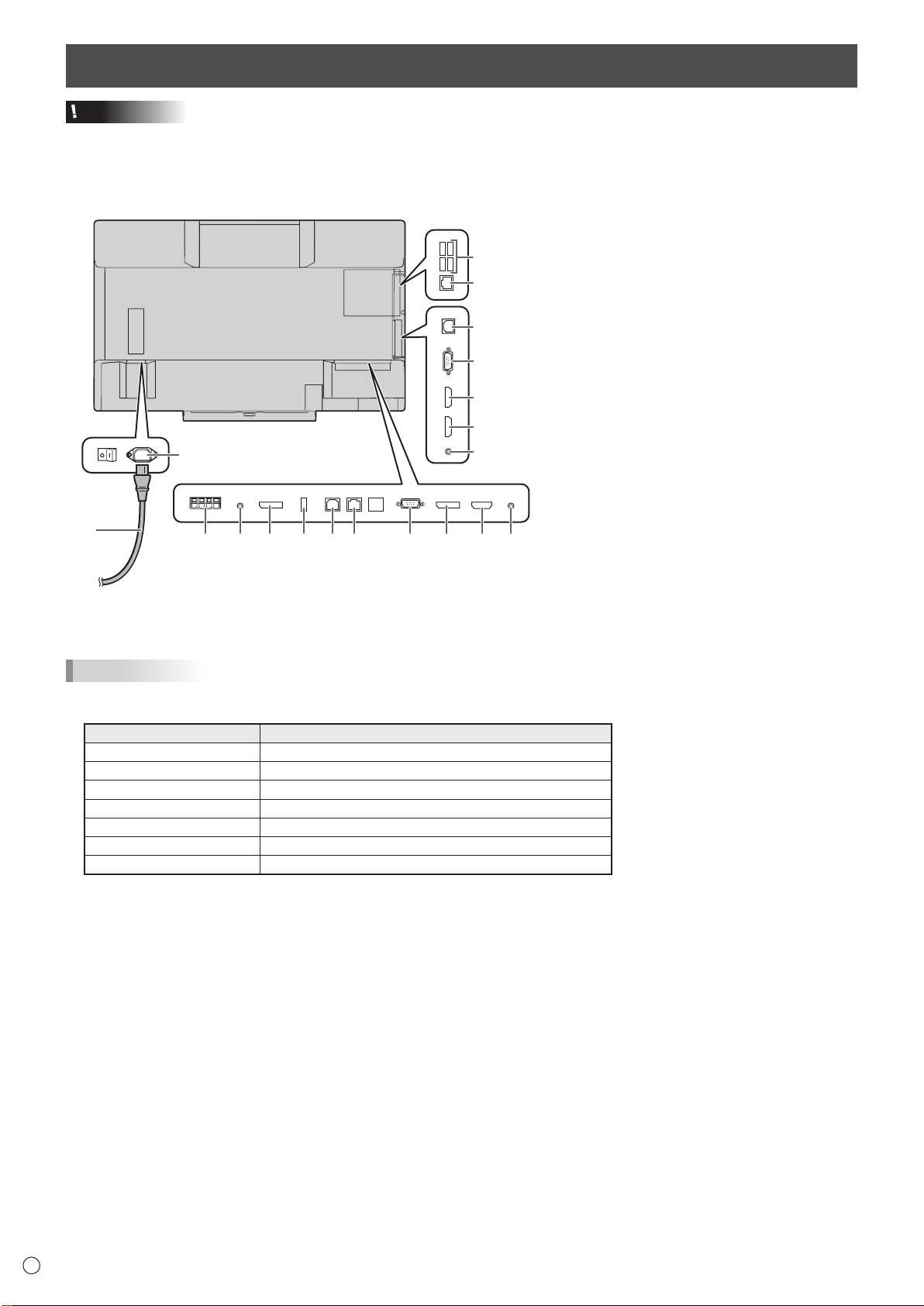
Connections
Caution
• Be sure to turn off the main power switch and disconnect the plug from the power outlet before connecting/disconnecting
cables. Also, read the manual of the equipment to be connected.
• Be careful not to confuse the input terminal with the output terminal when connecting cables. Accidentally reversing cables
connected to the input and output terminals may cause malfunctions and the other problems.
TIPS
• Set the audio input terminal to be used in each input mode in AUDIO SELECT on the SETUP menu. The factory settings are
shown below.
Input mode Audio input terminal (Factory setting)
D-SUB1 Audio1 input terminal
D-SUB2 Audio2 input terminal
DisplayPort DisplayPort input terminal
HDMI1 HDMI 1 input terminal
HDMI2 HDMI 2 input terminal
HDMI3 HDMI 3 input terminal
WHITEBOARD WHITEBOARD
• To use the touch panel with a computer connected to the monitor, the touch panel and computer must be connected, and
Touch Panel Settings Tool, Touch Pen Utility, and Pen Software must be installed on the computer from the provided CD-
ROM.
To install the software, see the manual for each.
• To use a touch panel with a computer connected to the bottom, connect to the USB 1 port.
To use a touch panel with a computer connected to the side, connect to the USB 2 port.
(Factory setting. Can be changed in TOUCH INPUT SELECT in the SETUP menu.)
• The terms HDMI and HDMI High-Denition Multimedia Interface, and the HDMI Logo are trademarks or registered trademarks
of HDMI Licensing LLC in the United States and other countries.
• DisplayPort is a registered trademark of Video Electronics Standards Association.
E
6
18
19
13
14
15
16
1
17
2
345678 91110 12
For power outlet
1. AC input terminal
2. Power cord (Supplied)
3. External speaker terminals
4. Audio output terminal
5. DisplayPort output terminal
6. Touch pen adapter port
7. USB 1 port
8. LAN terminal
9. D-sub 1 input terminal
10. DisplayPort input terminal
11. HDMI 1 input terminal
12. Audio 1 input terminal
13. USB 2 port
14. D-sub 2 input terminal
15. HDMI 2 input terminal
16. HDMI 3 input terminal
17. Audio 2 input terminal
WHITEBOARD mode terminals
18. USB ports
19. LAN terminal
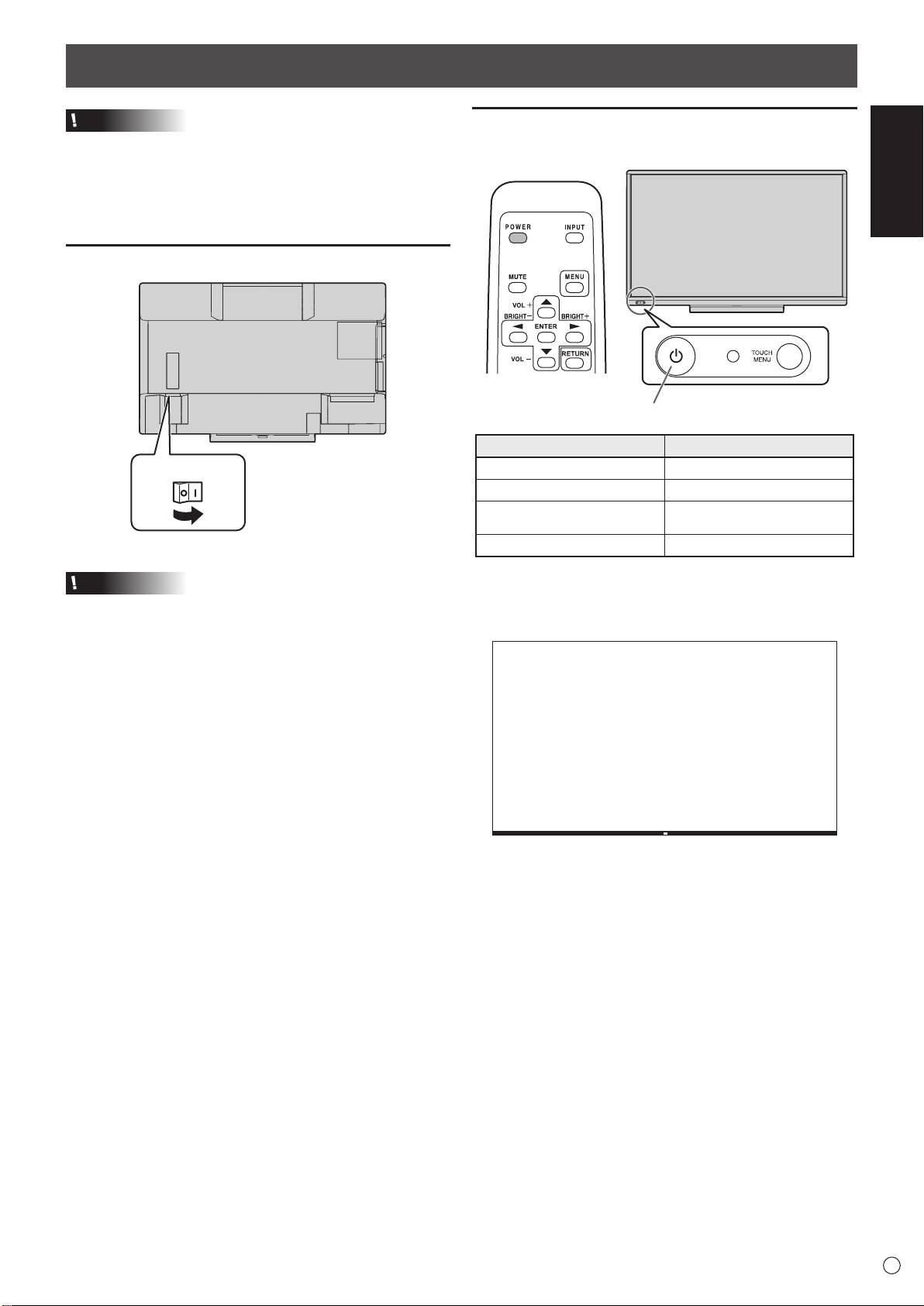
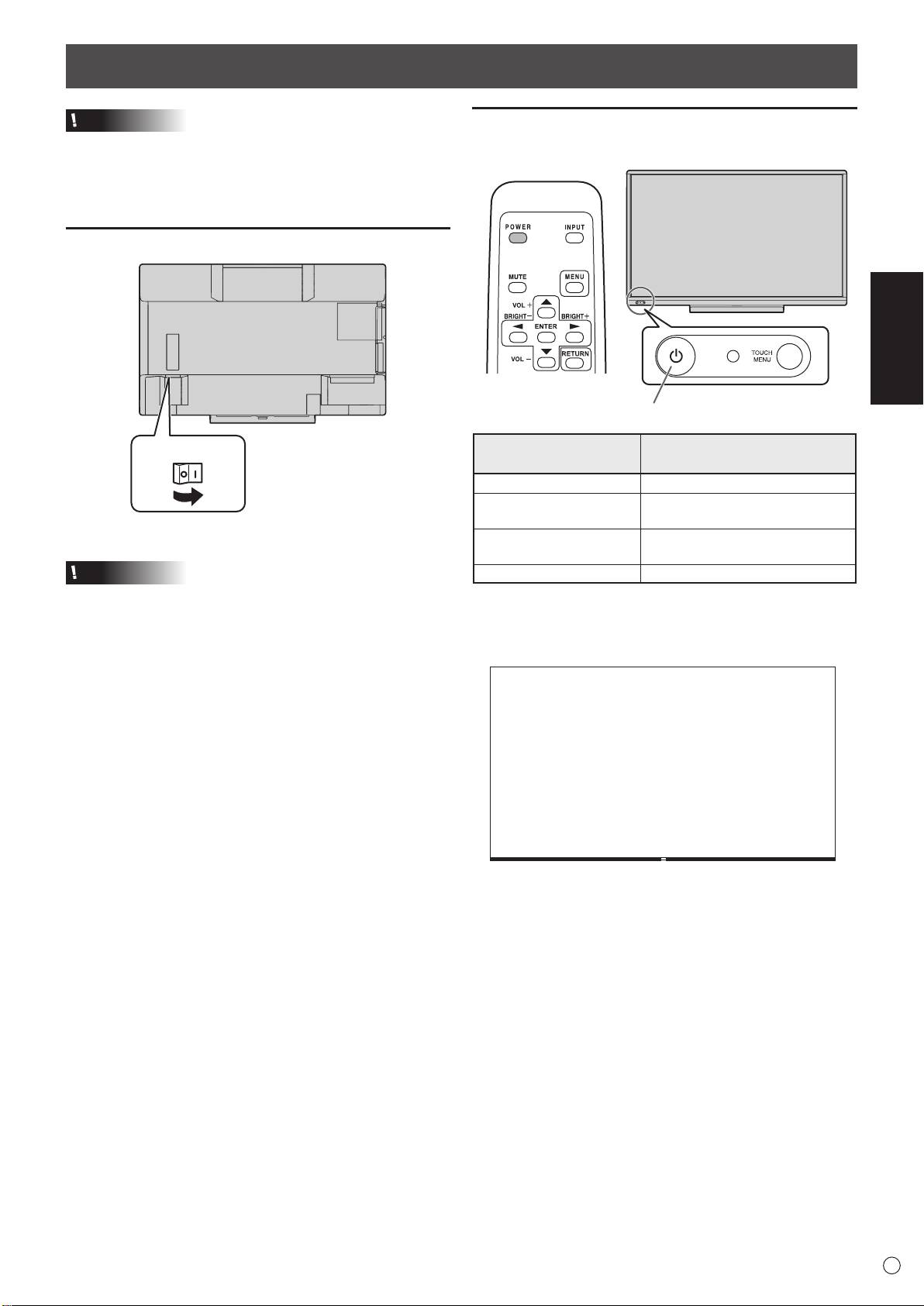
Turning Power On/Off
Caution
ENGLISH
• Turn on the monitor rst before turning on the computer or
playback device.
• To keep the performance of the WHITEBOARD stable, put
the monitor in the Power off (Standby mode) state once a
day.
Turning on the main power
7
E
Main power switch
Turning power on
1. Press the POWER button.
The monitor enters the Power off (Standby mode) state.
Caution
• The main power must be turned on/off with the main power
switch. Do not connect/disconnect the power cord or turn
the breaker on/off while the main power switch is on.
• When switching the main power switch or the POWER
button off and back on, always wait for at least 5 seconds.
• For a complete electrical disconnection, pull out the main
plug.
• Before switching off the main power switch, always put the
monitor in the Power off (Standby mode) state. (Hold down
the POWER button until the exit screen appears.)
POWER button / Power LED
Status Status of the monitor
Green lit Power on
Orange lit Power off (Standby mode)
Power off
Orange ashing
(Whiteboard standby mode)
Green ashing Input signal waiting mode
• The WHITEBOARD appears.
(Factory setting. Can be changed in START INPUT MODE
in the SETUP menu.)
n
Operation mode
n
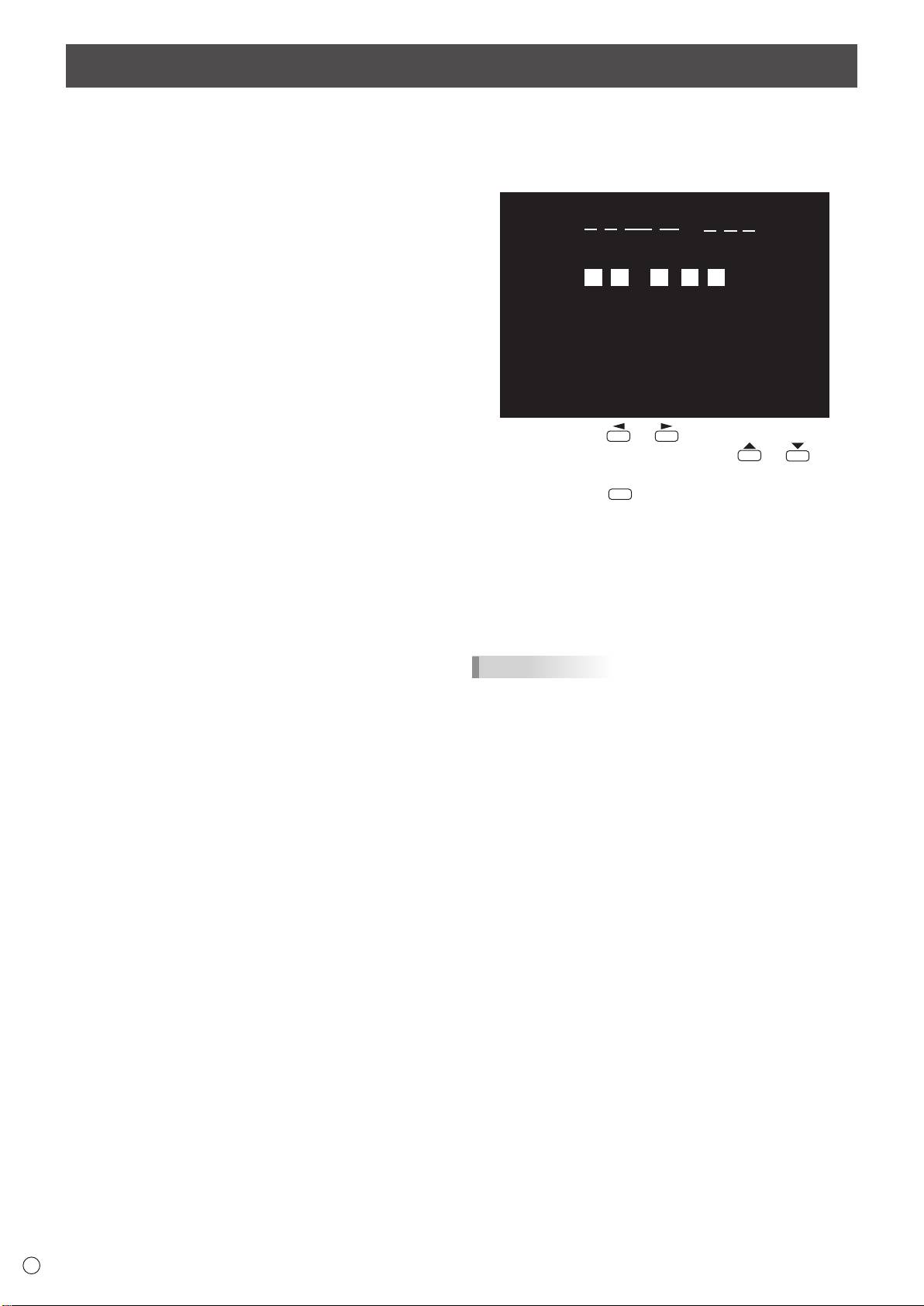
Date/time setting
When the monitor is turned on for the rst time after being
• If the time has yet to be set when the monitor is rst turned
shipped from the factory, the operation mode setting screen
on, the date/time setting screen appears. Set the date and
will be displayed. Set it to MODE1 or MODE2.
time.
MODE1 ... OFF IF NO OPERATION is set to ON, and
STANDBY MODE is set to LOW POWER. (These
settings can not be changed.)
Determines whether or not to set the monitor to go
into standby mode when there is no operation from
the remote control unit, or LAN for over 4 hours.
Power consumption in standby mode is also
minimized.
MODE2 ... Will perform standard operation.
OFF IF NO OPERATION is set to OFF, and
STANDBY MODE is set to STANDARD. These
settings can be changed.
Even after being set, changes can be made using
OPERATION MODE, located in the menu of the monitor. (See
Operation manual.)
E
8
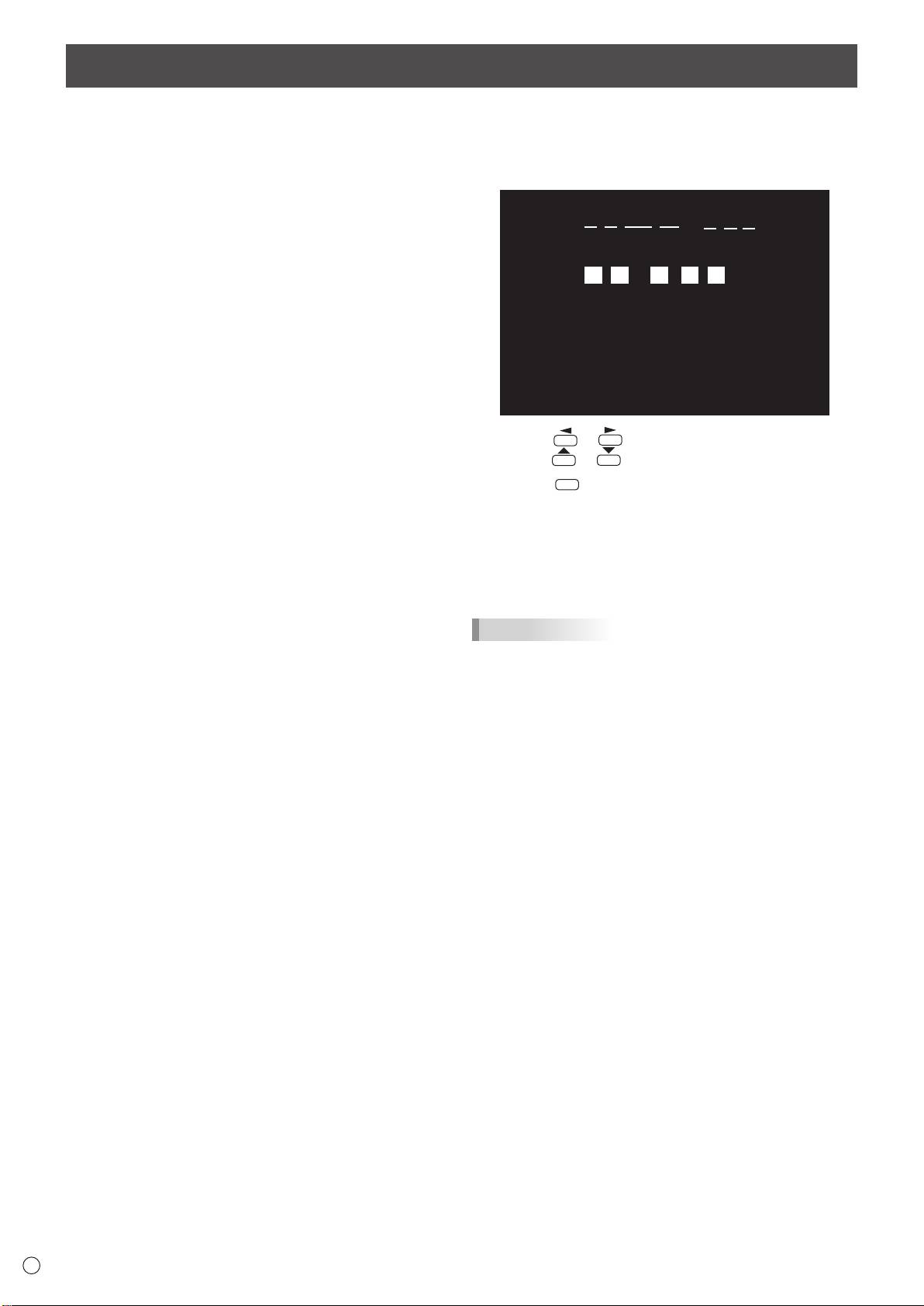
DATE/TIME SETTING
//
: :
01 01 14
/
00 00
:/ 20
OK···[ENTER] CANCEL···[RETURN]
1. Press or to select the date and time, and
press
or to change the numerical values.
2. Press
ENTER
Turning Power On/Off (Continued)
.
• Be sure to set the date and time.
• The date/time setting screen will close automatically if
no operation is performed for about 15 seconds. The
date and time can be set using DATE/TIME SETTING
from the SETUP menu when the date/time setting screen
disappears.
TIPS
•
Set the date in “Day/Month/Year” order.
•
Set the time on a 24-hour basis.
•
The clock is maintained by the internal battery.
•
If you already set the time but the date/time setting
screen appears when the power is turned on, the
internal battery may be exhausted. Please contact
your local SHARP servicing dealer or service center for
assistance with battery replacement.
•
Estimated service life of the internal battery: About 5
years (depending on monitor operation)
•
The initial battery was inserted at the factory when the
monitor was shipped, so it may run out of power before
its expected operation life.
Turning Power On/Off (Continued)
ENGLISH
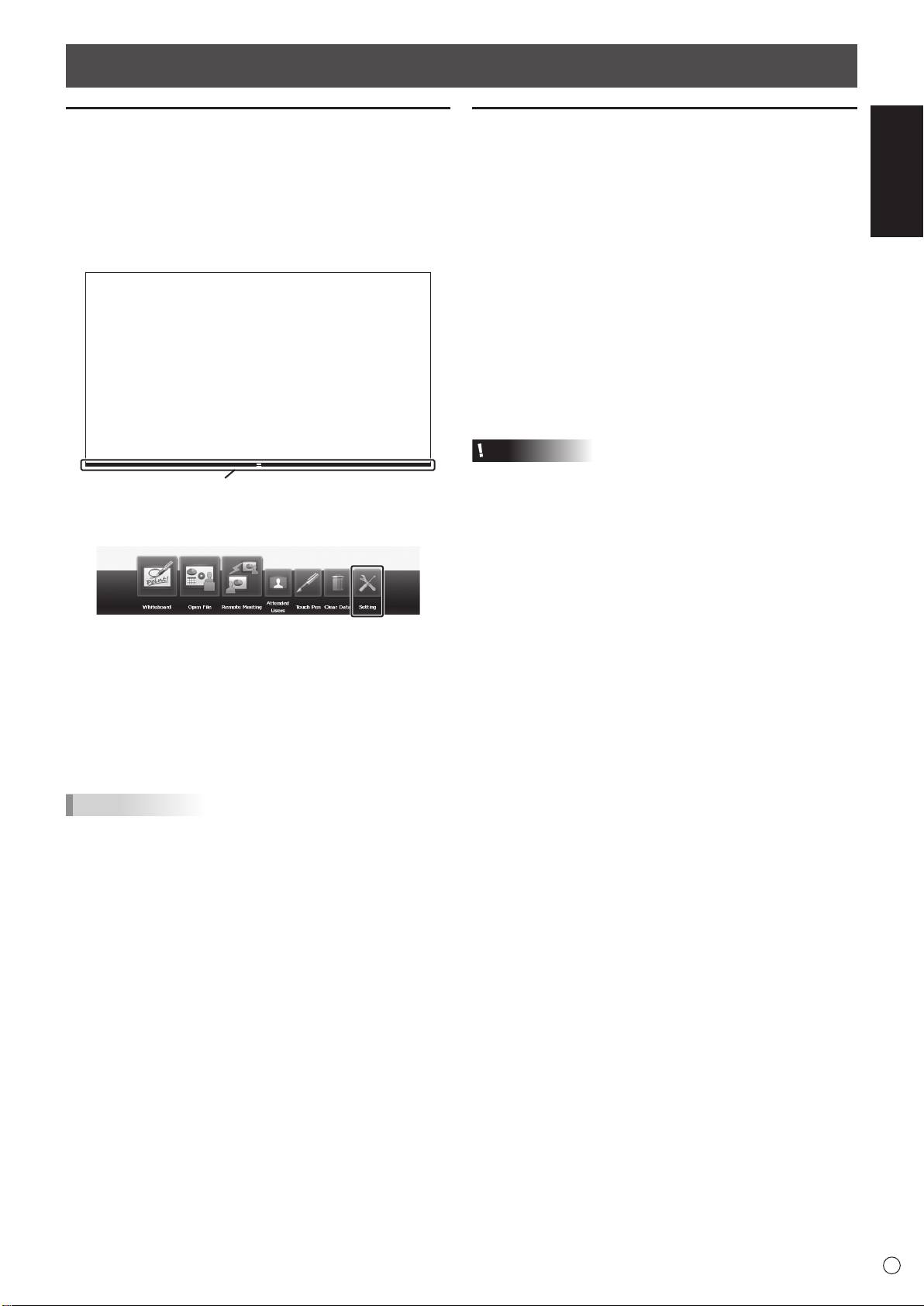
Calibration
Turning power off
Calibration is used to perform position alignment so that the
The power can be turned off in the following ways.
mouse cursor moves to the correct position when the screen
is touched.
(1) Press the POWER button.
Before initial use, perform calibration.
The monitor enters whiteboard standby mode.
This method allows faster startup and shutdown than (2),
1. Set the input to WHITEBOARD.
however, more power is consumed while in standby mode.
2. Touch the launch button.
(2) Hold down the POWER button until the exit screen
appears.
The monitor enters standby mode. The WHITEBOARD is
in the shutdown state. More time is required for shutdown
and startup than (1), however, less power is consumed in
standby mode.
Before switching off the main power switch, always put the
monitor in the Power off (Standby mode) state.
Caution
•
When the power is turned off, any data on the WHITEBOARD
Launch button
is lost. If there is unsaved data, a message will appear prior
to shutdown. Save the data.
The launcher appears.
• If the monitor will be turned off by SCHEDULE, LAN
3. Touch [Setting].
control, or OFF IF NO OPERATION, save any data you
need in advance. The power will turn off even if there is
unsaved data. (The data will be lost.)
• When turning the monitor power on again, wait at least 5
seconds after shutdown is completed.
• Do not disconnect the power cord, open the breaker,
You will be prompted to enter a password.
or switch off the main power switch before shutdown is
4. Enter the password and touch [OK].
nished. Risk of failure.
Enter the password set in the Admin Password. If a
password is not set, enter “00000”.
5. Touch [Admin Settings] and [Calibration].
6. Follow the instructions on the screen to perform
calibration.
TIPS
• If you will be using the touch panel with a computer,
perform calibration from the Touch Panel Settings Tool.
For details, see the Touch Panel Settings Tool Operation
Manual.
9
E
Mounting Precautions (For SHARP dealers and service engineers)
• When installing, removing or moving the monitor, ensure that this is carried out by at least 4 people.
• Be sure to use a wall-mount bracket designed or designated for mounting the monitor.
• This monitor is designed to be installed on a concrete wall or pillar. Reinforced work might be necessary for some materials
such as plaster / thin plastic board / wood before starting installation.
This monitor and bracket must be installed on a wall which can endure at least 4 times or more the weight of the monitor.
Install by the most suitable method for the material and the structure.
• To attach a VESA-compliant mounting bracket, use M6 screws that are 5/16 inch (8 mm) to 3/8 inch (10 mm) longer than the
thickness of the mounting bracket.
• Do not use an impact driver.
• After mounting, please carefully ensure the monitor is secure, and not able to come loose from the wall or mount.
• Do not use any screw holes other than VESA holes for installation.
n
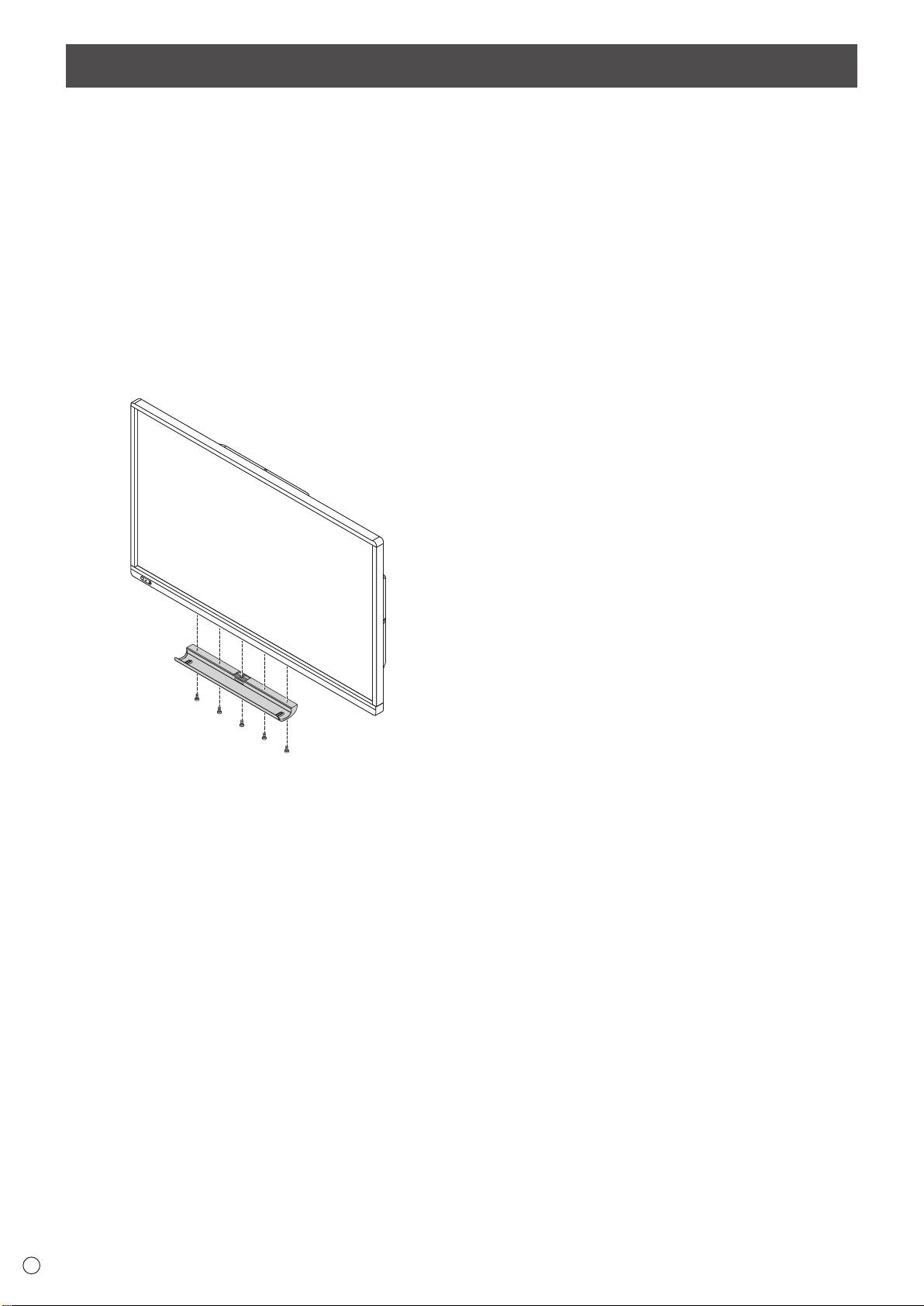
Attaching the Tray
Secure the tray using 5 tray mounting screws (M3) (supplied).
E
10
Table des matières
[FRANÇAIS]
INFORMATION IMPORTANTE .........................................1
Composants fournis ........................................................5
CHER CLIENT ...................................................................1
Préparation de la télécommande et du stylet ...............5
PRÉCAUTIONS DE SÉCURITÉ .......................................2
Connexions ......................................................................6
MESURES DE SÉCURITÉ ................................................3
Mise sous tension et hors tension .................................7
PRÉCAUTIONS POUR LE MONTAGE .............................4
Précautions pour le montage
Caractéristiques ...............................................................4
(À l’attention des revendeurs et techniciens SHARP)
...10
Pour plus de détails concernant l’Utilitaire de stylet, l’Outil de réglages de l’écran tactile, le Pen Software et le Touch Display
FRANÇAIS
Link, reportez-vous au manuel de chacun.
INFORMATION IMPORTANTE
AVERTISSEMENT : POUR RÉDUIRE LE RISQUE D’INCENDIE OU DE DÉCHARGE ÉLECTRIQUE, NE PAS
EXPOSER CE PRODUIT À LA PLUIE OU À LA POUSSIÈRE.
Le symbole représenté par l’éclair à la tête en
ATTENTION
pointe de èche à l’intérieur d’un triangle, est
placé pour alerter l’utilisateur de la présence
RISQUE DE
d’une “tension dangereuse” non isolée à l’intérieur
DÉCHARGE
du produit. Cette tension peut avoir une valeur
ÉLECTRIQUE
sufsante pour constituer un risque
d’électrocution à toute personne.
NE PAS OUVRIR
Le point d’exclamation à l’intérieur d’un triangle
ATTENTION : POUR RÉDUIRE LE RISQUE DE
est placé pour alerter l’utilisateur de la présence
DÉCHARGE ÉLECTRIQUE, NE PAS
d’une procédure particulière ou d’une procédure
RETIRER LE COUVERCLE. IL N’Y A
de maintenance (entretien) importante dans les
AUCUNE PIÈCE RÉPARABLE PAR
manuels accompagnant le produit.
L’UTILISATEUR À L’INTÉRIEUR.
AVERTIR LE PERSONNEL DE
SERVICE QUALIFIÉ POUR TOUTE
PROCÉDURE D’ENTRETIEN.
CHER CLIENT
Nous vous remercions d’avoir acheté cet appareil SHARP à écran LCD. An de garantir le bon fonctionnement de ce moniteur,
nous vous conseillons de lire attentivement cette brochure et de la conserver pour toute référence ultérieure.
1
F

PRÉCAUTIONS DE SÉCURITÉ
L’électricité remplit de nombreuses fonctions utiles, mais elle peut provoquer des blessures et des dégâts matériels si elle n’est
pas utilisée correctement. Cet appareil a été conçu et fabriqué en attachant la plus grande importance à la sécurité. Cependant,
une utilisation inadéquate peut entraîner une décharge électrique et/ou un incendie. An d’éviter tout danger potentiel, veuillez
respecter les consignes suivantes lors de l’installation, de l’utilisation et du nettoyage de l’appareil. An d’assurer votre propre
sécurité et de prolonger la durée de service de votre moniteur LCD, veuillez lire attentivement les précautions ci-dessous avant
d’utiliser l’appareil.
1. Lisez ces explications — Vous devez lire et comprendre toutes les informations relatives au fonctionnement de l’appareil
avant de l’utiliser.
2. Conservez cette brochure dans un endroit sûr — Ces explications concernant la sécurité et le fonctionnement doivent être
conservées dans un endroit sûr pour vous y référer en cas de besoin.
3. Respectez les avertissements — Tous les avertissements gurant sur l’appareil et dans ce mode d’emploi doivent être
strictement respectés.
4. Suivez les instructions — Toutes les explications sur le fonctionnement doivent être respectées.
5. Nettoyage — Débranchez le cordon d’alimentation au niveau de la prise du secteur avant de nettoyer l’appareil.
Servez-vous d’un linge sec, et n’employez pas de détergents liquides ou en atomiseur.
6. Accessoires — N’utilisez pas d’accessoires non recommandés par le fabricant, car ceci pourrait provoquer des accidents.
7. Eau et humidité — N’utilisez pas cet appareil près de l’eau. N’installez pas le produit à un endroit où il pourrait recevoir de
l’eau. Évitez en particulier les emplacements sous les appareils à vidange d’eau tels que les climatiseurs.
8. Ventilation — Des ouïes et autres ouvertures sont prévues dans le coffret de l’appareil pour sa ventilation. Ne recouvrez
pas et ne bouchez pas ces ouvertures car une ventilation insufsante peut provoquer une surchauffe et réduire la durée de
vie de l’appareil. Ne placez pas l’appareil sur un sofa, un tapis ou toute autre surface analogue car ceci pourrait obstruer
les ouvertures de ventilation. Cet appareil n’est pas conçu pour une installation encastrée; ne le placez donc pas dans
un endroit fermé comme une bibliothèque ou une baie à moins qu’une ventilation adéquate ne soit prévue et que les
consignes du fabricant ne soient respectées.
9. Protection du cordon d’alimentation — Faites passer les cordons d’alimentation à un endroit où ils ne seront pas écrasés
ou coincés par d’autres objets.
10. L’écran utilisé dans ce produit est en verre et, par conséquent, il peut se briser si l’appareil tombe ou s’il reçoit un fort
impact. Veillez à ne pas être blessé par les éclats de verre au cas où l’écran se romprait.
11. Surcharge — Ne surchargez pas les prises de courant ou les rallonges car ceci peut entraîner un risque d’incendie ou
d’électrocution.
12. Insertion de solides ou de liquides — N’introduisez jamais des objets par les orices de cet appareil, car ils pourraient
provoquer une électrocution et/ou un court-circuit en touchant des pièces internes sous haute tension.
Pour la même raison, ne renversez jamais de l’eau ou un liquide sur l’appareil.
13. Entretien — N’essayez pas de réparer vous-même l’appareil. La dépose des couvercles peut vous exposer à une haute
tension ou à d’autres dangers. Conez toute réparation à un personnel qualié.
14. Réparation — Dans les cas suivants, débranchez le cordon d’alimentation au niveau de la prise secteur et demandez à un
personnel qualié d’effectuer les réparations.
a. Dégât sur le cordon ou la prise de courant.
b. Inltration d’un liquide ou pénétration d’un objet à l’intérieur de l’appareil.
c. Exposition de l’appareil à la pluie ou à l’eau.
d. Fonctionnement anormal malgré une conformité aux explications du mode d’emploi.
Ne réglez que les commandes dont il est fait mention dans le mode d’emploi. Un réglage incorrect des autres
commandes peut provoquer des dégâts qui nécessiteraient des réparations complexes par un technicien spécialisé.
e. Chute ou dégâts subis par l’appareil.
f. Tout changement notoire ou situation anormale de l’appareil indique qu’une réparation est nécessaire.
15. Pièces de rechange — Lorsque des pièces doivent être remplacées, assurez-vous que le technicien a utilisé les pièces
spéciées par le fabricant ou des pièces dont les performances et les caractéristiques sont identiques. Des changements
non autorisés de pièces peuvent entraîner un incendie, une électrocution et/ou d’autres dangers.
16. Contrôles de sécurité — Après une intervention d’entretien ou de réparation, demandez au technicien de procéder à un
contrôle pour être sûr que l’appareil peut être utilisé en toute sécurité.
17. Installation sur paroi — Si l’appareil doit être xé sur une paroi, installez-le en respectant la méthode recommandée par le
fabricant.
18. Sources de chaleur — Tenez l’appareil à l’écart de sources de chaleur, telles que radiateurs, dispositifs de chauffage,
poêles et autres appareils dégageant de la chaleur (y compris les amplicateurs).
19. Piles — Une utilisation incorrecte des piles peut les faire éclater ou prendre feu. Une pile qui fuit peut causer des corrosions
dans l’équipement, des salissures aux mains ou abîmer vos vêtements. An d’éviter ces problèmes, assurez-vous que les
précautions suivantes sont appliquées :
• Utilisez seulement des piles prescrites.
• Installez les piles en faisant bien attention aux polarités plus (+) et moins (-) des piles selon les instructions dans le
compartiment.
• Ne mélangez pas des piles usagées avec des neuves.
• Ne mélangez pas des piles de différents types. Les spécications de voltage des piles de même forme peuvent varier.
• Remplacez rapidement une pile épuisée par une nouvelle.
• Si vous n’avez pas l’intention d’utiliser la télécommande pendant une longue période, retirez les piles.
• Si le liquide provenant d’une pile qui fuit touche votre peau ou vos habits, rincez immédiatement et complètement
les parties touchées. Si un œil est touché, faites immédiatement un bain d’œil plutôt que de le frotter et cherchez
immédiatement un traitement médical. Le liquide provenant de la fuite d’une pile qui atteint votre œil ou vos habits peut
causer une irritation de la peau ou des dommages à votre œil.
20. L’utilisation de ce moniteur ne doit pas entraîner des risques mortels ou des dangers qui pourraient provoquer directement
la mort, des blessures sur le personnel, des dommages physiques sévères ou d’autres destructions, y compris dans le
contrôle des réactions nucléaires dans les installations nucléaires, dans le système médical de réanimation, et dans le
contrôle de lancement des missiles dans les systèmes d’armes.
F
2
PRÉCAUTIONS DE SÉCURITÉ (Suite)
21. N’entrez pas en contact direct avec les parties du produit ayant chauffé pendant de longues périodes. Il pourrait en résulter
des brûlures à basse température.
AVERTISSEMENT :
Il s’agit d’un appareil de classe A. Dans un environnement résidentiel, cet appareil peut provoquer des interferences
radioélectriques. Dans ce cas, il peut être demandé à l’utilisateur de prendre des mesures appropriées.
An de satisfaire aux normes EMC, utiliser des câbles blindés pour connecter les bornes suivantes : Borne d’entrée HDMI,
borne d’entrée D-sub, et bornes d’entrée/sortie DisplayPort.
FRANÇAIS
Un moniteur placé sur un support instable est dangereux en raison des risques de chute qu’il présente. De nombreuses
blessures, touchant en particulier les enfants, peuvent être évitées en prenant quelques précautions simples :
• Utiliser les dispositifs de xation tels que les supports muraux fournis par le fabricant.
• Utiliser uniquement des meubles capables d’accueillir le moniteur en toute sécurité.
• Vérier que le moniteur ne dépasse pas du bord du meuble sur lequel il est posé.
• Ne pas placer le moniteur sur des meubles hauts, armoires ou étagères, par exemple, sans xer le meuble concerné et le
moniteur à un support approprié.
• Ne pas intercaler de tissu ou toute autre matière entre le moniteur et le meuble sur lequel il est posé.
• Expliquer aux enfants qu’il est dangereux de grimper sur les meubles pour atteindre le moniteur ou ses boutons de
commande.
En particulier pour la sécurité des enfants
- Ne laissez pas les enfants grimper sur ou jouer avec le moniteur.
- Ne placez pas le moniteur sur des meubles qui peuvent facilement se transformer en marches comme une commode avec
tiroirs.
- Souvenez-vous que les enfants s’excitent souvent en visionnant un programme, surtout sur un moniteur « plus grand que la
normale ». Il faut faire en sorte d’installer le moniteur là où il ne peut pas être poussé, tiré, ni basculé.
- Il faut faire en sorte de placer les ls et les câbles connectés au moniteur de façon à ce que des enfants curieux ne puissent
pas les tirer ni les saisir.
MESURES DE SÉCURITÉ
-
N’utilisez pas le moniteur dans un endroit où il y a beaucoup
Le cordon d’alimentation
de poussières, où le degré d’humidité est élevé, ou encore
- Utilisez seulement le cordon d’alimentation fourni avec le
là où il pourrait se trouver en contact avec de l’huile ou de
moniteur.
la vapeur. Ne l’utilisez pas non plus dans un environnement
- N’endommagez pas le cordon d’alimentation, ne déposez
contenant des gaz corrosifs (dioxyde de soufre, sulfure
pas d’objets lourds sur le cordon d’alimentation, ne tirez
d’hydrogène, dioxyde d’azote, chlore, ammoniac, ozone,
pas dessus et ne le pliez pas de manière excessive. De
etc.). Cela pourrait provoquer un début d’incendie.
même, n’ajoutez pas de rallonges. Tout endommagement
- Assurez-vous que le moniteur ne se trouve pas en contact
du cordon d’alimentation peut provoquer un début
avec de l’eau ou d’autres uides. Assurez-vous qu’aucun
d’incendie ou un choc électrique.
objet tel que des agrafes et des trombones ne pénètre
- Ne branchez pas le cordon d’alimentation sur une prise
dans le moniteur, car cela pourrait provoquer un début
multiple. Ajouter une rallonge peut entraîner une surchauffe
d’incendie ou un choc électrique.
et provoquer un début d’incendie.
- N’installez pas le moniteur au dessus des objets instables
ou dans des endroits peu sûrs. Faites attention que le
- Ne débranchez pas ni ne branchez la prise d’alimentation
moniteur ne reçoive pas de chocs violents ni de fortes
avec des mains humides. En ce faisant, vous risquez un
vibrations. Provoquer la chute du moniteur ou le culbuter
choc électrique.
peut l’endommager.
-
Débranchez le cordon d’alimentation si l’équipement n’est pas
- N’utilisez pas le moniteur à proximité d’un appareil de
utilisé pendant une longue période.
chauffage ou dans des endroits où la température est
- Ne tentez pas de réparer le cordon d’alimentation s’il est
élevée, car cela pourrait conduire à un dégagement
coupé ou s’il ne fonctionne pas correctement. Veuillez
excessif de chaleur et provoquer un début d’incendie.
prendre contact avec le service après vente et suivre ses
- N’utilisez pas le moniteur dans des endroits exposés
recommandations.
directement à la lumière du soleil.
- La prise de secteur doit être installée près de l’équipement
et être facilement accessible.
- Ne faites pas fonctionner l’écran avec un objet rigide ou
pointu tel qu’un ongle ou un crayon.
3
F
PRÉCAUTIONS POUR LE MONTAGE
• Ce produit est destiné à être utilisé en intérieur.
• Un support de montage conforme aux spécications VESA
est nécessaire.
•
Comme le moniteur est lourd, consultez votre revendeur avant
l’installation, le démontage ou le déplacement du moniteur.
• Le montage du moniteur sur le mur demande des
compétences techniques spéciales et le travail doit être
fait par un revendeur agréé par SHARP. Vous ne devez
jamais tenter de faire ce travail vous-même. Notre société
déclinera toute responsabilité pour les accidents ou
blessures causés par un montage incorrect ou par une
mauvaise manipulation.
• Utilisez le moniteur perpendiculairement à la surface
horizontale. Si nécessaire, vous pouvez incliner le moniteur
de 20 degrés vers le haut au maximum.
• Lorsque vous déplacez le moniteur, assurez-vous de
le saisir par les poignées et sur le bas de l’unité. Ne le
saisissez pas par l’écran ou le plateau. Ceci pourrait causer
une panne, un dysfonctionnement ou une blessure.
•
Ce moniteur doit être utilisé sous une température ambiante
entre 5°C et 35°C. Laissez assez d’espace autour du moniteur
pour empêcher que la chaleur ne s’accumule à l’intérieur.
F
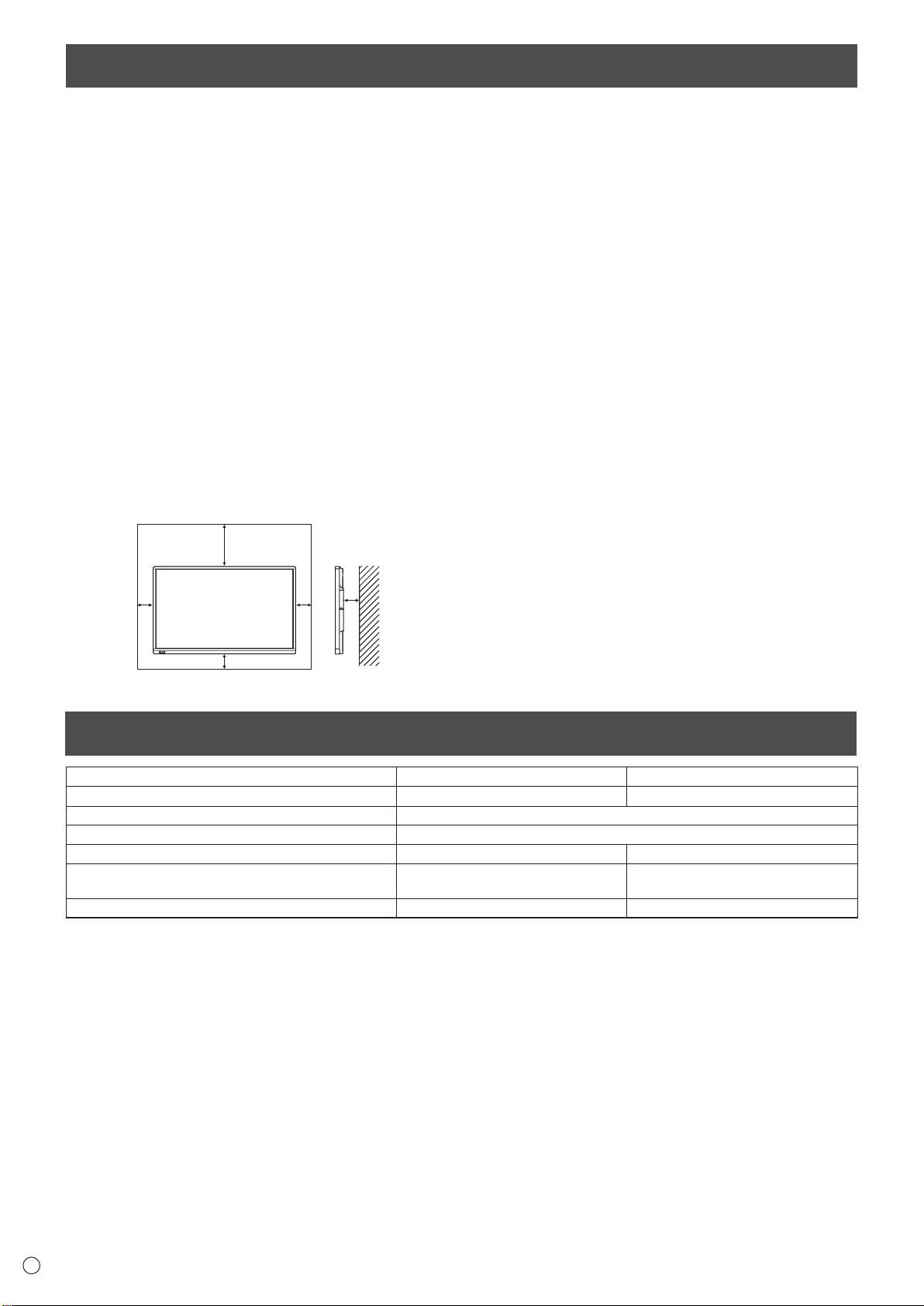
4
Unité : cm
20
3,5
55
5
• S’il est difficile de laisser un espace suffisant pour une
raison ou pour une autre (installation du moniteur dans une
enceinte, par exemple) ou si la température ambiante est
susceptible de dépasser la plage de valeurs prévue (de 5 à
35°C), installez un ventilateur ou prenez d’autres mesures
appropriées pour maintenir la température ambiante dans
la plage de valeurs requise.
•
La température de fonctionnement du moniteur peut être
différente de celle des accessoires additionnels recommandés
par SHARP. Lorsque c’est le cas, veuillez vérifier la
température de fonctionnement des accessoires additionnels.
•
Ne bloquez pas les ouvertures de ventilation. Si la température dans
le moniteur s’élève, ceci pourrait causer un dysfonctionnement.
•
Ne placez le moniteur sur un équipement qui dégage de la chaleur.
• N’utilisez pas le produit à des endroits où l’unité est
exposée aux rayons directs du soleil ou à un autre
éclairage puissant. Comme ce produit fonctionne avec des
rayons infrarouges, une telle lumière risque de causer des
dysfonctionnements.
• Lorsque vous utilisez plusieurs moniteurs à proximité l’un
de l’autre, assurez vous que que les transmetteur/récepteur
infrarouge ne se parasitent pas.
Caractéristiques
Modèle PN-70TA3 PN-60TA3
Alimentation CA 100 V - 240 V,
3,0 A
, 50/60 Hz CA 100 V - 240 V,
2,5 A
, 50/60 Hz
Température de fonctionnement * 5°C à 35°C
Hygrométrie de fonctionnement 20 % à 80 % (sans condensation)
Consommation électrique (Maximum) 250 W 210 W
Dimensions (mm)
Environ 1647 (L) x 94 (P) x 1010 (H) Environ 1437 (L) x 94 (P) x 890 (H)
(à l’exclusion des éléments qui dépassent)
Poids (kg) Environ 61 Environ 48
*
La température de fonctionnement du moniteur peut être différente de celle des accessoires additionnels recommandés par SHARP.
Lorsque c’est le cas, veuillez vérier la température de fonctionnement des accessoires additionnels.
SHARP se réserve le droit d’apporter sans préavis des modications à la présentation et aux caractéristiques des appareils an
d’amélioration. Les valeurs indiquées dans ce document sont les valeurs nominales des appareils de série mais de légères différences peuvent
être constatées d’un appareil à l’autre.
Composants fournis
Si un composant venait à manquer, veuillez contacter votre revendeur.
Moniteur à cristaux liquides : 1
CD-ROM (Utility Disk) : 1
Gomme : 1
Télécommande : 1
CD-ROM (Touch Display Link) : 1
Support de la caméra : 1
Cordon d’alimentation
Licence du Touch Display Link: 1
Vis de la caméra (letage en 2,5 cm) : 1
Pile de la télécommande
Manuel d’Installation (ce manuel) : 1
Vis de l’adaptateur de stylet
(R-6 (format “AA”)) : 2
Stylet (PN-ZL02) : 1
(vis de butée, M3) : 1
Serre-câble : 3
Adaptateur de stylet (PN-ZL01) : 1
Vis de montage de plateau (M3) : 5
Pointe du stylet (pour le stylet) : 2
Logo SHARP sur le couvercle : 1
Pile de stylet
Placez cet autocollant sur le logo SHARP
(LR-03 (format “AAA”)) : 1
Serre-câble (type d’insertion) : 2
pour le couvrir.
Plateau : 1
Câble USB : 1
FRANÇAIS
* SHARP Corporation détient les droits d’auteur du programme de l’Utility Disk. Veuillez ne pas le reproduire sans autorisation
de la société.
* Pensez à votre environnement !
Ne pas jeter les piles avec les ordures ménagères, exige un traitement spécial.
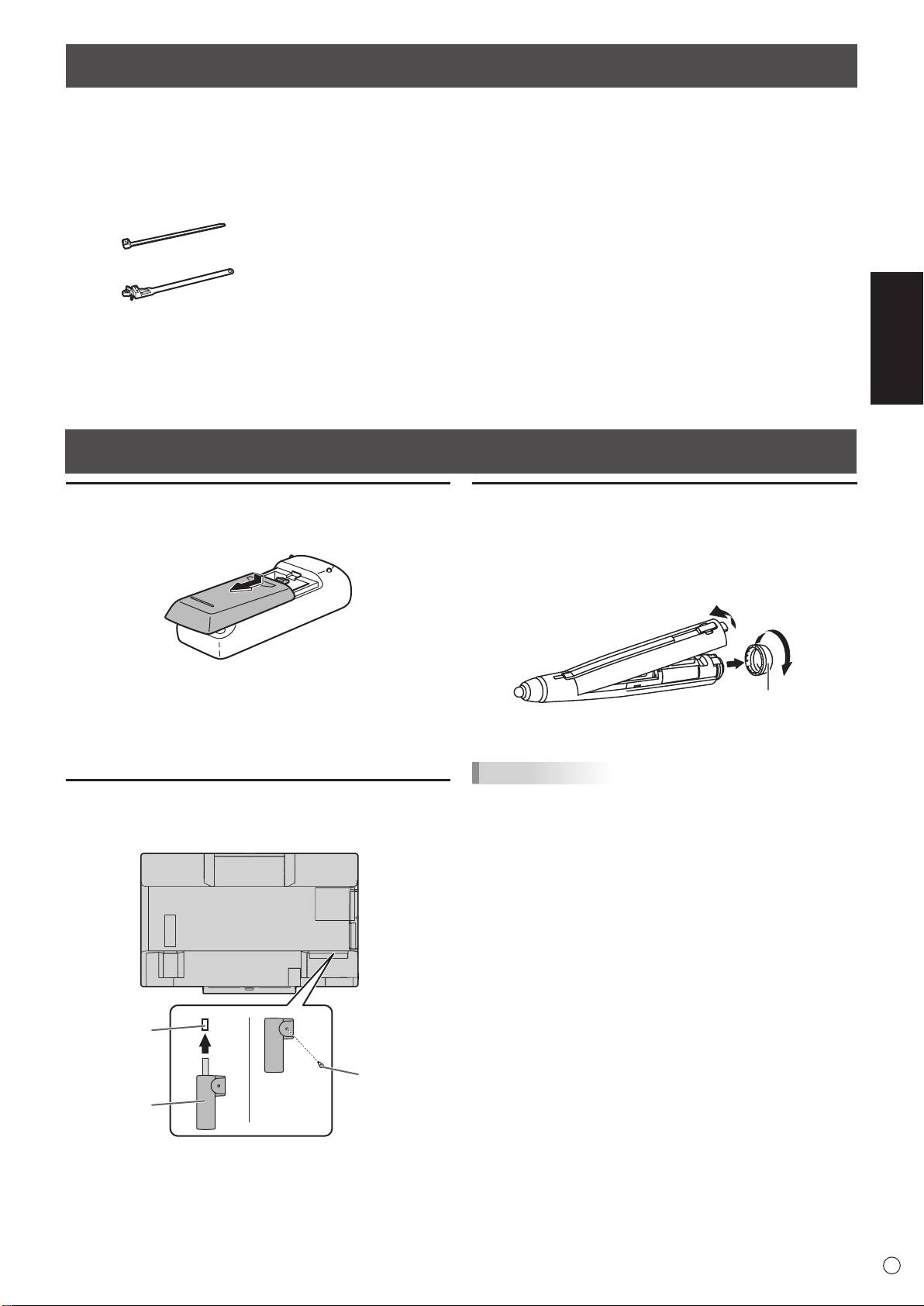
Préparation de la télécommande et du stylet
Mise en place des piles
1. Appuyez doucement sur le capot et faites le glisser dans la
direction de la èche.
2. Reportez-vous aux instructions dans le compartiment et
insérez les piles fournies (2 piles du format R-6,
ou “AA”) avec leurs pôles positifs (+) et négatifs (-) orientés
correctement.
3. Refermer le capot.
Connexion de l’adaptateur de stylet
Pour utiliser le stylet, insérez l’adaptateur de stylet dans le
port de l’adaptateur de stylet sur le moniteur.
5
F
Port de
l’adaptateur
de stylet
Vis de
l’adaptateur
de stylet
Adaptateur
(antivol)
de stylet
Insertion de la pile
1. Retirez le couvercle de pile.
2. Ouvrez le couvercle et insérez la pile fournie (LR-03 (format
“AAA”)) dans le stylet.
Vériez les repères “+” et “-” à l’intérieur du stylet et
orientez correctement la pile.
2
1
Couvercle de pile
3. Replacez le couvercle et le couvercle de pile.
Conseils
• L’étalonnage doit être effectué avant la première utilisation
du stylet.
• Pour utiliser un stylet optionnel avec le moniteur, il doit être
enregistré dans l’adaptateur de stylet. (appairage)
Pour plus de détails, reportez-vous au Mode d’emploi.
Connexions
Attention
• Veillez à bien mettre hors tension l’interrupteur principal puis débranchez la prise de l’alimentation secteur avant de connecter
ou de déconnecter les câbles. Lisez également le manuel de l’équipement à connecter.
•
Veillez à ne pas confondre la borne d’entrée avec la borne de sortie quand vous connectez les câbles. En confondant les câbles
branchés aux bornes d’entrée et de sortie, vous pouvez causer des dysfonctionnements et d’autres problèmes.
Conseils
• Sélectionnez la borne d’entrée audio à utiliser dans chaque mode d’entrée dans le sous-menu AUDIO SELECT <SÉLECTION
ENTRÉE AUDIO> du menu SETUP <INSTALLATION>. Les réglages par défaut sont indiqués ci-dessous.
Mode d’entrée Borne d’entrée audio (paramètre d’origine)
D-SUB1 Borne d’entrée audio 1
D-SUB2 Borne d’entrée audio 2
DisplayPort Borne d’entrée DisplayPort
HDMI1 Borne d’entrée HDMI1
HDMI2 Borne d’entrée HDMI2
HDMI3 Borne d’entrée HDMI3
WHITEBOARD <TABLEAU BLANC> TABLEAU BLANC
• Pour utiliser l’écran tactile avec un ordinateur connecté à ce moniteur, vous devez connecter l’écran tactile à l’ordinateur, et
installer l’Outil de réglages de l’écran tactile, l’Utilitaire de stylet et le Pen Software sur l’ordinateur à partir du CD-ROM fourni.
Pour installer le logiciel, reportez-vous au manuel de chacun.
• Pour utiliser un écran tactile avec un ordinateur connecté dans le bas, connectez-le au port USB 1.
Pour utiliser un écran tactile avec un ordinateur connecté sur le côté, connectez-le au port USB 2.
(Paramètre d’origine. Peut être modié dans TOUCH INPUT SELECT <SÉLECT. ENTRÉE TACTILE> dans le menu SETUP
<INSTALLATION>.)
•
Les termes HDMI et HDMI High Denition Multimedia Interface sont des marques commerciales ou déposées de HDMI Licensing
LLC, aux États-Unis et/ou dans d’autres pays.
• DisplayPort est une marque depose de Video Electronics Standards Association.
F
6
18
19
13
14
15
16
1
17
2
345678 91110 12
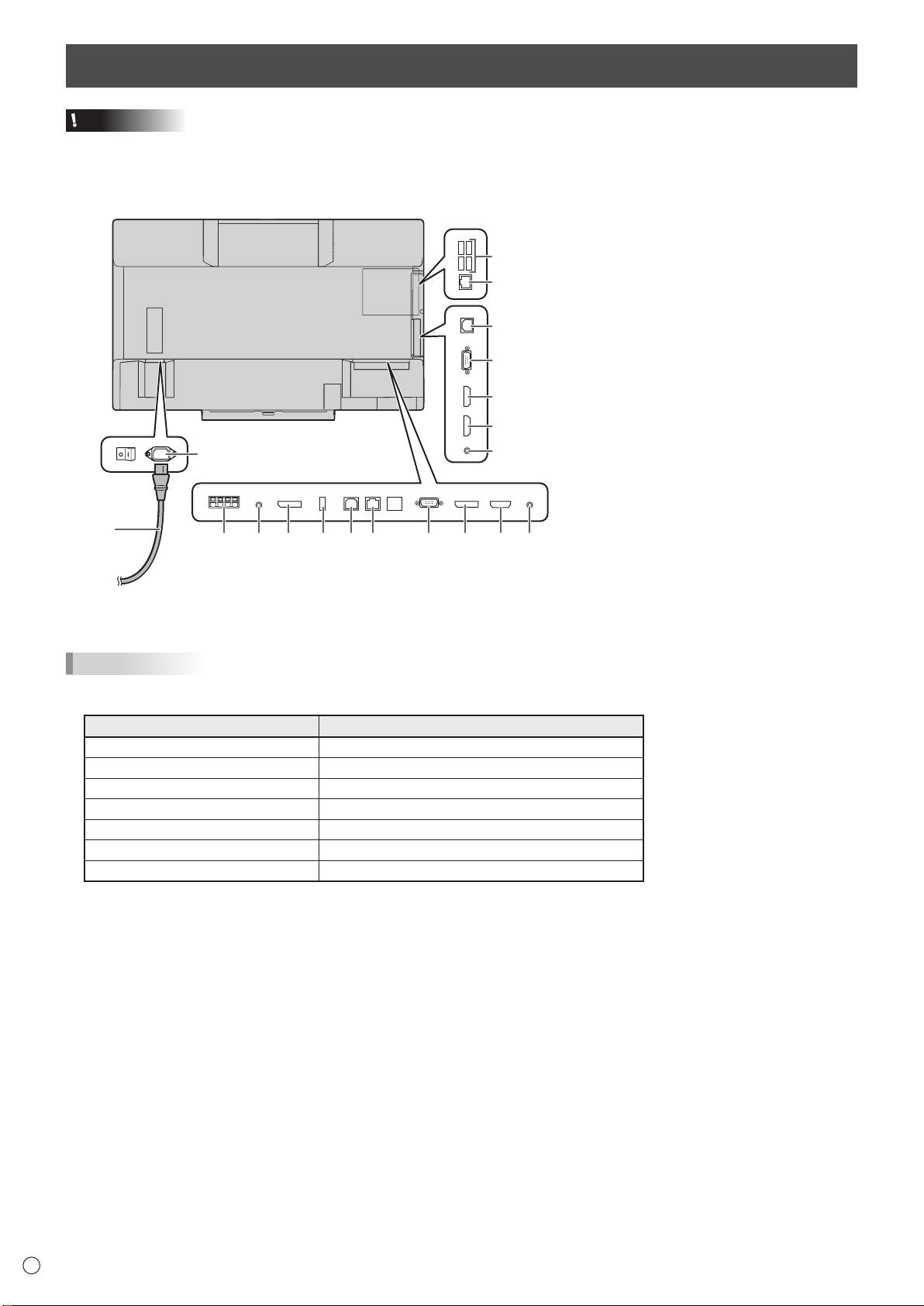
Vers la prise d’alimentation secteur
1. Borne d’entrée secteur
2. Cordon d’alimentation (fourni)
3. Bornes du haut-parleur externe
4. Borne de sortie audio
5. Borne de sortie DisplayPort
6.
Port de l’adaptateur de stylet
7. Port USB 1
8. Borne LAN
9. Borne d’entrée D-sub1
10.
Borne d’entrée DisplayPort
11. Borne d’entrée HDMI1
12. Borne d’entrée audio1
13. Port USB 2
14. Borne d’entrée D-sub2
15. Borne d’entrée HDMI2
16. Borne d’entrée HDMI3
17. Borne d’entrée audio2
Bornes du mode TABLEAU BLANC
18. Ports USB
19. Borne LAN
Attention
• Mettez sous tension le moniteur d’abord avant de mettre
sous tension l’ordinateur ou l’équipement de lecture.
• Pour maintenir les performances du TABLEAU BLANC
stable, éteindre l’écran (mode veille) une fois par jour.
Mise sous tension de l’interrupteur principal
FRANÇAIS
7
F
Interrupteur principal
Mise sous tension
1. Appuyez sur le bouton POWER (alimentation).
Le moniteur entre en power en position arrêt (mode veille).
Attention
• La mise sous/hors doit être effectuée à l’aide de
l’interrupteur d’alimentation. Ne branchez/débranchez pas
le cordon d’alimentation ou ne mettez pas le disjoncteur
sous/hors tension lorsque l’interrupteur d’alimentation est
en position marche.
• Lors de la mise hors tension et de la remise sous tension,
ou lorsque vous appuyez sur l’interrupteur principal ou le
bouton POWER (alimentation), attendez toujours au moins
5 secondes.
• Pour déconnecter complètement l’alimentation électrique,
retirez la che principale de la prise.
• Avant de mettre hors tension l’interrupteur d’alimentation,
mettez toujours le moniteur en power en position arrêt
(mode veille). (Maintenez enfoncé le bouton POWER
(alimentation) jusqu’à l’afchage de l’écran Quitter.)
Bouton POWER (alimentation)
/ Diode d’alimentation
Mise sous tension et hors tension
État État du moniteur
Allumé en vert Power en position marche
Power en position arrêt
Allumé en orange
(mode veille)
Power en position arrêt
Clignotement en orange
(mode veille du tableau blanc)
Clignotement en vert
Mode attente du signal d’entrée
• Le TABLEAU BLANC apparaît.
(Paramètre d’origine. Peut être modié dans START INPUT
MODE <LANCER LE MODE D’ENTRÉE> dans le menu
SETUP <INSTALLATION>.)
n
Mode de fonctionnement
n
Réglage de la date/heure
Lorsque vous allumez votre moniteur pour la première fois,
•
Si l’heure doit être réglée lorsque le moniteur est mis
l’écran de réglage du mode de fonctionnement s’afche. Réglez
sous tension pour la première fois, l’écran de réglage de
le mode de fonctionnement sur MODE1 ou MODE2.
la date/heure apparaît. Réglez la date et l’heure.
MODE1 ... OFF IF NO OPERATION <OFF SI AUCUNE
OPÉRATION> est réglé sur ON, et STANDBY
MODE <MODE VEILLE> est réglé sur LOW POWER
<BASSE CONSOMMATION>. (Ces réglages ne
peuvent pas être modiés.)
Détermine si le moniteur doit se mettre en mode
veille lorsqu’aucune opération n’est effectuée
à partir de la télécommande ou du réseau LAN
pendant plus de 4 heures.
Le mode veille permet de réduire la consommation
d’énergie.
MODE2 ... Permet d’utiliser les fonctions standards.
OFF IF NO OPERATION <OFF SI AUCUNE
OPÉRATION> est réglé sur OFF et STANDBY
MODE <MODE VEILLE> est réglé sur STANDARD.
Ces réglages peuvent être modiés.
Après chaque réglage, il est possible d’effectuer des
changements à partir de OPERATION MODE
<MODE DE
FONCTIONNEMENT>, situé dans le menu du moniteur.
(Voir le
MODE D’EMPLOI.)
F
8
DATE/TIME SETTING
//
: :
01 01 14
/
00 00
:/ 20
OK···[ENTER] CANCEL···[RETURN]
1. Appuyez sur ou pour sélectionner la
date et l’heure, puis appuyez sur
ou pour
changer les valeurs numériques.
2. Appuyez sur
ENTER
Mise sous tension et hors tension (Suite)
.
•
Assurez-vous que la date et l’heure sont réglées.
•
L’écran de réglage de la date/heure va disparaître
automatiquement si aucune opération n’est réalisée
pendant environ 15 secondes. La date et l’heure
peuvent être réglées en utilisant DATE/TIME SETTING
<RÉGLAGE DATE/HEURE> à partir du menu SETUP
<INSTALLATION> lorsque l’écran de réglage de la date/
heure disparaît.
Conseils
• Réglez la date dans l’ordre “Jour/Mois/Année”.
• Réglez l’heure sur la base de 24 heures.
• L’horloge est alimentée par la batterie interne.
• Si vous avez déjà réglé l’heure, mais que l’écran de
réglage de la date/de l’heure apparaît lors de la mise sous
tension, alors la batterie est déchargée. Contactez votre
revendeur SHARP ou votre centre de services local pour le
remplacement de la batterie.
• Durée de vie estimée de la batterie interne : environ 5 ans
(selon le fonctionnement du moniteur)
• La batterie initiale a été insérée en usine avant expédition,
elle risque donc d’être épuisée avant la n de sa durée de
vie normale.
