JVC KD-DV7402: Listening to the iPod
Listening to the iPod: JVC KD-DV7402
Listening to the iPod
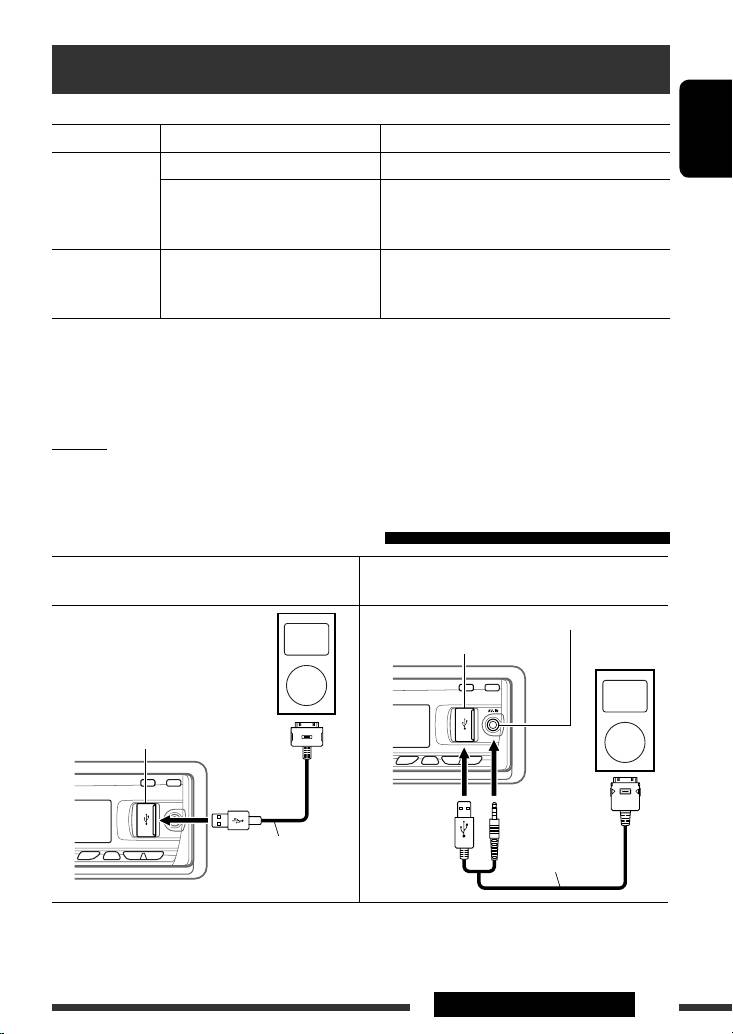
You can connect an Apple iPod using the following cable or adapter:
To: Cable or adapter: Connect to:
ENGLISH
Listen to the
USB 2.0 cable (supplied for the iPod) USB input jack on the control panel
music
Interface adapter for iPod, KS-PD100
CD changer jack on the rear of the unit
(not supplied)
Preparation: Make sure “Changer” is selected for
the external input setting, see page 47.
Watch the video USB Audio and Video cable for iPod,
USB input jack and AV-IN input jack on the control
KS-U19 (not supplied)
panel
• Turn on the monitor to watch the video.
• You can control playback from the unit.
• Disconnecting the iPod will stop playback. Press SOURCE to listen to another playback source.
• For details, refer also to the manual supplied for your iPod.
• See also page 57.
Caution:
• Avoid using the iPod if it might hinder your safety while driving.
• Make sure all important data has been backed up to avoid losing the data.
When connecting with the USB cable
Connect using USB 2.0 cable (supplied for iPod): Connect using USB Audio and Video cable for
iPod, KS-U19 (not supplied):
AV-IN input jack
USB input jack
USB input jack
USB cable supplied
for your iPod
KS-U19 (not supplied)
Playback starts automatically from where it had been paused previously.*
* Not applicable for video files.
Continued on the next page
EXTERNAL DEVICES
37
EN34-43_KD-DV7402_003A_f.indd 37EN34-43_KD-DV7402_003A_f.indd 37 1/31/08 2:22:36 PM1/31/08 2:22:36 PM
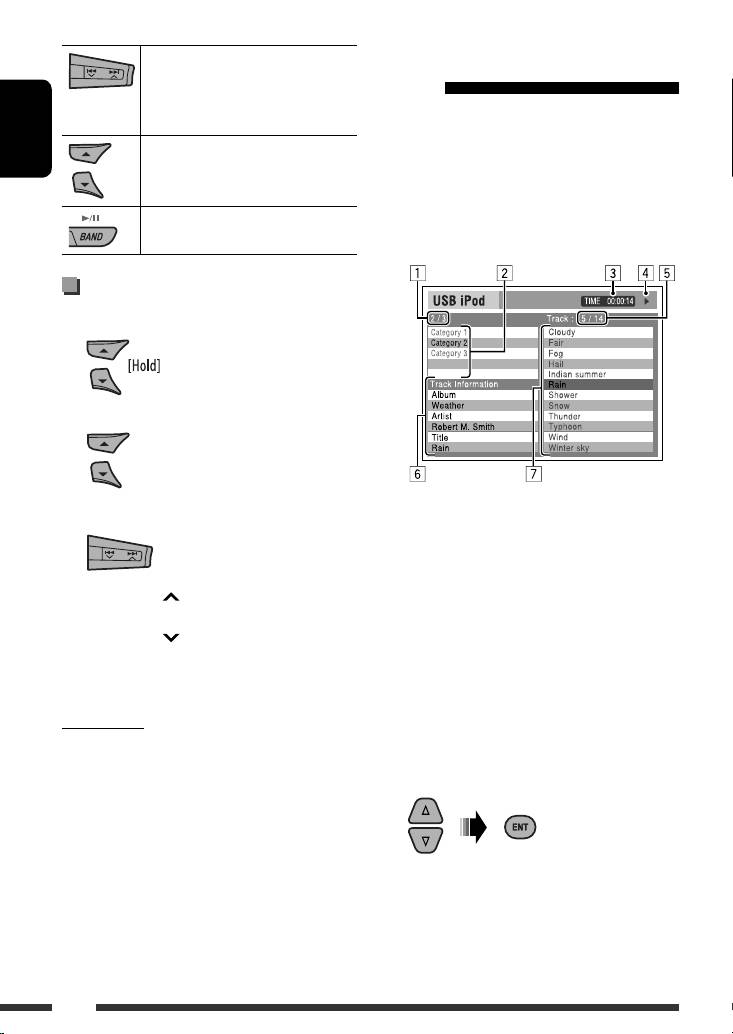
[Press] Go to the next or previous
Operations using the control
track
screen
[Hold] Fast-forward or reverse the
• These operations are possible on the monitor using
track during playback
the remote controller.
[Hold] Enter main menu
• Connect your iPod to the USB input jack on the
ENGLISH
control panel using the USB cable supplied for your
iPod, or KS-U19 for watching video file.
[Press] Pause/resume playback.
1 Turn on the monitor.
Selecting a track from the menu
1 Enter the main menu.
2 Select the desired menu.
Control screen appears on the monitor.
3 Confirm the selection.
1 Current category number/total category
number
2 Category list with the current category
• By holding ¢ , you can start play back the
selected
selected item directly.
3 Elapsed playing time of the current track
• By holding 4 , you can exit from the menu.
4 Operation mode icon ( 3, 7, 8, ¡, 1 )
• By holding 5/∞, you can fast skip in every layer of
5 Current track number/total number of tracks
the main menu.
in the current category
6 Track information
Menu items:
7 Track list with the current track selected
For Music:
“Playlists,” “Artists,” “Albums,” “Songs,” “Podcasts,”
2 Select the desired item.
“Genres,” “Composers,” or “Audiobooks”
For Videos:
“Video Playlists,” “Movies,” “Music Videos,” “TV Shows,”
or “Video Podcasts”
If the selected item has another layer, you will
• If a track is selected, playback starts automatically.
enter the layer. Repeat this step until the desired
• If the selected item has another layer, you will enter
track is played.
the layer. Repeat steps 2 and 3 until the desired track
is played.
38
EN34-43_KD-DV7402_003A_f.indd 38EN34-43_KD-DV7402_003A_f.indd 38 1/31/08 2:22:40 PM1/31/08 2:22:40 PM
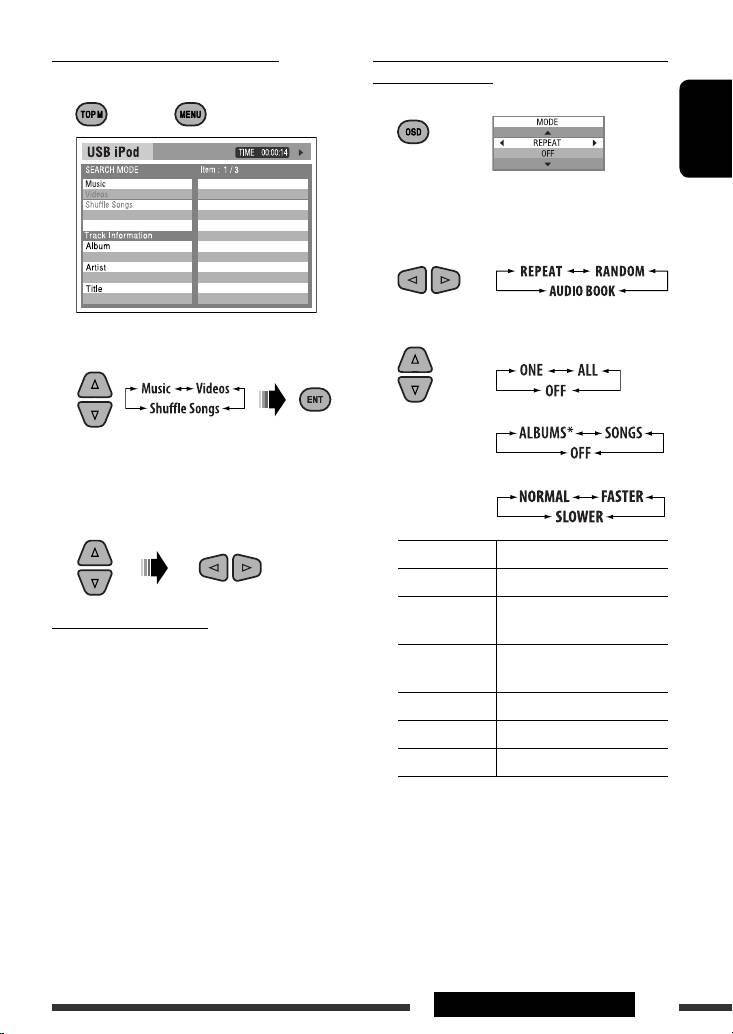
To select a track from Search Mode
To select a playback mode/change the speed
1 Enter Search Mode menu.
of the Audiobooks
1 While control screen is displayed...
or
ENGLISH
Playback mode selection screen appears on the
category list section of the control screen.
2 Select an item.
3 Select a playback mode/speed.
2 Select a menu item.
REPEAT:
RANDOM:
• Selecting Shuffle Songs starts playback.
AUDIO BOOK:
3 Select a search mode category, then the desired
track.
REPEAT ONE Same as “Repeat One.”
REPEAT ALL Same as “Repeat All.”
RANDOM
Same as “Shuffle Albums.”
Search modes category:
ALBUMS*
For Music:
RANDOM
Same as “Shuffle Songs.”
“Playlists,” “Artists,” “Albums,” “Songs,” “Podcasts,”
SONGS:
“Genres,” “Composers,” or “Audiobooks”
For Videos:
NORMAL Plays at normal speed.
“Video Playlists,” “Movies,” “Music Videos,”
FASTER Plays faster.
“TV Shows,” or “Video Podcasts”
SLOWER Plays slower.
• Available Search Modes depend on the type of your
iPod.
* Functions only if you select “All Albums” or “All” in
“Albums” of the main “MENU.”
• To return to the previous search mode screen,
press MENU.
• To return to the control screen, press RETURN.
Continued on the next page
EXTERNAL DEVICES
39
EN34-43_KD-DV7402_003A_f.indd 39EN34-43_KD-DV7402_003A_f.indd 39 1/31/08 2:50:58 PM1/31/08 2:50:58 PM
4 Confirm the selection.
Selecting a track from the menu
1 Enter the main menu.
• You can also change the settings from the PSM
(Preferred Setting Mode) items. See “AudioBooks” on
page 47.
ENGLISH
2 Select the desired menu.
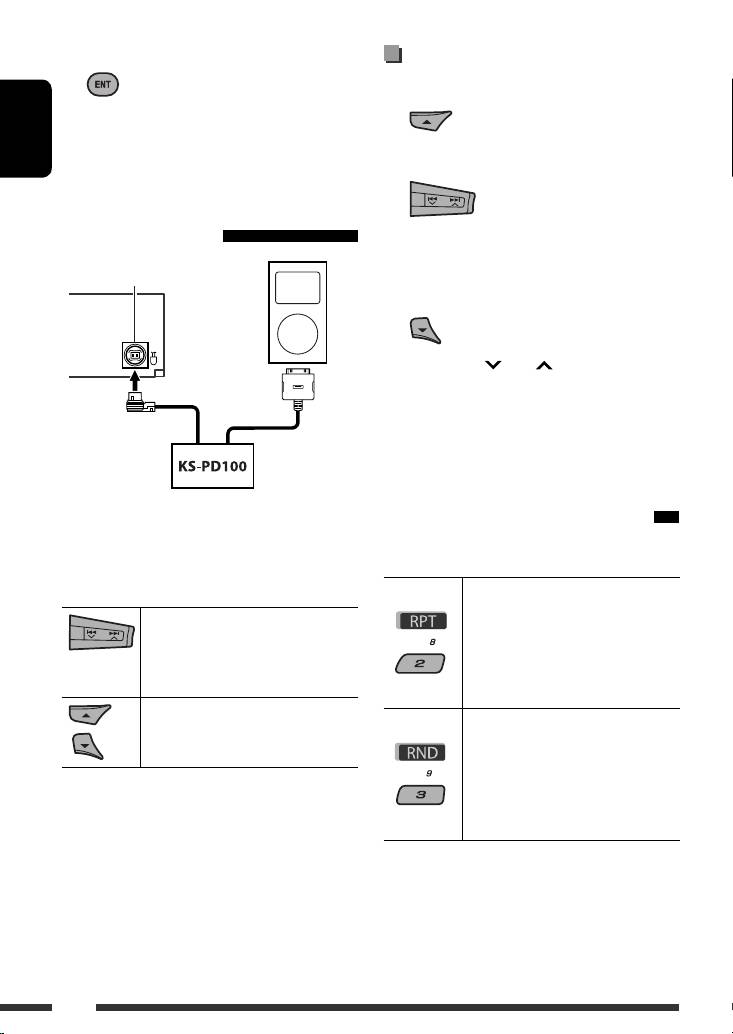
When connecting with the
interface adapter
Playlists
Ô Artists Ô Albums Ô Songs Ô
Genres Ô Composers
CD changer jack
3 Confirm the selection.
• By holding 4 /¢ , you can fast skip
during song search in the main menu.
• If a track is selected, playback starts automatically.
• If the selected item has another layer, you will enter
the layer. Repeat steps 2 and 3 until the desired track
is played.
Playback starts automatically from where it had been
Selecting the playback modes
paused previously.
After pressing M MODE, press the following buttons
• If an iPod has been connected, press SOURCE to select
to...
“iPod” to listen to music.
Repeat One:
Same as “Repeat One.”
[Press] Go to the next or previous
Repeat All:
track
Same as “Repeat All.”
[Hold] Fast-forward or reverse the
Repeat Off:
track during playback
Cancels.
[Press] Enter main menu when you
2
Random Album *
:
press 5. Pause/resume
1
*
Same as “Shuffle Albums.”
playback when ∞ is pressed.
Random Song:
Same as “Shuffle Songs.”
Random Off:
Cancels.
1
*
Not applicable for video files.
2
*
Functions only if you select “All Albums” or “All” in
“Albums” of the main “MENU.”
40
EN34-43_KD-DV7402_003A_f.indd 40EN34-43_KD-DV7402_003A_f.indd 40 1/28/08 4:07:38 PM1/28/08 4:07:38 PM
Table of contents
- Playable disc type
- Preparation
- Basic operations
- Listening to the radio
- Disc operations
- Listening to the USB device
- Dual Zone operations
- Listening to the Bluetooth ® devices
- Listening to the CD changer
- Listening to the DAB tuner
- Listening to the iPod
- Listening to the other external components
- Selecting a preset sound mode
- General settings — PSM
- Disc setup menu
- Bluetooth settings
- Maintenance
- More about this unit
- Troubleshooting
- Specifications
- Type de disque compatible
- Préparation
- Opérations de base
- Écoute de la radio
- Opérations des disques
- Écoute du périphérique USB
- Fonctionnement sur Deux Zones
- Écoute d’un périphérique Bluetooth ®
- Écoute du changeur de CD
- Écoute du tuner DAB
- Écoute de iPod
- Écoute d’un autre appareil extérieur
- Sélection d’un mode sonore préréglé
- Réglages généraux—PSM
- Menu de réglage du disque
- Réglages Bluetooth
- Entretien
- Pour en savoir plus à propos de cet autoradio
- Guide de dépannage
- Spécifications
- Тип воспроизводимых дисков
- Подготовка
- Основные операции
- Прослушивание радио
- Операции с дисками
- Прослушивание устройства USB
- Операции в режиме “Dual Zone”
- Прослушивание устройств Bluetooth®
- Прослушивание с устройства автоматической смены компакт-дисков
- Прослушивание тюнера DAB
- Прослушивание проигрывателя iPod
- Прослушивание с других внешних устройств
- Выбор запрограммированного режима звучания
- Общие настройки—PSM
- Меню настройки диска
- Настройки Bluetooth
- Обслуживание
- Дополнительная информация о приемнике
- Устранение проблем
- Технические характеристики