
Canon i-SENSYS MF4730: Connecting the Power Cord and Turning ON the Power Specifying the Initial Settings
Connecting the Power Cord and Turning ON the Power Specifying the Initial Settings: Canon i-SENSYS MF4730
Table of contents
- MF4890dw/MF4870dn/ MF4780w/MF4750 MF4890dw/MF4870dn MF4780w/MF4750/MF4730 MF4890dw/MF4780w
- MF4890dw MF4870dn Installing the Handset (Option)
- Contents
- About the Supplied Manuals Navigating the Menu and Text Input Method Navigating the Menu Press [OK]. However, when
Text Input Method - Connecting the Power Cord and Turning ON the Power Specifying the Initial Settings
- Choosing the Method to Connect the Machine to the Computer Connecting via a Wired LAN Connecting via a USB Cable
- Setting a Paper Size and Type Specifying Initial Fax Settings and Connecting a Telephone Cable
- Perform Useful Tasks
- Clearing Paper Jams
- Replacing Toner Cartridge When a Message Appears When White Streaks Appear on the Output or the Output Is Partially Faded
- Symbols Used in This Manual Keys and Buttons Used in This Manual Illustrations and Displays Used in This Manual Important Safety Instructions Installation Power Supply Handling
- Maintenance and Inspections Consumables Others Legal Notices Legal Limitations on Usage of Your Product and the Use of Images
11
En
Entering text, symbols, and
numbers
Entry mode: <aA> Entry mode: <12>
@ . - _ /
1
ABCabc
2
DEFdef
3
GHIghi
4
JKLjkl
5
MNOmno
6
PQRSpqrs
7
TUVtuv
8
WXYZwxyz
9
(Not available)
0
@ . / - _ ! ? & $ %
# ( ) [ ] { } < > * +
= “ , ; : ‘ ^ ` | \
(Not available)
Changing entry mode
Entry mode
Available text
<aA>
Alphabet (capital and small
letters) and symbols
<12>
Numbers
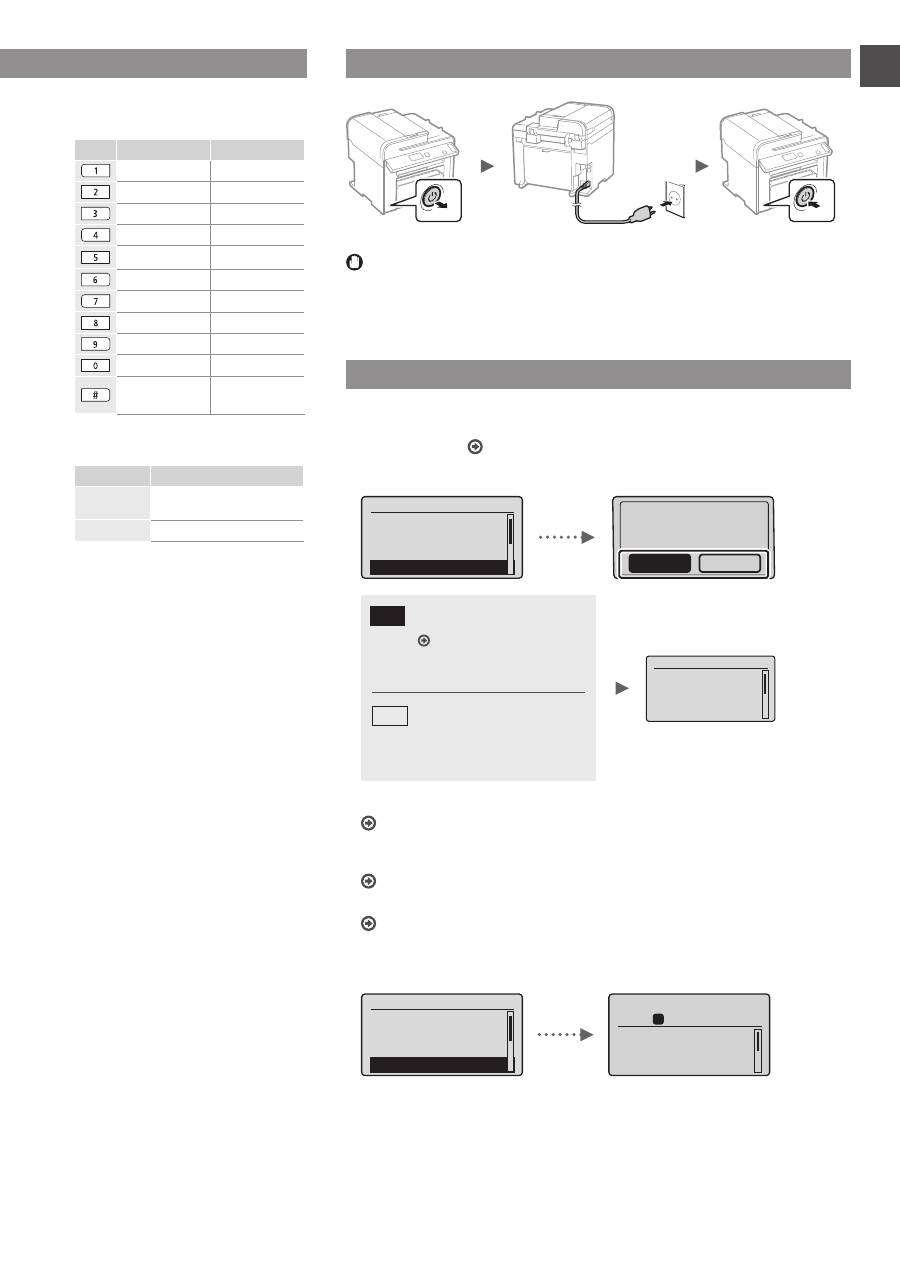
Connecting the Power Cord and Turning ON the Power
OFF
ON
Do not connect the USB cable at this time. Connect it when installing software.
Specifying the Initial Settings
Follow the instructions on the screen, set the language and time. For details on
navigating the menu and how to input the numbers, see “Navigating the Menu and
Text Input Method” ( P.10).
●
MF4890dw/MF4780w
Language
Czech
Danish
Dutch
English
Use wireless LAN to
connect computer?
(Can config. later.)
No
Yes
Current Time set.
Must rechg. battery
for 24 hrs. to save
time settings.
After turning main
●
Connect to the computer via a wired LAN
Proceed to “Connecting via a Wired LAN
(MF4890dw/MF4870dn/MF4780w Only)” (P.12).
●
Connect to the computer via a USB cable
Proceed to “Connecting via a USB Cable” (P.12).
●
Do not connect to PC
Proceed to “Specifying Initial Fax Settings and Connecting a Telephone Cable
(MF4890dw/MF4870dn/MF4780w/MF4750 Only)” (P.13).
●
MF4870dn/MF4750/MF4730
Language
Czech
Danish
Dutch
English
Copy: Press Start
100% A4
Density: 0
Original Type: Text
...
2-Sided: Off
1
+
-
01
Navigating the Menu and Text Input Method
●
MF4890dw/MF4870dn/MF4780w/MF4750
●
MF4730
Yes
No
Connect to the computer via
a wireless LAN immediately
Start from step 4 of “Setting
Wireless LAN” in the
Wireless LAN Setting Guide
Proceed to the next step.
Select <No> also when you
connect to the computer via a
wireless LAN later.
