
Canon PIXMA MP 190: X Preparing the machine X European Union (and EEA) only. X For Customers in Europe, Middle-East, Africa and Russia only
X Preparing the machine X European Union (and EEA) only. X For Customers in Europe, Middle-East, Africa and Russia only: Canon PIXMA MP 190
Table of contents
- Quick Start Guide
- X Preparing the machine X European Union (and EEA) only. X For Customers in Europe, Middle-East, Africa and Russia only
- X Install the software Installing the Printer Driver - Windows Installing the Printer Driver - Macintosh
- Disclaimer About Consumables Trademark Notices
- X How To Use The Documentation Provided
- X Displaying On-screen Manual Stored On The Setup CD-ROM
- X Reading The Document Symbols Used In This Guide Buttons Used In This Guide Terms Used In This Guide
- X Safety Precautions WARNING z Location z Power supply
- z Maintenance z Handling z Others
- CAUTION z Location z Power supply
- z Handling z FINE Cartridges (Ink Cartridges) X Legal Limitations On Use Of Your Product And Use Of Images
- 1 Introduction X Features Of Your Machine
- X Machine Parts And Their Functions Machine z Exterior
- z Rear view and interior
- Operation Panel (10) [ON/OFF] Button
- (11) Black/Color Ink Lamp (12) Paper Lamp (13) [Paper] Button (14) [+] Button
- 2 Copying X Loading Paper X Recommended Paper
- X Setting The Paper Size And Type X Loading Documents X Making Copies X Advanced Copy Feature
- 3 Printing From Your Computer X Printing Documents
- 4 Scanning X Scanning Methods Scanning using the MP Navigator Scanning with the operation panel of the machine Scanning from an application software
- 5 Printing Photographs Directly From A Digital Camera X Connecting To A PictBridge-Compliant Device
- 6 Maintenance X Replacing A FINE Cartridge 3 Push down the empty FINE Cartridge on the tab to release it, then pull out the FINE Cartridge.
- 4 Remove a new FINE Cartridge from its packaging. Then hold the FINE Cartridge as shown and remove the Protective Tape (A).
- 8 Lift the Scanning Unit and put the Scanning Unit Support and Scanning Unit back to its original position. X Cleaning The FINE Cartridge
- 7 Troubleshooting X Removing Jammed Paper X More Information
ENGLISH
X Preparing the machine
Unpack the machine
Please confirm bundled thing by the illustration printed on the flapped lid of the packing box.
IMPORTANT
• Do not connect the USB cable until after the software is installed.
• A printer cable is not included. You must purchase a USB cable (less than 10 ft. / 3 m) to connect your
machine to a computer.
1 Turn ON the machine.
2 Prepare the FINE Cartridges (ink cartridges).
• If the Scanning Unit (Printer Cover) is left open for more than 10 minutes, the FINE Cartridge Holder
moves to the right. Close and reopen the Scanning Unit (Printer Cover) to return the Holder to the center.
• Do not reattach the Protective Tape once you have removed it.
3 Install the FINE Cartridge.
• Ensure that all the FINE Cartridges are installed in the order directed by the label. The machine cannot
be used unless all the FINE Cartridges are installed.
• For safety reasons, store FINE Cartridges out of the reach of small children.
• Do not drop or shake FINE Cartridges as this may cause the ink to leak out and stain your clothes and
hands.
• The Alarm Lamp still lights orange if a FINE Cartridge is not installed properly. Open the Scanning Unit
(Printer Cover) and make sure that all the FINE Cartridges are installed in the correct order directed on
the label.
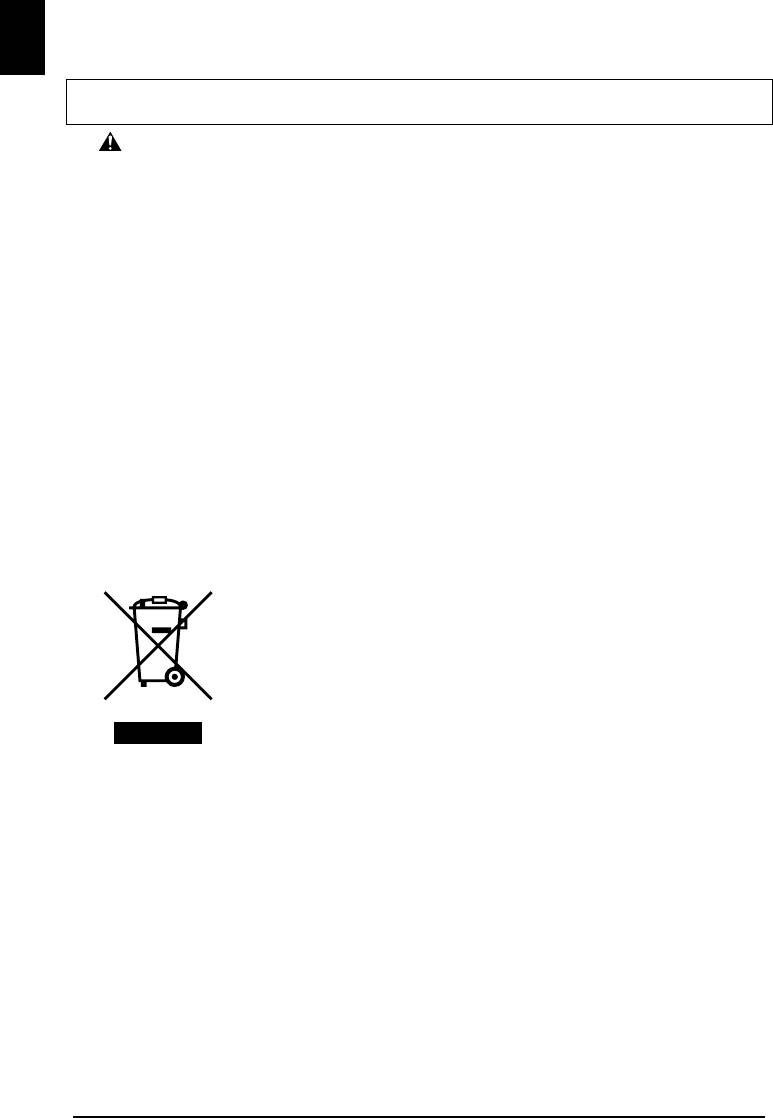
X European Union (and EEA) only.
This symbol indicates that this product is not to be disposed of with your
household waste, according to the WEEE Directive (2002/96/EC) and your
national law. This product should be handed over to a designated collection
point, e.g., on an authorized one-for-one basis when you buy a new similar
product or to an authorized collection site for recycling waste electrical and
electronic equipment (EEE). Improper handling of this type of waste could
have a possible negative impact on the environment and human health due
to potentially hazardous substances that are generally associated with EEE.
At the same time, your cooperation in the correct disposal of this product
will contribute to the effective usage of natural resources. For more
information about where you can drop off your waste equipment for
recycling, please contact your local city office, waste authority, approved
WEEE scheme or your household waste disposal service. For more
information regarding return and recycling of WEEE products, please visit
www.canon-europe.com/environment.
(EEA: Norway, Iceland and Liechtenstein)
X For Customers in Europe, Middle-East, Africa and Russia
only
For Canon Customer Support contacts, please see the back cover of the European
Warranty System (EWS) Booklet or visit www.canon-europe.com.
Printer Model: K10282 (MP160)
2


