
Canon PIXMA MP 190: X Install the software Installing the Printer Driver - Windows Installing the Printer Driver - Macintosh
X Install the software Installing the Printer Driver - Windows Installing the Printer Driver - Macintosh: Canon PIXMA MP 190
Table of contents
- Quick Start Guide
- X Preparing the machine X European Union (and EEA) only. X For Customers in Europe, Middle-East, Africa and Russia only
- X Install the software Installing the Printer Driver - Windows Installing the Printer Driver - Macintosh
- Disclaimer About Consumables Trademark Notices
- X How To Use The Documentation Provided
- X Displaying On-screen Manual Stored On The Setup CD-ROM
- X Reading The Document Symbols Used In This Guide Buttons Used In This Guide Terms Used In This Guide
- X Safety Precautions WARNING z Location z Power supply
- z Maintenance z Handling z Others
- CAUTION z Location z Power supply
- z Handling z FINE Cartridges (Ink Cartridges) X Legal Limitations On Use Of Your Product And Use Of Images
- 1 Introduction X Features Of Your Machine
- X Machine Parts And Their Functions Machine z Exterior
- z Rear view and interior
- Operation Panel (10) [ON/OFF] Button
- (11) Black/Color Ink Lamp (12) Paper Lamp (13) [Paper] Button (14) [+] Button
- 2 Copying X Loading Paper X Recommended Paper
- X Setting The Paper Size And Type X Loading Documents X Making Copies X Advanced Copy Feature
- 3 Printing From Your Computer X Printing Documents
- 4 Scanning X Scanning Methods Scanning using the MP Navigator Scanning with the operation panel of the machine Scanning from an application software
- 5 Printing Photographs Directly From A Digital Camera X Connecting To A PictBridge-Compliant Device
- 6 Maintenance X Replacing A FINE Cartridge 3 Push down the empty FINE Cartridge on the tab to release it, then pull out the FINE Cartridge.
- 4 Remove a new FINE Cartridge from its packaging. Then hold the FINE Cartridge as shown and remove the Protective Tape (A).
- 8 Lift the Scanning Unit and put the Scanning Unit Support and Scanning Unit back to its original position. X Cleaning The FINE Cartridge
- 7 Troubleshooting X Removing Jammed Paper X More Information
X Install the software
ENGLISH
Select Easy Install in order to install the application software, On-screen Manual and MP
drivers. Select Custom Install in order to choose the options you would like to install.
When the User Registration screen appears, if you click Register and computer is
connected to the internet, the on-screen instructions to register your product will appear.
Registration can also be performed from the icon on the desktop after installation is
completed.
IMPORTANT
• Temporarily disable any firewall software and close any open applications, including
anti-virus software. Computer security programs can be re-started after software
installation.
Installing the Printer Driver - Windows
• You must log on as an administrator or have administrative privileges in order to install
the software in Windows XP or Windows 2000.
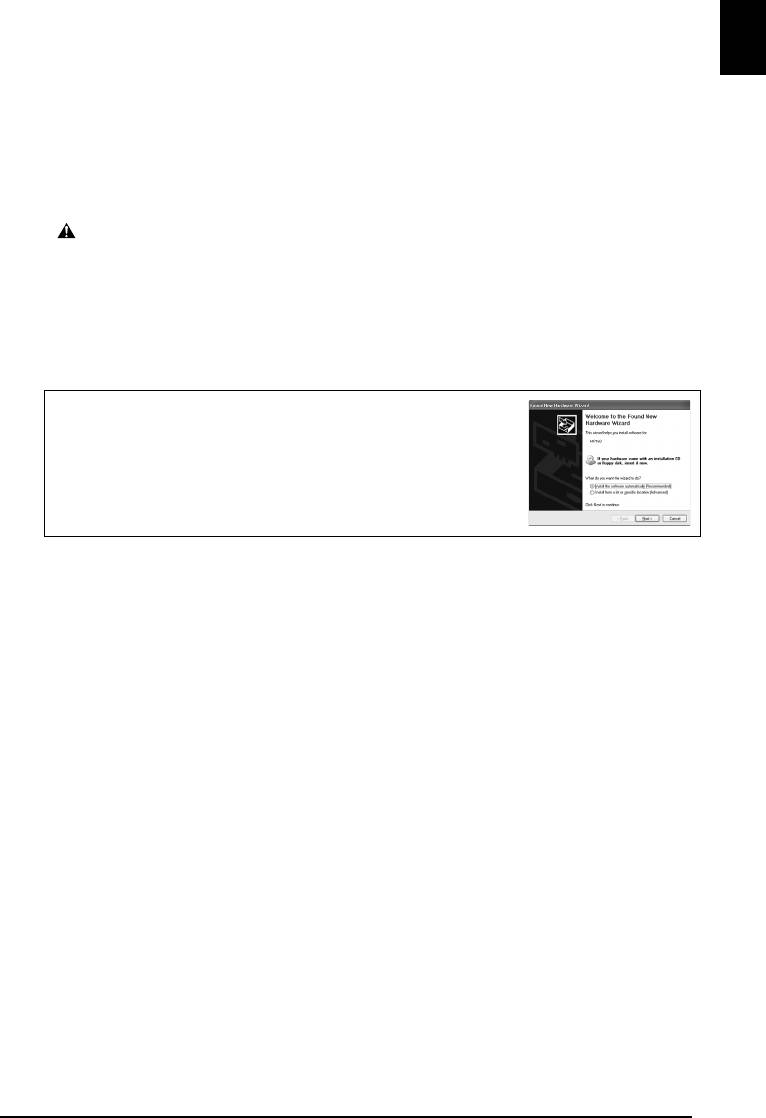
• If the following screen appears, the USB cable is connected.
Perform the following steps.
1. Disconnect the USB cable.
2. Click [Cancel].
• Do not switch users during the installation process.
Installing the Printer Driver - Macintosh
• Do not connect the machine to Mac OS 9 or Mac OS X Classic environments since they
are not supported.
• Enter the name and password for an Administrator Account.
Perform the following to make sure the driver has been installed correctly:
1. Select [Utilities] from the [Go] menu.
2. Double-click the [Printer Setup Utility] ([Print Center] when using Mac OS X
v.10.2.8) icon.
If the printer is displayed in the [Printer List], the printer driver is installed.
If the printer is not displayed in the [Printer List], click [Add] in the [Printer List] and
select [USB] from the pop-up menu. Select MP160 from the [Product] list and click
[Add].
When connecting from Mac OS X v.10.3.3 or earlier:
Restarting the computer while connected to the machine may cause the machine not to be
detected. To resolve this, either unplug the USB cable then plug it back in again, or turn
the machine OFF then back ON again.
3


