
Canon PIXMA MP 190: 2 Copying X Loading Paper X Recommended Paper
2 Copying X Loading Paper X Recommended Paper: Canon PIXMA MP 190
Table of contents
- Quick Start Guide
- X Preparing the machine X European Union (and EEA) only. X For Customers in Europe, Middle-East, Africa and Russia only
- X Install the software Installing the Printer Driver - Windows Installing the Printer Driver - Macintosh
- Disclaimer About Consumables Trademark Notices
- X How To Use The Documentation Provided
- X Displaying On-screen Manual Stored On The Setup CD-ROM
- X Reading The Document Symbols Used In This Guide Buttons Used In This Guide Terms Used In This Guide
- X Safety Precautions WARNING z Location z Power supply
- z Maintenance z Handling z Others
- CAUTION z Location z Power supply
- z Handling z FINE Cartridges (Ink Cartridges) X Legal Limitations On Use Of Your Product And Use Of Images
- 1 Introduction X Features Of Your Machine
- X Machine Parts And Their Functions Machine z Exterior
- z Rear view and interior
- Operation Panel (10) [ON/OFF] Button
- (11) Black/Color Ink Lamp (12) Paper Lamp (13) [Paper] Button (14) [+] Button
- 2 Copying X Loading Paper X Recommended Paper
- X Setting The Paper Size And Type X Loading Documents X Making Copies X Advanced Copy Feature
- 3 Printing From Your Computer X Printing Documents
- 4 Scanning X Scanning Methods Scanning using the MP Navigator Scanning with the operation panel of the machine Scanning from an application software
- 5 Printing Photographs Directly From A Digital Camera X Connecting To A PictBridge-Compliant Device
- 6 Maintenance X Replacing A FINE Cartridge 3 Push down the empty FINE Cartridge on the tab to release it, then pull out the FINE Cartridge.
- 4 Remove a new FINE Cartridge from its packaging. Then hold the FINE Cartridge as shown and remove the Protective Tape (A).
- 8 Lift the Scanning Unit and put the Scanning Unit Support and Scanning Unit back to its original position. X Cleaning The FINE Cartridge
- 7 Troubleshooting X Removing Jammed Paper X More Information
ENGLISH
2 Copying
X Loading Paper
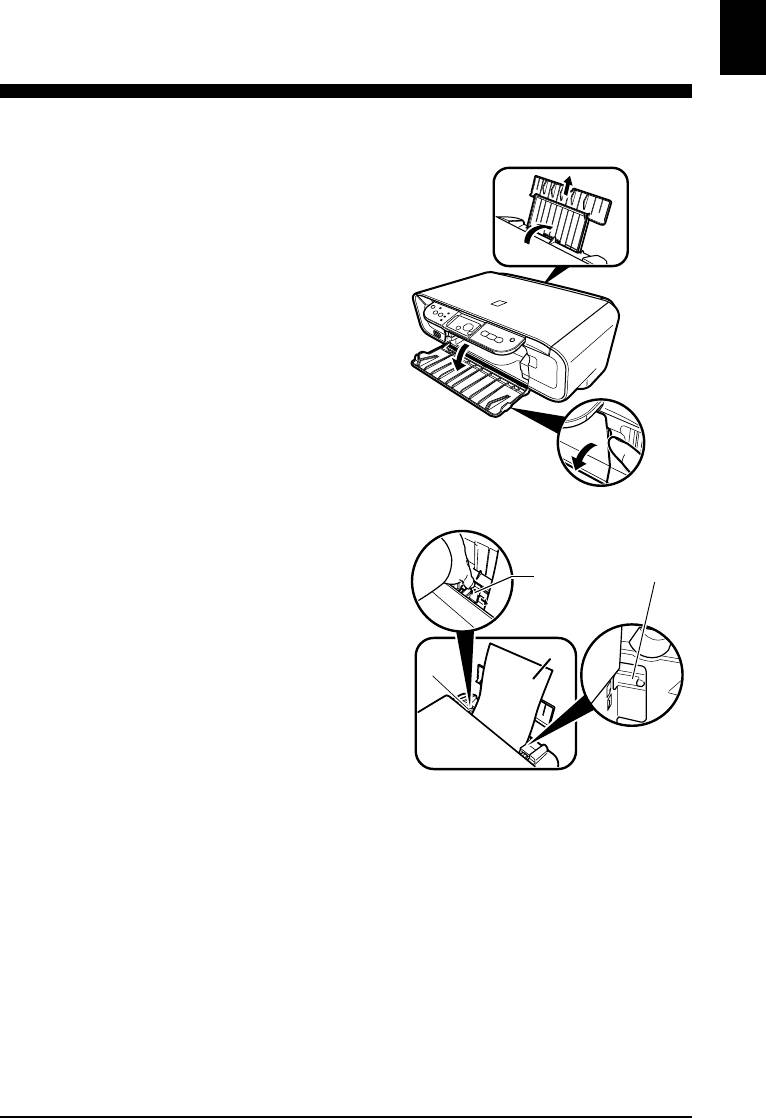
1 Open the Paper Support (1),
(1)
then pull out the Paper Support
Extension (2).
(2)
2 Place a stack of paper (print
side up) in the Auto Sheet
(B)
Feeder (1), pinch the Paper
(A)
Guide (A) and adjust it to the left
side of the stack (2).
• Make sure the stack does not exceed the
A4
(2)
Load Limit Mark (B).
• For details on loading paper, see the
(1)
User’s Guide.
X Recommended Paper
• Plain paper
• Super White Paper*
• Glossy Photo Paper*
• Matte Photo Paper*
• Photo Paper Pro*
• Photo Paper Plus Glossy*
• Photo Paper Plus Semi-Gloss*
*
Indicates Canon genuine media.
For details on the general paper guidelines, see the User’s Guide.
Chapter 2 Copying 17
Top 10 manuals
100.00
NZXT HALE90 1000W99.99
Samsung SM-R38099.97
AEG BSB 18C99.97
Dell 2700W99.97
Smeg KSEC70X99.96
Beurer HDE 4099.96
Pyramida KH 50 v.299.96
MSI CSM-H81M-P3299.96
AEG HR 562799.95
Melissa 640-048


