
Canon LEGRIA HF R38: Operating modes: 1 Press 2 Set up a new connection point.
Operating modes: 1 Press 2 Set up a new connection point.: Canon LEGRIA HF R38
Table of contents
- Table of Contents Trademark Acknowledgements
- Getting Started Introduction to Wi-Fi
- Wi-Fi connection Wi-Fi connection Wi-Fi connection
- Connecting to a Wi-Fi Network (Wi-Fi Protected Setup) General requirements POINTS TO CHECK About the camcorder's Wi-Fi standard
- Operating modes: 1 Press 2 Set up a new connection point.
- 3 WPS button setup: Press and hold the WPS button on your wireless router. 4 Within 2 minutes, touch [OK] on the camcorder's screen. 5 Touch [Automatic] to automatically obtain an IP address. 6 Select whether to test the settings. 7 Save the settings of the connection point.
- Requirements for Wi-Fi Functions Transferring Files to a Computer or FTP Server General requirements
- Uploading Recordings to YouTube and Facebook General requirements Uploading Videos Using an iOS Device
- Wireless Playback on a DLNA-Compatible Device General requirements
- Glossary
- Troubleshooting List of Messages
- Wi-Fi connection terminated Wireless communication is not working correctly
6
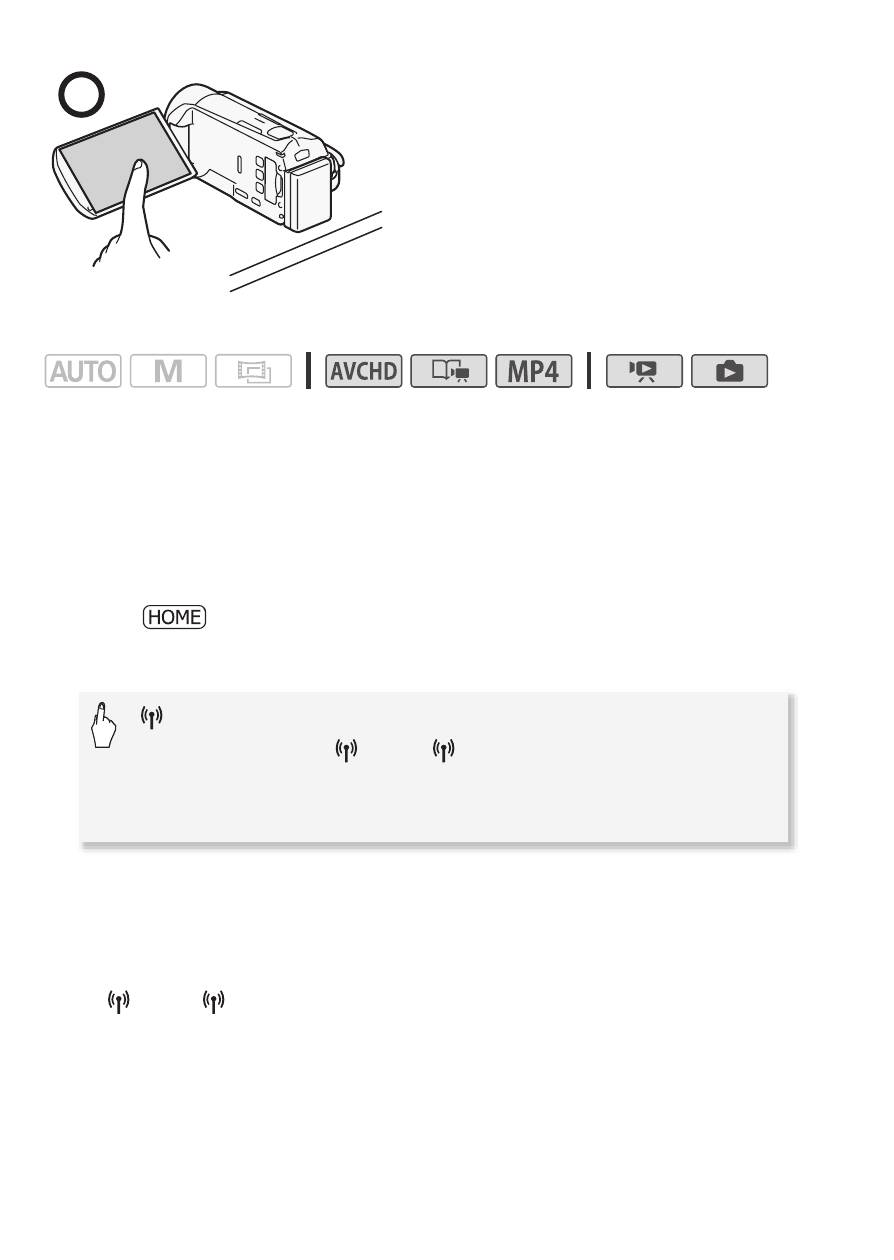
Place the camcorder on a table or
similar surface and then use the Wi-Fi
functions, as shown in the illustration
on the left.
Operating modes:
If your wireless router has a WPS button, setup will be easy and all
automatic. Some wireless routers that support WPS do not have a
dedicated button but use a PIN code instead. For setup using a PIN
code, you will need to know in advance how to activate the wireless
router's WPS function.
1 Press
T
to set the camcorder to playback mode and then
press .
2 Set up a new connection point.
* To replace the settings of an existing connection point, touch [Edit] instead and
then manually change the settings. To delete the settings, touch [Delete] and
then [Yes].
• You can set up up to three connection points for infrastructure mode
([
1] to [
3]). Once set up, you can use the same Wi-Fi network
without any further settings.
[
Wi-Fi]
>
[Wi-Fi Setup]
>
[Network Setup]
>
Desired
connection point ([
1] to [
3])
>
[Set Up New]*
>
[WPS: Button] or [WPS: PIN Code], depending on whether
your wireless router has a WPS button or uses a PIN code


