
Canon LEGRIA HF M56: Wi-Fi connection Wi-Fi connection Wi-Fi connection
Wi-Fi connection Wi-Fi connection Wi-Fi connection: Canon LEGRIA HF M56
Table of contents
- Table of Contents Trademark Acknowledgements
- Getting Started Introduction to Wi-Fi
- Wi-Fi connection Wi-Fi connection Wi-Fi connection
- About the camcorder's Wi-Fi standard Connecting to a Wi-Fi Network (Wi-Fi Protected Setup) General requirements
- Operating modes: 2 Set up a new connection point.
- 3 WPS button setup: Press and hold the WPS button on your 4 Within 2 minutes, touch [OK] on the camcorder's screen. 5 Touch [Automatic] to automatically obtain an IP address. 6 Select whether to test the settings. 7 Save the settings of the connection point.
- Requirements for Wi-Fi Functions Transferring Files to a Computer or FTP Server General requirements
- Uploading Recordings to YouTube and Facebook General requirements Uploading Videos Using an iOS Device
- Wireless Playback on a DLNA-Compatible Device General requirements
- Glossary Access Point Ad hoc mode DLNA FTP server Infrastructure mode IP Address WPS
- Troubleshooting List of Messages Multiple access points detected. Try the operation again. Unable to complete WPS. Unable to complete WPS. Try the operation again.
- Wi-Fi connection terminated Wireless communication is not working correctly
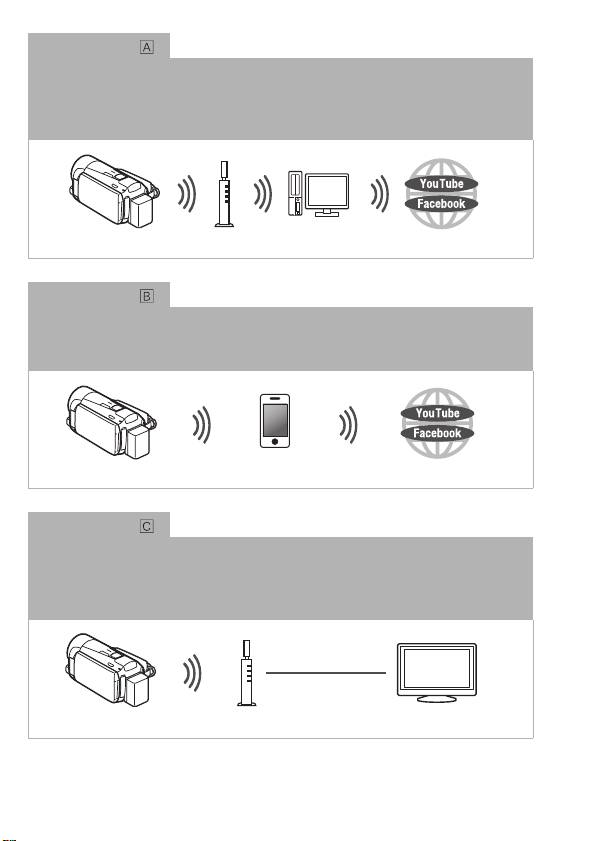
Wi-Fi connection
Infrastructure mode
Connect the camcorder to an access point on a Wi-Fi network (explained in this guide).
Use this connection if you plan to save your recordings on a computer or FTP server
(
; Transferring Files to a Computer or FTP Server) and then upload videos to
YouTube and Facebook (
; Uploading Recordings to YouTube and Facebook).
Access point
Computer
Wi-Fi connection
Ad hoc mode
Connect the camcorder to an iOS device (; Uploading Videos Using an iOS
Device). Use this connection type if you plan to upload videos to YouTube and Facebook
on the go (
; Uploading Recordings to YouTube and Facebook).
iOS device
Wi-Fi connection
Infrastructure mode
Connect the camcorder to an access point on a Wi-Fi network (explained in this guide).
Use this connection if you plan to play back videos on a DLNA-compatible TV
(
; Wireless Playback on a DLNA-Compatible Device) connected to the network
using a LAN cable.
LAN cable
Access point
HDTV
4
