
Canon LEGRIA HF M56: Requirements for Wi-Fi Functions Transferring Files to a Computer or FTP Server General requirements
Requirements for Wi-Fi Functions Transferring Files to a Computer or FTP Server General requirements: Canon LEGRIA HF M56
Table of contents
- Table of Contents Trademark Acknowledgements
- Getting Started Introduction to Wi-Fi
- Wi-Fi connection Wi-Fi connection Wi-Fi connection
- About the camcorder's Wi-Fi standard Connecting to a Wi-Fi Network (Wi-Fi Protected Setup) General requirements
- Operating modes: 2 Set up a new connection point.
- 3 WPS button setup: Press and hold the WPS button on your 4 Within 2 minutes, touch [OK] on the camcorder's screen. 5 Touch [Automatic] to automatically obtain an IP address. 6 Select whether to test the settings. 7 Save the settings of the connection point.
- Requirements for Wi-Fi Functions Transferring Files to a Computer or FTP Server General requirements
- Uploading Recordings to YouTube and Facebook General requirements Uploading Videos Using an iOS Device
- Wireless Playback on a DLNA-Compatible Device General requirements
- Glossary Access Point Ad hoc mode DLNA FTP server Infrastructure mode IP Address WPS
- Troubleshooting List of Messages Multiple access points detected. Try the operation again. Unable to complete WPS. Unable to complete WPS. Try the operation again.
- Wi-Fi connection terminated Wireless communication is not working correctly
Requirements for Wi-Fi Functions
You have connected the camcorder to your Wi-Fi network and are
ready for the next step. You can now wirelessly transfer recordings to a
computer or FTP server, upload recordings to the Internet, and play
back your recordings on a DLNA-compatible player.
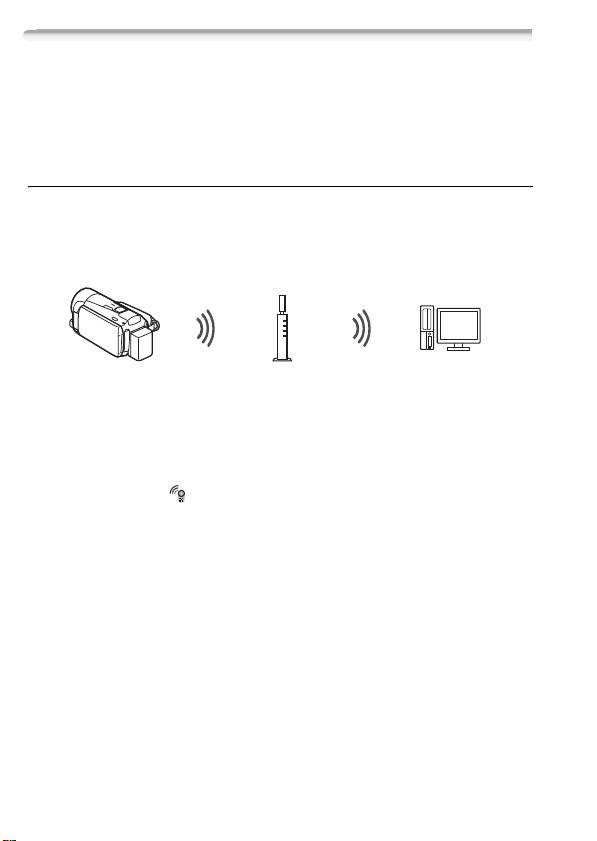
Transferring Files to a Computer or FTP Server
You can wirelessly transfer recordings directly to a computer running
the supplied software Network Utility (Windows only) or an FTP server.
For a full explanation, refer to the full-version Instruction Manual
(; Transferring Files to a Computer or FTP Server).
Access point
General requirements
For computers running Windows OS:
• A computer correctly connected to the same network as the camcorder
with the supplied software Network Utility correctly installed, config-
ured and running ( appears in the notification area, depending on the
OS). Network Utility will be installed automatically after you install
VideoBrowser. For details about the software, refer to the ‘Network
Utility Software Guide’ (PDF file on the PIXELA CD-ROM in the folder
\Network Utility\Manual\English).
For FTP servers:
• Correctly configured FTP server, such as a Macintosh computer or net-
work-attached storage (NAS) drive. You will need to enter the IP
address, port, user name, password and file transfer destination as part
of the manual setup.
8
