
JVC GR-DVX10: 10 EN
10 EN: JVC GR-DVX10

CONNECTIONS (cont.)
10 EN
WHEN CONNECTED TO A VCR NOT EQUIPPED WITH A
JLIP JACK
When using a VCR not equipped with a JLIP jack, set your VCR brand using the remote control
unit provided with the video camera, then perform editing using the remote control.
When JLIP Video Capture or CardNavigator
To COM port
is used:
(RS-232C)
PC connection cable
Use the plug which has three
yellow rings around the pin.
PC
To PC jack
To JLIP jack
When JLIP Video Producer is used:
Video Camera
S-VIDEO cable
To S-VIDEO
To S OUT jack
input jack
Editing cable
To AV jack
Connect this if the video
Use the plug
source unit has an S-Video
which has one
input jack.
black ring
around the pin.
To remote
If your VCR has a SCART
pause jack
connector, use the cable
adapter.
VCR
(Recording deck)
White to
AUDIO L
Connect here if the
recording deck doesn’t
have a remote pause jack.
AUDIO/VIDEO cable
Red to
AUDIO R
TW
Yellow to
Remote control unit
VIDEO
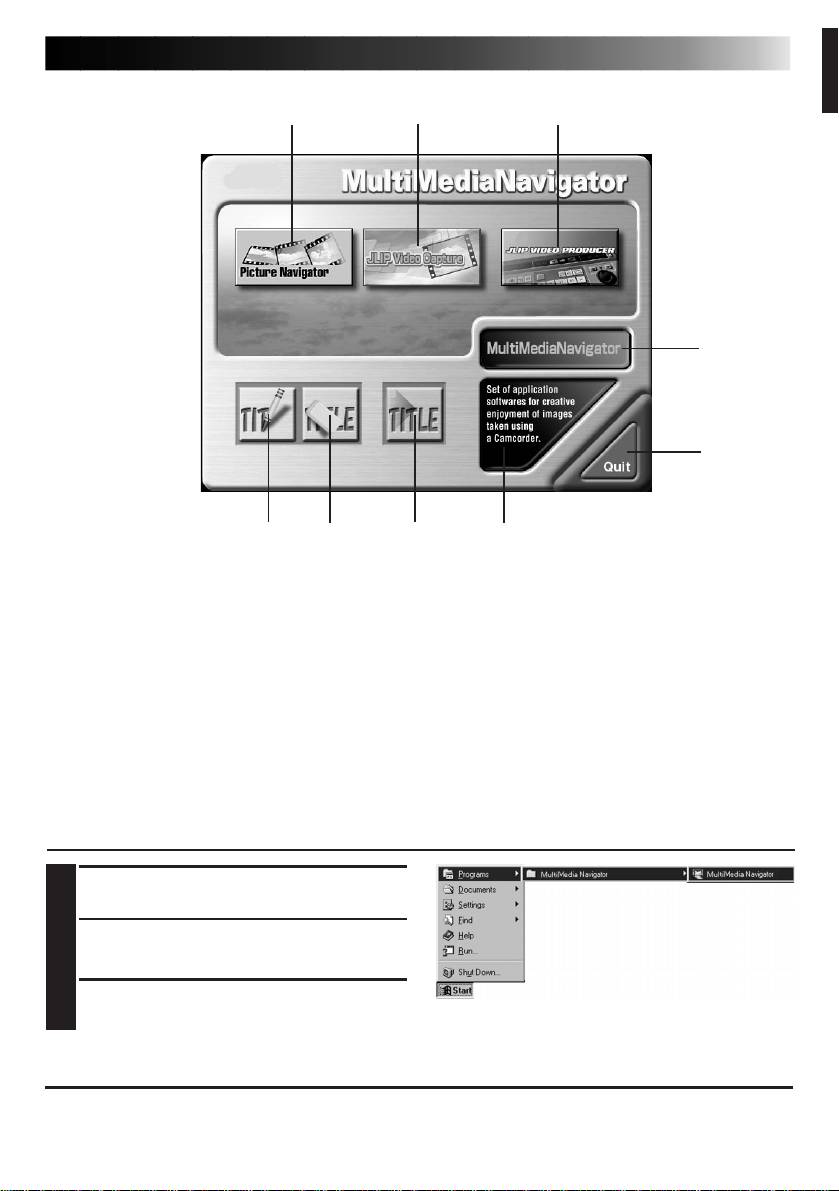
MultiMediaNavigator WINDOW DISPLAY
EN 11
1
23
4
9
56
7
8
1 Starts up Picture Navigator.
2 Starts up JLIP Video Capture.
3 Starts up JLIP Video Producer.
4 Displays the name of the selected application.
5 Creates new Title/Frame Images.
6 Modifies Title/Frame Images.
7 Transfers Title/Frame Images to a video source unit.
8 Displays information about the selected application.
9 Closes MultiMediaNavigator.
HOW TO START UP MultiMediaNavigator
Turn on the PC.
1
Select Start — Program —
2
MultiMediaNavigator.
MultiMediaNavigator starts up.
3
HOW TO CLOSE MultiMediaNavigator
Click Quit in the MultiMediaNavigator window.
Table of contents
- 2 EN
- 4 EN
- 6 EN
- 8 EN
- 10 EN
- 12 EN
- 14 EN
- 16 EN
- 18 EN
- 20 EN
- 2 DE
- 4 DE
- 6 DE
- 8 DE
- 10 DE
- 12 DE
- 14 DE
- 16 DE
- 18 DE
- 20 DE
- 2 FR
- 4 FR
- 6 FR
- 8 FR
- 10 FR
- 12 FR
- 14 FR
- 16 FR
- 18 FR
- 20 FR
- 2 NE
- 4 NE
- 6 NE
- 8 NE
- 10 NE
- 12 NE
- 14 NE
- 16 NE
- 18 NE
- 20 NE
- 2 CA
- 4 CA
- 6 CA
- 8 CA
- 10 CA
- 12 CA
- 14 CA
- 16 CA
- 18 CA
- 20 CA
- 2 IT
- 4 IT
- 6 IT
- 8 IT
- 10 IT
- 12 IT
- 14 IT
- 16 IT
- 18 IT
- 20 IT
- 2 DA
- 4 DA
- 6 DA
- 8 DA
- 10 DA
- 12 DA
- 14 DA
- 16 DA
- 18 DA
- 20 DA
- 2 SU
- 4 SU
- 6 SU
- 8 SU
- 10 SU
- 12 SU
- 14 SU
- 16 SU
- 18 SU
- 20 SU
- 2 SV
- 4 SV
- 6 SV
- 8 SV
- 10 SV
- 12 SV
- 14 SV
- 16 SV
- 18 SV
- 20 SV
- 2 NO
- 4 NO
- 6 NO
- 8 NO
- 10 NO
- 12 NO
- 14 NO
- 16 NO
- 18 NO
- 20 NO
- 2 РУ
- 4 РУ
- 6 РУ
- 8 РУ
- 10 РУ
- 12 РУ
- 14 РУ
- 16 РУ
- 18 РУ
- 20 РУ


