
Canon i-SENSYS MF4780w: Replacing Toner Cartridge When a Message Appears When White Streaks Appear on the Output or the Output Is Partially Faded
Replacing Toner Cartridge When a Message Appears When White Streaks Appear on the Output or the Output Is Partially Faded: Canon i-SENSYS MF4780w
Table of contents
- MF4890dw/MF4870dn/ MF4780w/MF4750 MF4890dw/MF4870dn MF4780w/MF4750/MF4730 MF4890dw/MF4780w
- MF4890dw MF4870dn MF4780w/MF4750/MF4730 Installing the Handset (Option)
- Contents
- About the Supplied Manuals Navigating the Menu and Text Input Method Navigating the Menu Text Input Method
- Connecting the Power Cord and Turning ON the Power Specifying the Initial Settings
- Choosing the Method to Connect the Machine to the Computer Connecting via a Wired LAN Connecting via a USB Cable
- Setting a Paper Size and Type Specifying Initial Fax Settings and Connecting a Telephone Cable
- Perform Useful Tasks
- Clearing Paper Jams Inside the machine Multi-purpose tray Paper Cassette Back cover Feeder
- Replacing Toner Cartridge When a Message Appears When White Streaks Appear on the Output or the Output Is Partially Faded
- Symbols Used in This Manual Keys and Buttons Used in This Manual Important Safety Instructions Installation Power Supply Handling
- Maintenance and Inspections Consumables Others Legal Notices Legal Limitations on Usage of Your Product and the Use of Images
16
En
Replacing Toner Cartridge
Toner cartridges are consumables. When the toner becomes nearly empty or has run out completely in the middle of a job run,
a message appears on the screen, or the following problems may occur. Take the appropriate action accordingly.
When a Message Appears
When the toner becomes nearly empty in the middle of a job run, a message appears on the screen.
Message
When the message is
displayed on the screen
Description and Solutions
<Prepare toner
cartridge.>
When the toner cartridge
needs a replacement
soon.
Shake the toner cartridge to evenly distribute the toner inside the cartridge.
e-Manual “Before Replacing the Toner Cartridge”
We recommend that the toner cartridge be replaced before printing high-
volume documents.
e-Manual “Replacing the Toner Cartridge”
<Toner is nearly
out.>
When the toner cartridge
has reached the end of
its life.
Shake the toner cartridge to evenly distribute the toner inside the cartridge.
e-Manual “Before Replacing the Toner Cartridge”
If this message does not disappear, replace the toner cartridge.
e-Manual “Replacing the Toner Cartridge”
If this message is displayed, the incoming fax will be stored in the memory
without being printed. Also, reports may not be printed, even if they are set
to be printed automatically.
If <Continue Print. When Toner Is Nearly Out> in <RX Print Settings> is set
to <On>, however, printing will be continued, but white streaks or smudges
may appear on printouts.
e-Manual “Printing the Report Automatically”
e-Manual “Continue Print. When Toner Is Nearly Out”
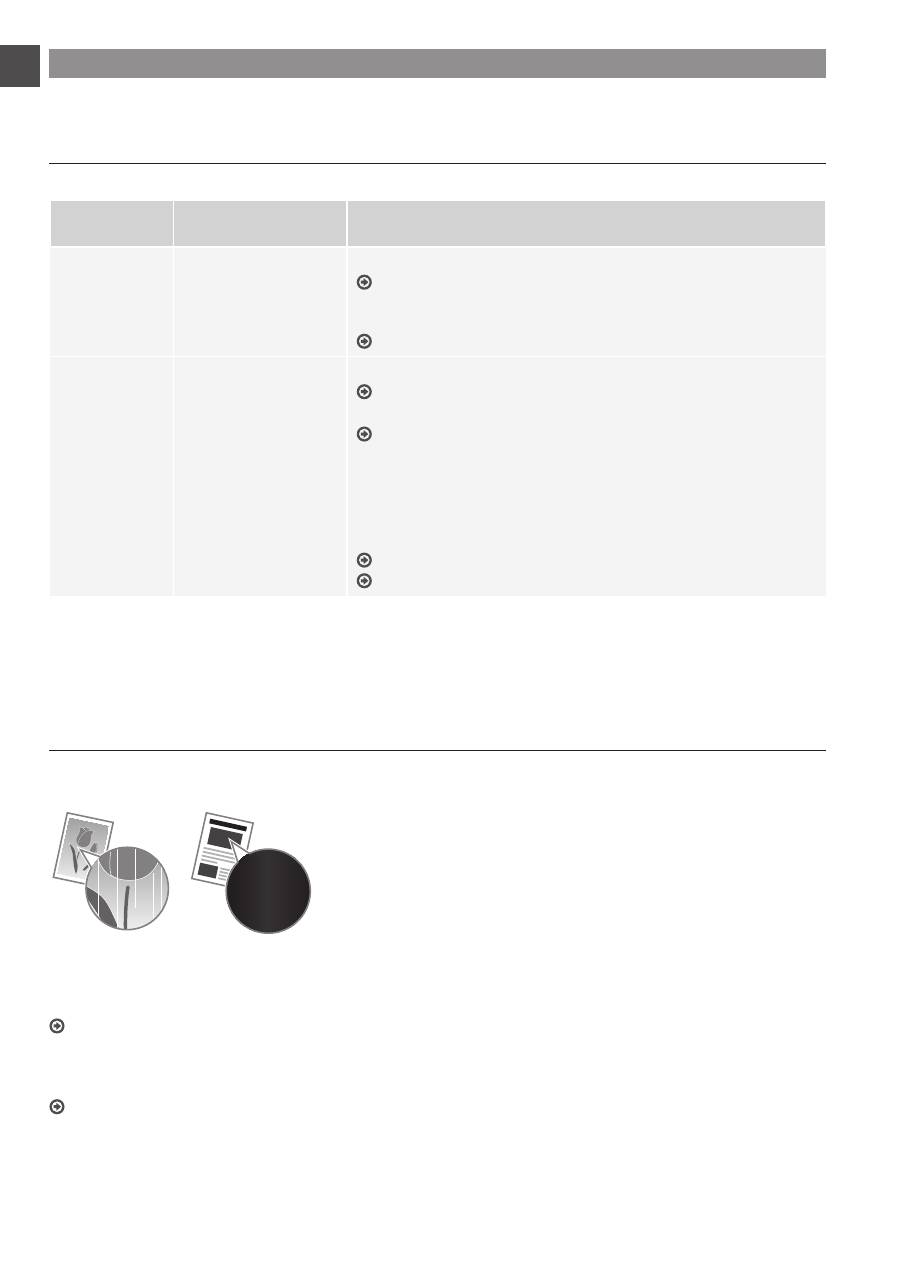
When white streaks appear on the output, or the output is partially faded:
When white streaks appear on the output or the output is partially faded, the toner cartridge has almost reached the end of
its life, even if no message appears on the screen. When the print quality becomes unacceptable, see the following to fix the
problem.
When White Streaks Appear on the Output or the Output Is Partially Faded
When the toner nearly runs out, white streaks appear on the output, or the output is partially faded.
No message appears on the screen, if the toner nearly runs out.
Replace the toner cartridge when white streaks appear on the
output, or the output is partially faded.
When this problem occurs:
Follow the steps in the procedure below before replacing the toner cartridge. The machine continues printing until the toner runs
out completely.
e-Manual “Before Replacing the Toner Cartridge”
When the print quality is still unacceptable:
If the problem persists after you have followed the steps in the procedure below, replace the toner cartridge.
e-Manual “Replacing the Toner Cartridge”
