
Canon i-SENSYS MF4780w: About the Supplied Manuals Navigating the Menu and Text Input Method Navigating the Menu Text Input Method
About the Supplied Manuals Navigating the Menu and Text Input Method Navigating the Menu Text Input Method: Canon i-SENSYS MF4780w
Table of contents
- MF4890dw/MF4870dn/ MF4780w/MF4750 MF4890dw/MF4870dn MF4780w/MF4750/MF4730 MF4890dw/MF4780w
- MF4890dw MF4870dn MF4780w/MF4750/MF4730 Installing the Handset (Option)
- Contents
- About the Supplied Manuals Navigating the Menu and Text Input Method Navigating the Menu Text Input Method
- Connecting the Power Cord and Turning ON the Power Specifying the Initial Settings
- Choosing the Method to Connect the Machine to the Computer Connecting via a Wired LAN Connecting via a USB Cable
- Setting a Paper Size and Type Specifying Initial Fax Settings and Connecting a Telephone Cable
- Perform Useful Tasks
- Clearing Paper Jams Inside the machine Multi-purpose tray Paper Cassette Back cover Feeder
- Replacing Toner Cartridge When a Message Appears When White Streaks Appear on the Output or the Output Is Partially Faded
- Symbols Used in This Manual Keys and Buttons Used in This Manual Important Safety Instructions Installation Power Supply Handling
- Maintenance and Inspections Consumables Others Legal Notices Legal Limitations on Usage of Your Product and the Use of Images
10
En
About the Supplied Manuals
Starter Guide (This manual):
Read this manual first. This manual
describes the installation of the
machine, the settings, and a caution.
Be sure to read this manual before
using the machine.
Wireless LAN Setting Guide
(MF4890dw/MF4780w Only):
Read this manual with Starter Guide.
This manual describes Wireless LAN
setup procedures and causes and
countermeasures for troubles you
might face during the setup. Be sure
to read this manual before using the
machine.
MF Driver Installation Guide
(User Software CD-ROM):
Read this manual next. This manual
describes software installation.
e-Manual
(Multi-lingual User Manual CD):
Read the desired chapter to suit your
needs. The e-Manual is categorized
by subject to find desired information
easily.
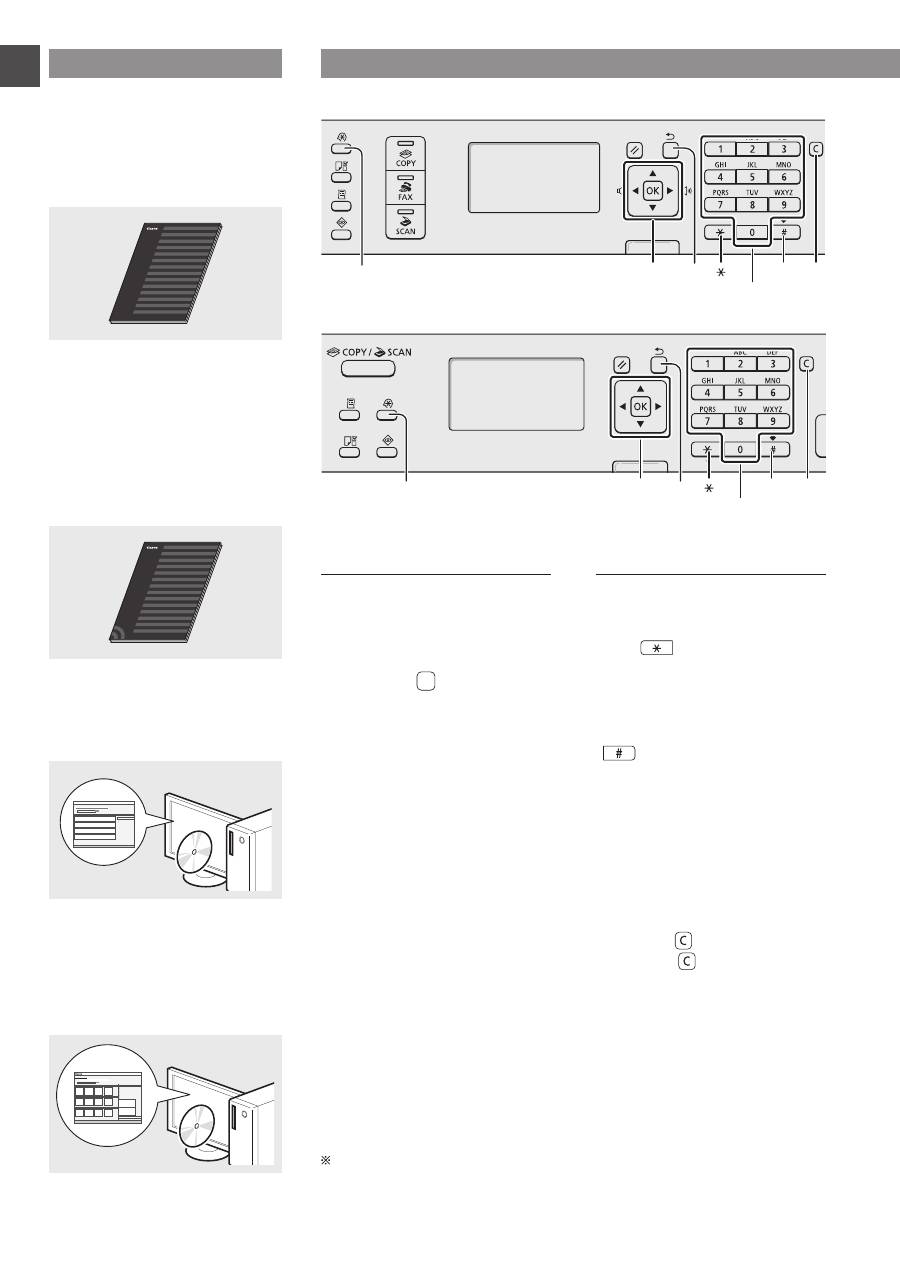
Navigating the Menu and Text Input Method
●
MF4890dw/MF4870dn/MF4780w/MF4750
OK
▲▼◀▶
#
Numeric keys
C
Menu
Back
●
MF4730
OK
▲▼◀▶
Menu
Back
#
Numeric keys
C
Navigating the Menu
Item selection or moving the
cursor among the menu items
Select an item with [▲] or [▼].
Proceed to the next hierarchy with
[OK] or [▶]. Return to the previous
hierarchy with [ ] (Back) or [◀].
Setting confirmation
Press [OK]. However, when <Apply>
appears on the display, select
<Apply>, and then press [OK].
Text Input Method
Changing entry mode
Press [▼] to highlight <Entry Mode>,
and then press [OK]. You can also
press [
] (Tone) to change the
entry mode.
Entering text, symbols, and
numbers
Enter with the numeric keys or
[
] (SYMBOLS).
For details on the switchable mode or
the available text, see the next page.
Moving the cursor (Entering a
space)
Move with [◀] or [▶]. Move the cursor
to the end of the text and press [▶] to
enter a space.
Deleting characters
Delete with [ ] (Clear). Pressing
and holding [ ] (Clear) key deletes
all characters.
Viewing the e-Manual from the CD-ROM
1 Insert the Multi-lingual User Manual CD in your computer.
2 Select your language.
3 Click [Display Manuals].
Depending on the operating system you are using, a security protection message appears.
