
Toshiba JournE Scan: Making connection More Information Suitable and unsuitable types of originals
Making connection More Information Suitable and unsuitable types of originals: Toshiba JournE Scan
Table of contents
- Important Safety Instructions
- n When handling the power cable/cord, follow these precautions:
- n Attaching the power cable/cord
- Introduction Checking the Components Parts of the Scanner and Their Functions Front view
- No. Name Function/description No. Name Function/description Rear view
- Using the Scanner Preparation
- Making a Scan
- Scanning to a Digital Photo Frame Connecting the Scanner to a Computer System requirements (for computer)
- Making connection More Information Suitable and unsuitable types of originals
- Orientation of the original and scanned image Cropping on scanned images
- Care and Maintenance Cleaning the Scanner Cleaning the roller
- Cleaning the image sensor Calibrating the Scanner
- Troubleshooting
- Specifications
- TOSHIBA Support Copyright Statement Disclaimer Trademarks
- Regulatory Statements Working Environment
- Additional Environments not Related to EMC Following Information is Only for EU-member States
User’s Manual 11
EN
UM_EEMEA_Scan_1108.book Page 11 Monday, December 15, 2008 2:26 PM
Making connection
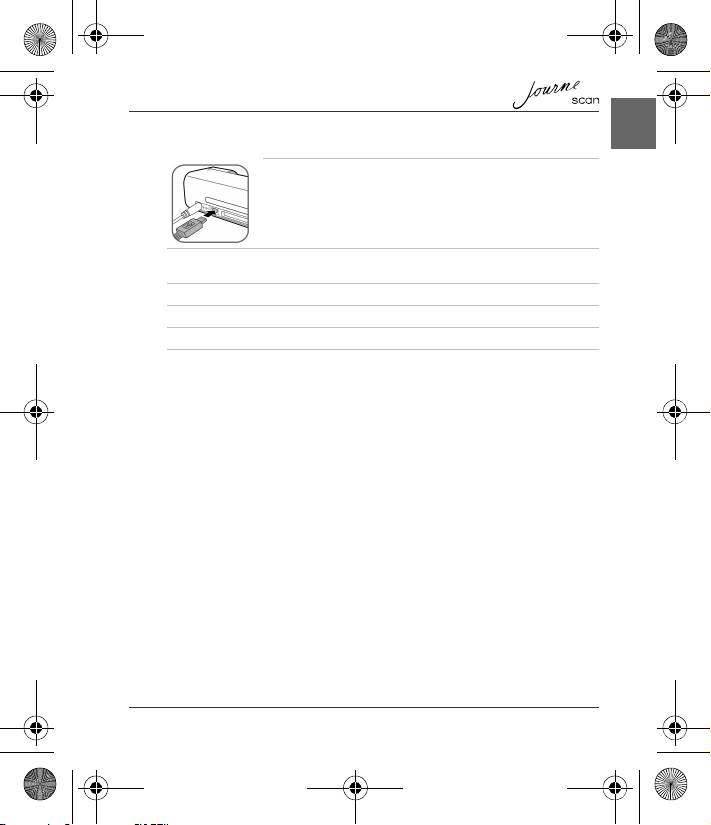
1. Connect one end of the USB cable (with a Mini USB
connector) to the Mini USB socket on the scanner.
2. Turn on the computer, and connect the other end of the USB cable to the USB
port of the computer.
3. Insert an unlocked (writable) memory card into a suitable memory card slot.
4. Connect the power supply to the scanner.
5. Press the Power button. The Power indicator blinks.
6. The scanner will be recognized by the computer as a removable disk
(Windows system). Now you are ready to manipulate the files on the memory
card.
More Information
Suitable and unsuitable types of originals
This scanner is designed to obtain the best scanning results for the following
types of originals:
n 3.5"x5" and 4"x6" photos
n Name cards
