
Canon i-sensys mf6180dw: Choosing the Method to Connect the Machine to the Computer Connecting via a Wired LAN Connecting via a USB Cable
Choosing the Method to Connect the Machine to the Computer Connecting via a Wired LAN Connecting via a USB Cable: Canon i-sensys mf6180dw
Table of contents
- Contents
- Navigating the Menu and Text Input Method About the Supplied Manuals
- Attach the Optional Cassette to the Machine Connecting the Power Cord and Turning ON the Power Specifying the Initial Settings
- Choosing the Method to Connect the Machine to the Computer Connecting via a Wired LAN Connecting via a USB Cable
- Setting a Paper Size and Type Specifying Initial Fax Settings and Connecting a Telephone Cable
- Perform Useful Tasks
- Clearing Paper Jams
- Replacing Toner Cartridge
- Symbols Used in This Manual Keys and Buttons Used in This Manual Illustrations and Displays Used in This Manual Important Safety Instructions Installation Power Supply Handling
- Maintenance and Inspections Consumables Others Legal Notices Legal Limitations on Usage of Your Product and the Use of Images
12
En
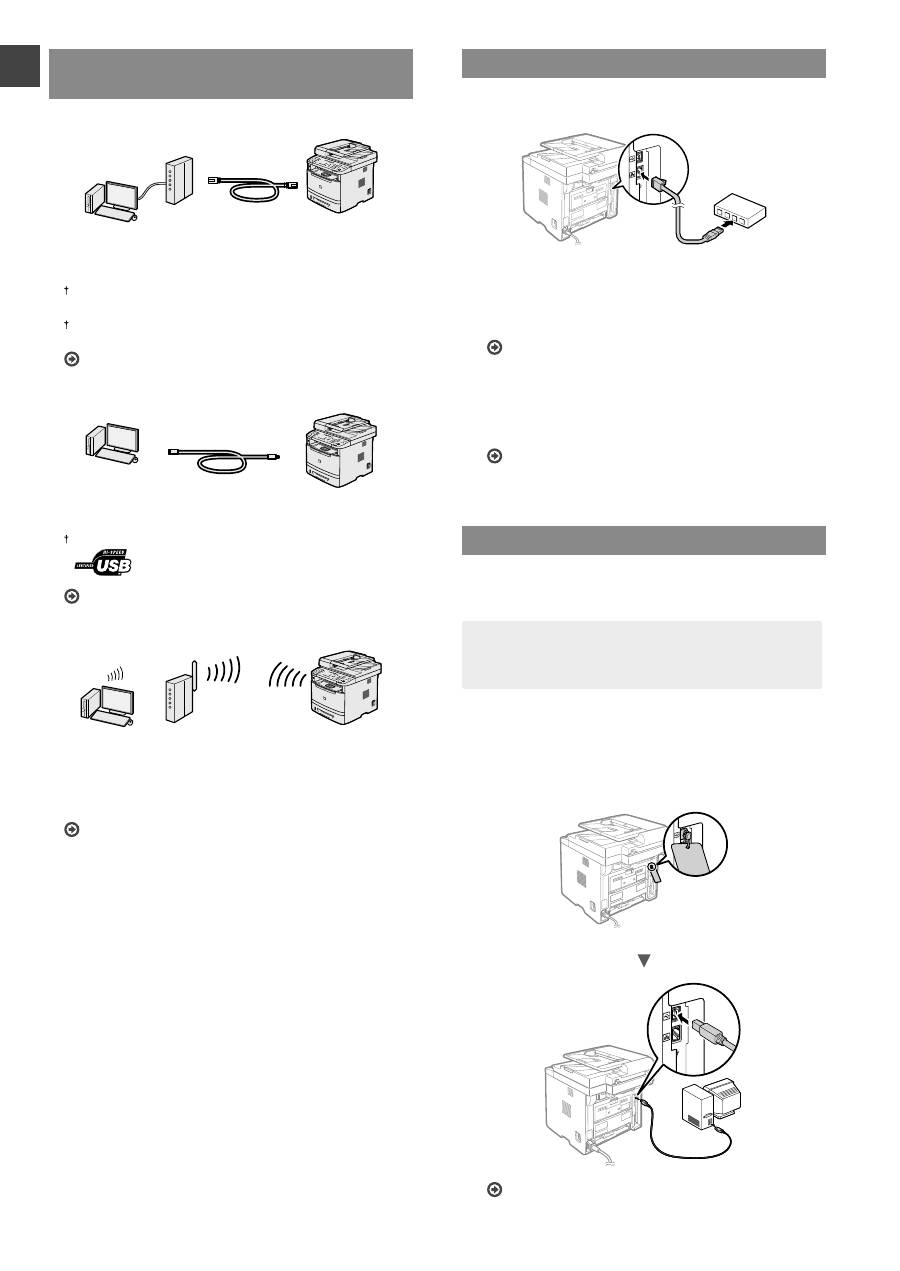
Choosing the Method to Connect the
Machine to the Computer
●
Connecting via a Wired LAN
You can connect the machine to the computer through a
wired router. Use the LAN cables to connect the machine
to the wired router (access point).
Make sure that there is an available port in the router to connect
the machine and the computer.
Have a LAN Cable of Category 5 twisted-pair cable or higher
ready.
See “Connecting via a Wired LAN”
●
Connecting via a USB cable
You can connect the machine to the computer using a
USB cable.
Make sure that the USB cable you use has the following mark.
See “Connecting via a USB Cable”
●
Connection via a Wireless LAN (MF6180dw Only)
You can connect the machine to the computer through
a wireless router*. Since it is connected to wireless, no
LAN cables are needed.
* A wireless router (access point), which supports IEEE802.11b/
g/n, is required.
See the Wireless LAN Setting Guide.
If you do not sure whether your router is wireless or
wired:
See the instruction manual provided with your network
device, or contact the manufacturer.
Connecting via a Wired LAN
1
Connect the LAN cable.
The IP address will be automatically con
fi
gured in 2
minutes. If you want to set the IP address manually, see
the following items.
e-Manual “Network Settings”
▶
“Basic Network
Settings”
▶
“Setting the IP Address”
2
Install the driver and software using the User
Software and Manuals DVD-ROM.
Proceed to “Setting a Paper Size and Type” (P.13).
Connecting via a USB Cable
Connect the USB cable after installing the MF Drivers and
the MF Toolbox.
NOTE
• If you connected the USB cable before installing the
MF drivers, refer to the MF Driver Installation Guide.
1
Install the driver and software using the User
Software and Manuals DVD-ROM.
2
Connect the USB cable.
Proceed to “Setting a Paper Size and Type” (P.13).


