
Canon i-SENSYS MF8540Cdn: Checking That the Wireless LAN Setting is Completed
Checking That the Wireless LAN Setting is Completed: Canon i-SENSYS MF8540Cdn
Table of contents
- Contents
- Checking Before the Setup Switching the Connection Method to Wireless LAN Checking the Wireless Router
- Setting Wireless LAN Push Button Mode Setting the Access Point Manually
- Checking That the Wireless LAN Setting is Completed
- Installing the Driver / Software Checking SSID or Network Key for a Wireless Router
8
En
8
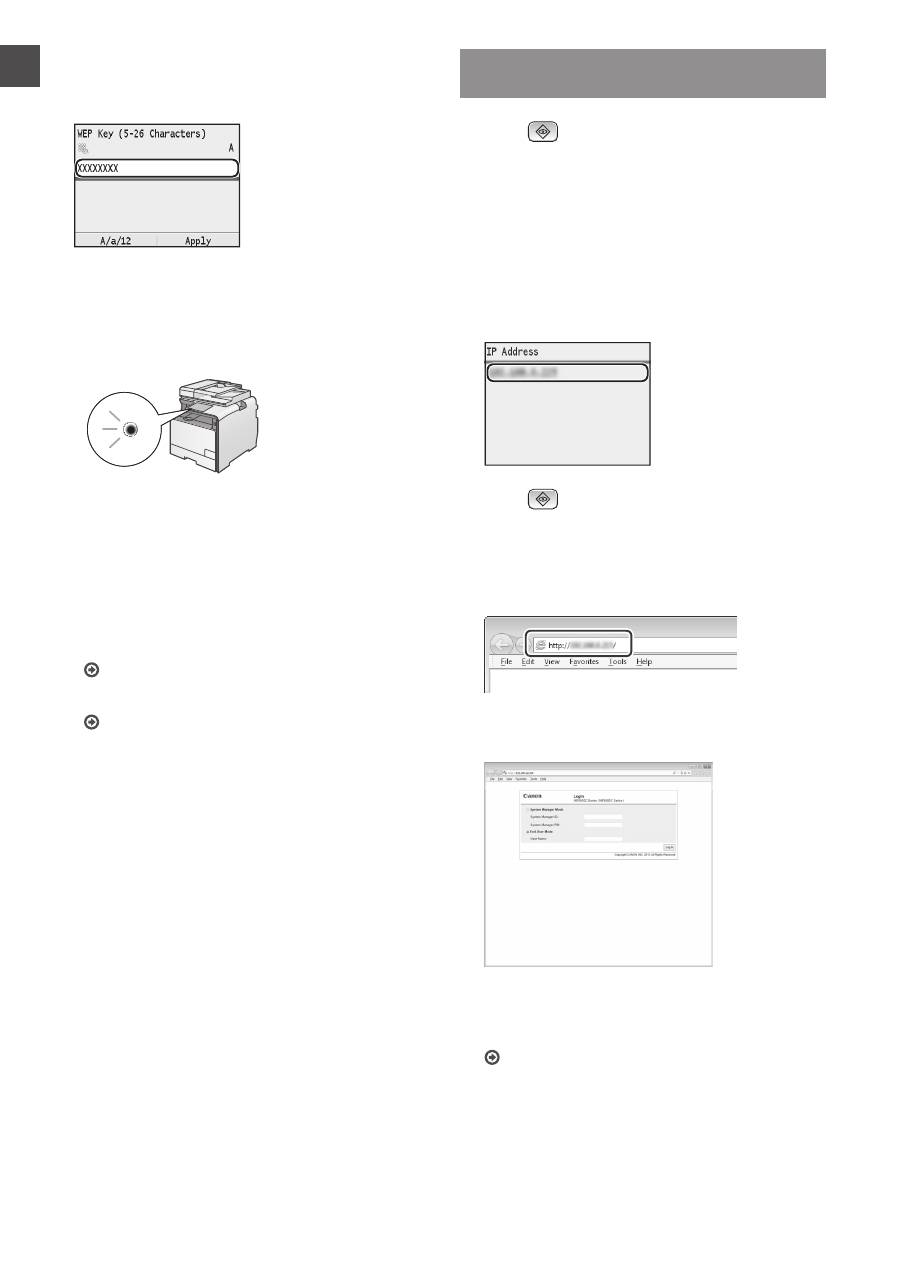
Enter the network key.
1
Enter the network key using the numeric keys.
2
Press [OK].
9
Select <Yes>, and then press [OK].
10
After the <Connected.> screen is displayed,
wait until the Wi-Fi indicator stops blinking and
turns on.
Wait approximately 2 minutes after the
connection.
IP address is set during this period of time.
When an error message appears:
Press [OK] to close the screen, check whether or not
the network key is correct, and then retry the settings.
If the access point cannot be detected even after
retrying, see the following.
e-Manual "When an Error Message Appears"
To set IP address manually:
e-Manual "Setting IP Addresses"
Checking That the Wireless LAN Setting
is Completed
1
Press
(Status Monitor).
2
Select <Network Information>, and then press
[OK].
3
Select <IPv4>, and then press [OK].
4
Select <IP Address>, and then press [OK].
5
Take note of the IP address.
6
Press
(Status Monitor).
7
Start a Web browser from a computer, enter
"http://<IP address of the machine>/" in the
address field, and then press [Enter] on your
keyboard.
8
Check that the screen of the Remote UI is
displayed.
Connection is completed if the screen is displayed.
If the screen is not displayed correctly:
e-Manual "Common Problems"
