
Canon i-SENSYS MF8540Cdn: Checking Before the Setup Switching the Connection Method to Wireless LAN Checking the Wireless Router
Checking Before the Setup Switching the Connection Method to Wireless LAN Checking the Wireless Router: Canon i-SENSYS MF8540Cdn
Table of contents
- Contents
- Checking Before the Setup Switching the Connection Method to Wireless LAN Checking the Wireless Router
- Setting Wireless LAN Push Button Mode Setting the Access Point Manually
- Checking That the Wireless LAN Setting is Completed
- Installing the Driver / Software Checking SSID or Network Key for a Wireless Router
6
En
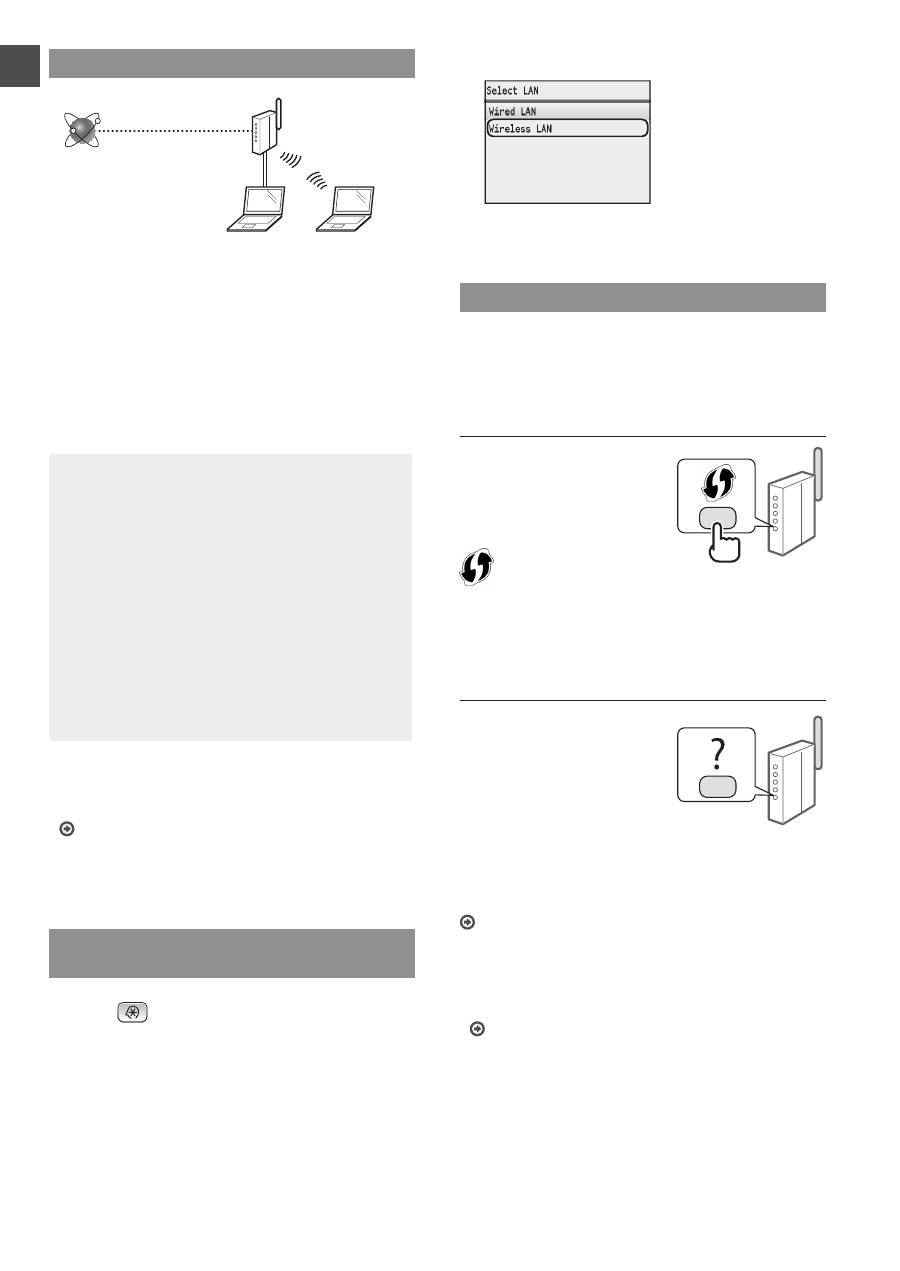
Checking Before the Setup
Wireless Router
Internet
Is the computer connected to the wireless router
correctly by a LAN cable or wireless LAN?
For more information, see the instruction manual for the
network device you are using, or contact the networking
device manufacturer.
Has the network settings on the computer been
completed?
If the computer is not properly configured, you may not use
the wireless LAN connection even after completing the
following settings.
NOTE
• You cannot connect both the wired LAN and wireless
LAN at the same time. In addition, the machine is set
to the "Wired LAN" by default.
• When you connect to a network environment that
is not security protected, your personal information
could be disclosed to third parties. Please use
caution.
• If you connect through a LAN in the office, contact
your network administrator.
• In this manual, a wireless device that is accessed
from satellite terminals is generally called as
“wireless router.” The term “access point” means
a master terminal on a wireless LAN that satellite
terminals access to.
•
When proceeding from “Connecting the Power Cord
and Turning ON the Power” in the Getting Started:
Proceed to “Checking the Wireless Router” on the right
side of this page.
Switching the Connection Method to
Wireless LAN
1
Press
.
2
Select <Network Settings>, and then press [OK].
3
Select <Select Wired/Wireless LAN>, and then
press [OK].
4
Select <Wireless LAN>, and then press [OK].
Checking the Wireless Router
Select the connection method to the wireless LAN. Select
from the following two methods depending on the wireless
router that you are using.
There is a button.
This machine supports WPS
(Wi-Fi Protected Setup).
You can easily set up if your
wireless router has a button,
and if the following mark is on
the wireless router.
If you are not sure whether or not your wireless router supports
WPS, please see the manual included in the product, or contact the
product manufacturer.
There is no button.
If there is no button on your
wireless router, you may
manually select SSID and
complete the settings. In this
case, you need to specify
SSID and network key of your
wireless router.
See "Checking SSID or Network Key for a Wireless Router"
(P.9) to learn how to find out your SSID and network key.
To set up with WPS PIN code method, or setup
manually:
e-Manual "Connecting to a Wireless LAN"
•
When proceeding from “Connecting the Power Cord
and Turning ON the Power” in the Getting Started:
Proceed to step 4 of "Setting Wireless LAN" (P.7).
