
Canon i-SENSYS MF8230Cn: Installing the Driver / Software Checking SSID or Network Key for a Wireless Router
Installing the Driver / Software Checking SSID or Network Key for a Wireless Router: Canon i-SENSYS MF8230Cn
Table of contents
- Checking Before the Setup Switching the Connection Method to Wireless LAN Checking the Wireless Router
- Setting Wireless LAN Setting the Access Point Manually
- Checking That the Wireless LAN Setting is Completed
- Installing the Driver / Software Checking SSID or Network Key for a Wireless Router
- Vérification avant la configuration
9
En
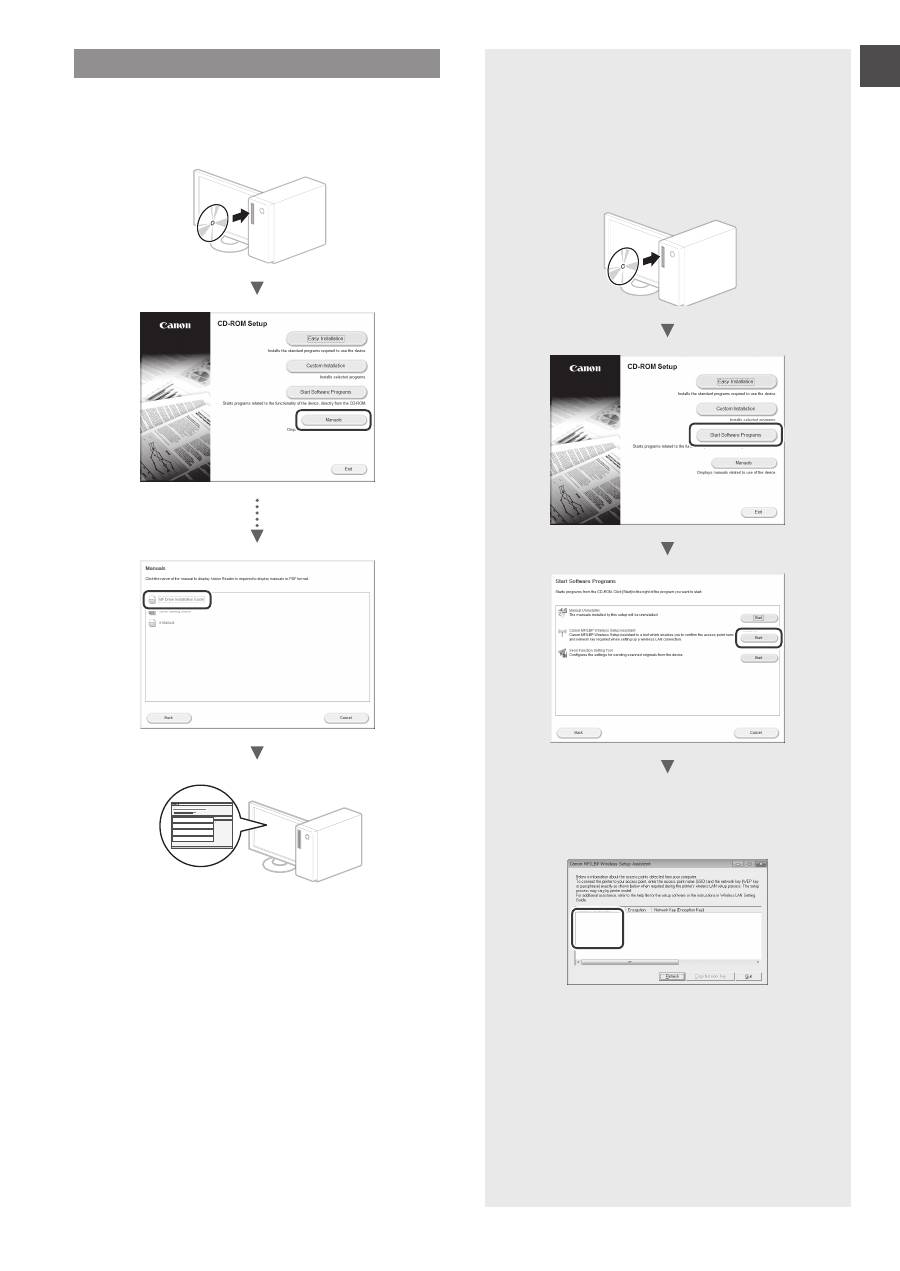
Installing the Driver / Software
Install the driver and software using the User Software
CD-ROM. For details on the installation procedures, see MF
Driver Installation Guide.
▲
Checking SSID or Network Key for a
Wireless Router
You can check the SSID or the network key using
Canon MF/LBP Wireless Setup Assistant, which is
included in the User Software CD-ROM.
▲
Write down the name of access point (SSID) and
network key on page 7.When multiple access
points are displayed, write all SSIDs that are
displayed.
SampleABCD
WEP
01234567890123456789ABCDEF
SampleEFGHIJ
WPA-PSK
543210EDCBA
SampleK
WPA2-PSK 1234ABCD
If the information for the wireless router is not
displayed
•
Click the [Refresh] button.
•
If the information is not displayed when you click
the [Refresh] button, the network connection of
the computer and the wireless router.


