
Canon i-SENSYS MF231: Checking That the Wireless LAN Setting is Completed Installing the Driver / Software
Checking That the Wireless LAN Setting is Completed Installing the Driver / Software: Canon i-SENSYS MF231
Table of contents
- Contents
- Checking Before the Setup Switching the Connection Method to Wireless LAN Checking the Router
- Setting Wireless LAN Setting the Access Point Manually
- SSID
- Checking That the Wireless LAN Setting is Completed Installing the Driver / Software
9
En
Checking That the Wireless LAN Setting is
Completed
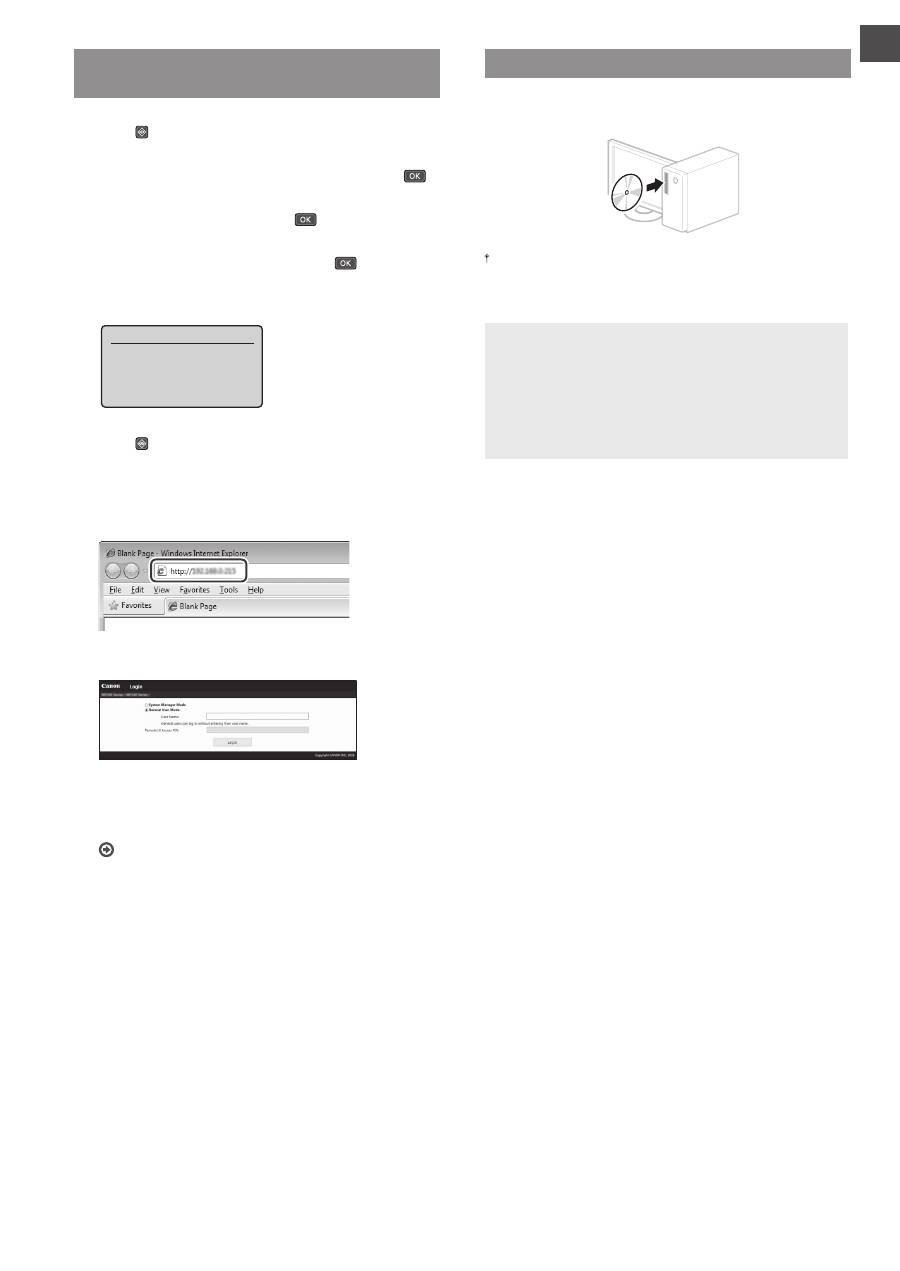
1
Press .
2
Select <Network Information>, and then press
.
3
Select <IPv4>, and then press
.
4
Select <IP Address>, and then press
.
5
Take note of the IP address.
IP Address
XXX.XXX.XXX.XXX
6
Press .
7
Start a web browser from a computer, enter
“http://<IP address of the machine>/” in the address
fi eld, and then press [Enter] on your keyboard.
8
Check that the screen of the Remote UI is displayed.
Connection is completed if the screen is displayed.
When the screen is not displayed correctly:
User’s Guide “Common Problems”
Installing the Driver / Software
For details on the installation procedures:
Install the driver and software using the provided DVD-ROM.
You can also download the driver from the Canon website.
For details on the installation procedures, see the MF Driver
Installation Guide.
For Mac OS users:
The DVD-ROM supplied with this machine may not include
the printer driver for Mac OS. This is diff erent depending
on when you purchase the machine. Please fi nd and
download the appropriate driver on our Canon homepage.
For further information on installation or using the driver,
see the manual for the driver.



