
Eneo NXC-1404F03W: DE EN FR PL RU
DE EN FR PL RU: Eneo NXC-1404F03W
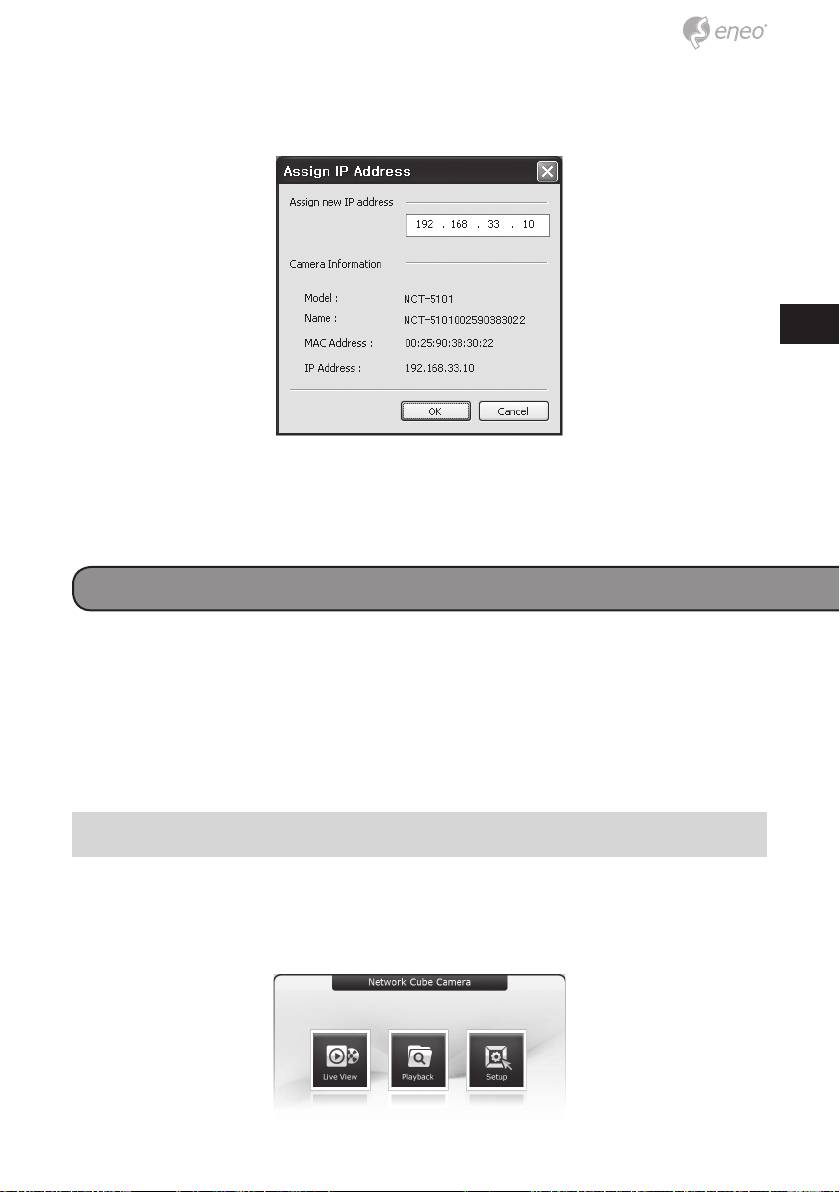
4. Select Assign IP. You cam see a Assign IP window. Enter the required IP
address.
DE
EN
FR
PL
RU
Note: For more information, refer to the Smart Manager User’s Manual.
Operation
The Network Camera can be used with Windows operating system and
browsers. The recommended browsers are Internet Explorer, Safari, Firefox,
Opera and Google Chrome with Windows.
Note: To view streaming video in Microsoft Internet Explorer, set your brow-
ser to allow ActiveX controls.
Access from a browser
1. Start a browser (Internet Explorer).
2. Enter the IP address or host name of the Network Camera in the Loca-
tion/Address field of your browser.
3. You can see a starting page. Click Live View or Setup to enter web page.
21
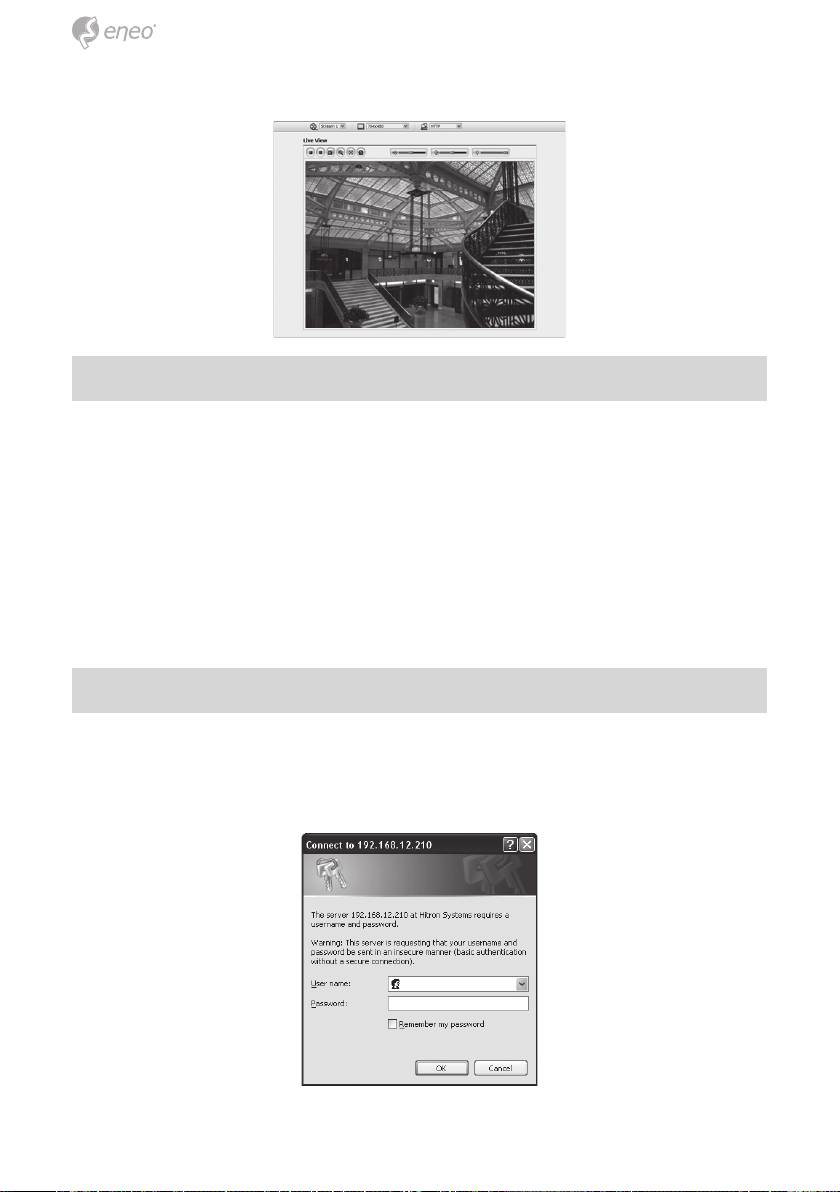
4. The network camera’s Live View page appears in your browser.
Access from the internet
Access from the internet once connected, the Network Camera is acces-
sible on your local network (LAN). To access the network camera from the
Internet you must configure your broadband router to allow incoming data
traffic to the network camera. To do this, enable the NAT-traversal feature,
which will attempt to automatically configure the router to allow access to
the network camera. This is enabled from Setup > System > Network > NAT.
For more information, please see “3.5.4 System>Network>NAT” of User’s
Manual.
Setting the admin password over a secure connection
To gain access to the product, the password for the default administrator
user must be set. This is done in the “Admin Password” dialog, which is
displayed when the network camera is accessed for the setup at the first
time. Enter your admin name and password, set by the administrator.
22
Оглавление
- DE EN FR PL RU
- DE DE EN EN
- DE DE
- DE DE EN EN
- DE DE EN EN FR FR PL PL
- DE DE EN EN
- DE DE
- DE
- DE EN FR PL
- DE EN
- DE EN FR PL RU
- DE
- DE DE EN EN
- DE DE EN EN FR FR PL PL
- DE DE
- DE DE EN EN
- DE DE EN EN FR FR PL PL RU RU
- DE DE
- DE DE EN EN
- DE DE
- DE DE EN EN
- DE DE EN EN FR FR PL PL
- DE DE
- DE DE EN EN FR FR
- DE DE EN EN
- DE DE EN EN FR FR PL PL
- DE DE EN EN FR FR PL PL RU RU
- DE DE EN EN
- DE DE EN EN FR FR PL PL RU RU
- DE DE EN EN
- DE DE
- DE DE EN EN FR FR PL PL RU RU
