
Toshiba JournE album: Understanding the Menu Icons
Understanding the Menu Icons: Toshiba JournE album
Table of contents
- Table of Contents
- Conventions
- Introduction Checking the components
- Safety Instructions Do not disassemble, modify, tamper with or repair your product Handling the AC adaptor and power cables/cords or plugs Attaching the power cable/cord
- Dust on the power plug connectors or connector base Only use TOSHIBA AC adaptor Use correct power source Only use approved power cables/cords Do not handle the power plug with wet hands Choking hazards
- Avoid liquids, moisture and foreign objects Never place your product or AC adaptor on a heat sensitive surface Never place your product in a damp environment Use the LCD correctly
- Never place your product in locations with excess heat Never place your product in a location with extremely low temperatures Never subject your product to sudden temperature variations Never operate your product during a thunderstorm System Requirements
- The Grand Tour Front View Bottom View
- Side View
- Getting Started Positioning the Unit Connecting to AC Power Turning on the Digital Album
- Built-in battery
- Inserting/Removing a Memory Card Inserting a Memory Card: Removing a Memory Card
- USB Connection
- Understanding the Menu Icons
- Basic Operations Photo Mode
- To rotate the photo, press the OK button on the album.
- Slide Show
- To listen to the background music during a slide show, press the volume Up button to turn on the music and volume. To pause the music, press the Volume Down button repeatedly until the sound is off.
- Video Mode
- Copying and Deleting Files Copying Files from Memory Cards to an Album Copying Files from a PC to an Album
- Deleting Files in an Album Setup Theme Style
- Screen Brightness Language
- Date/Time Auto Shutdown Timer
- Status Firmware Upgrades
- Supported Formats
- Frequently Asked Questions Specifications
- TOSHIBA Support Copyright Statement Disclaimer Trademarks
- Regulatory Statements
- Additional Environments not Related to EMC Following information is only for EU-member states:
- Disposal of Batteries and/or Accumulators
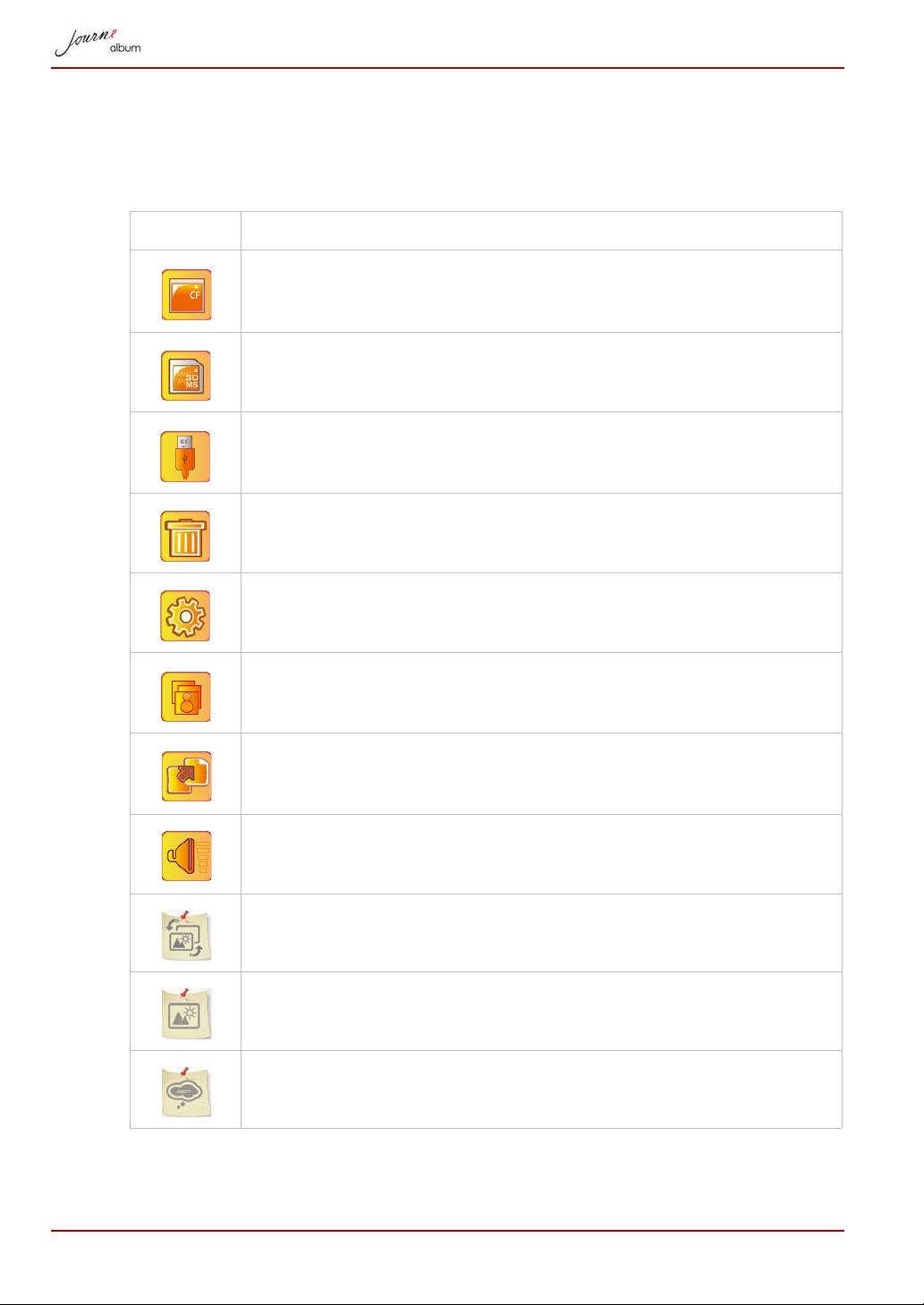
Understanding the Menu Icons
The top left corner of the screen will display different icons for operation
depending on your use. These icons are defined as follows:
Icon Actions
Go to the browser screen in card (appears when CF card is
inserted). When selected, the icon is highlighted in orange.
Go to the browser screen in card (appears when SD/MMC/
MS/MS-Pro card is inserted).
Go to the browser screen in USB drive (appears when the
USB drive is inserted).
Delete files.
Setup.
Go to Slide Show screen.
Backup icon. Copy files from the memory card to the album.
Display volume level.
Theme
Screen Brightness
Language
EN-16 User’s Manual
Top 10 manuals
100.00
NZXT HALE90 1000W99.99
Samsung SM-R38099.97
AEG BSB 18C99.97
Dell 2700W99.97
Smeg KSEC70X99.96
Beurer HDE 4099.96
Pyramida KH 50 v.299.96
MSI CSM-H81M-P3299.96
AEG HR 562799.95
Melissa 640-048