
Samsung SPF-87H: Using the Digital Frame
Using the Digital Frame: Samsung SPF-87H
English
4
Using the Digital Frame
1
Log on to http://samsung.com/ and enter the model name in the search fi eld.
(SPF-87H or SPF-107H)
2
Download and decompress the appropriate fi rmware.
3
Copy the decompressed ***.isp fi le to the SD card or USB memory device and
connect to the digital frame.
4
Select <Settings> - <Support> - < Upgrade Software> with the buttons on the
back of the product. The fi rmware is updated.
When the update is fi nished, turn the digital frame off, remove the external
memory device (SD card/USB memory device), and turn the digital frame on
again.
You can check if the fi rmware version has been updated in <Settings> -
<Support> - <Product Information>.
Connect the digital frame to a PC with the USB cable to use as a Mini Monitor.
Connect the digital frame to a PC with the USB cable to use as a Mini Monitor (aux.
monitor).
You must install Frame Manager on your PC in order to use the product as
a Mini Monitor.
Log on to http://samsung.com/ to download Frame Manager and for instructions on using
the product as a Mini Monitor.
Only one auxiliary monitor can be used at a time.
Using as a Mini Monitor
Download and install the latest fi rmware from the Samsung Electronics
homepage.
Firmware update
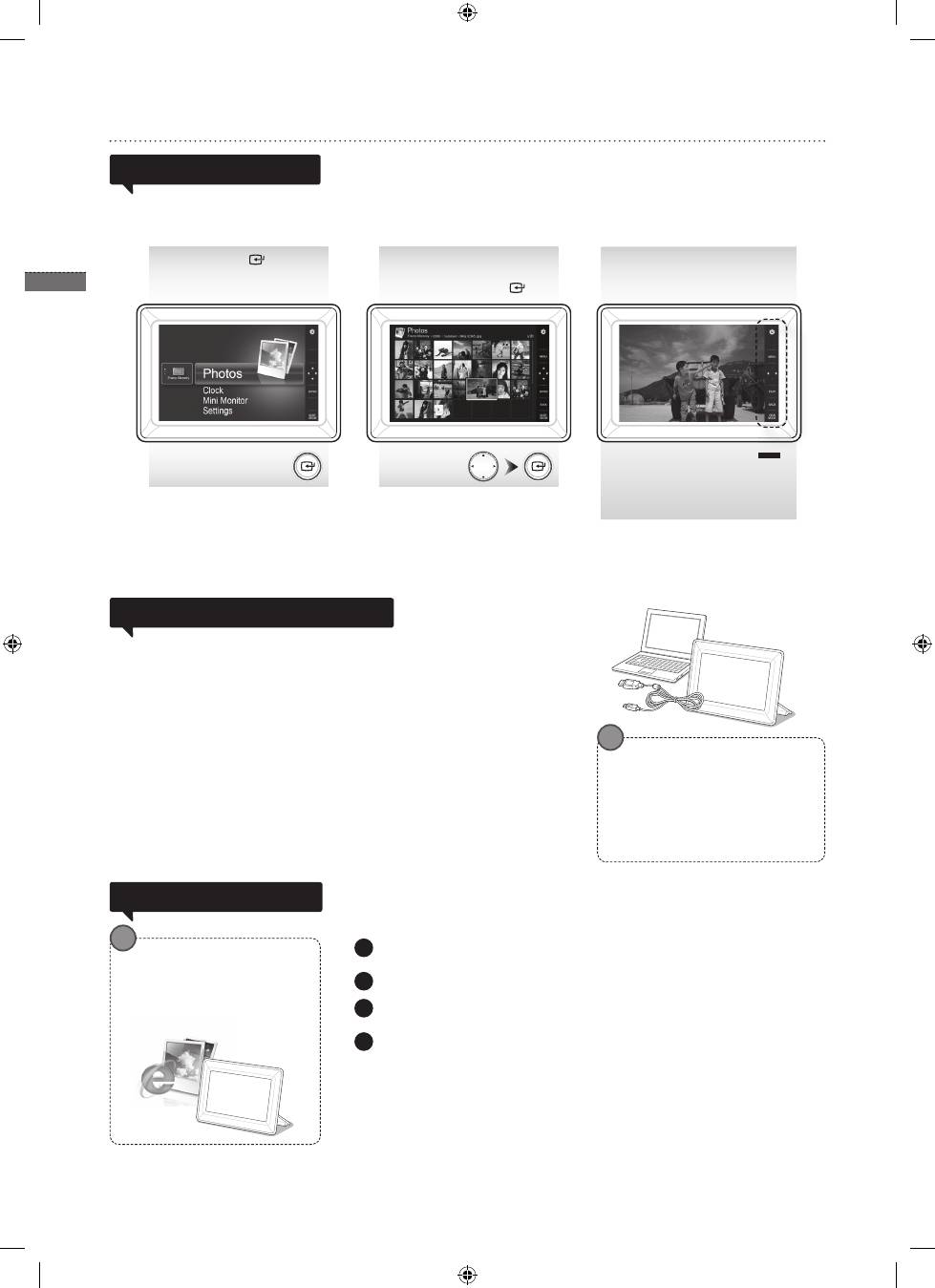
Press [ ].
Use [▲,▼,◄,►] to
move to the picture you
want and press [ ].
If you press the [MENU] button during a slide show, the <Home>, <Rotate>,
<Zoom>and <Settings> menus will appear.
• To use <Rotate> and <Zoom>, <View Mode> in the <Settings> menu must be set
as <Photo Only> or <Photo & Clock>.
• Only the <Rotate> function is supported when using <Photo & Calendar>.
PC requirements for use as a
Mini Monitor
• OS: Windows XP SP2, Vista(32bit)
• USB: Extended Host Controller(EHCT)
USB 2.0 supported
• RAM: 256MB or higher
• CPU: 2.4GHz or higher
!
Preparations for fi rmware
update
• Digital photo frame
• Firmware fi le for update
• USB memory or SD card
!
Viewing pictures
Pictures saved in the product’s internal memory or an external memory device can
be viewed in a wide range of options.
Only an SD memory card or USB memory device can be used as an external
memory device.
A wide range of effects can be applied to pictures through the menu. Refer to the
following page for menu options.
A slide show begins from
the picture you selected.
If you press any button, the button
guide will appear at the right hand
side of the screen.
The available button indication may
differ depending on the situation.
BN68-01567J.indb 4
2009-07-14 �� 3:47:09
Table of contents
- Product and Components
- Using the Digital Frame
- Menu Options
- Troubleshooting
- Výrobek a součásti
- Používání digitálního rámečku
- Nabídka voleb
- Odstraňování potíží
- Produkter og komponenter
- Brug af den digitale fotoramme
- Menufunktioner
- Fejlfinding
- Das Gerät und seine Komponenten
- Verwenden des digitalen Rahmens
- Menüoptionen
- Fehlerbehebung
- Producto y componentes
- Uso del marco digital
- Opciones de menú
- Solución de problemas
- Προϊόντα και Μέρη προϊόντων
- Χρήση της Ψηφιακής κορνίζας
- Επιλογές μενού
- Αντιμετώπιση προβλημάτων
- Produit et éléments
- Utilisation du cadre numérique
- Options du menu
- Dépannage
- Prodotto e componenti
- Uso della cornice digitale
- Opzioni menu
- Risoluzione dei problemi
- A készülék és tartozékai
- A digitális képkeret használata
- Menüopciók
- Hibaelhárítás
- Product en onderdelen
- De digitale lijst gebruiken
- Menuopties
- Problemen oplossen
- Produkter og komponenter
- Bruker den digitale rammen
- Menyalternativer
- Feilsøking
- Produkt i elementy
- Korzystanie z Ramki cyfrowej
- Opcje menu
- Rozwiązywanie problemów
- Produto e componentes
- Utilizar o Digital Frame
- Opções do menu
- Resolução de problemas
- Изделие и его компоненты
- Использование цифровой рамки
- Меню параметров
- Поиск и устранение неисправностей
- Produkt a komponenty
- Používanie digitálneho rámika
- Možnosti ponuky
- Riešenie problémov
- Tuote ja osat
- Digitaalisen valokuvakehyksen käyttäminen
- Valikon vaihtoehdot
- Vianmääritys
- Produkt och komponenter
- Använda Digital Frame
- Menyalternativ
- Felsökning

