
Acer AOD255: # Icon Item Description Hotkeys Hotkey Icon Function Description
# Icon Item Description Hotkeys Hotkey Icon Function Description: Acer AOD255
Table of contents
- First things first Your guides
- Your Acer notebook tour Top view # Icon Item Description
- # Icon Item Description Hotkeys Hotkey Icon Function Description
- Hotkey Icon Function Description Using the communication key*
- Closed front view Rear view
- Left view Right view
- Base view Environment
5
English
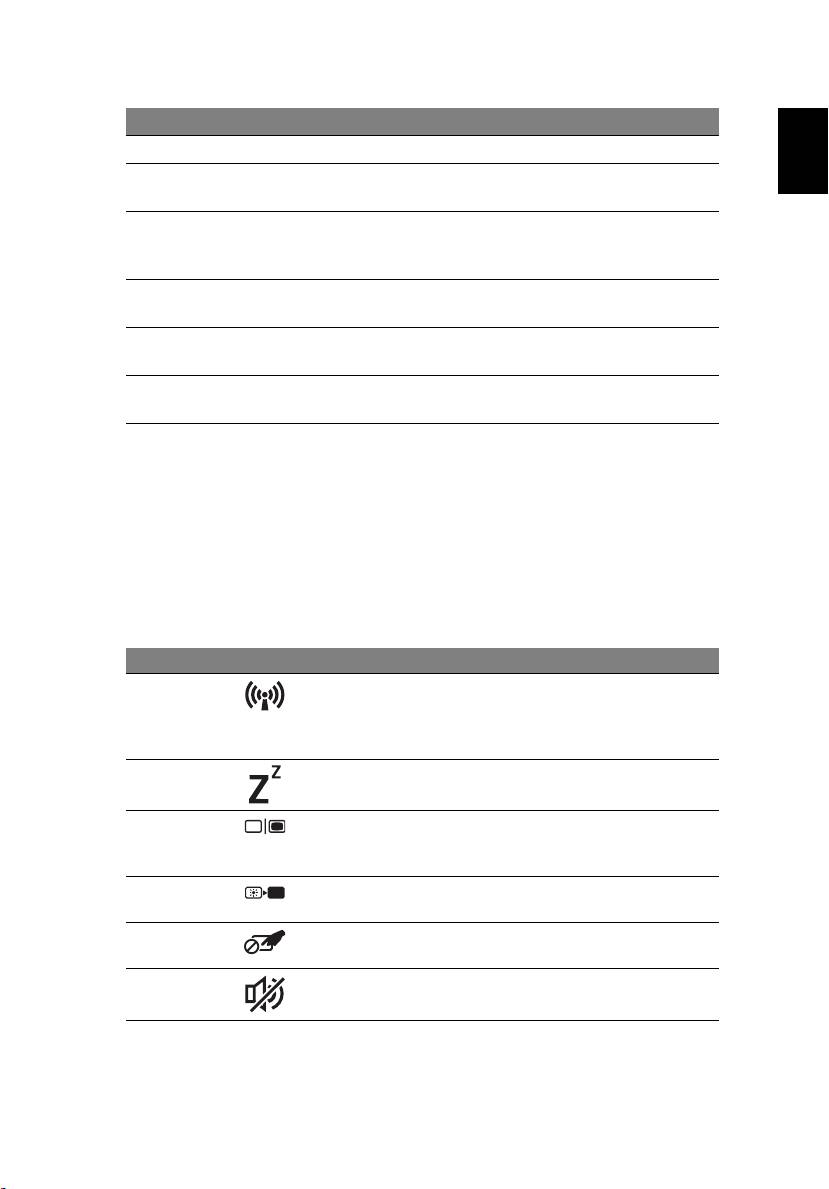
# Icon Item Description
4 Keyboard For entering data into your computer.
5 Touchpad Touch-sensitive pointing device which
functions like a computer mouse.
6
1
Light-Emitting Diodes (LED) that light up to
Status indicators
show the status of the computer's functions
and components.
7 Click buttons (left
The left and right buttons function like the
and right)
left and right mouse buttons.
8 Palmrest Comfortable support area for your hands
when you use the computer.
9 Acer Crystal Eye
Web camera for video communication
webcam
(configuration may vary by model).
1. The front panel indicators are visible even when the computer cover is closed.
Hotkeys
The computer employs hotkeys or key combinations to access most of the
computer's controls like screen brightness and volume output.
To activate hotkeys, press and hold the <Fn> key before pressing the other key
in the hotkey combination.
Hotkey Icon Function Description
<Fn> + <F3> Communication
Enables/disables the computer’s
key
communication devices.
(Communication devices may vary by
configuration.)
<Fn> + <F4> Sleep Puts the computer in Sleep mode.
<Fn> + <F5> Display toggle Switches display output between the
display screen, external monitor
(if connected) and both.
<Fn> + <F6> Screen blank Turns the display screen backlight off
to save power. Press any key to return.
<Fn> + <F7> Touchpad
Turns the internal touchpad on and
toggle
off.
<Fn> + <F8> Speaker toggle Turns the speakers on and off.
