
Acer K335: B. Device Installation (WiFi Display)
B. Device Installation (WiFi Display) : Acer K335
English
B. Device Installation (WiFi Display)
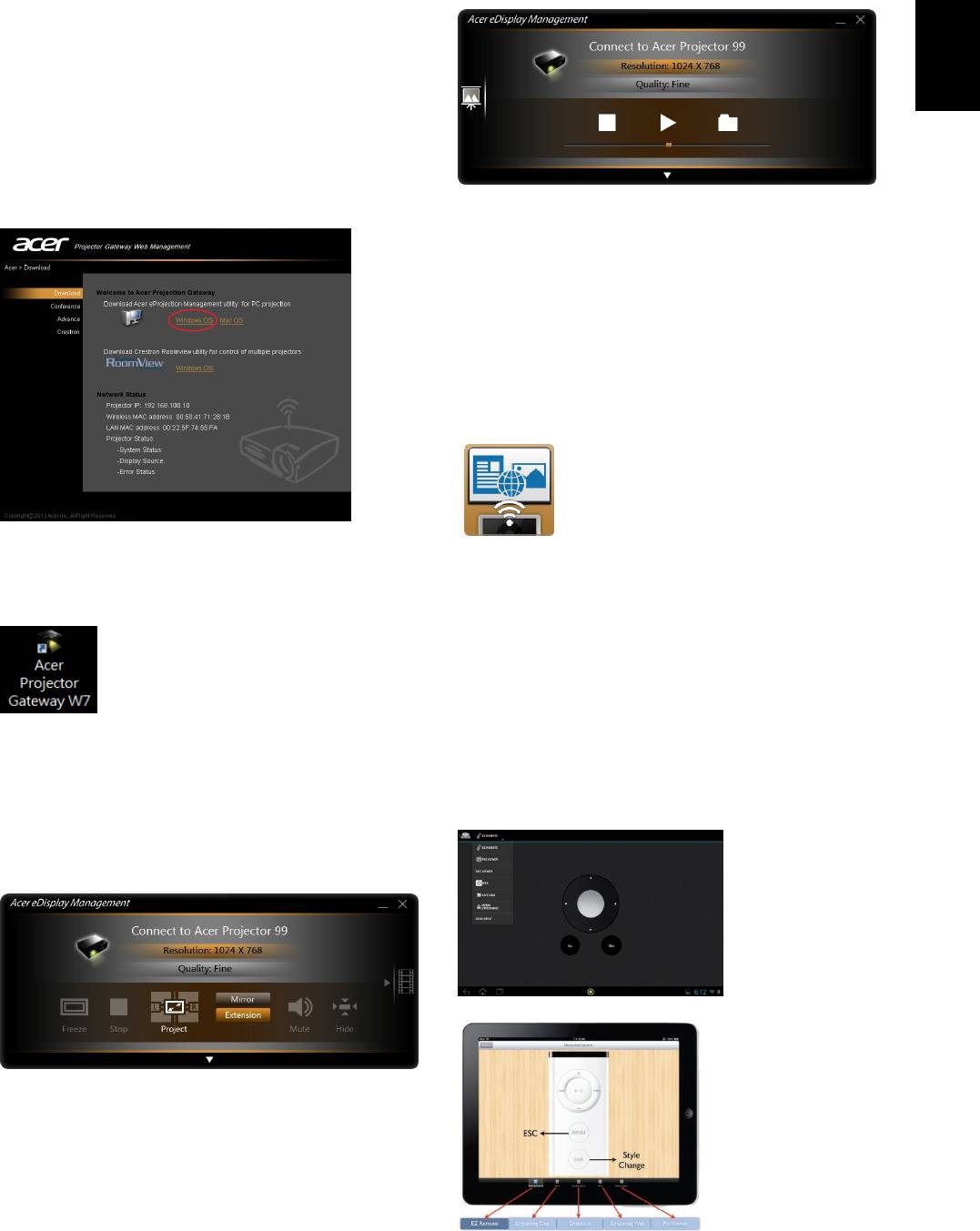
NB eDisplay (Windows & Mac OS)
You can download the application (acer
eDisplay Management) from CD or webpage
(192.168.100.10) when the projector is in AP
Mode.
Tablet & Smartphone eDisplay
(Android & iOS)
You can get the application “eDisplay” from
Android’s Google Play or iOS’s Apple Store.
Execute the app to project the small screen
from your device to a bigger one via the
projector.
Click RUN and follow the wizard to install, you
will get a shortcut Acer Projector Gateway W7
Support the following functions: EZ Remote,
on your desktop and execute it.
Streaming Doc, Dropbox, Streaming Web, Pix
Viewer, & Sketch.
Note :
1. Android 4.0 and above supported.
“Projection mode” supports “Full, L/R, 4-Split
2. iOS 5.0 and above supported.
Mirror projection” & “Full, L/R, 4-Split
3. If you want to use Dropbox or Streaming Web,
Extension projection”, Audio On/Off, and
please set the projector to be in Client mode.
controls the projected screen to be frozen or
hidden.
(Android eDisplay)
“Video mode” supports video streaming.
(iOS eDisplay)
Table of contents
- A. Projector Settings
- B. Device Installation (WiFi Display)
- A. Paramètres du projecteur
- B. Installation de l’appareil
- A. Projektoreinstellungen
- B. Geräteinstallation
- A. Impostazioni del proiettore
- B. Installazione del dispositivo
- A. Configuración del proyector
- B. Instalación del dispositivo
- A. Definições do Projector
- B. Instalação do dispositivo
- A. プロジェクタの設定
- B. デバイスのインストール
- A. Настройки проектора
- B. Установка устройства
- A. 投影機設定
- B. 裝置安裝(WiFi 顯示)
- A. 投影机设置
- B. 设备安装(WiFi 显示)


