
ASRock Z77 WS – page 2
Manual for ASRock Z77 WS

21
ASRock Z77 WS Motherboard
English
2.7 SLI
TM
, 3-Way SLI
TM
, 4-Way SLI
TM
and Quad SLI
TM
Operation
Guide
This motherboard supports NVIDIA
®
SLI
TM
, 3-Way SLI
TM
, 4-Way SLI
TM
and Quad
SLI
TM
(Scalable Link Interface) technology that allows you to install up to four
identical PCI Express x16 graphics cards. Currently, NVIDIA
®
SLI
TM
technology
supports Windows
®
XP / XP 64-bit / Vista
TM
/ Vista
TM
64-bit / 7 / 7 64-bit OS. NVIDIA
®
3-Way SLI
TM
, 4-Way SLI
TM
and Quad SLI
TM
technology supports Windows
®
Vista
TM
/
Vista
TM
64-bit / 7 / 7 64-bit OS only. Please follow the installation procedures in this
section.
2.7.1 Graphics Card Setup
2.7.1.1 Installing Two SLI
TM
-Ready Graphics Cards
Step 1. Install identical SLI
TM
-ready graphics cards that are NVIDIA
®
certi
fi
ed be-
cause different types of graphics cards will not work together properly. (Even
the GPU chips version shall be the same.) Insert one graphics card into
PCIE1 slot and the other graphics card to PCIE5 slot. Make sure that the
cards are properly seated on the slots.
Requirements
1. For SLI
TM
technology, you should have two identical SLI
TM
-ready graphics
cards that are NVIDIA
®
certi
fi
ed. For 3-Way SLI
TM
technology you should
have three, whereas for 4-Way SLI
TM
technology you should have four. For
Quad SLI
TM
technology, you should have two identical Quad SLI
TM
-ready
graphics cards that are NVIDIA
®
certi
fi
ed.
2. Make sure that your graphics card driver supports NVIDIA
®
SLI
TM
technology.
Download the driver from NVIDIA website (www.nvidia.com).
3. Make sure that your power supply unit (PSU) can provide at least the
minimum power required by your system. It is recommended to use NVIDIA
®
certi
fi
ed PSU. Please refer to NVIDIA
®
website for details.

22
ASRock Z77 WS Motherboard
English
Step4. Connect a VGA cable or a DVI cable to the monitor connector or the DVI
connector of the graphics card that is inserted to PCIE1 slot.
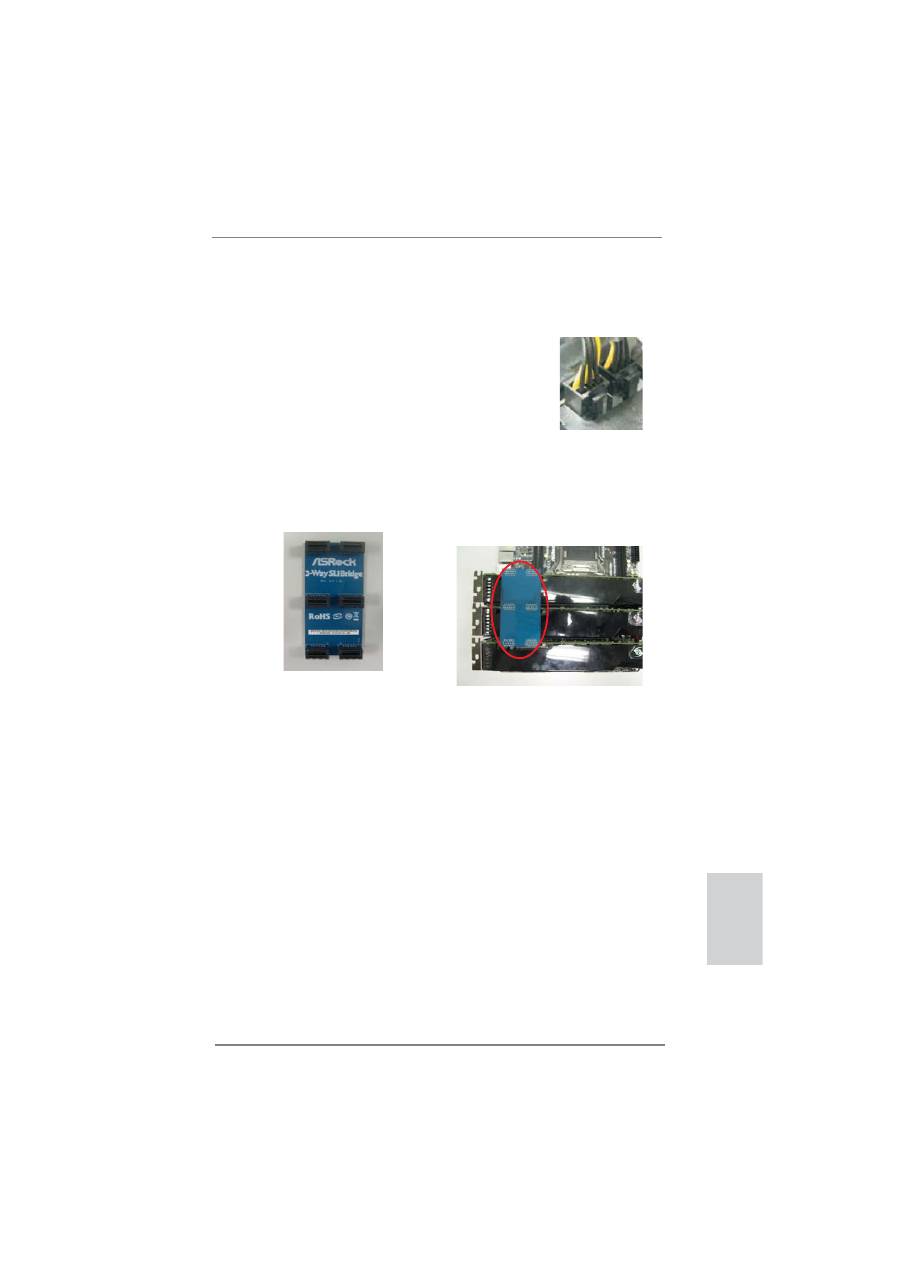
Step3. Align and insert the ASRock SLI_Bridge_3S Card to the gold
fi
ngers on
each graphics card. Make sure the ASRock SLI_Bridge_3S Card is
fi
rmly
in place.
ASRock SLI_Bridge_3S Card
Step2. If required, connect the auxiliary power source to the PCI Express graph-
ics cards.
2.7.1.2 Installing Three SLI
TM
-Ready Graphics Cards
Step 1. Install identical 3-Way SLI
TM
-ready graphics cards that are NVIDIA
®
certi-
fi
ed because different types of graphics cards will not work together prop-
erly. (Even the GPU chips version shall be the same.) Each graphics card
should have two gold
fi
ngers for the 3-Way SLI Bridge connector. Insert
one graphics card into PCIE1 slot, another graphics card to PCIE3 slot,
and the other graphics card to PCIE5 slot. Make sure that the cards are
properly seated on the slots.
Two Gold
fi
ngers
23
ASRock Z77 WS Motherboard
English
Step4. Connect a VGA cable or a DVI cable to the monitor connector or the DVI
connector of the graphics card that is inserted to PCIE1 slot.
Step3. Align and insert the ASRock 3-Way SLI Bridge Card to the goldfingers
on each graphics card. Make sure the ASRock 3-Way SLI Bridge Card is
fi
rmly in place.
ASRock 3-Way SLI Bridge Card
Step2. Connect the auxiliary power source to the PCI Express graphics card.
Please make sure that both power connectors on the PCI Express graph-
ics card are connected. Repeat this step on the three graphics cards.

24
ASRock Z77 WS Motherboard
English
2.7.1.3 Installing Four SLI
TM
-Ready Graphics Cards
Step 1. Install identical 4-Way SLI
TM
-ready graphics cards that are NVIDIA
®
certi-
fi
ed because different types of graphics cards will not work together prop-
erly. (Even the GPU chips version shall be the same.) Each graphics card
should have two gold
fi
ngers for the ASRock SLI Bridge Card connectors.
Insert one graphics card into the PCIE1 slot, another graphics card into the
PCIE3 slot, the third graphics card into the PCIE5 slot and the last graph-
ics card into the PCIE7 slot. Make sure that the cards are properly seated
on the slots.
Step2. Connect the auxiliary power source to the PCI Express graphics card.
Please make sure that both power connectors on the PCI Express graph-
ics card are connected. Repeat this step on the other graphics cards.
Step4. Connect a VGA cable or a DVI cable to the monitor connector or the DVI
connector of the graphics card that is inserted to PCIE1 slot.
Two Gold
fi
ngers
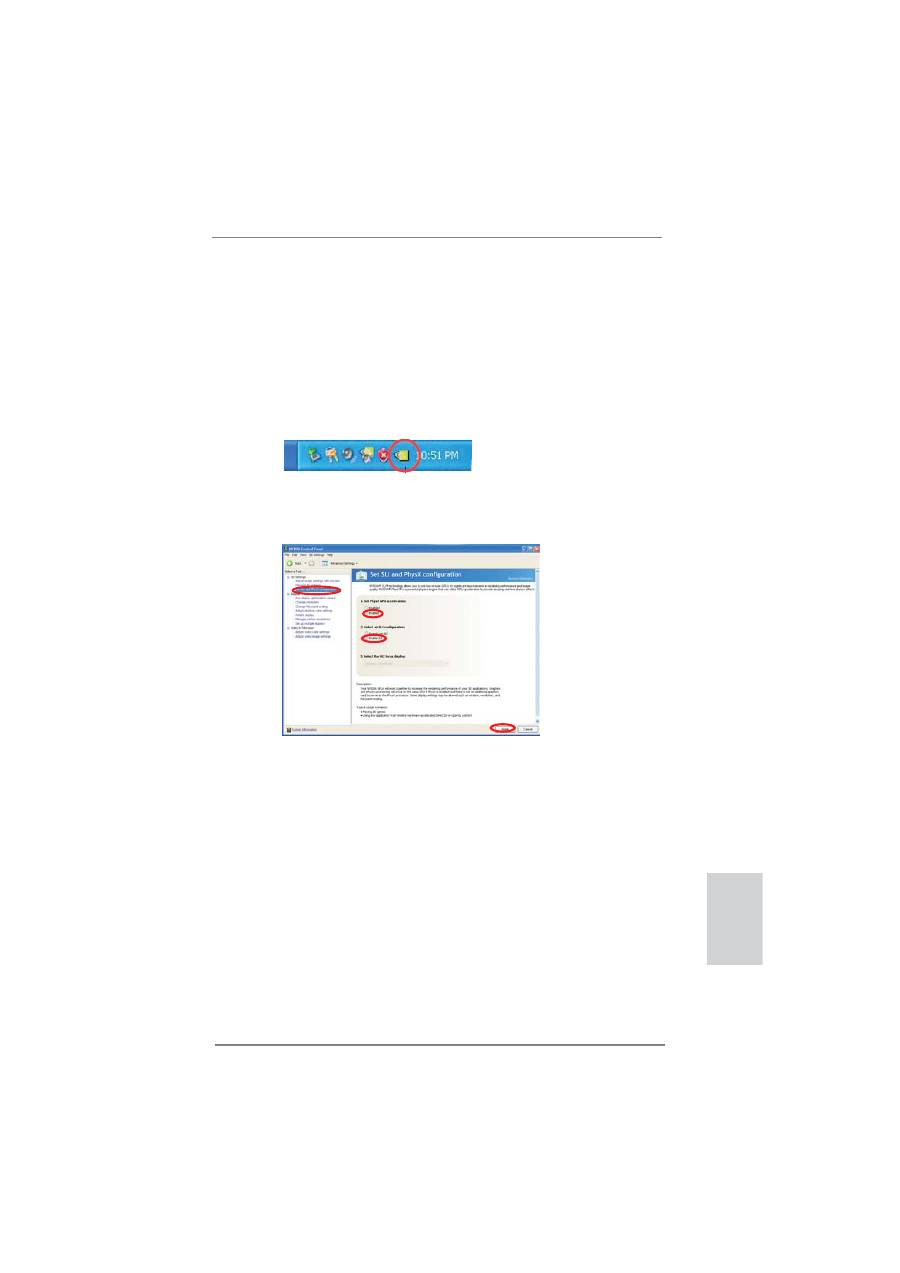
Step3. Align and insert an ASRock SLI Bridge Card to the gold
fi
ngers of the
fi
rst
and second graphics card. Install the second ASRock SLI Bridge Card to
the gold
fi
ngers of the third and fourth graphics card. Connect the second
and the fourth graphics card with the ASRock SLI_Bridge_3S Card. Make
sure the ASRock SLI Bridge Cards are
fi
rmly in place.
2 ASRock SLI_Bridge Cards
and an ASRock SLI_Bridge_3S Card
25
ASRock Z77 WS Motherboard
English
2.7.2 Driver Installation and Setup
Install the graphics card drivers to your system. After that, you can enable the Multi-
Graphics Processing Unit (GPU) feature in the NVIDIA
®
nView system tray utility.
Please follow the below procedures to enable the multi-GPU feature.
For Windows
®
XP / XP 64-bit OS:
(For
SLI
TM
mode only)
A.
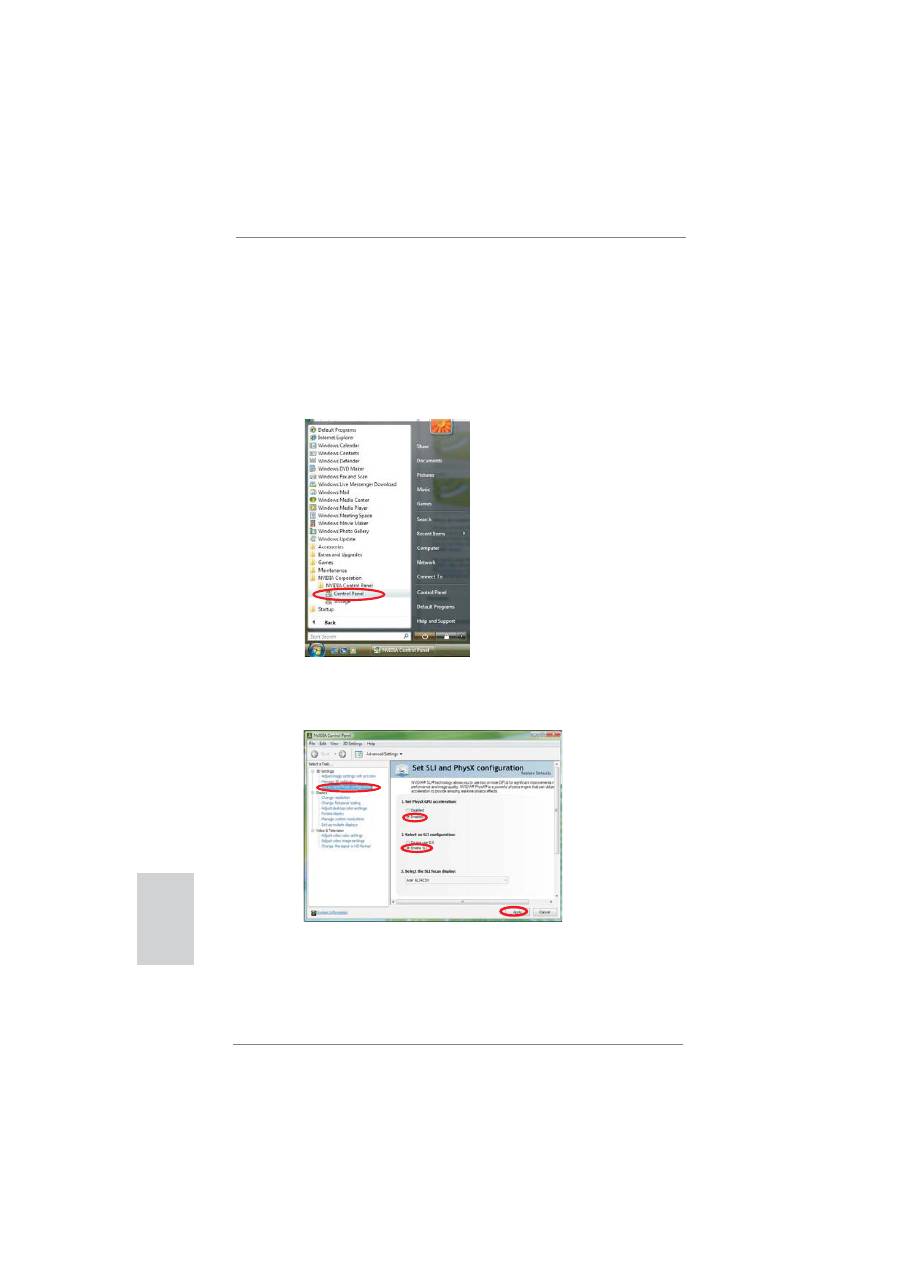
Double-click
NVIDIA Settings icon
on your Windows
®
taskbar.
B. From the pop-up menu, select
Set SLI and PhysX con
fi
guration
. In
Set PhysX GPU acceleration
item, please select
Enabled
. In
Select
an SLI con
fi
guration
item, please select
Enable SLI
. And click
Apply
.
C. Reboot your system.
D. You can freely enjoy the bene
fi
t of SLI
TM
feature.
26
ASRock Z77 WS Motherboard
English
For
Windows
®
Vista
TM
/ Vista
TM
64-bit / 7 / 7 64-bit OS:
(For
SLI
TM
and Quad SLI
TM
mode)
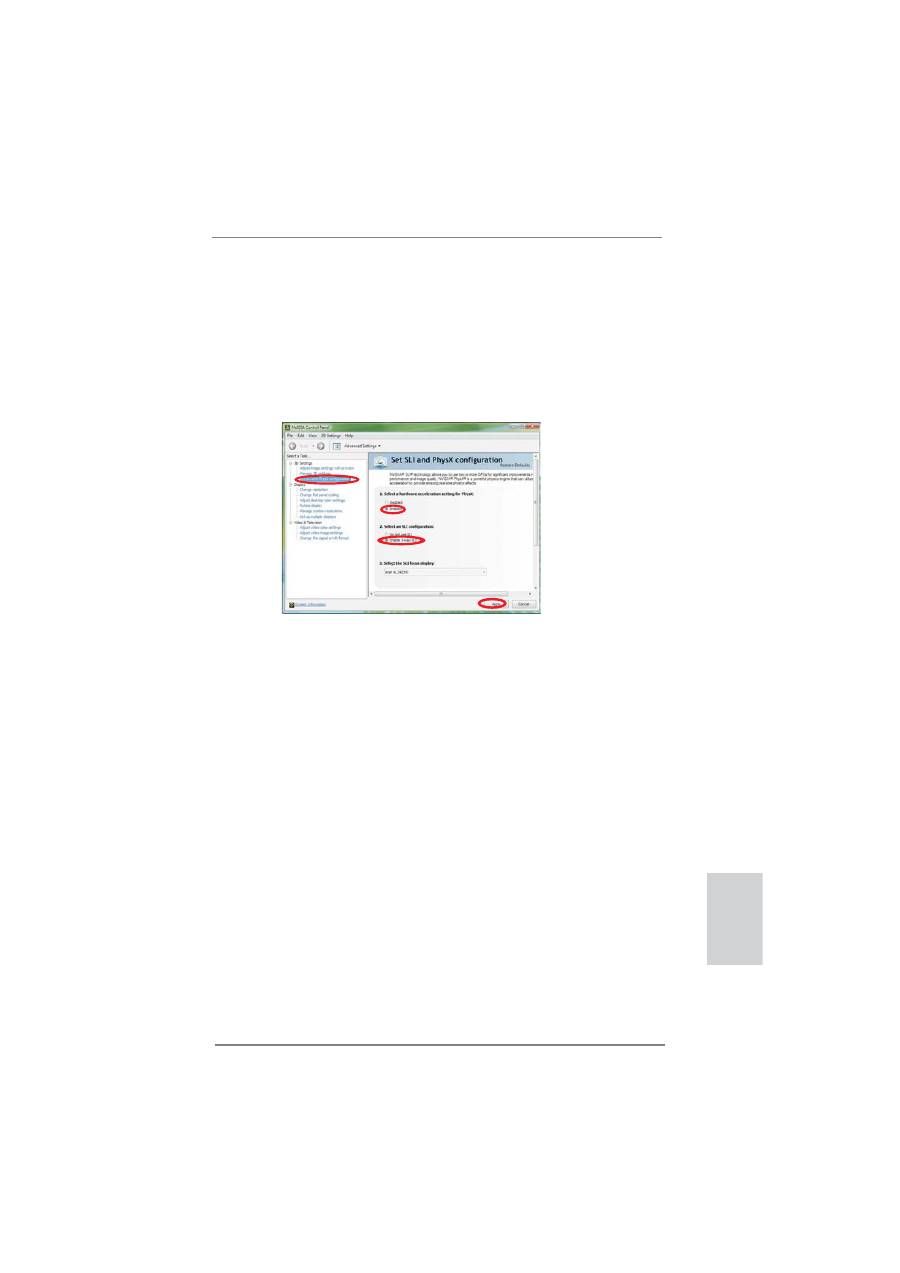
A. Click the
Start
icon on your Windows taskbar.
B. From the pop-up menu, select
All Programs
, and then click
NVIDIA
Corporation
.
C.
Select
NVIDIA Control Panel
tab.
D.
Select
Control Panel
tab.
E. From the pop-up menu, select
Set SLI and PhysX con
fi
guration
. In
Set PhysX GPU acceleration
item, please select
Enabled
. In
Select
an SLI con
fi
guration
item, please select
Enable SLI
. And click
Apply
.
F. Reboot your system.
G. You can freely enjoy the bene
fi
t of SLI
TM
or Quad SLI
TM
feature.
27
ASRock Z77 WS Motherboard
English
* SLI
TM
appearing here is a registered trademark of NVIDIA
®
Technologies Inc., and is used
only for identi
fi
cation or explanation and to the owners’ bene
fi
t, without intent to infringe.
For
Windows
®
Vista
TM
/ Vista
TM
64-bit / 7 / 7 64-bit OS:
(For 3-Way SLI
TM
or 4-Way SLI
TM
mode)
A. Follow step A to D on page 26.
B. From the pop-up menu, select
Set SLI and PhysX con
fi
guration
. In
Select a hardware acceleration setting for PhysX
item, please
select
Enabled
. In
Select an SLI con
fi
guration
item, please select
Enable 3-way SLI
or
Enable 4-way SLI
. And click
Apply
.
C. Reboot your system.
D. You can freely enjoy the bene
fi
ts of 3-Way SLI
TM
or 4-Way SLI
TM
.

28
ASRock Z77 WS Motherboard
English
2.8 CrossFireX
TM
, 3-Way CrossFireX
TM
, 4-Way CrossFireX
TM
and Quad CrossFireX
TM
Operation Guide
This motherboard supports CrossFireX
TM
, 3-way CrossFireX
TM
, 4-way CrossFireX
TM
and Quad CrossFireX
TM
. CrossFireX
TM
technology offers the most advantageous
means available of combining multiple high performance Graphics Processing
Units (GPU) in a single PC. Combining a range of different operating modes with
intelligent software design and an innovative interconnect mechanism, CrossFireX
TM
enables the highest possible level of performance and image quality in any 3D
application. Currently CrossFireX
TM
is supported with Windows
®
XP / Vista
TM
/ 7 OS.
3-way CrossFireX
TM
, 4-way CrossFireX
TM
and Quad CrossFireX
TM
are supported
with Windows
®
Vista
TM
/ 7 OS only. Please check AMD’s website for CrossFireX
TM
driver updates.
2.8.1 Graphics Card Setup
2.8.1.1 Installing Two CrossFireX
TM
-Ready Graphics Cards
Step 1. Insert one Radeon graphics card into PCIE1 slot and the other Radeon
graphics card to PCIE5 slot. Make sure that the cards are properly seated
on the slots.
Different CrossFireX
TM
cards may require different methods to enable CrossFireX
TM
feature. For other CrossFireX
TM
cards that AMD has released or will release in the
future, please refer to AMD graphics card manuals for detailed installation guide.
1. If a customer incorrectly con
fi
gures their system they will not see the performance
bene
fi
ts of CrossFireX
TM
. All three CrossFireX
TM
components, a CrossFireX
TM
Ready graphics card, a CrossFireX
TM
Ready motherboard and a CrossFireX
TM
Edition co-processor graphics card, must be installed correctly to bene
fi
t from the
CrossFireX
TM
multi-GPU platform.
2. If you pair a 12-pipe CrossFireX
TM
Edition card with a 16-pipe card, both cards
will operate as 12-pipe cards while in CrossFireX
TM
mode.
29
ASRock Z77 WS Motherboard
English
Step 3. Connect the DVI monitor cable to the DVI connector on the Radeon graph-
ics card on PCIE1 slot. (You may use the DVI to D-Sub adapter to convert
the DVI connector to D-Sub interface, and then connect the D-Sub monitor
cable to the DVI to D-Sub adapter.)
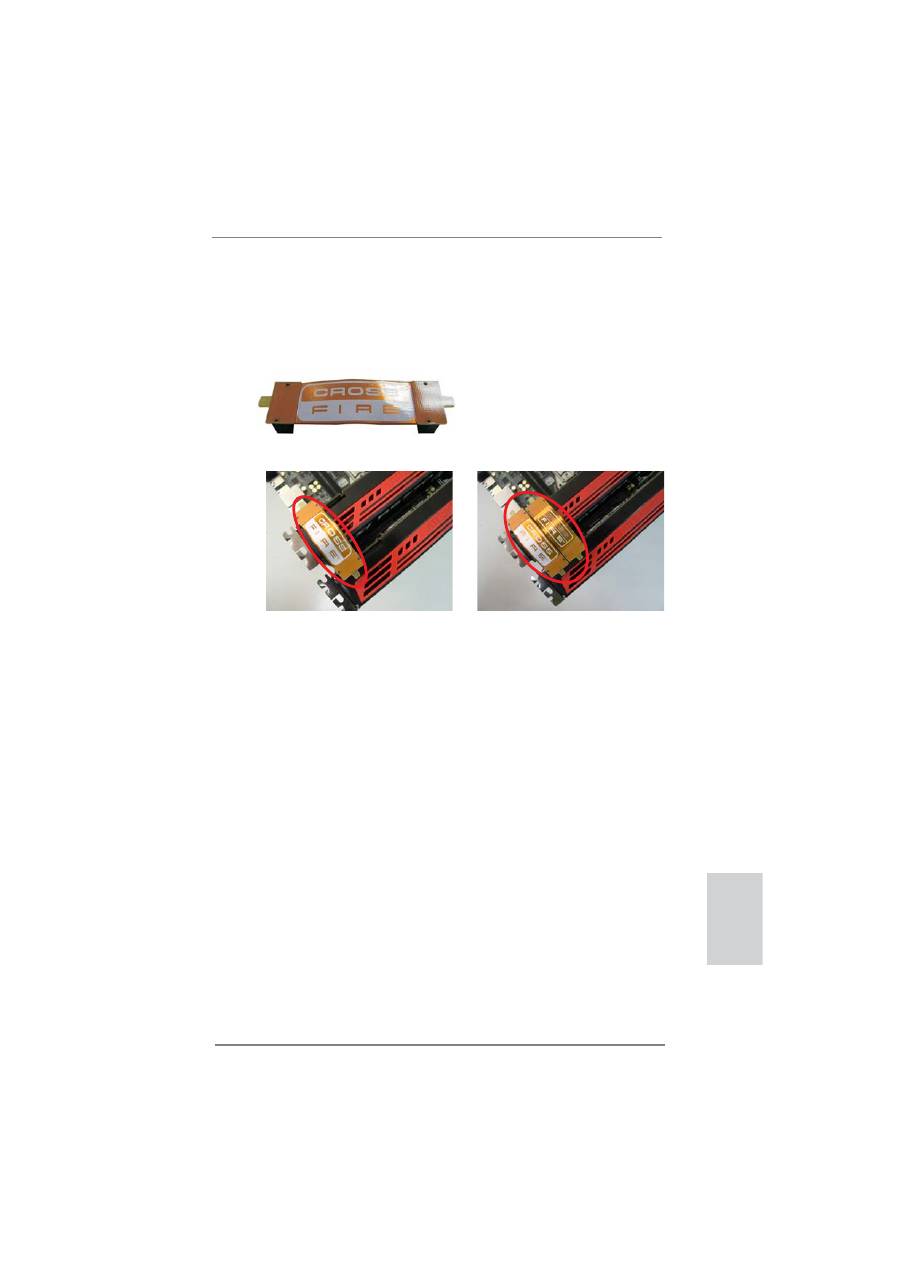
Step 2. Connect two Radeon graphics cards by installing a CrossFire Bridge on
the CrossFire Bridge Interconnects on the top of the Radeon graphics
cards. (The CrossFire Bridge is provided with the graphics card you pur-
chase, not bundled with this motherboard. Please refer to your graphics
card vendor for details.)
CrossFire Bridge
or

30
ASRock Z77 WS Motherboard
English
2.8.1.2 Installing Three CrossFireX
TM
-Ready Graphics Cards
Step 1. Install identical 3-Way CrossFireX
TM
-ready graphics cards that are AMD
®
certi
fi
ed because different types of graphics cards will not work together
properly. (Even the GPU chips version shall be the same.) Insert one
graphics card into PCIE1 slot, another graphics card to PCIE3 slot, and
the other graphics card to PCIE5 slot. Make sure that the cards are prop-
erly seated on the slots.
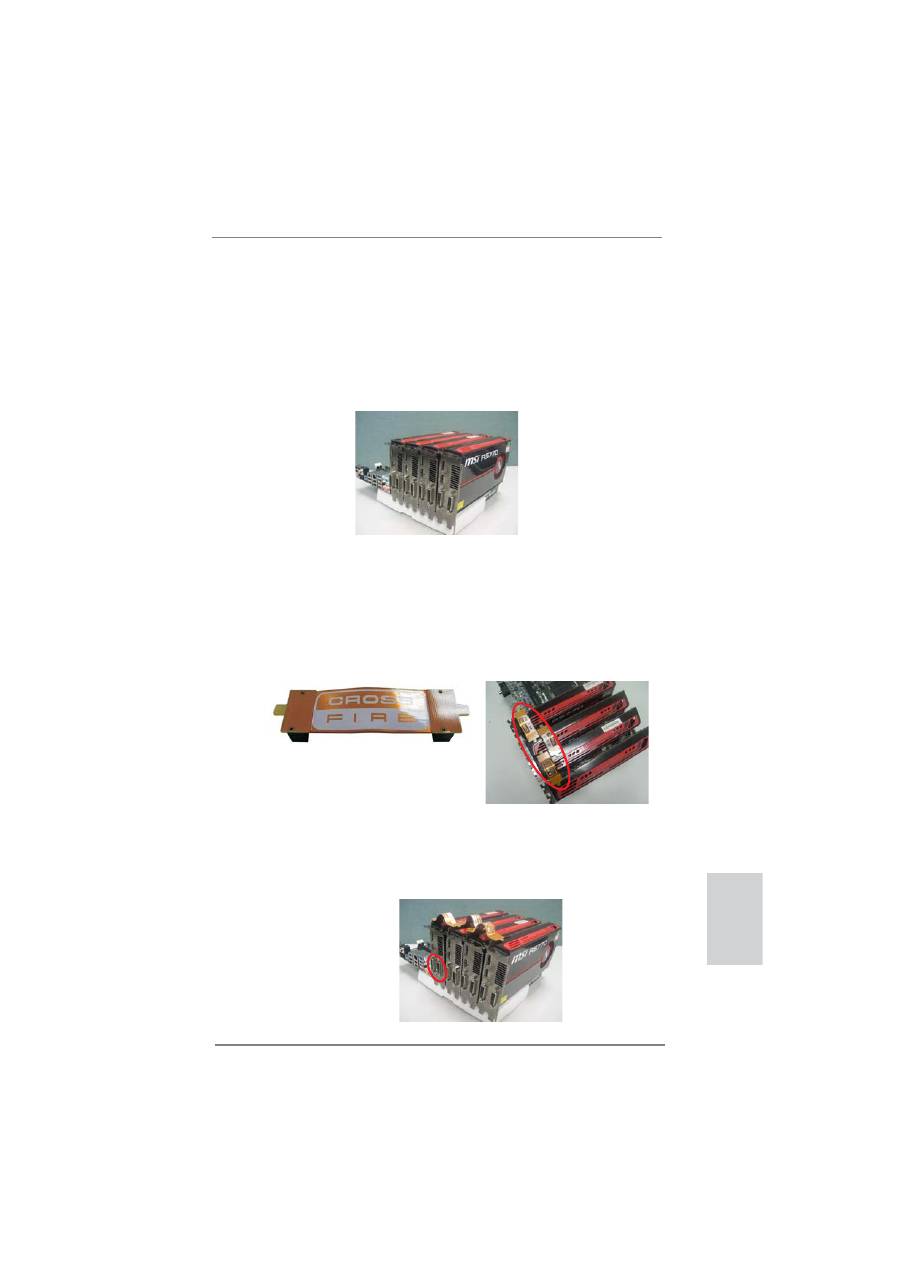
Step 2. Use one CrossFire
TM
Bridge to connect the Radeon graphics cards on
PCIE1 and PCIE3 slots, and use the other CrossFire
TM
Bridge to connect
the Radeon graphics cards on PCIE3 and PCIE5 slots. (The CrossFire
TM
Bridge is provided with the graphics card you purchase, not bundled with
this motherboard. Please refer to your graphics card vendor for details.)
Step 3. Connect the DVI monitor cable to the DVI connector on the Radeon graph-
ics card on PCIE1 slot. (You may use the DVI to D-Sub adapter to convert
the DVI connector to D-Sub interface, and then connect the D-Sub monitor
cable to the DVI to D-Sub adapter.)
CrossFire
TM
Bridge
31
ASRock Z77 WS Motherboard
English
2.8.1.3 Installing Four CrossFireX
TM
-Ready Graphics Cards
Step 1. Install identical 4-Way CrossFireX
TM
-ready graphics cards that are AMD
®
certi
fi
ed because different types of graphics cards will not work together
properly. (Even the GPU chips version shall be the same.) Insert one
graphics card into PCIE1 slot, another graphics card into PCIE3 slot, the
third graphics card into PCIE5 slot and the last graphics card into PCIE7
slot. Make sure that the cards are properly seated on the slots.
Step 2. Use one CrossFire
TM
Bridge to connect the Radeon graphics cards on
PCIE1 and PCIE3 slots, another CrossFire
TM
Bridge to connect the Rad-
eon graphics cards on PCIE3 and PCIE5 slots, and use the third Cross-
Fire
TM
Bridge to connect the Radeon graphics cards on PCIE5 and PCIE7
slots. (The CrossFire
TM
Bridge is provided with the graphics card you pur-
chase, not bundled with this motherboard. Please refer to your graphics
card vendor for details.)
CrossFire
TM
Bridge
Step 3. Connect the DVI monitor cable to the DVI connector on the Radeon graph-
ics card on PCIE1 slot. (You may use the DVI to D-Sub adapter to convert
the DVI connector to D-Sub interface, and then connect the D-Sub monitor
cable to the DVI to D-Sub adapter.)

32
ASRock Z77 WS Motherboard
English
The Catalyst Uninstaller is an optional download. We recommend using this
utility to uninstall any previously installed Catalyst drivers prior to installation.
Please check AMD website for ATI
TM
driver updates.
Step 3. Install the required drivers to your system.
For Windows
®
XP OS:
A. AMD recommends Windows
®
XP Service Pack 2 or higher to be
installed (If you have Windows
®
XP Service Pack 2 or higher installed
in your system, there is no need to download it again):
http://www.microsoft.com/windowsxp/sp2/default.mspx
B. You must have Microsoft .NET Framework installed prior to
downloading and installing the CATALYST Control Center. Please
check Microsoft website for details.
For
Windows
®
7 / Vista
TM
OS:
Install the CATALYST Control Center. Please check AMD website for de-
tails.
Step 4. Restart your computer.
Step 5. Install the VGA card drivers to your system, and restart your computer.
Then you will
fi
nd “ATI Catalyst Control Center” on your Windows
®
taskbar.
ATI Catalyst Control Center
2.8.2 Driver Installation and Setup
Step 1. Power on your computer and boot into OS.
Step 2. Remove the AMD driver if you have any VGA driver installed in your
system.
33
ASRock Z77 WS Motherboard
English
Although you have selected the option “Enable CrossFire
TM
”, the CrossFireX
TM
function may not work actually. Your computer will automatically reboot. After
restarting your computer, please con
fi
rm whether the option “Enable
CrossFire
TM
” in “ATI Catalyst Control Center” is selected or not; if not, please
select it again, and then you are able to enjoy the bene
fi
t of CrossFireX
TM
feature.
Step 7. You can freely enjoy the benefit of CrossFireX
TM
, 3-Way CrossFireX
TM
,
4-Way CrossFireX
TM
or Quad CrossFireX
TM
feature.
* CrossFireX
TM
appearing here is a registered trademark of AMD Technologies Inc., and is
used only for identi
fi
cation or explanation and to the owners’ bene
fi
t, without intent to infringe.
* For further information of AMD CrossFireX
TM
technology, please check AMD website for
updates and details.
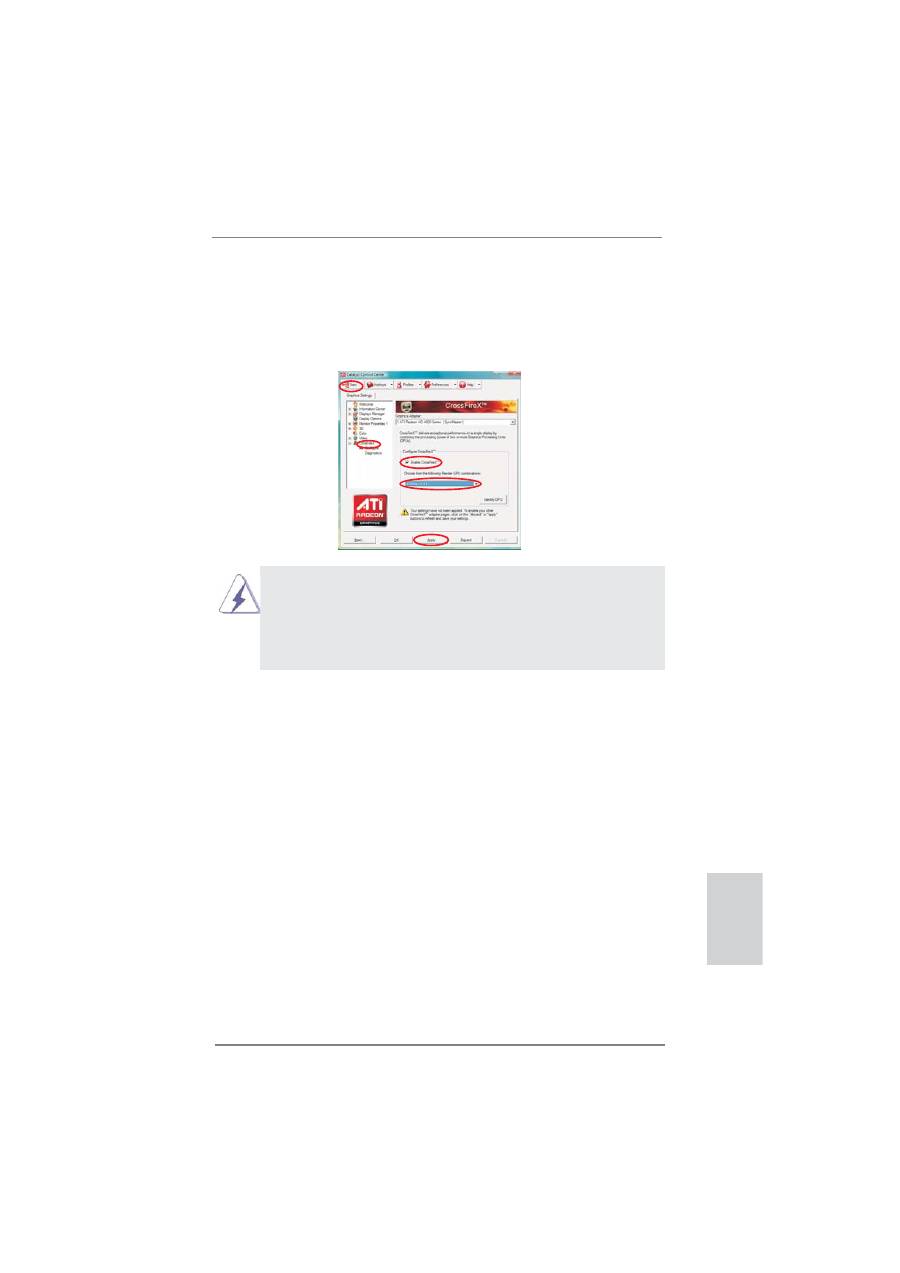
Step 6. Double-click “ATI Catalyst Control Center”. Click “View”, select “CrossFi-
reX
TM
”, and then check the item “Enable CrossFireX
TM
”. Select “2 GPUs”
and click “Apply” (if you install two Radeon graphics cards). Select “3
GPUs” and click “OK” (if you install three Radeon graphics cards). Select “4
GPUs” and click “OK” (if you install four Radeon graphics cards).
34
ASRock Z77 WS Motherboard
English
2.9 Jumpers Setup
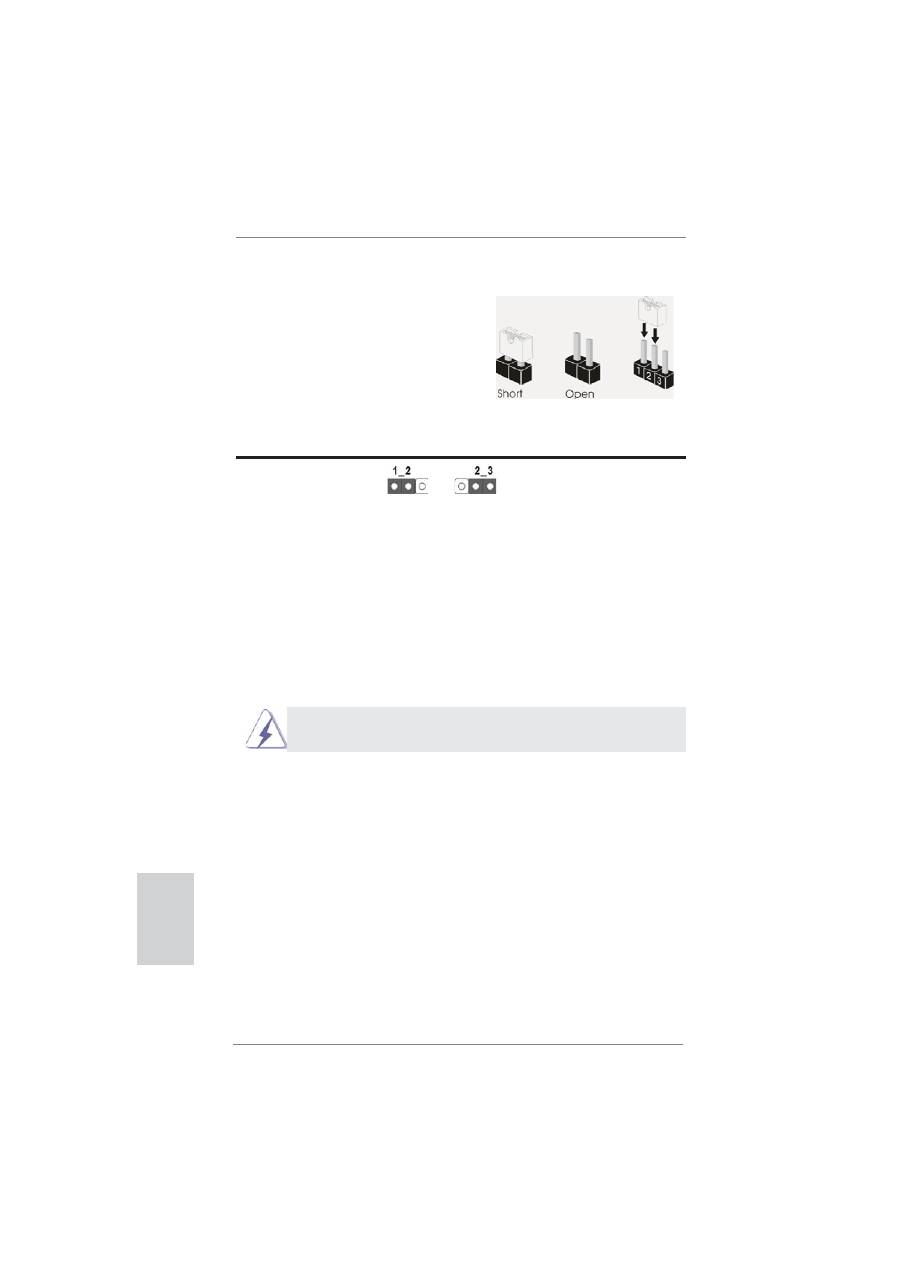
The illustration shows how jumpers are
setup. When the jumper cap is placed on
pins, the jumper is “Short”. If no jumper cap
is placed on pins, the jumper is “Open”. The
illustration shows a 3-pin jumper whose
pin1 and pin2 are “Short” when jumper cap
is placed on these 2 pins.
Jumper Setting
Description
Clear CMOS Jumper
(CLRCMOS1)
(see p.2, No. 22)
Note: CLRCMOS1 allows you to clear the data in CMOS. To clear and reset the
system parameters to default setup, please turn off the computer and unplug
the power cord from the power supply. After waiting for 15 seconds, use a
jumper cap to short pin2 and pin3 on CLRCMOS1 for 5 seconds. However,
please do not clear the CMOS right after you update the BIOS. If you need
to clear the CMOS when you just
fi
nish updating the BIOS, you must boot
up the system
fi
rst, and then shut it down before you do the clear-CMOS ac-
tion. Please be noted that the password, date, time, user default pro
fi
le, 1394
GUID and MAC address will be cleared only if the CMOS battery is removed.
Clear CMOS
Default
The Clear CMOS Switch has the same function as the Clear CMOS
jumper.
35
ASRock Z77 WS Motherboard
English
2.10 Onboard Headers and Connectors
Onboard headers and connectors are NOT jumpers. Do NOT place
jumper caps over these headers and connectors. Placing jumper caps
over the headers and connectors will cause permanent damage of the
motherboard!
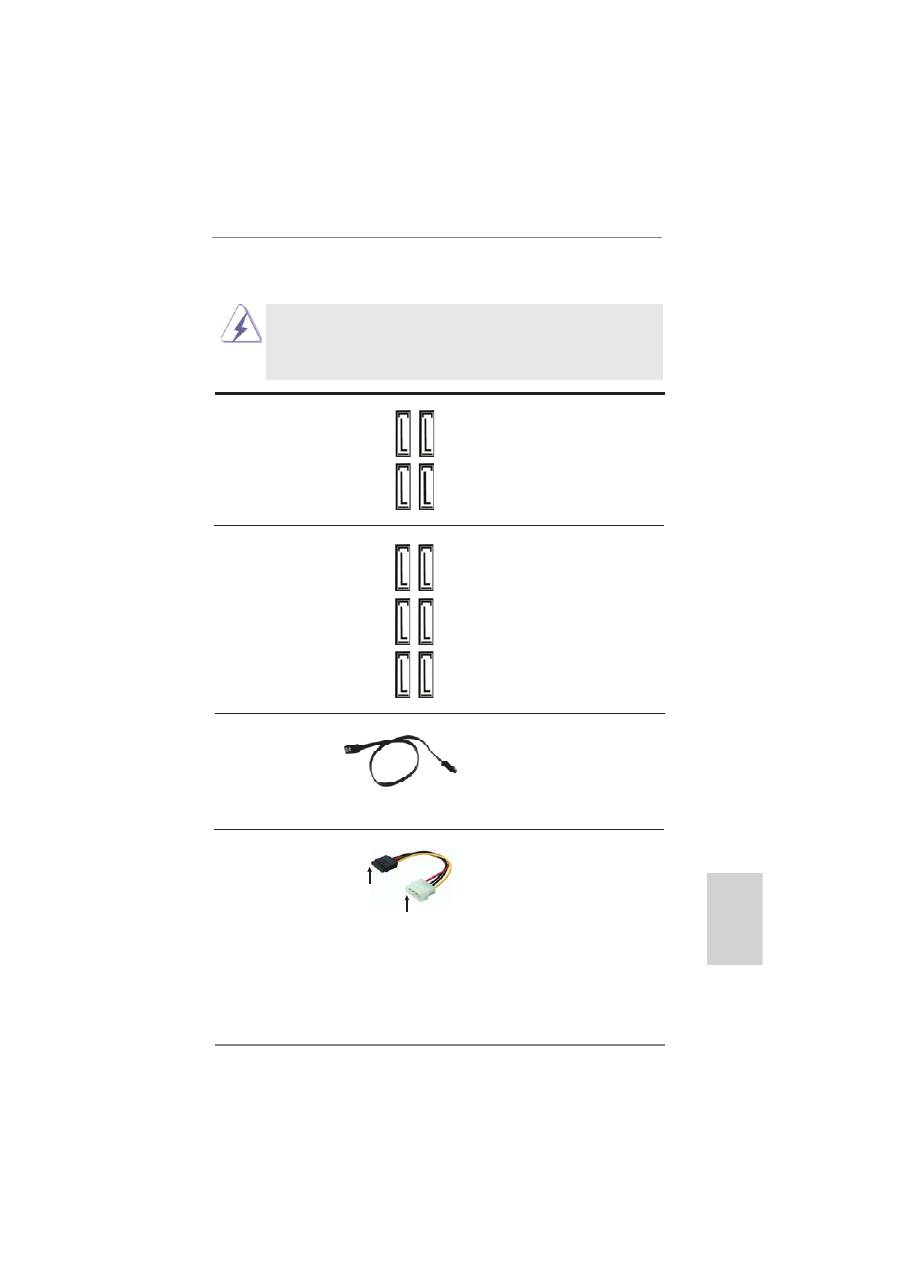
Serial ATA2 Connectors
These four Serial ATA2 (SATA2)
(SATA2_2_3: see p.2, No. 15)
connectors support SATA data
(SATA2_4_5: see p.2, No. 16)
cables for internal storage
devices. The current SATA2
interface allows up to 3.0 Gb/s
data transfer rate.
Serial ATA3 Connectors
These six Serial ATA3 (SATA3)
(SATA3_A1_A2: see p.2, No. 12)
connectors support SATA data
(SATA3_A3_A4: see p.2, No. 13)
cables for internal storage
(SATA3_0_1: see p.2, No. 14)
devices. The current SATA3
interface allows up to 6.0 Gb/s
data transfer rate. If the eSATA3
port on the rear I/O has been
connected, the internal
SATA3_A4 will not function.
SA
TA2_3
SA
TA2_2
SA
TA2_5
SA
TA2_4
Serial ATA (SATA)
Either end of the SATA data
Data Cable
cable can be connected to the
(Optional)
SATA / SATA2 / SATA3 hard
disk or the SATA2 / SATA3
connector on this motherboard.
connect to the SATA
HDD power connector
connect to the
power supply
Serial ATA (SATA)
Please connect the black end
Power Cable
of SATA power cable to the
(Optional)
power connector on each drive.
Then connect the white end of
SATA power cable to the power
connector of the power supply.
SA
TA3_A4
SA
TA3_A3
SA
TA3_1
SA
TA3_0
SA
TA3_A2
SA
TA3_A1
36
ASRock Z77 WS Motherboard
English
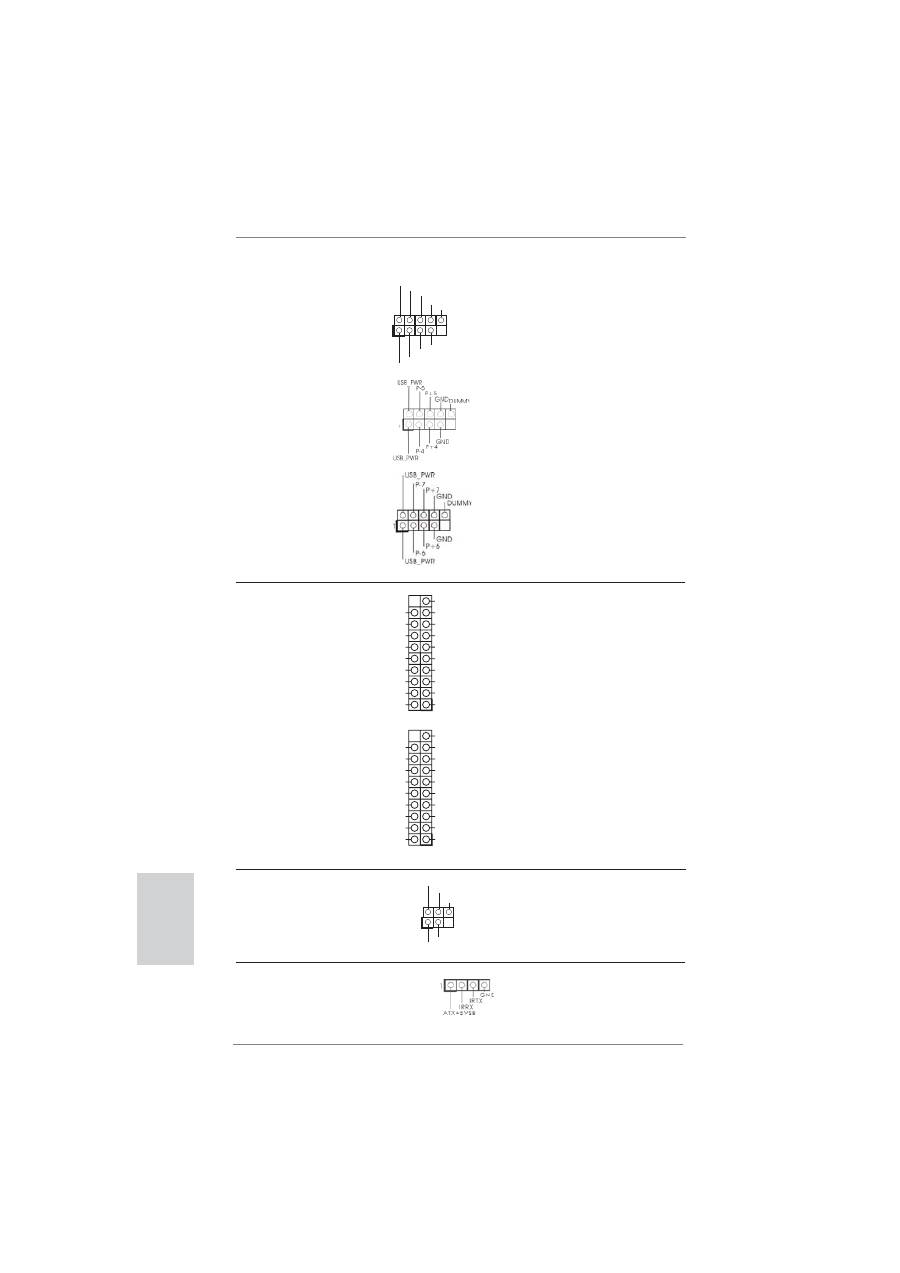
USB 3.0 Header
Besides eight default USB 3.0
(19-pin USB3_9_10)
ports on the I/O panel, there are
(see p.2, No. 10)
two USB 3.0 headers on this
motherboard. Each USB 3.0
header can support two USB 3.0
ports.
(19-pin USB3_11_12)
(see p.2, No. 9)
IntA_P5_D+
DUMMY
IntA_P5_D-
GND
IntA_P5_SSTX+
GND
IntA_P5_SSTX-
IntA_P5_SSRX+
IntA_P5_SSRX-
Vbus
Vbus
Vbus
IntA_P4_SSRX-
IntA_P4_SSRX+
GND
IntA_P4_SSTX-
IntA_P4_SSTX+
GND
IntA_P4_D-
IntA_P4_D+
IntA_P5_D+
DUMMY
IntA_P5_D-
GND
IntA_P5_SSTX+
GND
IntA_P5_SSTX-
IntA_P5_SSRX+
IntA_P5_SSRX-
Vbus
Vbus
Vbus
IntA_P4_SSRX-
IntA_P4_SSRX+
GND
IntA_P4_SSTX-
IntA_P4_SSTX+
GND
IntA_P4_D-
IntA_P4_D+
USB 2.0 Headers
Besides two default USB 2.0
(9-pin USB2_3)
ports on the I/O panel, there are
(see p.2, No. 25)
three USB 2.0 headers on this
motherboard. Each USB 2.0
header can support two USB 2.0
ports.
(9-pin USB4_5)
(see p.2, No. 26)
(9-pin USB6_7)
(see p.2, No. 27)
1
USB_PWR
P-2
GND
DUMMY
USB_PWR
P+2
GND
P-3
P+3
Infrared Module Header
This header supports an
(5-pin IR1)
optional wireless transmitting
(see p.2, No. 32)
and receiving infrared module.
1
IRTX
+5VSB
DUMMY
IRRX
GND
Consumer Infrared Module Header
This header can be used to
(4-pin CIR1)
connect the remote
(see p.2 No. 28)
controller
receiver.
37
ASRock Z77 WS Motherboard
English
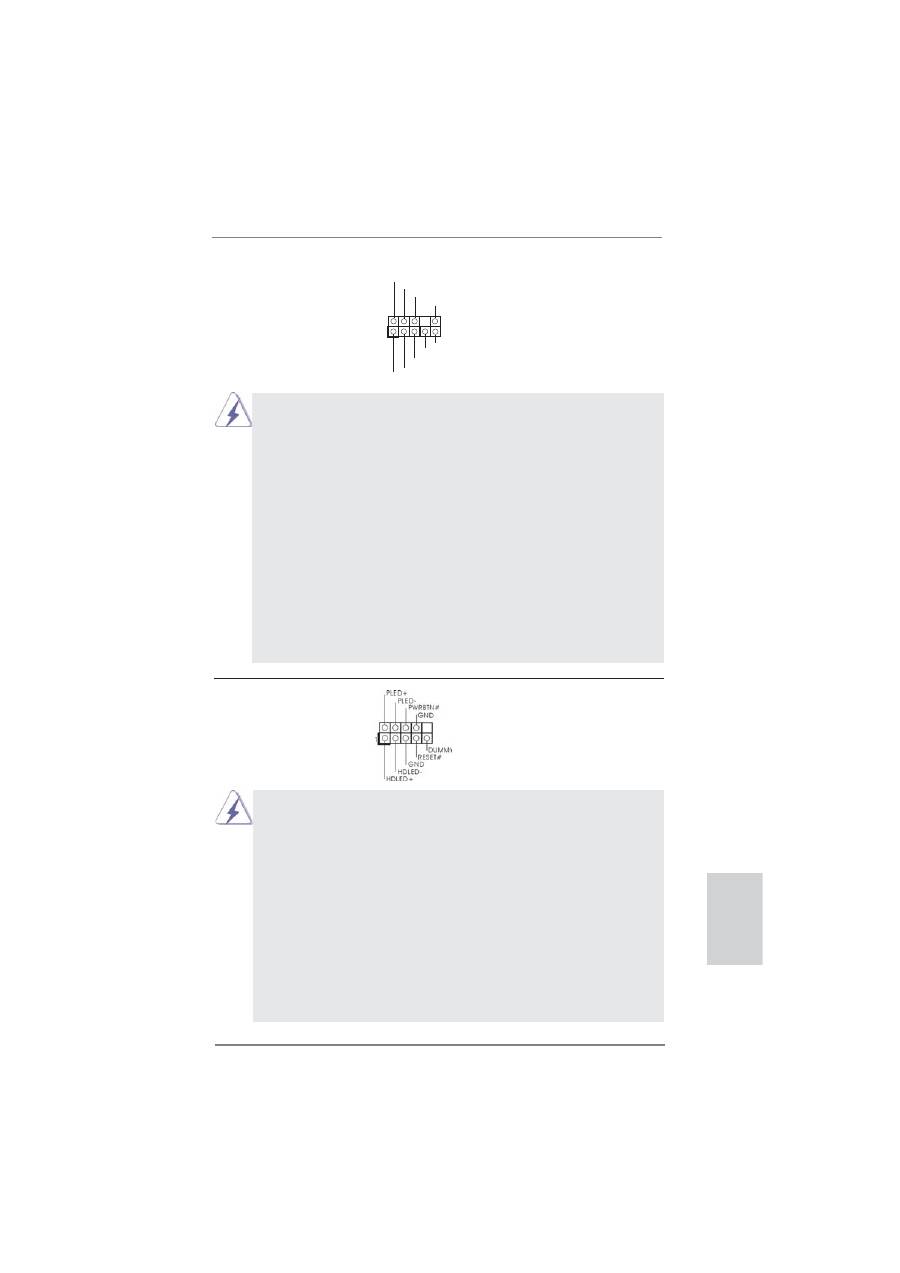
System Panel Header
This header accommodates
(9-pin PANEL1)
several system front panel
(see p.2, No. 20)
functions.
Connect the power switch, reset switch and system status indicator on the
chassis to this header according to the pin assignments below. Note the
positive and negative pins before connecting the cables.
PWRBTN (Power Switch):
Connect to the power switch on the chassis front panel. You may con
fi
gure
the way to turn off your system using the power switch.
RESET (Reset Switch):
Connect to the reset switch on the chassis front panel. Press the reset
switch to restart the computer if the computer freezes and fails to perform a
normal restart.
PLED (System Power LED):
Connect to the power status indicator on the chassis front panel. The LED
is on when the system is operating. The LED keeps blinking when the
Front Panel Audio Header
This is an interface for front
(9-pin HD_AUDIO1)
panel audio cable that allows
(see p.2, No. 35)
convenient connection and
control of audio devices.
J_SENSE
OUT2_L
1
MIC_RET
PRESENCE#
GND
OUT2_R
MIC2_R
MIC2_L
OUT_RET
1. High De
fi
nition Audio supports Jack Sensing, but the panel wire on the
chassis must support HDA to function correctly. Please follow the
instruction in our manual and chassis manual to install your system.
2. If you use AC’97 audio panel, please install it to the front panel audio
header as below:
A. Connect Mic_IN (MIC) to MIC2_L.
B. Connect Audio_R (RIN) to OUT2_R and Audio_L (LIN) to OUT2_L.
C. Connect Ground (GND) to Ground (GND).
D. MIC_RET and OUT_RET are for HD audio panel only. You don’t need
to connect them for AC’97 audio panel.
E. To activate the front mic.
For Windows
®
XP / XP 64-bit OS:
Select “Mixer”. Select “Recorder”. Then click “FrontMic”.
For Windows
®
7 / 7 64-bit / Vista
TM
/ Vista
TM
64-bit OS:
Go to the “FrontMic” Tab in the Realtek Control panel. Adjust
“Recording Volume”.
38
ASRock Z77 WS Motherboard
English
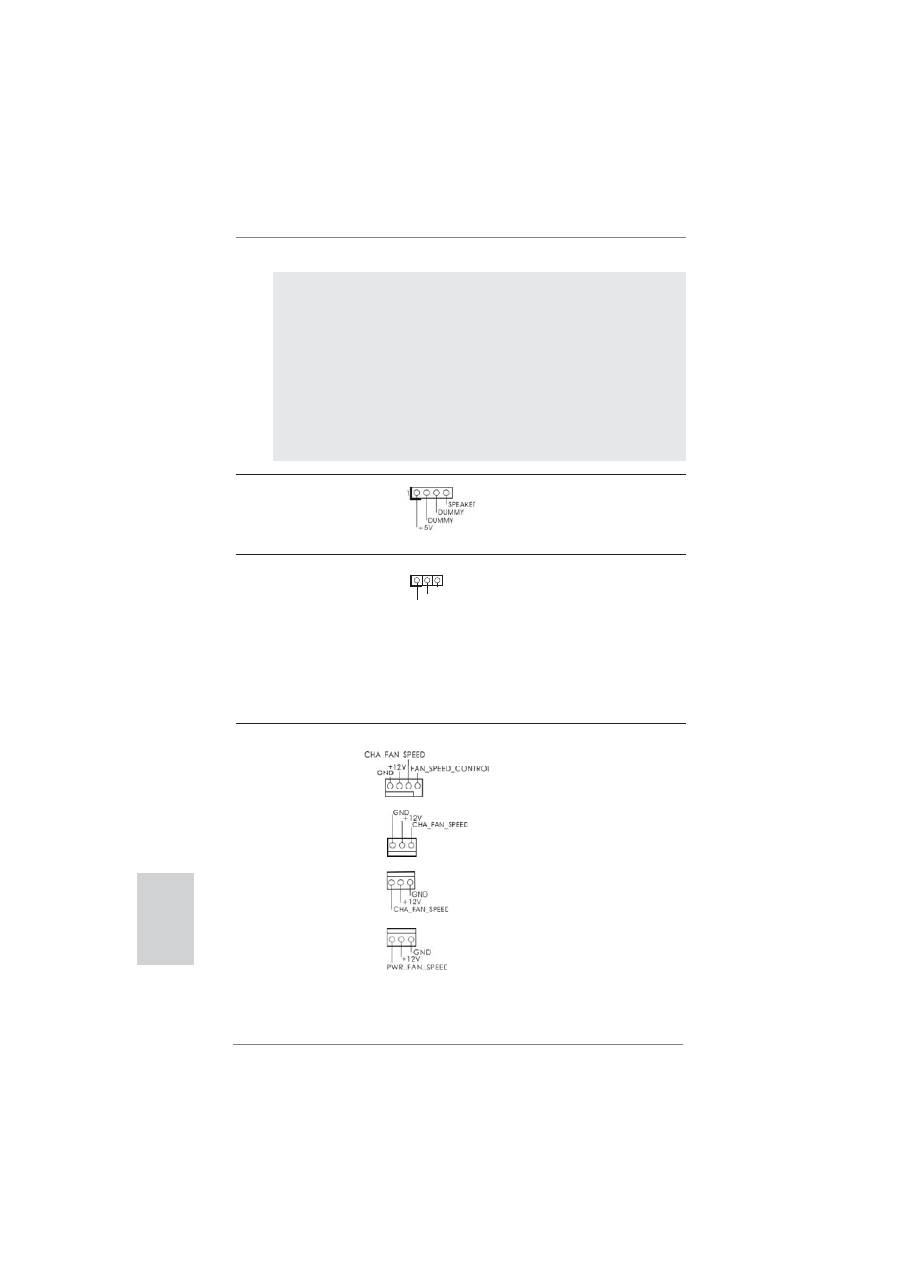
Chassis Speaker Header
Please connect the chassis
(4-pin SPEAKER 1)
speaker to this header.
(see p.2, No. 21)
system is in S1/S3 sleep state. The LED is off when the system is in S4
sleep state or powered off (S5).
HDLED (Hard Drive Activity LED):
Connect to the hard drive activity LED on the chassis front panel. The LED
is on when the hard drive is reading or writing data.
The front panel design may differ by chassis. A front panel module mainly
consists of power switch, reset switch, power LED, hard drive activity LED,
speaker and etc. When connecting your chassis front panel module to this
header, make sure the wire assignments and the pin assign-ments are
matched correctly.
Power LED Header
Please connect the chassis
(3-pin PLED1)
power LED to this header to
(see p.2, No. 19)
indicate system power status.
The LED is on when the system
is operating. The LED keeps
blinking in S1/S3 state. The
LED is off in S4 state or S5
state (power off).
1
PLED+
PLED+
PLED-
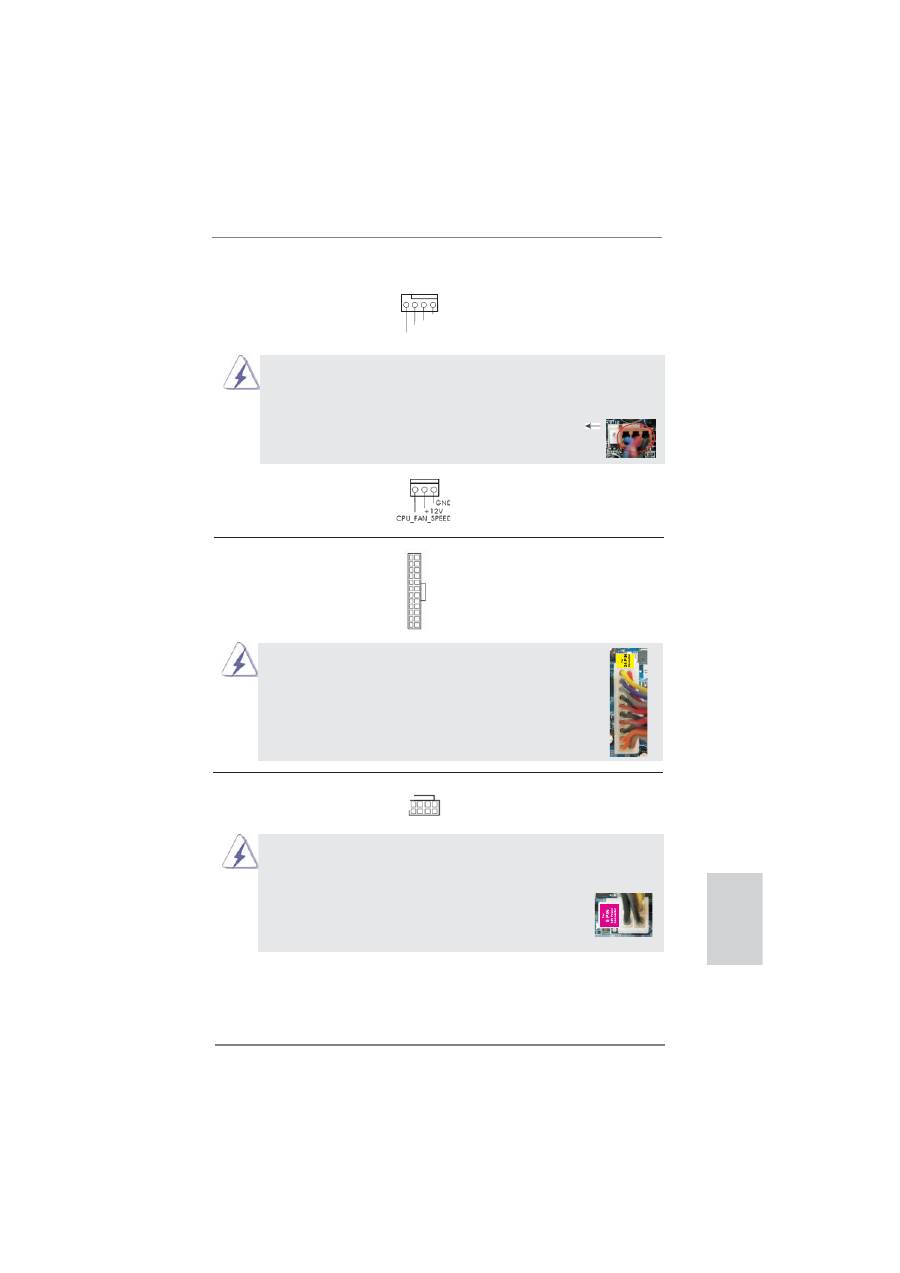
Chassis and Power Fan Connectors
Please connect the fan cables
(4-pin CHA_FAN1)
to the fan connectors and match
(see p.2, No. 30)
the black wire to the ground pin.
CHA_FAN1, CHA_FAN2 and
CHA_FAN3 support Fan
(3-pin CHA_FAN2)
Control.
(see p.2, No. 29)
(3-pin CHA_FAN3)
(see p.2, No. 44)
(3-pin PWR_FAN1)
(see p.2, No. 3)
39
ASRock Z77 WS Motherboard
English
Though this motherboard provides 4-Pin CPU fan (Quiet Fan) support, the 3-Pin
CPU fan still can work successfully even without the fan speed control function.
If you plan to connect the 3-Pin CPU fan to the CPU fan connector on this
motherboard, please connect it to Pin 1-3.
3-Pin Fan Installation
Pin 1-3 Connected
(3-pin CPU_FAN2)
(see p.2, No. 5)
ATX Power Connector
Please connect an ATX power
(24-pin ATXPWR1)
supply to this connector.
(see p.2, No. 8)
12
1
24
13
20-Pin ATX Power Supply Installation
Though this motherboard provides 24-pin ATX power connector,
it can still work if you adopt a traditional 20-pin ATX power supply.
To use the 20-pin ATX power supply, please plug your
power supply along with Pin 1 and Pin 13.
12
1
24
13
ATX 12V Power Connector
Please connect an ATX 12V
(8-pin ATX12V1)
power supply to this connector.
(see p.2, No. 1)
4-Pin ATX 12V Power Supply Installation
Though this motherboard provides 8-pin ATX 12V power connector, it can still work
if you adopt a traditional 4-pin ATX 12V power supply. To use the 4-pin ATX power
supply, please plug your power supply along with Pin 1 and Pin 5.
8
5
4
1
8 5
4 1
CPU Fan Connectors
Please connect the CPU fan
(4-pin CPU_FAN1)
cable to the connector and
(see p.2, No. 4)
match the black wire to the
ground
pin.
4 3 2 1
GND
+12V
CPU_FAN_SPEED
FAN_SPEED_CONTROL
40
ASRock Z77 WS Motherboard
English
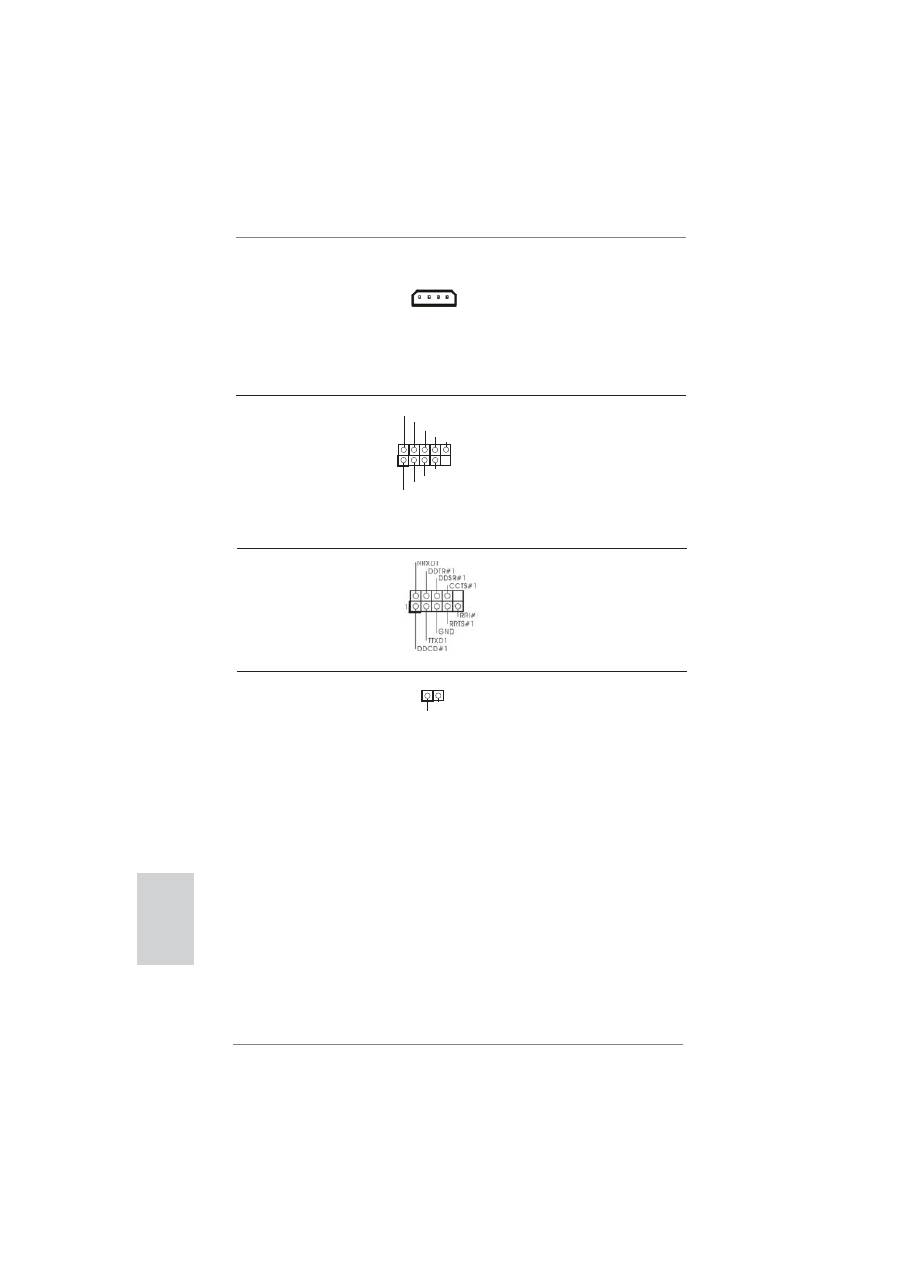
Serial port Header
This COM1 header supports a
(9-pin COM1)
serial port module.
(see p.2, No. 33)
HDMI_SPDIF Header
HDMI_SPDIF header, providing
(2-pin HDMI_SPDIF1)
SPDIF audio output to HDMI
(see p.2, No. 34)
VGA card, allows the system to
connect HDMI Digital TV/
projector/LCD devices. Please
connect the HDMI_SPDIF
connector of HDMI VGA card to
this
header.
SPDIFOUT
GND
1
IEEE 1394 Header
Besides one default IEEE 1394
(9-pin FRONT_1394)
port on the I/O panel, there
(see p.2 No. 31)
is one IEEE 1394 header
(FRONT_1394) on this
motherboard. This IEEE 1394
header can support one IEEE
1394
port.
+12V
GND
+12V
1
RXTPBM_0
GND
RXTPAM_0
RXTPBP_0
GND
RXTPAP_0
SLI/XFIRE_POWER1
SLI/XFIRE Power Connector
It is not necessary to use this
(4-pin SLI/XFIRE_PWR1)
connector, but please connect it
(see p.2 No. 43)
with a hard disk power
connecor when two graphics
cards are plugged to this
motherboard.
English
