
ASRock 990FX EXTREME4: I/O Panel
I/O Panel: ASRock 990FX EXTREME4
3
ASRock 990FX Extreme4 Motherboard
English
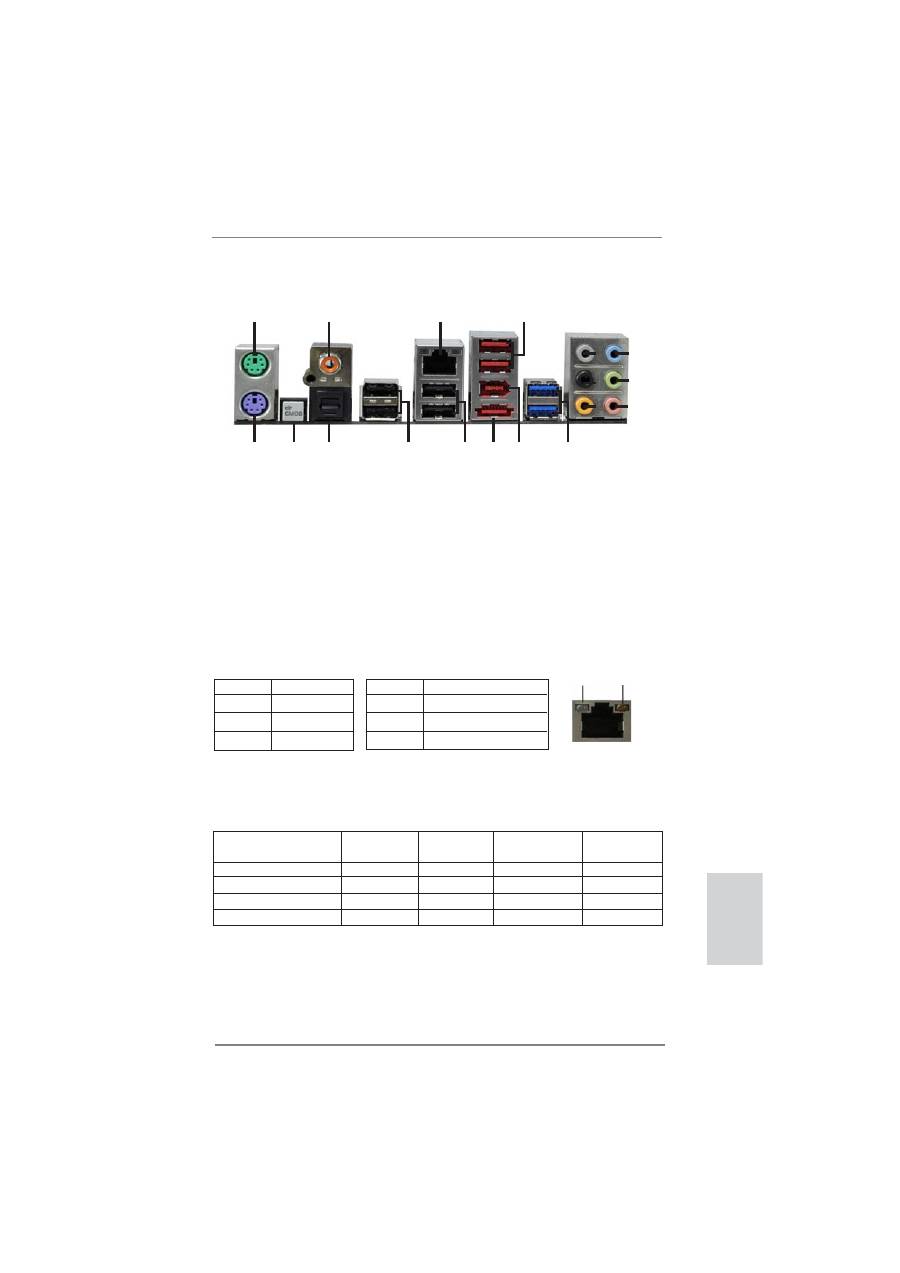
I/O Panel
**
If you use 2-channel speaker, please connect the speaker’s plug into “Front Speaker Jack”.
See the table below for connection details in accordance with the type of speaker you use.
TABLE for Audio Output Connection
Audio Output Channels Front Speaker Rear Speaker
Central / Bass
Side Speaker
(No. 9)
(No. 6)
(No. 7)
(No. 5)
2
V
-- -- --
4 V
V
--
--
6
V
V V --
8
V
V V V
LAN Port
ACT/LINK
LED
SPEED
LED
* There are two LED next to the LAN port. Please refer to the table below for the LAN port LED
indications.
LAN Port LED Indications
Activity/Link LED
SPEED LED
Status Description Status Description
Off No Link Off 10Mbps connection
Blinking Data Activity Orange 100Mbps connection
On Link
Green 1Gbps connection
1
2
4
3
5
6
7
8
9
10
11
12
13
14
15
16
17
18
1
PS/2 Mouse Port (Green)
10 Microphone (Pink)
2
Coaxial SPDIF Out Port
11 USB 3.0 Ports (USB23)
*3
LAN RJ-45 Port
12 IEEE 1394 Port (IEEE 1394)
4
USB 2.0 Ports (USB45) ***13 eSATA3 Connector
5
Side Speaker (Gray)
14 USB 2.0 Ports (USB67)
6
Rear Speaker (Black)
15 USB 2.0 Ports (USB01)
7
Central / Bass (Orange)
16 Optical SPDIF Out Port
8
Line In (Light Blue)
17 Clear CMOS Switch (CLRCBTN)
**9
Front Speaker (Lime)
18 PS/2 Keyboard Port (Purple)
4
ASRock 990FX Extreme4 Motherboard
To enable Multi-Streaming function, you need to connect a front panel audio cable to the front
panel audio header. After restarting your computer, you will
fi
nd “Mixer” tool on your system.
Please select “Mixer ToolBox” , click “Enable playback multi-streaming”, and click “ok”.
Choose “2CH”, “4CH”, “6CH”, or “8CH” and then you are allowed to select “Realtek HDA Pri-
mary output” to use Rear Speaker, Central/Bass, and Front Speaker, or select “Realtek HDA
Audio 2nd output” to use front panel audio.
*** eSATA3 connector supports SATA Gen3 in cable 1M.
English
Table of contents
- Motherboard Layout
- I/O Panel
- 1. Introduction
- 2. Installation
- 3. BIOS Information
- 1. Einführung
- 2. Installation
- 3. BIOS-Information
- 1. Introduction
- 2. Installation
- 3. Informations sur le BIOS
- 1. Introduzione
- 2. Installazione
- 3. Informazioni sul BIOS
- 1. Introducción
- 2. Instalación
- 3. BIOS Información
- 1. Введение
- 2. Установка
- 3.
- 1. Giri ş
- 2. Takma
- 3. BIOS Bilgileri
- 1. 제품소개
- 2. 설치하기
- 3. 시스템 바이오스 정보
- 1. 主板簡介
- 2. 主板安裝
- 3. BIOS 信息
- 1. 主機板簡介
- 2. 主機板安裝
- Installing OS on a HDD Larger Than 2TB


