
ASRock 990FX EXTREME4 – page 2
Manual for ASRock 990FX EXTREME4
21
ASRock 990FX Extreme4 Motherboard
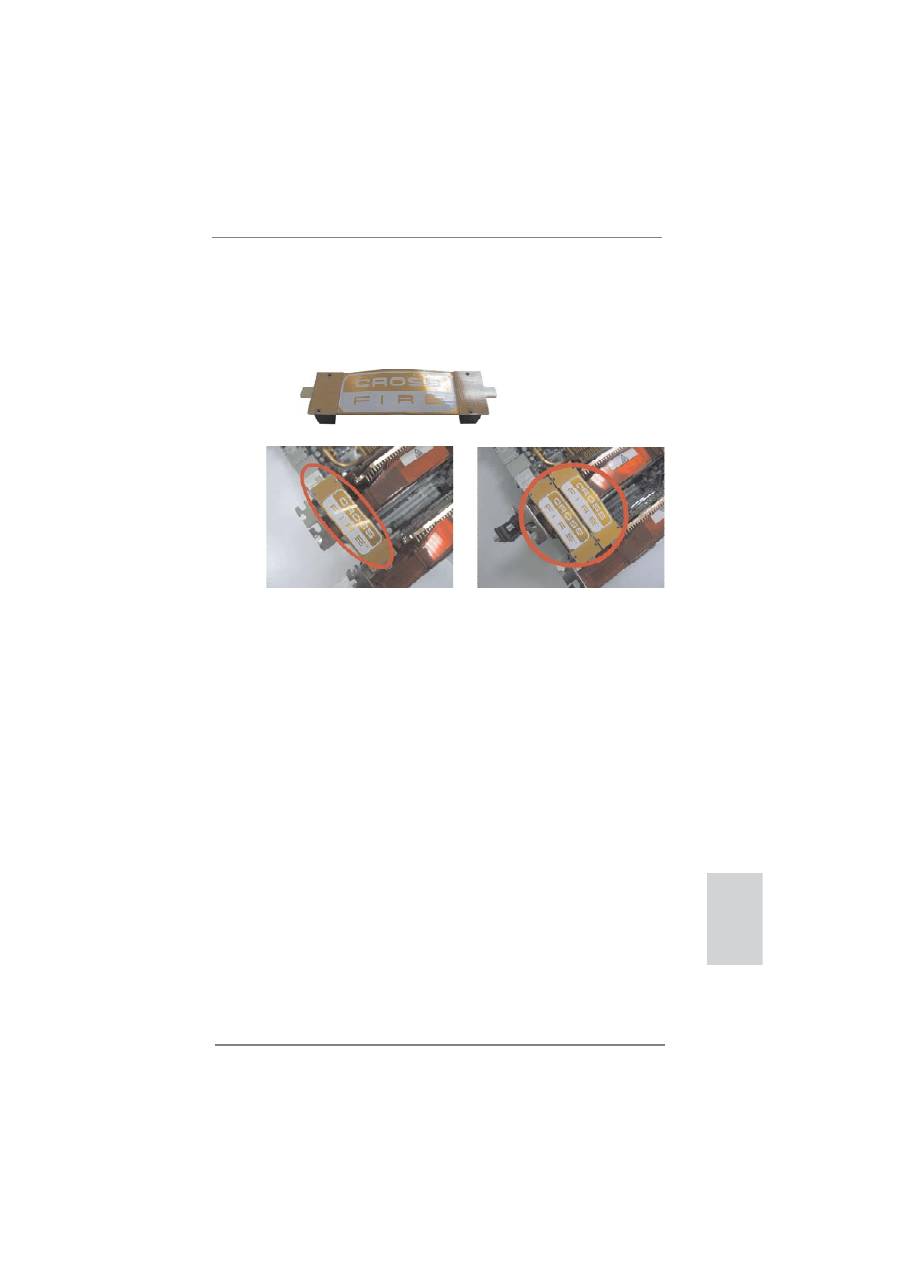
Step 2. Connect two Radeon graphics cards by installing CrossFire Bridge on
CrossFire Bridge Interconnects on the top of Radeon graphics cards.
(CrossFire Bridge is provided with the graphics card you purchase, not
bundled with this motherboard. Please refer to your graphics card vendor
for details.)
CrossFire Bridge
or
Step 3. Connect the DVI monitor cable to the DVI connector on the Radeon graph-
ics card on PCIE2 slot. (You may use the DVI to D-Sub adapter to convert
the DVI connector to D-Sub interface, and then connect the D-Sub monitor
cable to the DVI to D-Sub adapter.)
English
22
ASRock 990FX Extreme4 Motherboard
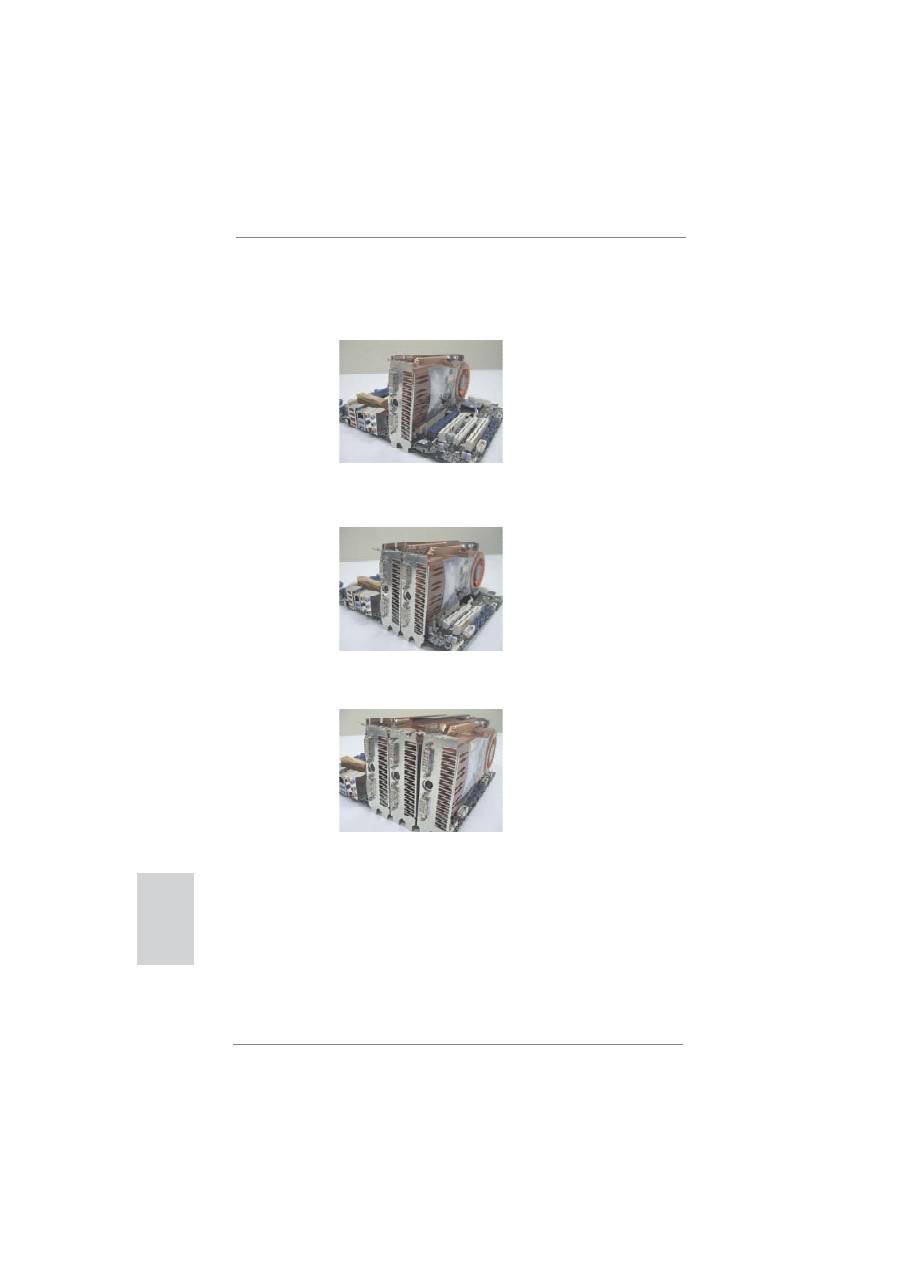
2.6.1.2 Installing Three CrossFireX
TM
-Ready Graphics Cards
Step 1. Install one Radeon graphics card to PCIE2 slot. For the proper installation
procedures, please refer to section “Expansion Slots”.
Step 2. Install one Radeon graphics card to PCIE4 slot. For the proper installation
procedures, please refer to section “Expansion Slots”.
Step 3. Install one Radeon graphics card to PCIE5 slot. For the proper installation
procedures, please refer to section “Expansion Slots”.
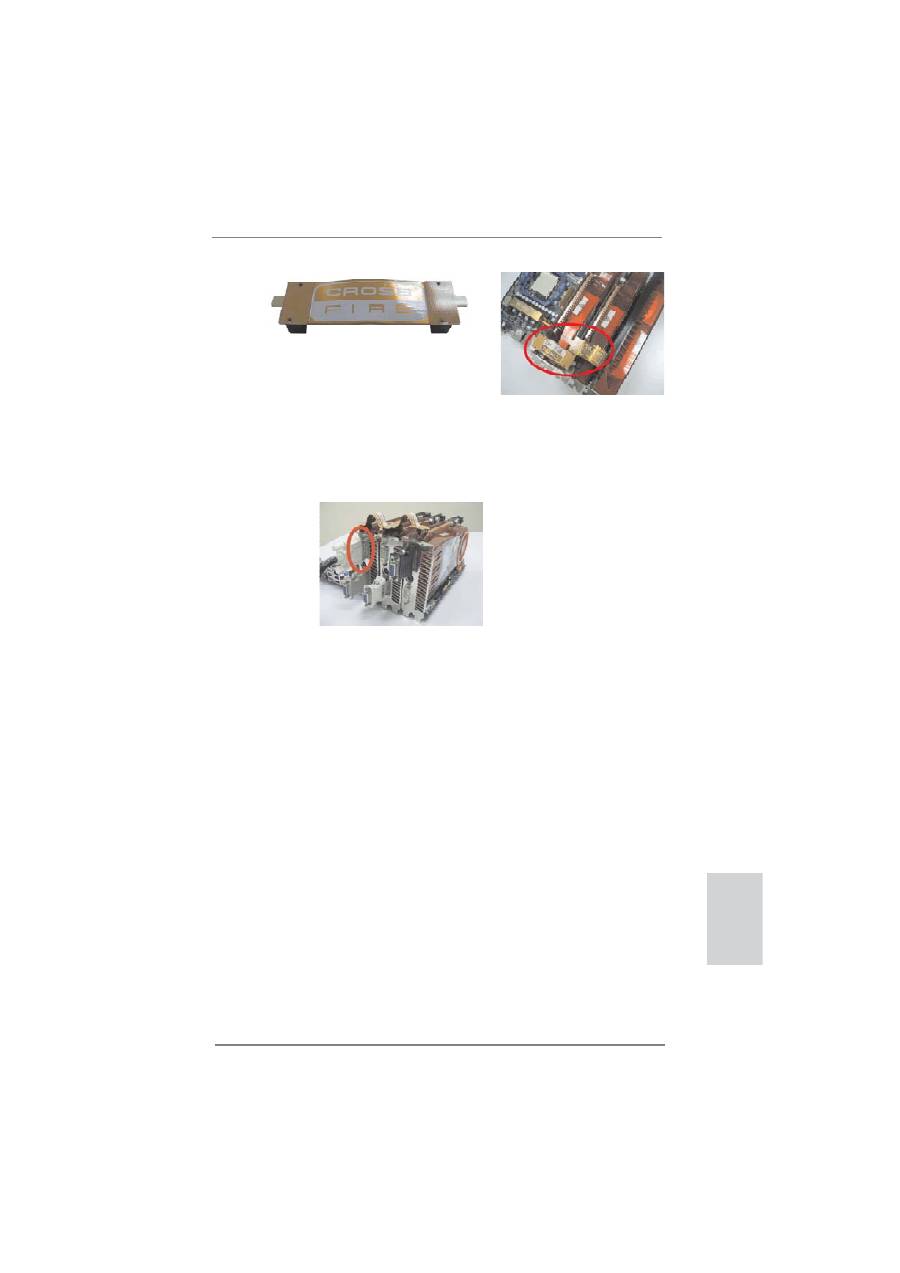
Step 4. Use one CrossFire
TM
Bridge to connect Radeon graphics cards on PCIE2
and PCIE4 slots, and use the other CrossFire
TM
Bridge to connect Radeon
graphics cards on PCIE4 and PCIE5 slots. (CrossFire
TM
Bridge is provided
with the graphics card you purchase, not bundled with this motherboard.
Please refer to your graphics card vendor for details.)
English
23
ASRock 990FX Extreme4 Motherboard
CrossFire
TM
Bridge
Step 5. Connect the DVI monitor cable to the DVI connector on the Radeon graph-
ics card on PCIE2 slot. (You may use the DVI to D-Sub adapter to convert
the DVI connector to D-Sub interface, and then connect the D-Sub monitor
cable to the DVI to D-Sub adapter.)
English
24
ASRock 990FX Extreme4 Motherboard
The Catalyst Uninstaller is an optional download. We recommend using this
utility to uninstall any previously installed Catalyst drivers prior to installation.
Please check AMD website for ATI
TM
driver updates.
Step 3. Install the required drivers to your system.
For Windows
®
XP OS:
A.
AMD
TM
recommends Windows
®
XP Service Pack 2 or higher to be
installed (If you have Windows
®
XP Service Pack 2 or higher installed
in your system, there is no need to download it again):
http://www.microsoft.com/windowsxp/sp2/default.mspx
B. You must have Microsoft .NET Framework installed prior to
downloading and installing the CATALYST Control Center. Please
check Microsoft website for details.
For
Windows
®
7 / Vista
TM
OS:
Install the CATALYST Control Center. Please check AMD website for de-
tails.
Step 4. Restart your computer.
Step 5. Install the VGA card drivers to your system, and restart your computer.
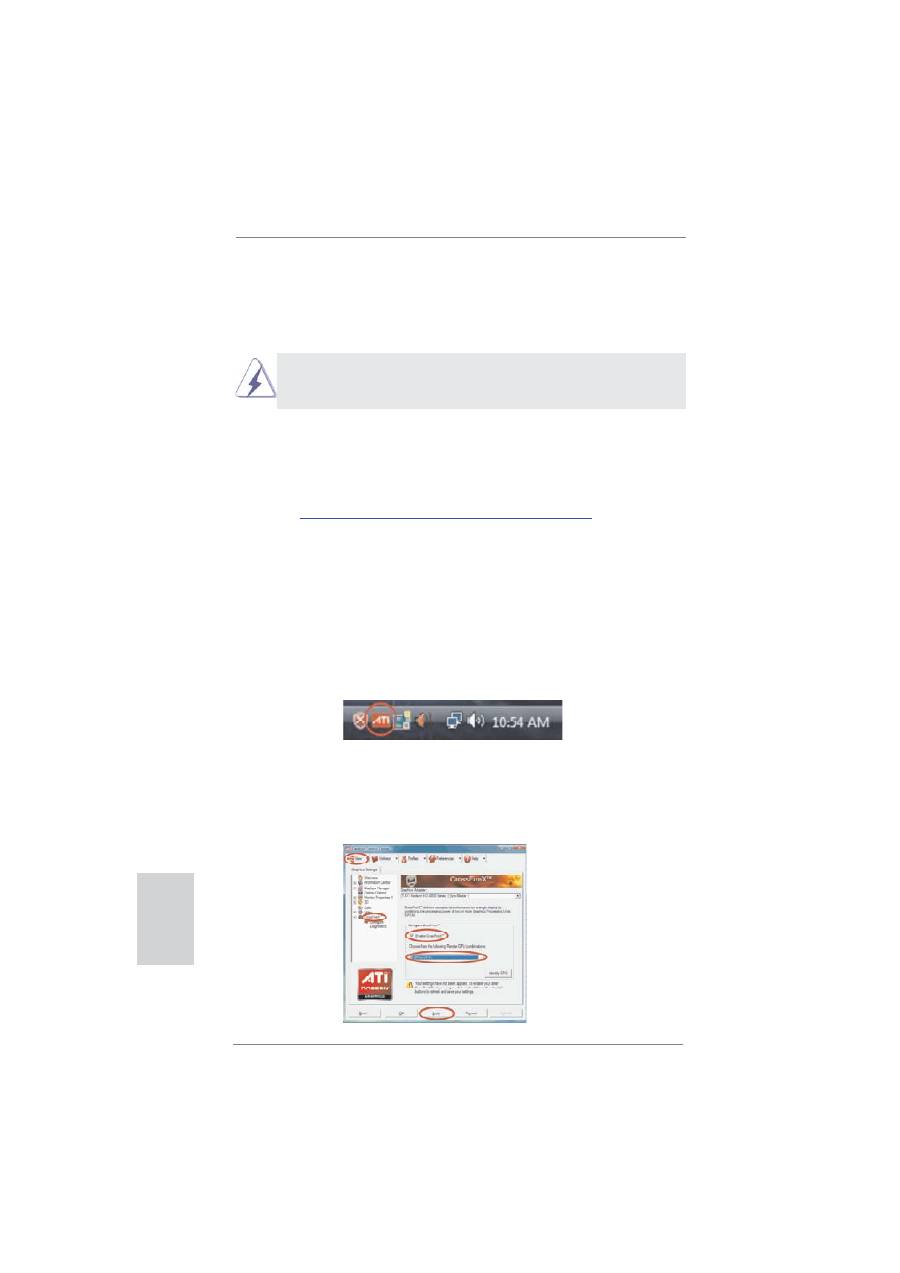
Then you will
fi
nd “ATI Catalyst Control Center” on your Windows
®
taskbar.
ATI Catalyst Control Center
2.6.2 Driver Installation and Setup
Step 1. Power on your computer and boot into OS.
Step 2. Remove the ATI
TM
driver if you have any VGA driver installed in your sys-
tem.
Step 6. Double-click “ATI Catalyst Control Center”. Click “View”, select “CrossFi-
reX
TM
”, and then check the item “Enable CrossFireX
TM
”. Select “2 GPUs”
and click “Apply” (if you install two Radeon graphics cards). Select “3
GPUs” and click “OK” (if you install three Radeon graphics cards).
English

25
ASRock 990FX Extreme4 Motherboard
Although you have selected the option “Enable CrossFire
TM
”, the Cross-
FireX
TM
function may not work actually. Your computer will automatically
reboot. After restarting your computer, please con
fi
rm whether the option
“Enable CrossFire
TM
” in “ATI Catalyst Control Center” is selected or not;
if not, please select it again, and then you are able to enjoy the bene
fi
t of
CrossFireX
TM
feature.
Step 7. You can freely enjoy the bene
fi
t of CrossFireX
TM
, 3-Way CrossFireX
TM
or
Quad CrossFireX
TM
feature.
* CrossFireX
TM
appearing here is a registered trademark of AMD
TM
Technologies Inc., and is
used only for identi
fi
cation or explanation and to the owners’ bene
fi
t, without intent to infringe.
* For further information of AMD
TM
CrossFireX
TM
technology, please check AMD website for
updates and details.
2.7 Surround Display Feature
This motherboard supports Surround Display upgrade. With the external add-on PCI
Express VGA cards, you can easily enjoy the bene
fi
ts of Surround Display feature.
For the detailed instruction, please refer to the document at the following path in the
Support CD:
..\ Surround Display Information
English
26
ASRock 990FX Extreme4 Motherboard
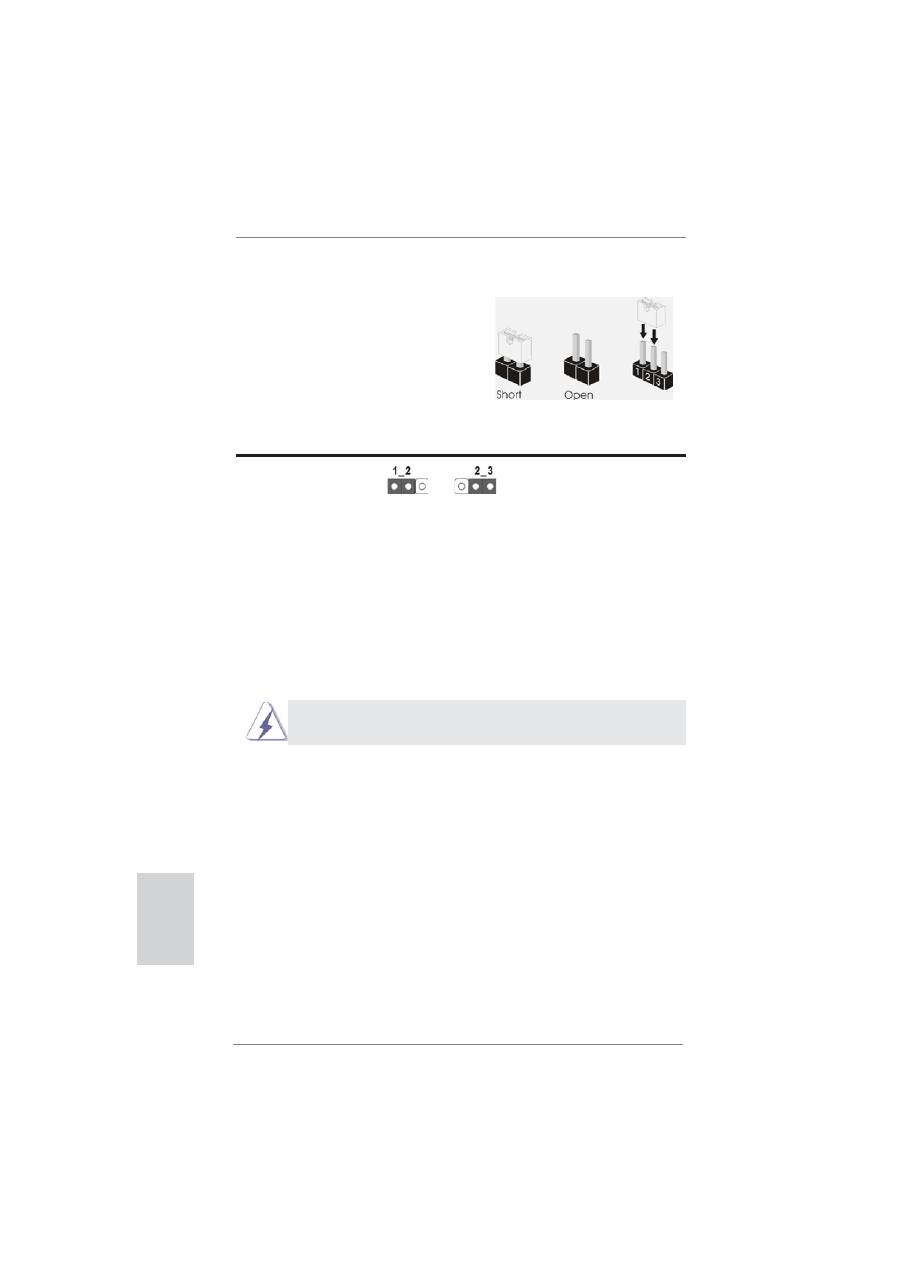
2.8 Jumpers Setup
The illustration shows how jumpers are
setup. When the jumper cap is placed on
pins, the jumper is “Short”. If no jumper cap
is placed on pins, the jumper is “Open”. The
illustration shows a 3-pin jumper whose
pin1 and pin2 are “Short” when jumper cap
is placed on these 2 pins.
Jumper Setting
Description
Clear CMOS Jumper
(CLRCMOS1)
(see p.2, No. 3)
Note: CLRCMOS1 allows you to clear the data in CMOS. To clear and reset the
system parameters to default setup, please turn off the computer and unplug
the power cord from the power supply. After waiting for 15 seconds, use a
jumper cap to short pin2 and pin3 on CLRCMOS1 for 5 seconds. However,
please do not clear the CMOS right after you update the BIOS. If you need
to clear the CMOS when you just
fi
nish updating the BIOS, you must boot
up the system
fi
rst, and then shut it down before you do the clear-CMOS ac-
tion. Please be noted that the password, date, time, user default pro
fi
le, 1394
GUID and MAC address will be cleared only if the CMOS battery is removed.
Clear CMOS
Default
The Clear CMOS Switch has the same function as the Clear CMOS
jumper.
English
27
ASRock 990FX Extreme4 Motherboard
2.9 Onboard Headers and Connectors
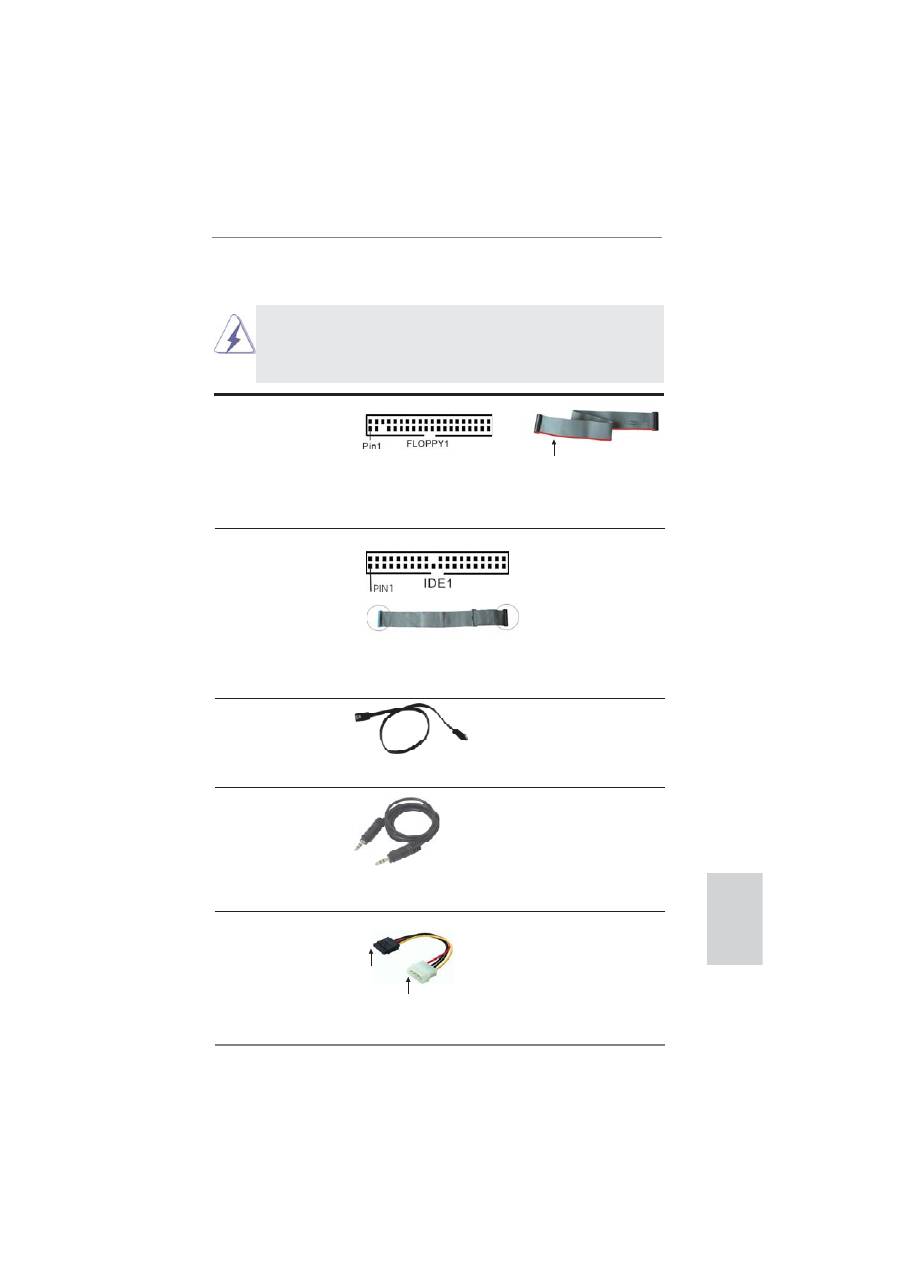
Onboard headers and connectors are NOT jumpers. Do NOT place
jumper caps over these headers and connectors. Placing jumper caps
over the headers and connectors will cause permanent damage of the
motherboard!
Serial ATA (SATA)
Either end of the SATA data
Data Cable
cable can be connected to the
(Optional)
SATA3 hard disk or the SATA3
connector on this motherboard.
3.5mm Audio Cable
Either end of the 3.5mm audio
(Optional)
cable can be connected to the
portable audio devices, such
as MP3 player and mobile
phone or the Line-in port of
your
PC.
FDD connector
(33-pin FLOPPY1)
(see p.2 No. 30)
Note: Make sure the red-striped side of the cable is plugged into Pin1 side of the
connector.
the red-striped side to Pin1
Primary IDE connector (Blue)
(39-pin IDE1, see p.2 No. 18)
Note: Please refer to the instruction of your IDE device vendor for the details.
connect the black end
to the IDE devices
connect the blue end
to the motherboard
80-conductor ATA 66/100/133 cable
connect to the SATA
HDD power connector
connect to the
power supply
Serial ATA (SATA)
Please connect the black end
Power Cable
of SATA power cable to the
(Optional)
power connector on each drive.
Then connect the white end of
SATA power cable to the power
connector of the power supply.
English
28
ASRock 990FX Extreme4 Motherboard
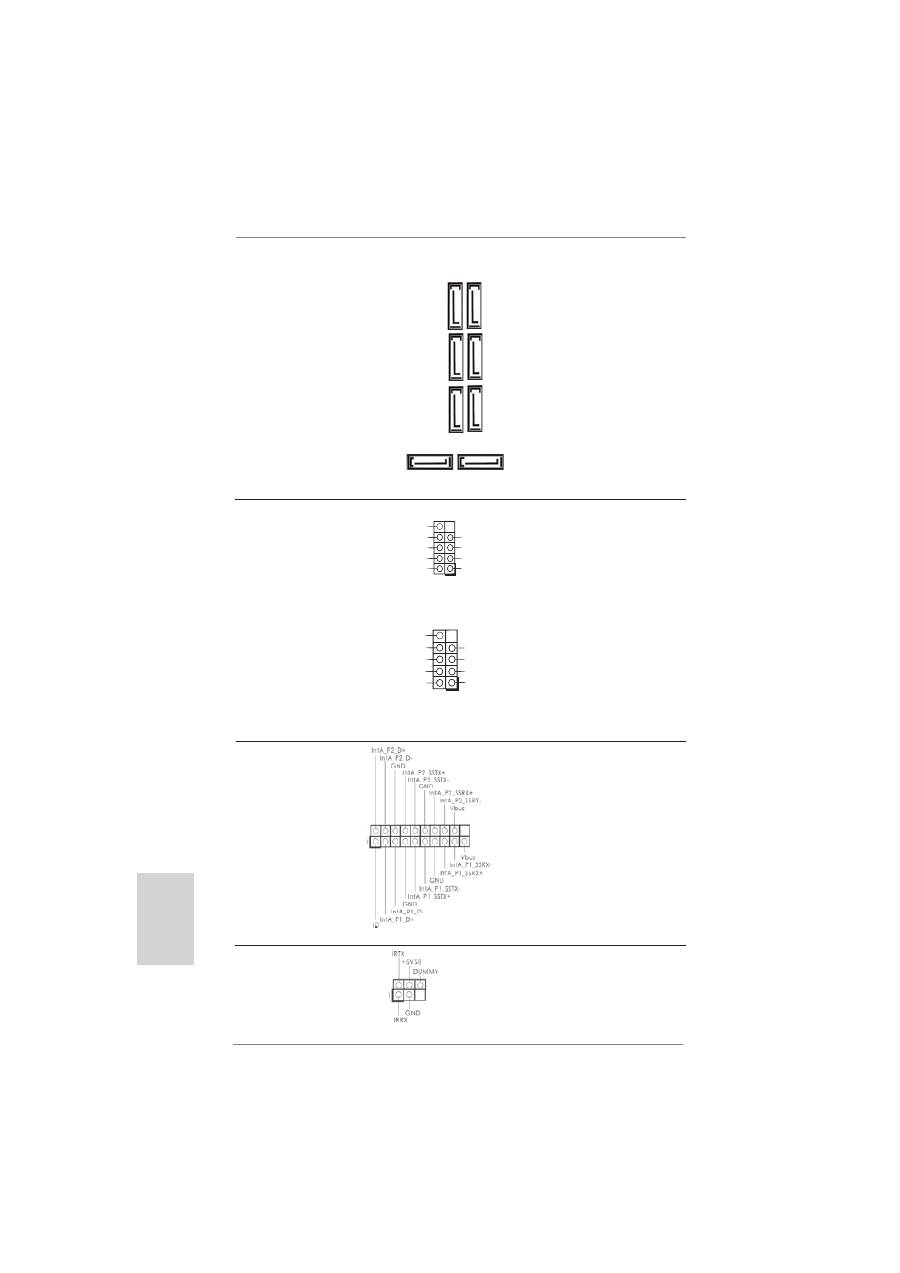
USB 2.0 Headers
Besides six default USB 2.0
(9-pin USB2_3)
ports on the I/O panel, there
(see p.2 No. 14)
are two USB 2.0 headers on
this motherboard. Each USB 2.0
header can support two USB
2.0
ports.
(9-pin USB8_9)
(see p.2 No. 13)
SA
TA3_1_2 SA
TA3_3_4 SA
TA3_5_6
Serial ATA3 Connectors
These eight Serial ATA3
(SATA3_1_2: see p.2, No. 21)
(SATA3) connectors support
(SATA3_3_4: see p.2, No. 20)
SATA data cables for internal
(SATA3_5_6: see p.2, No. 19)
storage devices. The current
(SATA3_7: see p.2, No. 32)
SATA3 interface allows up to
(SATA3_8: see p.2, No. 33)
6.0 Gb/s data transfer rate. If
you install the HDD on the
eSATA port on the rear I/O,
the internal SATA3_8 will not
function.
SATA3_8 SATA3_7
P-11
P+11
GND
DUMMY
USB_PWR
USB_PWR
P+10
P-10
GND
1
P-13
P+13
GND
DUMMY
USB_PWR
USB_PWR
P+12
P-12
GND
1
USB 3.0 Header
Besides two default USB 3.0
(19-pin USB3_0_1)
ports on the I/O panel, there is
(see p.2 No. 28)
one USB 3.0 header on this
motherboard. This USB 3.0
header can support two USB
3.0
ports.
Infrared Module Header
This header supports an
(5-pin IR1)
optional wireless transmitting
(see p.2 No. 44)
and receiving infrared module.
English
29
ASRock 990FX Extreme4 Motherboard
Front Panel Audio Header
This is an interface for the front
(9-pin HD_AUDIO1)
panel audio cable that allows
(see p.2 No. 43)
convenient connection and
control of audio devices.
J_SENSE
OUT2_R
MIC2_R
MIC2_L
OUT_RET
OUT2_L
MIC_RET
GND
PRESENCE#
1
1. High De
fi
nition Audio supports Jack Sensing, but the panel wire on
the chassis must support HDA to function correctly. Please follow the
instruction in our manual and chassis manual to install your system.
2. If you use AC’97 audio panel, please install it to the front panel audio
header as below:
A. Connect Mic_IN (MIC) to MIC2_L.
B. Connect Audio_R (RIN) to OUT2_R and Audio_L (LIN) to OUT2_L.
C. Connect Ground (GND) to Ground (GND).
D. MIC_RET and OUT_RET are for HD audio panel only. You don’t
need to connect them for AC’97 audio panel.
E. To activate the front mic.
For Windows
®
XP / XP 64-bit OS:
Select “Mixer”. Select “Recorder”. Then click “FrontMic”.
For Windows
®
7 / 7 64-bit / Vista
TM
/ Vista
TM
64-bit OS:
Go to the "FrontMic" Tab in the Realtek Control panel. Adjust
“Recording Volume”.
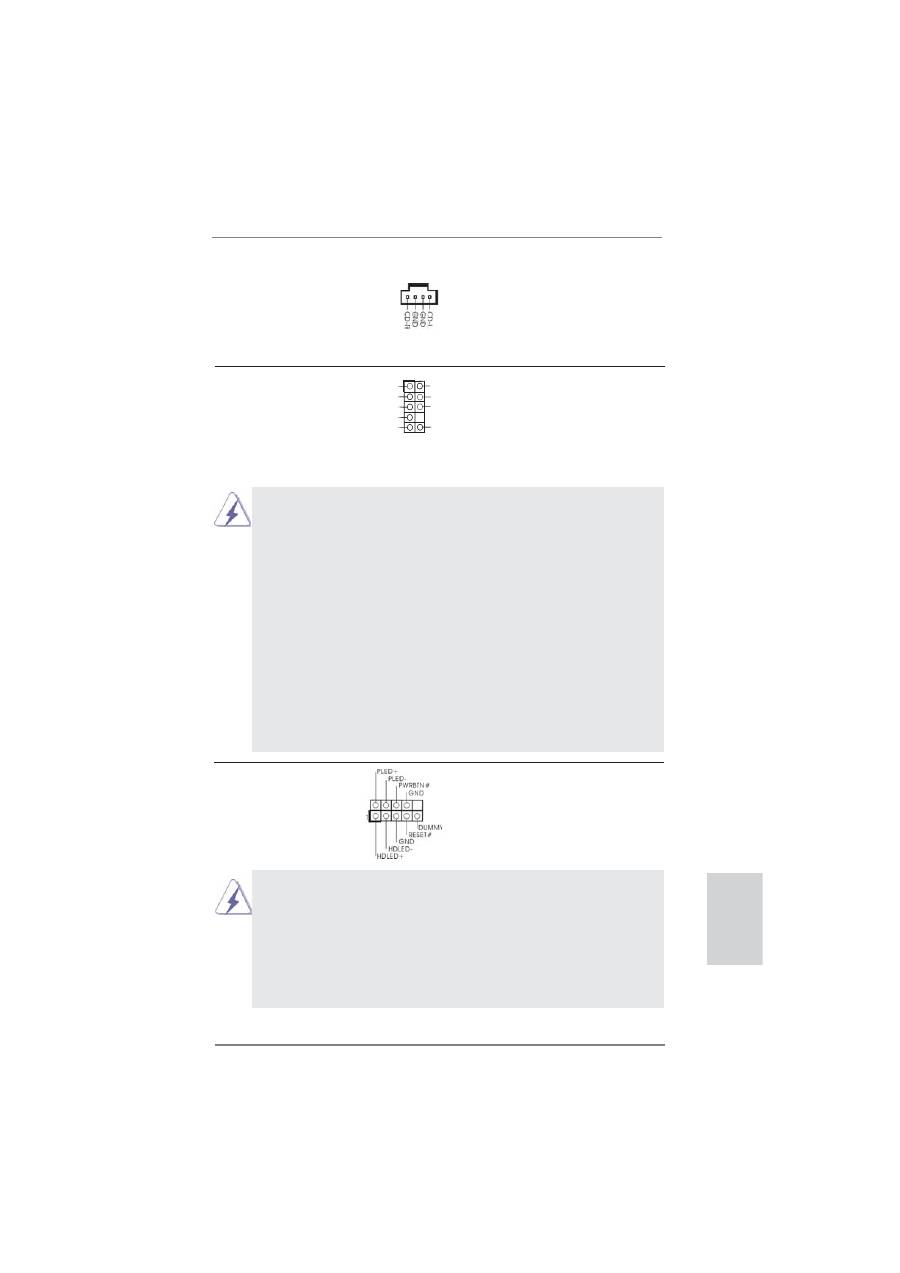
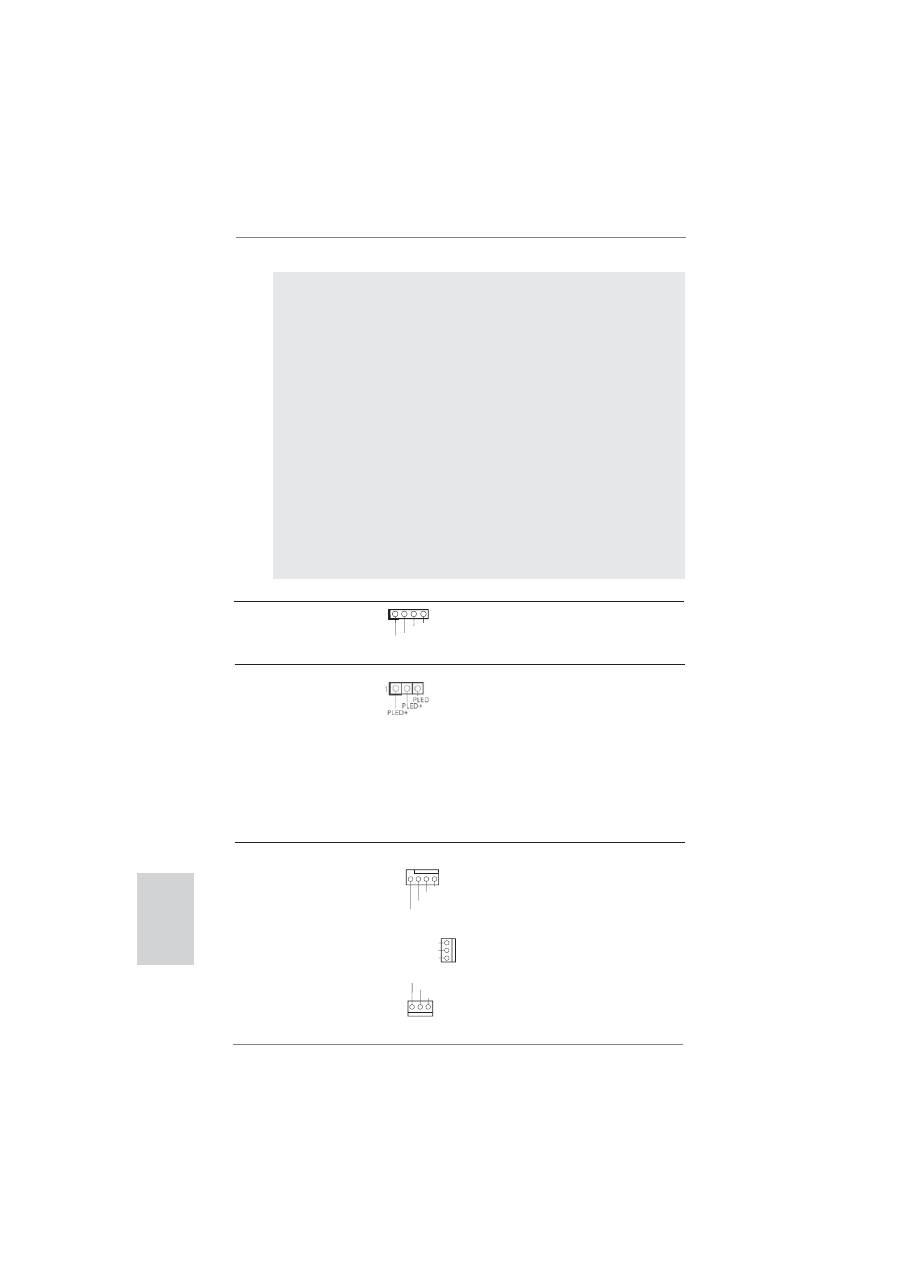
System Panel Header
This header accommodates
(9-pin PANEL1)
several system front panel
(see p.2 No. 29)
functions.
Connect the power switch, reset switch and system status indicator
on the chassis to this header according to the pin assignments below.
Note the positive and negative pins before connecting the cables.
PWRBTN (Power Switch):
Connect to the power switch on the chassis front panel. You may con-
fi
gure the way to turn off your system using the power switch.
Internal Audio Connectors
This connector allows you
(4-pin CD1)
to receive stereo audio input
(CD1: see p.2 No. 42)
from sound sources such as
a CD-ROM, DVD-ROM, TV
tuner card, or MPEG card.
CD1
English
30
ASRock 990FX Extreme4 Motherboard
RESET (Reset Switch):
Connect to the reset switch on the chassis front panel. Press the reset
switch to restart the computer if the computer freezes and fails to per-
form a normal restart.
PLED (System Power LED):
Connect to the power status indicator on the chassis front panel. The
LED is on when the system is operating. The LED keeps blinking
when the sys-tem is in S1 sleep state. The LED is off when the system
is in S3/S4 sleep state or powered off (S5).
HDLED (Hard Drive Activity LED):
Connect to the hard drive activity LED on the chassis front panel. The
LED is on when the hard drive is reading or writing data.
The front panel design may differ by chassis. A front panel module
mainly consists of power switch, reset switch, power LED, hard drive
activity LED, speaker and etc. When connecting your chassis front
panel module to this header, make sure the wire assignments and the
pin assign-ments are matched correctly.
Power LED Header
Please connect the chassis
(3-pin PLED1)
power LED to this header to
(see p.2 No. 22)
indicate system power status.
The LED is on when the system
is operating. The LED keeps
blinking in S1 state. The LED is
off in S3/S4 state or S5 state
(power
off).
Chassis Speaker Header
Please connect the chassis
(4-pin SPEAKER 1)
speaker to this header.
(see p.2 No. 23)
+5
V D
UMM
Y
D
UMM
Y
SPE
AK
ER
1
Chassis and Power Fan Connectors
Please connect the fan cables
(4-pin CHA_FAN1)
to the fan connectors and
(see p.2 No. 45)
match the black wire to the
ground pin. CHA_FAN1/2/3 fan
speed can be controlled through
(3-pin CHA_FAN2)
UEFI or AXTU.
(see p.2 No. 4)
(3-pin CHA_FAN3)
(see p.2 No. 2)
GND
+12
V
CH
A
_F
A
N_SPEED
GND
+12
V
CH
A
_F
A
N_SPEED
F
A
N_SPEED_CONTROL
GND
+12
V
CH
A
_F
A
N_SPEED
English
31
ASRock 990FX Extreme4 Motherboard
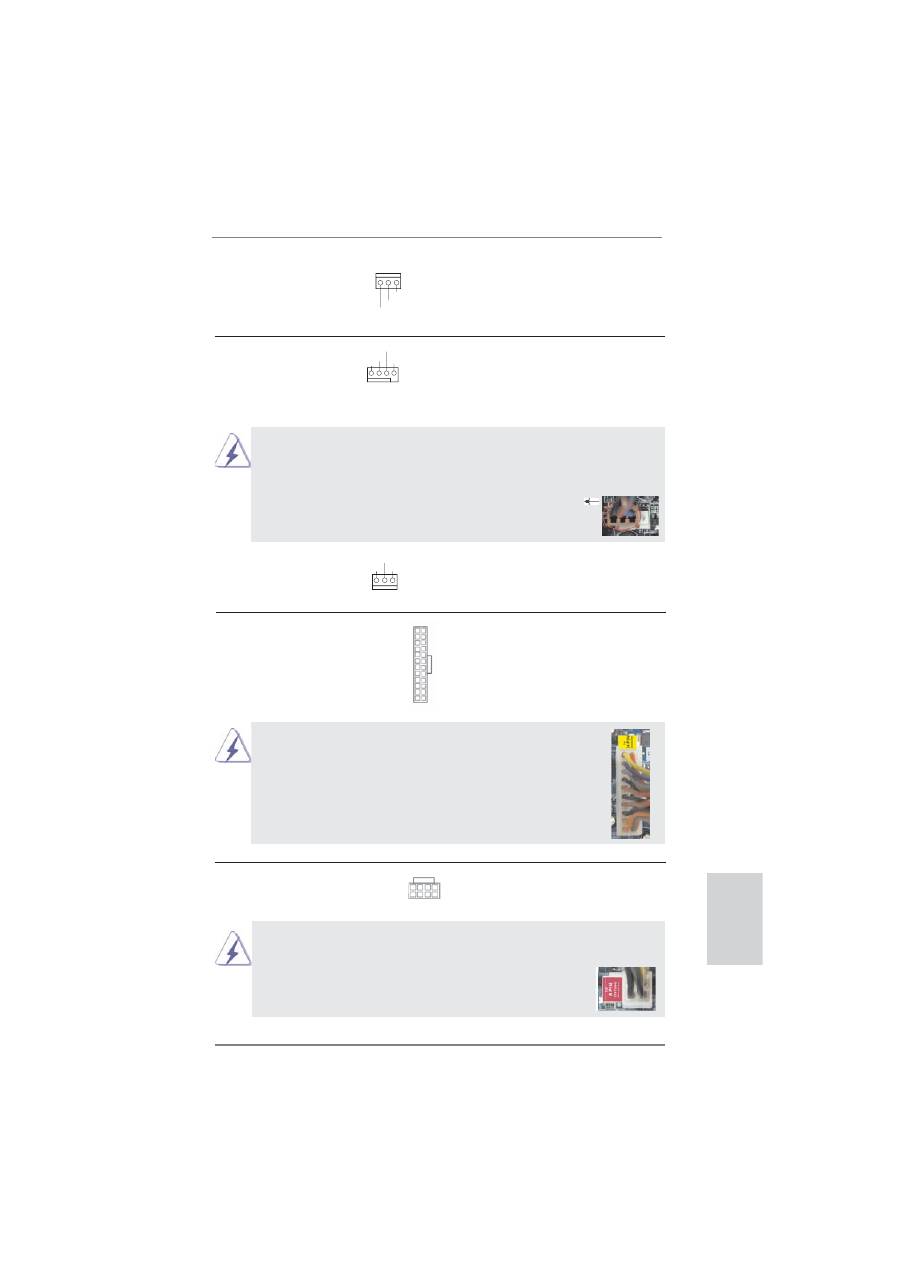
CPU Fan Connectors
Please connect the CPU fan
(4-pin CPU_FAN1)
cable to the connector and
(see p.2 No. 6)
match the black wire to the
ground
pin.
1 2
3
4
GN
D
+
1
2
V
CPU
_FA
N
_
SPEE
D
FA
N
_
SPEE
D_
C
O
NTR
OL
Though this motherboard provides 4-Pin CPU fan (Quiet Fan) support, the 3-Pin
CPU fan still can work successfully even without the fan speed control function.
If you plan to connect the 3-Pin CPU fan to the CPU fan connector on this
motherboard, please connect it to Pin 1-3.
ATX Power Connector
Please connect an ATX power
(24-pin ATXPWR1)
supply to this connector.
(see p.2 No. 12)
12
1
Though this motherboard provides 24-pin ATX power connector,
it can still work if you adopt a traditional 20-pin ATX power supply.
To use the 20-pin ATX power supply, please plug your power
supply along with Pin 1 and Pin 13.
ATX 12V Power Connector
Please connect an ATX 12V
(8-pin ATX12V1)
power supply to this connector.
(see p.2 No. 5)
Though this motherboard provides 8-pin ATX 12V power connector, it can still work
if you adopt a traditional 4-pin ATX 12V power supply. To use the 4-pin ATX power
supply, please plug your power supply along with Pin 1 and Pin 5.
(3-pin CPU_FAN2)
(see p.2 No. 7)
GN
D
+
1
2
V
PWR
_FA
N
_
SPEE
D
20-Pin ATX Power Supply Installation
4-Pin ATX 12V Power Supply Installation
Pin 1-3 Connected
3-Pin Fan Installation
12
1
24
13
8
5
4
1
24
13
8 5
4 1
(3-pin PWR_FAN1)
(see p.2 No. 40)
GND
+12
V
PWR_F
A
N_SPEED
English
32
ASRock 990FX Extreme4 Motherboard
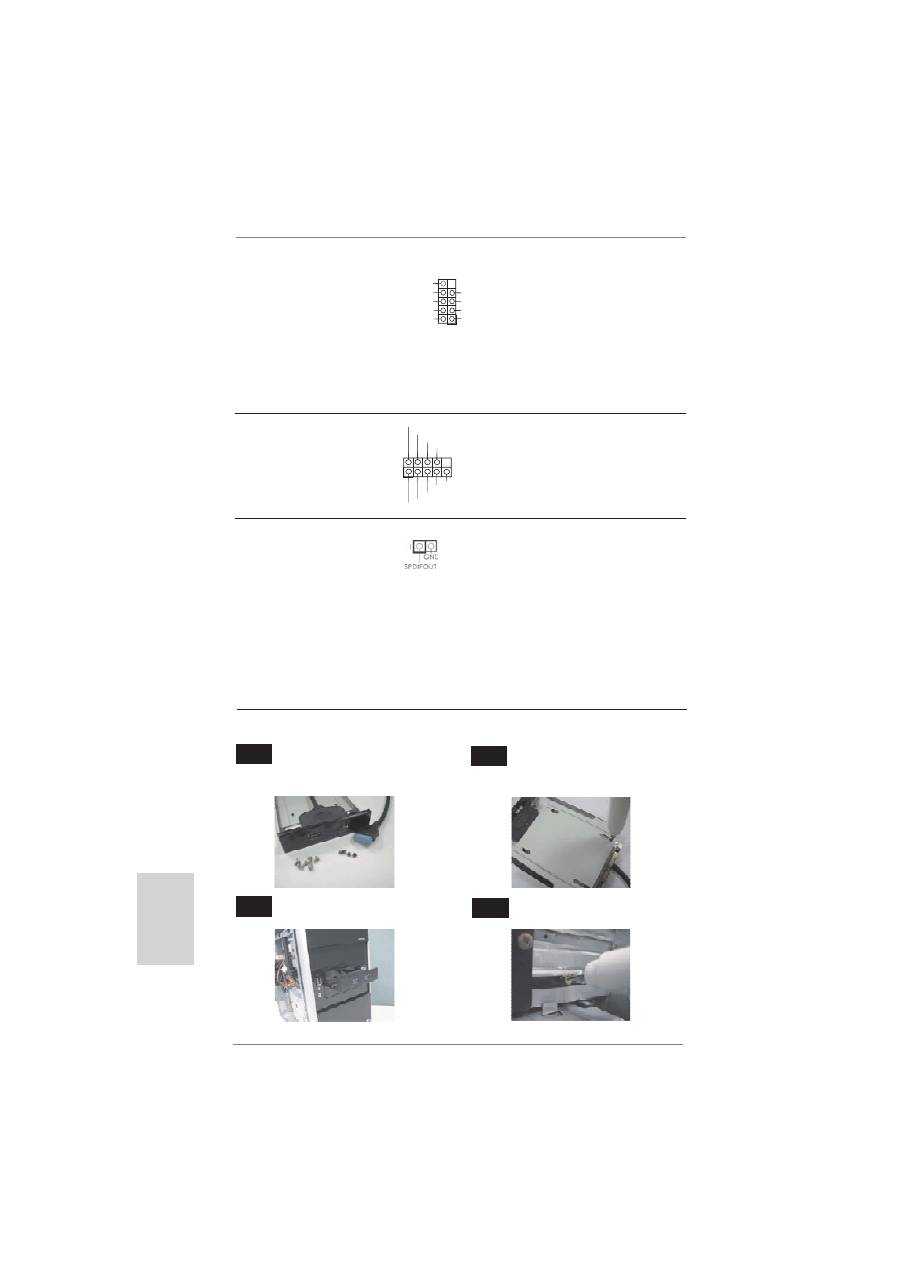
IEEE 1394 Header
Besides one default IEEE 1394
(9-pin FRONT_1394)
port on the I/O panel, there is
(see p.2 No. 15)
one IEEE 1394 header
(FRONT_1394) on this
motherboard. This IEEE 1394
header can support one IEEE
1394
port.
GND
RXTPBM_0
+12
V
GND
RXTP
A
P_0
RXTP
A
M_0
RXTPBP_0
GND
+12
V
1
HDMI_SPDIF Header
HDMI_SPDIF header, providing
(2-pin HDMI_SPDIF1)
SPDIF audio output to HDMI
(
see p.2 No. 1)
VGA card, allows the system to
connect HDMI Digital TV/
projector/LCD devices. Please
connect the HDMI_SPDIF
connector of HDMI VGA card to
this
header.
Serial port Header
This COM1 header supports a
(9-pin COM1)
serial port module.
(see p.2 No.31)
DDTR#1
DDSR#1
CCTS#1
RRI#1
DDCD#1
RRXD1
TTXD1
GND
RRTS#1
1
Front USB 3.0 Panel Installation Guide
Intall the Front USB 3.0 Panel into
the 2.5” drive bay of the chassis.
Step
3
Screw the Front USB 3.0 Panel to
the drive bay with six chassis screws.
Prepare the bundled Front USB 3.0
Panel, four HDD screws, and six
chassis screws.
Step
1
Step
2
Screw the 2.5” HDD/SSD to the Front
USB 3.0 Panel with four HDD screws.
Step
4
English
33
ASRock 990FX Extreme4 Motherboard
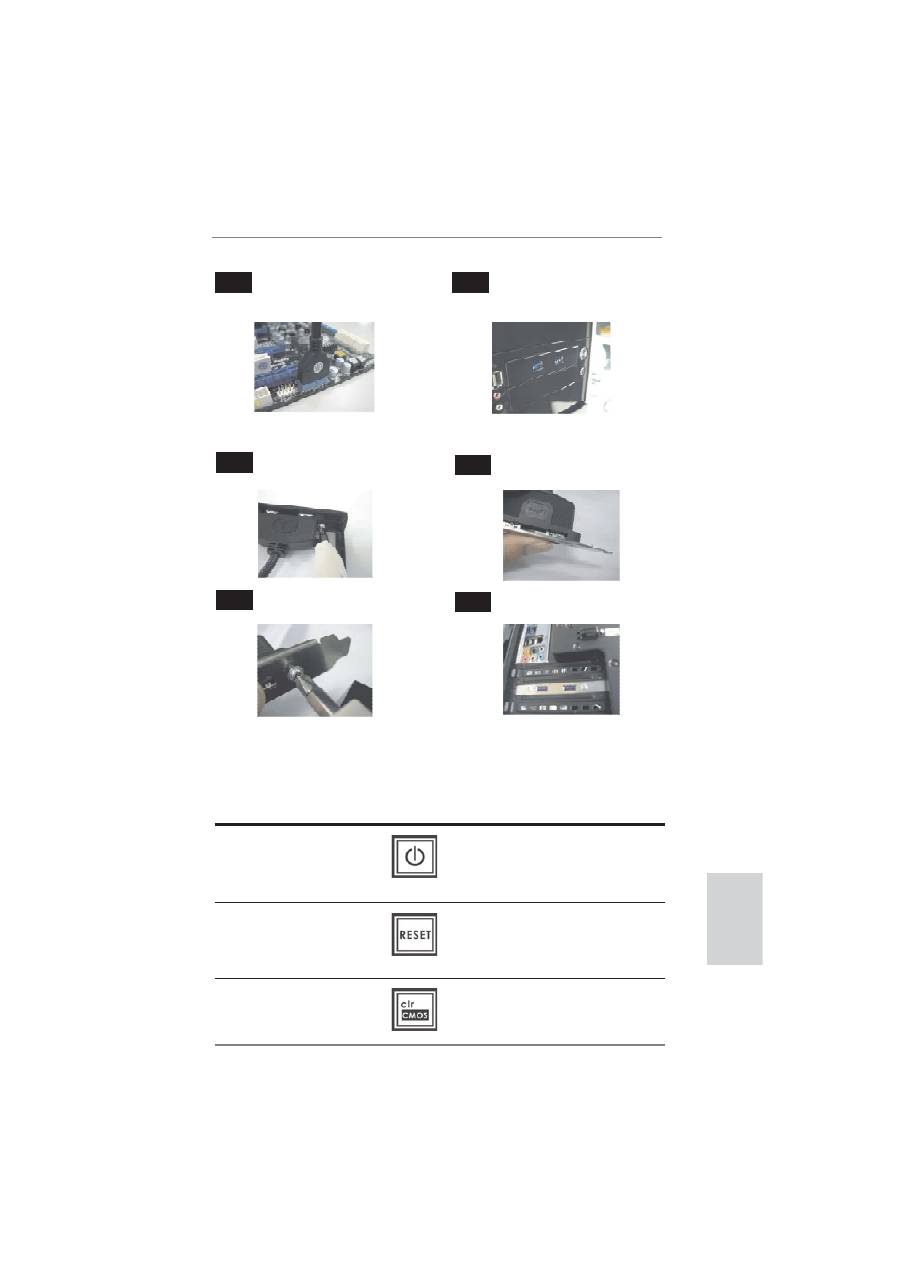
Rear USB 3.0 Bracket Installation Guide
Put the USB 3.0 cable and the
rear USB 3.0 bracket together.
Unscrew the two screws from the Front
USB 3.0 Panel.
Step
1
Put the rear USB 3.0 bracket into
the chassis.
Screw the two screws into the rear
USB 3.0 bracket.
Step
3
The Front USB 3.0 Panel is ready
to use.
Plug the Front USB 3.0 cable into the
USB 3.0 header (USB3_0_1) on the
motherboard.
Step
5
Step
6
Step
2
Step
4
2.10 Smart Switches
This motherboard has three smart switches: power switch, reset switch and clear
CMOS switch, allowing users to quickly turn on/off or reset the system or clear the
CMOS values.
Power Switch
Power Switch is a smart switch,
(PWRBTN)
allowing users to quickly turn
(see p.2 No. 26)
on/off the system.
Reset Switch
Reset Switch is a smart switch,
(RSTBTN)
allowing users to quickly reset
(see p.2 No. 25)
the
system.
Clear CMOS Switch
Clear CMOS Switch is a smart
(CLRCBTN)
switch, allowing users to quickly
(see p.3 No. 17)
clear the CMOS values
English
34
ASRock 990FX Extreme4 Motherboard
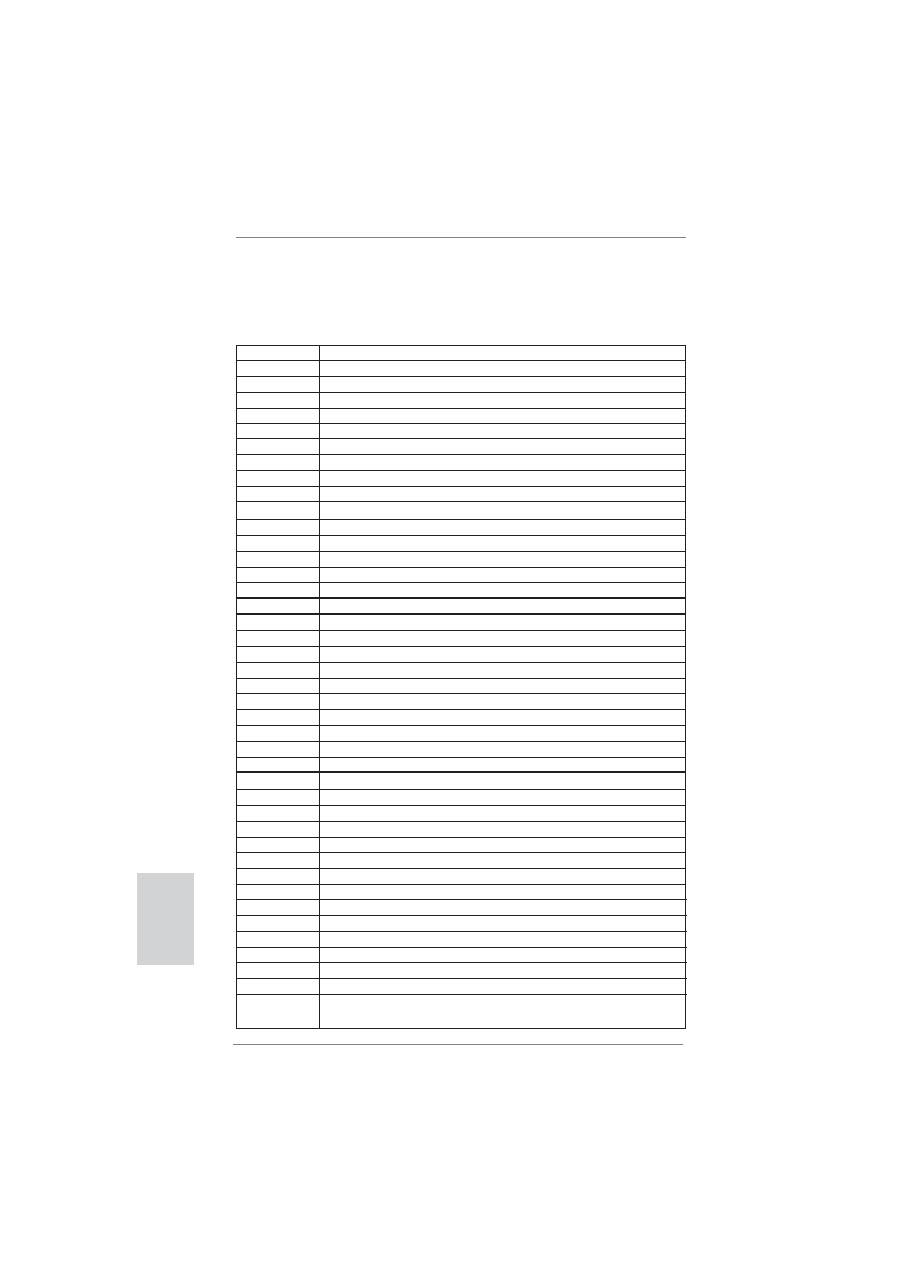
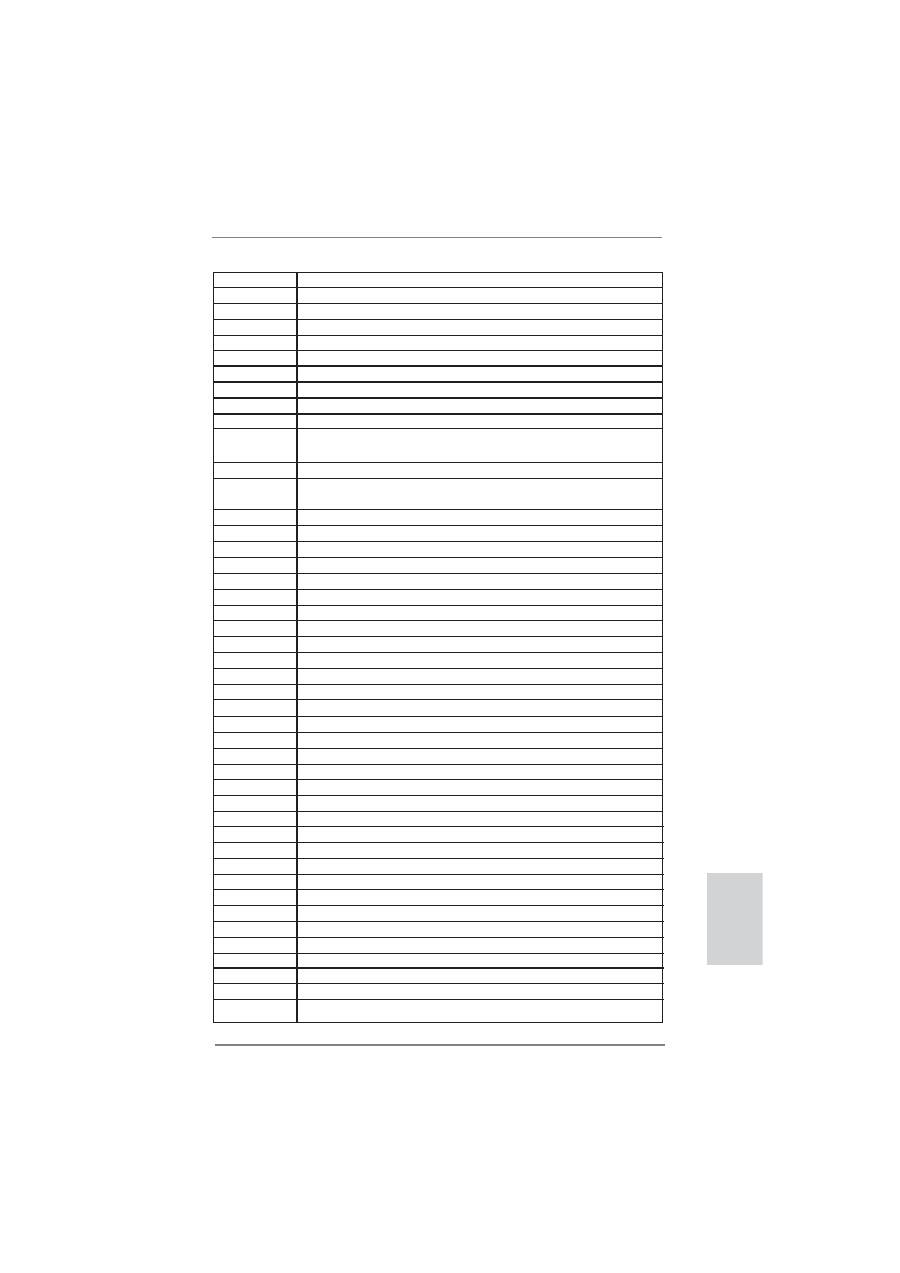
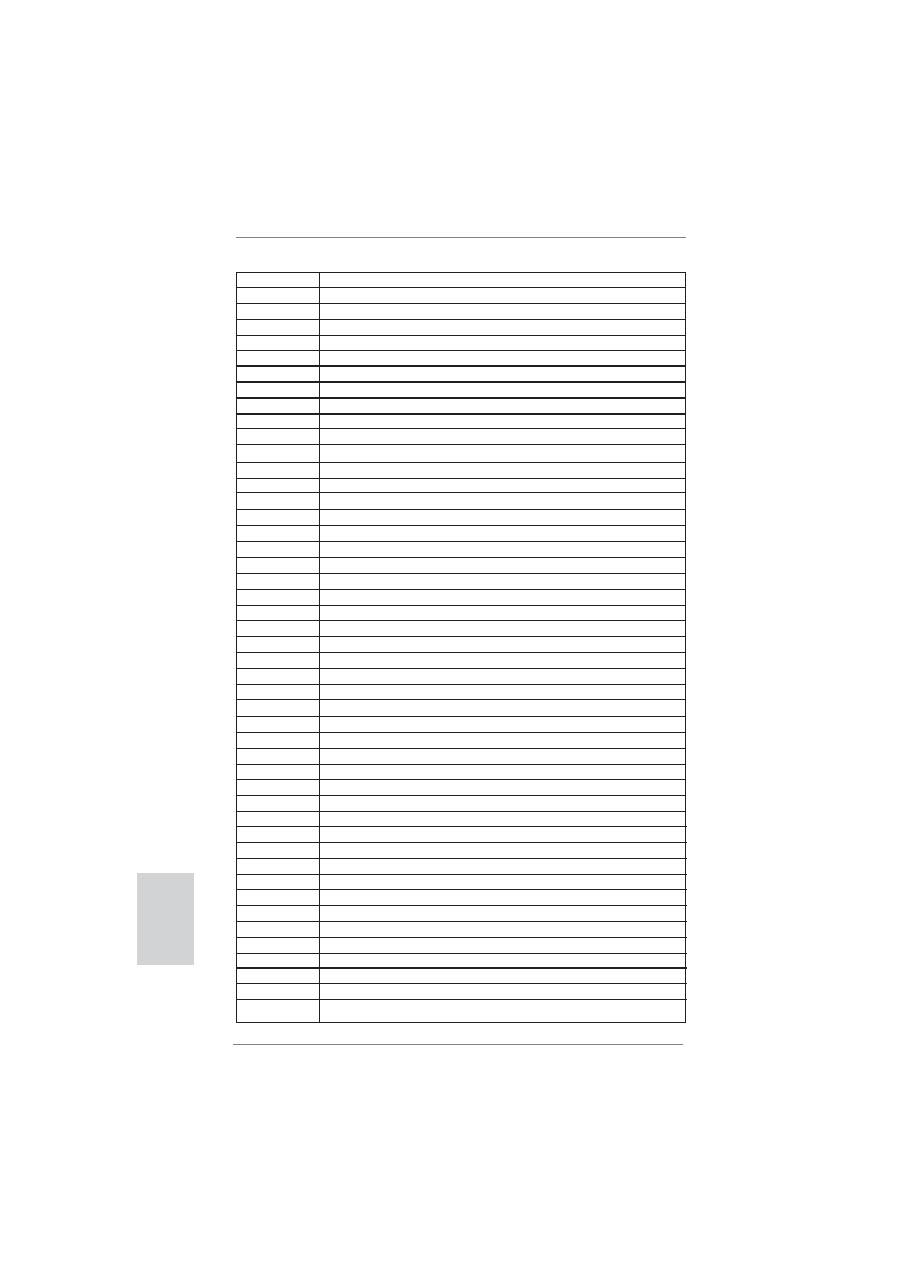
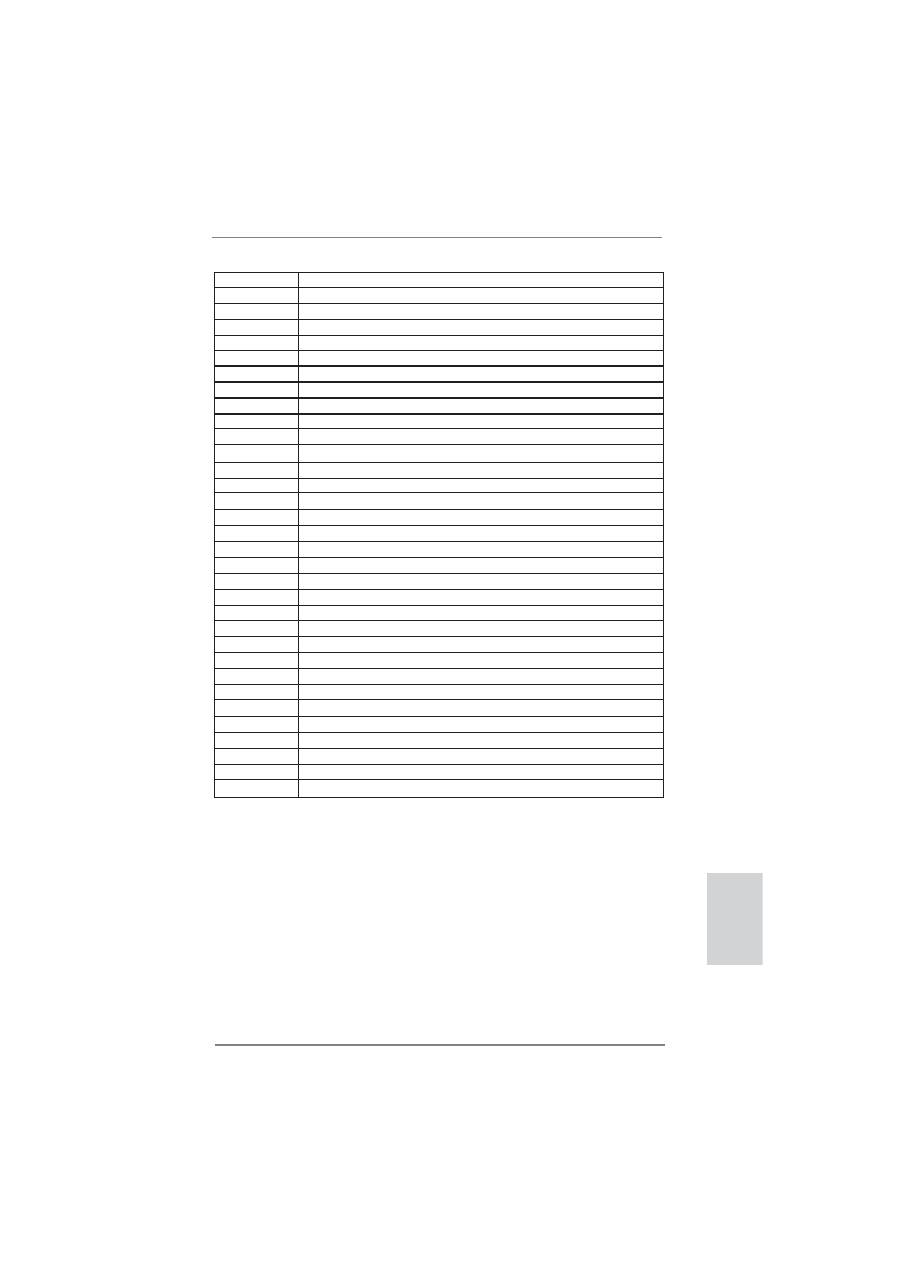
2.11 Dr. Debug
Dr. Debug is used to provide code information, which makes troubleshooting even
easier. Please see the diagrams below for reading the Dr. Debug codes.
Status Code
Description
0x00
Not used
0x01
Power on. Reset type detection (soft/hard)
0x02
AP initialization before microcode loading
0x03
North Bridge initialization before microcode loading
0x04
South Bridge initialization before microcode loading
0x05
OEM initialization before microcode loading
0x06
Microcode loading
0x07
AP initialization after microcode loading
0x08
North Bridge initialization after microcode loading
0x09
South Bridge initialization after microcode loading
0x0A
OEM initialization after microcode loading
0x0B
Cache initialization
0x0C – 0x0D
Reserved for future AMI SEC error codes
0x0E
Microcode not found
0x0F
Microcode not loaded
0x10
PEI Core is started
0x11
Pre-memory CPU initialization is started
0x12
Pre-memory CPU initialization (CPU module speci
fi
c)
0x13
Pre-memory CPU initialization (CPU module speci
fi
c)
0x14
Pre-memory CPU initialization (CPU module speci
fi
c)
0x15
Pre-memory North Bridge initialization is started
0x16
Pre-Memory North Bridge initialization (North Bridge module speci
fi
c)
0x17
Pre-Memory North Bridge initialization (North Bridge module speci
fi
c)
0x18
Pre-Memory North Bridge initialization (North Bridge module speci
fi
c)
0x19
Pre-memory South Bridge initialization is started
0x1A
Pre-memory South Bridge initialization (South Bridge module speci
fi
c)
0x1B
Pre-memory South Bridge initialization (South Bridge module speci
fi
c)
0x1C
Pre-memory South Bridge initialization (South Bridge module speci
fi
c)
0x1D – 0x2A
OEM pre-memory initialization codes
0x2B
Memory initialization. Serial Presence Detect (SPD) data reading
0x2C
Memory initialization. Memory presence detection
0x2D
Memory initialization. Programming memory timing information
0x2E
Memory initialization. Con
fi
guring memory
0x2F
Memory initialization (other)
0x30
Reserved for ASL (see ASL Status Codes section below)
0x31
Memory Installed
0x32
CPU post-memory initialization is started
0x33
CPU post-memory initialization. Cache initialization
0x34
CPU post-memory initialization. Application Processor(s) (AP) initialization
0x35
CPU post-memory initialization. Boot Strap Processor (BSP) selection
0x36
CPU post-memory initialization. System Management Mode (SMM)
initialization
English
35
ASRock 990FX Extreme4 Motherboard
0x37
Post-Memory North Bridge initialization is started
0x38
Post-Memory North Bridge initialization (North Bridge module speci
fi
c)
0x39
Post-Memory North Bridge initialization (North Bridge module speci
fi
c)
0x3A
Post-Memory North Bridge initialization (North Bridge module speci
fi
c)
0x3B
Post-Memory South Bridge initialization is started
0x3C
Post-Memory South Bridge initialization (South Bridge module speci
fi
c)
0x3D
Post-Memory South Bridge initialization (South Bridge module speci
fi
c)
0x3E
Post-Memory South Bridge initialization (South Bridge module speci
fi
c)
0x3F-0x4E
OEM post memory initialization codes
0x4F
DXE IPL is started
0x50
Memory initialization error. Invalid memory type or incompatible memory
speed
0x51
Memory initialization error. SPD reading has failed
0x52
Memory initialization error. Invalid memory size or memory modules do not
match
0x53
Memory initialization error. No usable memory detected
0x54
Unspeci
fi
ed memory initialization error
0x55
Memory not installed
0x56
Invalid CPU type or Speed
0x57
CPU mismatch
0x58
CPU self test failed or possible CPU cache error
0x59
CPU micro-code is not found or micro-code update is failed
0x5A
Internal CPU error
0x5B
reset PPI is not available
0x5C-0x5F
Reserved for future AMI error codes
0xE0
S3 Resume is stared (S3 Resume PPI is called by the DXE IPL)
0xE1
S3 Boot Script execution
0xE2
Video repost
0xE3
OS S3 wake vector call
0xE4-0xE7
Reserved for future AMI progress codes
0xE8
S3 Resume Failed
0xE9
S3 Resume PPI not Found
0xEA
S3 Resume Boot Script Error
0xEB
S3 OS Wake Error
0xEC-0xEF
Reserved for future AMI error codes
0xF0
Recovery condition triggered by
fi
rmware (Auto recovery)
0xF1
Recovery condition triggered by user (Forced recovery)
0xF2
Recovery process started
0xF3
Recovery
fi
rmware image is found
0xF4
Recovery
fi
rmware image is loaded
0xF5-0xF7
Reserved for future AMI progress codes
0xF8
Recovery PPI is not available
0xF9
Recovery capsule is not found
0xFA
Invalid recovery capsule
0xFB – 0xFF
Reserved for future AMI error codes
0x60
DXE Core is started
0x61
NVRAM initialization
English
36
ASRock 990FX Extreme4 Motherboard
0x62
Installation of the South Bridge Runtime Services
0x63
CPU DXE initialization is started
0x64
CPU DXE initialization (CPU module speci
fi
c)
0x65
CPU DXE initialization (CPU module speci
fi
c)
0x66
CPU DXE initialization (CPU module speci
fi
c)
0x67
CPU DXE initialization (CPU module speci
fi
c)
0x68
PCI host bridge initialization
0x69
North Bridge DXE initialization is started
0x6A
North Bridge DXE SMM initialization is started
0x6B
North Bridge DXE initialization (North Bridge module speci
fi
c)
0x6C
North Bridge DXE initialization (North Bridge module speci
fi
c)
0x6D
North Bridge DXE initialization (North Bridge module speci
fi
c)
0x6E
North Bridge DXE initialization (North Bridge module speci
fi
c)
0x6F
North Bridge DXE initialization (North Bridge module speci
fi
c)
0x70
South Bridge DXE initialization is started
0x71
South Bridge DXE SMM initialization is started
0x72
South Bridge devices initialization
0x73
South Bridge DXE Initialization (South Bridge module speci
fi
c)
0x74
South Bridge DXE Initialization (South Bridge module speci
fi
c)
0x75
South Bridge DXE Initialization (South Bridge module speci
fi
c)
0x76
South Bridge DXE Initialization (South Bridge module speci
fi
c)
0x77
South Bridge DXE Initialization (South Bridge module speci
fi
c)
0x78
ACPI module initialization
0x79
CSM initialization
0x7A – 0x7F
Reserved for future AMI DXE codes
0x80 – 0x8F
OEM DXE initialization codes
0x90
Boot Device Selection (BDS) phase is started
0x91
Driver connecting is started
0x92
PCI Bus initialization is started
0x93
PCI Bus Hot Plug Controller Initialization
0x94
PCI Bus Enumeration
0x95
PCI Bus Request Resources
0x96
PCI Bus Assign Resources
0x97
Console Output devices connect
0x98
Console input devices connect
0x99
Super IO Initialization
0x9A
USB initialization is started
0x9B
USB Reset
0x9C
USB Detect
0x9D
USB Enable
0x9E – 0x9F
Reserved for future AMI codes
0xA0
IDE initialization is started
0xA1
IDE Reset
0xA2
IDE Detect
0xA3
IDE Enable
0xA4
SCSI initialization is started
0xA5
SCSI Reset
English
37
ASRock 990FX Extreme4 Motherboard
0xA6
SCSI Detect
0xA7
SCSI Enable
0xA8
Setup Verifying Password
0xA9
Start of Setup
0xAA
Reserved for ASL (see ASL Status Codes section below)
0xAB
Setup Input Wait
0xAC
Reserved for ASL (see ASL Status Codes section below)
0xAD
Ready To Boot event
0xAE
Legacy Boot event
0xAF
Exit Boot Services event
0xB0
Runtime Set Virtual Address MAP Begin
0xB1
Runtime Set Virtual Address MAP End
0xB2
Legacy Option ROM Initialization
0xB3
System Reset
0xB4
USB hot plug
0xB5
PCI bus hot plug
0xB6
Clean-up of NVRAM
0xB7
Con
fi
guration Reset (reset of NVRAM settings)
0xB8 – 0xBF
Reserved for future AMI codes
0xC0 – 0xCF
OEM BDS initialization codes
0xD0
CPU initialization error
0xD1
North Bridge initialization error
0xD2
South Bridge initialization error
0xD3
Some of the Architectural Protocols are not available
0xD4
PCI resource allocation error. Out of Resources
0xD5
No Space for Legacy Option ROM
0xD6
No Console Output Devices are found
0xD7
No Console Input Devices are found
0xD8
Invalid password
0xD9
Error loading Boot Option (LoadImage returned error)
0xDA
Boot Option is failed (StartImage returned error)
0xDB
Flash update is failed
0xDC
Reset protocol is not available
English

38
ASRock 990FX Extreme4 Motherboard
2.12 Driver Installation Guide
To install the drivers to your system, please insert the support CD to your optical
drive
fi
rst. Then, the drivers compatible to your system can be auto-detected and
listed on the support CD driver page. Please follow the order from up to bottom side
to install those required drivers. Therefore, the drivers you install can work properly.
2.13 Installing Windows
®
7 / 7 64-bit / Vista
TM
/
Vista
TM
64-bit / XP / XP 64-bit With RAID Functions
If you want to install Windows
®
7 / 7 64-bit / Vista
TM
/ Vista
TM
64-bit / XP / XP 64-
bit on your SATA3 HDDs with RAID functions, please refer to the document at the
following path in the Support CD for detailed procedures:
..\ RAID Installation Guide
Using SATA3 HDDs without NCQ and Hot Plug functions (IDE mode)
STEP 1: Set up UEFI.
A.Enter UEFI SETUP UTILITY Advanced screen Storage Con
fi
guration.
B.Set the option “SATA Mode” to [IDE]. (For SATA3_1 to SATA3_6 ports.)
Set the option “Marvell SATA3 Operation Mode” to [IDE]. (For SATA3_7 and
SATA3_8 ports.)
STEP 2: Install Windows
®
XP / XP 64-bit OS on your system.
2.14 Installing Windows
®
7 / 7 64-bit / Vista
TM
/
Vista
TM
64-bit / XP / XP 64-bit Without RAID Functions
If you want to install Windows
®
7 / 7 64-bit / Vista
TM
/ Vista
TM
64-bit / XP / XP 64-bit
OS on your SATA3 HDDs without RAID functions, please follow below procedures
according to the OS you install.
2.14.1 Installing Windows
®
XP / XP 64-bit Without RAID
Functions
If you want to install Windows
®
XP / XP 64-bit on your SATA3 HDDs without RAID
functions, please follow below steps.
English

39
ASRock 990FX Extreme4 Motherboard
2.15 Untied Overclocking Technology
This motherboard supports Untied Overclocking Technology, which means during
overclocking, FSB enjoys better margin due to
fi
xed PCI / PCIE buses. Before you
enable Untied Overclocking function, please enter “Overclock Mode” option of UEFI
setup to set the selection from [Auto] to [Manual]. Therefore, CPU FSB is untied
during overclocking, but PCI / PCIE buses are in the
fi
xed mode so that FSB can
operate under a more stable overclocking environment.
Please refer to the warning on page 9 for the possible overclocking risk
before you apply Untied Overclocking Technology.
STEP 1: Set up UEFI.
A.Enter UEFI SETUP UTILITY Advanced screen Storage Con
fi
guration.
B.Set the option “SATA Mode” to [IDE]. (For SATA3_1 to SATA3_6 ports.)
Set the option “Marvell SATA3 Operation Mode” to [IDE]. (For SATA3_7 and
SATA3_8 ports.)
STEP 2: Install Windows
®
7 / 7 64-bit / Vista
TM
/ Vista
TM
64-bit OS on your sys-
tem.
Using SATA3 HDDs without NCQ and Hot Plug functions (IDE mode)
2.14.2 Installing Windows
®
7 / 7 64-bit / Vista
TM
/ Vista
TM
64-bit
Without RAID Functions
If you want to install Windows
®
7 / 7 64-bit / Vista
TM
/ Vista
TM
64-bit on your SATA3
HDDs without RAID functions, please follow below steps.
Using SATA3 HDDs with NCQ and Hot Plug functions (AHCI mode)
STEP 1: Set up UEFI.
A.Enter UEFI SETUP UTILITY Advanced screen Storage Con
fi
guration.
B.Set the option “SATA Mode” to [AHCI]. (For SATA3_1 to SATA3_6 ports.)
Set the option “Marvell SATA3 Operation Mode” to [AHCI]. (For SATA3_7 and
SATA3_8 ports.)
STEP 2: Install Windows
®
7 / 7 64-bit / Vista
TM
/ Vista
TM
64-bit OS on your
system.
English

40
ASRock 990FX Extreme4 Motherboard
3. BIOS Information
The Flash Memory on the motherboard stores BIOS Setup Utility. When you start up
the computer, please press <F2> or <Del> during the Power-On-Self-Test (POST)
to enter BIOS Setup utility; otherwise, POST continues with its test routines. If you
wish to enter BIOS Setup after POST, please restart the system by pressing <Ctl>
+ <Alt> + <Delete>, or pressing the reset button on the system chassis. The BIOS
Setup program is designed to be user-friendly. It is a menu-driven program, which
allows you to scroll through its various sub-menus and to select among the prede-
termined choices. For the detailed information about BIOS Setup, please refer to the
User Manual (PDF
fi
le) contained in the Support CD.
4. Software Support CD information
This motherboard supports various Microsoft
®
Windows
®
operating systems: 7 / 7
64-bit / Vista
TM
/ Vista
TM
64-bit / XP / XP 64-bit. The Support CD that came with the
motherboard contains necessary drivers and useful utilities that will enhance moth-
erboard features. To begin using the Support CD, insert the CD into your CD-ROM
drive. It will display the Main Menu automatically if “AUTORUN” is enabled in your
computer. If the Main Menu does not appear automatically, locate and double-click
on the
fi
le “ASSETUP.EXE” from the BIN folder in the Support CD to display the
menus.
English


