
Acer AO521: Top view Your Aspire One tour
Top view Your Aspire One tour: Acer AO521
Table of contents
Quick Guide
Top view
Your Aspire One tour
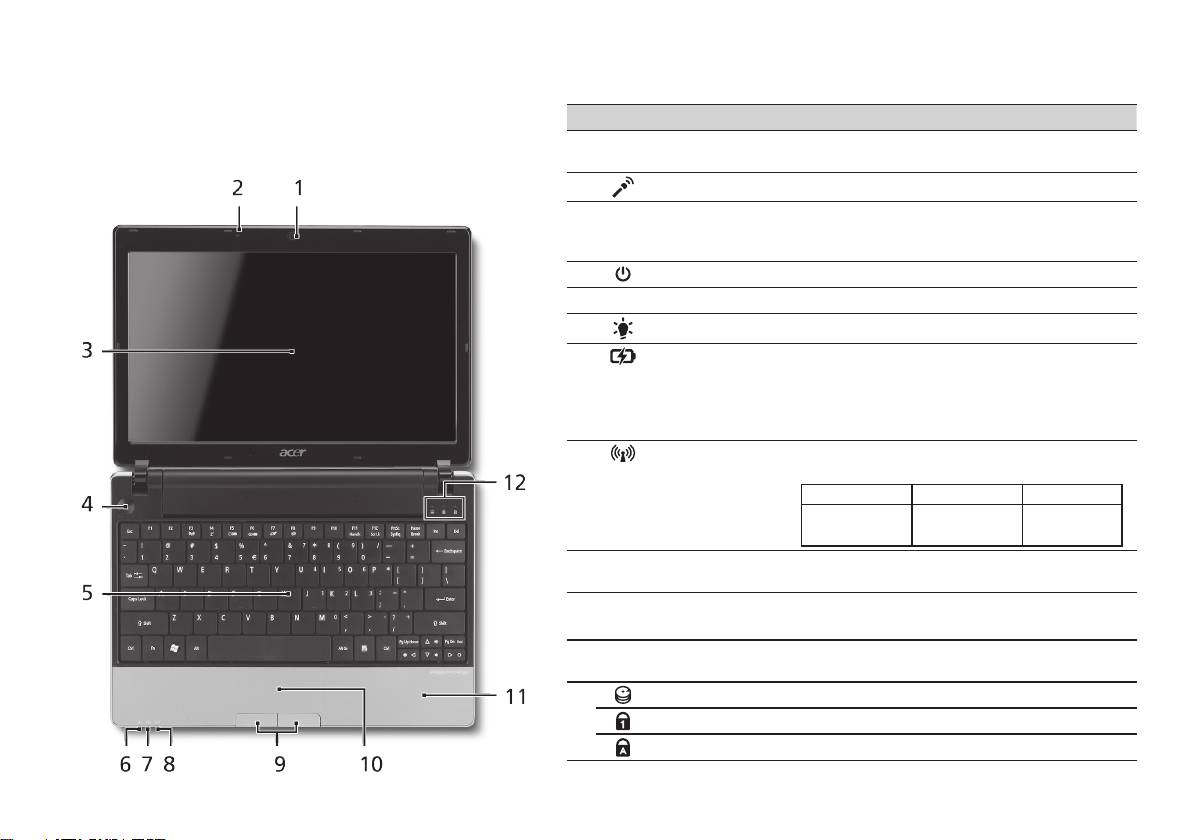
# Icon Item Description
After setting up your computer as illustrated in the Just
1
Acer Crystal Eye
Web camera for video communication
for starters section, let us show you around your new Acer
webcam
(configuration may vary by model).
notebook.
2
Microphone Internal microphone for sound recording.
3
Display screen Also called Liquid-Crystal Display (LCD),
displays computer output (configuration
may vary by model).
4
Power button Turns the computer on and off.
5
Keyboard For entering data into your computer.
1
6
Power indicator
Indicates the computer's power status.
1
7
Battery indicator
Indicates the computer's battery status.
1. Charging: The light shows amber when
the battery is charging.
2. Fully charged: The light shows blue when
in AC mode.
8
Communication
Indicates the status of 3G/Wireless LAN
1
indicator
communication.
Blue light on Orange light on Not lit
3G on / WiFi on
3G off / WiFi on 3G off / WiFi off
3G on / WiFi off
9
Click buttons (left
The left and right buttons function like the
and right)
left and right mouse buttons.
10
Touchpad Touch-sensitive pointing device which
functions like a computer mouse.
11
Palmrest Comfortable support area for your hands
when you use the computer.
12
HDD indicator Indicates when the hard disk drive is active.
Num Lock Lights up when Num Lock is activated.
Caps Lock Lights up when Caps Lock is activated.
1. The front panel indicators are visible even when the computer cover is closed.
4
