
Apple Mouse – страница 3
Инструкция к Устройству ввода Apple Mouse
Оглавление

Om rullningskulan slutar rulla eller går trögt bör du rengöra den. Snurra på kulan
medan du rengör den, så att du kommer åt överallt. Om det går trögt att rulla vänder
du musen upp och ner och rullar kulan med kraft samtidigt som du rengör den.
På så sätt får du bort partiklar som kan ha fastnat.
Använda musen
Musen har en vänster- och en högerknapp, en klickningsbar rullningskula och en
knapp på vardera sidan. Så här använder du musen:
 Klicka med vänster- eller högerknappen.
 Tryck in sidoknapparna.
 Klicka på eller rulla rullningskulan.
41Svenska
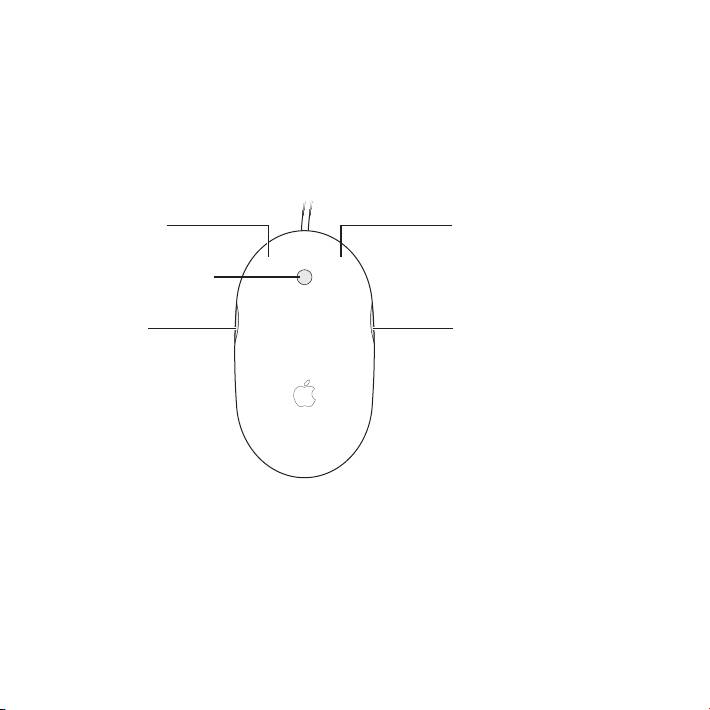
Både den vänstra eller högra knappen kan fungera som den primära knappen.
Du använder den primära knappen till att klicka, dubbelklicka och dra objekt.
Båda knapparna kan också fungera som den sekundära knappen. Du visar ett
objekts kontextmeny med den sekundära knappen. Du kan tilldela en funktion till
sidoknapparna, som tillsammans fungerar som en knapp, samt till rullningskulan som
även den kan fungera som en knapp.
Vänsterknapp
Högerknapp
Rullningskula (knapp)
Sidoknapp Sidoknapp
42 Svenska

Anpassa musen
Om du har Mac OS X 10.4.8 eller senare installerat på datorn kan du anpassa musen
i panelen Mus i systeminställningen Tangentbord och mus.
1 Välj Apple () > Systeminställningar.
2 Klicka på Tangentbord och mus.
3 Klicka på Mus.
Tilldela funktioner till de olika knapparna i popupmenyerna. Du kan ställa in valfri
knapp till att växla mellan program eller öppna program. Du kan aktivera eller
avaktivera rullning och skärmzoomning och justera hastigheten för acceleration,
rullning och dubbelklick. Du kan också aktivera skärmzoomning genom att samtidigt
hålla ner en tangent på tangentbordet och rulla.
Mer information
Mer information om hur du använder musen får du om du öppnar Mac Hjälp och söker
efter ”Apple Mouse”.
Ergonomi
Information om ergonomi, hälsa och säkerhet nns på Apples webbplats om ergonomi
på www.apple.com/se/about/ergonomics.
Support
Information om support och felsökning, diskussionsgrupper för användare och den
senaste programvaran från Apple nns på www.apple.com/se/support.
43Svenska

Начало работы с Apple Mouse
Поздравляем с покупкой Apple Mouse! Данный буклет
поможет быстро настроить и приступить к использованию
Вашей новой мыши.
Новая Apple Mouse — это полностью программируемая многокнопочная мышь.
Для того чтобы воспользоваться мышью и насладиться всеми ее функциями,
Вам необходимо установить MacOSX 10.4.8 или более поздней версии на свой Mac.
Если на Вашем компьютере Mac установлена более ранняя версия MacOSX,
доступ к некоторым функциям будет ограничен.
Настройка мыши
Чтобы установить мышь Apple Mouse, просто подключите ее кабель USB
к свободному порту USB компьютера Mac, клавиатуры или монитора.
Очистка мыши и шарика прокрутки
При очистке наружной поверхности мыши и шарика прокрутки следуйте данным
инструкциям.
 Для очистки наружной поверхности мыши и шарика прокрутки используйте
неворсистую, увлажненную водой ткань.
 Избегайте попадания влаги в отверстия.
44
Русский

 Не используйте распыляемые аэрозоли, растворители или абразивные
материалы.
Если шарик прокрутки перестал вращаться или прокрутка затруднена, шарик
необходимо очистить. Вращайте шарик, чтобы очистить всю его поверхность.
Если вращение затруднено, переверните мышь вверх дном и протрите шарик,
вращая его с усилием. Это поможет удалить загрязнения, препятствующие
вращению шарика.
Работа с мышью
Мышь Apple Mouse оснащена левой и правой кнопками, шариком прокрутки
(который также может функционировать как кнопка) и двумя кнопками с обеих
сторон. Использование Apple Mouse:
 нажмите левую или правую кнопку;
 нажмите боковые кнопки;
 нажмите или прокручивайте шарик прокрутки.
Русский
45
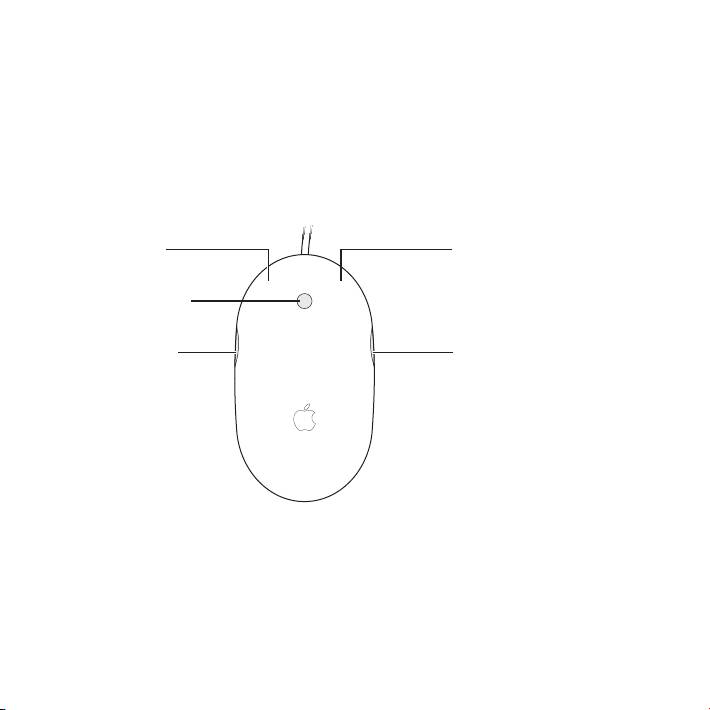
Как левая, так и правая кнопка может использоваться в качестве основной кнопки.
Используйте основную кнопку для нажатия, двойного нажатия и перетаскивания
объектов. Любая из этих кнопок может также использоваться в качестве
вспомогательной кнопки. Вспомогательная кнопка предназначена для вызова
контекстного меню объекта. Функции можно назначить боковым кнопкам, которые
вместе выполняют функцию одной кнопки, и шарику прокрутки, который также
может выполнять функцию кнопки.
Л
евая кнопка
Правая кнопка
Шарик прокрутки
(кнопка)
Боковая кнопка Боковая кнопка
46
Русский

Индивидуальные настройки мыши
Если на компьютере Mac установлена система MacOSX10.4.8 или более поздней
версии, на панели «Мышь» раздела настроек «Клавиатура и мышь» можно
установить уникальные настройки мыши Apple Mouse.
1 Выберите пункт меню «Apple» () > «Системные настройки».
2 Нажмите «Клавиатура и мышь».
3 Нажмите «Мышь».
Для назначения какой-либо функции кнопке используйте всплывающие меню.
Функции переключения между программами или запуска программ можно
назначить любой кнопке. Можно включить или отключить функцию прокрутки
и изменения масштаба изображения, а также настроить скорость перемещения
указателя, прокрутки и двойного нажатия. Можно также активировать функцию
изменения масштаба изображения экрана путем прокрутки с удержанием клавиши
клавиатуры.
Дополнительная информация
Для получения дополнительной информации о работе с Apple Mouse откройте
Справку Mac и введите в поле поискаApple Mouse.
Эргономика
Информацию об эргономике, здоровье и технике безопасности см. на веб-сайте
www.apple.com/about/ergonomics.
Русский
47

Поддержка
Обратиться за поддержкой, получить информацию по устранению неполадок,
просмотреть дискуссионные форумы пользователей и загрузить последние
обновления ПО Apple можно на веб-сайте www.apple.com/ru/support.
48
Русский

Introdução ao Apple Mouse
Parabéns por ter comprado o rato Apple Mouse! Utilize este
folheto para rapidamente congurar e começar a utilizar
o seu novo rato.
O rato Apple Mouse é um rato programável multi-botões. Para utilizar o rato e
beneciar da gama completa de funcionalidades, precisa de ter instalado o Mac OS X
10.4.8 ou posterior no seu Mac. Se tiver uma versão anterior do Mac OS X no seu Mac,
não poderá utilizar todas as funcionalidades.
Como congurar o rato
Para congurar o rato, basta ligar o cabo USB do rato Apple Mouse a uma porta USB
disponível no Mac, teclado ou monitor.
Como limpar o rato e a esfera de deslocamento
Siga estas orientações para limpar a parte externa do rato e a esfera de deslocamento:
 Utilize um pano que não solte apos ligeiramente humedecido com água para limpar
a parte externa do rato e a esfera de deslocamento.
 As aberturas não devem ser expostas à humidade.
 Não utilize sprays aerossol, dissolventes ou abrasivos.
49Português

Se o rato deixar de se deslocar ou se a deslocação for irregular, limpe a esfera de
deslocamento. Rode a esfera ao limpar para abranger toda a sua superfície.
Se a deslocação for irregular, segure no rato virado ao contrário e rode a esfera
vigorosamente durante a sua limpeza para remover quaisquer partículas que
possam ter-se acumulado.
Como usar o rato
O rato Apple Mouse inclui um botão esquerdo e um direito, uma esfera de
deslocamento (que pode ser clicada) e um botão de cada lado. Para utilizar
o rato Apple Mouse:
 Clique no botão esquerdo ou direito.
 Prima os botões laterais.
 Clique ou rode a esfera de deslocamento.
50 Português
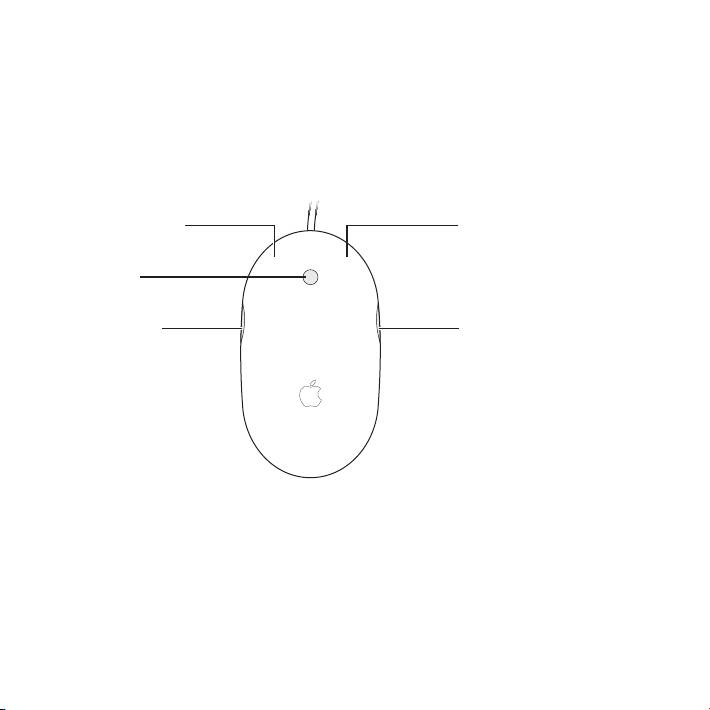
Tanto o botão esquerdo como o direito podem funcionar como botão principal.
Utilize o botão principal para clicar, fazer duplo clique e arrastar itens. Qualquer
um dos botões pode também funcionar como botão secundário. Utilize o botão
secundário para fazer exibir o menu de atalho de um item. Pode atribuir uma função
aos botões laterais, que funcionam conjuntamente como um único botão, e à esfera de
deslocamento, que também funciona como botão.
Botão esquerdo
Botão direito
Esfera de
deslocamento (botão)
Botão lateral Botão lateral
51Português

Como personalizar o rato
Se tiver o Mac OS X 10.4.8 ou posterior instalado no seu Mac, pode personalizar o rato
Apple Mouse através do painel Rato do painel de preferências Teclado e Rato.
1 Seleccione Apple () > Preferências do Sistema.
2 Clique em Teclado e Rato.
3 Clique em Rato.
Utilize os menus instantâneos para atribuir uma acção a cada botão. Pode especicar
qualquer um dos botões para alternar entre aplicações ou abrir aplicações. Pode
activar ou desactivar a deslocação e o zoom do ecrã, e ajustar a velocidade de
rastreio, deslocação e duplo clique. Pode também activar o zoom do ecrã, premindo
simultaneamente uma tecla no teclado e a deslocação.
Mais informações
Para obter mais informações sobre como utilizar o rato Apple Mouse, abra a Ajuda Mac
e pesquise “Apple Mouse”
Ergonomia
Para obter informações acerca de ergonomia, saúde e segurança, visite o site da Apple
sobre ergonomia em www.apple.com/pt/about/ergonomics.
Suporte
Para informações sobre suporte e resolução de problemas, painéis de discussão
para utilizadores, e as descargas de software da Apple mais recentes, visite
www.apple.com/pt/support.
52 Português

Regulatory Compliance Information
FCC Compliance Statement
Important: Changes or modications to this product not
This device complies with part 15 of the FCC rules. Operation
authorized by Apple Inc. could void the EMC compliance and
is subject to the following two conditions: (1) This device may
negate your authority to operate the product.
not cause harmful interference, and (2) this device must accept
This product has demonstrated EMC compliance under conditions
any interference received, including interference that may cause
that included the use of compliant peripheral devices and shielded
undesired operation. See instructions if interference to radio or
cables between system components. It is important that you
television reception is suspected.
use compliant peripheral devices and shielded cables (including
Ethernet network cables) between system components to reduce
Radio and Television Interference
the possibility of causing interference to radios, television sets, and
This computer equipment generates, uses, and can radiate
other electronic devices.
radio-frequency energy. If it is not installed and used properly—
that is, in strict accordance with Apple’s instructions—it may
Responsible party (contact for FCC matters only):
cause interference with radio and television reception.
Apple Inc. Corporate Compliance
1 Innite Loop, MS 26-A
This equipment has been tested and found to comply with
Cupertino, CA 95014
the limits for a Class B digital device in accordance with the
specications in Part 15 of FCC rules. These specications
Industry Canada Statemente
are designed to provide reasonable protection against such
Complies with the Canadian ICES-003 Class B specications.
interference in a residential installation. However, there is
Cet appareil numérique de la classe B est conforme à la norme
no guarantee that interference will not occur in a particular
NMB-003 du Canada. This device complies with RSS 210 of
installation.
Industry Canada.
You can determine whether your computer system is causing
Europe—EU Declaration of Conformity
interference by turning it o. If the interference stops, it was
See www.apple.com/euro/compliance.
probably caused by the computer or one of the peripheral
devices. If your computer system does cause interference to
radio or television reception, try to correct the interference by
using one or more of the following measures:
• Turn the television or radio antenna until the interference stops.
• Move the computer to one side or the other of the television
or radio.
• Move the computer farther away from the television or radio.
• Plug the computer into an outlet that is on a dierent circuit
from the television or radio. (That is, make certain the computer
and the television or radio are on circuits controlled by dierent
circuit breakers or fuses.)
If necessary, consult an Apple Authorized Service Provider or
Apple. See the service and support information that came with
your Apple product. Or, consult an experienced radio/television
technician for additional suggestions.
53
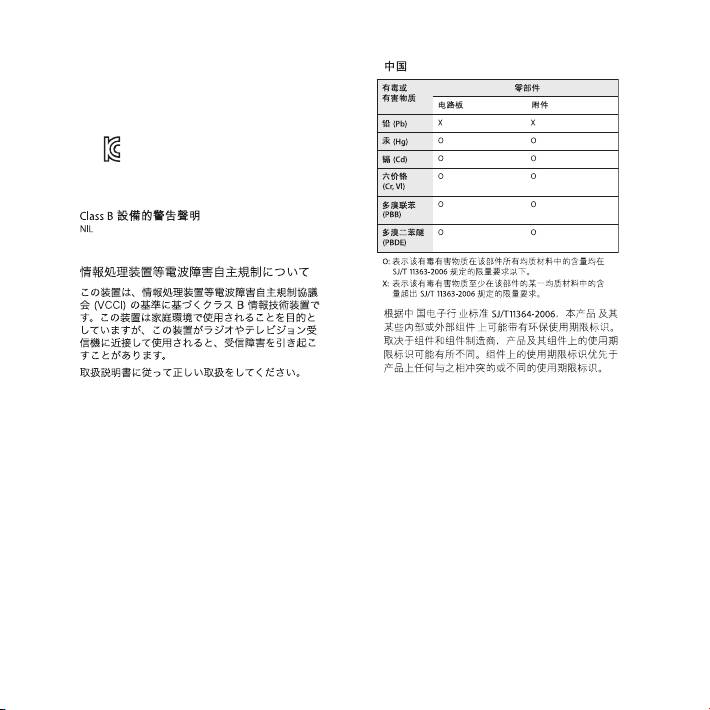
Korea Statements
54
*ૺૺႜဧ෮ቛཅૺၴႁ
ၦૺૺ௴ႜဧ*႖ၴኒ႕ጁૺૺചച
ႜຫဧዻ௴ઇၕඛ႕ၒചዻඑ
ක౷ხຫဧዾ༘ၰཀఁఋ
ᆼකస"
Apple Mouse / A1152
ၨჭၴືጭ"ྴዯᇬ൘ྤ၉ዽፂຫ
႞Ⴎஶဵ"ถዑૺ
E-C011-05-3838 (B)
႞Ⴎၴ႞Ⴎ:
Apple Inc. / അၦხྤ
თ
Taiwan Class B Statement
VCCI Class B Statement
Disposal and Recycling Information
Mouse Class 1 LED Information
When this product reaches its end of life, please dispose of it
The Apple Mouse is a Class 1 LED product in accordance
according to your local environmental laws and guidelines.
with IEC 60825-1 A1 A2.
It also complies with the Canadian ICES-003 Class B
For information about Apple’s recycling programs, visit:
Specication.
www.apple.com/environment/recycling
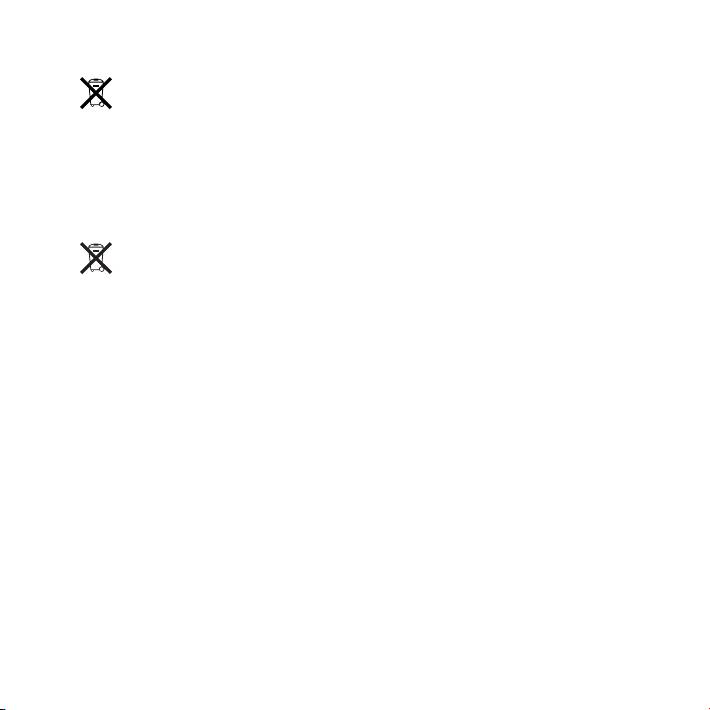
European Union: Disposal Information
The symbol above means that according to local laws and
regulations your product should be disposed of separately from
household waste. When this product reaches its end of life, take
it to a collection point designated by local authorities. Some
collection points accept products for free. The separate collection
and recycling of your product at the time of disposal will help
conserve natural resources and ensure that it is recycled in a
manner that protects human health and the environment.
Brasil: Informações sobre descarte e reciclagem
O símbolo acima indica que este produto e/ou sua bateria não
devem ser descartadas no lixo doméstico. Quando decidir
descartar este produto e/ou sua bateria, faça-o de acordo com
as leis e diretrizes ambientais locais. Para informações sobre o
programa de reciclagem da Apple, pontos de coleta e telefone de
informações, visite www.apple.com/br/environment.
Apple and the Environment
Apple Inc. recognizes its responsibility to minimize the
environmental impacts of its operations and products.
More information is available on the web at:
www.apple.com/environment
55

www.apple.com
© 2011 Apple Inc. All rights reserved.
Apple, the Apple logo, Exposé, Mac, Mac OS, and Spotlight are
trademarks of Apple Inc., registered in the U.S. and other countries.
*2Z034-6221-A*
Printed in XXXX
