
ASRock Q87M vPro: Chapter 2 Installation
Chapter 2 Installation: ASRock Q87M vPro

Chapter 2 Installation
is is a Micro ATX form factor motherboard. Before you install the motherboard,
study the conguration of your chassis to ensure that the motherboard ts into it.
Pre-installation Precautions
Take note of the following precautions before you install motherboard components
or change any motherboard settings.
•
Make sure to unplug the power cord before installing or removing the motherboard.
Failure to do so may cause physical injuries to you and damages to motherboard
components.
•
In order to avoid damage from static electricity to the motherboard’s components,
NEVER place your motherboard directly on a carpet. Also remember to use a grounded
wrist strap or touch a safety grounded object before you handle the components.
•
Hold components by the edges and do not touch the ICs.
•
Whenever you uninstall any components, place them on a grounded anti-static pad or
in the bag that comes with the components.
•
When placing screws to secure the motherboard to the chassis, please do not over-
tighten the screws! Doing so may damage the motherboard.
12 13
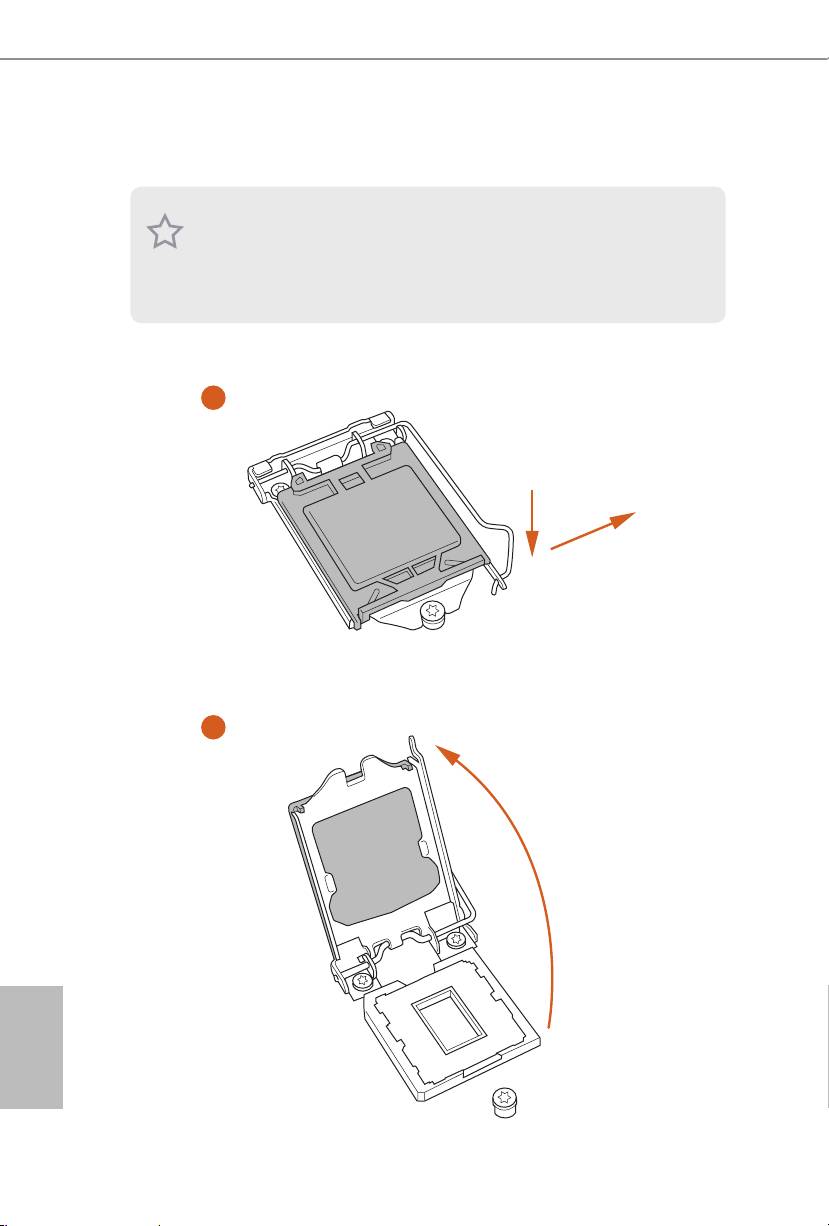
2.1 Installing the CPU
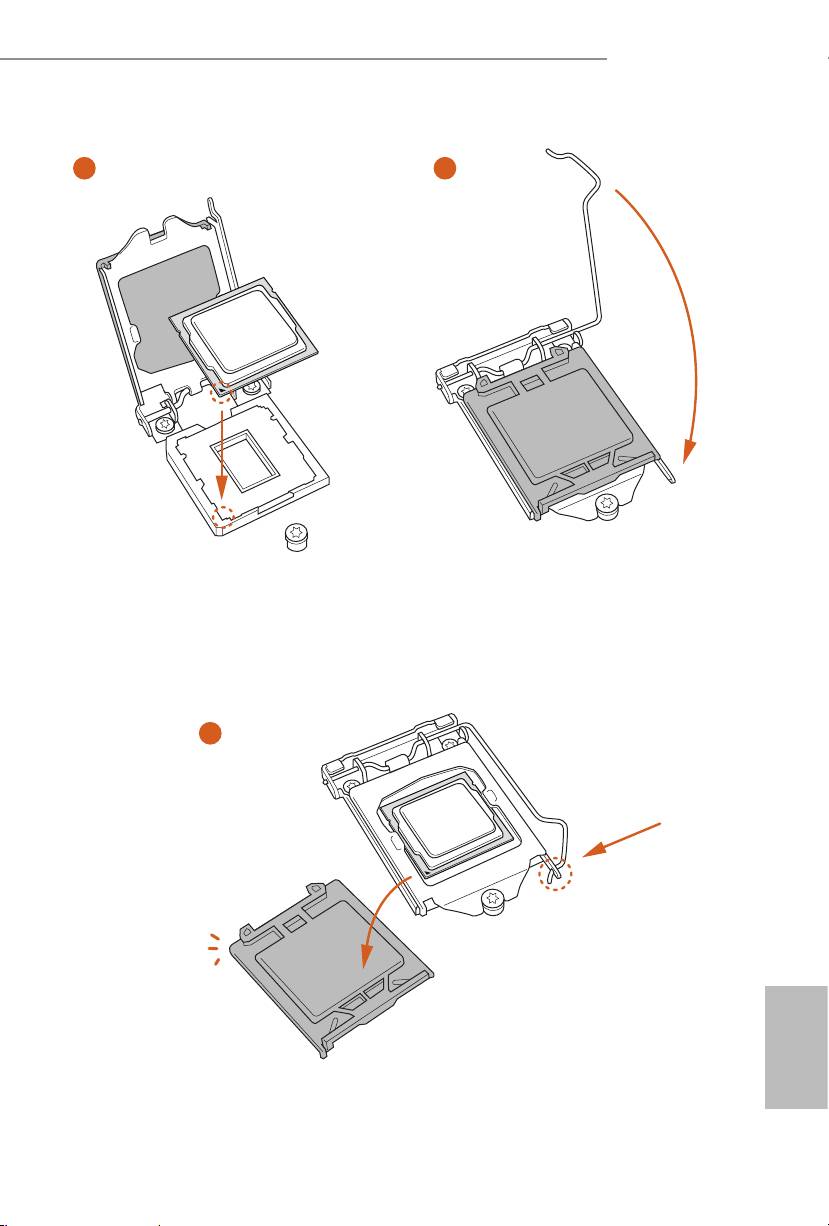
1. Before you insert the 1150-Pin CPU into the socket, please check if the PnP cap is on the
socket, if the CPU surface is unclean, or if there are any bent pins in the socket. Do not
force to insert the CPU into the socket if above situation is found. Otherwise, the CPU
will be seriously damaged.
2. Unplug all power cables before installing the CPU.
1
A
B
2
English
14 15
Q87M vPro
3
4
5
English
14 15
Please save and replace the cover if the processor is removed. e cover must be placed if
you wish to return the motherboard for aer service.
English
16 17

Q87M vPro
2.2 Installing the CPU Fan and Heatsink
1 2
FAN
CPU_
English
16 17

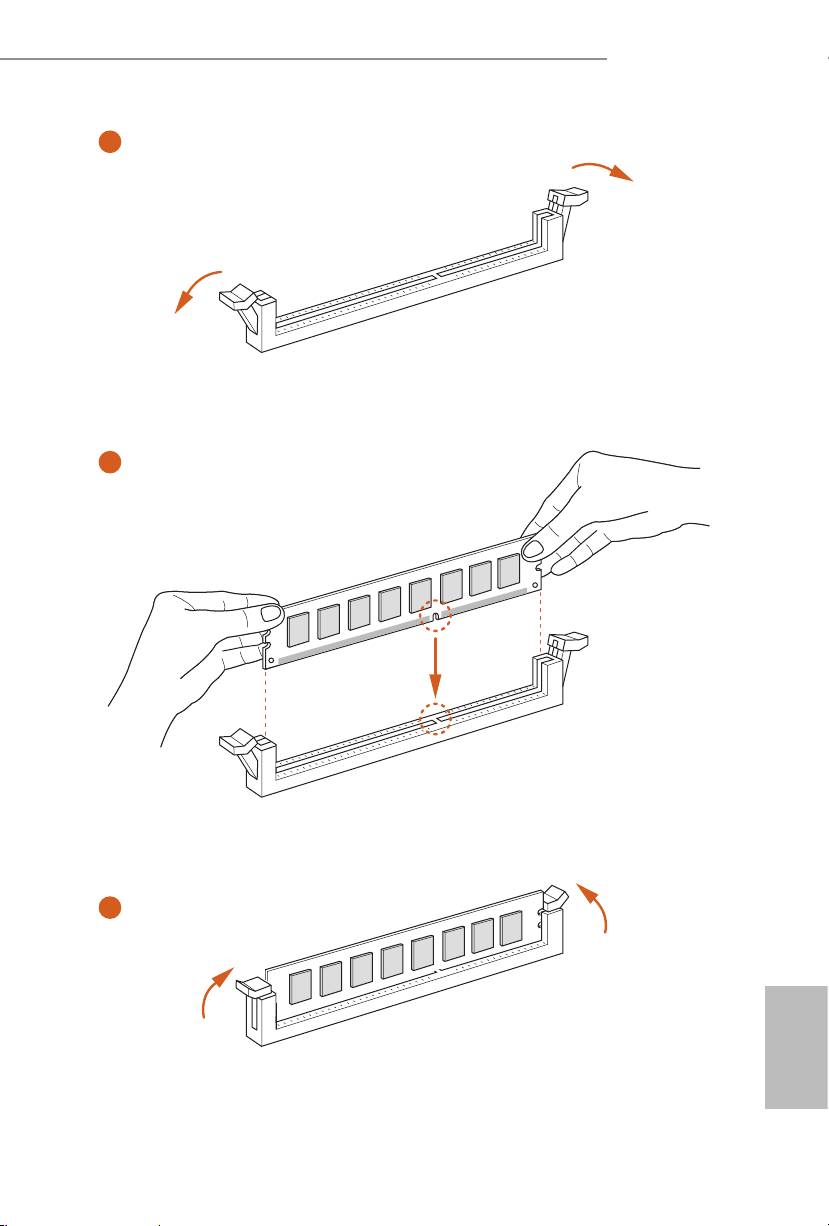
2.3 Installing Memory Modules (DIMM)
is motherboard provides two 240-pin DDR3 (Double Data Rate 3) DIMM slots,
and supports Dual Channel Memory Technology.
1. For dual channel conguration, you always need to install identical (the same brand,
speed, size and chip-type) DDR3 DIMM pairs.
2. It is unable to activate Dual Channel Memory Technology with only one memory module
installed.
3. It is not allowed to install a DDR or DDR2 memory module into a DDR3 slot; otherwise,
this motherboard and DIMM may be damaged.
e DIMM only ts in one correct orientation. It will cause permanent damage to the
motherboard and the DIMM if you force the DIMM into the slot at incorrect orientation.
English
18 19
Q87M vPro
1
2
3
English
18 19
2.4 Expansion Slots (PCI and PCI Express Slots)
ere is 3 PCI Express slots and 1 PCI slot on this motherboard.
Before installing an expansion card, please make sure that the power supply is switched o
or the power cord is unplugged. Please read the documentation of the expansion card and
make necessary hardware settings for the card before you start the installation.
PCI slot:
e PCI1 is used to install expansion cards that have 32-bit PCI interface.
PCIe slots:
PCIE1 (PCIe 3.0 x16 slot) is used for PCI Express x16 lane width graphics cards.
PCIE2 and 3 (PCIe 2.0 x1 slot) are used for PCI Express x1 lane width cards.
English
20 21

Q87M vPro
2.5 Jumpers Setup
e illustration shows how jumpers are setup. When the jumper cap is placed on
the pins, the jumper is “Short”. If no jumper cap is placed on the pins, the jumper
is “Open”. e illustration shows a 3-pin jumper whose pin1 and pin2 are “Short”
when a jumper cap is placed on these 2 pins.
Clear CMOS Jumper
(CLRCMOS1)
Clear CMOSDefault
(see p.1, No. 12)
CLRCMOS1 allows you to clear the data in CMOS. To clear and reset the system
parameters to default setup, please turn o the computer and unplug the power
cord from the power supply. Aer waiting for 15 seconds, use a jumper cap to
short pin2 and pin3 on CLRCMOS1 for 5 seconds. However, please do not clear
the CMOS right aer you update the BIOS. If you need to clear the CMOS when
you just nish updating the BIOS, you must boot up the system rst, and then shut
it down before you do the clear-CMOS action. Please be noted that the password,
date, time, and user default prole will be cleared only if the CMOS battery is
removed.
If you clear the CMOS, the case open may be detected. Please adjust the BIOS option “Clear
Status” to clear the record of previous chassis intrusion status.
English
20 21
2.6 Onboard Headers and Connectors
Onboard headers and connectors are NOT jumpers. Do NOT place jumper caps over these
headers and connectors. Placing jumper caps over the headers and connectors will cause
permanent damage to the motherboard.
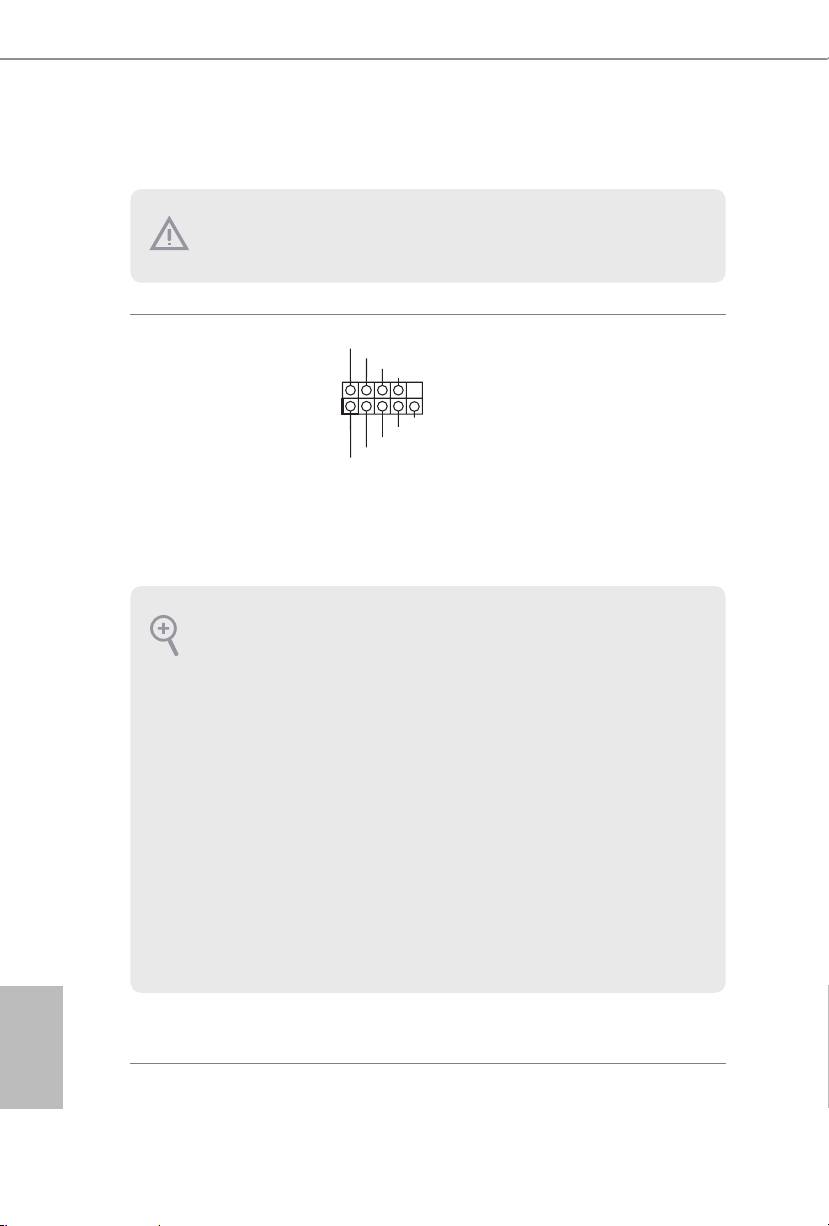
PLED+
System Panel Header
Connect the power
PLED-
PWRBTN#
(9-pin PANEL1)
GND
switch, reset switch and
(see p.1, No. 16)
system status indicator on
1
GND
the chassis to this header
R ESET#
GND
according to the pin
HDLED-
HDLED+
assignments below. Note
the positive and negative
pins before connecting
the cables.
PWRBTN (Power Switch):
Connect to the power switch on the chassis front panel. You may congure the way to turn
o your system using the power switch.
RESET (Reset Switch):
Connect to the reset switch on the chassis front panel. Press the reset switch to restart the
computer if the computer freezes and fails to perform a normal restart.
PLED (System Power LED):
Connect to the power status indicator on the chassis front panel. e LED is on when the
system is operating. e LED keeps blinking when the system is in S1/S3 sleep state. e
LED is o when the system is in S4 sleep state or powered o (S5).
HDLED (Hard Drive Activity LED):
Connect to the hard drive activity LED on the chassis front panel. e LED is on when the
hard drive is reading or writing data.
e front panel design may dier by chassis. A front panel module mainly consists of power
switch, reset switch, power LED, hard drive activity LED, speaker and etc. When connect-
ing your chassis front panel module to this header, make sure the wire assignments and the
pin assignments are matched correctly.
English
22 23

Q87M vPro
Serial ATA3 Connectors
ese six SATA3
(SATA_0:
connectors support SATA
SATA_5
SATA_4
see p.1, No. 15)
data cables for internal
(SATA_1:
storage devices with up to
SATA_3
SATA_2
see p.1, No. 18)
6.0 Gb/s data transfer rate.
(SATA_2:
SATA_1
SATA_0
see p.1, No. 14)
(SATA_3:
see p.1, No. 19)
(SATA_4:
see p.1, No. 11)
(SATA_5:
see p.1, No. 20)
USB 2.0 Headers
Besides two USB 2.0 ports
(9-pin USB_4_5)
on the I/O panel, there
(see p.1, No. 23)
are two headers on this
(9-pin USB_6_7)
motherboard. Each USB
(see p.1, No. 24)
2.0 header can support
two ports.
USB 3.0 Headers
Besides four USB 3.0 ports
(19-pin USB3_4_5)
on the I/O panel, there
(see p.1, No. 21)
are one header on this
motherboard. Each USB
3.0 header can support
two ports.
English
22 23
USB_PWR
P-
P+
GND
DUMMY
1
GND
P+
P-
USB_PWR
1
ID
Vbus
IntA_P_SSRX+
GND
IntA_P_SSTX-
IntA_P_SSTX+
GND
IntA_P_D-
IntA_P_D+
IntA_P_D+
IntA_P_D-
GND
IntA_P_SSTX+
IntA_P_SSTX-
GND
IntA_P_SSRX+
IntA_P_SSRX-
Vbus
IntA_P_SSRX-
Front Panel Audio Header
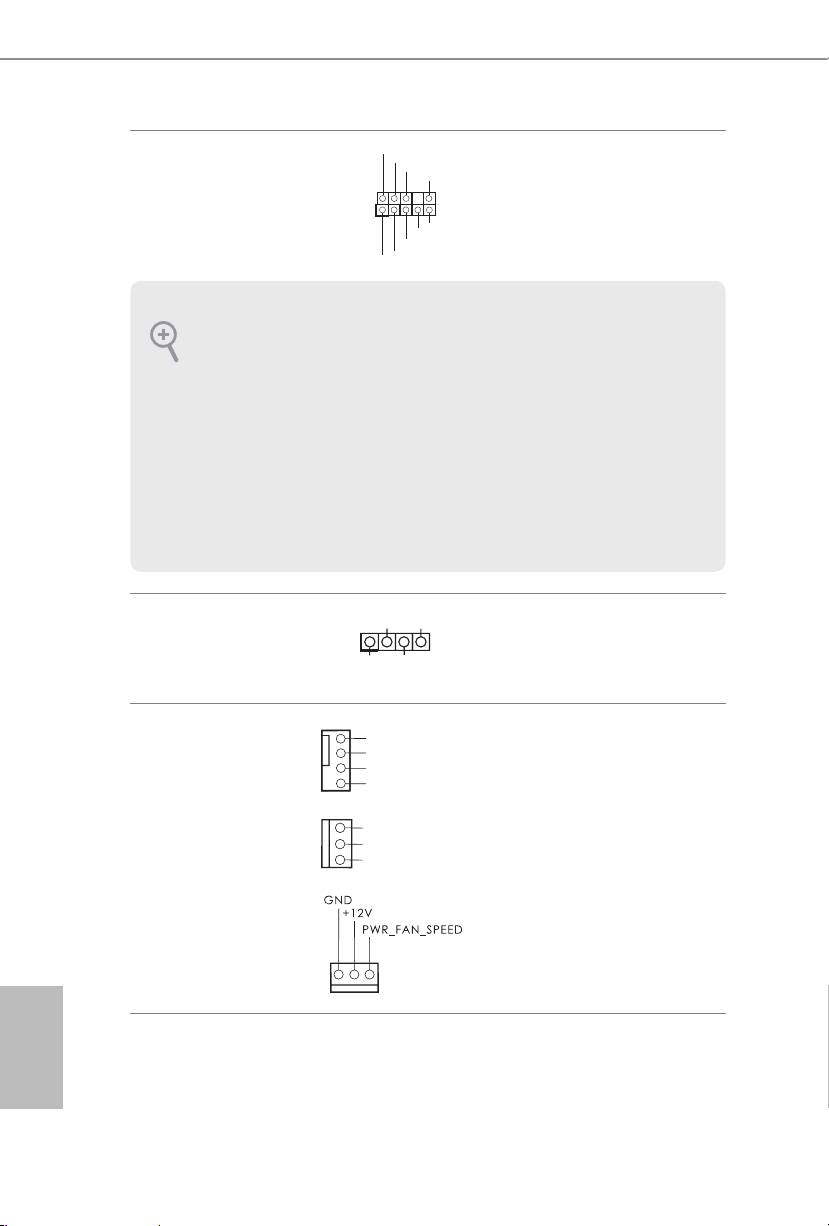
is header is for
(9-pin HD_AUDIO1)
connecting audio devices
(see p.1, No. 27)
to the front audio panel.
1. High Denition Audio supports Jack Sensing, but the panel wire on the chassis must sup-
port HDA to function correctly. Please follow the instructions in our manual and chassis
manual to install your system.
2. If you use an AC’97 audio panel, please install it to the front panel audio header by the
steps below:
A. Connect Mic_IN (MIC) to MIC2_L.
B. Connect Audio_R (RIN) to OUT2_R and Audio_L (LIN) to OUT2_L.
C. Connect Ground (GND) to Ground (GND).
D. MIC_RET and OUT_RET are for the HD audio panel only. You don’t need to connect
them for the AC’97 audio panel.
E. To activate the front mic, go to the “FrontMic” Tab in the Realtek Control panel and
adjust “Recording Volume”.
Chassis Speaker Header
Please connect the chassis
(4-pin SPEAKER1)
speaker to this header.
(see p.1, No. 13)
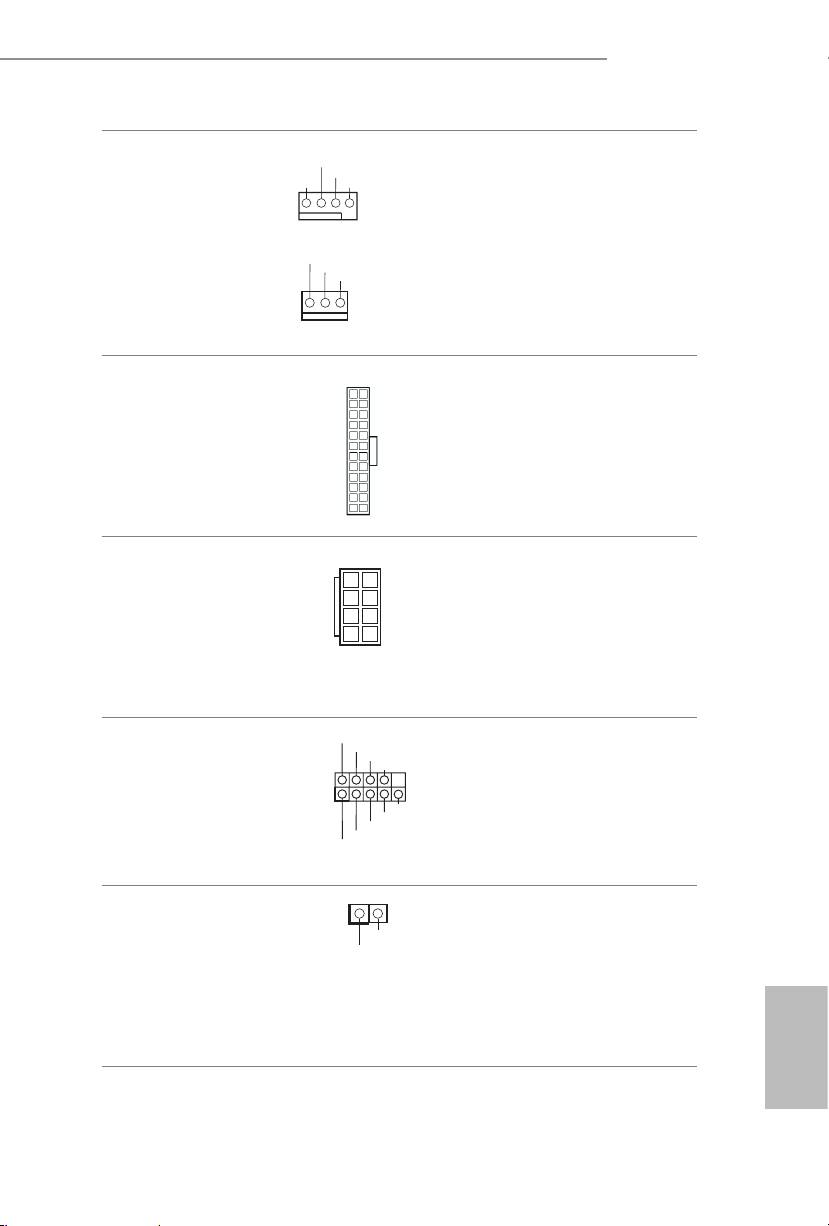
Chassis and Power Fan
Please connect fan cables
Connectors
to the fan connectors and
(4-pin CHA_FAN1)
match the black wire to
(see p.1, No. 10)
the ground pin.
(4-pin CHA_FAN2)
(see p.1, No. 9)
(3-pin PWR_FAN1)
(see p.1, No. 2)
English
24 25
1
DUMMY
+5V
DUMMY
SPEAKER
GND
PRESENCE#
MIC_RET
OUT_RET
1
OUT2_L
J_SENSE
OUT2_R
MIC2_R
MIC2_L
GND
+12V
CHA_FAN_SPEED
FAN_SPEED_CONTROL
GND
+ 12V
CHA_ FAN_SPEED
Q87M vPro
CPU Fan Connectors
(4-pin CPU_FAN1)
(see p.1, No. 4)
(4-pin CPU_FAN2)
(see p.1, No. 5)
English
24 25
GN
D
+12V
CPU_FAN_SPEED
FA
N_SPEED_CONTROL
is motherboard pro-
vides a 4-Pin CPU fan
(Quiet Fan) connector.
If you plan to connect a
3-Pin CPU fan, please
connect it to Pin 1-3.
ATX Power Connector
is motherboard pro-
12
24
(24-pin ATXPWR1)
vides a 24-pin ATX power
(see p.1, No. 8)
connector. To use a 20-pin
ATX power supply, please
plug it along Pin 1 and Pin
1
13
13.
ATX 12V Power
5
1
is motherboard pro-
Connector
vides an 8-pin ATX 12V
(8-pin ATX12V1)
power connector. To use a
(see p.1, No. 3)
4-pin ATX power supply,
8
4
please plug it along Pin 1
and Pin 5.
Serial Port Header
is COM1 header
(9-pin COM1)
supports a serial port
(see p.1, No. 26)
module.
Chassis Intrusion Header
1
is motherboard supports
(2-pin CI1)
CASE OPEN detection feature
(see p.1, No. 22)
that detects if the chassis cover
has been removed. This feature
requires a chassis with chassis
intrusion detection design.
Signal
GND
GN
D
+12V
CPU_FA
N_SPEED
RRXD1
DDTR#1
DDSR#1
CCTS#1
1
RRI#1
RRTS#1
GND
TTXD1
DDCD#1
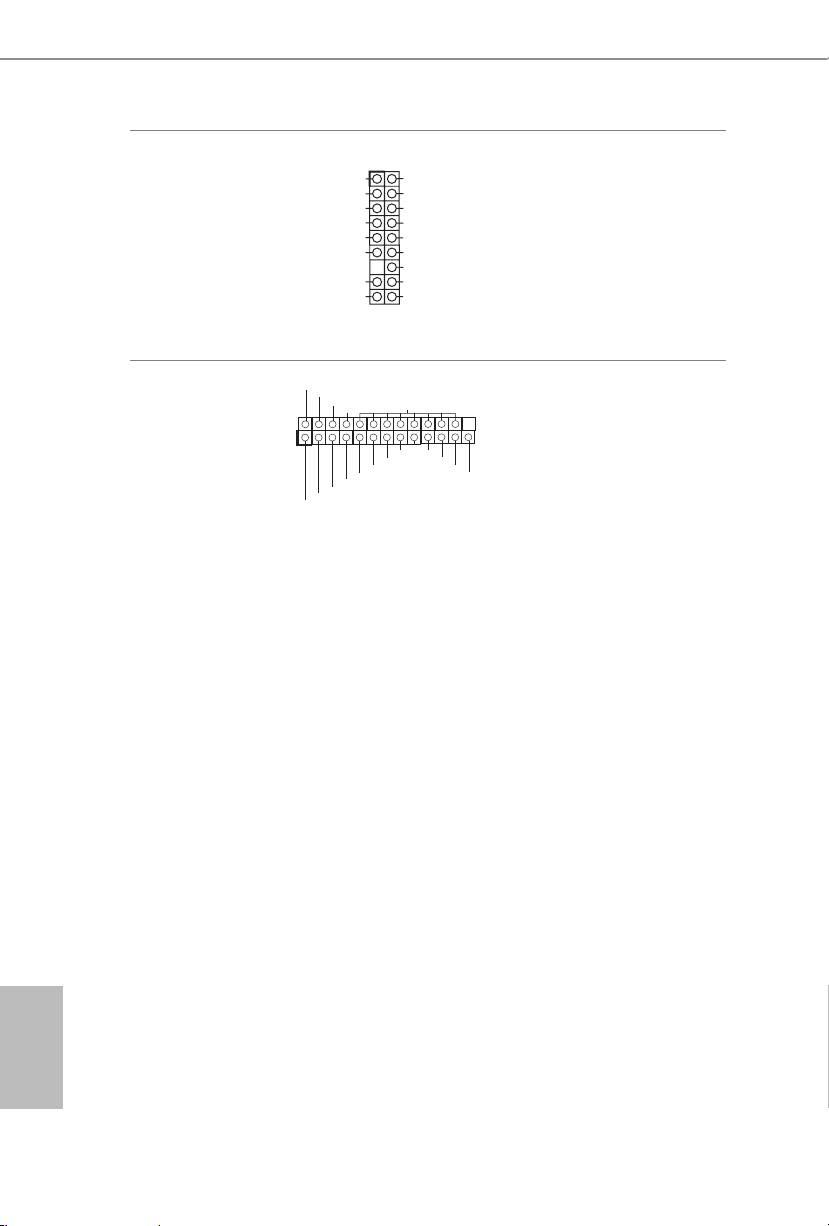
TPM Header
1
is connector supports Trusted
(17-pin TPMS1)
Platform Module (TPM) system,
LFRAME#_L
(see p.1, No. 1)
which can securely store keys,
digital certicates, passwords,
and data. A TPM system also
helps enhance network security,
protects digital identities, and
ensures platform integrity.
Print Port Header
is is an interface for print port
(25-pin LPT1)
cable that allows convenient
(see p.1, No. 25)
connection of printer devices.
English
26 PB
CK_33M_TPM
T
PM_RST#
SMB_DATA _MAI
LAD3_L
LAD2_L
+3V
LAD1_L
LAD0_L
GND
S_PWRDWN#
+3VSB
SERIRQ#
GNDF_CLKRUN#
N
GND
SMB_CLK_MAIN
1
AFD#
ERROR#
PINIT#
SLIN#
GND
STB#
SPD7
SPD6
ACK#
SPD5
BUSY
SPD4
PE
SPD3
SLCT
SPD2
SPD1
SPD0
